

VoiceStudio AI at a Glance
Looking for a free ElevenLabs alternative? VoiceStudio AI is the free, open-source desktop app this guide covers — it clones voices, dubs videos, and narrates audiobooks right on your own computer.
AI voices are everywhere right now. The narrator on that faceless YouTube channel, the intro of your
podcast, the audiobook you finished last week — a huge share of them are AI-generated. Until recently, the best-sounding voices came from paid platforms like ElevenLabs, which means a monthly subscription before you even know whether AI narration fits your workflow.
VoiceStudio AI changes that equation. It is a free, open-source desktop app that clones voices, designs brand-new voices from text descriptions, dubs videos into other languages, transcribes speech and produces full audiobooks — all running locally on your own computer. No account, no API key, no subscription, no usage meter. In October 2026 it became the biggest riser on GitHub’s monthly trending page, gaining more than 34,000 stars in 30 days and passing 73,000 stars total — a clear sign that creators are hungry for a free ElevenLabs alternative they actually own.
This beginner guide walks you through everything: what VoiceStudio is, how to install it, how to generate your first voice, how to clone and design voices, how to dub videos, and the
limits you must know before using it for client work.
Step 1: Understand What VoiceStudio Actually Is
VoiceStudio is not a single AI voice model. Think of it as the plumbing that the local AI voice world was missing.
Before VoiceStudio, cloning a voice on your own hardware meant cloning a model repository, fighting PyTorch versions, finding model weights, writing scripts to split long text into chunks, writing more scripts to stitch the audio back together — and then discovering the model could not do the language you needed. Every model was good; the glue between them did not exist.
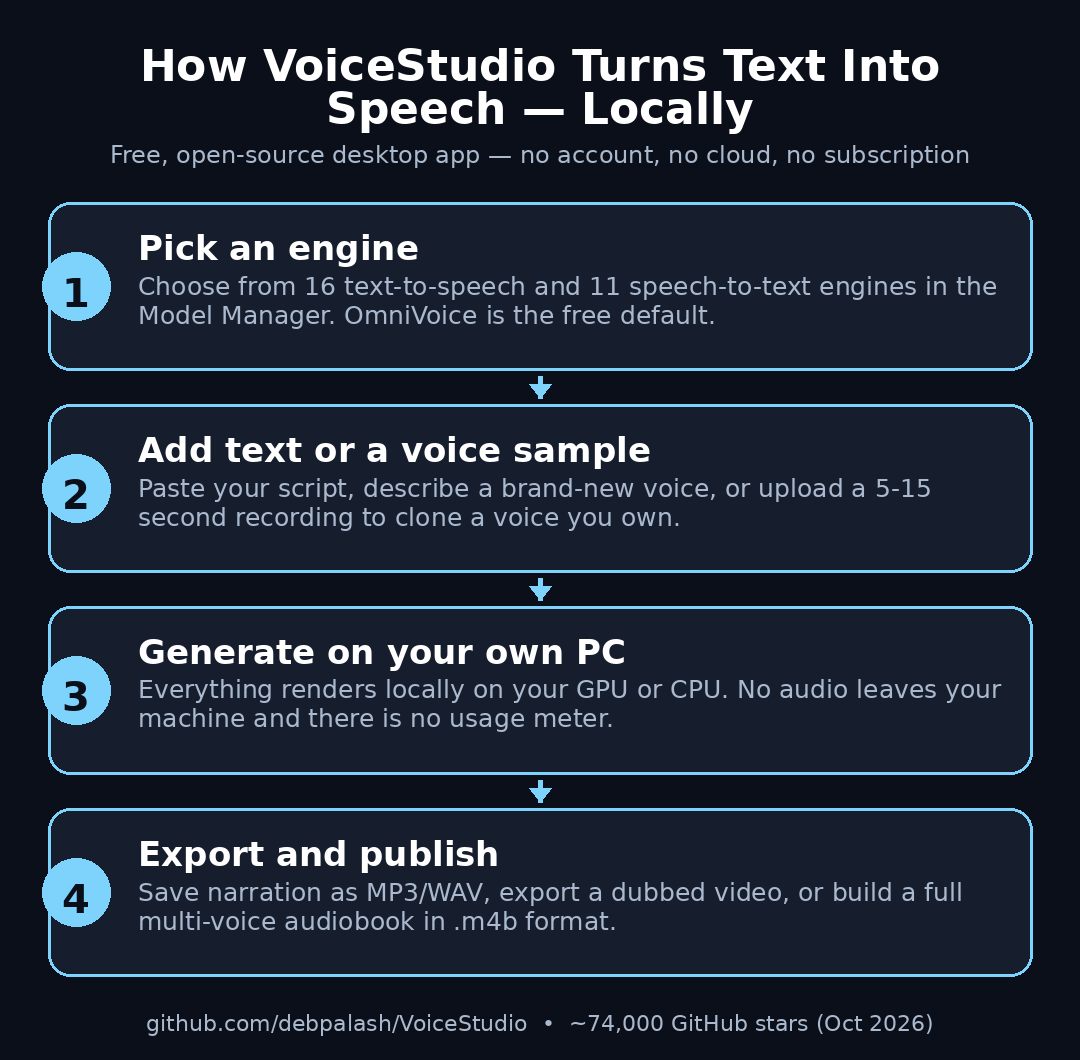
VoiceStudio is that glue. It is a desktop app (Electron frontend, Python backend, SQLite database) that puts 16 text-to-speech engines and 11 speech-to-text engines behind one clean interface and one API. You switch engines from the status bar with Ctrl+E (or Cmd+E on Mac), and the app handles the Python environment, model downloads, GPU routing and disk space for you. Its default voice engine is OmniVoice from k2-fsa.
A few honest facts up front:
- VoiceStudio is in active beta — expect updates, occasional bugs and changing menus.
- The app is licensed under AGPL-3.0 (free and open source).
- The default model’s weights are licensed CC-BY-NC — non-commercial use only (more on this in Step 12).
- Everything runs locally by default. Remote services are optional, and usage analytics require your consent.
Step 2: Check What Your Computer Needs
VoiceStudio runs on all major desktop platforms:
- macOS 13.3 or newer (Apple Silicon)
- Windows 10 / 11 (64-bit)
- Linux x86_64 (glibc 2.39+)
- Docker, if you prefer containers
On hardware, here is the realistic picture:
- GPU strongly recommended — NVIDIA CUDA, Apple MPS/MLX or AMD
- on Linux. Voice generation on a GPU takes seconds; on a CPU it can take minutes per paragraph.
- CPU-only works if you are patient — fine for testing, painful for long audiobooks.
- Disk space — voice models are large. Budget several gigabytes for the engines and voices you download; the app shows disk usage per model so you can clean up.
If your machine already edits video or runs local LLMs, it will handle VoiceStudio comfortably.
Step 3: Download and Install VoiceStudio
Installation is refreshingly normal for an open-source project:
- Go to the official repository at github.com/debpalash/VoiceStudio and open the Releases page.
- Download the installer for your operating system (DMG for Mac, EXE for Windows, AppImage or similar for Linux).
- Run the installer and launch the app. On first start it sets up its Python backend — give it a few minutes.
- No sign-up screen appears, because there is nothing to sign up for. No account, no API key, no credit card.
Developers who want the bleeding edge can run it from source:
git clone https://github.com/debpalash/VoiceStudio.gitbun install, thenbun run setup, thenbun run dev
For everyone else, the release installer is the right choice.
Step 4: Install a Voice Engine from the Model Manager
Opening VoiceStudio for the first time, you will not have a voice engine yet. Fix that in the Model Manager:
- Open the Model Manager from the sidebar or settings.
- You will see a
- of text-to-speech and speech-to-text engines. OmniVoice is the recommended default — install it first.
- Click download and wait. Models range from hundreds of megabytes to several gigabytes.
- Once installed, select it as the active engine. You can install several engines and switch between them anytime with Ctrl/Cmd+E.
One number to treat with healthy
: VoiceStudio advertises 646 languages. That figure comes from OmniVoice’s training data (581,000 hours of audio), but quality varies enormously between languages and engines. Major languages like English, Spanish, French, German and Indonesian work well; low-resource languages can be rough. Test your target language before committing to a big project.
Step 5: Generate Your First Text-to-Speech Audio
This is the five-minute win that makes the whole install worthwhile:
- Open the Text-to-Speech tab.
- Paste or type your text — start with two or three sentences.
- Choose a voice from the voice list.
- Adjust speed and pitch if you like (defaults are fine for a first test).
- Hit Generate, listen, then export as WAV or MP3.
Tips that immediately improve quality:
- Use short sentences with normal punctuation. The engine reads commas and full stops as pauses.
- Spell out numbers and abbreviations (“twenty twenty-six” instead of “2026”, “for example” instead of “e.g.”).
- For long scripts, the app chunks the text automatically — but generating chapter by chapter gives you cleaner control for editing later.
Congratulations — you just made an AI voiceover without paying anyone anything.
Step 6: Design a Brand-New Voice from a Description
Do not want to clone anyone? Voice design builds an original voice from words:
- Open Voice Design.
- Describe the voice with tags: gender, approximate age, accent, pitch (deep, warm, bright), and delivery style (calm narrator, energetic presenter, soft storyteller).
- Generate a few samples and pick the one you like.
- Save it to your voice library with a name you will remember.
One caveat from OmniVoice’s own documentation: voice design was trained mostly on Chinese and English data, so results can be unstable in some other languages. If your designed voice sounds off, try a different engine from the Model Manager — that is exactly what the multi-engine design is for.
Step 7: Clone a Voice from a Short Recording
Voice cloning is VoiceStudio’s headline feature, and it is genuinely impressive:
- Record or find a clean 5–15 second sample of the voice. A few seconds works; 10–15 seconds gives a noticeably cleaner clone. Quiet room, no background music, no echo.
- Open Voice Cloning and upload the reference clip.
- Type or paste the text you want spoken.
- Generate and compare with the original. Adjust the reference clip if the tone feels wrong.
The ethics rule is non-negotiable: only clone voices you have explicit permission to use — your own voice, a hired voice actor’s, or a collaborator who agreed. Cloning someone’s voice without consent can violate the law in many countries and will get your content removed from platforms. VoiceStudio gives you the tool; the responsibility is yours.
Step 8: Dub a Video into Another Language
This is where VoiceStudio starts replacing paid services. Its dubbing pipeline does in one app what used to need four tools:
- Import your video.
- VoiceStudio transcribes the speech (WhisperX is the default speech-to-text engine) and detects who is speaking when (speaker diarization via Pyannote/WhisperX).
- Translate the transcript — to any of the supported languages.
- The app re-synthesizes each speaker’s lines in the new language, preserving per-speaker voices and timing.
- Export the dubbed video.
Practical uses: turning one YouTube video into Spanish, Hindi or Indonesian versions;
course content; making shorts for new audiences. Review the timing on the first dub — automatic timing is good, but a quick manual pass on scene changes makes it feel professional.
Studios that need this at serious scale — dozens of videos a week across languages — often pair tools like this with a managed pipeline. Teams exploring that route can look at AI automation services such as Agentic Affairs, which build exactly these kinds of content workflows for businesses.
Step 9: Dictate and Transcribe Anywhere on Your System
VoiceStudio is not only a studio app — it is also a daily driver:
- A floating dictation widget with a system-wide hotkey lets you type by voice in any application: documents, emails, chat, code editors.
- An optional local-LLM cleanup pass fixes punctuation and obvious misheard words.
- The transcription tools handle meetings, interviews and lectures, with speaker labels.
Bonus for audio editors: VoiceStudio includes vocal isolation (via Demucs), which separates voice from background music — handy for cleaning up recordings before you clone or transcribe them.
Step 10: Produce Audiobooks and Batch Jobs
Long-form narration is where local generation really pays off, because cloud services charge by the character:
- Open the audiobook workflow and import an EPUB or PDF.
- Assign different voices to different characters or chapters for a multi-voice production.
- Render chapter by chapter, listening as you go.
- Export the finished book as .m4b (the audiobook format with chapter markers).
For repetitive work, the batch jobs queue renders many texts unattended — generate a week’s worth of video narrations overnight while your GPU would otherwise sit idle.
Step 11: Plug VoiceStudio into Your AI Agents (Optional but Powerful)
Here is the feature that separates VoiceStudio from a simple desktop app: it ships a local API that follows OpenAI’s audio API conventions, plus an MCP server. In plain English, that means scripts and AI coding agents (Claude Code, Codex, Cursor) can call VoiceStudio to generate narration or transcribe files — with nothing leaving your machine.
The project even ships an agent skill you can install with:
npx skills add debpalash/VoiceStudio
Choose the voicestudio skill for audio work. Suddenly your coding agent can narrate its own demo videos or transcribe your meeting recordings as part of a bigger task — privately, locally, for free.
Businesses that want voice automation wired into customer-facing workflows — IVR systems, support call summaries, onboarding videos generated on demand — sometimes prefer to have the integration built professionally. A digital agency experienced with AI tooling can design that pipeline around tools like VoiceStudio so the team just presses a button.
Step 12: Know the Limits Before You Go All In
Free and open source does not mean “no strings attached.” Know these before client work:
- Active beta. Features move, menus change, and you will hit the occasional bug. Keep the app updated and do not build a deadline-critical project on a brand-new release.
- Hardware matters. Bigger engines need a real GPU and plenty of RAM. Check each engine’s requirements in the Model Manager before downloading 8 GB of weights onto a thin laptop.
- The
- catch. The VoiceStudio app is AGPL-3.0, but the default OmniVoice model weights are CC-BY-NC — non-commercial use only. For ads, product videos or client work, switch to an engine with a commercial-friendly
- , or pay for a commercial voice service. The project’s own landing page answers the commercial-use question with “AGPL-3.0” — which covers the app, not the voice.
- Quality varies. Voice quality differs significantly between engines, and language coverage is uneven. Always test with your real script before promising a client a result.
- Clone ethically. Covered in Step 7, worth repeating: permission first, always.
VoiceStudio vs Popular Alternatives
| FeatureVoiceStudioElevenLabsFish AudioSuno SpeechPriceFree, open sourceFree tier, then from ~$5/moFree tier + paid plansFree plan with limitsRuns 100% locallyYesNo (cloud)No (cloud)No (cloud)Voice cloningYes (zero-shot)YesYes (voice cloning focus)LimitedVideo dubbingYes, built inVia add-onsNoNoLanguages claimed64690+60+MultipleAccount / API key neededNoYesYesYesCommercial-use defaultNo (CC-BY-NC weights)Yes (paid plans)Depends on planDepends on planBest forFree local voice work, privacyTop-tier cloud qualityFast voice cloning onlineVoice + music in one track |
|---|
If you want a cloud tool with zero setup, our Fish Audio beginner guide covers a strong free-tier option. If your priority is free, private and unlimited, VoiceStudio is currently in a league of its own.
Frequently Asked Questions
Is VoiceStudio really 100% free?
Yes. The app is open source under AGPL-3.0, and its core local workflows need no account, API key, subscription or usage meter. You supply the computer and the electricity. Just remember that individual voice models carry their own
— the default OmniVoice weights are non-commercial.
Is VoiceStudio better than ElevenLabs?
It depends on what “better” means. ElevenLabs still leads on raw voice quality and ease of use in the cloud, and it is the safer pick for commercial client work. VoiceStudio wins on price (free), privacy (everything local), and flexibility (16+ engines, dubbing, audiobooks in one app). Many creators use both: VoiceStudio for drafts and personal projects, a paid service for final commercial delivery.
Can I use VoiceStudio voices in YouTube videos that earn ad revenue?
Careful:
YouTube counts as commercial use, and the default OmniVoice weights are CC-BY-NC (non-commercial). For
content, switch to an engine inside VoiceStudio with a commercial-friendly
, or verify the specific model’s terms first. When in doubt, check the
before you publish.
Does VoiceStudio work offline?
Once your engines and models are downloaded, yes — generation, cloning, dubbing and transcription all run on your machine with no internet needed. You only need a connection to download the app, engines and updates.
Is it legal to clone someone’s voice with VoiceStudio?
Only with their permission. Voice cloning technology itself is legal; using someone’s cloned voice without consent — for pranks, fake endorsements or misinformation — can violate personality-rights, fraud and deepfake laws that now exist in many countries, and platforms will remove the content. Clone your own voice or a voice you have licensed, and you are fine.
How many languages does VoiceStudio support?
The project claims 646 languages via the default OmniVoice engine, trained on 581,000 hours of audio. Treat that as a
number, not a quality promise: major languages work well, while low-resource languages can be unstable. Test your language with a short sample first.
Final Thoughts
VoiceStudio is the clearest proof yet that the “free vs good” trade-off in AI voice is collapsing. Six months after its repository appeared, it had tens of thousands of GitHub stars and the fastest-growing open-source project of its month — because it solves a real problem: it bundles voice cloning, voice design, dubbing, dictation, transcription and audiobooks into one local app, with no subscription standing between you and your first voiceover.
Start simple: install it, generate one paragraph with the default engine, then try cloning your own voice. Once you are comfortable, the dubbing and audiobook workflows are where the real time savings hide. Just respect the two golden rules — check the model
before commercial work, and never clone a voice without permission.
Explore More Free AI Tools
Want more free AI tools like VoiceStudio? Try our free tools at aitoolsteps.com: the AI Title Generator for headlines that get clicks, the Meta Description Generator for SEO snippets, the AI Rewriter for polishing drafts, and the Keyword Density Checker for on-page SEO.
Ready to try it? Download VoiceStudio AI from GitHub and work through the steps above — most people generate their first clip with VoiceStudio AI in under ten minutes.