

Imagine never checking a competitor’s pricing page again — and still knowing the moment it changes. That is exactly what Exa Monitors v2 does. It is a scheduled web search tool that watches the internet for you and calls your AI agent only when something new and relevant appears. In this beginner-friendly guide, you will learn how to use Exa Monitors v2 step by step, from your first monitor to a fully automated alert workflow that runs while you sleep.
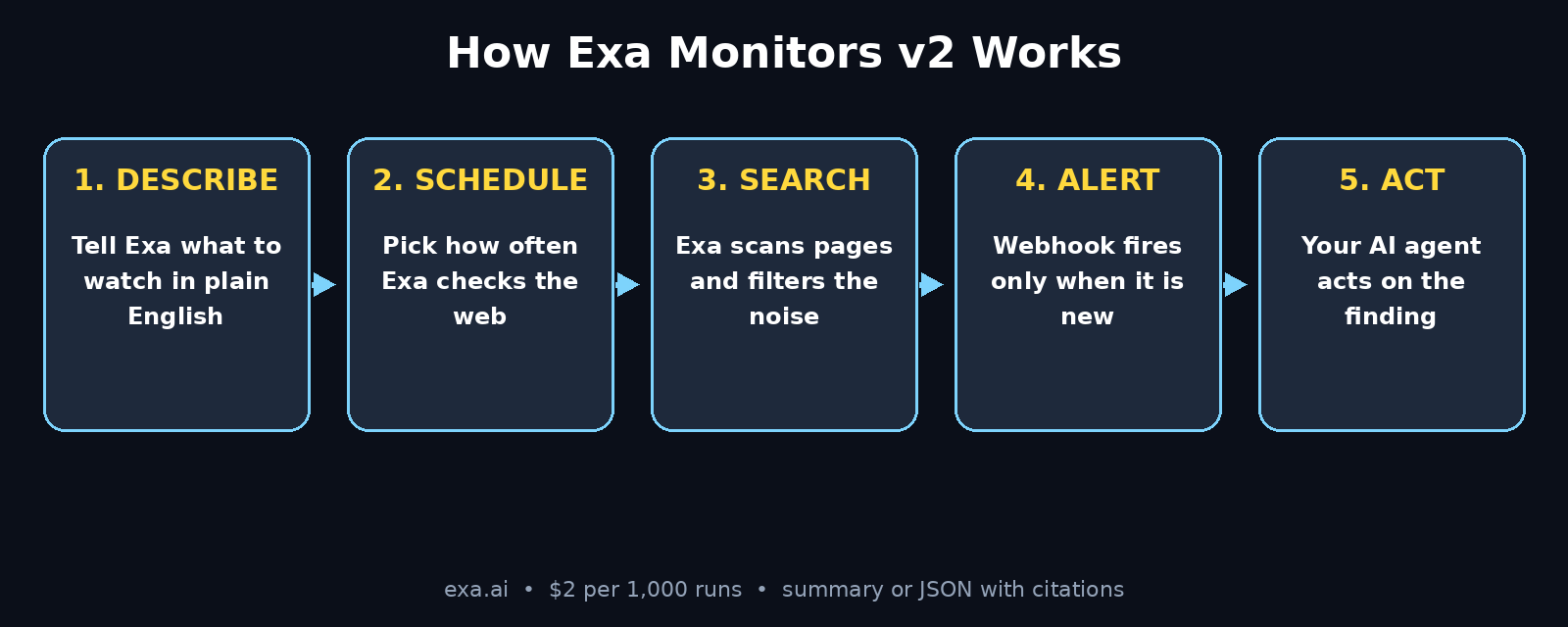
Exa Monitors v2 launched on November 7, 2026, as a major upgrade to Exa’s original monitoring feature. The idea is simple: you describe what you want to watch in plain English, pick how often Exa should check, and Exa sends your webhook a summary or JSON payload — with citations — only when there is genuinely something new. Version 2 remembers what it has already sent you, so you stop getting the same alert twice, and it costs $2 per 1,000 runs, down from $15 in version 1. For beginners, that means you can monitor prices, news, competitors, job listings, or product launches for pennies.
Whether you run a small business, write a newsletter, hunt for deals, or just want to stay ahead of your industry, Exa Monitors v2 turns passive browsing into an always-on research assistant. No coding is required to start, and the free tier is enough to test the whole workflow. Let us walk through it.
Step 1: Understand What Exa Monitors v2 Actually Does
Before you click anything, it helps to understand the three moving parts of Exa Monitors v2. First, there is the monitor itself — a saved instruction that says “watch this topic and tell me when X happens.” Second, there is the schedule — how often Exa checks, from every few minutes to once a day. Third, there is the delivery — a webhook call that pushes a summary or structured JSON to your app, your AI agent, or a tool like Zapier.
Unlike a Google Alert, which emails you a pile of links, Exa Monitors v2 uses AI search to understand your request. You can ask it to watch for “a price drop below $50 on wireless earbuds” rather than just “wireless earbuds.” The monitor reads the pages, decides whether the change matches your rule, and only then fires. That filtering is the whole point: fewer, better alerts.
Version 2 adds one more superpower — memory. It remembers what it already told you, so a story that stays on a homepage for three days does not trigger three alerts. If you manage content or client reporting for a digital agency, this deduplication alone saves hours of sorting through repeat notifications every week.
Step 2: Create Your Free Exa Account
Head to exa.ai and sign up with your email or Google account. The free tier gives you enough runs to build and test several monitors before you spend anything. After signing in, open the dashboard and look for the Monitors section in the left sidebar.
- Verify your email so alerts and API keys are delivered without problems.
- Open the API keys page and copy your key into a safe place — you will need it in Step 6 when you connect a webhook.
- Check your usage meter on the dashboard so you always know how many of your free runs remain.
- Bookmark the Monitors page — you will return here every time you create or edit a monitor.
There is no credit card required for the free tier, which makes Exa Monitors v2 a genuinely beginner-friendly starting point. Take two minutes to explore the dashboard now; knowing where the usage meter and the API key live will save you confusion later.
Step 3: Pick Your First Thing to Watch
The most common beginner mistake is monitoring something too broad. “AI news” will flood you with alerts. “Anthropic launches a new Claude model” will send you one alert that actually matters. Start narrow, then widen once you trust the system.
Good first monitors for beginners include:
- A competitor’s pricing page — alert me when the price of a specific plan changes.
- A product launch page — alert me when a new version or feature is announced.
- A job board search — alert me when a remote AI job matching my skills is posted.
- A news topic — alert me when a major outlet reports on a topic I follow.
- A deal page — alert me when a flight, gadget, or course drops below a price I set.
Write your monitoring goal down in one sentence before you create the monitor. For example: “Tell me when the price of the MacBook Air M4 drops below $850 on any major retailer.” That single sentence becomes the heart of your monitor in the next step, and the clearer it is, the fewer false alerts you will get.
Step 4: Create Your First Monitor in Exa Monitors v2
Click New Monitor in the Monitors section. You will see a simple form with three fields that matter most: what to watch, where to look, and how often to check. Type your one-sentence goal from Step 3 into the description box, using plain language. Exa Monitors v2 understands natural instructions, so write it the way you would explain it to a colleague.
Next, add the sources. You can paste specific URLs — a competitor’s pricing page, a blog, a documentation page — or leave the source field open and let Exa search the whole web for your topic. Specific URLs give you precise, fast results. Open web search gives you broader coverage. For a first monitor, paste one or two URLs so you can see exactly how the alerts behave.
Finally, choose the schedule. Beginners should start with once or twice a day. A daily check is plenty for pricing pages, news, and product launches, and it keeps your run count low. You can always increase the frequency later for fast-moving topics like flash sales or live events. Click Create Monitor and Exa Monitors v2 will run its first check immediately so you can see what an alert looks like.
Step 5: Write a Monitoring Prompt That Filters Out Noise
The description you write is really a prompt, and prompt quality decides alert quality. A vague prompt — “watch this website for changes” — will alert you about cookie banners and footer tweaks. A precise prompt — “alert me only when the Pro plan price changes or a new feature is added to the changelog” — stays quiet until something real happens.
Use this simple formula for every monitor prompt:
- Trigger: the exact change you care about (“price drops below $850”).
- Scope: where it should look (“on the pricing page and the blog”).
- Ignore: what does not count (“ignore design changes, cookie notices, and footer updates”).
- Detail: what the alert should include (“include the old price, the new price, and the page link”).
Test your prompt by reading the first few alerts carefully. If an alert is a false positive, add one line to the ignore list and save. Two or three rounds of this tuning usually turn a noisy monitor into a quiet, trustworthy one. Teams that run AI automation services for clients use exactly this pattern: a tight prompt, a short ignore list, and a weekly review of what fired and why.
Step 6: Connect a Webhook So Alerts Reach Your AI Agent
An alert that sits in a dashboard is easy to miss. The real power of Exa Monitors v2 is the webhook: when your monitor fires, Exa calls a URL you control and delivers the finding as a summary or JSON, with citations. That payload can land in your AI agent, your chat app, or an automation tool.
To connect it, open your monitor’s settings and find the webhook field. Paste the URL of your receiving endpoint — this could be a Zapier webhook, a Make scenario, a Slack incoming webhook, or your own server endpoint. Choose JSON if your agent or automation needs structured data, or the plain summary if a human will read it in chat.
- Zapier or Make: create a “catch webhook” trigger, paste its URL into Exa, then route the alert to email, Slack, or a spreadsheet.
- Claude or ChatGPT agent: point the webhook at your agent’s endpoint so the agent can act on the finding — draft a reply, update a doc, or open a task.
- Slack or Discord: send the summary straight into a channel your team already watches.
- Your own server: store every alert in a database for a searchable history of changes.
Always send yourself a test alert before relying on the webhook. Exa lets you trigger a test run from the monitor page. Confirm the payload arrives, the format is what you expected, and the citations link to the right pages. A webhook you have never tested is a webhook that will fail silently on the one alert that matters.
Step 7: Choose the Right Schedule and Run Budget
Every check costs runs, and Exa Monitors v2 charges $2 per 1,000 runs. That sounds cheap — and it is — but a monitor checking every 15 minutes burns about 2,880 runs a month. Ten monitors at that pace would cost you real money. Match the schedule to the speed of the thing you are watching.
- Once a day: pricing pages, blogs, documentation, job boards, and most news topics.
- Every few hours: product launches, ticket sales, and fast-moving announcements.
- Every 15–30 minutes: flash sales, limited drops, and live events — only while they are actually live.
Turn aggressive schedules off when the event ends. A flash-sale monitor left running at 15-minute intervals for a month wastes hundreds of runs on a page that no longer changes. Set a calendar reminder to review your monitors every Sunday: pause the ones that have gone quiet, tighten the ones that are noisy, and delete the ones you no longer need. Good monitoring is mostly gardening.
Step 8: Read Alerts Like a Researcher, Not a Firefighter
When an alert arrives, it includes three things: what changed, where it changed, and a citation linking to the source. Read the citation before you act. AI search is good, but it can misread a page — a “price drop” might be a different currency, a refurbished listing, or a temporary banner. The citation lets you verify in ten seconds.
Build a small habit around alerts: open the source, confirm the change, then decide. For a price drop, check whether the lower price is real and still live. For a competitor announcement, read the full post before reacting. For a news alert, check a second outlet before sharing it. Exa Monitors v2 does the watching; you still do the judging — and that division of labour is what makes the tool trustworthy instead of noisy.
If you forward alerts to clients or a team, add one line of your own context: “Price dropped from $999 to $849 — this undercuts our current offer by $50.” That single sentence turns a raw alert into a decision, and it is the difference between a monitoring tool and a monitoring service.
Step 9: Chain Monitors Into a Full AI Workflow
One monitor is useful. Five monitors feeding one agent is a system. Once your first monitor is reliable, connect its webhook to an AI agent that can act on what it finds. For example, a price-drop alert can trigger your agent to draft a social post, update a spreadsheet, or notify a client. A competitor-announcement alert can trigger a summary in your team chat with suggested talking points.
Start with the simplest chain: monitor → webhook → chat message. When that works every time, add one action at a time. A common next step is logging every alert into a Google Sheet or Notion database so you build a timeline of changes you can search later. From there, some users connect the sheet to a weekly digest that their agent writes automatically — “here is everything that changed in our market this week.”
Keep each chain short and testable. If a chain has five steps and breaks, you will not know which one failed. If it has two steps and breaks, you will. Exa Monitors v2 is the trigger; your agent or automation tool is the worker. Respect that boundary and your workflows will stay reliable.
Step 10: Maintain, Review, and Scale Your Monitors
Monitoring is not a set-and-forget task. Websites redesign, URLs change, and topics go stale. Once a month, open your Monitors list and run a quick audit: is each monitor still firing useful alerts? Has any monitor gone silent for weeks — and if so, is the page gone or is the topic simply quiet? Is any monitor firing daily alerts you now ignore? Pause or delete anything that no longer earns its runs.
When you are ready to scale, group monitors by purpose: one group for competitors, one for prices, one for news, one for jobs. Give each monitor a clear name — “Competitor X Pro price” beats “Monitor 7” — so anyone on your team can understand the list at a glance. And keep a simple note of what each monitor costs per month, so a quiet experiment never turns into a surprise bill.
That is the full journey: one clear goal, one tight prompt, one tested webhook, and a weekly habit of pruning. Most beginners have their first working monitor within 20 minutes, and a genuinely useful monitoring system within a week.
Exa Monitors v2 vs Google Alerts vs Visualping: Which Should You Use?
Exa Monitors v2 is not the only way to watch the web, so here is an honest comparison with the two tools beginners usually consider first.
| Feature | Exa Monitors v2 | Google Alerts | Visualping |
|---|---|---|---|
| What it watches | Web pages + AI search across the web | Google-indexed news and web pages | Visual changes on specific pages |
| AI filtering | Yes — understands your rule in plain English | No — keyword matching only | No — pixel and text diffs only |
| Alerts only when relevant | Yes, with memory of past alerts | No, sends every match | Yes, but any visual change counts |
| Webhook / agent delivery | Yes — JSON or summary with citations | Email only | Email, Slack, webhook on paid plans |
| Pricing | $2 per 1,000 runs | Free | Free tier, then from ~$10/month |
| Best for | AI agents and smart, filtered alerts | Simple free news tracking | Watching a page’s layout or text change |
If you only need free email alerts about a keyword, Google Alerts is still fine. If you need to know the moment a page’s design changes, Visualping is the specialist. But if you want an AI agent that only bothers you when something genuinely matches your rule — with citations and a webhook you can build on — Exa Monitors v2 is the strongest choice of the three.
Frequently Asked Questions
Is Exa Monitors v2 free to try?
Yes. Exa offers a free tier that covers enough runs to build and test several monitors. Paid usage is $2 per 1,000 runs, so even heavy monitoring stays cheap — a daily monitor costs only about 30 runs a month.
Do I need coding skills to use Exa Monitors v2?
No. Creating a monitor is a form: describe what to watch, pick a schedule, and save. Webhooks are the only slightly technical part, and no-code tools like Zapier or Make give you a webhook URL to paste in without writing any code.
How is Exa Monitors v2 different from version 1?
Version 2 remembers what it has already sent, so you never get the same alert twice, and it is much cheaper — $2 per 1,000 runs instead of $15. It is also quieter overall, because the AI filters results more strictly before firing.
Can Exa Monitors v2 send alerts to Slack or email?
Directly, Exa delivers alerts through webhooks. Connect the webhook to Zapier, Make, or Slack’s incoming webhook and the alert lands wherever your team already works. The JSON payload includes the finding and citations, so the message stays useful.
What should I monitor first?
Start with one narrow, high-value target: a competitor’s pricing page, a product you want to buy, or a news topic tied to your work. A narrow monitor teaches you how the tool behaves, and you can add broader monitors once you trust the alerts.
Will Exa Monitors v2 work with my AI agent?
Yes — that is its main design goal. The webhook delivers a summary or JSON with citations, which Claude, ChatGPT, or any agent with an endpoint can receive and act on. Describe what the agent should do with the alert, and the monitor becomes the agent’s eyes on the web.
Final Thoughts
Exa Monitors v2 turns the web from something you check into something that checks in with you. The setup takes less than half an hour: a free account, one narrow goal, one well-written prompt, and one tested webhook. From there, the habit that matters is maintenance — prune noisy monitors, verify alerts through their citations, and scale slowly toward chains your AI agent can act on.
If you have ever missed a price drop, a competitor launch, or a job posting because you were busy doing actual work, this is the tool that fixes that problem. Set your first monitor today, let it run for a week, and judge it by a simple test: did it tell you something useful before you would have found it yourself? When the answer is yes, you have built yourself a research assistant that never sleeps.
Explore More Free AI Tools
Want more free AI tools like Exa Monitors v2? Try our AI Title Generator, Meta Description Generator, AI Rewriter, and Keyword Density Checker — all free on AIToolSteps, no sign-up needed. And if you are building an online business around AI tools, a good digital agency partner can help you turn these workflows into real growth.