

Imagine having an AI teammate that reads your emails, drafts replies, organises your files, and files your weekly report — without your data ever leaving your own computer. That is exactly what Rakazo AI does. It is an open-source alternative to hosted AI agents: you run AI teammates on your own machine, bring your own model and API keys, write routines in plain readable language, and set approval rules so nothing happens without your say-so. In this beginner-friendly guide, you will learn how to use Rakazo AI step by step, from installing it to running your first self-hosted AI teammate.
Rakazo AI shot to the top of Product Hunt in mid-November 2026, taking the number one spot on the live leaderboard. The reason is simple: hosted AI agents ask you to hand your API keys, your files, and your private data to someone else’s cloud. Rakazo flips that deal around. Your credentials, sessions, and audit logs stay behind your own firewall, on hardware you control. For beginners, that means you get the leverage of an AI agent without the privacy trade-off — and because the software is open source, you can inspect exactly what it does.
Whether you are a freelancer drowning in admin, a small business owner who wants automation without a monthly per-seat bill, or simply someone who likes owning their tools, Rakazo AI is built for you. No coding is required to start, and the free self-hosted setup is enough to run a real daily workflow. Let us walk through it.
Step 1: Understand What Rakazo AI Actually Does
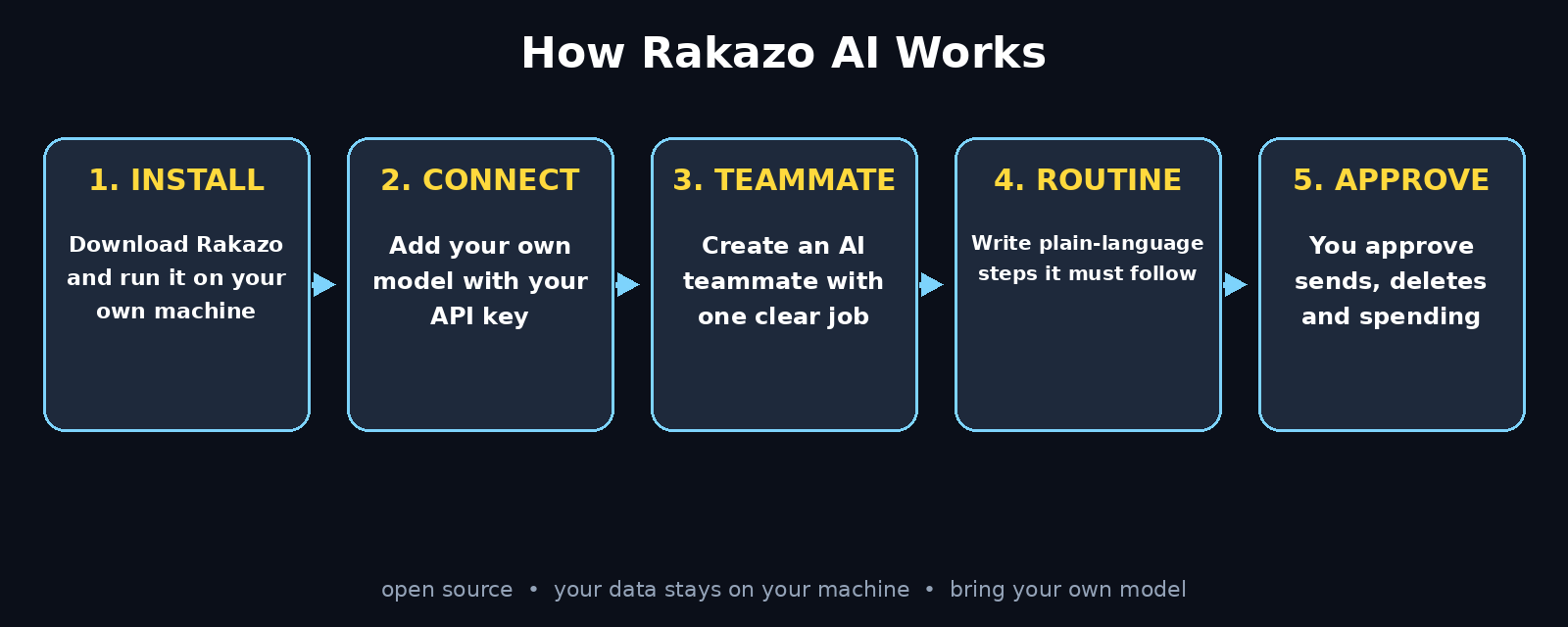
Before you install anything, it helps to understand the four moving parts of Rakazo AI. First, there is the teammate — an AI agent you create for one job, such as “inbox triage” or “weekly reporting.” Second, there is the model — the AI brain behind the teammate, which you choose yourself and connect with your own API key. Third, there is the routine — a readable, step-by-step instruction written in plain language that tells the teammate exactly what to do. Fourth, there is the approval rule — a guardrail that decides which actions the teammate can take alone and which ones must wait for your yes.
Unlike a hosted agent platform, where your agent lives on a vendor’s server, a Rakazo teammate runs on your own machine. When it reads a file, it reads a file on your disk. When it calls a model, it uses your key, billed by your model provider. And when it finishes a task, the session log and audit trail stay on your computer too. That is the whole point of learning how to use Rakazo AI: you keep the power and you keep the data.
Think of it like the difference between renting a shared office and working from your own home. The rented office is convenient, but someone else holds the keys. Rakazo gives you the keys.
Step 2: Why Self-Hosted AI Teammates Beat Hosted Agents
Hosted AI agents are easy to start, but they come with three costs beginners often discover too late. The first is privacy: your documents, messages, and API keys pass through someone else’s servers. The second is price: most hosted agents charge per seat, per run, or per task, and the bill grows exactly when the agent starts being useful. The third is control: when the vendor changes a feature, a limit, or a price, your workflow changes with it.
Rakazo AI removes all three. Because it is open source and self-hosted, there is no per-seat subscription for the software itself — you pay only your model provider for the tokens you actually use, and you can switch providers whenever you like. Because it runs locally, your credentials and sessions never leave your machine unless you choose to connect an outside service. And because routines are readable text, you can see exactly what your teammate is told to do, change one line, and re-run it.
This matters most for people who handle client work. If you run a small digital agency, for example, client files and campaign data should never sit on a third-party agent platform by default. With Rakazo, the agent works inside your firewall, and the audit log proves what it touched. That combination — leverage plus evidence — is what makes self-hosted agents worth learning.
Step 3: Check What You Need Before Installing
Rakazo AI runs on an ordinary modern computer, so the checklist is short. You need a Mac or Windows machine with a stable internet connection, a web browser, and an API key from at least one AI model provider. You do not need a server, a terminal wizard, or a DevOps background — the installer is built for beginners.
Here is your pre-flight checklist:
- A computer that stays on during tasks — Rakazo runs locally, so your teammates work while your machine is awake. A laptop is fine; just do not close the lid mid-task.
- One model API key — this is the key Rakazo uses to think. You can get one from the provider of the model you prefer, and you only pay for what you use.
- About 15 minutes — installation plus your first teammate takes less than half an hour.
- A clear first job — pick one repetitive task, such as sorting your inbox or summarising a folder of notes. A narrow first job teaches you the tool fast.
One warning before you start: keep your API key private. It is a password for your model account. Store it in Rakazo’s own secure key store or your password manager, never in a shared document or a chat message.
Step 4: Install Rakazo AI on Your Computer
Head to the official Rakazo website and download the installer for your operating system. Because Rakazo is open source, you can also find the project on GitHub, where the code, the changelog, and the issue tracker are all public — that transparency is part of why people trust it with their data.
- Download the installer for Mac or Windows from the official Rakazo site.
- Run the installer and follow the setup wizard. Accept the defaults unless you have a reason to change the install folder.
- Open the Rakazo dashboard in your browser. It opens on your own machine, like a local web app, so the address bar shows a local address — that is normal and it is the point.
- Create your local workspace — give it a name, such as “My Teammates,” and choose where Rakazo stores sessions and logs on your disk.
The first time the dashboard opens, you will see an empty state: no teammates, no routines, no sessions. That empty screen is a good sign — it means nothing has been connected yet, and you are in control of what comes next.
Step 5: Connect Your Own Model and API Keys
A Rakazo teammate needs a brain, and you get to choose it. Open Settings, then the Models section, and add your provider. Paste your API key, pick the model you want as your default, and run the built-in connection test. Rakazo will send one tiny test prompt and show you that the model answered — if it did, you are connected.
A few tips that save beginners real money:
- Start with a cheap, capable model for everyday jobs like triage and summarising, and reserve the most powerful model for work that genuinely needs it.
- Set a monthly spending limit in your model provider’s dashboard before your first big run, so a runaway routine can never surprise you.
- Name your keys clearly if you add more than one provider, for example “Main — daily tasks” and “Strong — research only.”
- Rotate keys occasionally — if a key ever leaks, you can revoke it at the provider and paste a fresh one into Rakazo in under a minute.
This “bring your own model” design is one of Rakazo’s biggest advantages. Hosted agents lock you into their model and their markup. With Rakazo, the model is a plug you can swap, which keeps your costs honest and your options open. If you follow the world of agentic AI closely, you will know how fast models change — owning the choice means you are never stuck on last year’s brain.
Step 6: Create Your First AI Teammate
Now for the fun part. In the dashboard, click New Teammate. Give it a name that describes its job, not a cute nickname — “Inbox Triage” beats “Helper Bot” because you will thank yourself in a month when you have five teammates. Write a one-sentence role description, such as: “Sort my unread emails every morning, draft replies for the routine ones, and flag anything urgent for me.”
Then set the teammate’s basics:
- Model — pick the model you connected in Step 5. The cheap default is fine for a first teammate.
- Tools — tick only the tools this job needs, such as reading email and drafting text. A teammate that can only read and draft cannot accidentally delete or send.
- Working folder — if the job touches files, point it at one specific folder, not your whole drive.
- Personality note — one line about tone, such as “short, polite replies; never promise dates I have not confirmed.”
Keep the first teammate deliberately small. A teammate with one job, two tools, and one folder is easy to test, easy to trust, and easy to grow. You can always add tools and folders later, once you have watched it work correctly a few times.
Step 7: Write Your First Readable Routine
A routine is the heart of how to use Rakazo AI well. It is a plain-language recipe that tells your teammate exactly what to do, in order, with no code. Click New Routine inside your teammate and write it the way you would explain the job to a careful new assistant.
A good routine has four parts. First, the goal in one sentence. Second, the inputs — where the teammate looks. Third, the steps — numbered, in order, with the decision points spelled out. Fourth, the output — exactly what you want back, and where.
Here is a real example for the Inbox Triage teammate:
- Open my unread emails from the last 24 hours.
- Sort them into three groups: reply needed, read later, and spam or newsletters.
- For “reply needed,” draft a short reply in my tone, but do not send anything.
- For “read later,” list the sender and subject in one line each.
- Flag any email that mentions a payment, deadline, or angry customer as urgent.
- Give me a summary with counts, the urgent items first, and the drafts attached.
Notice what makes this routine strong: every step is checkable, the teammate is never told to send anything on its own, and the output format is specified. Routines like this are also why Rakazo calls them “readable” — you, a colleague, or an auditor can read one in thirty seconds and know exactly what the teammate is allowed to do.
Step 8: Set Approval Rules That Keep You in Control
Approval rules are the safety net, and beginners should set them before the first real run. In your teammate’s settings, open Approvals and decide which actions need your explicit yes. The rule of thumb is simple: reading and drafting are free, anything that changes the world needs approval.
A sensible starter set looks like this:
- No approval needed — reading emails and files, searching, drafting text, summarising.
- Approval needed — sending any email or message, deleting or moving files, spending money, calling an outside service.
- Always blocked — sharing credentials, changing system settings, contacting people outside a list you approve.
When a teammate hits an approval step, Rakazo pauses and shows you exactly what it wants to do, with the full draft or action attached. You approve or reject with one click, and the audit log records your decision. This is the control hosted agents rarely give you in such plain terms, and it is what lets you trust a teammate with real work: it can prepare everything, but you still pull the trigger.
Step 9: Run Your First Task End to End
With the teammate, routine, and approval rules in place, it is time for a first run. Pick a small, safe job — the inbox triage from Step 7 is perfect. Click Run on the routine, choose “run once now,” and watch the session panel. Rakazo shows each step as it happens: which emails it read, how it sorted them, and the drafts it prepared.
When the run pauses for approval, read the draft carefully. This is your quality check, and it is also how you learn to write better routines: if a draft is wrong, the routine was unclear, not the model. Fix the routine’s wording, not the model, and re-run.
After the first successful run, check three things before you call it done:
- Did the summary match reality? Spot-check two or three emails against the teammate’s sorting.
- Did anything need approval that should not have? If so, tighten the routine.
- Is the audit log complete? Open the session and confirm every action is listed, with timestamps.
If all three check out, you have a working self-hosted AI teammate. Congratulations — most people stop at reading about agents. You now run one.
Step 10: Read Sessions and Audit Logs
Every run Rakazo performs leaves a session record, and learning to read it is a core skill. Open Sessions in the dashboard and click any past run. You will see the routine it followed, every tool call it made, every file it touched, and every approval you gave or refused. Think of it as a flight recorder for your AI teammate.
This matters for three reasons. First, debugging: when a result looks odd, the session shows you the exact step where it went wrong. Second, trust: if a client ever asks what an automated step did, you can show the log instead of guessing. Third, improvement: patterns in the logs — a step that always needs correction, a tool that is never used — tell you exactly how to rewrite the routine.
Make it a weekly habit to skim the last few sessions. Ten minutes a week keeps your teammates honest, and it is the habit that separates people who automate well from people whose automations quietly rot.
Step 11: Build a Daily Routine That Runs Itself
Once the first teammate works, the real payoff is a routine that runs on a schedule. In the routine’s settings, turn on Schedule and pick a time — for example, inbox triage every weekday at 8:00 a.m. Rakazo will wake the teammate, run the routine, and leave the summary waiting for you. Pair it with approval rules, and nothing is sent until you say so, even on a schedule.
Good scheduled routines for beginners include:
- Morning briefing — overnight emails, today’s calendar, and the three most important tasks, summarised in one page.
- End-of-day tidy — move downloaded files into their project folders and list anything unfiled.
- Weekly report draft — gather the week’s completed tasks and draft a status update you only have to approve.
- Content ideas sweep — scan your notes folder and suggest five article or post ideas tied to this week’s themes.
Start with one scheduled routine and let it run for a week before adding a second. A single reliable daily teammate beats five half-tested ones, and the week of observation teaches you more than any tutorial.
Step 12: Fix the 5 Mistakes Beginners Make
Most Rakazo problems are not Rakazo problems — they are setup habits. Here are the five beginners hit most, and the fix for each.
- The routine is too vague. “Handle my emails” is not a routine. Write numbered steps with a defined output, like the Step 7 example, and the teammate’s accuracy jumps immediately.
- The teammate has too many tools. Every tool you tick is a capability the teammate can use. Start with the minimum, and add tools only when a routine genuinely needs them.
- Approval rules are off. Running a new teammate with no approval rules is like handing a stranger your keys. Keep approvals on for anything that sends, deletes, or spends until you have watched ten clean runs.
- No spending limit on the model key. A looping routine can burn tokens fast. Set the limit at your provider before your first scheduled run.
- Nobody reads the logs. A teammate that worked last week can quietly break when a website, a folder, or a format changes. Skim sessions weekly — Step 10 takes ten minutes.
Avoid these five and your Rakazo setup will stay boring in the best way: it just works, every day, on your machine, under your rules.
Rakazo AI vs Hosted Agents vs DIY Scripts
| Feature | Rakazo AI | Hosted AI Agents | DIY Scripts |
|---|---|---|---|
| Where it runs | Your own machine | Vendor’s cloud | Your own machine |
| Your data stays private | Yes — behind your firewall | No — passes through vendor servers | Yes |
| Bring your own model | Yes — swap anytime | Usually locked to vendor | Yes, but you code it |
| Readable routines | Yes — plain language | Varies by platform | No — code only |
| Approval rules | Yes — built in | Varies, often limited | You build them yourself |
| Audit logs | Yes — full session history | Varies by plan | You build them yourself |
| Coding needed | No | No | Yes |
| Cost model | Free software + your model usage | Per seat / per run subscription | Free + your time |
| Best for | Privacy-first automation for beginners | Fastest zero-setup start | Developers who love code |
If you want the fastest possible start and do not mind your data living on a vendor’s cloud, a hosted agent is fine. If you love writing code, scripts give you total control. But if you want an AI teammate that is private, readable, and controllable without writing code, Rakazo AI is the strongest choice of the three.
Frequently Asked Questions
Is Rakazo AI free?
Yes — Rakazo is open source and free to self-host on your own machine. You pay only your model provider for the tokens your teammates use, and you can pick a cheap model for everyday jobs to keep that cost very low.
Do I need coding skills to use Rakazo AI?
No. Installing Rakazo, creating teammates, and writing routines are all done through the dashboard in plain language. The open-source code is there if you ever want to inspect or extend it, but beginners never need to touch it.
How is Rakazo AI different from a hosted AI agent?
A hosted agent runs on the vendor’s servers with the vendor’s model and your data passing through their cloud. Rakazo runs on your own machine, uses your own model and API keys, and keeps your credentials, sessions, and audit logs behind your firewall.
Can Rakazo AI send emails or messages on its own?
Only if you allow it. Approval rules decide what needs your explicit yes, and the safe default is that sending, deleting, or spending always waits for approval. Your teammate prepares the draft; you pull the trigger.
What models work with Rakazo AI?
Rakazo uses a bring-your-own-model design, so you connect the provider and model you prefer with your own API key. If a better model appears next month, you swap it in settings without rebuilding any teammate or routine.
Is my data safe with Rakazo AI?
Your data stays on your machine by design — that is the point of self-hosting. Keep your API keys private, set a spending limit at your model provider, and review your session logs weekly, and your setup stays private and under your control.
Final Thoughts
Learning how to use Rakazo AI is really about learning a new way to work: you describe a job once, in plain language, and a teammate on your own machine does it every day — privately, cheaply, and with you in control. The setup takes less than half an hour: install it, connect your model, build one small teammate, write one readable routine, and set approval rules before the first real run. From there, the habit that matters is maintenance — read the session logs, tighten the routines, and add one scheduled teammate at a time.
If you have ever hesitated to hand your files and API keys to a hosted agent, this is the tool that removes the hesitation. Install Rakazo today, run your first inbox triage, and judge it by a simple test: did it save you twenty minutes without anything leaving your computer? When the answer is yes, you have built yourself a teammate you actually own.
Explore More Free AI Tools
Want more free AI tools like Rakazo AI? Try our AI Title Generator, Meta Description Generator, AI Rewriter, and Keyword Density Checker — all free on AIToolSteps, no sign-up needed. And if you are building an online business around AI tools, a good digital agency partner can help you turn these workflows into real growth.