

Every day you open a new browser tab dozens of times — and every time, you get the same blank page or a row of website shortcuts. Meanwhile your real day lives somewhere else: a calendar tab, an email tab, a to-do app, a notes app, and an AI chat you keep reopening. BaseTab AI fixes that split. Launched on Product Hunt on 29 October 2026, BaseTab turns your browser’s empty new tab into a dashboard you arrange yourself, with 30+ widgets for notes, to-dos, Kanban boards, Pomodoro timers, bookmarks, weather, news, GitHub and Spotify, plus Claude, ChatGPT and Gemini built right into the page.
The free plan is genuinely free forever: one workspace, every built-in widget type, and the free backgrounds. You can even use it without an account, and it works offline. In this beginner guide, you will learn how to install BaseTab AI, build your first dashboard, connect Gmail and Google Calendar, chat with AI without leaving the tab, and even ask the AI to build a custom widget for you — no coding, no credit card, and no technical background needed.
Step 1: Understand What BaseTab AI Does
BaseTab AI is a browser extension (and a web dashboard at basetab.ai/dashboard) that replaces your browser’s default new tab page with a personal command center. Instead of a blank page, every new tab shows the widgets you chose, arranged on a free-form grid you can drag, drop and resize.
Think of it as three tools in one:
- A dashboard: 30+ widgets covering notes, to-dos, Kanban boards, Pomodoro focus timers, bookmarks, clocks, weather, news, GitHub activity and Spotify playback.
- An AI workspace: chat with Claude, ChatGPT or Gemini from a widget on the same page, using your own API key or BaseTab AI credits.
- An AI widget builder: describe a widget that does not exist yet — “a minimal countdown to Friday” is the maker’s own example — and BaseTab’s AI builds it for you in a sandbox. You can edit it or regenerate it until it is right.
The important privacy detail: at install, BaseTab only asks for access to basetab.ai. Other websites are only requested when a widget actually needs them, so connecting Gmail or Calendar is your choice, not a default. Your data is cached locally, which is why the dashboard still works offline, and it syncs across devices when you sign in.
If you already work with a digital agency that manages your marketing or your team’s dashboards, BaseTab is the personal version of the same idea: one screen where the tools you actually use every day sit side by side instead of hiding in twenty tabs.
Step 2: Install BaseTab AI in Your Browser
Getting started takes about two minutes, and there is no account wall at the beginning.
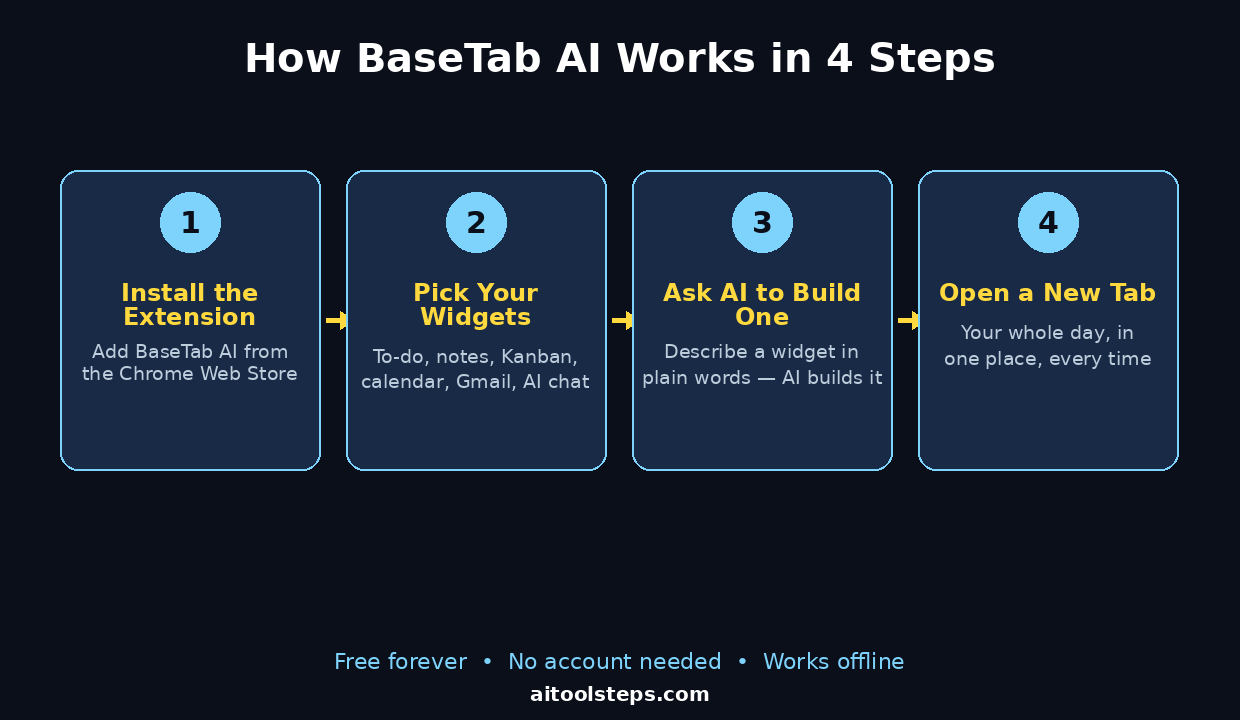
- Go to basetab.ai in your browser and click the install button for your browser, or find “BaseTab AI” in the Chrome Web Store.
- Add the extension and approve the single permission it asks for — access to basetab.ai.
- Open a new tab. That is the whole setup. Your blank new tab is now a BaseTab dashboard with a starter layout.
- Try it without an account first. Everything on the free plan works with no sign-up. Create an account later if you want cloud sync across devices.
Before installing, take a quick look at the web version at basetab.ai/dashboard. It runs right in your browser with no extension, so you can see the layout, the widget picker and the backgrounds before you commit to changing your new tab page. If you like what you see, install the extension and the same dashboard follows you into every new tab.
One honest note: BaseTab launched publicly on 29 October 2026, so it is brand new. Expect small rough edges and regular updates in the first weeks. The core idea — widgets plus AI chat on the new tab — already works, and the free tier is the right place to test it before paying for anything.
Step 3: Take the 2-Minute Tour of Your New Tab
Your first BaseTab dashboard ships with a starter layout so the page never looks empty. Spend two minutes learning the three controls that run everything:
- Drag and resize: every widget is a card on a free-form grid. Grab a card to move it, drag its corner to resize it. There is no fixed layout to fight with.
- The widget picker: one button opens the library of 30+ widgets. Browse by category — productivity, time, information, integrations — and click to add.
- Backgrounds: pick a background that feels like home. Free backgrounds come with the free plan; Pro unlocks every theme.
Try this quick exercise: drag the to-do widget to the top-left, the clock to the top-right, and a notes widget into the middle. Open a new tab and notice how much faster it feels to see your day at a glance instead of hunting through tabs. That feeling is the whole product — BaseTab does not add features to your browser, it removes the ten seconds of searching you repeat fifty times a day.
If the page feels crowded, remember the rule that makes dashboards work: only the widgets you check daily earn a place on the first screen. Everything else can live in a second workspace, which you will set up in Step 8.
Step 4: Add Your First Widgets
Widgets are the building blocks, and the free plan includes every built-in widget type. Start with the four that cover most people’s day:
- To-Do: a simple checklist for today’s tasks. Check items off as you finish them and they stay checked across devices once you sign in.
- Notes: a quick-capture pad for ideas, links and reminders. Keep one note for the day’s top three priorities so they stare at you every time you open a tab.
- Kanban Board: columns and cards for anything with stages — a project, a job hunt, a content plan. Drag cards between columns as work moves.
- Pomodoro: a focus timer that runs in the tab. Start a 25-minute session, work on one task, and take the break when it rings.
Then add one widget for context and one for fun: a Calendar widget or a Weather widget so you know what the day looks like, and a Spotify widget if music helps you focus. Many widgets support multiple tabs inside the widget itself — separate clocks for different time zones, several note documents, weather for several cities, or parallel AI conversations — so one widget can quietly do the work of four.
A practical tip: build your dashboard for tomorrow morning, not for today. Ask yourself what you will want to see at 9 a.m. — today’s meetings, the three tasks that matter, and one note with the link you keep losing. If a widget does not answer that question, leave it out. A dashboard with five useful widgets beats a dashboard with twenty decorative ones, and you can always add more later.
Step 5: Connect Google Calendar and Gmail
BaseTab becomes genuinely useful the moment your calendar and inbox live on the same page as your to-do list. Both connections use your own Google account, and BaseTab only asks for access to these services when you add the widget — nothing is connected by default.
- Add the Google Calendar widget from the widget picker.
- Sign in with Google when prompted and approve the calendar permission.
- Add the Gmail widget the same way and sign in again if asked.
- Arrange both widgets near your to-do list so one glance shows your meetings, your unread mail and your tasks together.
Once connected, your new tab answers the question “what does my day look like?” without opening a single extra tab. Check the calendar widget before your first meeting, glance at Gmail for anything urgent, and keep your to-do list next to both so you can turn an email into a task in seconds.
Two things to know: first, connecting a service is always your decision — BaseTab’s permission model means it never touches Gmail or Calendar until you ask it to. Second, if you share a computer, remember that the Gmail widget shows your inbox on every new tab, so sign out or use a separate browser profile when someone else uses the machine. Small teams that already rely on AI automation services to keep their inbox and calendar in sync will find BaseTab a natural front end for the same workflow — the automation runs in the background, and BaseTab shows you the result.
Step 6: Chat with Claude, ChatGPT and Gemini in a Widget
Most people use an AI chatbot in a separate tab that they open, ask, and forget. BaseTab puts the chat on the new tab itself, next to the work it relates to.
- Add the AI chat widget from the widget picker.
- Choose your model: Claude, ChatGPT or Gemini.
- Connect it your way: use your own API key for that provider, or use BaseTab AI credits (credits are part of the Pro plan).
- Ask your first question right there on the tab — draft an email, summarise a meeting note, or brainstorm ideas while your notes widget sits beside the chat.
Because the chat widget supports multiple tabs, you can run parallel conversations: one tab for drafting, one for research, one for quick questions. Keep the chat widget next to your notes widget and copy the good answers straight into your notes before you close the tab — that one habit turns throwaway AI chats into a reference you actually keep.
A beginner mistake to avoid: treating the AI widget as a search box. It is best for drafting, explaining, summarising and brainstorming — work where a paragraph of output helps. For facts, dates and prices, check the source yourself, because every AI model can be confidently wrong about current details.
Step 7: Build a Custom Widget with the AI Widget Builder
This is BaseTab’s most interesting feature, and it is the one that separates it from every other new-tab extension. If a widget you want does not exist, you describe it and the AI builds it.
- Open the AI widget builder from the widget picker.
- Describe what you want in plain words. The maker’s own example is “a minimal countdown to Friday”. Other good first tries: “a habit tracker with checkboxes for water, reading and exercise”, “a small widget that shows the current price of Bitcoin”, or “a countdown to my holiday on 15 December”.
- Let the AI build it. The widget is created in a sandbox, so it cannot touch your other data while it runs.
- Edit or regenerate. If the first version is close but not right, ask for a change in plain words, or regenerate it from scratch.
Start with something small and visible so you can judge the result in seconds — a countdown is perfect because you know immediately whether the date math is right. Once you trust the builder, try one widget that solves a real annoyance in your day: a tracker for a habit you keep forgetting, or a small dashboard for a number you check too often. That is the moment BaseTab stops being a pretty new tab and becomes a tool shaped around your life.
Keep your expectations realistic: the builder is best at simple, self-contained widgets — counters, trackers, clocks, lists and small displays. It is not a replacement for a full app, and anything that needs a login to another service will need that service’s permission first.
Step 8: Set Up Workspaces for Work, Study and Personal Life
One dashboard cannot serve three different lives. BaseTab solves this with workspaces — called “bases” — each with its own widgets, layout and background. The free plan includes one workspace, and Pro adds unlimited workspaces, so start with one and plan the others for when you upgrade or for what matters most.
Set up your single free workspace for the part of your life you open tabs for most — usually work. When you add more, a proven split is:
- Work: calendar, Gmail, to-do, Kanban for your current project, AI chat for drafting.
- Personal: notes, bookmarks for recipes or travel, weather, Spotify, a habit tracker you built with the AI builder.
- Study: notes, Pomodoro timer, to-do for assignments, AI chat for explaining difficult topics.
Switching between workspaces is instant — pick one from the workspace switcher and the whole dashboard changes. That separation matters more than it sounds: when your personal bookmarks and your work Kanban share one screen, both get ignored. Give each life its own screen and each one gets used.
If you are on the free plan and want the multi-workspace feeling now, use one widget per context inside your single workspace and group them: work widgets at the top, personal widgets below. It is not as clean as separate workspaces, but it teaches you which split you actually need before you pay for Pro.
Step 9: Share a Workspace with Your Team
BaseTab workspaces can be shared, which turns a personal dashboard into a small team hub. Invite team members by email and assign them a role — Owner, Editor or Viewer — and everyone sees the same widgets and edits in real time.
Good first uses for a shared workspace:
- A project board: Kanban widget for the sprint, notes widget for decisions, calendar widget for deadlines.
- A content calendar: notes for ideas, to-do for the week’s posts, calendar for publish dates.
- A support dashboard: Gmail widget for the shared inbox, notes for common replies, AI chat for drafting answers.
Set clear roles before you invite anyone: Viewers can look but not change anything, Editors can move and edit widgets, and Owners control the workspace itself. Start new members as Viewers, promote the ones who actually maintain the board, and keep the Owner role to one or two people so the layout does not get rearranged by accident.
One warning from experience: a shared dashboard only works if someone owns it. Pick one person to keep the Kanban columns honest and the notes current, or the shared workspace quietly becomes a second blank page within a month.
Step 10: Make BaseTab AI Part of Your Daily Routine
Installing BaseTab is a two-minute job; making it useful is a two-week habit. Here is a routine that works for most beginners:
- Morning (first tab of the day): check the calendar widget, glance at Gmail, pick your top three to-dos and write them in the notes widget.
- Work blocks: start the Pomodoro widget, keep the AI chat widget open for drafting and questions, and move Kanban cards as tasks change state.
- Evening (last tab of the day): check off finished to-dos, move unfinished ones to tomorrow, and add one line to your notes about what worked.
- Weekly (Friday, five minutes): delete widgets you never look at, add one you missed, and ask the AI builder for one small widget that would make next week easier.
After two weeks, audit ruthlessly: any widget you have not looked at in a week gets removed. Dashboards rot when they accumulate good intentions, and the fastest way to keep BaseTab useful is to keep it small. One screen, five to eight widgets, everything earning its place — that is the setup people still use a year later.
BaseTab AI vs Other New Tab Tools
| Feature | BaseTab AI | Momentum | Blank new tab |
|---|---|---|---|
| Price | Free forever (Pro adds credits + workspaces) | Free basic, Plus $3.33/month | Free |
| Widgets | 30+ built-in types | Focus, to-do, links | None |
| AI chat in the tab | Claude, ChatGPT, Gemini | No | No |
| AI widget builder | Yes — describe it, AI builds it | No | No |
| Gmail + Google Calendar | Yes, as widgets | Links only | No |
| Shared team workspaces | Yes, with roles | No | No |
| Works offline / no account | Yes | Account needed for sync | Yes |
Momentum is a fine choice if you want a calm, minimal start page with a photo and a single focus task. BaseTab is the choice when your new tab needs to do actual work — email, calendar, tasks and AI chat in one place — and when you want to build small tools of your own with the AI widget builder. The blank new tab costs nothing and does nothing; BaseTab costs nothing on the free plan and does a day’s worth of small jobs.
Frequently Asked Questions
Is BaseTab AI really free?
Yes. The free plan is free forever and includes one workspace, every built-in widget type, and the free backgrounds. You can use it without an account, and it works offline. Pro is a paid upgrade that adds AI credits for the AI widget builder and AI chat, unlimited workspaces, team seats and every theme.
Do I need an account to use BaseTab AI?
No. BaseTab works without an account, and your data stays cached locally on your device. Create an account when you want your workspaces, widgets and preferences to sync across devices.
Which browsers support BaseTab AI?
BaseTab is a browser extension for Chromium-based browsers, and there is also a web dashboard at basetab.ai/dashboard that runs in any modern browser without installing anything. Try the web version first if you are unsure about installing the extension.
How does the AI widget builder work?
Describe the widget you want in plain words, and BaseTab’s AI builds it in a sandbox — an isolated space where it runs safely. You can edit the result or regenerate it. It is best for simple widgets such as countdowns, trackers, clocks and small displays.
Is my Gmail and calendar data safe with BaseTab AI?
BaseTab only requests access to another site when a widget needs it — at install it asks only for basetab.ai. Gmail and Calendar connect through your own Google sign-in, and only when you add those widgets. As with any tool that touches your inbox, check the privacy details on basetab.ai and connect only the services you actually need on the tab.
What is the difference between BaseTab AI and a normal new tab page?
A normal new tab is blank or shows shortcuts. BaseTab replaces it with a dashboard: your tasks, notes, calendar, inbox, music and AI chat, arranged the way you like, plus an AI builder that creates widgets that do not exist yet. You see your day every time you open a tab instead of hunting through other tabs.
Final Thoughts
BaseTab AI takes the most-opened page in your browser — the new tab — and finally gives it a job. The free plan is genuinely useful: 30+ widgets, Gmail and Google Calendar on the same screen, Claude, ChatGPT and Gemini in a widget, and an AI builder that turns a plain-English description into a working widget. It launched on 29 October 2026, so it is young and will change fast, but the core is already solid for anyone whose day is scattered across tabs.
Start small: install it, add a to-do, a notes widget and your calendar, and use it for one week before judging it. Then build one custom widget with the AI builder — a countdown, a habit tracker, anything you actually check daily. If that widget earns its place on your screen, BaseTab has done something no blank page ever could: it made your browser work for you.
Explore More Free AI Tools
Want to keep building with free AI? Try the AI Title Generator, Meta Description Generator, AI Rewriter, and Keyword Density Checker at https://aitoolsteps.com/ — they are free, beginner-friendly, and a great next step after setting up your BaseTab AI workspace.