

Every week a new “AI app builder” promises to turn your idea into working software — and then asks for a credit card, sells you marked-up AI credits, or locks the good features behind a monthly subscription. On 31 October 2026, Ideavo AI did the opposite. The full-stack AI app builder announced its platform is now completely free forever, with no credit limits, no subscription tiers, and no hidden markups on the AI models it uses. Instead of reselling AI access at a premium, Ideavo lets you connect your own API keys from providers such as OpenAI, Anthropic, Google, OpenRouter and Kimi, and pay those providers directly at their own rates.
That change matters for beginners. Ideavo already serves more than 100,000 active users, and it turns a plain-language description into a complete application: websites, mobile apps, full-stack web apps, internal tools, dashboards, games, SaaS products, automated workflows and MVPs. You describe what you want, Ideavo writes the code, builds the interface, wires up the backend, and gives you a working app you can preview, fix and deploy. No coding experience is needed, and there is no credit meter running down while you learn.
In this beginner guide, you will learn how to use Ideavo AI from your very first sign-up to your first deployed app: how to create a free account, connect an AI provider, write a prompt that produces a good result, preview and fix what it builds, add a database and user logins, and share your finished app with the world.
Step 1: Understand What Ideavo AI Actually Is
Ideavo is a full-stack AI app builder. “Full-stack” means it does not just draw a pretty landing page — it builds the whole application: the screens people see, the buttons they click, the logic that runs behind the scenes, and the database that stores the data.
Here is what makes Ideavo different from the app builders you may already know:
- Free forever, not a free trial. Every platform feature is available without a paywall, and you can launch unlimited projects. There is no credit balance to top up and no monthly plan that unlocks the “real” builder.
- Bring your own AI keys. You connect your existing API key or account from OpenAI, Anthropic, Google, OpenRouter, OpenCode, Kimi or another provider. You pay that provider directly at its own price, so Ideavo never adds a markup on top of the model you use.
- Switch models freely. Because you bring the keys, you can switch between free and paid models whenever you like, and you are never locked into a single vendor.
- Real apps, not demos. Ideavo builds production-grade software: a booking form that actually saves bookings, a dashboard that reads real data, a small SaaS product with sign-in and payments, or a game you can actually play.
Think of it this way: most app builders sell you the electricity and the house together, at a markup. Ideavo gives you the house-building crew for free, and you buy the electricity yourself, at cost, from whichever supplier you prefer. If you work with a digital agency that builds client websites or internal tools, Ideavo is the same idea made self-service — a way to turn a client brief into a working prototype before a single developer hour is spent.
Step 2: Create Your Free Ideavo AI Account
Getting started takes about two minutes, and there is no credit card step anywhere in the flow.
- Go to ideavo.ai in your browser and click the sign-up or start-building button.
- Create your account with your email address, or sign in with Google if that option is offered. Use an email you check regularly, because project invites and deployment notices go there.
- Open your dashboard. Your first screen shows your projects — empty for now — and a big prompt box inviting you to describe your first app.
- Do not pay for anything. If any screen asks for a card, you are in the wrong place. Ideavo’s builder is free; the only money you will ever spend is what you choose to pay your AI provider for model usage, and that happens on the provider’s own site, not inside Ideavo.
Before you build anything, take one minute to look around the dashboard. Find the projects list, the settings area where API keys live, and the templates gallery if one is shown. Knowing where those three things are will save you from hunting later, when you are mid-build and do not want to lose your train of thought.
Step 3: Connect Your AI Provider (Your Own API Key)
This is the step that confuses most beginners, so here it is in plain language. Ideavo does not run its own AI models. When you type “build me a to-do app”, Ideavo sends your description to an AI model — Claude, GPT, Gemini or another — and that model writes the code. You choose which model does the work by connecting your own key from that provider.
- Open Settings, then the API keys or Providers section in your Ideavo dashboard.
- Pick a provider you already use. Good beginner choices: Google (Gemini has a generous free tier), OpenAI, Anthropic, OpenRouter (one key, many models), or Kimi.
- Create an API key on the provider’s website. This is usually under “API Keys” in your account on that provider’s site. Copy the key — it is a long string of letters and numbers.
- Paste the key into Ideavo and save it. Ideavo stores it so your builds can call the model.
- Pick your default model. Start with a capable, affordable model rather than the most expensive flagship. You can change it per project later.
Two honest notes. First, your API usage is billed by the provider, not by Ideavo — but for small beginner projects the cost is tiny, and providers such as Google and OpenRouter offer free models you can start with. Second, treat your API key like a password: never paste it into a chat, a screenshot or a public post. If a key ever leaks, delete it on the provider’s site and create a fresh one.
Step 4: Describe Your First App in Plain Language
Everything in Ideavo starts with one prompt. The quality of the app you get depends almost entirely on the quality of this description, so it is worth writing it carefully.
A good first prompt has four ingredients:
- What the app is: “A simple habit tracker web app.”
- Who it is for: “for one person, used every morning on a phone.”
- What it must do: “add habits, tick them off each day, show a weekly streak, and store everything in the browser.”
- How it should look: “clean and calm, dark blue theme, big touch-friendly buttons.”
Put together, that becomes: “Build a simple habit tracker web app for one person. The user can add habits, tick each habit off every day, and see a weekly streak for every habit. Store the data in the browser so nothing is lost on refresh. Make it clean and calm with a dark blue theme and big touch-friendly buttons, and make it work well on a phone.”
Tips that make a real difference:
- Be specific about the result, not the code. Never write “use React with a PostgreSQL backend”. Write what the user should be able to do.
- List the screens. “A home screen with today’s habits, a stats screen with streaks, and a settings screen” is far better than “a habit app”.
- Name the must-haves first. Ideavo builds in order, so the first features in your prompt get the most attention.
- Start small. Your first project should have three or four features, not fifteen. You can add more after the first version works.
If you get stuck for an idea, build something you would actually use: a personal expense tracker, a small booking page for a local service, a quiz app for your students, or a simple dashboard for your shop’s daily sales. A real use case makes every later step easier, because you will know instantly whether the result is right.
Step 5: Watch Ideavo Build the Full Stack
Once you submit your prompt, Ideavo gets to work. You will usually see it plan the app first — the pages, the data it needs to store, the features in order — and then write the code file by file.
Here is what is happening behind the scenes:
- The interface: Ideavo generates the screens, layouts, buttons and forms your users will see and touch.
- The logic: it writes the code that makes buttons do things — saving a habit, calculating a streak, filtering a list, sending a confirmation.
- The data layer: it sets up storage for your app’s data, so a habit you add today is still there tomorrow.
- The wiring: it connects the front end to the back end, so clicking “save” actually saves.
While it builds, resist the urge to keep typing. Let the first pass finish, then review the result before asking for changes. Interrupting a build halfway usually creates a half-finished app that is harder to fix than a complete first draft.
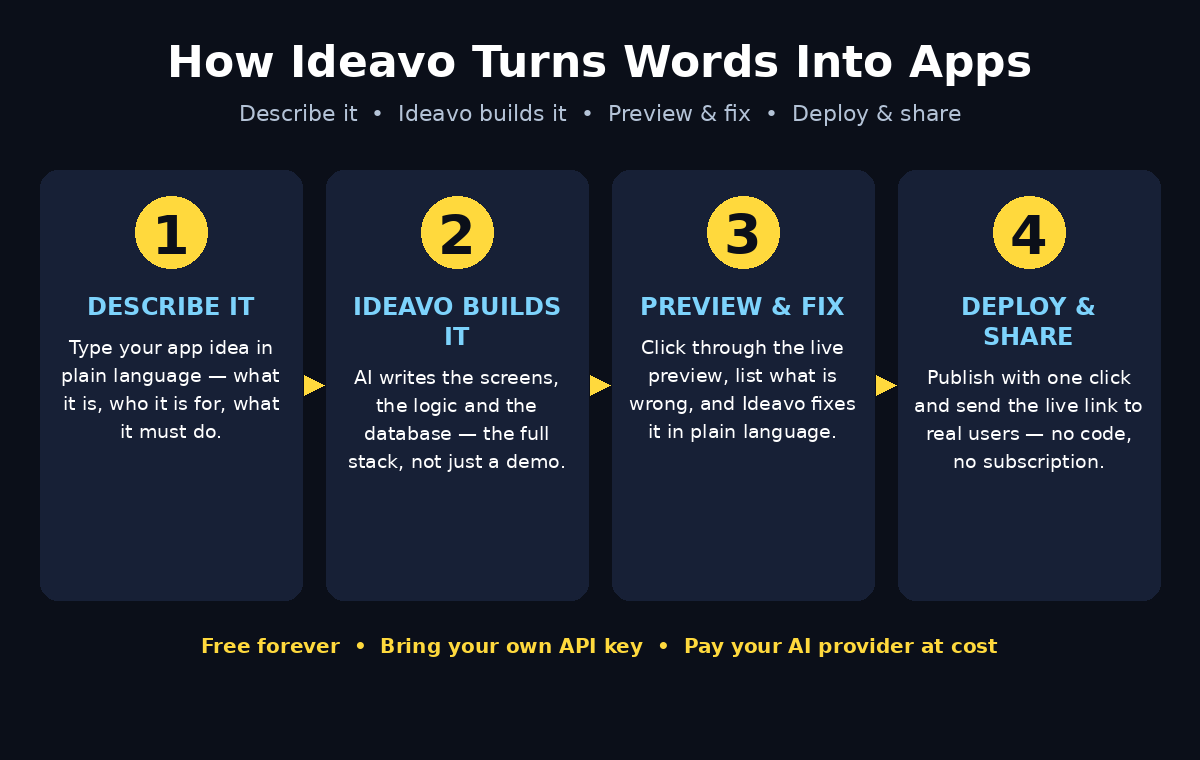
When the build finishes, Ideavo shows you a preview of your app. Click through it like a real user would: add a habit, tick it off, reload the page, check the streak. If something is missing or wrong, note it down — you will fix it in the next step.
Step 6: Preview, Test and Fix Your App with Ideavo AI
Your first build will rarely be perfect, and that is normal. The fix loop is where beginners become builders: you describe the problem in plain language, and Ideavo changes the code.
- Test the happy path first. Do the main thing the app is for, end to end. If the habit tracker cannot save a habit, fix that before worrying about colours.
- List every problem in one message. “The streak counter shows 0 after I tick a habit, the add-habit button is too small on my phone, and the stats page is blank.” One clear message beats five vague ones.
- Be precise about what “fixed” looks like. “The streak should increase by one each day the habit is ticked, and reset to zero if a day is missed” gives the AI a test it can pass.
- Test again after every fix. Change one thing, check it, then move on. Fixing three things at once makes it hard to know which change broke something else.
Common beginner fixes and how to ask for them:
- “Make the buttons bigger on mobile” — layout and touch targets.
- “The data disappears when I refresh” — storage or database wiring.
- “Add a confirmation before deleting” — a small safety feature that prevents accidents.
- “The text is too small and grey on white” — contrast and readability.
If a fix makes things worse, say so plainly: “That change broke the add-habit button. Undo it and try a different approach.” Ideavo works from your conversation, so a clear correction is part of the process, not a failure.
Step 7: Customize the Design and Features
Once the app works, make it yours. Ideavo builds a solid default design, but a few targeted changes turn a generic app into one that feels like your product.
- Colours and branding: ask for your brand colours, your logo placement, and a name that shows in the header instead of a placeholder.
- Layout: “Move the stats to the top of the page” or “Put the add-habit form in a sidebar on desktop” are easy, high-impact changes.
- Extra features, one at a time: add a search box, a filter, an export button, or a dark-mode toggle — but add them one at a time and test each one.
- Empty states: ask what the app should show when there is no data yet (“No habits yet — add your first one below”). Good empty states make an app feel finished.
- Mobile check: open the preview on your phone. Most of your users will be on mobile, and a layout that looks perfect on a laptop can fall apart on a small screen.
A useful rule: change the design only after the features work. Redesigning a broken app is like repainting a car with no engine. And keep a note of the prompts that worked well — your best prompts are reusable. The prompt that built a great habit tracker can, with a few words changed, build a great expense tracker tomorrow.
Step 8: Add a Database and User Accounts
A habit tracker that stores data in one browser is fine for personal use. But the moment you want other people to use your app — friends, customers, students — you need real storage and real accounts.
Ask Ideavo for these in plain language:
- “Add a database so every user’s data is stored on the server, not just in their browser.” This is the step that turns a toy into a product.
- “Add sign-up and login with email and password.” Ideavo can generate the auth screens and the logic behind them.
- “Each user should only see their own habits.” This is the privacy rule that matters most, and it is worth stating explicitly.
- “Add a forgot-password link.” Small feature, big trust signal.
Test the accounts the way a stranger would: sign up with a second email, log out, log back in, and confirm the data is still there and that the second account cannot see the first account’s habits. If you are building for a business, this is also the moment to think about the boring-but-important details: a privacy note on the sign-up page, and a way for users to delete their account and their data.
For teams that want this kind of app built professionally, the same thinking applies at a larger scale — agencies that offer AI automation services build exactly these flows (accounts, databases, permissions) for clients who need them done right the first time.
Step 9: Deploy and Share Your App with Ideavo AI
An app that only lives in a preview window is a draft. Deployment is what makes it real — a link you can send to anyone, open on any device, without Ideavo open in another tab.
- Click Deploy or Publish in your Ideavo project. Ideavo prepares a live version of your app and gives it a public link.
- Open the live link in a fresh browser window — not the preview — and test it again. Log in, add data, reload. The live version is the truth; the preview is a rehearsal.
- Share the link with one real person and watch them use it (or ask them to record their screen). The first stranger to use your app will find problems you never would.
- Fix what they found, redeploy, and share again. Every deploy overwrites the old version, so your link stays the same while the app gets better.
When you share your app, add one sentence about what it does and who it is for: “I built a free habit tracker with AI — add your habits, tick them off daily, and watch your streak grow.” People click a clear promise far more often than a bare link. And if you write about your app — a short post, a guide, a video — link it back to the app so the readers become users.
Step 10: Build Your Second Project Faster with Ideavo AI
Your first app taught you the workflow. Your second app should take half the time, because now you know the moves.
- Reuse your best prompts. Keep a small document of the prompts that produced good results, and copy the structure for new ideas.
- Start from a template when one fits. A dashboard, a booking page or a simple store has a shape Ideavo already knows well — describe the differences, not the whole thing from scratch.
- Pick the right model for the job. A simple landing page does not need the most expensive model. Save the heavy models for complex apps with databases and logins.
- Build in public, one project a week. Each small finished app — a quote calculator, a menu page, a feedback form — is a portfolio piece and a learning loop.
- Track your provider costs. Because you pay the AI provider directly, check your usage dashboard once a week. Most beginner projects cost very little, but a runaway loop or an oversized model can surprise you — and knowing your cost per app is a skill in itself.
The bigger lesson is that the barrier has moved. A year ago, building a full-stack app meant hiring a developer or learning to code for months. Ideavo’s free-forever move, plus your own API keys, means the remaining cost is your time and your judgement — what to build, for whom, and how well. That is a much better place for a beginner to start.
Ideavo AI vs Other AI App Builders
| Feature | Ideavo AI | Lovable | Bolt | v0 by Vercel |
|---|---|---|---|---|
| Price model | Free forever; bring your own API keys, pay provider at cost | Free tier with monthly credits; paid plans for more | Free tier with daily tokens; paid plans for more | Free tier with monthly credits; paid plans for more |
| Full-stack apps (frontend + backend + database) | Yes | Yes | Yes, with Supabase | Frontend-focused; backend via integrations |
| Credit markups on AI models | None — you pay the provider directly | Platform credits at platform rates | Platform tokens at platform rates | Platform credits at platform rates |
| Switch AI models freely | Yes, any connected provider | Limited to built-in models | Limited to built-in models | Limited to built-in models |
| Unlimited projects | Yes | Limited on free tier | Limited on free tier | Limited on free tier |
| Best for | Beginners who want real apps with no subscription | Quick prototypes and landing pages | Fast prototypes with live preview | Polished UI components and Next.js apps |
The honest summary: if you want to build without watching a credit meter, Ideavo’s model is the friendliest for a beginner. The trade-off is that you manage your own API keys and your own provider bill — a small job, and one that teaches you how AI pricing actually works.
Frequently Asked Questions
Is Ideavo AI really free?
Yes. Ideavo announced on 31 October 2026 that its full-stack builder is free forever, with unlimited projects and every platform feature included. You pay nothing to Ideavo. The only cost is what your chosen AI provider charges for model usage, which you pay directly to that provider — and many providers offer free models or free tiers you can start with.
Do I need an API key to use Ideavo?
Yes, you need at least one API key from a provider such as OpenAI, Anthropic, Google, OpenRouter or Kimi. The key is what lets Ideavo call an AI model to write your app’s code. Creating a key takes a few minutes on the provider’s website, and you paste it once into Ideavo’s settings.
Do I need to know how to code?
No. You describe your app in plain language and Ideavo writes the code. Knowing what you want the app to do matters far more than knowing a programming language. That said, being able to read a little code helps when you want to check a fix — and building with Ideavo is one of the fastest ways to start learning.
Can Ideavo build mobile apps too?
Yes. Ideavo lists mobile applications among the things it can build, alongside websites, full-stack web apps, dashboards, games, SaaS products and internal tools. For a beginner, start with a web app that works well on a phone browser — it reaches every device with one build — and move to a dedicated mobile app once the idea is proven.
Who owns the app and the code Ideavo builds?
The app is yours. You described it, you directed the build, and you deploy it under your account. Keep your project in Ideavo, export or deploy it when you are ready, and remember that your API keys and your provider account are separate from Ideavo — they stay yours even if you stop using the platform.
What if Ideavo builds something wrong?
Describe the problem in plain language and ask for a fix — that loop is the normal way to build with AI. Be specific about what “correct” looks like, test after every fix, and do not be afraid to say “undo that, try another way”. If a project goes badly wrong, starting a fresh project with a better prompt is often faster than repairing a tangled one.
Final Thoughts
Ideavo’s free-forever announcement removes the two things that used to stop beginners: the subscription and the credit meter. What is left is a straightforward deal — you bring an API key, you describe what you want in plain language, and Ideavo builds a real, working, full-stack app you can deploy and share. The first app will be rough. The second will be better. By the fifth, you will have a small portfolio of working software and a skill most people still think requires a computer science degree.
Start today, while the idea is fresh. Pick one small problem from your own life — a habit to track, a list to manage, a page your small business needs — and describe it to Ideavo in four or five sentences. Deploy it, send the link to one person, and fix what they find. That loop, repeated a few times, is how beginners become builders.
Explore More Free AI Tools
- AI Title Generator — craft click-worthy headlines for your articles and apps: AIToolSteps
- Meta Description Generator — write search-friendly descriptions in seconds: AIToolSteps
- AI Rewriter — refresh and rephrase your content without starting over: AIToolSteps
- Keyword Density Checker — check your pages are optimized, not stuffed: AIToolSteps