

Imagine pointing at any website, app or game and saying, “Make me my own version of this” — and an AI coding agent builds it for you. That is exactly what Craft Anything AI does, and it is free. In this guide, you will learn how to use Craft Anything AI step by step, from installing it on your computer to running your first rebuild, even if you have never written a line of code.
Craft Anything AI is a free, open-source tool from the team behind the ArtCraft apps. It appeared on GitHub on 31 October 2026 and shot to number 2 on GitHub’s trending list by 11 November 2026, passing 28,000 stars in its first 11 days and climbing past 38,000 within three weeks. It is still early alpha software, so expect rough edges — but the idea is simple and powerful: study what you can see, build your own version, and check the result against the original. If you have ever wanted to rebuild your own website or turn an idea into a working app without hiring a developer, this is a tool worth trying. You can find more beginner guides like this one in our AI How-To Guides section.
Step 1: What Is Craft Anything AI?
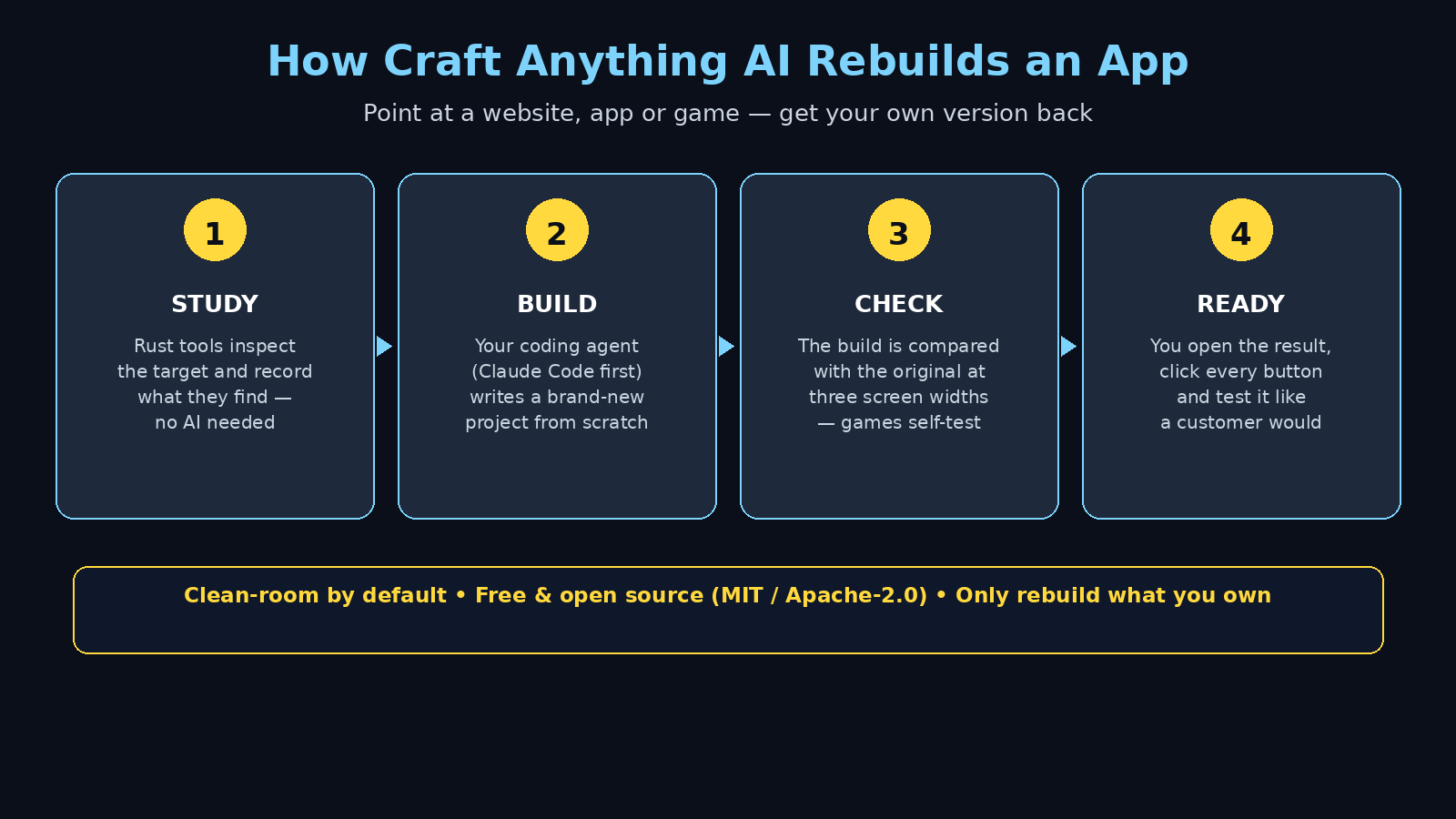
Craft Anything AI is an open-source engine that studies a website, desktop app or game, then has a coding agent on your computer build your own version of it. It works in four plain steps that the app shows as a progress bar: Study, Build, Check, Ready.
Here is what makes it different from the usual “AI, copy this app” demo. First, the inspection half needs no AI at all. The engine is written in pure Rust and ships with more than 300 inspection tools — a CLI, a desktop app and an MCP server — that look at the target and record what they find, with evidence attached to every answer. Second, it works in clean-room mode by default. That means it builds only from what any visitor can see: screenshots, visible text, layout, colours and fonts. It does not read the original’s private code unless you switch on a separate mode called Deep.
The tool itself costs nothing. It is dual-licensed under MIT or Apache-2.0, and there are installers for Windows, macOS, Linux and FreeBSD. This section explains what the tool is before we get into how to use Craft Anything AI in practice. The only cost is the AI usage for the Build step, which comes from your own coding-agent plan — Craft Anything AI has no model of its own. Think of it as a foreman: the Rust engine inspects, your coding agent builds, and the engine checks the result.
Step 2: Check What You Need Before You Start
Before you learn how to use Craft Anything AI, make sure you have these four things ready. Most beginners already have three of them.
- A computer running Windows, macOS or Linux. Craft Anything AI is a desktop tool, so you install it on your own machine. There is also a small web viewer, but the real work happens on your computer.
- Rust 1.97 or newer, if you build from source. You only need this if you choose the build-it-yourself route in Step 3. If you use the ready-made installer instead, you can skip Rust completely.
- A coding agent signed in on your machine. Claude Code is supported first, and it is the one the project recommends. GitHub Copilot’s CLI and Grok’s coding tools also work, and other agents that speak the ACP standard can be switched in. Craft Anything AI runs your own, unmodified coding-agent program with your own sign-in, so the build cost goes to your existing plan.
- A target you own or are allowed to examine. This is the most important requirement. You may rebuild your own website, your own app, or a project you have permission to study. Pointing it at someone else’s finished work to copy it is not what the tool is for, and Step 10 explains the rules in full.
One more honest note: you do not need a Craft Anything AI account, because there is no account to create. You download it, connect your coding agent, and start. That is the whole sign-up process.
Step 3: Install Craft Anything AI on Your Computer
There are two ways to install Craft Anything AI. Beginners should pick Option A. Developers who like building from source can pick Option B.
Option A: Download the installer (easiest). Go to the releases page at github.com/storytold/craft-anything/releases and download the installer for your system. The Mac build is signed and notarised. Run it, and the desktop app opens with one screen: pick a target, describe what you want, and press Start.
Option B: Build from source. If you have Rust 1.97 or newer installed, open your terminal and run these commands:
git clone https://github.com/storytold/craft-anything && cd craft-anything
cargo run --release -p craft-anything
The first command downloads the project. The second builds and opens the desktop app. If you prefer the command line, install the CLI instead:
cargo install --path apps/craft-anything-cliAfter installing, run the built-in health check to see what is missing:
craft-anything-cli doctorThe doctor command checks the install, your coding agents and the engines, and tells you in plain words what still needs attention. Fix whatever it flags before your first rebuild — five minutes here saves a failed build later. Once the install finishes, you are ready for the next part of learning how to use Craft Anything AI: connecting your coding agent. The latest release at the time of writing is v0.6.1, released on 12 November 2026, and new releases arrive often because the project is in early alpha.
Step 4: Connect Your Coding Agent (Claude Code First)
Learning how to use Craft Anything AI means understanding one split: inspecting needs no AI, but building does. For the Build step, Craft Anything AI hands the work to a coding agent that is already installed and signed in on your computer.
Claude Code is supported first. Craft Anything AI runs your own claude program exactly as it is, with your own sign-in, and the project’s own docs say it never touches your account or tokens. If you already use Claude Code, there is nothing new to connect — the app finds it. If you use GitHub Copilot, connect it through its installed CLI; Grok connects through its installed program. Other coding agents that speak ACP can be switched in per backend.
If you have never used a coding agent before, do not worry. You do not talk to the agent directly — Craft Anything AI does that for you. Your job is to describe what you want in plain words, which is Step 6. If you want to understand what modern coding models can do first, our Claude Fable 5.2 beginner guide explains the newest long-horizon coding model in simple terms.
Step 5: Pick a Target for Your First Rebuild
Your first project should be small. A good first target is a simple landing page you own, a small tool you built before, or a basic app with a handful of screens. The smaller the target, the faster the Study and Check steps finish, and the easier it is to see whether the rebuild worked.
Pick one of these three target types to start:
- A website you own. Your business homepage, a portfolio page or a landing page. This is the safest and most useful first rebuild, because every word, photo and logo is yours.
- A small app you own. A simple to-do app, a calculator or a booking form. Fewer screens mean fewer chances for the agent to wander off track.
- A simple game you have the rights to. A basic browser game is a good test of the Check step, because games run their own self-test after the build.
Avoid starting with a huge website, a shop with hundreds of products, or anything that needs a login. Those targets take longer, cost more agent usage, and are harder to check. Choosing the right target is the most underrated part of how to use Craft Anything AI well — a small target means a fast first win, so get one small win first, then scale up.
Step 6: Describe What You Want in Plain Words
Once your target is picked, Craft Anything AI asks you to describe what you want. This is the one place where your words decide the result, so be specific. A vague prompt like “make it better” gives the agent nothing to work with. A clear prompt gives it a target to hit.
Try a prompt shaped like this: “Rebuild this landing page as my own version, in React, with my own text, colours and photos. Keep the same layout and sections, but add a contact form at the bottom and make the buttons larger on mobile.”
Good prompts always name four things:
- The stack. Say which language, framework or engine you want — React, plain HTML, a mobile app, a game engine. If you do not know, say “use whatever is simplest” and let the agent choose.
- What stays the same. Layout, sections, behaviour — the parts of the original you like.
- What changes. Your own text, your own photos, your own branding, plus any new feature you want.
- What good looks like. “All buttons must work”, “it must look right on a phone screen”, “the form must show a thank-you message after sending”.
Remember the clean-room rule: the agent is told not to copy logos, photos or text from the original unless you confirm you own them or have permission. Use your own words and your own images, and say so in the prompt. The prompt is where you tell the tool what to build, so this is the step where how to use Craft Anything AI becomes a writing skill as much as a technical one.
Step 7: Follow the Four Steps — Study, Build, Check, Ready
After you press Start, Craft Anything AI runs four steps and narrates them in plain words on the project page. Here is what happens in each one, and what you should watch for.
1. Study. The Rust inspection tools look at the target and record what they find, with the evidence attached to every answer. No AI is involved here — this is the engine reading what any visitor can see. For a website, that means pages, layout, colours, fonts and visible text.
2. Build. Your coding agent writes a brand-new project in the language, framework or engine you named. This is the only step that uses AI, and it is the step that uses your Claude plan. A big target takes longer and costs more, which is why Step 5 says to start small.
3. Check. The build is compared against the original. Websites are compared at three screen widths, so layout problems on phones and tablets get caught. A game runs its own self-test, and an app’s runs are compared. This measured comparison is what most “AI, copy this app” demos skip — and it is the reason Craft Anything AI is worth your time.
4. Ready. The project page shows the result and a status file that honestly says what has been tested and what has not. Open the result, click through it, and compare it with the original yourself before you call it done. If you have followed the steps so far, you now understand how to use Craft Anything AI’s four-step flow from start to finish.
Step 8: Review, Test and Fix Your Rebuild
A rebuild is a strong first draft, not a finished product. The project’s own reviewers say the same: treat the result as a starting point for a developer, not something to ship to customers as it is. Your review is what turns it into something real.
Open the rebuild and test it the way a customer would. Click every button, submit every form, and open it on a phone screen as well as a desktop. Compare each page with the original side by side. If something is wrong, describe the fix in plain words and run another pass — the Check step will compare the new build again. Knowing how to use Craft Anything AI also means knowing how to check its work, so never skip the review.
Pay special attention to three things: text (is it your own wording, with no copied sentences?), images (are they your own photos, not the original’s?) and behaviour (does every button actually do something?). If your rebuild needs fresh visuals, our Krea AI beginner guide shows how to generate images for free. And if the rebuild is for a client and you want a professional finish — polished design, proper copy and a launch checklist — a digital agency can take the draft the rest of the way.
Step 9: Try the “Start Fresh” Mode
You do not need a target at all. Craft Anything AI has a “Nothing, start fresh” mode: describe a small tool, and it builds it, checks it and hands it back ready to try. This is the best way to learn how to use Craft Anything AI, because there is no original to compare against and no copyright question to worry about.
Good first “start fresh” projects are small and useful: a tip calculator, a countdown timer, a simple habit tracker, or a one-page menu for a small cafe. Describe it in one or two sentences, name the features, and let the agent build. When it is ready, test it, ask for one change, and watch how fast the second version arrives. If you enjoy building apps from a plain prompt, Google AI Studio is another free way to do it — see our beginner guide for that tool too.
Step 10: Follow the Rules — What You Must Not Rebuild
Craft Anything AI is powerful, so its rules matter. The README puts them up front, and they are worth reading before you point it at anything.
- Only rebuild software you own or are allowed to examine. Your own website, your own app, or a project where you have permission. Rebuilding a rival’s app to steal its design is not the point — rebuild your own version of a layout or an idea, with your own words, photos, prices and branding.
- It never bypasses DRM, logins or anti-cheat. If a target hides behind a login or a protection system, Craft Anything AI does not get around it. The tool studies what a visitor can see, nothing more.
- Do not copy logos, photos or text. The agent is told not to copy them unless you confirm you own them or have permission. Generated pictures and 3D models are opt-in and need your own fal.ai key.
- It is not a safety sandbox. Craft Anything AI does not isolate your computer. The coding agent you run still acts as you, with your permissions, so only run rebuilds you understand and trust.
- It is early alpha. The team labels it early alpha in its own words. Behaviour checks for apps and games are only partly there, and the interface will change. Expect rough edges, and keep backups of anything important.
The wider world of agentic AI is moving fast, and tools like this one show where it is heading: ordinary people directing AI agents to build real software. Used on your own work, with the rules respected, Craft Anything AI is a genuine shortcut. Used on someone else’s work without permission, it is a shortcut to trouble.
Craft Anything AI vs Other AI App Builders
How does Craft Anything AI compare with the popular prompt-to-app builders? The big difference is the starting point: the others build from a blank prompt, while Craft Anything AI starts from an existing app you point at. If you are still deciding how to use Craft Anything AI alongside the other builders, the table below makes the choice simple.
| Tool | Price to start | Open source | How it builds | Best for |
|---|---|---|---|---|
| Craft Anything AI | Free | Yes (MIT / Apache-2.0) | Studies an existing website, app or game, then rebuilds your own version | Your own version of an app that already exists |
| Lovable | Free plan, then paid | No | Builds a new app from your prompt | New apps from scratch, fast |
| v0 by Vercel | Free plan, then paid | No | Builds interfaces and apps from your prompt | Polished web interfaces |
| Bolt.new | Free tokens, then paid | No | Builds a full app from your prompt in the browser | Quick prototypes with no setup |
If you already have an app or site you like, Craft Anything AI is the only free, open-source option in this list that starts from it. If you are starting from a blank page, any of the four will get you moving — and Craft Anything AI’s “Start Fresh” mode covers that case too.
Frequently Asked Questions
Is Craft Anything AI really free?
Yes. The tool is free and open source under a dual MIT or Apache-2.0 licence, and there are free installers for Windows, macOS, Linux and FreeBSD. The only cost is the AI usage for the Build step, which comes from your own coding-agent plan — for example, your Claude plan. A paid managed tier is on the project’s roadmap, but no decision has been made about it yet.
Do I need to know how to code to use Craft Anything AI?
No. You describe what you want in plain words, and the coding agent writes the code. That said, a little familiarity helps: you will review the result, test it like a customer, and describe fixes in plain words. The check is something anyone can do — open the page, click every button, and compare it with the original. That is the short answer to how to use Craft Anything AI without coding experience.
Can Craft Anything AI copy any website or app?
No. It works in clean-room mode by default, building only from what a visitor can see, and it never bypasses DRM, logins or anti-cheat. The rules are clear: use it on software you own or are allowed to examine, and use your own words, photos and branding. The agent is told not to copy logos, photos or text unless you confirm you own them or have permission.
Which coding agents work with Craft Anything AI?
Claude Code is supported first and is the recommended choice. GitHub Copilot works through its installed CLI, Grok’s coding tools work through its installed program, and other agents that speak ACP can be switched in per backend. Whatever agent you use, it must already be installed and signed in on your machine, because Craft Anything AI runs your own program with your own sign-in.
Is Craft Anything AI ready for client work?
Not yet on its own. The project labels itself early alpha, and independent reviews agree: the result is a strong first draft for a developer, not something to ship to customers as it is. Use it to prototype, to rebuild your own tools, and to learn — then review, test and polish the result before it goes anywhere near a client.
Final Thoughts
Craft Anything AI is one of the most interesting free AI tools of late 2026, and the numbers show it: tens of thousands of GitHub stars in a matter of days, for a tool that does something no other free tool does — study an app you point at and rebuild your own version of it. Learning how to use Craft Anything AI is straightforward: install it, connect Claude Code, pick a small target you own, describe what you want in plain words, and let the Study, Build, Check and Ready steps do their work.
Start small, respect the rules, and review everything it builds. Your first rebuild will teach you more than any guide can — and once you have one small win, the next rebuild gets much easier. The best way to master how to use Craft Anything AI is to run one small rebuild today, on a project you own. If this guide helped, share it with someone who has a website or an app idea of their own.
Explore More Free AI Tools
Keep building your AI toolkit with these free tools from AI Tool Steps: AI Title Generator, Meta Description Generator, AI Rewriter and Keyword Density Checker. Each one is free, works in your browser, and helps you write better content in less time.