

You sit through a one-hour lecture or a long team meeting, you nod along, and by the time you get home you remember about ten percent of what was said. The notes you scribbled are half-finished, the action items are a blur, and the one quote you needed is gone. Spiik AI was built for exactly this problem. It is an AI voice recorder and note taker for iPhone, iPad and Mac that records what you hear, turns it into an accurate transcript, and then turns that transcript into structured notes, summaries, quizzes and flashcards — all without a bot joining your calls. It launched on Product Hunt on 16 November 2026, it is free to download, and the free version records with no time limit.
This guide explains how to use Spiik AI from zero: downloading it, recording your first meeting or lecture, getting a clean transcript, turning audio into study material, and recording Zoom, Meet and Teams calls on a Mac with no bot in the room.
Step 1: Understand What Spiik AI Actually Is
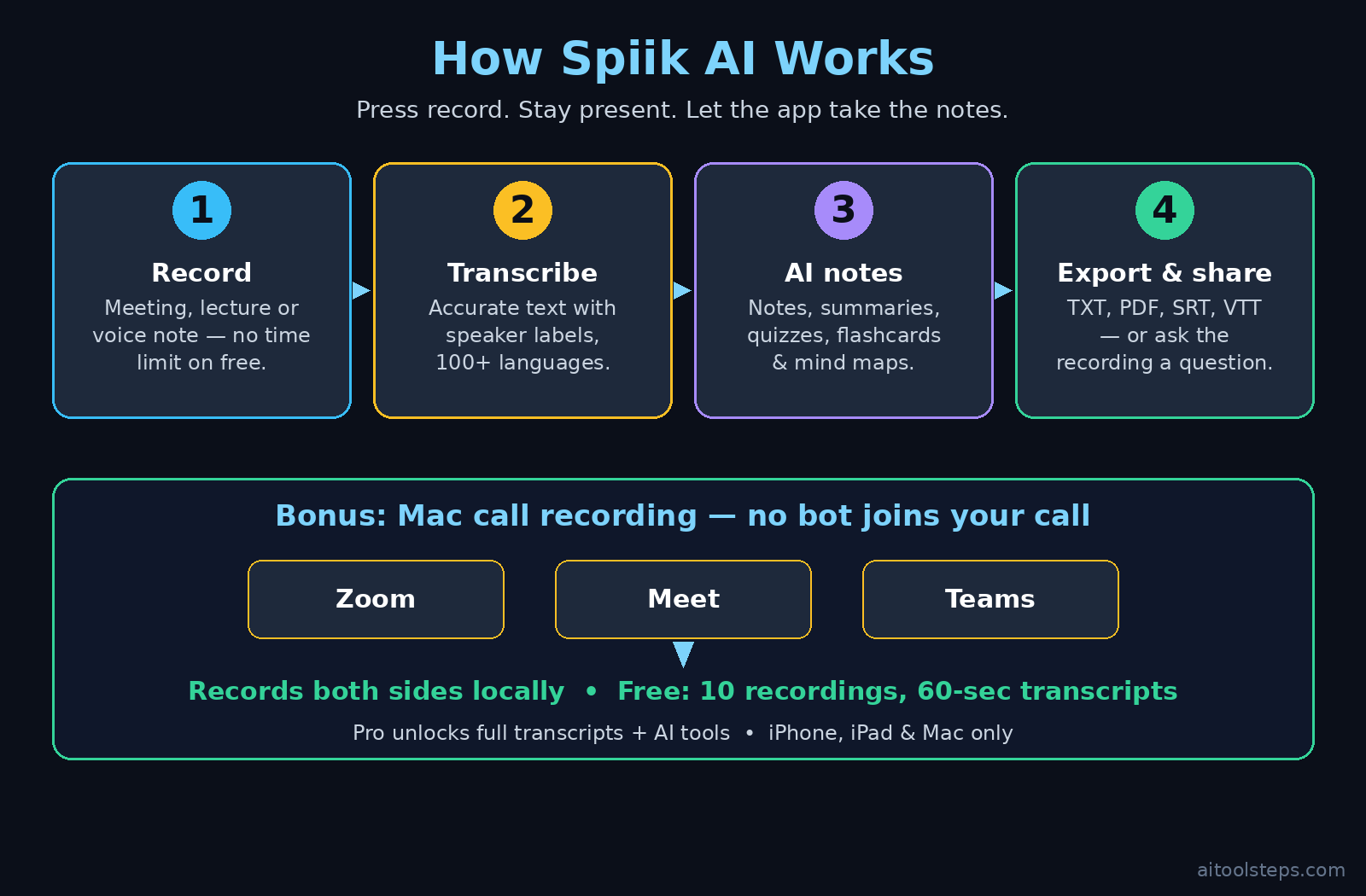
Spiik AI is three tools in one app. First, it is a voice recorder: press one button and it captures lectures, interviews, meetings, personal notes or ideas. Second, it is a transcription engine: it converts speech to text with high accuracy, even through accents, crosstalk and noisy rooms, and it labels who said what. Third, it is an AI note taker: from any recording it generates structured notes, summaries, quizzes, flashcards and mind maps, and it can answer questions about what was said.
The app is made by Fadel.io OU and runs on iPhone, iPad and Mac. That Apple-only focus is important to know before you start: there is no Windows or Android version, and offline transcription needs an Apple-silicon Mac, while iPhone and iPad finish their transcripts with a connection. If you live in the Apple ecosystem, though, the trade-off buys you the feature that makes Spiik AI different from every meeting bot on the market — on a Mac it records both sides of a Zoom, Teams or Meet call locally, with no bot joining the call at all.
Learning how to use Spiik AI is mostly about learning a simple habit: press record, stay present, and let the app do the note-taking. Everything in this guide follows that habit, one step at a time.
Step 2: Download Spiik AI and Set It Up Free
Getting started takes about two minutes, and there is no credit card anywhere in the flow.
- Open the App Store. On your iPhone, iPad or Mac, search for “Spiik” — the full listing name is “Voice Recorder AI Notes: Spiik”. Tap Get to download it free.
- Allow microphone access. The first time you open the app it asks for microphone permission. Tap OK — without it, Spiik AI cannot record anything. If you declined by mistake, fix it in Settings, then Privacy and Security, then Microphone.
- Start on the free plan. The free version of Spiik AI includes unlimited recording and replaying, so you can record a full two-hour lecture without a timer cutting you off. The free plan keeps up to 10 recordings and transcribes 60 seconds of each one, which is enough to test the whole workflow before you spend anything.
- Know what Pro unlocks. Spiik Pro unlocks full transcripts and the AI tools, with a 7-day free trial on the yearly plan. In the US it costs $49.99 per year or $9.99 per month through Apple subscriptions. You do not need it on day one — learn the free flow first, then decide.
One honest note from the makers themselves: server-side transcription is expensive, which is why the full transcript lives behind Pro. The free tier is a genuine trial of the recorder, not a trick — but plan your first real project knowing where the free line sits.
Step 3: Record Your First Meeting or Lecture
Recording is the one button that matters, and Spiik AI keeps it simple on purpose.
- Open Spiik AI and tap the big record button. The app starts capturing immediately. You will see a live waveform and a running timer, so you always know it is working.
- Place the device well. Put your iPhone or iPad on the desk between you and the speaker, screen up, with nothing covering the microphone. In a lecture hall, sit within the first few rows if you can. In a meeting room, the middle of the table beats the far end every time.
- Silence the interruptions. Turn on Do Not Disturb before you press record. A phone call or a notification sound in the middle of a recording lands in the transcript as noise, and it breaks your focus too.
- Record as long as you need. There is no time limit on recording in the free version, so a three-hour workshop is fine. Cloud transcription caps each individual recording at 2.5 hours, so if a session runs longer, stop and start a fresh recording at a natural break.
- Name the recording straight away. Give it a clear title — “Marketing lecture 18 Nov” beats “Recording 12” — because you will search for it later. You can organise recordings into projects as your library grows.
Tap stop when the session ends and Spiik AI saves the audio. Your first recording is now ready for the step that makes the app worth keeping: the transcript.
Step 4: Get Your Spiik AI Transcript and Check Speaker Labels
Once a recording is saved, Spiik AI transcribes the speech into text you can read, search and copy. This is where the app earns its place on your home screen.
- Open the recording and tap Transcribe. The app processes the audio and returns a full transcript. On the free plan the first 60 seconds are transcribed; Pro transcribes the whole recording.
- Read it with speaker labels. Spiik AI labels who said what, so a two-person interview reads as a real conversation instead of one long block of text. Check the labels on your first transcript — if two similar voices get mixed up, a quick manual correction teaches you what to watch for.
- Tap any line to hear it again. Spiik AI keeps the audio attached to the text. If a sentence looks wrong, tap it and the recording jumps straight to that moment, so you can hear exactly what was said instead of guessing.
- Use it in 100+ languages. Spiik AI transcribes and translates in more than 100 languages, so a lecture in Urdu, a client call in Spanish or a guest talk in French all land in the same workflow. Pick the recording language before you transcribe for the best accuracy.
- Fix the few mistakes that matter. No transcription is perfect through accents and crosstalk, but Spiik AI copes better than most. Correct names, numbers and key terms by hand — those are the words your notes, quiz and flashcards will be built from.
A clean transcript is the foundation of everything else Spiik AI does. Spend two minutes checking it now and every AI output after it will be sharper.
Step 5: Turn a Spiik AI Recording into Structured Notes and Summaries
This is the step that replaces the hour you used to spend rewriting messy handwritten notes. Spiik AI’s AI Tools panel reads your transcript and rebuilds it as something useful.
- Open the AI Tools panel on any transcribed recording. You will see a menu of outputs: structured notes, summaries, bullet points, highlights, FAQs and tone rewrites.
- Start with structured notes. This is the best default output. It turns a rambling hour of talk into headed sections with the key points under each one — the closest thing to notes taken by a very organised classmate.
- Make a one-paragraph summary for sharing. If your team or study group only needs the gist, generate a short summary and paste it into your group chat or email. It takes ten seconds and saves everyone else an hour.
- Pull out highlights and action items. Ask for highlights to find the quotable lines, and check the summary for decisions and owners. When you need a specific answer — “what was decided?” or “who owns the follow-up?” — the chat feature in Step 8 answers straight from the transcript.
- Rewrite the tone when the audience changes. A rough voice note can be rewritten into a formal email draft or a casual message. The facts stay the same; only the register changes.
If you run a small business and your meeting notes need to become blog posts, follow-up emails or client proposals, a digital agency can take that raw material and turn it into finished content — the transcript Spiik AI gives you is exactly the kind of source material agencies work from. The habit to build here is simple: record, transcribe, generate notes, then share the notes the same day while the conversation is still fresh.
Step 6: Study Smarter with Spiik AI Quizzes, Flashcards and Mind Maps
For students, Spiik AI is not just a recorder — it is a study machine that builds revision material from what the lecturer actually said.
- Generate a quiz from the lecture. After transcription, ask Spiik AI for a quiz. It writes questions from the real content of the lesson, not from a textbook chapter, so the quiz tests what you were actually taught.
- Build flashcards in one tap. Flashcards come out of the same transcript — a term on one side, the definition on the other. Review them on your phone between classes instead of re-reading a whole notebook.
- See the big picture with a mind map. The mind map output shows how the ideas in a lecture connect: the main topic in the centre, sub-topics branching off it. It is the fastest way to revise before an exam, because you see the structure instead of a wall of text.
- Study the same day. The research is boring but true: material reviewed within 24 hours sticks far better than material reviewed a week later. Record the morning lecture, generate the quiz at lunch, and test yourself before dinner.
- Combine it with your other study tools. Export the notes as a PDF and drop them into your usual study system. Spiik AI does the capturing and the first draft of revision material; your existing apps do the long-term organising.
This is the workflow that makes Spiik AI worth recommending to classmates: one recording becomes a transcript, a quiz, a flashcard deck and a mind map, and none of it required you to look down at a notebook while the lecturer was talking.
Step 7: Record Zoom, Meet and Teams Calls in Spiik AI on Mac Without a Bot
Here is the feature that sets Spiik AI apart. Most AI note takers join your call as a visible bot participant — everyone sees “Otter.ai” or “Notta Bot” in the attendee list, and some clients and colleagues dislike it. Spiik AI does it differently on a Mac: it captures the call audio locally, from your own computer, so no bot ever joins the meeting.
- Use the Mac app for calls. Open Spiik AI on your Mac, start a recording, then join your Zoom, Meet or Teams call as normal. The app records both sides of the conversation — your voice and everyone else’s — straight from the system audio.
- Tell people you are recording. Just because there is no bot announcing itself does not mean you can record secretly. Say at the start of the call that you are recording for notes, and get agreement. In many places the law requires consent from everyone on the call, and in every workplace it is basic respect.
- Enjoy calls that feel normal. With no bot in the attendee list, nobody changes how they talk, nobody asks “who is that bot?”, and nobody worries about a third-party service storing their meeting. The recording stays in your Spiik AI library, on your devices.
- Process the call like any other recording. Once the call ends, the same flow applies: transcribe it, check the speaker labels, generate structured notes, and pull out the decisions and action items before you forget them.
If you take client calls all day, this one feature can be the reason to choose Spiik AI over a bot-based alternative. A cleaner meeting and a complete set of notes, with no awkward attendee to explain.
Step 8: Ask Your Recording Questions with AI Chat
Once a recording is transcribed, you can chat with it. Instead of scrolling through pages of text to find one answer, ask the question directly.
- Open the chat on any transcript. Type a question in plain language, exactly as you would ask a colleague: “What did the client say about the deadline?” or “What were the three objections in the sales call?”
- Trust the grounded answers. Spiik AI answers from your transcript, not from general knowledge, so the reply is tied to what was actually said in that specific meeting or lecture. If the transcript does not contain the answer, it will not invent one.
- Use it for decisions and owners. The two most useful questions after any meeting are “what was decided?” and “who owns each task?” Ask both before you close the app, and paste the answers into your task list or project tool.
- Prepare for the next meeting with the last one. Before a follow-up call, ask the previous recording what was left open. You walk in knowing the unresolved points instead of re-litigating them.
Teams building AI-powered workflows around their meeting data can find more ideas and practical guides on Agentic Affairs, where agentic AI tools and automation are covered in depth. The pattern is the same everywhere: capture the conversation once, then let AI turn it into answers, notes and next steps instead of letting it evaporate.
Step 9: Import Audio, Video and YouTube Links into Spiik AI
You do not have to record everything inside Spiik AI. If the audio already exists — an old voice memo, a recorded webinar, a YouTube lecture — bring it in and let the same AI tools work on it.
- Import audio and video files. Spiik AI accepts audio and video files from your device. A phone recording from last semester or a voice memo from a client call becomes a transcript and a set of notes in minutes.
- Paste a YouTube link. Found a lecture or interview on YouTube that you want notes from? Import the link and Spiik AI works from the video’s audio, giving you the same structured notes, quiz and flashcards as a live recording.
- Rescue old recordings. Most people have a folder of old voice memos they never listened to again. Import the important ones, transcribe them, and turn them into searchable text. A recording you can search is ten times more useful than one you cannot.
- Watch the 2.5-hour cap. Cloud transcription caps each recording at 2.5 hours. If an imported video is longer, split it into parts before importing, or work with the section that matters most.
This import feature is what turns Spiik AI from a recorder into a proper library: everything you have ever recorded, in one searchable place, with notes attached.
Step 10: Organise, Export and Share Your Notes
Notes you cannot find are notes you do not have. Spiik AI gives you a few simple tools to keep the library useful as it grows.
- Organise recordings into projects. Group by subject, client or course — “Biology 101”, “Client A”, “Podcast ideas” — instead of one endless list. A small habit here saves a long search later.
- Export in the format you need. Spiik AI exports transcripts as TXT, PDF, SRT and VTT files. Use PDF for sharing with people, TXT for pasting into other apps, and SRT or VTT when you need subtitles or captions for a video.
- Share notes, not raw audio. Send the structured notes or the summary to your team or study group. The raw recording stays private in your library unless you choose to share it.
- Know the sync situation. iCloud sync is currently in beta, so check that your recordings appear on your other Apple devices before you rely on it. Keep a local copy of anything critical until sync is stable for you.
- Search everything. Because every recording becomes text, you can search across your whole library for a name, a date or a phrase. That is the real payoff of transcription: your spoken life becomes searchable.
Exporting matters most when Spiik AI is one part of a bigger workflow. The transcript goes to your notes app, the summary goes to your team, the subtitles go to your video — and Spiik AI stays the quiet capture tool in the middle.
Step 11: Get the Most Out of the Spiik AI Free Plan (and Know When Pro Pays)
Spiik AI’s free plan is generous where it counts and limited where it has to be. Here is how to use it well.
- Use free recording without worry. Unlimited recording time means the recorder itself never stops you. Record every lecture and meeting while you learn the app.
- Test the AI tools on your best recording. With 10 recordings kept and 60 seconds transcribed free on each, pick one strong recording — a clear lecture or a short meeting — and run the full pipeline on it: notes, summary, quiz, flashcards. That one test tells you whether Pro is worth it for you.
- Upgrade to Pro when transcripts become your workflow. If you are transcribing every lecture or every client call, the $49.99 yearly plan (or $9.99 monthly, with a 7-day trial on the yearly plan) pays for itself in saved note-taking time within the first week. Students with a heavy lecture load and professionals with daily calls are the two groups who feel the limit first.
- Re-check the price before you commit. Spiik AI launched days ago and free tiers change fast in launch week. Confirm the current free limits and Pro price on the App Store listing before you build a workflow on them.
Learning how to use Spiik AI on the free plan first is the smart move: you learn the habit, you test the quality, and you only pay when the transcript — not the recording — becomes something you need every day.
Spiik AI vs Otter AI vs Notta: Which Free Note Taker Fits You?
Spiik AI is not the only AI note taker, and the right choice depends on what you record and where you work. Here is how the main options compare for a beginner.
| Tool | Free plan | No-bot call recording | Quiz + flashcards | Platforms |
|---|---|---|---|---|
| Spiik AI | Free download; unlimited recording, 10 recordings kept, 60-second transcriptions | Yes — Mac captures Zoom, Meet and Teams locally | Yes — quizzes, flashcards and mind maps | iPhone, iPad, Mac only |
| Otter AI | Free plan with limited monthly transcription minutes | No — joins calls as a bot participant | No — notes and summaries, no study tools | Web, iOS, Android |
| Notta | Free plan with limited monthly transcription minutes | No — joins calls as a bot participant | No — notes and summaries, no study tools | Web, iOS, Android |
| Apple Voice Memos | Completely free, no limits | Not applicable — records only on-device audio | No — recording only, no AI notes | iPhone, iPad, Mac |
The pattern is clear. If you want study tools and bot-free calls and you live on Apple devices, Spiik AI is the strongest free start. If you need Windows, Android or a web app, Otter AI or Notta fit better — read our How to Use Otter AI for Beginners guide to compare the workflow before you choose. And if you only need to record and never need a transcript, the built-in Voice Memos app is already on your phone for free.
Frequently Asked Questions
Is Spiik AI really free?
Yes, Spiik AI is free to download, and the free version includes unlimited recording and replaying with no time limit. The free plan keeps up to 10 recordings and transcribes 60 seconds of each one. Full transcripts and the AI tools — notes, quizzes, flashcards and chat — need Spiik Pro, which costs $49.99 per year or $9.99 per month in the US, with a 7-day trial on the yearly plan. Check the App Store listing for current pricing before you commit.
Does Spiik AI work on Windows or Android?
No. Spiik AI is Apple-only: it works on iPhone, iPad and Mac. There is no Windows or Android version. Offline transcription also needs an Apple-silicon Mac; on iPhone and iPad the final transcript needs an internet connection. If you use Windows or Android, Otter AI or Notta are better fits.
Does Spiik AI add a bot to my Zoom or Teams calls?
No, and that is its headline feature. On a Mac, Spiik AI records both sides of a Zoom, Meet or Teams call locally from your own computer, so no bot joins the meeting and nobody sees an extra participant. Always tell the people on the call that you are recording and get their agreement first.
How accurate is Spiik AI transcription?
Spiik AI is built to cope with accents, crosstalk and noisy rooms, and it labels who said what. No transcription tool is perfect, so check names, numbers and key terms by hand after each transcript — and remember you can tap any line to hear the original audio again if a sentence looks wrong.
Can Spiik AI transcribe in other languages?
Yes. Spiik AI transcribes and translates in more than 100 languages. Pick the right recording language before you transcribe for the best results, and the transcript, notes and quiz will all follow from that language.
What is the difference between Spiik AI free and Spiik Pro?
Free gives you unlimited recording and replay, up to 10 stored recordings, and 60 seconds of transcription per recording. Pro unlocks full transcripts of any length (up to the 2.5-hour cloud cap per recording) and the full AI toolkit: structured notes, summaries, quizzes, flashcards, mind maps and chat with your recordings.
Final Thoughts
Learning how to use Spiik AI comes down to one habit: press record and stay present. The app handles the rest — an accurate transcript with speaker labels, structured notes and a summary in seconds, a quiz and flashcards when you are studying, and bot-free call capture when you are on your Mac. It is young, it is Apple-only, and the free plan draws a clear line at 60-second transcriptions, so test it on one good recording before you decide about Pro. But for students who want revision material from real lectures, and for professionals who want meeting notes without an awkward bot in the room, Spiik AI is one of the most useful free AI tools to launch in November 2026. Download it, record your next meeting, and let your notes write themselves.
Explore More Free AI Tools
Finished your first Spiik AI recording? Keep building your free AI toolkit with these guides on AIToolSteps: try the AI Title Generator to name your next video or blog post, the Meta Description Generator to write search snippets that get clicks, the AI Rewriter to polish your meeting notes into clean prose, and the Keyword Density Checker to keep your content SEO-friendly. Every tool is free, and every guide is written for beginners.