

Every beginner hits the same wall: you need to compress an image, merge two PDFs, check a page’s SEO, and format a messy JSON file — and each tiny job sends you to a different website, a different sign-up form, and a different paywall. devpack AI was built to end that tab-hopping. It puts more than 455 free developer and everyday tools in a single browser tab, and most of them run entirely on your own computer, so your files never leave your device. It launched on Product Hunt in November 2026, where it costs 0 USD, needs no sign-up, and adds no watermarks. This beginner-friendly guide shows you exactly how to use devpack AI from zero: opening it, finding the right tool in seconds, using the everyday tools, connecting it to Claude, ChatGPT or Cursor through its MCP server, and trying its free API.
Step 1: Understand What devpack AI Actually Is
devpack is a collection of more than 455 small, single-purpose tools gathered in one place. Think of it as a Swiss Army knife for your browser: image tools, PDF tools, text tools, code formatters, SEO checkers, converters, generators, and calculators, all living under one roof. You open one tab and the tool you need is already there.
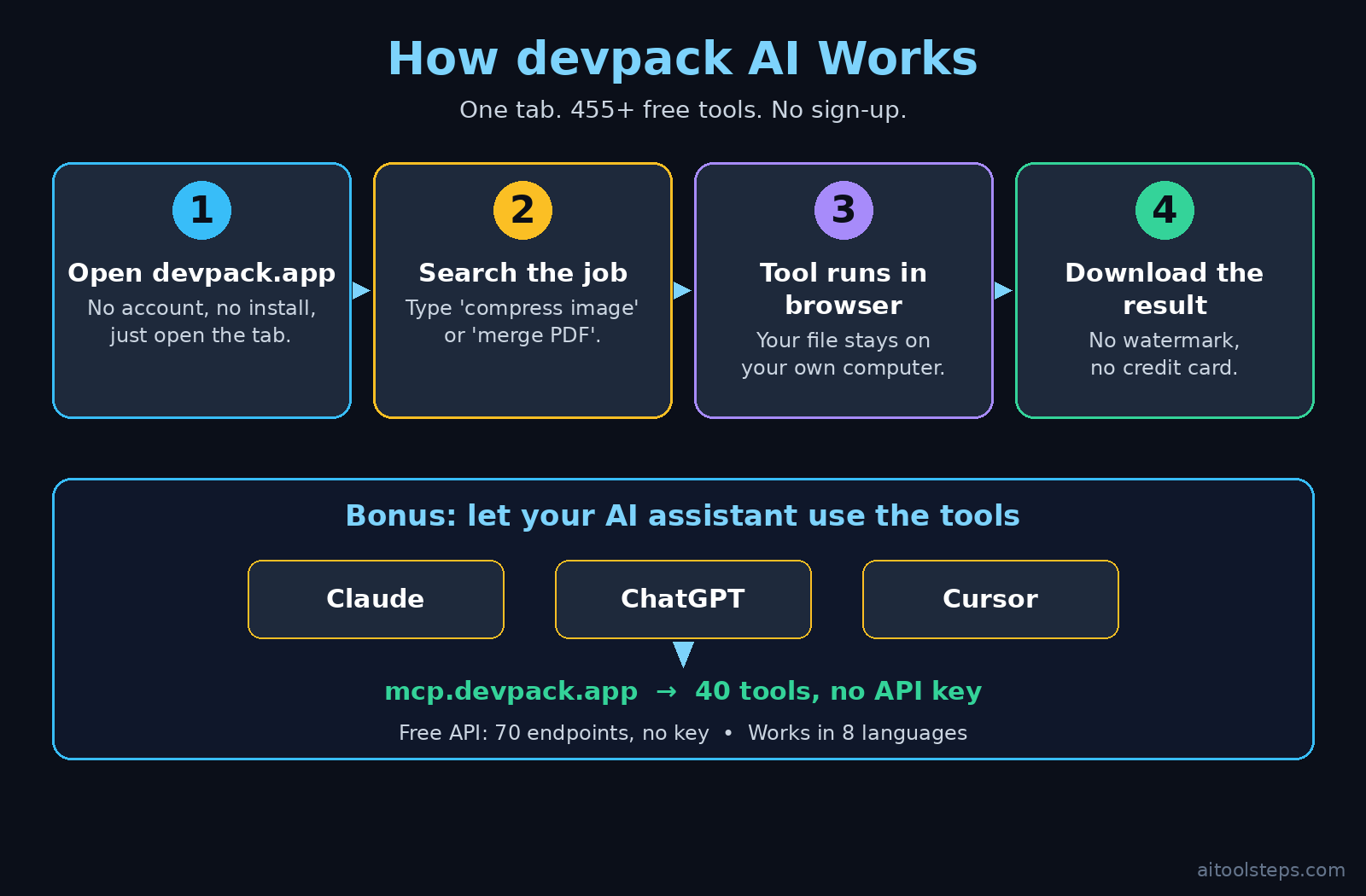
Three things make devpack different from the dozens of “free tools” websites you have seen before. First, most tools run entirely in your browser. That means when you compress an image or merge a PDF, the work happens on your own machine — the file is not uploaded to a server, processed somewhere else, and sent back. Second, there is no sign-up. There is no account to create, no email to confirm, and no credit card anywhere in the flow. Third, it now plugs into AI: a new MCP server lets you use 40 devpack tools inside Claude, ChatGPT or Cursor with a single URL, and a free API exposes 70 endpoints with no key required.
The price is 0 USD on its Product Hunt listing, and the makers say it is free because most tools run on your device, so their server costs stay very low. That is the whole business model in one sentence — and it is why the free tier is the whole product, not a teaser.
Step 2: Open devpack AI — No Sign-Up, No Install
Getting started takes about ten seconds, because there is nothing to install and nothing to create.
- Open the website. Go to devpack.app in any modern browser on your computer or phone. The home page loads as a grid of tool cards.
- Skip the sign-up — there is not one. You will not find a “Create account” button because there is no account system. You are already in.
- Pick a tool and use it immediately. Click any card, and the tool opens in the same tab. There is no download, no extension, and no setup wizard.
- Bookmark it. Because you will come back for a different tool every week, save devpack.app as a bookmark or pin the tab. That bookmark becomes your toolbox.
If a tool asks for a file, your browser will show its normal file picker. Pick the file, the tool runs locally, and you download the result. Nothing about this step needs an email address, and that is exactly the point.
Step 3: Find the Right Tool in Seconds
With 455 tools, the search box is your best friend. Do not scroll the whole catalogue on your first visit — search for the job instead.
- Search by the job, not the tool name. Type “compress image”, “merge PDF”, “SEO audit”, or “format JSON” and the matching tools appear instantly.
- Browse by category when you are exploring. The tools are grouped into families such as images, PDFs, text, code, SEO, and converters. Pick a category when you want to see what is possible.
- Learn the names of your five favourites. Most people use the same five or six tools again and again. Once you know them, you can jump straight to them.
- Try one new tool per week. The catalogue is big enough that you will keep discovering useful tools for months. A weekly five-minute browse is the easiest way to learn what is there.
A good first test is to search for “image compressor” and “PDF merger” and run both. If those two work smoothly for you, the rest of the catalogue will feel familiar, because every tool follows the same simple pattern: input on the left, result on the right, download button at the end.
Step 4: Compress Images, Merge PDFs and Run an SEO Audit in devpack AI
These three everyday jobs show how devpack works in practice, and they are the ones beginners use most.
- Compress an image. Open the image compressor, drop in a JPG or PNG, pick a quality level, and download the smaller file. Because the compression runs in your browser, a big photo never travels to a server. Use it before uploading images to your website or social media, where smaller files mean faster pages.
- Merge PDFs. Open the PDF merger, add two or more PDF files in the order you want them, and download one combined file. It is the fastest way to join an invoice, a cover page, and a report into a single document.
- Run an SEO audit. Paste your website address into the SEO audit tool and it checks the basics: title, meta description, headings, and other on-page signals. It is not a replacement for a full SEO suite, but it is a free first check that catches the obvious problems in seconds.
Each tool shows its result right on the page, with a clear download or copy button. If a result looks wrong, re-run the tool with different settings — there is no credit meter ticking down while you experiment.
Step 5: Format JSON and Use the Developer Tools
If you write code, build websites, or work with APIs, devpack’s developer tools will save you real time every week.
- Format JSON. Paste messy, single-line JSON into the formatter and it returns clean, indented JSON you can actually read. It also flags syntax errors, so you find the missing comma instead of guessing.
- Encode and decode. Base64, URL encoding, and similar converters are one click away — the kind of tools you need for five minutes a month and can never remember the website for.
- Generate and convert. Password generators, UUID generators, color converters, and unit converters all live in the same place, so you stop keeping ten different bookmark folders.
- Keep it local. Because these tools run in your browser, pasting a code snippet or a config file does not send it to a server. That matters when the snippet contains anything you would rather keep private.
You do not need to be a developer to use these tools. If you have ever copied an error message from a website, pasted it somewhere, and wished it were readable, the JSON formatter alone is worth the bookmark.
Step 6: Connect devpack to Claude, ChatGPT or Cursor via MCP
This is the newest part of devpack, and the most interesting for AI users. MCP — the Model Context Protocol — is a standard way for AI assistants to use outside tools. devpack’s new MCP server puts 40 of its tools inside Claude, ChatGPT or Cursor with one URL: mcp.devpack.app.
- Copy the MCP URL. The address is mcp.devpack.app. That single URL is the whole connection — there is no API key to generate.
- Add it in your AI app’s MCP settings. In Claude, ChatGPT, or Cursor, open the MCP or integrations settings and add a new server with that URL. The exact menu name differs between apps, but every one of them has an “add MCP server” option.
- Ask the AI to use a devpack tool. Once connected, you can ask in plain language: “compress this image”, “format this JSON”, or “run an SEO audit on my homepage”. The assistant calls the devpack tool and returns the result in the chat.
- Start with one tool. Do not connect everything on day one. Pick one job — formatting JSON is a good first test — and watch how the assistant uses the tool before you trust it with more.
This turns your chatbot into a toolbox. Instead of the AI describing how to compress an image, it compresses the image. For a beginner, that is the difference between reading instructions and getting the job done.
Step 7: Try the Free API (70 Endpoints, No Key)
If you automate anything — a small script, a spreadsheet, or an AI agent — devpack’s free API is worth knowing about. It exposes 70 endpoints, and it needs no key.
- No key means no signup dance. You call an endpoint and it answers. There is no developer portal, no key to store, and no quota form to fill in.
- Start with one endpoint. Pick the tool you already use by hand — for example, the image compressor or the JSON formatter — and try its API version once. If the response makes sense, you can build on it.
- Use it inside your AI agent. The same endpoints your scripts call can be called by an AI agent, which is why devpack describes the API as built for “you or your AI”. An agent that can call the API can do the job without you opening the tab at all.
- Respect the obvious limits. A free, keyless API is a generous offer, not an unlimited one. Keep your usage reasonable, cache results where you can, and check the official docs if you plan to call it heavily.
You do not need the API to enjoy devpack — the browser tab is the main product. But knowing it exists means that when a repetitive job appears, you already know where the automation hook lives.
Step 8: Use devpack AI in 8 Languages
devpack works in eight languages, which matters more than it sounds. Tool websites are usually English-only, and a confusing label in a second language is enough to make a beginner give up.
- Switch the language from the site settings. Pick the language you think in, and the menus, buttons, and tool names follow.
- Share it with non-English-speaking teammates. If you work with people who prefer another language, they get the same tools without a translation layer in between.
- Keep English for the technical terms. Tool names such as JSON, PDF, and SEO stay the same in every language, so what you learn transfers directly to other tools and tutorials.
If you run a small team or a family business and everyone needs the same small tools, a multilingual toolbox removes a quiet barrier that most tool sites never think about.
Step 9: Build a Simple Daily Workflow with devpack AI
devpack is most useful when it becomes a habit, not a one-off visit. Here is a simple workflow that takes five minutes a day.
- Morning: one SEO check. Run the SEO audit on your newest blog post or product page and fix whatever it flags. Small daily fixes beat a big monthly audit.
- Before publishing: compress every image. Make it a rule — no image goes on your website or social media without passing through the compressor first. Faster pages rank better and feel better.
- When a file arrives: convert it on the spot. A client sends a PDF that needs merging, or a teammate sends unformatted JSON. Handle it in devpack in the same minute instead of letting it sit in your downloads folder.
- Friday: try one new tool. Spend five minutes browsing a category you have never opened. That is how you discover the tool that saves you an hour next month.
If you want these chores handled for you instead of doing them yourself, a digital agency like D365A can take over the repetitive publishing and optimisation work while you focus on creating. And if you are curious about where tools like this are heading — AI assistants that call tools for you instead of waiting for instructions — the team at Agentic Affairs covers the agentic AI shift in plain language.
Step 10: Privacy, Limits and Honest Trade-Offs
devpack is genuinely useful, but it is a young, free product, so go in with clear eyes.
- Most tools run on your device — not all. The makers say most tools run entirely in your browser, so your files never leave your device. Read the note on any individual tool before feeding it something sensitive, because a few tools may work differently.
- Free has a reason. It is free because browser-side tools cost the makers very little to run. That is a healthy reason, but it also means there is no paid support desk and no service-level promise. If a tool breaks, you wait for a fix like everyone else.
- No watermarks, no sign-up — and no sync. Your tools and history live in your browser, not in an account. That is great for privacy, but it means your setup does not follow you to another computer unless you bookmark the site there too.
- Check the price before you build on it. The launch listing says 0 USD and the site says free. Prices and free tiers change fast in launch week, so re-check the official site before you build a business workflow on any single tool.
None of these are deal-breakers for a free toolbox. They are simply the difference between a tool you use casually and a tool you depend on — and for most beginners, devpack is firmly in the first category, with room to grow into the second.
devpack AI vs Other Ways to Get Small Tools Done
| Option | Cost | Sign-up needed | Files leave your device | Works inside Claude / ChatGPT |
|---|---|---|---|---|
| devpack AI | Free ($0) | No | No, for most tools | Yes, via MCP server |
| Single-purpose tool websites | Free with limits | Often yes | Usually yes | No |
| Browser extensions | Free or paid | Often yes | Sometimes | No |
| Paid tool suites | $10–$50/month | Yes | Usually yes | Rarely |
| Doing it by hand | Free | No | No | No |
The table makes the trade-off clear: devpack wins on price, privacy, and AI integration, while a paid suite still wins if you need team features, support, and synced history. For a beginner working alone, devpack is the better starting point.
Frequently Asked Questions
Is devpack AI really free?
Yes. Its Product Hunt listing shows a price of 0 USD, and the makers say it is free because most tools run in your browser, so their server costs stay low. There is no paid tier mentioned on the launch page, no watermark on results, and no credit card required.
Do I need an account to use devpack?
No. There is no sign-up, no login, and no email confirmation. You open devpack.app, pick a tool, and use it. Your tools and history live in your browser rather than in an account.
Is devpack safe? Do my files leave my computer?
For most tools, no — they run entirely in your browser, so your files never leave your device. That is one of devpack’s main selling points. Still, read the note on any individual tool before using it with sensitive files, because a small number of tools may work differently.
What is the devpack MCP server and do I need it?
MCP is a standard that lets AI assistants use outside tools. devpack’s MCP server at mcp.devpack.app gives Claude, ChatGPT or Cursor access to 40 devpack tools. You do not need it to use devpack in your browser, but it is the fastest way to let your AI assistant do the job instead of describing it.
Does devpack work on my phone?
Yes. It is a website, not an app, so it opens in any modern mobile browser. The layout adapts to small screens, and the same tools are available. Heavy jobs such as compressing large images are more comfortable on a computer, but quick jobs work fine on a phone.
What are the limits of devpack AI?
There is no published usage limit on the browser tools, and the free API needs no key. The practical limits are that there is no account sync between devices, no paid support, and a few tools may run on a server rather than in your browser. Re-check the official site if you plan to depend on it heavily.
Final Thoughts on devpack AI
devpack AI is the kind of tool that earns its bookmark quietly. It does not try to be your whole workflow — it simply removes the friction from the fifty small jobs that interrupt your real work. Open one tab, search for the job, get the result, and move on. The MCP server and the free API are the bonus: the same toolbox your hands use today is the toolbox your AI assistant can use tomorrow. Try it with one real job — compress the next image you publish, or format the next JSON file you touch — and you will know within five minutes whether it belongs in your daily routine. For most beginners, it will.
Explore More Free AI Tools
Want more free tools like devpack? Try the free tools on AIToolSteps: the AI Title Generator for headlines that get clicked, the Meta Description Generator for search snippets that earn the click, the AI Rewriter for polishing rough drafts, and the Keyword Density Checker for keeping your pages on topic. Each one is free, each one works in your browser, and each one pairs well with the toolbox you just learned.