

Most AI coding tools ask you to trust the agent and hope for the best. ZUS AI takes the opposite approach: the agent does the coding, but you review every single change before it becomes part of your project. It is a free desktop IDE with an AI agent built in, launched on Product Hunt on November 10, 2026, by the team at 8 Sync — and it is built for beginners who want AI help without handing over control of their code. This guide shows you exactly how to use ZUS AI, from the free download to your first reviewed diff.
Step 1: What Is ZUS AI?
ZUS AI is a desktop code editor with an AI agent living inside it. You open a project, describe what you want in plain language, and the agent reads your codebase, makes a plan, edits the files, and runs commands — all inside one window that also holds the editor, the chat, the terminal, Git, and design spaces. What makes it different from a chatbot pasted onto an editor is the review loop: every change the agent makes shows up as a diff that you read, keep, or undo. Nothing lands in your code silently.
The team behind ZUS, 8 Sync, built it around three principles: Local-First, Human Agency, and Evidence-Grounded Development. In plain English, that means your project index and context stay on your own machine instead of being uploaded to their servers, you stay in charge of what changes, and every agent action leaves evidence you can inspect. You also connect your own AI provider, so you are not locked into one company’s model or price. ZUS is still early — some features depend on your operating system and the provider you connect — but the core loop already works: ask, watch, review, decide.
Step 2: Download and Install ZUS AI Free
ZUS AI is free to download — its Product Hunt listing shows a price of 0 USD — and it runs on Windows, macOS (Apple Silicon), and Linux. It is built on Tauri 2 and Rust, which is why the Windows installer is only about 20 MB: it is a small, fast desktop app, not a heavy Electron download.
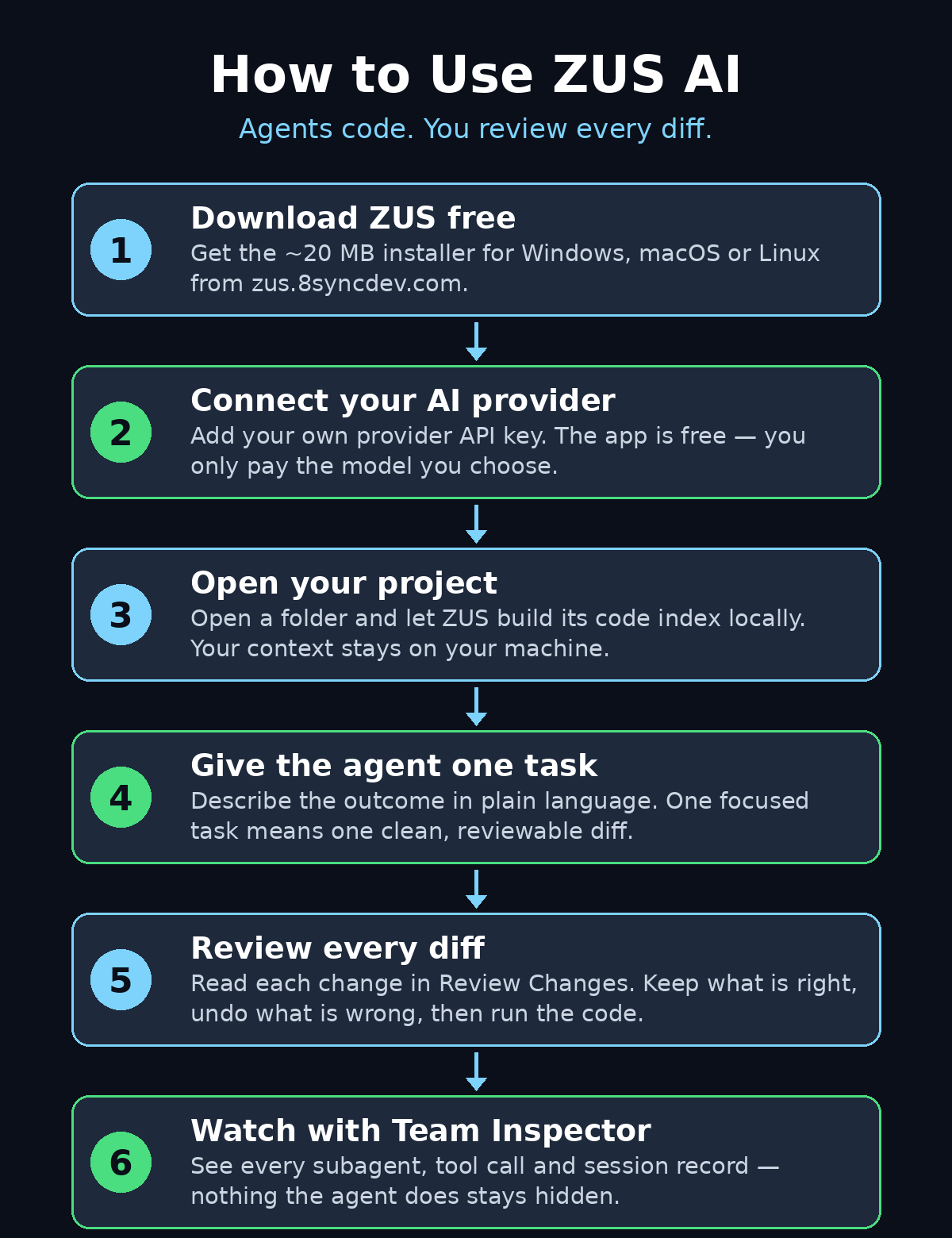
- Go to the official site. Open zus.8syncdev.com in your browser and click the download button for your operating system.
- Run the installer. On Windows, run the small installer and follow the prompts. On macOS, drag the app into Applications. On Linux, use the package provided for your distribution.
- Open ZUS for the first time. The first launch shows you the main window: editor on one side, agent chat on the other, with the terminal and Git tucked into the same view.
- Check for updates. ZUS is under active development — version 1.7.8 shipped in late October 2026 — so check the update notice on launch and install the newest build before you start a real project.
Because the installer is tiny, the whole setup takes a few minutes even on a slow connection. If you have used VS Code or Cursor before, the layout will feel familiar within seconds.
Step 3: Connect Your AI Provider
ZUS AI does not bundle a model of its own. Instead, you connect the AI provider you already use, which keeps the app free and keeps you in control of cost and capability.
- Open the provider settings. In ZUS, find the AI provider or model settings in the agent panel or preferences.
- Add your API key. Paste the key from your provider — for example, your Anthropic, OpenAI, or Google AI key — and save it. ZUS stores it locally on your machine.
- Pick a model. Choose the model you want the agent to use for coding tasks. A strong coding model gives better plans and fewer broken edits.
- Send a test message. Ask the agent a simple question about an empty project, such as “What can you help me build?” If it answers, the connection works.
The practical meaning of bring-your-own-provider is simple: the app costs nothing, and you only pay your provider’s normal usage for the model you choose. If your provider has a free tier, your first experiments can cost nothing at all. And if you ever want to switch models, you change one setting instead of learning a new tool — the same flexibility that makes our guide on how to use Google Antigravity AI useful still applies: the agent is only as good as the model behind it, so pick deliberately.
Step 4: Open Your First Project
ZUS AI works on a real folder on your computer, just like any other editor. The first time you open a project, ZUS builds a local index of your code so the agent understands the structure — and that index never leaves your machine.
- Open a folder. Use File > Open Folder (or the welcome screen) and pick a project. For your first run, use a small practice project, not your most important work.
- Let the index build. ZUS scans the files and builds its code intelligence locally. On a small project this takes seconds; on a large one, give it a minute.
- Look around the window. The editor, agent chat, terminal, and Git panels are all in one place, so you never have to switch apps to see what the agent is doing.
- Check Git status. If your project uses Git, confirm the working tree is clean before the agent starts editing — a clean tree makes every later diff easy to read and easy to undo.
Starting with a practice project is the single best beginner habit in ZUS. You learn the review loop on code you can afford to break, and by the time you open a real project, keeping and undoing diffs feels automatic.
Step 5: Give the Agent Its First Task
The agent takes tasks in plain language from the chat panel. A good first task is small, specific, and easy to check — for example, “Add a dark mode toggle to the settings page” or “Write a function that validates email addresses and add a test for it.”
- Describe the outcome, not the code. Say what the finished feature should do and how you will know it works. The agent plans the implementation itself.
- Give it context in the same message. Mention the file or area involved — “in the settings page” — so the agent starts in the right place instead of searching the whole project.
- Let it plan first. The agent reads the codebase and forms a plan before it edits anything. Read that plan in the chat: if the plan is wrong, correct it now, while fixing it costs one sentence instead of an hour of cleanup.
- Ask for one thing at a time. A single focused task produces a clean, reviewable diff. A five-part request produces a five-part diff that is much harder to check.
This one-task-at-a-time rhythm is also how professionals use AI agents in production. If you build client work with AI, the same discipline scales: small, verifiable tasks are easier to review, easier to bill, and easier to explain to a client than one giant agent run. Teams that offer AI automation services use exactly this pattern to keep agent work auditable.
Step 6: Review Every Diff Before You Keep It
This is the step ZUS AI is built around, and the one that protects beginners most. When the agent finishes editing, it does not silently save the result. Every change appears in the Review Changes view as a diff — added lines in one color, removed lines in another — and you decide what stays.
- Open Review Changes. After the agent reports it is done, open the review view and read each changed file, one at a time.
- Read the diff, not just the summary. The agent’s summary tells you what it intended. The diff tells you what it actually did. Trust the diff.
- Keep what is right. Accept the hunks that match your request and look correct.
- Undo what is wrong. Reject or undo any change that looks off — a wrong file touched, a deleted line you still need, a guess where it should have asked. Undo is one click, and it is always available.
- Run the code before you move on. Use the built-in terminal to run your app or its tests. A diff that reads well but breaks the build is still a bad diff.
Make this review step non-negotiable, even when the agent’s work looks perfect. Reviewing is a skill, and it improves fast: after a week of reading diffs, you will spot a wrong import, a missing check, or a silent behavior change in seconds. That skill transfers to every other AI coding tool you will ever use, including the ones in our guide on how to use Orca AI, where several agents can edit side by side.
Step 7: Use Team Inspector to Watch Subagents
When a task is big enough, the ZUS agent splits it into smaller jobs and hands them to subagents that work in parallel. Team Inspector is the window where you watch that team work — and for a beginner, it is the fastest way to understand what an AI agent actually does behind the scenes.
- Open Team Inspector. While a task is running, open the inspector to see each agent and subagent, what it is doing, and which tools it has called.
- Check running vs stopped tasks. The inspector shows which tasks are still running and which have stopped, so you can tell at a glance whether the agent is still working or waiting on something.
- Read the tool calls. Each entry shows what the agent did — which file it read, which command it ran, which edit it made. If a subagent wandered into a file it had no business touching, you will see it here first.
- Review the session record. Agent Sessions keep a full record of the exchange, so you can scroll back later and see exactly how a result was reached.
Watching the inspector for one full task teaches you more about agent behavior than a dozen blog posts. You learn how agents break work down, where they waste effort, and which instructions keep them on track — knowledge that makes every future prompt better.
Step 8: Set Permissions So the Agent Stays in Its Lane
The ZUS agent only works within the permissions you grant it. That boundary is a feature, not a limitation: it is what keeps an agent from editing files, running commands, or touching systems you never meant to include.
- Start with narrow permissions. On your first projects, let the agent read and edit code files, but keep shell commands and file deletions under your approval.
- Expand deliberately. When you trust the workflow, widen the permissions one step at a time — for example, allowing test commands, then build commands.
- Scope the task, not just the tool. Tell the agent which folders are in play (“only the src folder”) as well as which actions are allowed.
- Review permissions when a task stalls. If the agent stops and asks for access it does not have, that is the system working. Decide consciously whether to grant it, rather than turning everything on to make the prompt go away.
Permissions are also a business habit. If you run a digital agency and let an agent touch client code, a tight permission scope is part of your duty of care — it is the difference between a helpful assistant and an unsupervised contractor with the keys to everything.
Step 9: ZUS AI vs Other AI Coding Tools — Quick Comparison
Here is how ZUS AI lines up against the coding tools beginners usually compare it with. The honest summary is that ZUS wins on control and transparency, while the bigger names win on polish and ecosystem.
| Tool | Agent model | Review control | Price |
|---|---|---|---|
| ZUS AI | Built-in agent, bring your own provider | Every diff reviewed, Team Inspector | Free app |
| Cursor | Built-in agent + autocomplete | Diff review, agent mode | Free tier, then paid plans |
| Claude Code | Agent in the terminal | Plan mode, diff review | Free plan, then paid plans |
| Google Antigravity | Agent-first editor | Agent workflows, review steps | Free during preview |
| Windsurf | Agentic editor | Diff review, Cascade agent | Free tier, then paid plans |
Choose ZUS AI if your priority is a free, local-first editor where you see everything the agent does and nothing ships without your say-so. Choose a bigger platform if you need deep integrations, a large extension library, or a team plan today. Many developers end up using both: ZUS for careful work on personal projects, and a mainstream editor for team collaboration. Our guide on how to use Qwen4-Max AI shows how the model you connect behind an agent changes what it can do, which matters in ZUS because the provider is your choice.
Step 10: Avoid These Beginner Mistakes
Most first-week problems with ZUS AI come from skipping the review loop, not from the tool itself. Avoid these five:
- Do not accept a diff you have not read. Accepting everything turns the review step into decoration. If a diff is too big to read, ask the agent to split the task into smaller pieces.
- Do not give the agent your whole project at once. A vague task like “improve the app” produces a sprawling diff nobody can review properly. One feature, one task, one diff.
- Do not grant full permissions on day one. Wide permissions feel faster until the agent deletes or rewrites something you needed. Start narrow and widen as trust is earned.
- Do not skip the test run. A diff that looks right can still break the build. Run the app or its tests after every accepted change.
- Do not paste secrets into the chat. API keys, passwords, and private client data do not belong in any AI conversation, including one running on your own machine — the key you paste may travel to your provider with the prompt.
One more workflow tip: because ZUS AI is still early, expect rough edges and occasional missing features — the makers say so themselves. Treat the first month as a learning period, keep your projects in Git so every change is reversible, and report the rough edges you find. Early tools improve fastest for the users who actually use them.
Frequently Asked Questions About ZUS AI
Is ZUS AI really free?
Yes. The app itself is free to download and use — its Product Hunt listing shows a price of 0 USD. You connect your own AI provider, so your only cost is whatever your provider charges for the model you choose, and many providers offer a free tier for light use.
Do I need an API key to use ZUS AI?
Yes, from your chosen AI provider. ZUS does not bundle a model, so you add a key from a provider such as Anthropic, OpenAI, or Google AI in the provider settings. The key is stored locally on your machine, and you can switch providers or models at any time.
Does ZUS AI send my code to the cloud?
Your project index and context stay on your machine — that is the Local-First principle the makers state. Your prompts and the code the agent reads do go to the AI provider you connected, because that provider’s model does the thinking. If your code is sensitive, check your provider’s data policy before you connect.
What operating systems does ZUS AI support?
Windows, macOS on Apple Silicon, and Linux. It is built on Tauri 2 and Rust, and the Windows installer is about 20 MB. Some features may depend on your operating system and the provider you connect, since the app is still early.
Can a beginner who cannot code use ZUS AI?
Yes, with the right expectations. You do not need to write code — you describe what you want in plain language and review the agent’s diffs. But you do need to read diffs carefully and run the result to check it works. Beginners who treat the review step seriously learn fast; beginners who accept everything blindly do not.
How is ZUS AI different from Cursor?
Both are AI-native editors with diff review, but ZUS is free, local-first, and built around the review loop and Team Inspector from the start, while Cursor is a larger, more polished platform with a free tier and paid plans. ZUS also lets you bring any provider, whereas Cursor is tied more closely to its own model setup. If control and transparency matter most to you, start with ZUS.
Final Thoughts
ZUS AI is a small, free, honest tool in a field full of big promises: it does not pretend the agent is always right, and it does not hide what the agent did. The whole product is built around one idea — the agent codes, you decide — and for a beginner that is the safest possible way to learn AI-assisted coding. Download it free, connect your provider, start with one small task on a practice project, and read every diff like it matters, because it does. If the review loop clicks for you, ZUS AI earns a permanent place in your toolkit; if it does not, you have lost nothing but an afternoon, and you will still leave knowing how to review agent work in any editor. For teams building with agents every day, that review skill — and the permission discipline behind it — is worth more than any single tool, which is why it sits at the heart of the AI automation services serious teams offer their clients.
Explore More Free AI Tools
Want more free AI tools like ZUS AI? Try our AI Title Generator, Meta Description Generator, AI Rewriter, and Keyword Density Checker at aitoolsteps.com — free tools to help you write, optimize, and publish better content every day.