

Do you ever leave a Zoom meeting and realize you remember almost nothing that was decided? Or spend half your meeting frantically scribbling notes instead of actually listening? You are not alone — and this is exactly the problem AI meeting note-takers were built to solve. The good news: once you learn how to use Otter AI, you will never take manual meeting notes again.
Otter.ai is one of the most popular AI note-taking tools in the world, and the best part is that you can start using it today for free. It listens to your meetings, writes down everything that is said in real time, figures out who said what, and then — after the call ends — hands you a clean summary with action items and highlights. No special skills required, no credit card needed.
In this beginner-friendly guide, you will learn how to use Otter AI step by step: from creating your free account, to letting its OtterPilot bot join your meetings automatically, to using AI Chat to ask questions about any conversation. By the end, you will never take manual meeting notes again.
Step 1: Create Your Free Otter.ai Account
Getting started takes less than two minutes. Here is exactly what to do:
- Go to otter.ai in your browser.
- Click Sign Up and choose “Sign up with Google” or “Sign up with Microsoft” — this is the fastest option and it also makes calendar connection easier later.
- Alternatively, sign up with any email address and create a password.
- Confirm your email if asked, and you are in. No credit card is required for the free plan.
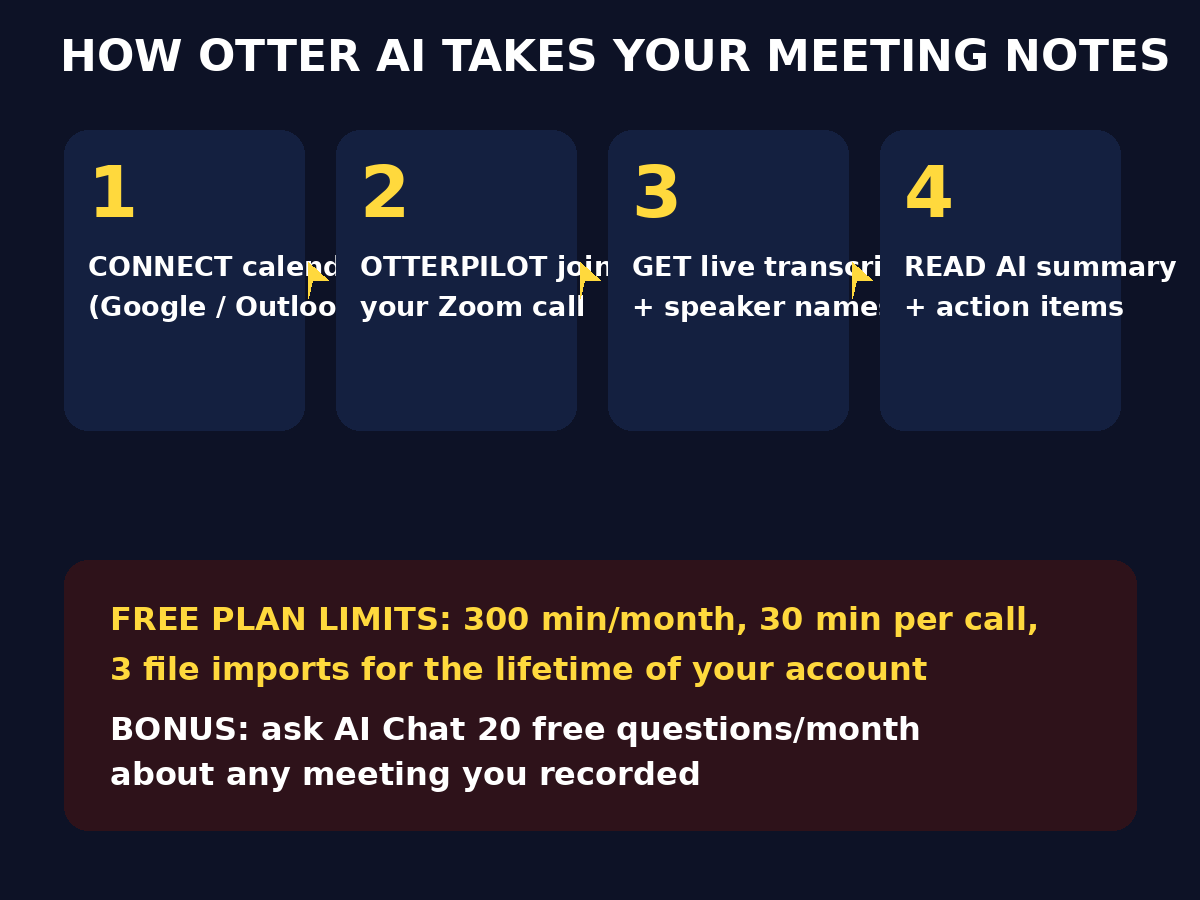
Your free Basic account includes:
- 300 transcription minutes per month (about 5 hours of meetings)
- 30-minute cap per conversation
- 3 file imports for the lifetime of the account
- 20 Otter AI Chat queries per month
- A workspace for up to 5 members
- Compatibility with Zoom, Microsoft Teams, and Google Meet
- Free iOS and Android apps
That is genuinely generous for a free tier — enough for a student, freelancer, or small-team member who attends a handful of meetings per week.
Step 2: Connect Your Calendar So OtterPilot Auto-Joins Your Meetings
This is the step that makes Otter feel like magic. Once you connect your calendar, Otter’s bot — called OtterPilot — automatically joins your scheduled Zoom, Google Meet, or Microsoft Teams calls and starts transcribing without you lifting a finger.
Here is how to set it up:
- In the Otter dashboard, open Settings (or look for the calendar integration prompt on the home screen).
- Choose Google Calendar or Outlook Calendar and click Connect.
- Grant Otter permission to read your calendar events. It only needs your meeting schedule, so it knows which calls to join.
- Toggle on “Auto-join” so OtterPilot shows up at your scheduled meetings.
Important to know: when OtterPilot joins, the host and other participants will see a participant named “Otter.ai” (or similar) enter the call. This is normal — and polite meeting etiquette means you should let people know an AI notetaker will be present. Many people add a quick line to their meeting invite: “We’ll have an AI assistant taking notes.”
Beginner tip: If you are nervous about a bot joining a meeting, test it first on a call with a friend (Step 3 covers exactly that).
Step 3: Join a Test Call and Watch Live Transcription
Before trusting Otter with an important client meeting, do a practice run. It takes five minutes and shows you exactly how the tool behaves.
- Start a quick Zoom, Google Meet, or Teams call with a friend — or even with yourself on two devices.
- Open Otter in your browser at the same time (or let OtterPilot auto-join if you connected your calendar).
- Alternatively, click the Record button inside Otter to start a live transcription session directly.
- Talk for a few minutes, with both people speaking, and watch the words appear on screen almost instantly.
- Notice how Otter separates speakers — it will label them “Speaker 1” and “Speaker 2” until you teach it names.
What you are seeing is real-time transcription: every word converted to text as it is spoken. You will also notice it is not perfect — names, jargon, and heavy accents sometimes trip it up. That is normal for every AI transcription tool, and Step 6 shows you how to fix errors easily.
If you are using OtterPilot on a real call, you can follow along with the live transcript in the Otter web app or mobile app while the meeting runs — or just relax and read everything afterward.
Step 4: Read the AI Summary and Action Items After the Call
This is where learning how to use Otter AI pays for itself. Within a few minutes of your meeting ending, Otter generates an automatic summary of the entire conversation, plus a list of action items it detected.
To find them:
- Open the Otter dashboard and click the conversation (each meeting is saved as one “conversation”).
- At the top you will see the Summary tab — a short paragraph-style recap of what was discussed and decided.
- Below that, look for Action Items — tasks Otter thinks were assigned, like “John will send the budget by Friday.”
- Use the Outline view to jump to specific topics — Otter breaks long meetings into sections with time stamps.
Why this matters: instead of re-reading a 45-minute transcript, you can skim the summary in 60 seconds and know exactly what happened. Managers love this for meetings they missed; students love it for lectures; freelancers love it for client calls.
Beginner tip: Always skim the action items before your next meeting — they are the closest thing to a free personal assistant following up on your behalf.
Step 5: How to Use Otter AI Chat to Ask Questions
Here is a feature beginners often miss: Otter AI Chat. Instead of searching through transcripts, you can simply ask questions about your meetings in plain English — like chatting with an assistant that attended every call with you.
Try questions like:
- “What did we decide about the launch date?”
- “Summarize what Sarah said about the budget.”
- “List all the action items from yesterday’s team meeting.”
- “What were the main concerns raised in the client call?”
How to use it:
- Open any conversation in Otter.
- Click the AI Chat panel (usually on the right side).
- Type your question and hit enter.
- Otter answers based on the transcript — and often links back to the exact moment in the recording.
Your free plan includes 20 AI Chat queries per month, so use them on the meetings that matter most. This single feature can replace hours of manual note-reviewing.
Step 6: Highlight, Edit, and Fix Your Transcripts
AI transcription is good, but it is not flawless. Otter gives you simple tools to clean things up, and a few minutes of editing makes your notes dramatically more useful.
Highlight key moments:
- While a meeting is running (or afterward), select any text and click Highlight. Highlighted lines are collected in one place, so you can build a “best of” version of any long call.
Fix transcription errors:
- Click any word in the transcript and edit it directly — just like editing a document.
- If Otter keeps misspelling a name or term, add it to your custom vocabulary in Settings so it gets it right next time.
Teach Otter who is who:
- Click a “Speaker 1” label and rename it to the person’s real name. Otter learns voices over time, so speaker identification improves the more you use it.
Add comments:
- Click the comment icon next to any line to add your own note — perfect for marking “follow up on this” or adding context the AI could not know.
Beginner tip: Spend 5 minutes after each important meeting highlighting the key decisions and fixing any names. Your future self will thank you when searching old meetings.
Step 7: Import Audio or Video Files (3 Free Lifetime Imports)
Otter is not just for live meetings. You can upload pre-recorded audio or video files and get them transcribed too — great for recorded lectures, podcast episodes, voice memos, or old meeting recordings.
How it works:
- In the Otter dashboard, click Import (or drag and drop a file).
- Choose an audio or video file from your computer.
- Otter uploads it, processes it, and returns a full transcript with speaker labels and a summary — just like a live meeting.
The free plan gives you 3 file imports for the lifetime of the account (not per month), so choose wisely. Good uses for your three imports:
- A long recorded lecture you need summarized before an exam
- An important client call recording you forgot to transcribe live
- A podcast episode you want searchable notes from
File import minutes count against your 300 monthly transcription minutes, so keep an eye on the total length.
Step 8: How to Use Otter AI for In-Person Meetings
Not every conversation happens on Zoom. Otter’s free iOS and Android apps turn your phone into an AI note-taker for in-person meetings, interviews, lectures, and brainstorming sessions.
Here is the beginner workflow:
- Install the Otter app from the App Store or Google Play and sign in.
- Before the meeting starts, open the app and tap the big Record button.
- Set your phone on the table — closer to the speakers is better for accuracy.
- Talk normally. Otter transcribes live on your screen, with speaker separation.
- When you are done, tap Stop. The transcript, summary, and action items sync to your account within minutes.
Practical tips for better in-person transcription:
- Reduce background noise — cafes and windy outdoor spots hurt accuracy.
- Ask people to introduce themselves at the start (“This is Ahmed speaking”) so speaker labels are easier to fix later.
- Keep the phone charged — live transcription uses battery.
Students use this for lectures, journalists for interviews, and teams for whiteboard sessions. It is one of the most underrated parts of the free plan.
Step 9: Share Transcripts and Collaborate with Your Team
Meeting notes are only useful if the right people can see them. Otter makes sharing simple, and your free workspace supports up to 5 members.
Share a single conversation:
- Open the conversation and click Share.
- Copy the link and send it to anyone — you can control whether they can view only or also comment and edit.
Work as a team:
- Invite teammates to your free workspace (up to 5 members on the free plan).
- Shared conversations appear in everyone’s dashboard.
- Teammates can add highlights and comments, turning one transcript into a living team document.
Export your notes:
- On higher plans, you can export transcripts as TXT, PDF, or DOCX. On the free plan, the share link is your best friend — it works for anyone, no Otter account required.
Beginner tip: After every team meeting, share the Otter link in your team chat instead of writing a recap email. It takes ten seconds and everyone gets the full context.
Step 10: Stay Inside the Free Limits (Smart Tips)
The free plan is generous, but it has boundaries. Here is how to make 300 minutes a month feel like plenty:
- Know your cap: 300 minutes/month is about 5 hours — roughly one 30-minute meeting per workday. The per-conversation cap is 30 minutes, so a 45-minute call will get cut off. For longer meetings, start a second recording.
- Use OtterPilot selectively: In settings, choose which calendar events OtterPilot auto-joins. Skip the all-hands and social calls; save your minutes for meetings with real decisions.
- Spend AI Chat wisely: You get 20 queries/month. Use them for important meetings, not for “what did we talk about in the standup.”
- Save your 3 imports: Treat file imports like gold — only for recordings you truly need transcribed.
- Delete or archive old conversations you no longer need to keep your workspace tidy (this does not refund minutes, but it keeps things organized).
- Students and teachers: if you have a .edu email, you can get 20% off paid plans — worth knowing if you outgrow the free tier during a busy semester.
Track your usage in the dashboard — Otter shows how many minutes you have used and how many remain, so there are no surprises.
Step 11: Know When to Upgrade to Pro (Optional)
Most beginners never need to pay. But if you find yourself hitting the limits every month, here is what the paid tiers offer:
- Pro — $16.99/user/month, or $8.33/user/month billed annually: 1,200 transcription minutes/month, 90-minute per-conversation cap, 10 file imports/month. Best for professionals in back-to-back meetings.
- Business — $30/user/month, or $19.99/user/month billed annually: unlimited meetings and a 4-hour per-conversation cap. Best for teams and companies.
- Enterprise: adds advanced security, CRM and sales integrations, and admin controls.
Upgrade only when the free plan is genuinely holding you back — for example, if you regularly run meetings longer than 30 minutes or burn through 300 minutes before the month ends. Until then, the free plan does the heavy lifting.
Otter.ai Free vs Competitors: Quick Comparison
Otter is not the only AI note-taker with a free plan. Here is how it stacks up against three popular alternatives:
| Tool | Free minutes/recordings | Per-meeting cap | Best for |
|---|---|---|---|
| Otter.ai Free | 300 transcription min/month | 30 minutes | Beginners who want AI summaries + AI Chat |
| Fireflies.ai Free | Unlimited transcription (limited storage) | Varies by plan | Teams wanting unlimited meetings on free |
| Fathom Free | Generous free tier: recording + transcript + AI summary | Varies by plan | Zoom users wanting a simple free summary |
| tl;dv Free | Unlimited recordings (Zoom/Meet/Teams) | Varies by plan | Users who want unlimited free recordings |
Otter’s edge for beginners is the combination of live transcription, automatic summaries, and the AI Chat feature — all usable without paying. If your priority is unlimited free recordings instead, Fireflies or tl;dv may fit better. Try Otter first; switching costs nothing.
Frequently Asked Questions
Is Otter AI really free?
Yes. The Basic plan costs $0 with no credit card required. You get 300 transcription minutes per month, a 30-minute cap per conversation, 3 lifetime file imports, 20 AI Chat queries per month, and support for Zoom, Microsoft Teams, and Google Meet. Paid plans (Pro, Business, Enterprise) exist for heavier users, but beginners can do a lot on free.
How accurate is Otter’s transcription?
Otter is generally very accurate for clear, English-language speech in quiet environments — most users find it captures the vast majority of words correctly. Accuracy drops with heavy accents, overlapping speakers, background noise, and specialized jargon. The good news: you can edit any word, add custom vocabulary for names and terms, and rename speakers, which steadily improves your results.
Does Otter work with Zoom, Google Meet, and Microsoft Teams?
Yes — all three. Once you connect your Google or Outlook calendar, OtterPilot automatically joins scheduled calls on any of these platforms and transcribes them. You can also start a manual recording inside Otter or use the mobile app for in-person conversations.
Can I transcribe pre-recorded audio for free?
Yes, but with a strict limit: the free plan includes 3 file imports for the lifetime of your account. Upload an audio or video file through the Import button and Otter will transcribe it like a live meeting. Imported minutes count toward your 300 monthly minutes, so use your three imports on recordings that really matter.
Does Otter tell other participants it’s recording?
Yes. When OtterPilot joins a call, participants see a new attendee (usually labeled “Otter.ai”) enter the meeting — it does not record secretly. Best practice is to mention it upfront: add a line to your invite like “An AI notetaker will join to capture notes,” or announce it at the start of the call.
Is my meeting data private?
Otter stores your transcripts in your account and lets you control sharing via links and workspace permissions. Like any cloud service, you should avoid transcribing highly sensitive conversations (legal, medical, or confidential business matters) unless you have reviewed Otter’s privacy policy and your organization’s rules. For everyday team meetings, classes, and interviews, it is widely used and trusted.
Final Thoughts
Learning how to use Otter AI is one of the highest-leverage skills a beginner can pick up in 2026. In about ten minutes of setup — a free account, a connected calendar, one test call — you get an AI assistant that attends your meetings, writes your notes, summarizes the decisions, and even answers your questions about what was said.
Start with the free plan, run one practice meeting, and build the habit of skimming the AI summary after every call. Once you experience a week of never writing manual notes, you will wonder how you ever managed without it. And if you outgrow the free limits, you will know exactly which paid feature is worth it — because you will have earned the upgrade through real usage.
Explore More Free AI Tools
Want to keep learning? Try these free AI tools from AIToolSteps:
- AI Title Generator – create catchy, SEO-friendly titles for your articles and videos in seconds.
- Meta Description Generator – write perfect meta descriptions that get more clicks from Google.
- AI Rewriter – rewrite any text to sound clearer, fresher, and more original.
- Keyword Density Checker – check your keyword usage and keep your content SEO-optimized.