
Fake photos and videos are everywhere in 2026. A viral picture of a celebrity, a shocking “news” clip, a too-good-to-be-true product photo — more and more of them are made by AI. The good news: Google has launched a free tool that lets anyone check whether an image, video, or audio clip carries its invisible AI watermark. It’s called SynthID verification, and in this guide you’ll learn how to detect AI-generated images and videos for free with it, step by step, even if you’ve never done anything like this before.
Best of all, it’s 100% free and you don’t need any technical skills.
Step 1: Understand What SynthID Watermarking Is
Before you upload anything, it helps to know what you’re actually checking. SynthID is Google’s invisible watermarking technology. When Google’s AI tools — like Gemini, ImageFX, Whisk, Veo (video), or Lyria (audio) — generate media, they quietly embed a hidden digital signal into the file.
Key facts beginners should know:
- The watermark is invisible — you can’t see it by looking at the image or listening to the audio.
- It survives many edits: cropping, resizing, screenshots, and compression usually don’t remove it.
- It is not a visible logo or badge — it’s hidden inside the pixels and sound waves.
- Only Google’s AI products embed SynthID right now, so a “no watermark found” result does not prove something was made by a human — it just means Google’s watermark wasn’t detected.
Think of it like a secret signature baked into AI-made media. Google’s new verification site reads that signature for you.
Step 2: Open Google’s SynthID Verification Site
Google launched a public website where anyone can verify media. Here’s how to get there:
- Open your browser on your phone or computer.
- Search for “Google SynthID verify” or go directly to the official SynthID site (make sure it’s a Google-owned page — look for the google.com or synthid.google domain).
- The page loads a simple upload interface — no sign-up or payment needed.
- Bookmark the page so you can check suspicious media anytime in seconds.
Beginner tip: Always double-check you’re on Google’s official site before uploading anything. Scammers create fake “AI detector” sites to steal your files or data. If the address doesn’t belong to Google, close the tab.
Step 3: Upload the Image, Video, or Audio You Want to Check
This is the main event. If you want to detect AI-generated images and videos, this is the step that matters most. The site accepts the three media types SynthID supports:
- Click the upload button (or drag and drop your file onto the page).
- Choose the file from your phone gallery or computer:
- Images: JPG, PNG, WebP and similar formats work.
- Videos: common formats like MP4 work.
- Audio: common formats like MP3 or WAV work.
- Wait a few seconds while the tool scans the file for the invisible watermark.
- You don’t need to change any settings — the scan is automatic.
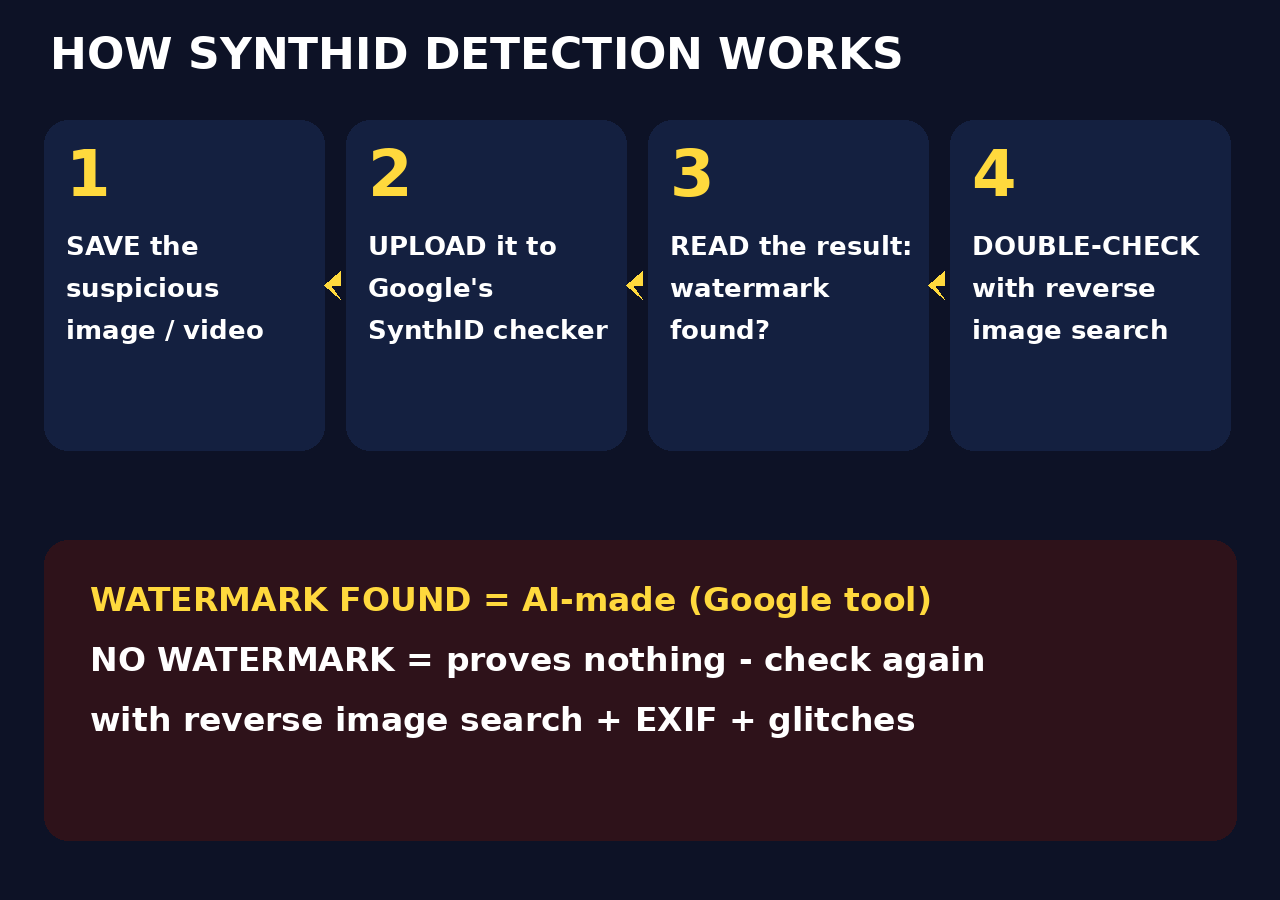
Beginner tip: If you’re checking a suspicious image from social media, save it to your device first (long-press → Save image), then upload the saved copy.
Step 4: Read the Detection Results Correctly
The site will tell you one of two things, and interpreting them correctly is the most important skill in this guide:
- “SynthID watermark detected” — The file carries Google’s AI watermark. It was almost certainly generated or edited by one of Google’s AI tools (Gemini, ImageFX, Veo, etc.).
- “No SynthID watermark detected” — No Google watermark was found. This does not mean the media is real. It could be human-made, or it could be made by a non-Google AI tool (like Midjourney, DALL-E, or Runway) that doesn’t use SynthID.
Remember this simple rule: a positive result is strong evidence of AI generation; a negative result proves nothing on its own. Therefore, always combine this check with the other methods in Steps 8 and 9.
Step 5: Check Media Made by Google’s Own AI Tools
Want to see the tool in action with a guaranteed positive result? Generate a test image yourself:
- Open the Gemini app or website (free).
- Ask it to generate an image, e.g. “a cute robot drinking coffee in a Paris cafe, digital art”.
- Save the generated image to your device.
- Upload it to the SynthID verification site.
You should see a watermark detected result. This is a great confidence-building exercise: now you know exactly what a positive result looks like, so you’ll recognize it instantly when you check suspicious media later.
Beginner tip: Try the same test with a photo taken by your phone camera. It should return no watermark detected — that’s what a real photo looks like when you detect AI-generated images and videos with this tool.
Step 6: Test AI-Edited Photos Too
SynthID doesn’t only catch fully AI-generated media — it can also flag real photos that were edited with Google’s AI tools. This matters because many viral fakes are real photos with AI-added or AI-removed elements.
- Take a normal photo with your phone.
- Use an AI editing feature (like Magic Editor in Google Photos) to remove an object or change the sky.
- Save the edited version.
- Upload it to the SynthID checker.
In many cases, the edited regions carry the watermark, and the tool will flag the file. This is how you catch “half-fake” images — photos that look real at first glance but were manipulated with AI.
Step 7: Know the Limits — Screenshots, Heavy Edits, and Non-Google AI
No detector is perfect, and an honest guide tells you where the tool stops working. Here are the real limitations:
- Non-Google AI tools aren’t covered. Images from Midjourney, DALL-E, Stable Diffusion, or Runway don’t carry SynthID, so the checker will miss them.
- Heavy manipulation can break the watermark. While SynthID survives common edits, extreme transformations — very heavy filters, re-photographing a screen, printing and re-scanning — can degrade or destroy the signal.
- Very old AI content predates watermarking. Media generated before Google rolled out SynthID won’t have the watermark.
- A negative result is never proof of authenticity. Treat it as “no evidence of Google AI,” not “definitely real.”
Understanding these limits actually makes you a better detector of fakes, because you won’t develop false confidence in a single tool.
Step 8: Combine SynthID with Other Free Ways to Detect AI-Generated Images and Videos
The smartest approach is layering. In addition to SynthID, use these free techniques together to detect AI-generated images and videos more reliably:
- Look for visual glitches: AI images often have weird hands, too-perfect skin, gibberish text in backgrounds, or mismatched earrings and shadows.
- Check metadata: Real camera photos usually contain EXIF data (camera model, date). AI images typically have none. Free online EXIF viewers can check this in seconds.
- Try a second AI detector: Tools like Hive Moderation or Illuminarty offer free checks and catch some non-Google AI content.
- Watch video motion carefully: AI videos often have flickering backgrounds, morphing objects, or unnatural walking cycles.
- Listen to audio closely: AI voices can sound flat, mispronounce names, or have odd breathing patterns.
When two or three independent checks all point the same way, your conclusion is much more reliable than any single result.
Step 9: Use Reverse Image Search to Trace the Source
One of the fastest free ways to detect AI-generated images and videos and expose a fake is finding where the image came from:
- Go to Google Images or use Google Lens on your phone.
- Upload the suspicious image or paste its link.
- Look at the results:
- If the same image appears on stock photo sites or AI galleries, it’s not real news.
- If it appears with different captions on different dates, someone is reusing it out of context.
- If the earliest version is from an AI art community, you have your answer.
- Check the dates — a photo claimed to show “today’s event” that first appeared online two years ago is a red flag.
For example, reverse image search takes under a minute and catches a huge share of viral fakes, because most of them are recycled old images or well-known AI artworks.
Step 10: Report AI-Generated Misinformation When You Find It
Detecting a fake is only half the job — reporting it protects everyone else:
- On social media: Every major platform (Facebook, Instagram, X, TikTok, YouTube) has a Report option. Choose categories like “False information” or “Misleading content.”
- Flag it as AI-generated: Many platforms now have a specific “AI-generated” reporting label — use it so the content gets reviewed correctly.
- Don’t share it “to warn people”: Sharing a fake, even with a debunking caption, helps it spread. Instead, share a link to a fact-check or describe it in words.
- Tell the person who sent it to you: A quick private message (“Hey, this one is AI-generated — here’s how I checked”) stops the chain without embarrassing anyone.
Every report trains the platforms’ systems and slows down the next wave of fakes.
Free AI-Detection Methods Compared
| Method | What It Detects | Cost | Beginner Friendly? | Main Limitation |
|---|---|---|---|---|
| Google SynthID verification | Google’s invisible AI watermark | Free | Very easy | Only works on Google AI media |
| Reverse image search | Reused/recycled images, original source | Free | Very easy | Won’t catch brand-new fakes |
| EXIF metadata check | Missing camera data in “photos” | Free | Easy | Metadata can be stripped |
| Visual glitch inspection | Hands, text, shadows, symmetry errors | Free | Easy | Newer AI models make fewer mistakes |
| Third-party AI detectors (Hive, Illuminarty) | Patterns from many AI generators | Free tier | Easy | Accuracy varies, false positives happen |
Frequently Asked Questions About Detecting AI-Generated Images and Videos
Is Google’s SynthID verification tool really free?
Yes. Google launched the public verification site as a free service — there’s no sign-up, no payment, and no usage limit for casual checks. You just open the site and upload a file.
Can SynthID detect AI images made by Midjourney or DALL-E?
No — and this is the most important limitation to understand. SynthID only detects the invisible watermark embedded by Google’s AI products (Gemini, ImageFX, Veo, Lyria, and similar tools). Images from Midjourney, DALL-E, Stable Diffusion, Runway, or other non-Google tools don’t carry this watermark and will return a negative result even though they’re AI-generated.
Does a “no watermark detected” result mean the image is real?
No. A negative result only means no Google SynthID watermark was found in the file. The media could still be human-made, made by a non-Google AI tool, or AI-generated before watermarking existed. Never treat a negative result as proof that something is authentic.
Can screenshots or cropped versions still be detected?
Usually, yes. SynthID was designed to survive common transformations like cropping, resizing, compression, and screenshots. However, extreme manipulation — such as photographing a screen, printing and re-scanning, or applying very heavy filters — can damage the watermark enough that the tool misses it.
Do I need a Google account to use the SynthID checker?
No account is needed. The verification site is open to everyone — you simply visit the page and upload the file you want to check. This makes it one of the most accessible AI-detection tools available to beginners.
Will the uploader know that I checked their image?
No. Checking a file on the SynthID site is completely private. You download or save the media to your own device and upload it yourself — the original poster receives no notification and has no way of knowing you verified it.
Final Thoughts: Start Detecting AI-Generated Images and Videos Today
AI-generated fakes are getting better every month. As a result, you now have a genuine superpower: a free, official tool from Google that reads the invisible signatures hidden inside AI-made media, so you can detect AI-generated images and videos in seconds. The workflow is simple — upload, read the result, and remember that a negative result proves nothing on its own.
The real skill isn’t any single tool. It’s the habit: pause before you believe, check before you share, and layer two or three free methods together. That habit takes less than two minutes per suspicious post, and it makes you part of the solution instead of part of the spread.
Start today: generate a test image in Gemini, run it through the SynthID checker, and see a positive result with your own eyes. Once you’ve seen it work, you’ll never look at viral images the same way again.
Explore More Free AI Tools
Want to keep learning? Try these free AI tools from AIToolSteps:
- AI Title Generator — create catchy, SEO-friendly titles in seconds: https://aitoolsteps.com/
- Meta Description Generator — write perfect meta descriptions automatically: https://aitoolsteps.com/
- AI Rewriter — rewrite any text in a fresh, human tone: https://aitoolsteps.com/
- Keyword Density Checker — check your keyword usage like a pro: https://aitoolsteps.com/