

Meetings take up hours of every work week, and the real work often starts after the call ends: someone has to write the notes, chase the action items, and turn a messy discussion into a plan. On November 12, 2026, Anthropic launched Claude Meetings AI in beta to change that. Instead of sitting outside the call like a note-taking bot, Claude joins your Google Meet call as a visible participant, follows the conversation, answers questions, and starts building documents while everyone is still talking.
This beginner-friendly guide explains exactly what Claude Meetings AI is, who can use it, and how to set it up step by step. You do not need any technical skills. If your team uses Google Meet and a Claude Team or Enterprise plan, you can have Claude in your next meeting today. By the end of this guide, you will know how to add Claude to a call, ask it questions out loud, get automatic notes and action items, and control privacy settings so nothing surprises your team.
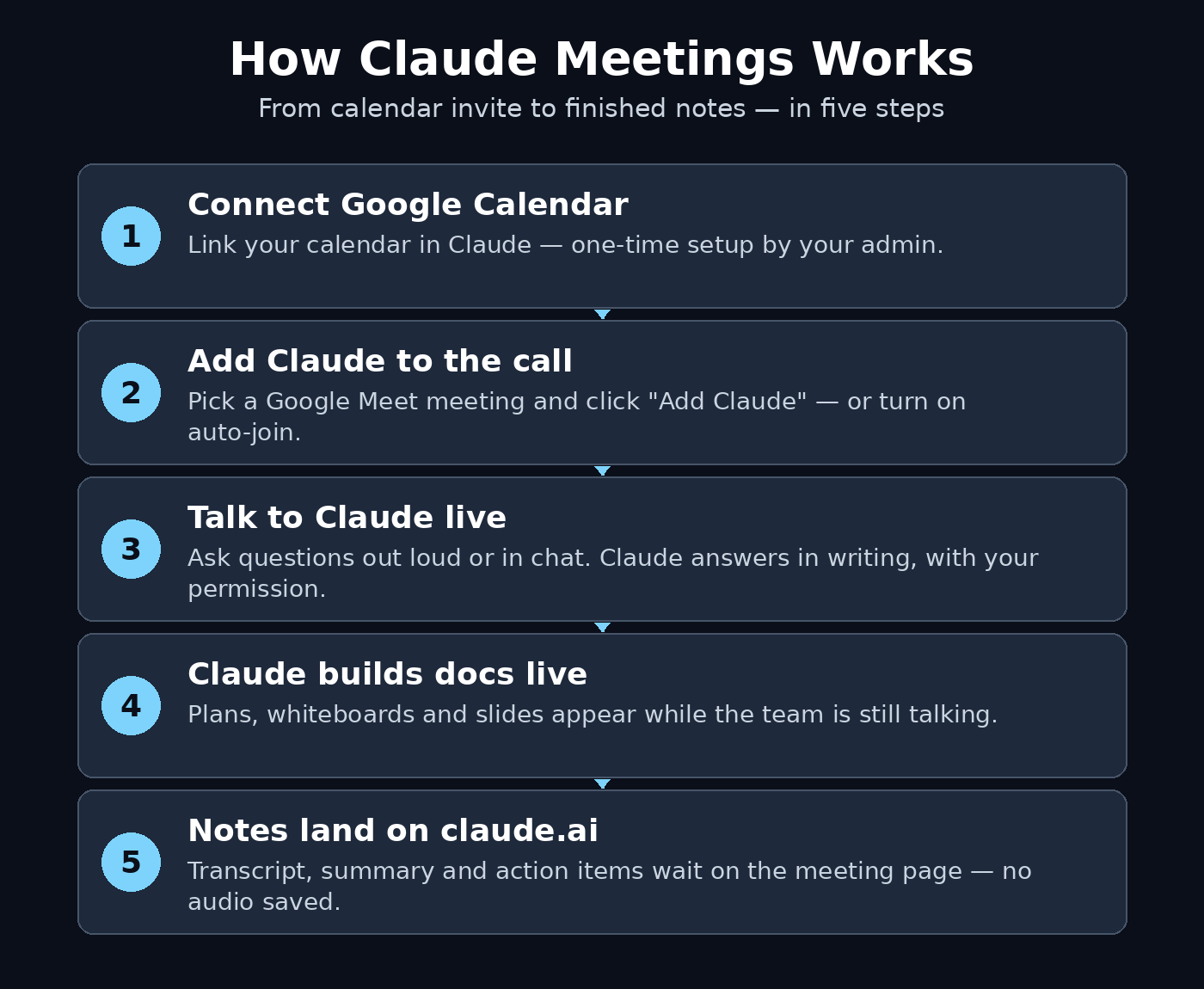
Step 1: Check If Your Team Can Use Claude Meetings
Before anything else, check eligibility, because Claude Meetings is not available to everyone yet. It is rolling out in beta on Claude Team and Enterprise plans only. It is not a Free, Pro, Max, or Ultra feature, so if you use Claude on a personal plan, you will not see the Meetings option yet.
- Plan: Your organization needs a Claude Team or Enterprise subscription.
- Video platform: Google Meet only at launch. Anthropic says support for other video-conferencing platforms is coming soon, but it has not named them or given dates. Zoom and Microsoft Teams users will have to wait.
- Excluded organizations: The beta is unavailable to organizations using zero data retention, a HIPAA-ready configuration, or customer-managed encryption keys.
- Gradual rollout: The feature is rolling out over days, so even on a Team plan the Meetings tab may not appear in your account immediately. If it is missing, check again later rather than reinstalling anything.
On Team plans, inviting Claude to meetings is available by default and an admin can turn it off. On Enterprise plans, an admin turns it on for all or part of the organization. If you are not the admin, ask yours to enable it first.
Step 2: Turn On Claude Meetings for Your Organization
An admin enables Claude Meetings from the organization settings. On a Team plan it is already on, so you can skip to Step 3. On an Enterprise plan, the owner opens Organization settings, goes to Products, and turns on Claude Meetings (beta), choosing whether it applies to everyone or only to custom roles that include it.
This is also the right moment to decide your team’s ground rules. Will Claude join every meeting automatically, or only when someone invites it? Will the team allow it in client calls? Decide this as a team before the first call, because the defaults matter: Claude stays out of calls that include someone from outside your organization, and it leaves on its own if an outsider joins partway through. For small businesses that want help setting up AI tools like this across a whole team, working with a digital agency can make the rollout faster, because the agency can handle the admin settings, permissions, and staff training in one pass.
Step 3: Connect Google Calendar to Claude
Claude Meetings AI works through your calendar, not through a Meet add-on you install in the browser. Setup runs inside Claude on the web or in Claude Desktop.
- Open Claude and find the Meetings section.
- Connect your Google Calendar. An owner has to enable the calendar connector for the organization first, and then each person connects their own calendar.
- Once connected, Claude can see your scheduled Google Meet calls and offer to join them.
If the calendar connector is not enabled, the Meetings section will tell you that an owner needs to switch it on. This is a one-time setup. After it is done, every meeting on your calendar becomes a meeting Claude can join.
Step 4: Add Claude to Your First Meeting
Adding Claude to a call is as simple as adding a colleague. Open Meetings in Claude, pick the meeting from your calendar, and click “Add Claude.” Claude usually joins without asking. If the meeting host has to admit participants, the host can let Claude in. If the host declines, Claude does not try that call again unless someone adds it a second time.
You can also turn on auto-join under Settings, then Capabilities, then Meetings. With auto-join on, Claude joins your scheduled calls automatically, which is useful for teams that want notes from every meeting without thinking about it. When Claude joins, it appears as a participant with its own tile, and it posts a notice in the call’s chat so everyone knows it is there. Nothing about its presence is hidden.
Start with an internal team meeting for your first try. A weekly planning call or a project check-in is ideal, because the stakes are low and the whole team can see how Claude behaves before you trust it in bigger meetings.
Step 5: Talk to Claude During the Call
Once Claude Meetings AI is in the meeting, anyone on the call can talk to it. Address it by name, out loud or in the meeting chat, and it will respond. By default, Claude answers in writing in the chat, so it does not interrupt whoever is speaking.
- Ask questions: “Claude, what did we decide about the launch date?” or “Claude, summarize the three options we just discussed.”
- Pull in facts: When the budget comes up, ask Claude to retrieve last year’s cost. It will request approval to use the connected tool, post the figure in chat, and compare it with the current plan.
- Keep it natural: You do not need special commands. Speak to Claude the way you would speak to a colleague who has perfect notes.
Claude uses each person’s connected tools with that person’s permission. It asks the first time, and a yes applies going forward. It never pools everyone’s access together: your tools stay yours, and your colleague’s tools stay theirs.
Step 6: Let Claude Build Docs, Whiteboards and Slides Live
This is where Claude Meetings AI is different from every meeting note-taker you have used. It does not wait until the call ends. It builds things while you talk.
- Documents: Say “Claude, start a plan based on what we have said so far,” and it drafts the plan in the meeting while teammates on the invite refine it.
- Whiteboards: When the timeline comes up, ask Claude to put it on a whiteboard. The team can work on the schedule together, with owners and dates, while the discussion continues.
- Slides and more: Claude supports all artifact types, including slides. Claude attaches everything it makes during the call to that meeting’s page.
In Anthropic’s own example, a team planning a customer event asks Claude to start the plan, then asks for last year’s cost, then puts the timeline on a whiteboard, and finally asks Claude to share a recap before the meeting ends. The draft is on screen before people say goodbye. During the beta, the documents, whiteboards, and other artifacts Claude makes in a call are free through February 10, 2027.
Step 7: Get Notes and Action Items Automatically
Claude Meetings AI writes the notes and action items, so no one on the call has to. Before the meeting ends, ask Claude to share a recap with the team. It will pull together every decision, who owns what, and what happens next.
Good habits that make the recap better:
- Name owners out loud: “Sara owns the landing page, due Friday.” Claude picks up named owners and deadlines far more reliably than vague promises.
- Ask for the recap before the call ends: A live recap lets the team correct mistakes on the spot instead of discovering them in an email later.
- Check the action list in the room: Read the list back together for thirty seconds. It takes almost no time and stops the classic problem of everyone leaving with a different idea of what the team agreed.
Claude can stay in a call for up to eight hours and warns you before it leaves, so Claude covers even long workshops and planning days.
Step 8: Review Everything on the Meeting Page in claude.ai
After the call, everything lives on a dedicated meeting page in claude.ai. Each meeting gets its own page containing the notes, the transcript, and anything Claude produced during the call. You can open it later, share it with teammates who missed the meeting, and keep editing the documents after the call ends.
One privacy detail matters here: Claude saves a transcript, a summary, and screen descriptions, but not audio. There is no audio recording to leak or store. If your team needs the transcript in another tool, Anthropic is working with partners including Gong, Attention, Granola, Fireflies.ai, Otter, and Plaud, so you will soon be able to send a meeting’s transcript to the tools your team already uses. Teams already experimenting with agentic AI workflows will recognize the pattern: the meeting itself becomes a prompt, and the output is a living workspace instead of a dead recording.
Step 9: Control Privacy, Guests and Permissions
Claude Meetings AI puts visible, permission-based participation first. Keep these rules in mind:
- External guests: By default, Claude stays out of calls that include someone from outside your organization, and it leaves if an outsider joins partway through. An admin can change this on Team plans, but the safe default protects client and partner calls.
- Visible presence: Claude appears as a participant and posts a chat notice when it joins. Everyone on the call knows Claude is in the room before it records or transcribes anything.
- Connected tools: Claude uses each person’s tools only with that person’s permission, asking the first time. Review your connected tools in Claude’s settings before your first meeting.
- Admin control: Admins can turn the feature off entirely, or limit it to certain roles on Enterprise plans.
Tell your team these rules before the first meeting. A one-line message in your team channel (“Claude will join our Monday planning call to take notes — it saves a transcript, not audio”) prevents all confusion.
Step 10: Use Connected Tools and Send Transcripts to Your Apps
Claude Meetings AI becomes far more useful once it can act, not just listen. The documented example is sending a Slack message from inside the call. During the beta, notes and transcripts are free on Team and Enterprise plans, unless an answer uses a connected tool, in which case it counts toward plan usage.
Practical ways to use connected tools in meetings:
- Ask Claude to check last year’s figures from your documents when the team discusses a budget.
- Ask it to draft a follow-up message and send it to the right Slack channel before the call ends.
- Ask it to turn decisions into a task list in the tool your team already uses, instead of a document nobody opens.
Start with one connected tool and one meeting type. Once the team trusts the flow, expand to more tools and more meetings. That is how a beta feature becomes a daily habit instead of a one-week experiment.
Claude Meetings vs Other AI Meeting Tools
Claude Meetings AI is not the only AI meeting tool, but it is the only one that builds documents live inside the call. Here is how it compares with the tools most teams already know.
| Feature | Claude Meetings | Otter.ai | Fireflies.ai | Gemini in Google Meet |
|---|---|---|---|---|
| Joins as a visible participant | Yes | Yes (OtterPilot) | Yes (Fred) | Built into Meet |
| Live notes and action items | Yes | Yes | Yes | Yes |
| Builds docs and whiteboards live | Yes | No | No | Limited |
| Answers questions during the call | Yes, in chat | Limited | Limited | Yes |
| Saves audio recording | No (transcript only) | Yes | Yes | Yes |
| Platform | Google Meet only | Meet, Zoom, Teams | Meet, Zoom, Teams | Google Meet only |
| Price during beta | Notes free on Team/Enterprise | Free plan available | Free plan available | Google Workspace plans |
If your team already lives in Claude, Claude Meetings is the natural choice: the meeting output lands in the same workspace where your documents already live. If you need Zoom or Teams support today, Otter or Fireflies remain the practical pick until Anthropic adds more platforms.
Frequently Asked Questions
Is Claude Meetings free?
During the beta, Claude’s notes and transcripts are free on Team and Enterprise plans. Documents, whiteboards, and other artifacts Claude makes in a call are free through February 10, 2027. Answers that use a connected tool count toward your plan usage, so check your plan limits if Claude is pulling data from your apps often.
Does Claude Meetings work on Zoom or Microsoft Teams?
Not yet. Google Meet is the only supported platform at launch. Anthropic says support for other video-conferencing platforms is coming soon, but it has not named them or shared dates.
Does Claude Meetings record audio?
No. Claude saves a transcript, a summary, and screen descriptions, not audio. It also posts a chat notice when it joins, so everyone on the call knows it is present.
Can I use Claude Meetings on a Free or Pro plan?
No. The Claude Meetings AI beta is rolling out on Team and Enterprise plans only. Personal plans, including Free, Pro, Max, and Ultra, do not have access yet. Anthropic has not announced when or whether it will come to personal plans.
What happens if an external guest joins my meeting?
By default, Claude stays out of calls that include someone from outside your organization, and it leaves on its own if an outsider joins partway through. This protects client calls and partner meetings from unexpected AI participation.
How do I stop Claude from joining my meetings?
Turn off auto-join under Settings, then Capabilities, then Meetings. You can also remove Claude from individual meetings in the Meetings section, and an admin can turn the feature off for the whole organization.
Final Thoughts
Claude Meetings AI is a small change with a large effect: the meeting stops being a conversation you have to reconstruct afterwards, and becomes work that is already half done when the call ends. The notes write themselves, the action items have owners, and the plan your team discussed is already drafted on screen. For teams on Claude Team or Enterprise plans who run their meetings on Google Meet, it is worth trying this week, starting with one internal meeting and the auto-join setting off.
Remember the limits: it is a beta, it is Google Meet only, and it is not available on personal plans or to organizations with strict data-retention configurations. Check that your plan and your admin settings qualify, connect Google Calendar once, and let Claude take the notes on your next call. The hour you save after every meeting adds up fast.
Explore More Free AI Tools
Want more free AI tools like Claude Meetings? Try the AI Title Generator to write better headlines in seconds, the Meta Description Generator for search-ready descriptions, the AI Rewriter to polish any draft, and the Keyword Density Checker to keep your pages SEO-friendly. All of them are free on AI Tool Steps.