

Your entire test suite passes. Every unit test is green, every integration test is green, and the deploy goes out with confidence. Then, five minutes after you ship, a customer finds a bug. Not an edge case in some obscure function — a real bug in the flow your users hit every day. A new teammate clicks an invite link while signed into the wrong account, switches accounts halfway through, and the whole onboarding flow breaks. Your tests never caught it, because your tests never tried it that way.
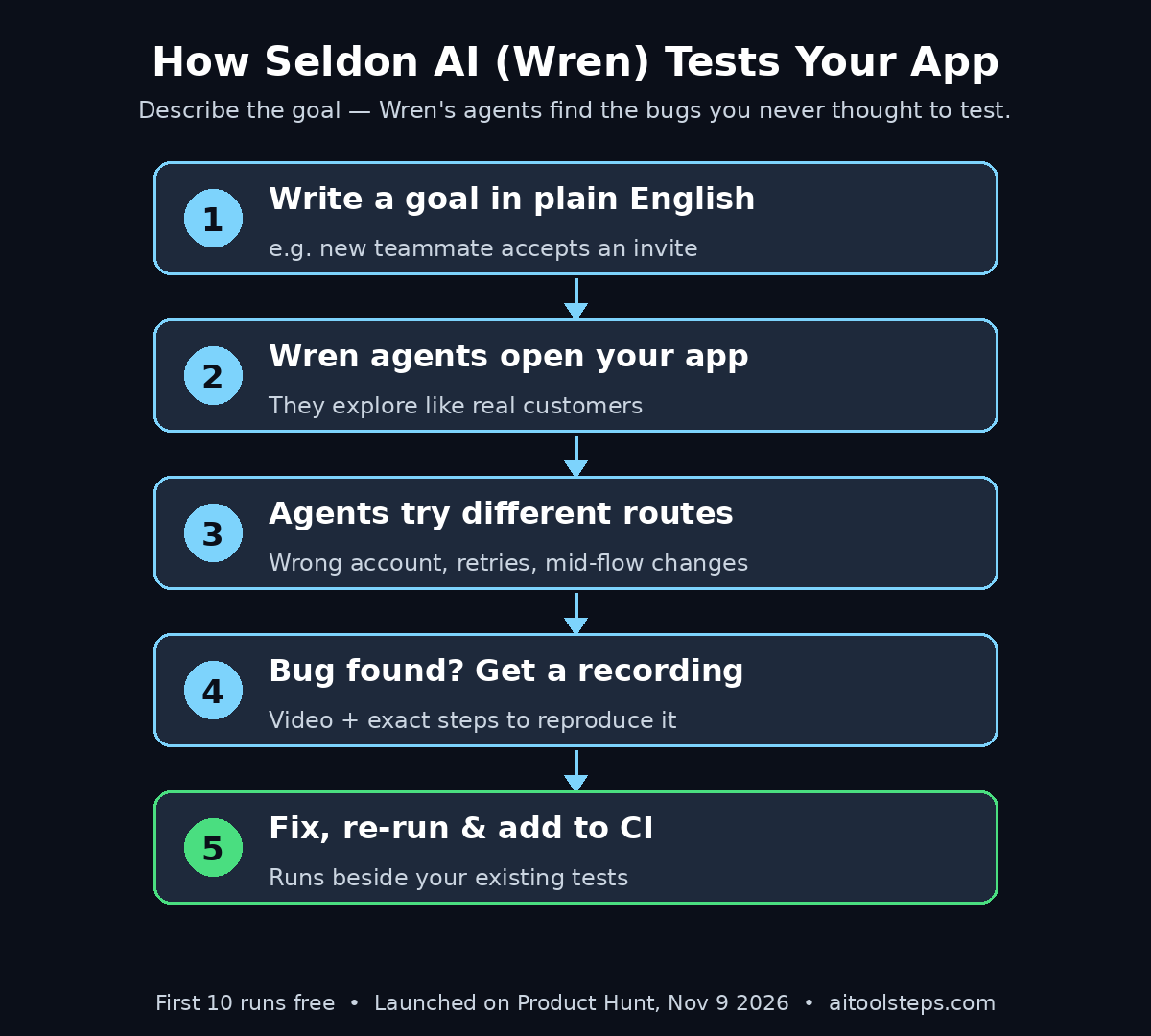
That gap — between what your tests check and what your customers actually do — is exactly what Seldon AI was built to close. Launched on 9 November 2026, Seldon AI is a behavioral QA tool powered by AI agents called Wren. Instead of writing scripts that check one fixed route through your app, you describe the goal in plain English — “a new teammate should be able to accept an invite and join the workspace” — and Wren’s QA agents open your app and try different ways to reach that goal, the way real customers do. When something breaks, you get a recording and the exact steps to reproduce it.
In this beginner-friendly guide, you will learn what Seldon AI is, how Wren works, how to sign up and claim your first 10 free runs, and how to write your first goal, read a bug report, and run Seldon AI alongside your existing tests. No testing background is needed — if you have ever shipped a feature and worried about what you did not test, this guide is for you.
Step 1: Understand What Seldon AI Actually Does
Seldon AI is a new kind of testing tool. Traditional testing works like this: a developer writes a script that says “click this button, fill in this form, check that this page appears.” The script checks one route, every time, exactly the same way. It is precise, and it is also blind. It only ever checks the routes somebody thought to write down.
Seldon AI works differently. Its QA agents, called Wren, do not follow a script. You give Wren a goal in plain English, and the agents explore your app trying to reach it — the way a real customer would. One agent might take the obvious route. Another might go back halfway through checkout to change the delivery address. A third might open an invite link while signed into the wrong account, switch accounts, and try the link again. These are the messy, human paths that scripted tests never cover, and they are exactly where real bugs live.
The team behind Seldon AI is an applied research lab in San Francisco, with researchers from MIT and Berkeley and people who have built products at Meta and Spotify. Their starting observation is simple and hard to argue with: a test can tell you whether the route you scripted works, but customers get to pick their own route. Seldon AI exists to find the tests you did not know to write.
Think of it this way: scripted tests are like checking that a road is safe by driving the same straight stretch over and over. Seldon AI is like handing the keys to a dozen different drivers and watching where each one ends up. The first approach proves the road works. The second finds the potholes.
Step 2: See How Wren Is Different From Normal Testing
Before you start using Seldon AI, it helps to understand where it fits next to the testing you already do. It does not replace your existing tests — it finds the bugs they cannot see.
- Unit tests check small pieces: they test one function at a time, in isolation. They are fast and essential, but they never open your app.
- Scripted end-to-end tests check one route: tools like Playwright and Cypress follow the exact steps you wrote. If the script passes, the route works — but only that route, exactly as written.
- Manual QA checks what a human thinks to check: a tester explores your app, but a human can only try so many paths in a day, and they get tired, bored, and predictable.
- Wren explores like a customer: it tries different routes to the same goal, including the odd ones — wrong account, retry after a failed payment, going back to change a detail mid-flow. It does this at machine speed, without getting bored.
The difference shows up in the bugs each method finds. A scripted test finds a regression: something that used to work and now does not. Wren finds a behaviour bug: something that never worked for a customer who took an unexpected path, and nobody ever wrote a test for it. Both matter, but only one of them is the bug your customers actually report on launch day.
A good way to think about it is coverage of intent versus coverage of code. Your unit tests cover code. Your scripted tests cover the routes you planned. Wren covers intent — “can a real person actually achieve this goal in my app, however they go about it?” That is a question no script can answer, because a script already knows the answer before it runs.
Step 3: Check What Seldon AI Needs Before You Start
Seldon AI is a cloud tool, so the setup is light. Before you sign up, make sure you have the few things it needs to test your app.
- An app Wren can open: Seldon AI tests web apps by opening them in a browser, the way a customer would. You need a URL your app is running on — a staging link, a preview deployment, or a production URL. If your app is still only on your own laptop, deploy a preview build first.
- A flow worth testing: pick one real user goal to start with — signing up, accepting an invite, completing a purchase, or resetting a password. Choose a flow your team already has a passing test for, so you can compare what Wren finds with what your tests already cover.
- Test accounts or test data: Wren will sign in, click around, and submit forms. Give it a test account, not a real customer account, and make sure any test data it creates is easy to clean up.
- A way to watch the results: when Wren finds a bug, it sends you a recording and the reproduction steps. You will want a place to look at those reports — the Seldon AI dashboard — and a way to pass them to whoever owns the code, usually your issue tracker.
One honest note: Seldon AI launched on 9 November 2026, so it is brand new. The core workflow — describe a goal, let the agents explore, read the bug report — is the finished product. But small details, like dashboard labels and pricing after the free runs, can change quickly in the first weeks. If something looks slightly different from this guide, check Seldon AI’s own documentation for the latest version. The concepts here will still apply.
Step 4: Sign Up and Claim Your First 10 Free Runs
Getting started with Seldon AI is free, and the first 10 runs cost nothing. That free allowance is enough to test several real flows and decide whether the tool earns a place in your workflow.
- Open the Seldon AI page on Product Hunt or the Seldon website and create an account. The launch post says your first 10 runs are free, with no credit card mentioned for getting started.
- Confirm your email and sign in to the Seldon AI dashboard. This is where you will create goals, watch runs, and read bug reports.
- Check your free-run balance before you start. Ten runs is generous for a first look — enough for a signup flow, an invite flow, a checkout flow, and a few re-runs — but it is still a limit, so spend your first runs on flows that matter, not on toy examples.
- Look around the dashboard first. Find where runs are listed, where recordings appear, and where you connect your app. Five minutes of exploring now saves confusion later.
Because the first 10 runs are free, there is no reason to start with a demo app you do not care about. Point Wren at a real flow in your real app — ideally one your team already trusts — and see what it finds. If Wren finds nothing, you have confirmed your flow is solid. If it finds a bug, you have just saved yourself a customer support ticket.
If you work with a digital agency or a product team that ships new features every week, those 10 free runs are also a cheap way to test the tool on a client project before committing to a paid plan. Run Wren on the flows your clients actually complain about, and let the results make the case for you.
Step 5: Connect Your App to Seldon AI
With your account ready, the next step is to give Wren something to test. This is the part where you point Seldon AI at your app and tell it how to get in.
- In the Seldon AI dashboard, add your app and enter the URL Wren should start from — your staging or preview link.
- Provide the test account Wren should use. If your app needs a login, give Wren test credentials so it can sign in and reach the real flows, not just the landing page.
- Set any limits the run should respect. Tell Wren which parts of your app are in scope, and keep it away from anything destructive — real payments, live customer data, or actions that send real emails to real people.
- Confirm the connection works by running a quick check: Wren should be able to open your app and reach the login screen or home page before you write your first goal.
Think of this step as handing a new tester the keys to your office. You want them to be able to open the doors that matter, but you do not want them wandering into the server room. Clear scope makes the results useful: Wren explores freely inside the area you define, and every bug it finds is one you actually need to fix.
A practical tip: start with a staging environment, not production. Staging gives Wren a realistic app to test without any risk to real customers, and any test data it creates can be wiped cleanly. Once you trust the workflow, you can decide whether production testing is worth it for your team.
Step 6: Write Your First Goal in Plain English
This is the step that makes Seldon AI different from every testing tool you have used before. There is no script to write, no selectors to find, and no code to maintain. You describe the goal in plain English, and Wren figures out how to try it.
Good goals are specific about the outcome and open about the route. Here are examples that work well:
- “A new teammate should be able to accept an invite and join the workspace.”
- “A customer should be able to change their delivery address halfway through checkout and still complete the order.”
- “A user should be able to reset their password and sign in with the new one.”
- “A free-trial user should be able to upgrade to a paid plan without losing their saved work.”
Notice what these goals have in common: they describe what a person wants to achieve, not which buttons to click. That is the whole point. When you tell Wren the goal instead of the route, Wren is free to try the routes your customers actually take — including the ones you never thought of.
Bad goals are vague or describe the route instead of the outcome. “Test the signup page” is too vague — it does not say what success looks like. “Click the blue button, fill in the form, click submit” is just a script in disguise, and it throws away the advantage of an agent that explores. Write the goal the way you would explain it to a new teammate: what should a person be able to do, and how would you know it worked?
Start with the flow your team already has a passing test for — that is the advice from Seldon AI’s own launch post, and it is good advice. When your scripted test passes and Wren finds a bug in the same flow, you learn exactly what Wren adds. That first comparison is the most convincing demo you will ever see.
Step 7: Let Wren’s QA Agents Explore Your App
Once your goal is set, start the run and let Wren work. This is the part where you step back and watch an AI agent do what a whole QA team would take hours to do.
- Start the run from the dashboard and watch the first agent open your app. Wren’s agents try different ways to reach your goal — one might take the direct route, another might wander, and a third might deliberately do something odd, like switching accounts halfway through an invite flow.
- Let the run finish. Agents explore at machine speed, but a real exploration still takes time — the agents are opening pages, reading the screen, and deciding what to try next, the way a person would.
- Do not interfere mid-run. Resist the urge to fix things while Wren is still exploring — a half-fixed app gives you a half-true report. Let the run complete, then read the results.
- Check the run status in the dashboard. When the run finishes, Seldon AI will show you which goals succeeded, which failed, and where the agents found something worth your attention.
What makes this step feel strange for beginners is how little you do. Traditional testing is mostly writing: you write the test, you maintain the test, you update the test when the app changes. With Wren, the work moves to the goal — one sentence in plain English — and the agents do the exploring. That shift is the whole idea, and it is why Seldon AI feels less like a testing tool and more like hiring a QA team that never sleeps.
And if you want to keep up with this fast-moving world of AI agents that test, build, and review software for you, Agentic Affairs covers new agent launches and integrations like Seldon AI as they happen.
Step 8: Read the Bug Report — Recording and Reproduction Steps
When a run finishes and something broke, Seldon AI does not just tell you “it failed.” You get a full bug report: a recording of what the agent did, and the exact steps to reproduce the bug yourself.
- Watch the recording first: the recording shows you exactly what the agent did, click by click, until the moment things broke. This is often the fastest way to understand a bug — you can see the wrong-account switch, the retried payment, or the mid-checkout address change that your tests never tried.
- Read the reproduction steps: Seldon AI lists the steps in order, so you or a developer can follow them and see the same failure. If you can reproduce it, it is a real bug, not a flaky test.
- Check whether it matters: not every odd path is a bug worth fixing. Ask one question: would a real customer do this? If the answer is yes — and for the paths Wren finds, it usually is — the bug goes into your tracker.
- File it with the evidence attached: link the recording and the reproduction steps in the issue. A bug report with a video of the failure is worth ten paragraphs of description, and it is much harder for a developer to dismiss.
The recording is the feature that makes Wren’s reports trustworthy. A scripted test that fails gives you a stack trace and an error message, and you still have to guess what the user did. Wren shows you the user — or at least, an agent behaving exactly like one — doing the thing that broke your app. There is no guessing, and there is no argument about whether the bug is real.
Keep a simple rule for your team: every Wren bug that a real customer could hit gets filed, with the recording attached. The bugs you ignore are the ones your customers will find for you, in public, on launch day.
Step 9: Fix, Re-run, and Add Seldon AI to Your CI Pipeline
Finding a bug is only half the job. The other half is proving it is fixed — and making sure it never comes back. Seldon AI is built to run alongside your existing tests, including in CI, so the fix-and-verify loop fits into the workflow you already have.
- Fix the bug, then re-run the same goal: after the fix is deployed to staging, run the same goal again. If Wren now reaches the goal cleanly, the fix works. If it finds a different route to the same failure, you have learned something even more valuable.
- Add Wren runs to your CI pipeline: Seldon AI can run alongside your existing tests in CI, so every deploy gets both kinds of checking — your scripted tests for regressions, and Wren for the paths you did not think of.
- Run it on every feature, not just releases: the cheapest time to find a behaviour bug is the week the feature is built, not the week it ships. Make a Wren run part of the definition of done for any flow a customer touches.
- Track what Wren finds over time: keep a simple count — how many bugs per run, and how many of them your scripted tests missed. That number is the clearest argument for keeping Seldon AI in your pipeline, and it usually grows the more you use it.
Teams that ship new features every week get the most from this loop, because every feature is a new chance for a customer to take a route nobody tested. A digital agency juggling several client products can run Wren across all of them from one dashboard, catching the invite-flow bug on one client and the checkout bug on another before either reaches a real customer.
The habit to build is simple: scripted tests guard what you know, Wren guards what you do not know. Together, they cover the app the way your customers actually use it — not the way you planned it.
Step 10: Fix Common Seldon AI Problems
Most Seldon AI problems have simple causes. Work through this checklist before assuming the tool is broken — and remember that a tool launched on 9 November 2026 is still in its earliest releases, so checking the launch page for the latest updates is always sensible.
- Wren cannot open your app: check the URL and make sure the staging or preview link is live and reachable from the internet. An app running only on your own laptop cannot be tested by a cloud tool.
- Wren gets stuck at login: confirm the test credentials are correct and the test account is active. If your app uses two-factor authentication, use a test account without it, or provide a way for the agent to pass it.
- The goal is too vague: if Wren wanders or reports confusing results, rewrite the goal with a clear outcome — what should the person be able to do, and how would you know it worked?
- Too many false alarms: if Wren reports paths no customer would ever take, narrow the scope of the run so the agents stay inside the flows that matter.
- You run out of free runs: your first 10 runs are free. Spend them on the flows that matter most, and check the pricing page before you need run number eleven.
- Something looks different from this guide: the product is days old and moving fast. Check Seldon AI’s own documentation or launch page for the latest version — a renamed button is not a bug.
If a problem survives this checklist, the Product Hunt launch page is a good place to look next. The Seldon team is active there, and a tool this new will have makers answering questions directly. A question asked on launch week often gets an answer from the people who built the feature.
Seldon AI vs Other Ways to Test Your App
Seldon AI is not the only way to test an app. Here is how it compares with the options most teams already use, so you can decide where it fits in your workflow.
| Method | How it tests | Finds unplanned paths | Recording of the bug | Needs scripts written | Price |
|---|---|---|---|---|---|
| Seldon AI (Wren) | AI agents explore from a plain-English goal | Yes | Yes, with reproduction steps | No | First 10 runs free |
| Scripted end-to-end tests (Playwright, Cypress) | Follows exact steps you wrote | No | Partial (screenshots) | Yes | Free, open source |
| Unit tests | Tests single functions in isolation | No | No | Yes | Free |
| Manual QA testing | A human explores the app | Yes | Manual notes | No | Tester time |
| Traditional bug bounties | External testers hunt for bugs | Yes | Written reports | No | Per-bug payouts |
The table makes the trade-off clear. Scripted tests and unit tests are free and fast, but they only check what you already thought of — they cannot find the test you did not know to write. Manual QA finds unplanned paths, but a human can only try so many routes in a day, and the work does not scale. Bug bounties find real issues, but they cost money per bug and arrive after you ship. Seldon AI is the only option in this list that explores unplanned paths at machine speed, gives you a recording and reproduction steps for every bug, and needs no scripts at all. Its weakness is youth: it launched on 9 November 2026, so it does not yet have the long track record or the deep CI integrations of tools like Playwright. For a team that ships features every week, though, the first 10 free runs are enough to see whether Wren finds bugs your tests missed — and for most teams, it will.
Frequently Asked Questions
Is Seldon AI really free?
Your first 10 runs are free, according to the Product Hunt launch post. That is enough to test several real flows and see what Wren finds. After the free runs, check Seldon AI’s pricing page for the current plans — as a tool launched on 9 November 2026, pricing may still be changing.
What is Wren?
Wren is the name of Seldon AI’s QA agents. You give Wren a goal in plain English, and the agents open your app and try different ways to reach it, the way real customers do. When something breaks, Wren gives you a recording and the steps to reproduce the bug.
Does Seldon AI replace my existing tests?
No. Seldon AI is built to run alongside your existing tests, including in CI. Your scripted tests catch regressions — things that used to work and broke. Wren catches behaviour bugs on paths nobody wrote a test for. You need both.
Do I need to write code to use Seldon AI?
No. You describe the goal in plain English — for example, “a new teammate should be able to accept an invite and join the workspace.” There are no scripts to write, no selectors to find, and no test code to maintain.
Can Seldon AI test my app if it needs a login?
Yes, as long as you provide test credentials. Give Wren a test account so it can sign in and reach the real flows. Use a test account, not a real customer account, and avoid two-factor authentication on the test account if you can.
Is Seldon AI the same as the older Seldon MLOps tool?
No. The name has been used before — there is an older open-source MLOps framework called Seldon, and a coaching app with a similar name. This guide is about the Seldon AI that launched on Product Hunt on 9 November 2026: behavioural QA agents (Wren) that test your app the way customers do. Make sure you are on the right product before you sign up.
Final Thoughts
Seldon AI arrived at exactly the right moment. Apps are shipped faster than ever, and the gap between what teams test and what customers actually do has never been wider. A test suite can be entirely green while a customer finds a bug five minutes after launch — not because the team was careless, but because nobody wrote a test for the route that customer took. Seldon AI closes that gap by testing the way customers behave, not the way developers planned.
It launched on 9 November 2026, the first 10 runs are free, and the workflow takes minutes to learn: connect your app, write a goal in plain English, let Wren’s agents explore, and read the bug report with its recording and reproduction steps. Run it alongside your existing tests in CI, and every deploy gets checked twice — once for the routes you planned, and once for the routes your customers will actually take.
Start with one flow. Pick the flow your team already has a passing test for — signup, invite, or checkout — and point Wren at it. If Wren finds nothing, you have confirmed your flow is solid. If it finds a bug your tests missed, you have just seen the future of QA testing. Either way, those 10 free runs will tell you more about your app than a hundred green checkmarks ever could.
Explore More Free AI Tools
Want to keep exploring? Try our free AI Title Generator, Meta Description Generator, AI Rewriter, and Keyword Density Checker — all free on AI Tool Steps, no sign-up needed.