

Every video editor knows this frustration — and Higgsfield Miracle AI promises to end it. You have a clip you love — the shot is perfect, the timing is perfect, the actor nailed the line — but one small thing is wrong. The jacket is the wrong color. A stranger walked through the background. The sign behind you has a typo. In a normal editor, fixing that one thing means hours of masking, tracking, and re-rendering. In an AI video generator, it means regenerating the whole clip and losing the take you loved.
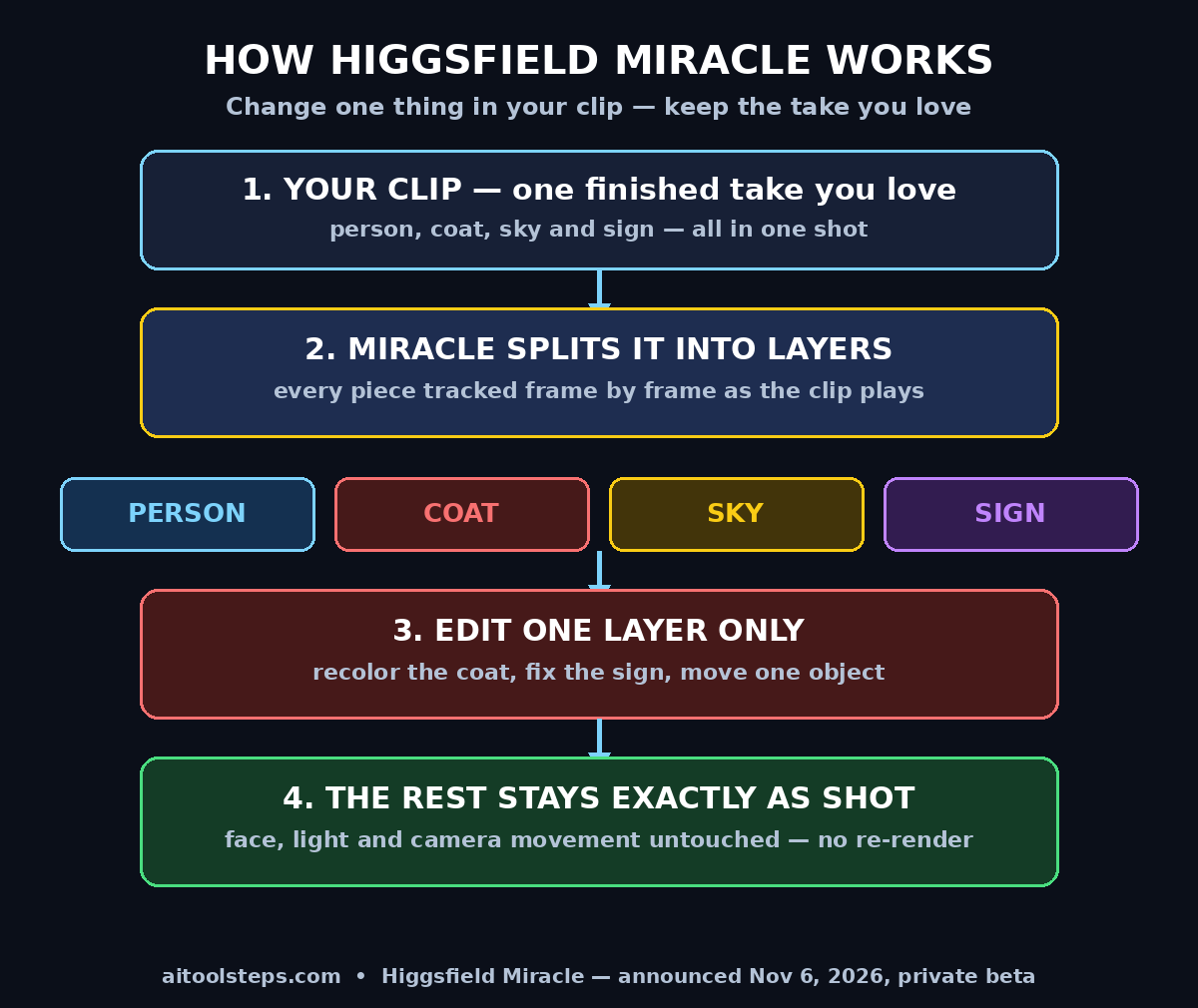
Higgsfield Miracle AI promises a third option. Announced on November 6, 2026, it is a new post-production technology from Higgsfield that splits any finished video into separate layers — the person, their coat, the sky, the shop sign — and lets you change just one layer while the video plays. The rest of the footage stays exactly as shot.
There is one honest catch you need to know before anything else: Miracle is in private beta with a small group of testers. Nobody outside the beta can use it yet, and Higgsfield has published no price and no release date. So this guide is realistic about that. You will learn what Miracle is, what it can and cannot do yet, how to join the waitlist, how to set up the early-access channel Higgsfield itself named, how to prepare your first clip, and — importantly — how to do the same kind of edit today with tools you can already open. No technical background needed.
Step 1: Understand What Higgsfield Miracle AI Is (and What It Is Not)
Higgsfield calls Miracle its “proprietary post-production technology” that vectorizes any video into layers for localized, pixel-level editing in real time, with world knowledge built in. That sentence is doing a lot of work, so here it is in plain language.
When you load a clip into Miracle, the tool cuts the footage into separate pieces: the person, their coat, the sky, a sign, the background. Each piece is tracked from frame to frame, so when the person walks, their coat layer walks with them. You point at one piece and change it — recolor it, move it, remove it, relight it — and every other piece stays untouched. Because the edit happens on layers instead of on the whole frame, the original camera movement, lighting, and performance survive.
Just as important is what Miracle is not. Higgsfield’s own FAQ places it outside the family of video generation models, because it is “built to edit an existing clip.” It does not generate a video from a text prompt. It does not replace your footage. The idea, in the company’s words, is “to keep the take you picked and change only what you ask for.”
Higgsfield already shipped the same idea for still images. Its Layers feature, launched in August 2026, separates individual elements of a photo so you can edit them one by one. Miracle is the video version of that idea — with the much harder job of keeping every layer tracked and consistent across every frame.
Step 2: Watch the Official Demos Before You Believe the Hype
Higgsfield announced Higgsfield Miracle AI on X through its official lab account, @higgsfield_ai. The first look went out at 19:03 UTC on November 6, 2026, followed by a second teaser at 19:35 UTC. The main announcement post had about 556,000 views by November 7, and the demos have since been covered by tech press and shared widely.
Before you join any waitlist, watch those official demos with an editor’s eye, not a fan’s eye. Here is what to look for:
- The untouched areas. When the coat changes color, does the face, the background, and the lighting stay pixel-identical? That is the whole promise.
- The edges. Look closely at the border between the edited object and everything around it. Clean edges are what separate a real layer edit from a sloppy mask.
- The shadows. When the time of day changes in a demo, do the shadows move with the new light, or do they stay frozen? Higgsfield claims the shadows follow along.
- The motion. Does the edited object stay correctly tracked when the camera moves or the subject turns? A still frame is easy. A moving shot is the real test.
One caution: every demo so far is one the company picked itself. No independent test has measured how well Miracle holds up on a long clip, at high resolution, or on messy real-world footage. Treat the demos as a preview of intent, not proof of performance. That is exactly why the waitlist and beta exist — and why this guide shows you working alternatives in Step 8.
Step 3: Create Your Free Higgsfield Account
Higgsfield Miracle AI will live inside Higgsfield, so your first practical step is to get a Higgsfield account ready now — while you wait for beta access, the account is also how you try the tools that already exist.
Higgsfield is an AI creation platform that bundles several image and video models into one app, including Kling and Seedance among them, and sells access in credits. Signing up is free, and the free account is your home base for everything that follows.
- Open higgsfield.ai in your browser and create a free account with your email or Google sign-in.
- Take a few minutes to explore the dashboard. Find where video tools live, where your credits are shown, and where your past generations are saved. Knowing the layout now saves fumbling later.
- Try one small generation with the free credits, even if it is just a short image. The point is to learn how Higgsfield handles prompts, aspect ratios, and downloads before Miracle arrives.
- Try Layers for still images. Since Miracle is the video version of Layers, editing a photo’s layers teaches you the exact mindset: pick one element, change it, leave the rest alone.
If you run a small studio or a digital agency and want to offer this kind of edit to clients one day, it is worth thinking early about where Miracle would fit in your service list. A modern digital agency that already sells short-form video work will be able to add “fix one thing in your clip” as a fast, cheap service the moment tools like this go public.
Step 4: Join the Miracle Waitlist
The waitlist on the Higgsfield Miracle AI page is the only official way in right now. There is no public release date, no published price, and no file-size or length limits announced yet — so anyone selling “Miracle access” or a “Miracle pro account” outside Higgsfield itself is not selling you anything real.
- Go to the Miracle page on higgsfield.ai and find the waitlist sign-up.
- Leave the email address you actually check. Beta invites go out by email, and a dead inbox means a missed spot.
- Use the same email as your Higgsfield account if you can. Keeping one identity across the account and the waitlist avoids confusion when your invite arrives.
- After signing up, watch for a confirmation or welcome email. If nothing arrives, check spam once, then leave it — repeatedly re-joining the same waitlist does not move you up the queue.
Higgsfield has also said Miracle is “coming soon to Higgsfield MCP,” which is the early-access channel the company itself named. That is your next step, and it is the one most beginners skip.
Step 5: Set Up Higgsfield MCP in Claude to Be First in Line
The announcement carried a direct instruction: “Set up Higgsfield MCP in Claude to be the first to try it.” MCP, the Model Context Protocol, is the open standard that lets an AI assistant like Claude talk to outside tools. Higgsfield is building Higgsfield Miracle AI access through that channel first.
Here is the beginner-friendly version of the setup:
- Install Claude on your computer if you do not have it already, and sign in with your account.
- Open Claude’s settings and find the MCP servers or integrations section. This is where outside tools get connected.
- Add the Higgsfield MCP server using the official setup instructions on Higgsfield’s site. You will connect it to the same Higgsfield account you created in Step 3.
- Once connected, you can ask Claude to work with Higgsfield tools from inside a chat — for example, to prepare or list a video edit — instead of switching apps.
Be honest with yourself about this step: the MCP route is the most technical part of this guide, and the exact screens will change before launch. If you get stuck, do not force it — the waitlist in Step 4 is still the main path in. But if you do get MCP connected, you will be standing at the front of the queue when Miracle opens, instead of reading about it afterwards.
Teams that already run AI automation services around content production should pay attention here too. An MCP connection means an AI assistant can one day prepare, queue, and check video edits without a human opening the editor at all — and the agencies that learn that workflow first will be the ones selling it first.
Step 6: Prepare Your First Clip the Right Way
Beta access rewards the prepared. While you wait, shoot or pick the clip you will test first, and prepare it properly. A good test clip makes the difference between “wow, it worked” and “I can’t tell what changed.”
- Keep it short. Five to ten seconds is ideal. Short clips process faster, and one clear edit is easier to judge than a two-minute scene with ten problems.
- Pick one obvious target. A red coat you want forest green. A sign with the wrong date. A passerby behind your subject. One target, one edit.
- Use a stable, well-lit shot. Good lighting and a steady camera make layer tracking far easier. Shaky, dark footage is the hardest test, not the best first test.
- Keep the original file safe. Save an untouched copy of your clip before you edit anything. Miracle is supposed to preserve your take, but a backup is free insurance.
- Write your edit down in one sentence. For example: “Change the red coat to deep forest green, hex code #1F5C46, and keep everything else exactly the same.” A one-sentence edit is a testable edit.
If you do not have a clip of your own yet, shoot one this week with your phone: a friend walking down a sunny street in a bright jacket, a product on a table, a storefront with a sign. Real footage you own beats downloaded stock for a first test, because you know exactly what should and should not change.
Step 7: Plan Your First Layer Edit
When your Higgsfield Miracle AI beta invite arrives, resist the urge to try everything at once. Pick one edit from the list Higgsfield has actually shown, and do it well.
- Recolor one object by typing a hex code. This is the signature demo: type a color code, and only that object takes it. Try a bold change first — red coat to deep green — so the result is easy to see.
- Move or remove one element. Take a distracting object out of the shot while the face, lighting, and camera movement stay exactly as filmed.
- Change the time of day or the mood. Turn a daytime street into a golden-hour scene and check whether the shadows genuinely follow the new light.
- Edit on-screen text live. Fix a typo on a sign or change a number — the demos show a race car number changing from 33 to 99 while the car keeps moving and turning.
- Soften fur, hair, or fabric. Use a slider to make a texture softer, longer, or thicker. This is the subtlest edit on the list, so save it for your second or third try.
- Pull a layer out and put it back. Export one layer on its own, for example to reuse a product shot in a different ad, then restore the original.
Do the edit, export, and compare the result against your saved original frame by frame. The correct result is boring in the best way: everything you did not touch looks identical, and the one thing you changed looks like it was always that way.
Step 8: Do the Same Job Today With Tools You Can Already Use
Waiting for a beta invite does not mean waiting to learn the workflow. The same job — change one object in a finished clip and keep everything else — can already be done today, just with more effort and less precision. Practicing now means you will recognize good Miracle results instantly when your invite lands.
- Higgsfield Layers for still images. The photo version of the idea is live now. Recolor a product in a photo, swap a background, remove an object. The layer mindset transfers directly to video.
- Kling O3 Edit Video. Inside Higgsfield’s platform, Kling’s edit model rewrites a clip from a text prompt while the shot, motion, and length stay as filmed. It re-renders rather than layer-editing, so the untouched pixels are not guaranteed identical — but for a quick color or style change, it works today.
- Seedance and other video models in Higgsfield. Try a short edit pass with the models already bundled in your Higgsfield account, and compare the result with your original. The comparison habit is the skill.
- Melies AI for hands-on practice. If you would rather practice in a free browser-based video generator first, our Melies AI guide walks through text-to-video with synced audio — a good warm-up while you wait for beta access.
- Viggle-Remake for technical users. The open-source community has already rebuilt Higgsfield’s Miracle demo edit by edit with Viggle-Remake, a model you can run locally from Hugging Face with no beta and no waitlist. It needs a capable computer and some setup, so it is not a beginner tool — but it proves the layer-editing idea works outside Higgsfield too.
A fair warning about all of these: none of them is Higgsfield Miracle AI. Regenerating or re-rendering a clip can subtly change faces, motion, or details you wanted to keep. That gap — between “close enough” and “pixel-identical” — is exactly what Miracle claims to close. Use today’s tools to learn the workflow, and judge Miracle against them when it arrives.
Step 9: Compare Miracle With Regular AI Video Editing
The easiest way to understand where Higgsfield Miracle AI fits is to compare it with the two ways you already edit video. The table below uses only what Higgsfield has actually announced, and marks the rest as unconfirmed.
| Feature | Higgsfield Miracle | Prompt-to-video editors (Kling Edit, Seedance) | Traditional editors (Premiere, CapCut) |
|---|---|---|---|
| What you edit | One layer of an existing clip | The whole clip, from a prompt | Any frame, manually |
| What stays untouched | Everything except the layer you picked | Nothing is guaranteed untouched | Everything you do not touch |
| How fast | Real-time, as the video plays (claimed) | Minutes of rendering per edit | Hours of masking and tracking |
| Skill needed | Beginner: point and type | Beginner: write a good prompt | Intermediate to advanced |
| Best for | Fixing one thing in a finished take | Restyling or reworking a clip | Full control over every detail |
| Availability | Private beta, waitlist only | Available now | Available now |
| Price | Not announced | Credit-based, varies by tool | Subscription or free tiers |
If you already edit on a timeline and want a free AI-assisted editor today, our Kino AI guide shows how Claude Code and your team can edit one timeline together.
Read the table as a buying guide for your own time. If you need full control and you already know timeline editing, your current editor is still the right tool. If you need a whole new look for a clip, a prompt-based editor is faster. Miracle earns its place in exactly one situation: you love the take you already have, and exactly one thing in it is wrong.
Step 10: Avoid the Beginner Mistakes
Higgsfield Miracle AI is brand new, and new tools attract confident mistakes. These are the ones to skip.
- Do not expect instant access. Private beta means private beta. Joining the waitlist is the move; refreshing the page every hour is not.
- Do not believe a demo is a guarantee. Company-picked demos show the best case. Your first real test should be your own clip, judged against your saved original.
- Do not pay for access. Miracle has no published price, and Higgsfield has named no reseller. Anyone charging you for an invite or an account is running a scam.
- Do not edit footage you do not own. Layer editing makes it trivially easy to alter someone else’s video — a race clip, a movie scene, a creator’s work. Only edit clips you shot or licensed.
- Do not stack five edits on the first try. One edit, one export, one comparison. Stacking edits makes it impossible to tell which one failed.
- Do not throw away the original. Keep the untouched clip. If an edit goes wrong, the original is your reset button — and it is also the proof that the edit worked.
- Do not forget the sound. Miracle is a picture tool. Your clip’s audio, music, and voiceover still need a normal edit pass, so budget time for that.
- Do not post a beta result as a finished ad. Check the export at full size on a phone and a laptop, look at the edges and shadows, and only then publish. A client will notice the one frame you skipped.
Frequently Asked Questions
Is Higgsfield Miracle AI free?
There is no published price yet. Joining the waitlist is free, and Higgsfield’s other tools run on a credit system, so Miracle will most likely use credits too when it launches. Do not pay any third party for access — the only official route is Higgsfield itself.
When will Higgsfield Miracle be released?
Higgsfield has not announced a release date. It was announced on November 6, 2026, and is in private beta with select testers. The company has said it is coming soon to Higgsfield MCP, which suggests the Claude integration will be the first public channel.
Can I use Higgsfield Miracle right now?
Only if you are one of the select beta testers. Everyone else can join the waitlist, set up a free Higgsfield account, and set up the Higgsfield MCP connection in Claude so they are ready when access opens.
Does Miracle generate videos from text?
No. Higgsfield’s FAQ is clear that Miracle is not a video generation model. It is built to edit an existing clip — to keep the take you picked and change only what you ask for.
What is the difference between Miracle and Higgsfield Layers?
Layers is the still-image version of the same idea, launched in August 2026: it separates the elements of a photo so you can edit them one by one. Miracle does the same thing for video, with every layer tracked across every frame so the edit holds while the clip plays.
Will Miracle work on long videos?
Nobody outside the beta knows yet. Higgsfield has not published supported resolutions, video-length limits, or measurable editing latency. Start with short clips when you get access, and test longer footage only after short clips work reliably.
Final Thoughts
Higgsfield Miracle AI is the most interesting video editing idea of the month, and also the one you should be most careful about. The idea is genuinely new: stop regenerating the whole clip, split the footage into layers, and change exactly one thing while the rest stays as shot. If it works the way the demos suggest, it turns a half-day masking job into a one-sentence instruction — and that matters to every beginner, freelancer, and small studio that edits video.
But the honest version is that it is a private beta with no price, no release date, and no independent test yet. The smart move is not to wait passively. Join the waitlist, create your free Higgsfield account, set up the MCP connection in Claude, prepare a short test clip with one clear edit in mind, and practice the same job today with Layers, Kling Edit, and the other tools already in your account. When your invite arrives, you will know exactly what to test — and you will know within one export whether the promise is real.
The future of video editing is not generating more footage. It is keeping the footage you love and fixing the one thing that is wrong with it. Miracle might be the tool that finally makes that normal.
Explore More Free AI Tools
Want more beginner-friendly AI guides like this one? AIToolSteps.com has free tools and tutorials for everyday creators. Try the AI Title Generator to write better headlines in seconds, the Meta Description Generator to fix your SEO snippets, the AI Rewriter to polish any draft, or the Keyword Density Checker to keep your content search-friendly. Start at https://aitoolsteps.com/ and explore the full free toolkit.