

Medium just launched a brand-new app, and it is not another chatbot. On November 9, 2026, Medium introduced TK, a free, private, agentic notebook built for writing and thinking. If you love writing but your notes live in five different apps, or you keep starting drafts you never finish, TK was designed for you. In this beginner guide, you will learn exactly how to use Medium TK AI. You will see what it is, how to set it up for free, how the @TK assistant works inside your sentences, and how to turn messy notes into finished ideas.
TK gets its name from an old publishing habit. Writers used to leave the letters “TK” in a draft as a placeholder meaning “to come” — a fact to check later, a paragraph to write later, a quote to find later. The problem was that every TK became a reason to stop writing. Medium flipped that idea: now you type @TK in the middle of a sentence and an AI assistant handles the missing piece without you ever leaving the page. That single idea is the heart of this guide.
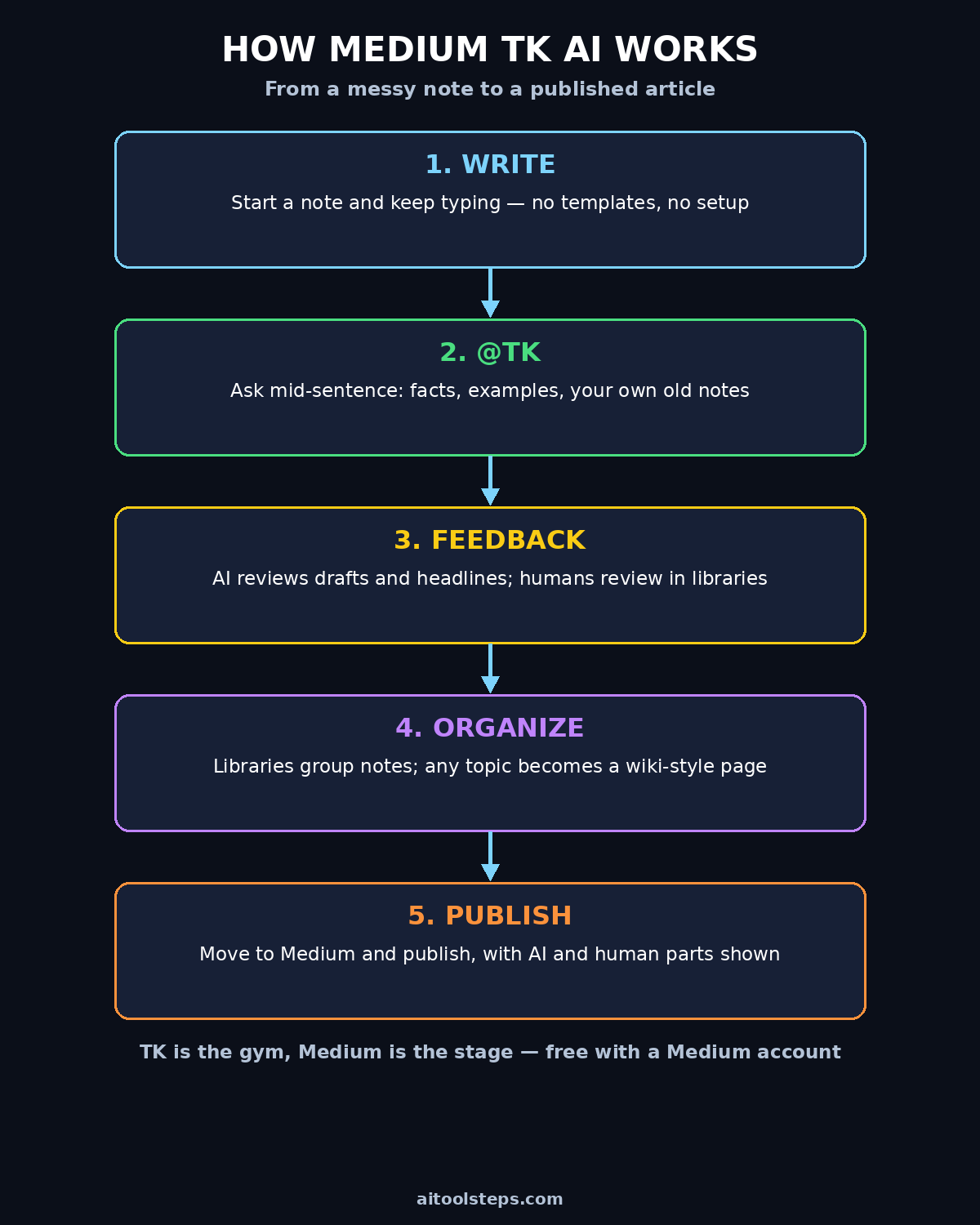
Step 1: What Is Medium TK AI?
Medium TK AI is a private notebook app from Medium that combines a calm writing space with an AI assistant living inside the editor. Medium’s CEO, Tony Stubblebine, announced it on November 9, 2026, with a clear message: while much of the AI industry bets that machines will do our thinking for us, Medium is betting on human intelligence. TK is built around three goals — make writing easy, make thinking easy, and make it easy to feel like your writing matters.
If you are still wondering how to use Medium TK in your daily routine, the short answer is that you write first and let the AI help second. Here is what that means in practice:
- Easy to write: a clean writing experience, mobile apps, and widgets that capture voice and text ideas the moment they appear.
- Easy to think: instant AI feedback on your drafts and headlines, plus human feedback through private shared libraries.
- Easy to feel it matters: TK remembers and organizes what you wrote, reminds you of old ideas, and gives even messy notes a path toward deeper thinking.
Medium sums it up with a simple line: TK is the gym and Medium is the stage. You go to TK to write, practice, and sharpen your thinking. You go to Medium to publish, perform, and get paid. The two apps work as a pair, and TK is free for anyone with a Medium account.
Step 2: Set Up Your Free Medium Account and Open TK
Getting started takes about two minutes, and you do not need a credit card. TK is free with a Medium account, and it is available on the web, Android, and iOS at launch. There is no native desktop app yet. Medium has said openly that one is planned for a future release, so for now you use the web app on a computer and the mobile app on your phone.
- Create a Medium account if you do not have one. Sign up with Google or email at medium.com, then confirm your account.
- Open TK from your Medium account. Look for the TK app link in your Medium dashboard or open the TK web app directly.
- Install the mobile app on Android or iOS so you can capture ideas on the go. Add the TK widget to your home screen for one-tap voice and text capture.
- Pick a first notebook — a daily journal, a blog-draft notebook, or a research notebook. Do not overthink the setup; TK is designed so you never need a complicated folder system.
That is all the setup learning how to use Medium TK requires. One honest note for beginners: because TK is brand new, features and menus may shift slightly in the first weeks. If a button has moved, check Medium’s own TK announcement or help pages for the current layout before assuming something is broken.
Step 3: Write Your First Note the Easy Way
Open TK and start typing. That is genuinely the whole step. The editor is deliberately simple — no templates to choose, no settings to tune, no formatting toolbar demanding your attention. TK wants the friction between having an idea and writing it down to be as close to zero as possible.
Try this as your first exercise:
- Write one paragraph about something you learned this week. It does not need to be good. It needs to exist.
- Leave a gap where you are unsure. Instead of stopping to research, type @TK and ask the question right there in the sentence.
- Keep going until the paragraph is done. You can fix facts and polish wording afterwards — the draft comes first.
This is the habit TK is trying to build: writing prompts are everywhere in the app, so there is always more to write and never a reason to stop. The app even refers to your past writing when it suggests prompts, which means old notes keep resurfacing as new starting points instead of dying in a forgotten folder.
Step 4: Use @TK in the Middle of a Sentence
This is the feature that gives TK its name, and it is the one to master first. Instead of opening a separate chatbot, copying text back and forth, and losing your train of thought, you call the AI assistant without taking your fingers off the keyboard.
Type @TK followed by your request, right inside your sentence. For example:
- Ask “@TK is September 30 days or 31?” — a quick fact check, answered in place.
- Try “@TK can you pull in the paragraph I wrote yesterday about writing and thinking?” — TK searches your own notes and brings the passage to you.
- Or “@TK give me three examples of this idea” — instant material to keep the draft moving.
- And “@TK what is a simpler way to say this?” — a clearer phrasing without leaving the editor.
Mastering this one command is the heart of learning how to use Medium TK well. The difference from a normal chatbot is context. @TK works inside your notebook, so it can reach for things you have already written. That makes it useful for continuity — picking up yesterday’s half-finished thought, reusing a definition you wrote last month, or checking whether you have already covered a point. Think of it less like asking a search engine and more like asking a research assistant who has read all your notebooks.
Two beginner tips: first, keep your @TK requests small and specific — one question at a time gets a cleaner answer than a long, tangled prompt. Second, always double-check facts @TK gives you before you publish them, especially dates, numbers, and names. AI assistants can be confidently wrong, and your name goes on the final piece.
Step 5: Capture Ideas Anywhere with Mobile Widgets
Most ideas arrive when you are nowhere near your desk — in the shower, on a walk, in a meeting, halfway through a commute. TK ships with mobile widgets built exactly for that moment. One tap starts a voice note or a text note, and the idea lands in your notebook instead of evaporating.
Set this up once and it pays off daily:
- Add the TK widget to your phone’s home screen so capturing an idea takes one tap, not five.
- Use voice capture when you are walking or driving. Speak the idea in full sentences — messy is fine, TK keeps the raw note and you can shape it later.
- Review captures every evening. Spend five minutes turning the day’s voice notes into proper notes, or tagging them into a library. This small habit is what turns a pile of fragments into usable material.
If you run a small business or a side project, this capture habit is surprisingly powerful. A founder who writes down customer questions, content ideas, and lessons learned every day builds a personal knowledge base that no competitor can copy. And when that writing needs to become a working website or a marketing plan, a digital agency can turn the raw ideas into a finished online presence. But the ideas themselves have to be captured first, and that is TK’s job.
Step 6: Import Everything You Have Already Written
You do not start from zero with TK. The app ships with import tools for everything you have written on Medium — your full archive, in one go — plus imports from popular note apps such as Bear and Obsidian. That matters because TK’s best trick, remembering and connecting your past writing, only works when your past writing is actually inside it.
- Import your Medium archive first. This brings in every story you have ever published on Medium, so @TK can search and reuse them.
- Import vaults from Bear or Obsidian if you keep notes there. TK imports Markdown, so most notes transfer cleanly.
- Let your AI agents stash research here too. If you use Claude or another agent for research, you can have it save findings into TK, building one shared memory instead of scattered chat logs.
- Do not reorganize on day one. TK is explicitly not an app that asks you to spend hours learning a complicated organizational system. Import everything, then let the app’s search, tags, and summaries do the organizing for you.
One practical warning: imports can take a while if you have years of writing. Start the import, let it run, and check back rather than watching a progress bar. And keep a backup of your original notes elsewhere until you are sure the import looks right.
Step 7: Get AI Feedback on Drafts and Headlines
Writing alone is hard because you cannot see your own blind spots. TK ships with two kinds of feedback — AI feedback, which is instant, and human feedback, which matters more. Start with the AI side, because it is available the second you finish a draft.
- Ask for editorial feedback. TK’s AI skills review your draft’s structure, clarity, and flow, and suggest where a paragraph drags or an argument needs evidence.
- Ask for headline feedback. Headlines decide whether anyone reads your work at all. TK can suggest alternatives and tell you which ones are clearer or more specific.
- Match a publication’s style guide. If you write for a specific Medium publication, TK can compare your draft with that publication’s style and flag mismatches before you submit.
- Ask whether your notes could become a book. TK notices when a set of notes has grown into something bigger and can suggest organizing it into a book-length project.
Feedback is one of the most practical parts of how to use Medium TK for real improvement. Treat AI feedback as a sharp first reader, not a final judge. If TK says a paragraph is confusing, it is probably confusing — rewrite it. But if TK suggests removing a personal story that you know your readers love, keep the story. You are the writer; the AI is the assistant. That order matters, and it is the whole point of Medium building this tool.
Step 8: Organize Your Thinking with Libraries
TK replaces folders with libraries — shared, topic-based collections of notes that can be private or open to others. Medium ships TK with three open libraries to show how the idea works, and you can create your own for any project.
- Public Journal: a low-pressure twist on daily journaling. Writing with a small audience creates accountability, which builds the habit.
- Get Feedback on Your Writing: share early drafts before you publish them online and get honest reactions from real readers.
- Write a Book: a library for turning a pile of notes into a self-published book, one chapter at a time.
For your own work, create a library per project: one for your blog, one for a course you are building, one for a business idea. Invite a friend or a colleague into a private library and you have a shared thinking space — the TK team itself designs the app by writing to each other inside a private TK library. For writers and creators who work with others, this kind of shared notebook is far more useful than emailing drafts back and forth.
Step 9: Turn Scattered Notes into Wiki-Style Pages
This is the feature that makes TK feel different from a plain notes app. Every search, topic, tag, or library in TK can be instantly summarized into a wiki-style page: an overview of your main themes, an index of your key ideas, and links back to the original notes they came from. Scattered fragments become a structured map of what you know.
Try it with a topic you have written about several times. Search for the topic, generate the summary page, and read it like a stranger would. You will usually discover two things: ideas you forgot you had, and gaps where you keep circling the same point without ever finishing it. Both are useful. The forgotten ideas become new articles. The gaps become your next writing prompts.
For students and researchers, this is a genuine time-saver, and it shows how to use Medium TK as a study tool, not just a notebook. Instead of re-reading fifty notes before an exam or a deadline, you open the summary page and see the shape of the whole topic at a glance. For content creators, the same trick turns a year of rough notes into a content calendar — every theme on the page is a potential article, video, or newsletter issue.
Step 10: Connect TK to Your AI Agents with MCP
Here is where TK gets interesting for anyone already using AI agents. TK ships with an MCP server and a Claude skill, which means you can point an AI agent at your TK notebook and the agent will know what you know — your positions, your projects, your half-finished thoughts. In Medium’s words, a second brain used to be just for you; in the AI era, it is a sidecar you can attach to any AI project.
A practical beginner setup looks like this:
- Enable the TK MCP server from TK’s settings and connect it to Claude or your agent of choice.
- Ask your agent to check TK first before drafting anything for you, so its output matches your actual views instead of generic advice.
- Have the agent save research into TK after every project, so your notebook — not a chat window — becomes the permanent home of what you learned.
Once you know how to use Medium TK with agents attached, the notebook stops being a passive archive and starts working for you. This is also where the wider agentic world connects. Tools that give AI agents memory, skills, and access to your own knowledge are becoming a whole category of their own, and keeping up with that shift matters if you build with AI agents. Coverage of the agentic AI world — new agent tools, MCP servers, and workflows — is a good place to see what becomes possible once your notes can talk to your agents. Start small, though: connect one agent, test it on one project, and only expand once you trust the setup.
Step 11: Publish from TK to Medium with Transparency
Remember the gym-and-stage idea: TK is where you write and improve, Medium is where you publish. When a note is ready, move it to Medium, polish it there, and publish it to your readers. TK is designed to make that move smooth, and it adds one feature that matters more than it first appears — transparency about what was human-written and what was AI-written.
TK allows notes to be published with a clear record of provenance: which parts you wrote, which parts the AI helped with, and what sources and prompts were involved. Medium believes this kind of transparency is what publishing in the AI era requires, and it is easy to see why. Readers trust writers who are honest about their process, and as AI-assisted writing becomes normal, showing your work becomes a competitive advantage rather than a confession.
Before you hit publish, run this quick checklist: re-read the piece out loud, verify every fact @TK supplied, check that your headline matches the article’s actual promise, and confirm the AI/human split is shown honestly. Then publish, and share the link where your readers already are.
Step 12: Know the Limits Before You Commit
TK is a strong first version, but it is a first version. Going in with honest expectations will save you frustration.
- No native desktop app yet. On a computer you use the web app. Medium says a desktop app is planned, but there is no date yet.
- Free — but tied to Medium. TK is free with a Medium account, and Medium has been profitable since August 2024, which is a good sign for the app’s future. Even so, your TK notebook lives inside Medium’s ecosystem, so export your archive regularly.
- Markdown is supported, not central. TK imports and exports Markdown, including your entire archive, but the app is cloud-first rather than Markdown-first. If you need plain-text files as your source of truth, Obsidian still fits that workflow better.
- AI feedback is a starting point. It is fast and often useful, but it cannot replace a human editor who knows your audience. Use the Get Feedback library for the feedback that actually stings — and improves your writing.
- Privacy is a promise, not a technical guarantee. Medium states clearly that no AI company ever trains on your writing or uses it without your permission, and that your writing is private with access controls you set. Read the privacy settings yourself when you sign up and set sharing to private by default.
Medium TK AI vs Other Writing and Notes Apps
TK is not the only app competing for your notes. Here is how it compares with the tools beginners usually consider, so you can pick the right one for your actual workflow.
| Tool | Best for | AI inside the editor | Price to start |
|---|---|---|---|
| Medium TK | Writing to think; turning notes into published work | Yes — @TK mid-sentence, feedback, MCP server | Free with a Medium account |
| Notion AI | Team docs, databases, all-in-one workspace | Yes — AI writing and Q&A across pages | Free plan; AI is a paid add-on |
| Obsidian | Local-first notes, linked thinking, Markdown files | No built-in AI; plugins add it | Free for personal use |
| Bear | Beautiful, simple Markdown notes on Apple devices | No built-in AI | Free; Pro subscription for sync |
| Google NotebookLM | Researching sources, audio overviews, study help | Yes — source-grounded answers and podcasts | Free with a Google account |
The honest answer for most beginners: TK wins if your goal is writing that becomes published work, because the path from note to Medium article is built in. NotebookLM wins for studying a pile of sources. Obsidian wins if you want your notes as plain files on your own computer forever. Many writers end up using two of these together — TK for drafting and thinking, and one of the others for research or archiving.
Frequently Asked Questions About Medium TK AI
Is Medium TK AI really free?
Yes. TK is free for anyone with a Medium account, according to Medium’s launch announcement and the tech press covering it. There is no native desktop app yet, and Medium has not announced a paid tier for TK. You only need a free Medium account to start learning how to use Medium TK.
What does @TK do exactly?
@TK is an AI assistant you call inside your writing by typing @TK mid-sentence. It can answer quick questions, pull in paragraphs you wrote earlier, suggest examples, and help with phrasing — all without you leaving the editor or losing your place in the draft.
Does Medium train AI on my TK writing?
Medium states that no AI company ever trains on your writing or uses it without your permission, and that your notes are private with access controls you set. As with any cloud app, read the privacy settings when you sign up and keep sensitive notes private.
Can I use TK without publishing on Medium?
Yes. TK works as a private notebook on its own. Publishing on Medium is optional — TK is the gym, Medium is the stage, and plenty of people will use the gym without ever performing. Your notes stay private unless you choose to share them in a library or publish them.
What is the difference between TK and Notion AI?
Notion AI is an all-in-one workspace for team docs, databases, and projects, with AI as an add-on. TK is a focused writing and thinking notebook with the AI assistant built into the editor, plus a direct path to publishing on Medium. Choose Notion for team organization and TK for personal writing that becomes published work.
Does TK work on desktop computers?
Yes, through the web app in your browser — that is how most people will learn how to use Medium TK on a computer. There is no native desktop app at launch — Medium has said one is planned for a future release. Mobile apps are available for Android and iOS, with home-screen widgets for fast voice and text capture.
Final Thoughts
Medium TK AI is a small, focused bet in a noisy AI year. It says writing still matters, thinking is the hard part worth protecting, and an AI assistant should remove friction instead of replacing the writer. The @TK trick — calling for help without leaving your sentence — is genuinely useful, and the wiki-style summaries and MCP connection give the app real depth for people who write every day.
The best way to judge how to use Medium TK for yourself is to use it for one week. Import your old notes, write one paragraph a day, call @TK when you get stuck, and see whether you finish more drafts than usual. If you do, TK has earned a permanent place in your workflow. If you do not, you have lost nothing — it is free, and your notes export as Markdown whenever you want them back.
Start today: open TK, write your first messy paragraph, and let @TK handle the missing piece. Your future self — the one with a finished article instead of a forgotten idea — will thank you.
Explore More Free AI Tools
Want to sharpen your writing even further? Try these free tools on AIToolSteps. The AI Title Generator writes headlines that get clicked, and the Meta Description Generator writes search snippets that earn the click. The AI Rewriter cleans up sentences, and the Keyword Density Checker keeps your SEO on track. They pair perfectly with TK — draft in your notebook, then polish and publish like a pro.