

Every day, dozens of new AI tools launch on Product Hunt — and most of them disappear from your feed before you ever see them. What if your AI assistant could watch Product Hunt for you, find the launches that actually matter, research them, and even help you draft your own launch? That is exactly what Product Hunt MCP does. Launched on 9 November 2026, the official Product Hunt MCP server connects Product Hunt to the AI assistants you already use — Claude, ChatGPT, Codex, Cursor, VS Code and Gemini CLI — so you can discover launches, research products and prepare a launch just by chatting.
In this beginner-friendly guide, you will learn what Product Hunt MCP is, how to connect it in under ten minutes, the exact prompts to use, and how to turn it into a daily habit that keeps you ahead of every new AI tool. No coding is needed for the official setup, and the server itself is free to use.
Step 1: Understand What Product Hunt MCP Actually Is
MCP stands for Model Context Protocol. Think of it as a universal plug that lets an AI assistant talk to an outside service. Before MCP, your chatbot could only answer from its training data or a web search. With an MCP server connected, it can pull live data from a real service and take actions there.
Product Hunt MCP is Product Hunt’s official MCP server. Once connected, your AI assistant can:
- Discover launches — ask for today’s top products, this week’s best AI tools, or launches in a specific category.
- Research products — read a product’s description, votes, comments and maker replies without opening a browser.
- Draft a launch — write your tagline, description and first comment, then preview it before anything goes live.
- Check and submit a launch — verify your draft and submit it to Product Hunt from inside your chat.
The official server runs remotely at https://mcp.producthunt.com/mcp using Streamable HTTP, which means there is nothing to install on your computer for the standard setup. You add the server URL to your AI client, sign in with your Product Hunt account, and you are ready. If you are a founder or a marketer, this turns launch research from a daily chore into a two-minute conversation. If you are simply a curious beginner, it turns your chatbot into a personal scout for the newest AI tools.
Step 2: Get Ready in Two Minutes
Before you connect anything, gather these three things. All of them are free.
- A Product Hunt account. Create one at producthunt.com if you do not have one yet. You will need it to sign in when your AI client connects to the server.
- An MCP-compatible AI client. Claude (desktop app or Code), ChatGPT, Codex, Cursor, VS Code or Gemini CLI all work with the official server.
- The server address. The official MCP server URL is
https://mcp.producthunt.com/mcp, and the human install page ishttps://www.producthunt.com/mcp/install. Bookmark both.
That is the whole checklist. You do not need an API key for the official server, and you do not need to install Python or any package. There is also a separate community-built server on PyPI called product-hunt-mcp, which is a different project: it runs locally and needs a Product Hunt Developer Token. Beginners should start with the official remote server, because it is simpler and maintained by Product Hunt itself. The community server is a useful alternative if you later want a self-hosted setup.
Step 3: Connect Product Hunt MCP in Claude
Claude is the easiest place to start, because it has first-class MCP support in both the desktop app and Claude Code.
- Open Claude’s settings. In Claude Desktop, go to Settings, then Connectors or MCP Servers, depending on your version. In Claude Code, use the
/mcpcommand. - Add a remote MCP server. Choose the option to add a server by URL, name it “Product Hunt”, and paste the server URL:
https://mcp.producthunt.com/mcp. - Sign in when asked. Claude will open a Product Hunt sign-in page. Log in with your Product Hunt account and approve the connection.
- Test it. Type: “What are the top 5 products on Product Hunt today?” If Claude lists real launches with vote counts, the connection works.
If Claude says it cannot reach the server, check that you pasted the full URL including https://, then restart Claude and try again. Remote MCP servers sometimes need a fresh session after the first connection.
Step 4: Connect Product Hunt MCP in ChatGPT and Codex
ChatGPT and Codex support remote MCP servers too, so the same server works there with a slightly different menu path.
- Open the MCP settings. In ChatGPT, go to Settings, then Apps or Connected Apps, and choose to add a custom MCP server. In Codex, open the MCP configuration from the settings menu.
- Enter the server details. Use “Product Hunt” as the name and
https://mcp.producthunt.com/mcpas the server URL, with Streamable HTTP as the transport. - Approve the connection. Sign in with Product Hunt when prompted and allow the connection.
- Try a research prompt. Ask: “Find the best AI note-taking tools launched on Product Hunt this week and compare their free plans.” ChatGPT should now pull live launch data instead of guessing from memory.
One practical tip: keep your questions specific. “Best AI tools” is vague, so the assistant may return a random mix. “Best AI tools for video editing launched in the last 7 days” gives you a short, useful list you can actually act on.
Step 5: Connect Product Hunt MCP in Cursor and VS Code
If you write code or build products, Cursor and VS Code are natural homes for Product Hunt MCP, because you can research competitor launches without leaving your editor.
- Cursor: open Settings, then MCP, and add a new MCP server with the name “Product Hunt” and the URL
https://mcp.producthunt.com/mcp. Save, then restart Cursor if the server does not appear. - VS Code: open the MCP server configuration (from the Command Palette, search for “MCP: Add Server”) and add the same remote server URL. VS Code will list the available Product Hunt tools in the agent panel.
- Gemini CLI: add the server to your Gemini CLI MCP settings with the same URL, then ask it to fetch today’s launches from your terminal.
Developers get an extra benefit here: you can ask your coding agent to compare your product idea against everything similar that launched recently, then use that research to sharpen your positioning before you build. A digital agency that ships client products every month can use the same workflow to check whether a client’s idea already has strong competition on Product Hunt before writing a single line of code.
Step 6: Discover Trending Launches with the Right Prompts
Connecting the server is only half the job. The real value comes from asking good questions. Here are prompts that work well — copy them and adapt the topic to your interest:
- “Show me the top 10 products on Product Hunt today, with one sentence each on what they do.”
- “Find AI tools for small business owners launched in the last 7 days, ranked by upvotes.”
- “What new AI video generators launched this week? List their pricing and whether they have a free plan.”
- “Find products similar to Notion that launched on Product Hunt in the last month.”
- “Which AI tools launched yesterday got the most comments, and what are people saying about them?”
Notice the pattern: each prompt names a topic, a time window, and the exact output you want. That combination keeps the answers short and useful. If you run an AI automation services business, a daily prompt like “new AI automation tools launched in the last 24 hours” becomes a free market-research briefing every morning — and it takes about thirty seconds to read.
Step 7: Research a Product Before You Try It
Product Hunt comments are where the honest opinions live. Before you sign up for a new tool, ask your AI assistant to dig into the launch for you:
- Read the comments. “Summarise the comments on [product name]’s Product Hunt launch. What do users love, and what are they complaining about?”
- Check the makers. “Who made this product, and what did they say in their first comment?” Maker replies often reveal the roadmap and the pricing plans that are not on the website.
- Compare alternatives. “Compare [product A] and [product B] from their Product Hunt launches: features, free plan limits, and user sentiment.”
- Verify the claims. “Does this product really have a free plan, or is it a free trial? Check the launch page and comments.”
This step saves you from the most common beginner mistake: installing five similar tools and paying for the wrong one. Ten minutes of MCP-powered research usually narrows the choice to one clear winner.
Step 8: Draft Your Own Launch with AI Help
Product Hunt MCP is not only for discovering other people’s products. It can also help you prepare your own launch. The server supports drafting, checking and previewing a launch, so you can iterate in chat before anything is public.
- Start with the tagline. “Draft five taglines under 60 characters for my AI meeting-notes app, based on the top-voted taglines from this week’s launches.”
- Write the description. “Write a Product Hunt description for my app, using the style of the top 3 launches in my category this month.”
- Prepare your first comment. “Draft a maker first comment that introduces me, explains the problem, and invites feedback — friendly and under 150 words.”
- Preview before submitting. Ask the assistant to show you the full draft, check it against Product Hunt’s launch checklist, and fix anything that looks weak.
Always read the draft yourself before submitting. AI-generated copy is a strong first version, not a finished launch. Your own voice — why you built the product and who it helps — is what makes makers and hunters upvote.
Step 9: Submit Your Launch and Track It
Once your draft looks right, you can submit it through the connected assistant. The typical flow is: draft, preview, check, submit. After submission, use the same connection to keep an eye on the launch:
- “How many upvotes does my launch have right now, and what rank is it today?”
- “Show me the newest comments on my launch and draft a short reply to each one.”
- “Which products are ahead of me today, and what are they doing differently in their descriptions?”
Replying to comments quickly matters more than most first-time makers expect. Hunters upvote products whose makers are present and helpful, so a fast, genuine reply is often worth more than a polished tagline. Set a reminder to check your launch every few hours on launch day.
Step 10: Build a Daily AI-Tools Routine
The simplest way to get lasting value from Product Hunt MCP is a tiny daily routine. It takes less than five minutes:
- Morning: ask for the top 5 launches from the last 24 hours in your niche, and save the ones worth trying.
- Midday: research one tool properly — comments, pricing, free-plan limits — before you install it.
- Weekly: ask for a roundup of the best launches of the week in your category, and share the best one with your team or audience.
- Monthly: if you are building something, ask for a competitive scan of your category so your roadmap stays ahead of new launches.
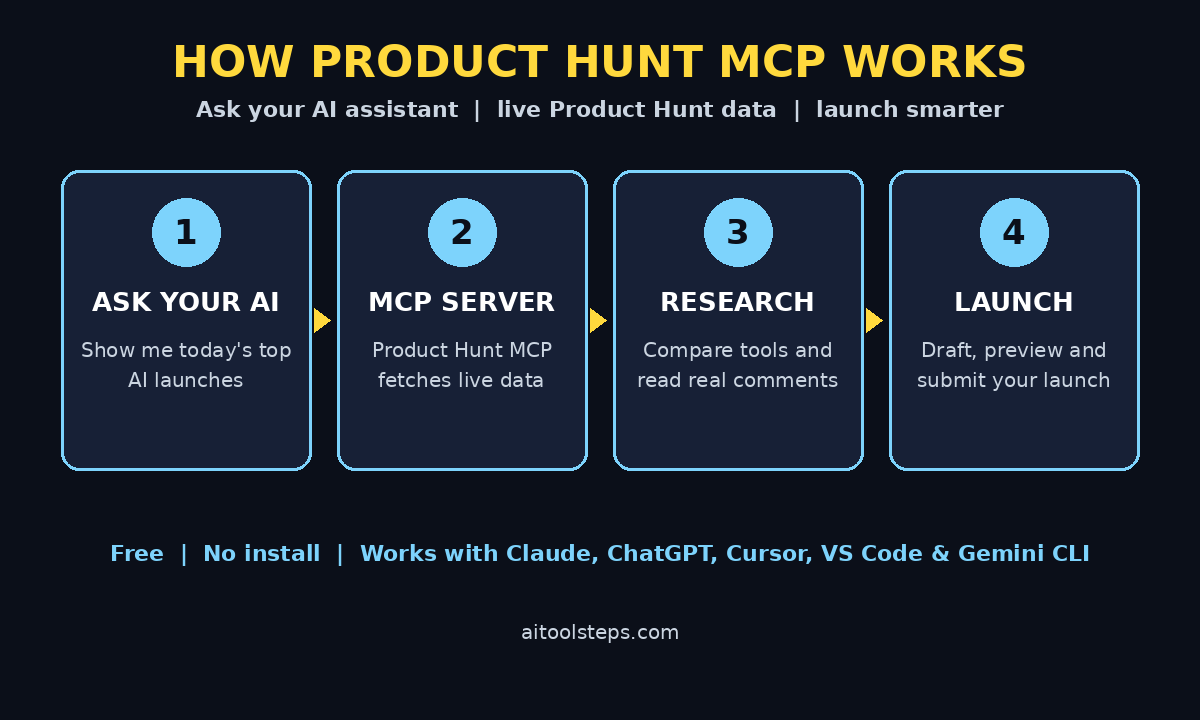
Over a month, this routine quietly builds a shortlist of tools that actually fit your work — instead of a browser full of tabs you never revisit. The diagram below shows the whole flow at a glance.
Step 11: Fix Common Problems
Most issues with Product Hunt MCP are quick to solve. Here are the ones beginners hit most often:
- “Server not found” or connection errors. Double-check the URL — it must be exactly
https://mcp.producthunt.com/mcp. Then restart your AI client and try again. - The assistant answers from memory instead of live data. Say explicitly: “Use the Product Hunt MCP server to check this.” Some clients need the nudge before they call the tool.
- Sign-in loop. If the Product Hunt sign-in page keeps reappearing, sign out of Product Hunt in your browser, sign back in, then reconnect the server.
- Old or missing launches. Ask with a date window, such as “launched in the last 24 hours”, so the assistant fetches fresh data instead of cached results.
- The community server asks for a token. That is the separate PyPI project,
product-hunt-mcp, which needs a Product Hunt Developer Token. If you did not mean to install that one, remove it and use the official remote server URL instead.
Product Hunt MCP vs Other Ways to Follow Product Hunt
| Method | Setup | Live data | Research help | Launch drafting | Cost |
|---|---|---|---|---|---|
| Product Hunt MCP (official) | Add one URL, sign in | Yes | Yes, in chat | Yes, draft + preview | Free |
| Browsing producthunt.com | None | Yes | Manual | Manual | Free |
| Product Hunt newsletter | Subscribe | Daily digest | No | No | Free |
| Community PyPI server | Install + API token | Yes | Yes, in chat | Depends on setup | Free |
| Social media roundups | Follow accounts | Delayed | No | No | Free |
The official MCP server wins on convenience: no installation, live data, and your AI assistant does the reading and summarising for you. Browsing the website is still the best way to enjoy the community — upvoting, commenting and discovering makers by chance — so use both. Let the MCP server do the searching, and let the website do the socialising.
Frequently Asked Questions
Is Product Hunt MCP really free?
Yes. The official Product Hunt MCP server is free to connect and use. You need a free Product Hunt account and an AI client that supports MCP. Your AI client itself may be a paid plan — Claude, ChatGPT and Cursor all have free tiers, and the MCP connection does not add a separate charge.
Do I need to know how to code to use Product Hunt MCP?
No. The official server is remote, so setup is just pasting a URL into your AI client’s settings and signing in. The only setup that needs code is the separate community PyPI server, which is optional and aimed at developers who want a local installation.
Which AI assistants work with Product Hunt MCP?
The official server works with Claude, ChatGPT, Codex, Cursor, VS Code, Gemini CLI and any other client that supports remote MCP servers over Streamable HTTP. If your client supports MCP, it can almost certainly connect.
Can Product Hunt MCP submit my launch automatically?
It can help you draft, check, preview and submit a launch, but you should always review the draft first. Nothing should go live without a human reading it. Treat the assistant as a skilled helper, not an autopilot.
Is my Product Hunt account safe when I connect MCP?
You sign in through Product Hunt’s own sign-in page, and you can revoke the connection from your Product Hunt account settings at any time. Never paste a Product Hunt API token or password into a chat window, and never share a Developer Token publicly — the official server does not ask for one.
What is the difference between the official server and product-hunt-mcp on PyPI?
The official server is run by Product Hunt at mcp.producthunt.com, needs no installation and no token. The PyPI package product-hunt-mcp is a community project that runs on your own computer and needs a Product Hunt Developer Token. Both connect Product Hunt to MCP clients, but beginners should start with the official one.
Final Thoughts
Product Hunt MCP turns your AI assistant into a live window on the newest tools on the internet. In ten minutes of setup you get daily launch discovery, honest comment research, competitive scans and a launch-drafting helper — all inside the chat app you already open every day. Start with Claude or ChatGPT, try the discovery prompts in Step 6, and build the five-minute daily routine in Step 10. Within a week, you will wonder how you ever kept up with new AI tools by scrolling a feed.
If you are a maker, the bigger lesson is this: the tools that win on Product Hunt are the ones that solve one clear problem and show up to answer comments. Use Product Hunt MCP to study what the winners do, draft carefully, and launch when your draft is genuinely ready — not a day earlier.
Explore More Free AI Tools
Want to keep exploring? Try these free tools on AI Tool Steps: the AI Title Generator for headlines that get clicks, the Meta Description Generator for search snippets that earn the click, the AI Rewriter to polish your drafts, and the Keyword Density Checker to keep your articles SEO-friendly. Each one is free, works in your browser, and pairs perfectly with the research workflow in this guide.