
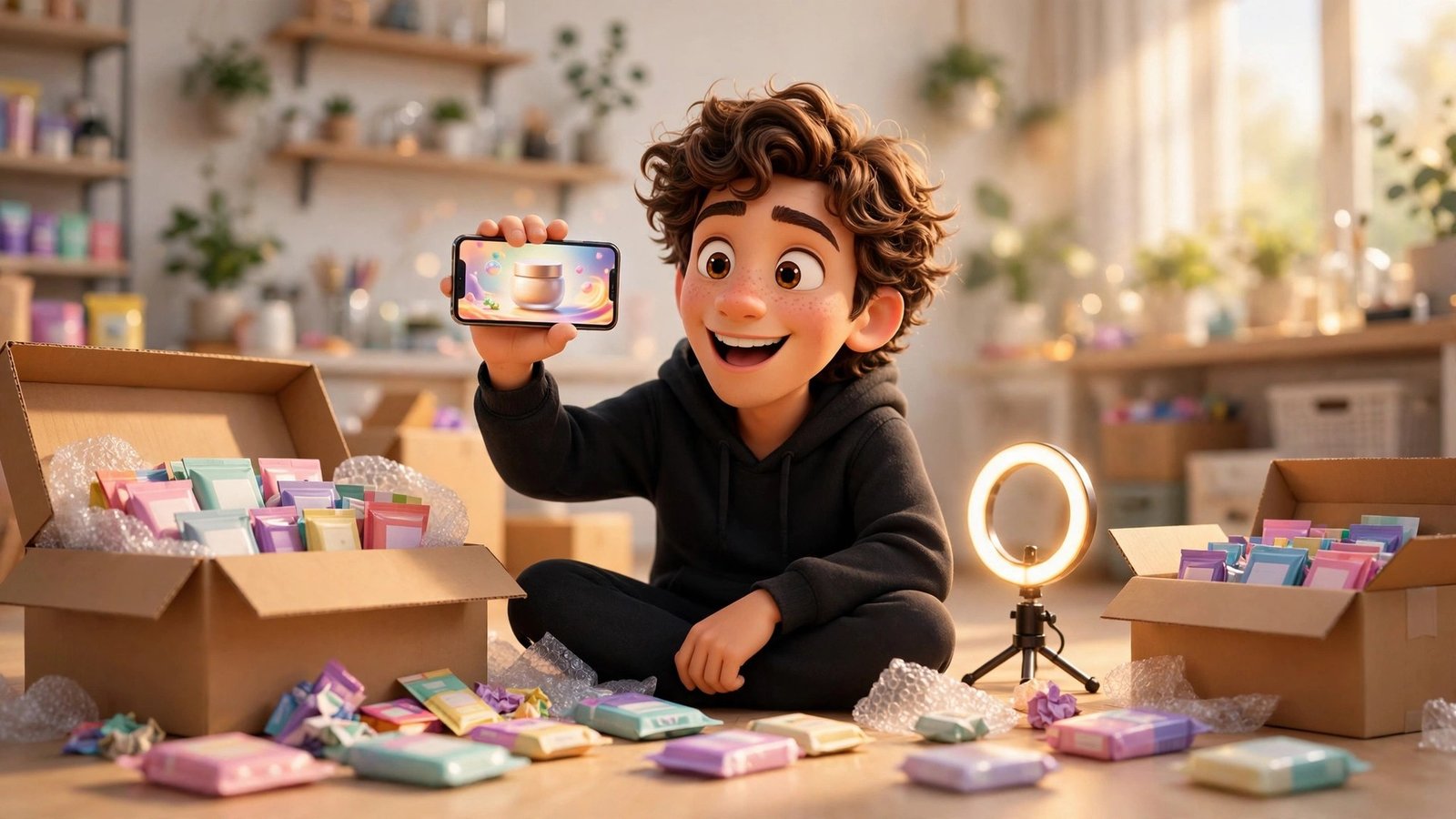
If you sell anything online, you already know the problem: product photos do not sell the way a short video does, but hiring a creator, booking a shoot, and editing a 15-second ad for every single product is slow and expensive. Say It Again AI flips that workflow around. You paste a product link, the AI reads the photos and facts from the page, writes the script, and generates a presenter who holds, uses, or wears your product and speaks the lines — in minutes, not days.
Say It Again AI (sayitagain.ai) launched on Product Hunt on 9 November 2026 as an AI UGC video tool built specifically for ecommerce. It is aimed at store owners, dropshippers, and small brands who need scroll-stopping product videos for TikTok, Instagram Reels, and Meta ads without a camera, a studio, or an editing timeline. In this beginner-friendly guide, you will learn exactly how it works, how to make your first video for free, and how to get results that actually look like a real ad — plus the one compliance rule you must never break.
Step 1: Understand What Say It Again AI Actually Does
Before you click anything, it helps to know what the tool is — and what it is not. Say It Again AI is an AI UGC (user-generated content) video generator for ecommerce products. Its core promise is simple: one product link in, one finished presenter video out.
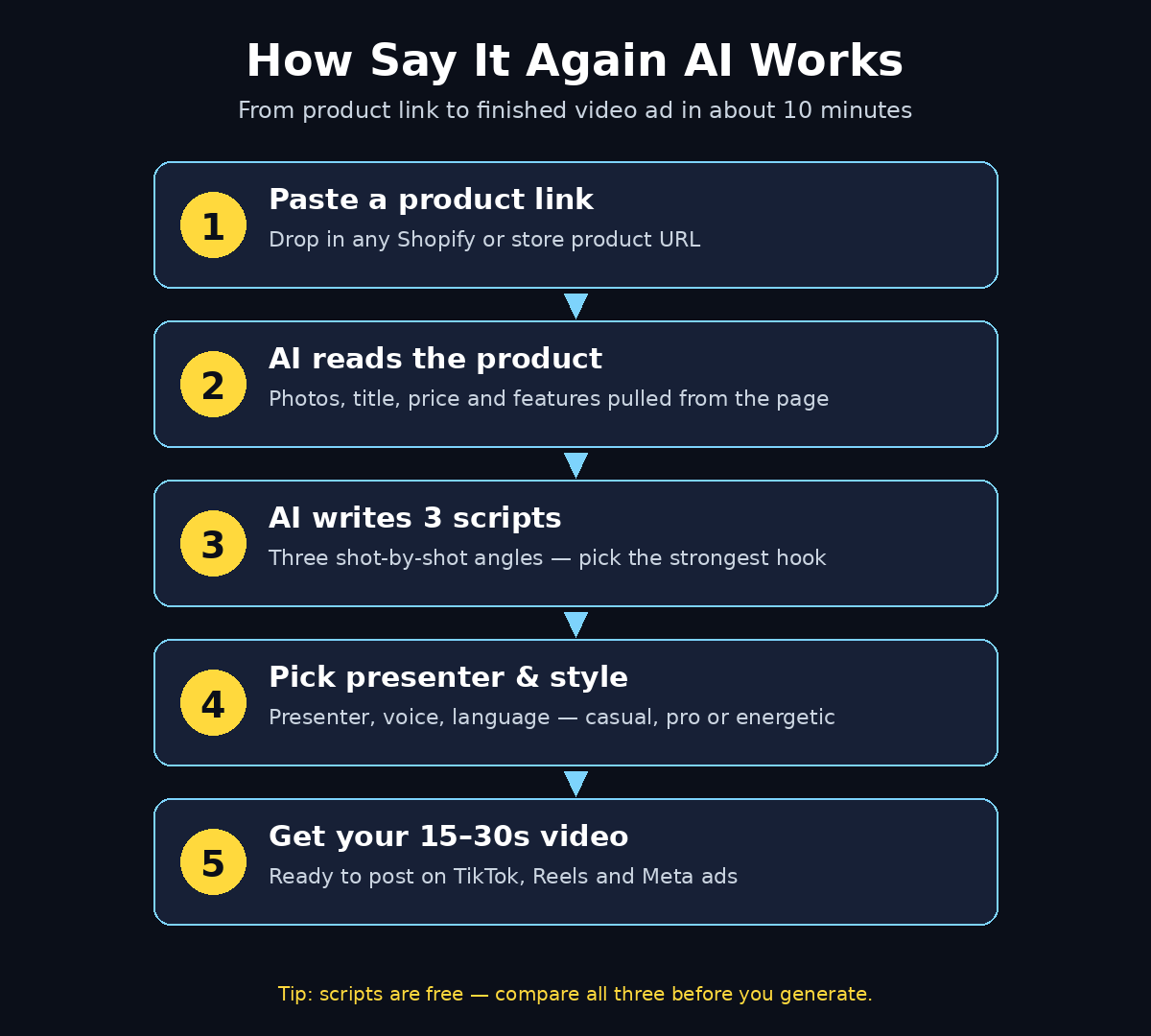
Here is the pipeline in plain English. First, the tool reads your product page — the photos, the title, the description, the price, and the key features. Second, it writes three different video scripts based only on the facts it found on that page, so the claims in the video stay grounded in what you actually sell. Third, it generates an AI presenter who appears on camera holding, using, or wearing the product, and speaks the script in the language and style you choose. The result is a 15- or 30-second vertical video that looks like a creator ad, ready to post.
What it is not: it is not a general text-to-video generator, and it is not a video editor. You do not write prompts describing a scene from scratch. The whole point is that the product page does the describing, and the AI does the presenting. That is also why it is so beginner-friendly — if you can copy and paste a link, you can use it.
For small brands, this matters because video is now the default language of product discovery. Shoppers on TikTok and Instagram expect to see a product in motion, in someone’s hands, before they trust it enough to click. Say It Again AI exists to close that gap for sellers who cannot film every product themselves.
Step 2: Create Your Free Account
Getting started takes about two minutes. Open sayitagain.ai in your browser and sign up with your email or a Google account. There is no software to install — everything runs in the browser, which also means it works the same on Windows, Mac, and Chromebook.
Once you are in, take a moment to look at the dashboard. You will see your balance, which shows how many free videos and scripts you have left, plus your library of past videos. The script-writing step is free, and new accounts start with free videos to try the tool before paying anything. Before you generate anything, check the quote for your chosen settings — the tool shows you the credit cost up front, so there are no surprises.
One practical tip: sign up with the same email you use for your store if you can. It keeps invoices, video history, and team access in one place, and it avoids the classic beginner mistake of losing a finished video in an account you cannot find later.
Step 3: Add Your First Product by Pasting Its Link
This is the step that makes Say It Again AI different from most video tools. Instead of uploading photos and typing a description, you paste the link to a product page from your own store — a Shopify product, a WooCommerce listing, or any public product URL — and the tool reads it.
Click the option to add a product, paste the URL, and let it read the page. It pulls in the product photos, the title, the description, and the facts that matter: what the product is, what it does, who it is for, and what makes it different. You can review what it found and correct anything it got wrong before moving on. This review matters — the scripts and the video are built from these facts, so a wrong detail here becomes a wrong claim in your ad.
If you run a store with dozens of products, start with your bestseller or the product with the clearest photos. Products with clean, well-lit images and a description that actually explains the benefits (not just the specifications) produce noticeably better videos. A vague listing gives the AI very little to work with, and it shows in the script.
For store owners who want a second opinion on their listings before turning them into videos, a quick listing audit from a digital agency can pay for itself — the team at D365A helps ecommerce brands tighten product pages so the photos and copy do the selling before a single video is made.
Step 4: Let the AI Write Three Scripts for You
Once your product is loaded, ask the tool to write scripts. Say It Again AI writes three different scripts for the same product, each one a complete shot-by-shot plan with the lines the presenter will say. This is one of the smartest parts of the workflow: instead of betting everything on a single idea, you get three angles to choose from.
Typically the three scripts differ in their hook. One might open with the problem (“Tired of tangled cables?”), another with the benefit (“This is the fastest way to…”), and a third with a direct demo (“Watch what happens when…”). Read all three. The best script for your audience is usually the one whose first line would make your customer stop scrolling — not the one that sounds the most polished.
You can also write your own lines instead. If you already know exactly what you want the presenter to say, you can supply 3 to 5 lines for a 15-second video, or up to 10 lines for a 30-second video. The presenter says your lines word for word, exactly as you typed them, so proofread carefully — a typo in your lines becomes a typo spoken out loud.
A useful habit: pick the script that matches the platform you are posting to. A punchy, problem-first script works well on TikTok, while a calmer, benefit-led script often performs better in a Meta ad where the viewer is a little further along in the buying journey.
Step 5: Pick a Presenter and a Voice
Next, choose who presents your product. Say It Again AI offers a library of AI presenters, and you can also describe and save your own custom presenters for your brand. Think of the presenter as the face of your ad — the person your customer will associate with the product.
Pick a presenter who fits your audience. A skincare product and a power tool need very different presenters, and the mismatch is instantly visible. If you plan to make videos regularly, creating one consistent presenter for your brand is worth the extra few minutes: repeat customers start to recognise the face, and your ads begin to look like a series instead of a one-off.
You can also set the presenter’s voice and the language of the video. The tool supports multiple languages, and you can generate the same script in up to three languages at once — handy if you sell in more than one market. Note that a few languages, such as Arabic, Hungarian, and Japanese, require the higher-quality generation setting, so check the quote before you commit.
Step 6: Choose the Style, Length, and Quality
Before you generate, you set three things: the video style, the length, and the quality. The style options are casual (the default), professional, and energetic. Casual fits most TikTok and Reels content, professional suits higher-priced products and B2B buyers, and energetic works for launches, sales, and anything with urgency.
Length is simple: fast videos are 15 seconds, while the better quality settings offer 15 or 30 seconds. For a first video, 15 seconds is the right choice — it is cheaper, faster to generate, and forces the script to stay tight. You can always make a longer version later once you know the angle works.
Quality has three levels. Fast uses Seedance 2.0 mini and is designed for trying ideas quickly. Best uses Wan 3.0 and is the setting for videos you actually publish. Priority uses Wan 3.0 Prime, jumps the queue, and costs more. For your first test, use fast to check the idea, then re-generate the winner at best quality. Resolution follows the same logic: 480p or 720p for fast videos, up to 1080p for best and priority. Captions are on by default — leave them on, because most people watch social video with the sound off at first.
Step 7: Generate Your First Video
Now press generate and wait. The tool answers with a video ID immediately, and the video itself takes about a minute to render — check back roughly once a minute until its status reads ready. Do not close the tab or navigate away while it is working.
When it is ready, watch the whole video before you do anything else. Check four things: does the presenter look natural holding or using the product, does the script match the product facts, is the pronunciation of your brand and product name correct, and does the video end with a clear next step for the viewer? Small errors are common on a first attempt — a mispronounced brand name, a hand that looks odd around the product — and it is far better to catch them now than after you have spent ad budget on the clip.
If something is off, do not panic. The tool’s remake and change options let you regenerate the same video with fixes, and a failed generation is refunded, so a bad render does not eat your credits. Treat the first video as a test, not a final product.
Step 8: Edit, Remake, or Translate the Video
Say It Again AI does not stop at the first render. Every finished video comes with follow-up actions: change the video, make it longer, lay it out in another size, or remake it in another language. These are genuinely useful, because a video that works on TikTok in 9:16 often needs a different cut for a square feed post or a landscape YouTube placement.
The “other sizes” action re-lays the same video out for a new frame — free, and it returns the existing version if you ask for the same size twice. The “another language” action makes a fresh version of the video with the script spoken in a new language, which is the fastest way to test a second market without filming anything new. And “make longer” extends a 15-second video when the short version proves the angle works and you want more room for benefits.
One more creative option: you can model a video on an existing ad. Paste a link from the Meta Ad Library — or pick one of your own earlier videos — and the tool builds your new video with a similar structure and moves, adapted to your product. This is a legitimate way to learn from ads that are already working, as long as the script and presenter stay your own.
Step 9: Download and Publish Your Video
Once you are happy with a video, download it and post it where your customers are. The default 9:16 vertical format is ready for TikTok, Instagram Reels, and YouTube Shorts. For paid traffic, the same file works as a Meta or TikTok ad creative — upload it to Ads Manager with a clear call to action and the product link.
A few publishing tips that make a real difference. First, post the video organically before you spend money boosting it — the organic comments will tell you within a day whether the angle resonates. Second, keep the caption short and let the video do the talking; one line about the benefit plus the product link is enough. Third, if you run a store, pin the video to your product page or your social profiles so every new visitor sees your best-performing creative first.
If you are turning video into a regular channel for your brand rather than a one-off experiment, it helps to plan the content around your wider marketing — the team at Agentic Affairs works with small brands on AI-powered marketing workflows, so a video pipeline like this one plugs neatly into a broader content and ads plan instead of living on its own.
Step 10: Follow the Rules and Improve Every Video
There is one compliance rule that matters more than any tip in this guide, and Say It Again AI states it clearly: every person in the videos it makes is AI-generated and is not a real customer. You must never present the presenter as someone who has used the product, because that would be a fake testimonial — and the law forbids it. No claims about personal results, no “I used this for a month” lines, no before-and-after stories from the presenter’s own life. Keep the script about the product’s features and benefits, and let real customer reviews do the testimonial work separately.
Beyond compliance, treat each video as a test. Track which script angle, presenter, and style gets the most watch time and clicks, then make the next video with the winner’s formula. Two or three videos a week for your top products will teach you more about your customers than a month of guessing — and because the marginal cost of each new video is low, you can afford to test ideas that a traditional shoot would never justify.
Finally, keep your product pages honest and up to date. The AI only knows what the page says, so a listing with an old price, a discontinued colour, or a feature you no longer offer will produce a video that misleads buyers. Update the page first, then regenerate the video — it takes a minute, and it keeps your ads accurate.
Say It Again AI vs Other AI Video Tools
How does Say It Again AI compare with the other tools beginners usually consider? The honest answer is that it solves a narrower problem than most of them — and that is exactly why it is useful.
| Tool | Best for | Input | Presenter | Free start |
|---|---|---|---|---|
| Say It Again AI | Ecommerce product video ads | Product URL | AI presenter holds/uses product | Yes — free scripts & free videos |
| HeyGen | Avatar explainers & training videos | Script + avatar | AI avatar, studio style | Yes — limited free credits |
| Creatify | URL-to-video ads | Product URL | AI avatar or stock clips | Yes — free trial credits |
| Runway | Creative & cinematic video generation | Text/image prompt | None — generative scenes | Yes — limited free credits |
| CapCut | Editing & captions for filmed video | Your own footage | You (real camera) | Yes — free plan |
The key difference is the starting point. HeyGen and Runway ask you to imagine a scene and describe it; Say It Again AI and Creatify start from your product page and do the imagining for you. If your goal is a product ad rather than a creative film, that shortcut saves hours. And unlike CapCut, there is no filming at all — which is the whole point for sellers who do not want to be on camera.
Frequently Asked Questions
Is Say It Again AI really free to use?
Yes, to start. Writing scripts is free, and new accounts get free videos to try the tool. Beyond that, videos cost credits, and the price depends on the length, quality, and resolution you choose. The tool shows you a quote before every generation, so always check the cost before you press generate.
Do I need any video editing skills?
No. That is the main selling point. You paste a product link, choose a script and a presenter, and the tool generates a finished video. There is no timeline, no trimming, and no editing software involved. If you want to polish a finished video further, you can export it and edit it in a tool like CapCut — but it is not required.
How long does it take to make a video?
The script writing takes seconds, and a video usually renders in about a minute. From pasting the link to downloading a finished 15-second video, most beginners finish their first one in under ten minutes. The slowest part is choosing between the three scripts — which is a good problem to have.
Can I use the videos for paid ads on Meta and TikTok?
Yes. The videos are made for exactly that: TikTok, Instagram Reels, and Meta ads. Just remember the compliance rule — the AI presenter is not a real customer, so never script them as if they bought or used the product. Keep the copy about features and benefits, and use genuine customer reviews separately for social proof.
What if the video gets my product details wrong?
Check the product facts the tool read from your page before you generate — that is where most errors start. If the listing is correct and the video still goes wrong, use the remake or change options to regenerate it; failed generations are refunded. If a detail is consistently wrong, fix the wording on the product page itself and re-add the product.
Does Say It Again AI work for services or digital products?
It is built for physical ecommerce products — things a presenter can plausibly hold, use, or wear on camera. For services, courses, or software, a tool like HeyGen or a simple screen-recorded demo usually fits better, because there is no physical product for the presenter to show.
Final Thoughts
Say It Again AI is one of the most practical AI tools to launch in November 2026, precisely because it does not try to do everything. It does one job — turning a product link into a believable presenter video — and it does it in about ten minutes with no camera, no editing, and no filming skills. For a small store owner, that removes the biggest reason product videos never get made: the effort.
Start with one product, your bestseller, and make your first 15-second video on the fast setting. Compare the three scripts, pick the strongest hook, and regenerate the winner at best quality. Post it organically, watch the reaction, and only then decide whether to scale it into ads or more products. If the angle works, you have a repeatable pipeline; if it does not, you have spent ten minutes learning something useful about your customers.
The sellers who win with tools like this are not the ones with the biggest budgets — they are the ones who test the most ideas. Say It Again AI simply makes each test cheap enough to run.
Explore More Free AI Tools
Want to keep building your free AI toolkit? Try these free tools on AI Tool Steps: the AI Title Generator for headlines that stop the scroll, the Meta Description Generator for search snippets that earn the click, the AI Rewriter for polishing product descriptions, and the Keyword Density Checker for keeping your pages SEO-friendly. All of them are free at aitoolsteps.com — no sign-up needed to start.