

You know that sinking feeling halfway through a client call. The client asks, "What did we agree on the price last time?" or "Can you send the revised quote by Friday?" — and your mind goes blank. You promised it, you meant it, but the detail is buried in an email thread, a price list, or a call from three weeks ago. TellPip AI was built for exactly that moment.
TellPip AI is a small Mac app with a big idea: a little AI bird called Pip that sits quietly on your computer during your calls and whispers the answer in your ear when you need it. Nothing joins your meeting. No bot appears on screen. No one on the call can see it, and it stays invisible even when you share your screen. It listens from your Mac, transcribes the conversation on your device, remembers what you promised each client, and answers from your own documents, your price list, and your past calls.
It launched on Product Hunt on November 3, 2026, built by maker Edoardo for people who work with clients every day: lawyers, accountants, consultants, salespeople, and freelancers. This beginner-friendly guide walks you through everything: what TellPip AI is, whether your Mac can run it, how to start the free trial, how to load your documents, how to use the whisper during a live call, and how to turn every call into decisions, commitments, and a ready-to-send follow-up email. You do not need any technical skills, and you do not need a credit card to try it.
Step 1: Understand What TellPip AI Actually Is
TellPip AI is not another meeting recorder and not another chatbot. It is an AI call assistant that works like a discreet colleague sitting next to you during a call — one who has read all your files and remembers every promise you made.
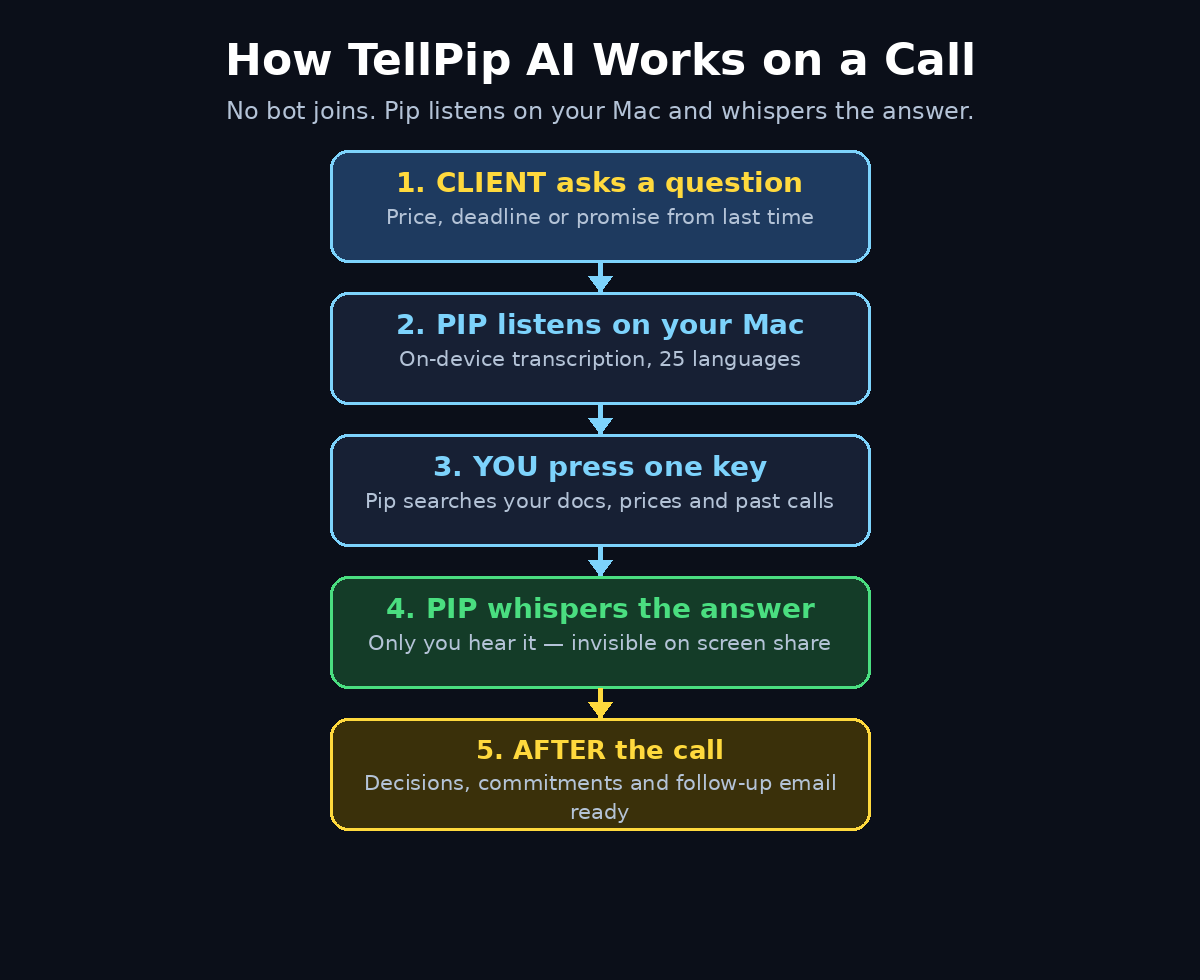
Here is the idea in plain words. Most AI meeting tools join your call as a visible bot. Everyone sees it, some clients dislike it, and the recording goes to a cloud server. TellPip takes the opposite approach. It runs on your Mac and listens to the audio coming through your computer — on Zoom, Google Meet, Microsoft Teams, or any other app. It never joins the meeting, so there is no bot tile, no "recording in progress" banner for the other side, and nothing to explain to your client.
While the call runs, TellPip transcribes what is said using a local model on your Mac. That local model handles 25 European languages and even works offline. When someone asks you a question, you press one key and Pip whispers the answer — pulled from your own documents, your price list, or your past calls with that client. If you prefer, you can let it answer on its own. After the call ends, it hands you the decisions, the commitments, and a follow-up email, ready in a moment. And before your next call with the same client, Pip reminds you what you promised last time.
The name says it all: a little bird that whispers what to say in your calls. It was built in Europe with GDPR in mind, and transcription and search run on your Mac — nothing is indexed or stored anywhere else.
Step 2: Check If Your Mac Can Run TellPip AI
Before you download anything, check the one hard requirement: TellPip AI is Mac only, and only on Apple Silicon.
- Mac with Apple Silicon: you need a Mac with an M1, M2, M3, or M4 chip. Intel Macs are not supported at launch.
- Windows and Linux: there is no Windows or Linux version yet. If you work on Windows, check the official site later for updates, or use a Mac for your client calls.
- Call apps: it works with Zoom, Google Meet, Microsoft Teams, and any other calling app, because it listens from your Mac rather than joining the call.
- Languages: the on-device transcription model handles 25 European languages, so it works for calls in English, French, German, Spanish, Italian, and more.
- Internet: transcription runs on your device and works offline, but you will need internet for downloading the app and for any cloud features.
If you are not sure which chip your Mac has, click the Apple menu, choose About This Mac, and look at the chip name. If it says Apple M1 or newer, you are good to go.
Step 3: Download and Start Your Free Trial
Getting started takes a few minutes, and the free trial needs no credit card.
- Find the official page. Open the TellPip page on Product Hunt and follow the launch link to the official site, or search for "TellPip AI" in your browser and open the official site from the results. Around every popular launch, copycat sites appear, so always start from the official listing.
- Download the Mac app. Download the app and open it. Because the transcription model runs on your device, the first launch may take a moment while it sets up.
- Start the free trial. The trial gives you 5 sessions of 10 minutes each, with no card required. That is enough for five real short calls, so use them on real client conversations rather than test calls with yourself.
- Grant microphone access. macOS will ask for permission to listen to your Mac's audio. Allow it — without this, Pip cannot hear the call. The app listens locally, and nothing is uploaded to a server for transcription.
- Pick your hotkey. Choose the key you will press when you want Pip to whisper an answer. Pick something you will not hit by accident during a call, and practise it once before your first real meeting.
Step 4: Add Your Documents, Price Lists and Past Calls
Pip is only as smart as the material you give it. This step is the difference between a clever demo and a tool that actually saves you in a live call.
- Upload your price list. Add the document that holds your prices, packages, and rates. When a client asks "how much for the extra revision?" Pip can quote the real number instead of you guessing.
- Add your contracts and proposals. Upload the agreements, quotes, and proposals you have sent. Pip can check what you actually agreed, not what you half-remember.
- Add your past call notes. If you have notes or transcripts from earlier calls, add them too. This is how Pip learns what you promised each client and reminds you before the next call.
- Organise by client. Keep documents grouped by client where the app allows it. A price question about Client A should never be answered with Client B's rates.
- Keep it current. When a price changes or a contract is renewed, replace the old file. An out-of-date price list is worse than no price list, because Pip will answer confidently with the wrong number.
Think of this as briefing a new assistant. Ten minutes of uploading now saves you from fumbling through folders in front of a client later.
Step 5: Set Up Pip Before Your First Call
A little preparation before the call is what makes the whisper feel like magic during it.
- Open TellPip before the call starts. Launch the app a few minutes early so it is listening when the call begins. Check that the microphone permission is active and the app shows it is ready.
- Pick the client. If the app lets you select the client for this call, do it. That tells Pip which documents and which past promises matter for this conversation.
- Glance at the reminders. Before you dial in, read what Pip reminds you about this client: open promises, deadlines, and anything you agreed last time. This alone can save a call.
- Test the whisper once. Press your hotkey and ask a simple question from your documents, just to confirm the whisper works and you can hear it. Do this before the client joins.
- Keep your notes nearby. Pip helps you answer, but you are still the one talking. A short list of your own talking points next to the keyboard keeps you in control.
Step 6: Use the Whisper During a Live Call
This is the moment TellPip was built for. The call is live, the client asks something specific, and you need the right answer right now.
- Listen first. Let the client finish the question. Pip is transcribing in real time, so it already has the context of what was just asked.
- Press your hotkey. One key press tells Pip you want help with this question. It searches your documents, your price list, and your past calls for the answer.
- Hear the whisper. Pip whispers the answer to you — quietly, through your earphones or speakers, so only you hear it. You then answer the client in your own words, naturally.
- Stay natural. Do not repeat the whisper word for word like a robot. Take the fact — the price, the date, the clause — and say it the way you would normally say it. The client should never feel they are talking to an AI.
- Ask again if needed. If the first whisper is not quite right, press the key again or rephrase the question in your head. Pip works from your documents, so the more specific the question, the better the answer.
The beauty of this is what does not happen: no bot joins the call, no one sees a transcript being made, and your screen share stays clean. Pip is invisible to everyone except you.
Step 7: Let Pip Answer on Its Own (Optional Autopilot)
If you trust Pip and your documents are solid, you can let it answer on its own — but understand what that means before you switch it on.
- Start with the whisper. Use the press-a-key whisper for your first few calls. Learn how accurate Pip is with your documents before you hand it the microphone.
- Switch on autopilot only for routine questions. Autopilot makes sense for questions with a fixed answer in your documents, like a price or a delivery date. It does not make sense for negotiations, apologies, or anything sensitive.
- Stay in the room. Even on autopilot, you are responsible for what is said to your client. Listen to every answer Pip gives and be ready to correct it in your own voice.
- Turn it off for difficult calls. If a call is tense, or the client is unhappy, switch autopilot off. Those conversations need a human, not an assistant, however clever it is.
Autopilot is a convenience, not a replacement for you. The best users treat it like cruise control: helpful on a straight road, switched off the moment the road gets tricky.
Step 8: Get Your Decisions, Commitments and Follow-Up Email After the Call
The call ends, and most people lose half its value in the next hour — the promises fade, the decisions blur, and the follow-up email never gets written. TellPip closes that gap.
- Read the call summary. As soon as the call ends, TellPip gives you the decisions made on the call, listed plainly. Check them while the conversation is still fresh in your mind.
- Check the commitments. The app pulls out what you promised: "send the revised quote by Friday," "three months, as agreed," and every small commitment in between. These are the promises that damage trust when they slip, so review them carefully.
- Send the follow-up email. TellPip drafts the follow-up email for you, based on what was actually said. Read it, fix anything it got wrong, add your own tone, and send it while the client still remembers the call.
- Save the record. The summary and commitments are saved against that client, so Pip can remind you before your next call. That is how the memory builds: every call makes the next one smarter.
- Update your task list. Turn each commitment into a real task with a date. A commitment in an app is not done until it is on your calendar or your to-do list.
This after-call routine takes about five minutes and is where TellPip earns its keep. The whisper helps you in the moment; the summary protects you afterwards.
Step 9: Prepare for Your Next Call With the Same Client
The next time you speak to the same client, Pip does something no ordinary note-taking app can: it reminds you what you promised.
- Open the client before the call. TellPip shows you the open promises, the last decisions, and the follow-up email you sent. Read it in the two minutes before you dial in.
- Close the loop. If you promised a quote by Friday and sent it on Thursday, mark it done. Pip's reminders are only useful if they reflect reality.
- Spot the pattern. After a few calls with the same client, look at what keeps coming up. If they ask about the same price every time, put it in your proposal. If they always ask for the same document, send it before the call.
- Build the relationship. Remembering a small promise — "we said three months, right?" — is what makes a client feel heard. Pip remembers so you can be the person who follows through.
For freelancers and small firms, this is the real advantage. Big companies have CRMs and account managers. You have Pip, and it never forgets a promise.
Step 10: Privacy, Consent and the Rules That Keep You Safe
TellPip is designed to be private — transcription on your Mac, nothing indexed or stored elsewhere, built in Europe with GDPR in mind — but private by design does not mean you can ignore the rules.
- Know your local law. In many places, recording or transcribing a call without telling the other person is restricted or illegal. TellPip listens locally, but the law in your country or state may still treat transcription as recording. Check before your first call.
- Tell your clients when in doubt. A simple line at the start — "I use a small app that helps me keep track of what we agree, nothing leaves my computer" — builds trust and avoids surprises.
- Do not share sensitive documents carelessly. Pip answers from your documents, so do not upload anything you would not want quoted back in a call: other clients' prices, private contracts, or personal data.
- Keep your Mac secure. Because everything lives on your device, your Mac's own security matters: a strong password, disk encryption, and locking your screen when you step away.
- Remember the screen-share rule. Pip is invisible when you share your screen, which is convenient — but it also means you must be the one who decides what the client hears. Never let an automatic answer reveal something you would not say yourself.
If you run a client-facing business and want help turning the trust you build on calls into a stronger online presence, a digital agency can help you present that work properly. And if your team is exploring how AI tools fit into everyday client work, AI automation services can show you where tools like TellPip fit into a bigger workflow.
Step 11: TellPip AI Pricing and Free Trial Limits
TellPip is not a free-forever tool, but the trial lets you test it on real calls before you spend anything.
- Free trial: 5 sessions of 10 minutes each, no credit card required. Use them on real client calls, not on practice runs, so you learn whether the whisper actually helps you.
- Solo plan: from €25 per month. This is the plan for a single freelancer or consultant who takes client calls alone.
- Everything plan: €39 per month during the launch period. This is the fuller plan with everything included.
- What to check before paying: confirm what each plan includes on the official pricing page before you subscribe. Launch-week pricing can change, and the pricing page is the only reliable source.
- The honest test: after your five trial sessions, ask yourself one question — did Pip save you from a wrong answer or a forgotten promise even once? If yes, the Solo plan pays for itself. If not, your calls may not need it yet.
Prices are in euros because TellPip is built in Europe. If you pay in another currency, your bank will convert the amount, so check the converted price before subscribing.
Step 12: TellPip AI vs Other AI Call Assistants
TellPip is not the only AI tool that helps with calls. Here is how it compares with the alternatives most beginners meet first.
| Tool | How it helps on calls | Bot joins the meeting? | Price to start | Best for |
|---|---|---|---|---|
| TellPip AI | Whispers answers from your documents during the call, remembers promises, drafts follow-ups | No — listens from your Mac | Free trial, then from €25/month | Freelancers, lawyers, consultants who take client calls |
| NoteOwl AI | On-device meeting notes and dictation for Mac, no bot joins | No — runs on your Mac | Free dictation; Pro $79 lifetime | Mac users who want private meeting notes |
| Typical bot note takers | Join the call, record, transcribe in the cloud, send a summary | Yes — visible to everyone | Often free to start | Teams that want a shared record of every meeting |
| ORE Companion AI | Floating AI assistant on your desktop for questions in any app | No — desktop companion | Free to start | Anyone who wants AI help without switching tabs |
The difference is simple. Bot note takers record the meeting for everyone. TellPip helps only you, quietly, in the moment — and remembers what you promised afterwards. If you want a private meeting note taker instead, our guide to NoteOwl AI covers a similar on-device approach, and our ORE Companion AI guide shows a floating assistant that works across every app on your desktop.
Frequently Asked Questions About TellPip AI
Is TellPip AI free to use?
TellPip AI has a free trial: 5 sessions of 10 minutes each, with no credit card required. After that, the Solo plan starts at €25 per month and the Everything plan is €39 per month during the launch period. There is no widely advertised free-forever plan, so check the pricing page on the official site before you commit.
Does TellPip join my meetings as a bot?
No. Nothing joins your meeting. TellPip listens from your Mac on Zoom, Meet, Teams, or any other app, and it stays invisible even when you share your screen. The people on the call cannot see it.
Which languages does TellPip AI support?
The on-device transcription model handles 25 European languages, including English, French, German, Spanish, and Italian, and it works offline. If your calls are in a language outside Europe, check the official site for the current list.
Is TellPip AI only for Mac?
Yes, at launch. TellPip AI is Mac only and needs Apple Silicon — an M1, M2, M3, or M4 chip. There is no Windows or Linux version yet, and no Intel Mac support was announced.
Do I need to tell my clients that TellPip is listening?
You should check the law where you live, because rules about recording and transcribing calls vary. Even where it is allowed, telling your client in one sentence builds trust and avoids awkward surprises. A short, honest explanation is always the safer choice.
When did TellPip AI launch?
TellPip AI launched on Product Hunt on November 3, 2026. It is a very new product, so expect the interface, features, and pricing to keep changing in the first weeks, and treat the official site and the Product Hunt listing as the source of truth.
Final Thoughts
TellPip AI solves a small problem that costs freelancers and consultants real money: the promise you forget, the price you misquote, the follow-up email you never send. It does it without a bot, without the cloud, and without anyone on the call knowing it is there. The whisper during the call is the feature that gets attention, but the real value is the memory: every call makes the next one better, because Pip remembers what you promised.
Start with the free trial and use all five sessions on real client calls. Load your price list and your past notes first, practise the hotkey once, and let the after-call summary become a habit. If Pip saves you from one forgotten promise, it has already paid for itself. If it does not fit the way you work, you have lost nothing but five short calls — and you will know exactly what kind of call assistant you actually need.
Explore More Free AI Tools
Want to keep learning? Try these free guides and tools from AI Tool Steps:
- AI Title Generator — craft headlines that get clicks: https://aitoolsteps.com/
- Meta Description Generator — write search snippets that earn the click: https://aitoolsteps.com/
- AI Rewriter — rewrite any text in a clearer, fresher voice: https://aitoolsteps.com/
- Keyword Density Checker — check your article is optimised before you publish: https://aitoolsteps.com/
Every guide on AI Tool Steps is written for beginners, free to read, and tested on the real tool — so pick your next one and keep building your AI workflow.