

Most AI assistants live in a browser tab. You have a question, you switch tabs, you lose your place, and by the time you come back you have forgotten what you were doing. ORE Companion AI flips that idea around: instead of you going to the AI, the AI comes to you — as a small floating mascot that sits on top of whatever you are working on, ready to answer the moment you need it.
ORE Companion is a free, lightweight desktop app for Mac and Windows that launched on Product Hunt on November 3, 2026. It connects to the AI assistants you already use — ChatGPT, Claude, Grok, Perplexity and Muse — through the sessions you are already logged into, so it never asks for your password or stores it. You type or talk to it, and the answer appears in a small bubble that fades after 30 seconds, so your screen stays clean. It can also open apps and web pages, set timers, adjust your volume, keep a local memory of your work, give you a daily brief, and switch on a Focus mode when you need quiet.
In this beginner-friendly guide, you will learn exactly how to use ORE Companion AI: what it is, how to download and install it for free, how to connect your favourite AI, how to ask questions by typing or talking, how to use its quick actions, local memory, daily brief and Focus mode, and how to make it part of your everyday workflow. You do not need any technical skills, and you do not need a credit card to start.
Step 1: Understand What ORE Companion AI Actually Is
ORE Companion AI is not another chatbot and not another AI model. It is a floating desktop companion — a small mascot that hovers above every window on your computer. Think of it as a helpful desk buddy that is always one click away, no matter which app you are using: your browser, your document, your spreadsheet, or your code editor.
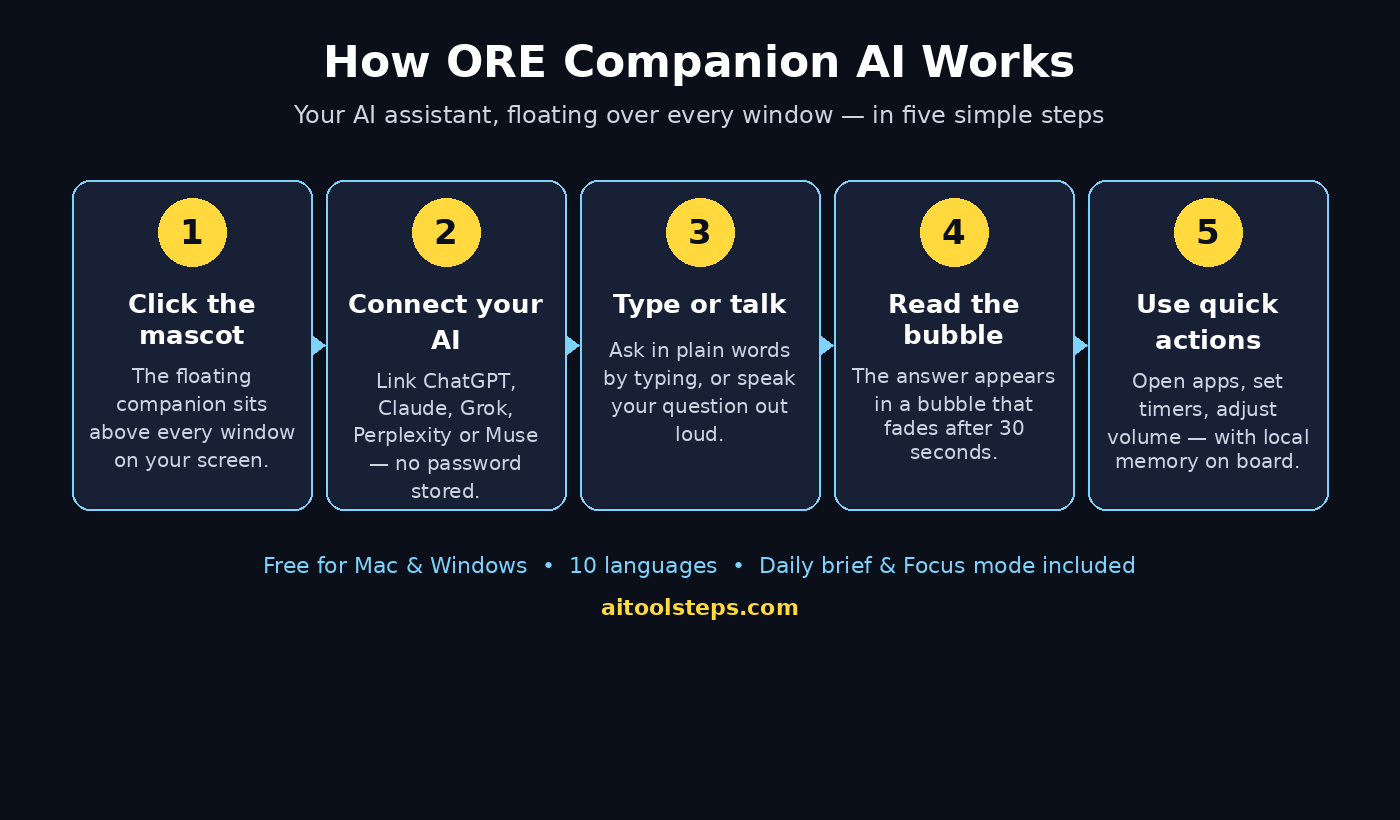
The idea is simple. Traditional AI tools make you leave your work to ask a question. ORE Companion stays where your work is. You click the mascot, ask in plain words, and the answer appears in a bubble right next to your work, then fades away after 30 seconds so it never clutters your screen. It is a small change in design, but it removes the constant tab-switching that breaks your concentration.
ORE Companion works with the AI services you already pay for or use for free. Instead of building its own model, it connects to ChatGPT, Claude, Grok, Perplexity or Muse through the session you are already logged into in your browser. That is an important privacy detail: the app never asks for your password and never stores it. It simply borrows the login you already have.
It is also more than a question box. ORE Companion can open apps and web pages for you, set timers, adjust your volume, remember things locally on your own computer, prepare a daily brief, and switch into a Focus mode that keeps distractions down. It works in 10 languages, so it is useful far beyond English-speaking users.
Step 2: Check If ORE Companion AI Works on Your Computer
Before you download anything, make sure your computer is supported. ORE Companion is a desktop app for Mac and Windows, and it is free to download and use. It is described as lightweight, which means it is designed to run quietly in the background without slowing your computer down or eating your memory.
- Mac users: download the Mac version of the app from the official site or the Product Hunt launch page.
- Windows users: download the Windows version the same way — the app is built for both platforms.
- Linux users: no Linux version was announced at launch, so check the official site for updates if you use Linux.
- Internet connection: you need to be online, because the answers come from the AI services you connect to.
- An existing AI account: you need to be logged into at least one supported AI — ChatGPT, Claude, Grok, Perplexity or Muse — in your browser, because ORE Companion connects through that session.
Because the tool is brand new — it launched on November 3, 2026 — expect quick updates in the first weeks. The Product Hunt launch page and the official site are the reliable sources for the latest system requirements and download links, so always start there rather than a random download site.
Step 3: Download and Install ORE Companion AI for Free
Installing ORE Companion AI takes only a few minutes, and there is no payment wall in front of you. The launch listing shows a price of $0, so you can start free with no credit card.
- Find the official download. Search for “ORE Companion” on Product Hunt and open the launch page, or search the web for ORE Companion and open the official site from the launch listing. Always use the official source, because copycat download pages appear around every popular AI launch.
- Pick your version. Choose the Mac or Windows download that matches your computer and download the installer file.
- Run the installer. Open the downloaded file and follow the on-screen steps. On Mac, drag the app into your Applications folder if asked; on Windows, run the installer and accept the defaults.
- Launch the app. Open ORE Companion and you should see the small mascot appear on your screen, floating above your other windows.
- Allow it to stay on top. The mascot is designed to float above your work. If your system asks for permission to show it over other apps, allow it — that floating behaviour is the whole point of the tool.
Once installed, the mascot sits quietly at the edge of your screen. It does not take over your desktop, and it does not open a big window unless you ask it to. That calm, always-there design is what makes it different from a browser chatbot.
Step 4: Connect Your Favourite AI Assistant
ORE Companion does not come with its own AI model. Instead, it connects to the AI assistants you already use. This is the step that confuses most beginners, so here is how it works in plain terms.
- Log in first, in your browser. Open your browser and sign in to ChatGPT, Claude, Grok, Perplexity or Muse — whichever you use most. ORE Companion connects through that logged-in session.
- Choose your AI inside ORE Companion. In the app’s settings or connection menu, pick the assistant you want it to use. You can switch between them later, so you are not locked into one choice.
- No password needed. ORE Companion never asks for your AI account password and never stores it. It uses the session you are already logged into, which is a much safer design than handing your password to another app.
- Start with one. If you use several AIs, pick your main one first — for most beginners that is ChatGPT or Claude — and add the others once you are comfortable.
If you run a digital agency or a small team, this setup is handy because different people can connect the AI they already use, without sharing passwords or buying a new subscription just for the companion app. The same idea works for students and freelancers: the AI you already pay for becomes available everywhere on your computer, not just inside one browser tab.
Step 5: Ask Your First Question by Typing or Talking
This is the moment the mascot earns its place on your screen. Asking a question takes seconds, and you can do it without leaving the app you are working in.
- Click the mascot. The small floating character is always visible above your windows. Click it to open the question box.
- Type your question. Write what you need in plain words, just as you would in a chat. For example: “Summarise this paragraph in two lines” or “What is a good subject line for this email?”
- Or talk to it. ORE Companion also accepts voice input, so you can speak your question instead of typing it — useful when your hands are busy or you are thinking out loud.
- Read the bubble. The answer appears in a small bubble next to the mascot. Read it, copy it if you need it, and then let it fade — the bubble disappears after 30 seconds so your screen stays clean.
- Ask a follow-up. If the answer is not quite right, click the mascot again and rephrase. Short, specific questions get better answers than long, vague ones.
The 30-second fading bubble is a deliberate design choice. Other assistants leave long chat histories open on your screen; ORE Companion treats each answer as a quick note that appears, helps, and gets out of the way. If you need to keep an answer, copy it into your document before the bubble fades.
Step 6: Use Quick Actions — Open Apps, Set Timers, Control Volume
ORE Companion is not only for questions. It can also do small jobs on your computer, which saves you from hunting through menus while you work.
- Open apps and pages. Ask it to open an app or a web page and it will launch it for you — handy when you are in the middle of a task and do not want to break your flow.
- Set timers. Tell it to set a timer, for example “set a timer for 25 minutes”, and use it for focused work sessions or reminders while you cook, study or wait on a download.
- Adjust volume. Ask it to turn the volume up or down without reaching for system settings or keyboard shortcuts.
- Keep it simple at first. Try one quick action at a time. Once you trust the basics, these small commands become a natural part of how you work.
These actions sound small, but they add up. Every time you avoid digging through menus or switching windows, you stay in the task you were doing. That is the real benefit of a floating companion: the help comes to you, instead of you going to the help.
Step 7: Turn On Local Memory So It Remembers Your Work
One of ORE Companion’s most useful features is its local memory. Unlike many AI tools that store your conversations on their servers, ORE Companion keeps its memory on your own computer. That means the things it remembers about your work stay with you, not in someone else’s cloud.
- What it remembers: the context of your work — the project you are on, the topics you keep asking about, and the preferences you set — so its answers get more relevant over time.
- Where it lives: locally, on your own machine, which is better for privacy than a cloud memory store.
- How to use it: just keep using the companion normally. The memory builds up from your real questions and tasks, so you do not need to configure anything complicated.
- Stay in control: because the memory is local, you can review and clear it from the app’s settings whenever you want a fresh start.
For anyone handling sensitive work — client projects, private documents, or personal notes — local memory is a genuine advantage. It gives you the benefit of a personalised assistant without sending your working history to a server. If you offer AI automation services to clients, that privacy-first design is also easier to explain to them than a tool that uploads everything to the cloud.
Step 8: Start Your Day with the Daily Brief
ORE Companion can give you a daily brief — a short summary to start your day. Instead of opening five apps to find out what is happening, you get the essentials in one place.
Open the daily brief in the morning and skim it before you start work. It is designed to be short, not a long report, so you can read it in a minute and know what deserves your attention first. Use it to plan your day: pick the one or two things that matter most, then switch on Focus mode and work on them without interruption.
Make the brief a habit for a week before you judge it. A daily summary is only useful once it has a few days of your real activity to draw on, and the local memory from Step 7 is what makes each brief more relevant than the last. If the brief ever feels off, tell the companion what to prioritise and it will adjust.
Step 9: Use Focus Mode to Work Without Distractions
Focus mode is ORE Companion’s quiet setting. When you switch it on, the companion steps back: fewer interruptions, a calmer screen, and space to do deep work. The mascot is still there when you need it, but it stops competing for your attention.
Focus mode pairs naturally with the timer from Step 6. A simple routine is: set a 25-minute timer, switch on Focus mode, work on one task until the timer ends, then take a short break and check your daily brief for what comes next. Repeat that cycle three or four times and you have a solid morning of focused work, with the AI assistant waiting quietly instead of pulling you into another tab.
Beginners often install a new AI tool and then forget it exists. Focus mode is the feature that keeps ORE Companion useful day after day, because it respects the difference between “I need help right now” and “leave me alone while I work”.
Step 10: Make ORE Companion Part of Your Daily Workflow
A tool only helps if you actually use it, so here is a simple daily routine that turns ORE Companion from a novelty into a habit.
- Morning: read the daily brief, pick your top task, switch on Focus mode.
- While working: click the mascot for quick questions instead of opening a new tab — definitions, summaries, subject lines, simple calculations, short explanations.
- When stuck: talk to it out loud. Speaking a problem to the companion often clarifies your own thinking, even before you read the answer.
- For small jobs: use the quick actions — open the app you need, set a timer, adjust the volume — without leaving your current window.
- End of day: ask it to summarise what you worked on, using the local memory it has built up, and note tomorrow’s first task.
- Weekly: clear the local memory if you have finished a project, so the next project starts clean.
ORE Companion works in 10 languages, so if English is not your first language, try asking questions in the language you think in — the answers are often clearer that way. And because it is free, there is no pressure to get value out of a subscription: use it as much or as little as you like, and keep it only if it genuinely saves you time.
Step 11: Know the Limits Before You Depend On It
ORE Companion is brand new, and honest beginners should know its limits before building a workflow around it.
- It is only a few days old. ORE Companion launched on Product Hunt on November 3, 2026. Early tools change fast: features appear, bugs get fixed, and details such as pricing can change after launch week.
- It depends on your AI login. Because it connects through your existing AI session, it only works as well as that session. If you are logged out of ChatGPT or Claude in your browser, reconnect there first.
- Answers fade in 30 seconds. The bubble disappears quickly by design. Copy anything important into your document before it fades, or you will have to ask again.
- No Linux version yet. At launch the app is for Mac and Windows only. Check the official site later if you use Linux.
- Check the official sources. For the latest features, supported languages and system requirements, the Product Hunt launch page and the official site are the only reliable sources.
ORE Companion AI vs Other Ways to Use AI on Your Computer
How does a floating companion compare with the ways you already use AI? Here is a quick comparison.
| Option | Where it lives | Needs its own password | Quick actions | Price to start |
|---|---|---|---|---|
| ORE Companion AI | Floating mascot over every window | No — uses your logged-in AI session | Yes — apps, timers, volume | Free |
| Browser chatbot tab | One browser tab | Yes — log in on the site | No | Free tier available |
| Desktop AI app | Its own window | Yes — log in to the app | Sometimes | Free tier available |
| Voice assistant | System-wide | Yes — account linked | Yes — device controls | Free with device |
Prices and free tiers change often, so check each tool’s own pricing page before you commit to a workflow that depends on it.
Frequently Asked Questions About ORE Companion AI
Is ORE Companion AI free to use?
Yes. ORE Companion launched with a listed price of $0 on Product Hunt — it is a free, lightweight desktop app for Mac and Windows, with no credit card needed to start. As with any brand-new tool, check the official site for the latest pricing, because launch-week details can change.
Does ORE Companion AI store my password?
No. ORE Companion never asks for your AI account password and never stores it. It connects to ChatGPT, Claude, Grok, Perplexity or Muse through the session you are already logged into in your browser.
Which AI assistants does ORE Companion AI work with?
At launch it connects to ChatGPT, Claude, Grok, Perplexity and Muse. You pick which one it uses, and you can switch between them later.
Does ORE Companion AI work on Mac and Windows?
Yes, it is a desktop app for both Mac and Windows. No Linux version was announced at launch.
Why does the answer bubble disappear after 30 seconds?
That is by design. The bubble appears next to your work, gives you the answer, and fades after 30 seconds so your screen stays clean. Copy anything important into your document before it fades.
Is my data stored in the cloud?
ORE Companion keeps a local memory on your own computer, rather than storing your working history on its servers. You can review and clear that local memory from the app’s settings.
Final Thoughts
ORE Companion AI is a small idea done well: instead of making you go to the AI, it brings the AI to wherever you are working. A floating mascot, a quick question typed or spoken, an answer that fades after 30 seconds, and a handful of genuinely useful extras — quick actions, local memory, a daily brief and Focus mode — add up to a tool that respects your attention instead of competing for it.
The strongest reasons to try it are the price and the privacy design. It is free, it works on both Mac and Windows, and it never asks for your AI password because it connects through the session you already have. The honest caveat is its age: it launched on November 3, 2026, so expect fast changes in the first weeks and check the official site before you build a critical workflow around it.
Try it for one week with the routine in Step 10: daily brief in the morning, mascot questions instead of new tabs, Focus mode for deep work. If it saves you even a few tab switches a day, it has earned its small corner of your screen.
Explore More Free AI Tools
Want more free AI tools that make everyday work easier? Try the AI Title Generator, the Meta Description Generator, the AI Rewriter and the Keyword Density Checker on AIToolSteps — all free, all in your browser, no sign-up needed.