

Introduction
If you have ever asked two AI coding agents to work on the same project at the same time, you already know the problem Paradev AI was built to solve. One agent rewrites a file while the other one is still editing it. Changes collide, work gets lost, and you spend your evening untangling a mess instead of shipping features.
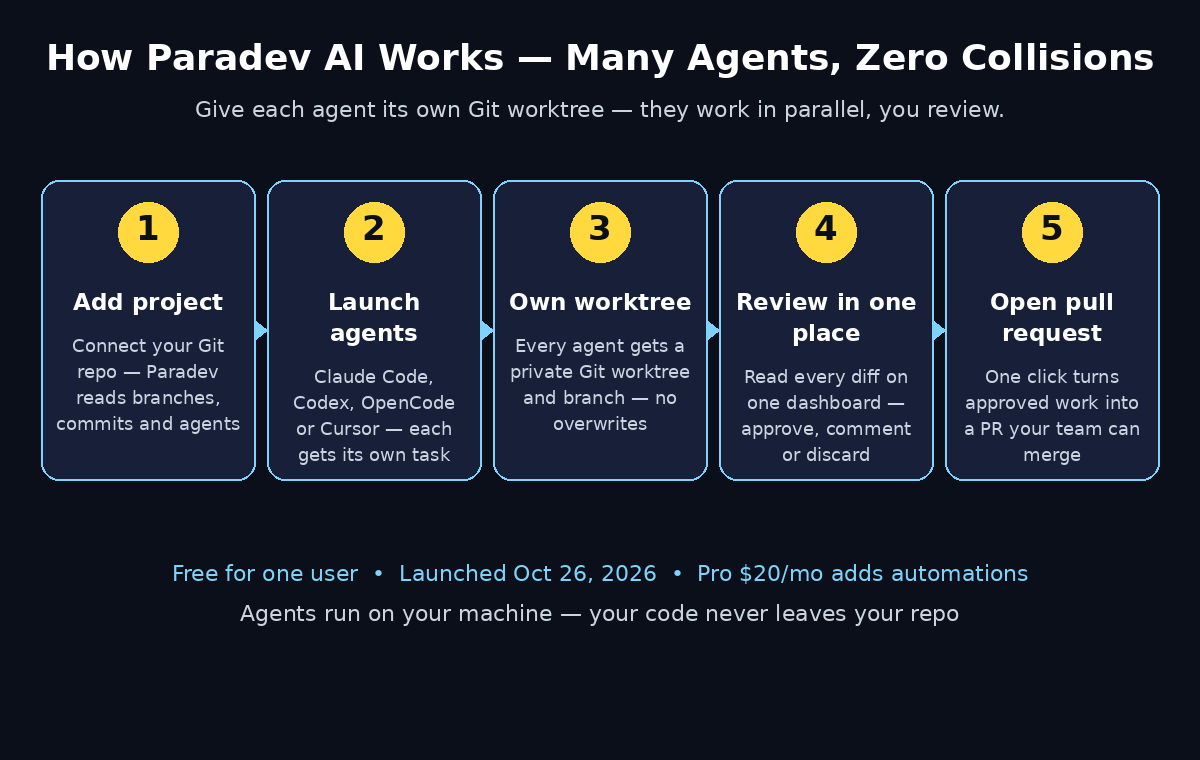
Paradev AI was built to end that chaos. Launched on October 26, 2026 — as the new name for the desktop app formerly called Superset — Paradev is a desktop app that lets you run many coding agents side by side, safely, in one place. Claude Code, Codex, OpenCode, and Cursor’s agent each get their own Git worktree and their own branch, so they never overwrite each other’s files. You review every change in one place, approve what is good, and send it to a pull request when you are ready.
This beginner-friendly guide walks you through everything: what Paradev AI is, how to install it for free, how to connect your first project, how to launch your first team of agents, how to review their work without breaking anything, and how to put repetitive work on a schedule so agents handle it while you sleep. You do not need to be a senior developer to follow along, and you do not need a credit card to start — Paradev is free for one user.
Step 1: Understand What Paradev AI Actually Is
Paradev AI is not another coding agent. It is the manager for the coding agents you already use. Think of it like a project manager for AI: you hand out the tasks, each agent works in its own clean workspace, and you check the results in one review screen.
The core idea is simple. A normal project folder can only hold one version of your code at a time. Paradev uses Git worktrees — separate copies of your project, each tied to its own branch — so every agent gets a private workspace. Agent A can refactor your login page while Agent B writes tests for the checkout flow, and neither one ever touches the other’s files.
That one design choice solves the biggest pain of multi-agent coding: conflicts. Instead of agents stepping on each other, you get parallel work that merges cleanly when you approve it.
Paradev is for developers who already run two or more coding agents and are tired of juggling terminals. If you have only ever used one agent at a time, you can still use Paradev — it simply makes that one agent easier to manage, and it is ready the day you want a second one.
Step 2: Check the Pricing Before You Install
Paradev’s pricing is refreshingly simple, and it is worth understanding before you build a workflow around it.
- Free for one user: the core app — running multiple agents in parallel worktrees, reviewing changes in one place, and opening pull requests — costs nothing for a single user. No credit card is required to start.
- Pro — $20 per user per month: adds automations and remote access, so your agents can keep working and you can check in from anywhere.
- Team — $60 per user per month and Ultra — $200 per user per month: add cloud workspaces (currently in beta) for teams that want agents running on shared infrastructure.
One important detail: you still pay for your own agents. Paradev does not sell you Claude or Codex usage — your existing agent subscriptions or API keys keep working exactly as they do today. What you pay for is the management layer, not the model calls.
The project is source-available on GitHub under the Elastic License 2.0, and it has about 15,800 GitHub stars. It also just raised an $11.5 million seed round led by Union Square Ventures, with Y Combinator — a strong sign that the tool will keep improving.
Step 3: Download and Install Paradev AI
Getting started takes only a few minutes. Paradev is a desktop app, so you install it on your computer rather than opening a website.
- Go to the Paradev homepage in your browser (search “Paradev” or open it from the official launch announcement) and download the installer for your operating system.
- Run the installer and open Paradev. The app opens to a clean dashboard with an option to add your first project.
- Sign in or create your free account. The free tier covers one user, so a single account is all you need to start.
- Make sure Git is installed on your machine, because worktrees are a Git feature. Most developers already have it; if you do not, install Git first and restart Paradev.
That is the whole setup. There is no server to configure and no Docker container to babysit — the app runs locally on your machine.
Step 4: Connect Your First Project
Adding a project is the moment Paradev starts earning its keep.
- Click Add Project (or Open Project) on the dashboard and pick the folder that holds your code repository. Paradev works best with a Git repository, because worktrees and branches are how it keeps agents apart.
- Paradev reads your repo and shows your current branch, your recent commits, and your connected agents. Take a minute to confirm the branch shown is the one you normally work from — usually
main. - If your project is not a Git repo yet, initialize one first (
git init, add your files, and make a first commit) before connecting it. Without Git, Paradev cannot give each agent its own worktree.
A good first project is a small, real one — a personal website, a side-project app, or a practice repo. You will learn the workflow faster on code you understand, and mistakes cost nothing while you are learning.
Step 5: Connect the Agents You Already Use
Paradev does not replace your coding agents. It connects to them.
- Claude Code: connect your existing Claude Code setup so Paradev can launch it inside a worktree.
- Codex: connect Codex the same way, for tasks where you prefer OpenAI’s agent.
- OpenCode: connect OpenCode if that is your agent of choice.
- Cursor’s agent: connect Cursor’s agent alongside the others when you want its editor-aware behaviour.
You do not need all four. Most beginners start with the one agent they already pay for, add a second one a week later, and compare the results. Paradev treats every agent the same way: each launch gets its own worktree, its own branch, and its own review card on your dashboard.
If an agent needs an API key, add it the way you normally would for that agent. Paradev does not ask you to hand your keys to a new cloud service — the agents run on your machine, in your repo, under your accounts.
Step 6: Launch Your First Team of Paradev AI Agents
This is the fun part. Instead of running one agent, waiting, then running the next, you launch several at once.
- From your project view, click New Task (or Run Agent) and pick the agent for the first job. Write a clear task, the way you would brief a junior developer: what to change, where, and how you will know it worked. For example: “Add a password-reset page with an email form and a confirmation screen. Do not change the login page.”
- Paradev creates a fresh Git worktree and a new branch for that agent automatically. You will see the branch name and the worktree location on the task card.
- Repeat the process for a second, unrelated task with a different agent — for example, “Write unit tests for the cart total calculation in the checkout module.” This agent gets its own worktree and branch, completely separate from the first.
- Watch both tasks progress side by side on the dashboard. Each card shows what the agent is doing, which files it has touched, and whether it has finished or hit a problem.
The rule that keeps this safe is simple: give each agent a task that touches a different part of the codebase. Two agents editing the same file in two worktrees will still merge cleanly most of the time, but unrelated tasks are the easiest way to learn the workflow.
Step 7: Review Every Change in One Place
Paradev’s review screen is where you stay in control. No agent merges anything without your say-so.
- Open a finished task card and read the diff — the exact lines the agent added, changed, or deleted. Paradev shows the change the same way a pull request does, so you can scan it in seconds.
- Run the project yourself from the agent’s worktree if you want to test the change live before approving it. The worktree is a real, runnable copy of your project.
- Approve the change to merge it into your main branch, or send it back with a comment telling the agent what to fix. The agent picks up your note in its own worktree and tries again.
- If a change is bad, discard the whole worktree. Your main branch is untouched, because the agent never wrote to it directly.
This review-first design is the whole point of Paradev. Agents are fast, but they are not always right — and the cost of a bad merge is far higher than the cost of a thirty-second review. Build the habit now: never approve a diff you have not read.
Step 8: Turn Finished Work Into Pull Requests
When a task looks good, Paradev can open a pull request for you, so your normal team workflow stays intact.
- From the approved task, choose Open Pull Request. Paradev pushes the agent’s branch and creates the PR with a summary of what changed.
- Your teammates review the PR exactly as they would review a human colleague’s work. The PR description tells them an agent wrote the code, so they know to look closely.
- Once the PR is merged, Paradev can clean up the worktree and branch for you, leaving your repo tidy.
For solo developers, the PR step is still useful: it creates a permanent, reviewable record of what the agent did, and it is the easiest way to roll back if a change causes trouble a week later.
Step 9: Put Repetitive Work on a Schedule with Paradev AI
The Pro tier’s automations turn Paradev from a dashboard into a teammate that works while you are away.
- Morning issue triage: schedule an agent to read new GitHub issues every morning, label them, and draft a reply or a fix for the simple ones. You review the drafts over coffee instead of spending your first hour sorting tickets.
- Nightly test runs: schedule agents to run your test suite, fix the small failures, and open a PR with the results waiting for you.
- Dependency updates: schedule a weekly agent to check for outdated packages, update the safe ones, and report the risky ones for your decision.
Start with one scheduled task — morning triage is the easiest win — and watch it for a week before adding more. Scheduled agents are powerful, but an agent that runs unsupervised every night needs the same review habit as a live one: check its PRs every morning, and never let a scheduled task merge without your approval.
Step 10: Avoid the Common Paradev AI Beginner Mistakes
Most Paradev mistakes come from treating agents like magic instead of like junior developers. A few rules keep you out of trouble.
- Vague tasks produce vague code. “Improve the app” is not a task. “Add validation so the signup form rejects emails without an @ sign and shows an error message” is a task. Write the acceptance criteria into the task itself.
- Do not give two agents the same file. Even with separate worktrees, overlapping edits create merge work for you. Split the work by feature or by folder.
- Keep tasks small. One feature per agent, one agent per worktree. A task that takes a human an afternoon is the right size; a task that takes a human a week is three tasks.
- Review before you merge, every time. The review screen is not optional. The day you skip it is the day a broken change reaches production.
- Watch your agent bills. Paradev is free for one user, but your Claude Code or Codex usage still costs what it always cost. Running four agents at once can quadruple a busy afternoon’s model spend — set a budget in each agent’s own settings if it offers one.
Paradev AI vs the Old Way of Running Agents
| Feature | Paradev AI | One agent in a terminal | Several agents by hand |
|---|---|---|---|
| Agents at once | Many, side by side | One at a time | Possible, but messy |
| File conflicts | Prevented by Git worktrees | Not an issue (only one agent) | Common — agents overwrite each other |
| Reviewing changes | One dashboard, every diff | Read the terminal output | Hunt through folders and branches |
| Pull requests | Built in, one click | Manual | Manual, per agent |
| Scheduled agent work | Yes (Pro) | No | No |
| Price to start | Free for one user | Free (your agent’s own cost) | Free (plus your time) |
Frequently Asked Questions
Is Paradev AI really free?
Yes, to start. Paradev is free for one user, with no credit card required. You still pay for your own coding agents — Claude Code, Codex, OpenCode, or Cursor — at whatever those tools normally cost. Pro is $20 per user per month and adds automations and remote access, while Team ($60) and Ultra ($200) add cloud workspaces in beta. As with any new tool, check the pricing page inside your account before you build a workflow that depends on heavy use.
What is a Git worktree, and why does Paradev use them?
A Git worktree is a second, separate copy of your repository that shares the same Git history but lives on its own branch. Paradev gives each agent its own worktree so agents can edit files at the same time without overwriting each other. When you approve a change, Paradev merges that worktree’s branch into your main branch — and your main branch is never touched until you say so.
Which coding agents work with Paradev?
Paradev works with Claude Code, Codex, OpenCode, and Cursor’s agent. You connect the agents you already use; you do not need all four. Start with the one you know best and add others when you want to compare results or split work across them.
Do I need to know Git to use Paradev?
You need the basics: branches, commits, and pull requests. Paradev handles the worktree and branch creation for you, so you do not need to run Git commands yourself — but understanding what a branch is will make the review screen far easier to read. If Git is new to you, spend an hour on a beginner Git tutorial before your first multi-agent run.
Can Paradev replace my coding agents?
No — and it is not trying to. Paradev is the manager, not the worker. Claude Code, Codex, OpenCode, and Cursor’s agent still write the code; Paradev gives each one a safe workspace, shows you every change in one place, and turns finished work into pull requests. Think of it as the difference between hiring developers and hiring a project manager for the developers you already have.
Is my code safe with Paradev?
Paradev is a desktop app, and your agents run on your machine, in your repository, under your own accounts — your code is not uploaded to a Paradev cloud to be processed. The project is source-available on GitHub under the Elastic License 2.0, so the code can be inspected. As always, keep your repository private if it holds sensitive work, and never paste secrets or API keys into an agent’s task description.
Final Thoughts
Paradev AI solves a problem that only appeared once coding agents got good: one agent is helpful, but two agents in the same folder is a collision waiting to happen. By giving every agent its own Git worktree and branch, and by putting every change on one review screen, Paradev lets you run a whole team of agents the way you would run a team of developers — with clear tasks, separate workspaces, and a review before anything merges.
Start free, start small, and start with one project you know well. Launch two agents on two unrelated tasks, review both diffs, and merge the good one. Once that loop feels natural, add a scheduled morning triage and watch your inbox get lighter. The agents are not going away — the developers who learn to manage them will simply ship faster than the ones still juggling terminals.
For teams that want to go further, the same discipline applies to the rest of your workflow: a good digital agency can help you turn a side project into a real product, and AI automation services can take the repetitive work Paradev handles in code and apply it across your whole business.
Explore More Free AI Tools
Want more free AI tools like Paradev? Try the AI Title Generator, the Meta Description Generator, the AI Rewriter, and the Keyword Density Checker — all free on AIToolSteps.