

Xmind has made mind-mapping software since 2006, and more than 100 million people use it to plan projects, study, and organize ideas. On 28 October 2026, Xmind launched something new inside those maps: Xmind Agent AI, an AI agent that builds and develops mind maps with you through conversation. Instead of typing one prompt and getting one static map, you chat with the agent while the map keeps changing — it reads what is already on the map, pulls in research from the web, compares your options, and answers follow-up questions as your thinking develops.
That difference matters for beginners. A normal AI mind-map generator gives you a finished picture and leaves you to fix it by hand. Xmind Agent AI stays in the conversation: you can ask it to expand one branch, merge two sections that say the same thing, reorder the branches, or restyle the whole map, all in plain sentences. There are no commands to learn, and you can still drag anything around yourself at any time.
Xmind Agent AI is available now on the web, on desktop, and on Android, with iOS coming soon. It is included on every Xmind plan and runs on AI credits: Free and Pro users get a one-time allotment of 50 credits, and Premium subscribers get 500 credits a month. A single task uses anywhere from a few credits to several dozen, depending on how complex it is, so the free allowance is enough to try it on a real project.
In this beginner guide, you will learn how to use Xmind Agent AI from your first sign-up to your first finished map: how to create a free account, start a map from an idea, a file or a Notion page, grow it by chatting, compare options with live web research, turn messy meeting notes into decisions and to-dos, connect Claude and ChatGPT through Xmind MCP, and export your finished map.
Step 1: Understand What Xmind Agent AI Actually Is
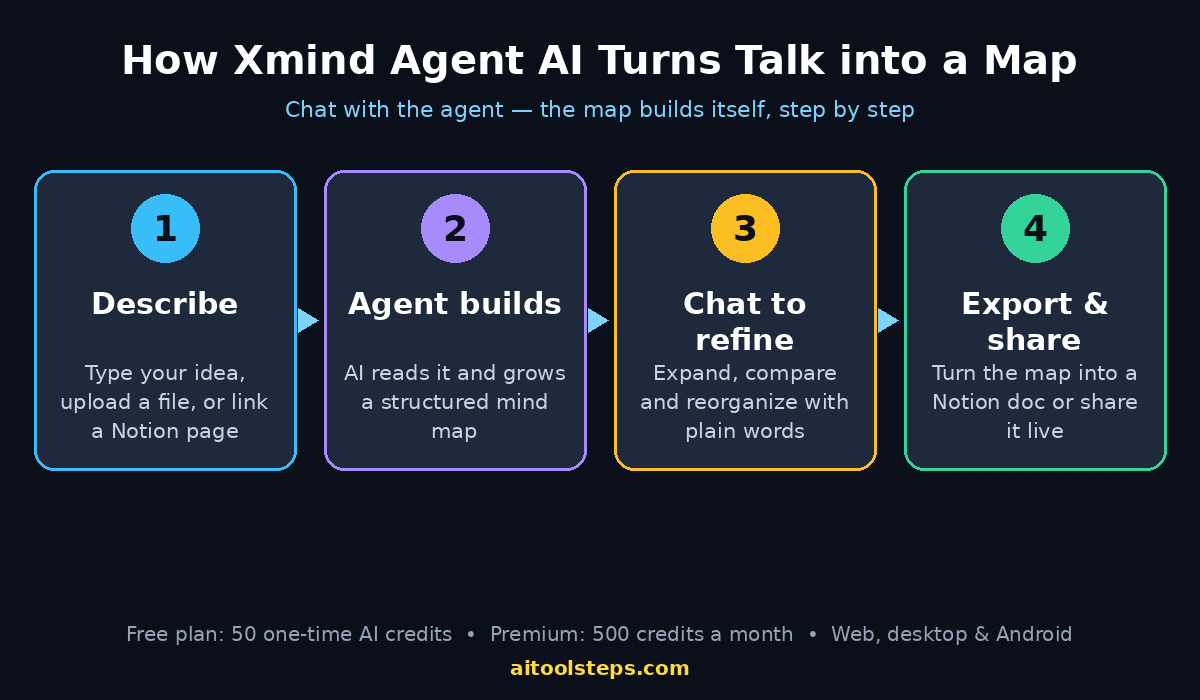
Xmind Agent AI is a conversational agent that lives inside your mind maps. You describe what you are working on, and it builds the map with you — then keeps working on it as you ask more questions. It is not a one-shot generator: it remembers the map, understands the branches you already have, and changes the map as the conversation goes on.
Here is what the agent can do for you:
- Turn an idea into a map. Give it a rough topic, and it creates a structured map with related points grouped together and the links between them easy to follow.
- Turn files and Notion pages into maps. Upload a document or connect a Notion page, and the agent turns that material into an organized map instead of a wall of text.
- Read your existing maps. Open a map you made earlier and ask the agent to keep building on it — it sees the goals, branches and decisions already there.
- Research the web. The agent can look up current information online, so comparisons and recommendations use fresh facts instead of guesses.
- Compare options. Ask it to lay out the strengths and limitations of each choice side by side, so you can weigh trade-offs clearly.
- Reorganize on request. Expand a topic, merge sections, reorder branches or change the styling — just say what you want in ordinary sentences.
- Turn maps into documents. Finished maps can be turned into Notion documents, so your visual plan becomes shareable text in one step.
Think of the old way as drawing a map by hand: slow, and every change means redrawing branches. Think of Xmind Agent AI as a thinking partner who draws while you talk, and redraws instantly whenever your thinking changes. You stay in charge of the ideas; the agent handles the structure.
Step 2: Create Your Free Xmind Account
Getting started takes about two minutes, and the free plan is genuinely enough to learn the tool. Follow these steps:
- Go to xmind.com in your browser and click the sign-up button.
- Create your account with your email address, or sign in with Google if that option is shown. Use an email you check regularly, because collaboration invites and account notices go there.
- Choose the Free plan when asked. You do not need a credit card for the free plan, and you do not need to pay anything to try Xmind Agent AI.
- Check your AI credits. Free and Pro users receive a one-time allotment of 50 AI credits for the agent. Premium subscribers receive 500 credits every month. Your balance is shown in the app, so you always know what a task will cost before you run it.
- Open the web app or download the desktop app. The agent works the same way in both, and your chat history syncs across devices, so you can start a map on your laptop and continue it on your phone.
One practical tip before you spend a single credit: decide on a real project first. Because a task can cost anywhere from a few credits to several dozen depending on its complexity, free users should try the agent on something they actually need — a study plan, a business idea, a trip, a meeting — rather than burning credits on random experiments. Your first real map will teach you more than five test maps.
Step 3: Open Xmind Agent AI on Web, Desktop or Android
Xmind Agent AI is available now on the web app, the desktop app (Windows and Mac), and Android. The iOS version is coming soon, so iPhone users should use the web app in their browser for now.
To open the agent:
- Open Xmind on your chosen device and sign in to the account you just created.
- Create a new map or open an existing one. The agent works from a blank canvas and from a map you already built.
- Look for the Agent panel in the app. It opens as a chat panel next to your map — type your request there, in the same way you would message a colleague.
- Check that you are on the right device for the job. Big research and planning jobs are easier on desktop or web, where you can see the whole map at once. Quick follow-up questions — “add a branch for the budget” — work perfectly on Android while you are away from your desk.
Because chat history syncs across devices, nothing is lost when you switch. Start the map on the web at work, ask a follow-up from your Android phone on the way home, and finish styling it on your desktop later. The map and the conversation travel together.
Step 4: Start Your First Map from an Idea, a File or a Notion Page
Xmind Agent AI gives you three ways to begin. Pick the one that matches what you already have:
- Start from an idea. Type a short description of what you want to plan. For example: “Plan a product launch for a handmade soap brand selling online in Pakistan” or “Help me plan my final-year computer science project.” The agent turns the idea into a central topic with grouped branches.
- Start from a file. Upload a document — lecture notes, a report, a project brief — and ask the agent to turn it into a map. This is the fastest way to make sense of long material you already own.
- Start from a Notion page. Connect a Notion document and let the agent build a map from it. If your notes already live in Notion, you do not need to copy anything by hand.
Try this for your first map:
- Open a new map and open the Agent panel.
- Write one clear sentence about your goal, not just a topic. “Plan a 7-day family trip to northern Pakistan on a budget of 150,000 rupees” works far better than “trip”, because the agent can build branches for transport, stays, food, activities and costs.
- Let the agent build the first version. Read the whole map before you change anything — the grouping often shows you angles you had not thought of.
- Ask one follow-up immediately. Something like “Which branch is most expensive, and how can I cut its cost?” turns a static map into a working conversation.
Beginners often write prompts that are too short. The agent is not a mind reader: the more context you give it — your budget, your deadline, your audience, your constraints — the better the first map will be, and the fewer credits you will spend fixing it later.
Step 5: Chat with Xmind Agent AI to Grow Your Map
A mind map is supposed to grow as you think, and this is where Xmind Agent AI earns its keep. Instead of editing branches by hand, keep talking to the agent while the map updates in front of you.
Useful follow-up prompts include:
- “Expand the marketing branch with five more ideas.” The agent grows one branch deeper without touching the rest of the map.
- “Explain the pricing branch in simple words.” Good when a branch is full of jargon you only half understand.
- “Add a branch for risks, with a fix for each risk.” Turns a wishful plan into a realistic one.
- “What am I missing from this plan?” The agent reads the whole map and points out the gaps — often the most valuable question you can ask.
- “Turn the launch branch into a week-by-week timeline.” Restructures one part of the map into a sequence you can follow.
Two habits make this step work well. First, ask one thing at a time: a single clear request gets a cleaner result than a long message with four jobs in it, and it costs fewer credits. Second, check the map after every answer. If a branch looks wrong, say so right away — “that price is outdated, check the web again” — instead of letting a small error spread into the rest of the plan.
Step 6: Ask Xmind Agent AI to Compare Options and Research the Web
Comparison is the agent’s strongest trick, because it combines two things a normal mind map cannot do: it fetches current facts from the web, and it lays the options out side by side so you can judge them honestly.
Here is a real example. Suppose you are choosing between three project management tools for a five-person team. Ask the agent: “Compare Trello, Asana and Notion for a five-person remote team. Look up current pricing and features on the web, and show the strengths and limitations of each.”
The agent will research current pricing and features, then build a comparison on your map. Then keep asking:
- “Which one suits a five-person team best, and why?” Forces a recommendation, not just a list.
- “Which is easiest to switch away from later?” Surfaces lock-in, which feature lists never mention.
- “What does each one cost per year for five people?” Turns monthly prices into a number you can budget against.
- “Add a branch with my decision and the reasons.” Records the choice on the map, so a month later you can see why you chose what you chose.
The same pattern works for any decision: three laptops, two business ideas, four universities, five marketing channels. The agent’s job is not to choose for you — it is to make the trade-offs visible so your choice is an informed one. Always double-check prices and key facts yourself before spending money, because web listings change fast and a comparison is only as fresh as its last lookup.
Step 7: Turn Meeting Notes into Decisions and To-Dos
Messy meeting notes are where most plans go to die: pages of scribbles, no owner, no deadline, and nobody remembers what was actually decided. Xmind Agent AI is built for exactly this job.
- Paste or upload your meeting notes into a new map through the Agent panel — raw notes are fine, they do not need tidying first.
- Ask the agent to organize them. A good prompt: “Sort these notes into decisions made, open questions, and to-dos with owners and deadlines.”
- Review the sorted map. Decisions go on one branch, to-dos on another, open questions on a third. Anything the agent could not place will be flagged instead of silently dropped.
- Ask follow-ups. “Who has the most to-dos?” or “Which open question blocks the launch date?” turns the map into a short status report.
- Share the map or turn it into a Notion document so the whole team sees the same decisions.
If you run a digital agency, this workflow is worth adopting for every client meeting: the map becomes a single page that shows what was agreed, who owns what, and what is still open, instead of a chat thread nobody re-reads. The same habit works for study groups, family decisions and project stand-ups — any meeting where “so what did we decide?” is usually answered with a shrug.
Step 8: Reorganize and Restyle with Plain-Language Commands
A map you cannot change is a map you will abandon. Xmind Agent AI lets you reshape the whole map by talking to it, and you can still edit everything by hand whenever you prefer.
Try these plain-language commands:
- “Merge the two branches about social media — they cover the same ground.”
- “Move the budget branch under planning, not marketing.”
- “Reorder the launch steps by priority, most important first.”
- “Make the central topic bigger and give each main branch a different color.”
- “Shorten every branch label to three words or fewer.”
The agent understands the structure of your map, so it can do these jobs without you dragging dozens of nodes around. That said, hand-editing is still there for the finishing touches: drag a branch to a better spot, rename a label, add a marker or a note. The agent does the heavy restructuring; you do the fine-tuning. A map that looks clean gets used — a map that looks like a tangled mess gets ignored, however good the ideas in it are.
Step 9: Connect Claude and ChatGPT with Xmind MCP and the Plugin
Xmind Agent AI works inside Xmind, but the launch also opened Xmind up to the assistants you may already use. Xmind released Xmind MCP, built on the Model Context Protocol, and a ChatGPT plugin, so assistants such as Claude and ChatGPT can create, read and update your Xmind maps.
What this means in practice:
- Ask Claude to read your map. Claude can read a map you already built — including the goals and decisions recorded in it — before drafting a report, planning a project, or writing code based on it.
- Ask ChatGPT to build or update a map. Through the ChatGPT plugin, ChatGPT can create a new map or change an existing one, so a brainstorming chat can end with a real, editable map instead of a forgotten transcript.
- Keep one source of truth. Because the assistants work with the same maps, your plan does not split into five different documents in five different apps.
Setting it up is a connector job, not a coding job: connect Xmind MCP in Claude or another MCP-compatible assistant, or enable the ChatGPT plugin, and point the assistant at your maps. Teams exploring AI automation services can treat this as a small, safe example of the pattern — one assistant, one shared map, and a clear record of what changed. Start with a copy of a map, not your only original, until you trust the connection.
Step 10: Export, Share and Turn Maps into Notion Docs
A map only helps people who can see it. When your map is finished, make it easy to share:
- Turn it into a Notion document if your team lives in Notion — the map’s structure becomes a readable document in one step.
- Export it as an image or PDF for slides, reports, or a chat message where a link will not do.
- Share the live map with teammates or classmates so they can comment and edit with you.
- Save a copy before big changes. If you are about to ask the agent to restructure a finished map, duplicate it first — then you can always go back.
One final workflow tip: end every map session by asking the agent for a one-paragraph summary of the map. Paste that summary at the top of your Notion document or share it with your team. People who will never open a mind map will read one paragraph — and that paragraph is often what gets your plan approved.
Xmind Agent AI vs the Old Ways of Brainstorming
| Feature | Xmind Agent AI | Manual mind mapping | ChatGPT text brainstorming |
|---|---|---|---|
| Starting point | Idea, file or Notion page | Blank canvas | Text prompt |
| Builds the map for you | Yes, by chatting | No, you draw every branch | No, gives text lists only |
| Reads your existing map | Yes | You already know it | No, it cannot see your map |
| Web research | Yes, live lookups | No | Limited, often outdated |
| Compares options side by side | Yes, with strengths and limits | Only by hand | As text, hard to scan |
| Reorganizes branches | Yes, plain-language commands | By dragging nodes | Must re-prompt from scratch |
| Turns map into a Notion doc | Yes | No | No |
| Works with Claude and ChatGPT | Yes, via Xmind MCP and plugin | No | Only inside the chat |
| Free starting credits | 50 one-time credits | Free, but all manual | Free tier, no map output |
Frequently Asked Questions
Is Xmind Agent AI free?
Yes, to try. Xmind Agent AI is included on every Xmind plan, including the Free plan, and runs on AI credits. Free and Pro users receive a one-time allotment of 50 credits, while Premium subscribers get 500 credits every month. A single task uses anywhere from a few credits to several dozen depending on its complexity, so spend the free credits on a real project rather than on experiments.
Which devices support Xmind Agent AI?
Xmind Agent AI is available now on the web app, the desktop app, and Android. The iOS version is coming soon — iPhone users can use the web app in their browser until then. Chat history syncs across devices, so you can start a map on one device and continue it on another.
Can Xmind Agent AI read my existing maps?
Yes. Open a map you already built and ask the agent to keep developing it. The agent reads what is already on the map — including goals and decisions — and can bring in web research, compare options and answer follow-up questions as the work goes on. You can also edit the map by hand at any point.
Does Xmind Agent AI work offline?
No, not the agent itself. The agent runs in the cloud and needs an internet connection to chat, research the web and update your map. The Xmind desktop app can still open and edit maps offline, but the AI features need a connection.
Can I still edit the map myself?
Yes, completely. The agent is a helper, not a replacement. You can drag branches around, rename topics, add notes and markers, and restyle anything by hand at any time. Most people use a mix: the agent does the big building and restructuring, and they do the fine-tuning.
What is Xmind MCP?
Xmind MCP is a connector built on the Model Context Protocol, the open standard for linking AI assistants with other software. It lets Claude and other compatible assistants create, read and update your Xmind maps. Xmind also released a ChatGPT plugin that does the same for ChatGPT users.
Final Thoughts
Xmind Agent AI turns mind mapping from a drawing chore into a conversation. You bring the idea, the file or the messy meeting notes; the agent builds the structure, researches the facts, compares the options and keeps reshaping the map as your thinking develops. The free plan’s 50 credits are enough to feel the difference on a real project — a study plan, a product launch, a trip, a team decision — so pick something you actually need and try it there.
Start small, ask one thing at a time, and check the map after every answer. Within one session you will have a map that would have taken an afternoon to draw by hand, plus a written record of why each branch is there. That is the real value: not a prettier picture, but a plan you can explain, defend and actually follow.
Explore More Free AI Tools
Finished your first map? Keep building with the free tools on AIToolSteps. Try the AI Title Generator to name your next project, the Meta Description Generator to write search-friendly summaries, the AI Rewriter to polish your map notes into clean text, and the Keyword Density Checker to keep your content SEO-friendly — all free at https://aitoolsteps.com/.