

Imagine opening one tab and asking a single AI assistant to build your website, design a presentation, generate a marketing video, write a research report, and even make a phone call on your behalf — then watching it actually do all of it. That is the promise of Orvis AI, a new agentic AI workspace that launched on Product Hunt on 31 October 2026. Unlike a normal chatbot that only answers questions, Orvis AI takes action: it plans multi-step work, uses tools, connects your apps, and delivers finished results.
For beginners, that sounds almost too good to be true — and the good news is that you can try it without paying anything. Orvis AI starts free with 100 credits, so you can build a real project before deciding whether it deserves a place in your daily workflow. In this guide, you will learn exactly how to use Orvis AI from your first sign-up to your first finished project: how to create a free account, build a website, generate AI videos and images, create decks and research reports, make AI phone calls, and automate the boring tasks that eat your day.
Step 1: Understand What Orvis AI Actually Is
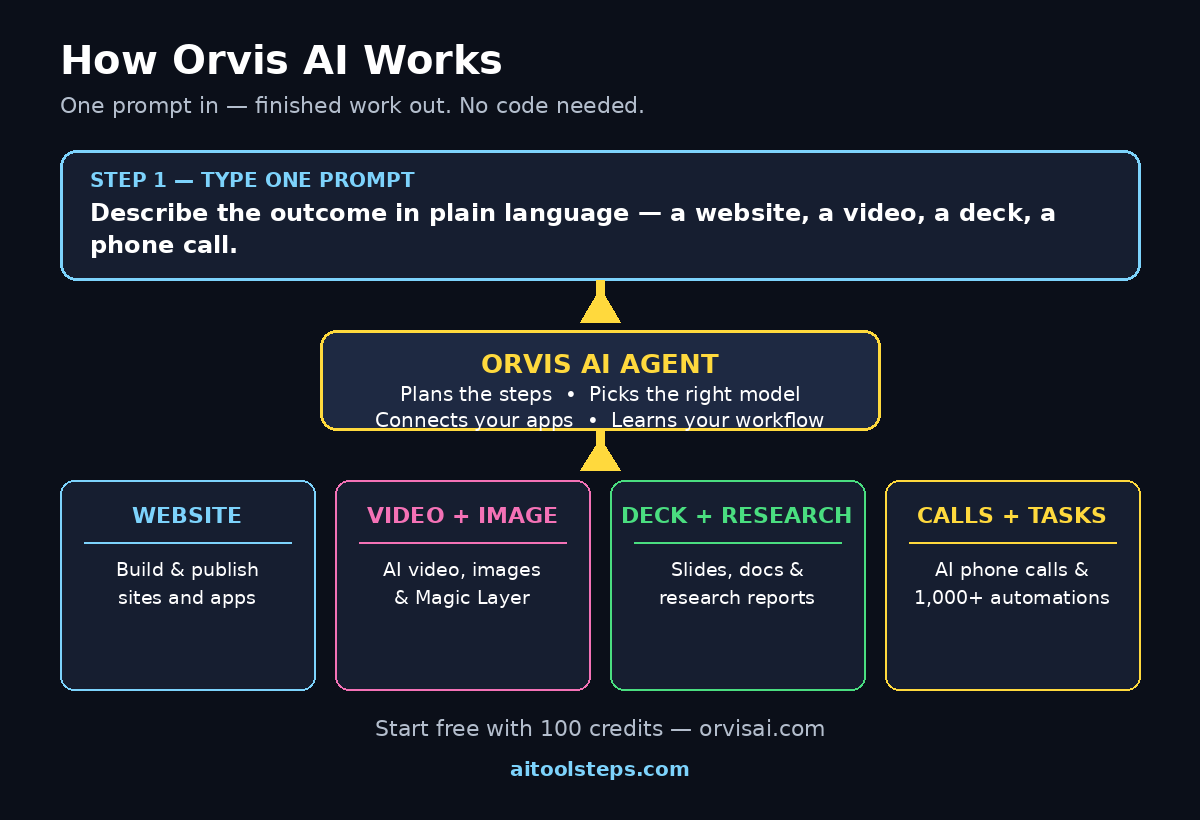
Before you click anything, it helps to know what you are dealing with. Orvis AI is an agentic AI workspace — one place where an AI agent works across many jobs instead of you juggling ten separate tools. The makers describe it as one workspace for every business need, and the feature list backs that up: build websites and apps, generate AI videos and images, create slide decks, documents and research reports, make AI phone calls, and automate tasks across more than 1,000 integrations.
Under the hood, Orvis AI is not tied to a single model. It draws on models from ByteDance, Google, and Anthropic, picking the right engine for each job. That matters because a video-generation task and a research task need very different strengths. For you as a beginner, the practical meaning is simple: you describe the outcome in plain language, and Orvis AI figures out the steps.
Orvis AI is built for solopreneurs, small businesses, agencies, and enterprises — but the free starting credits make it equally friendly for students, freelancers, and curious beginners. You do not need to know how to code, design, or edit video. You need a clear goal and the willingness to describe it in one or two sentences.
Step 2: Create Your Free Orvis AI Account
Getting started takes about two minutes, and the free plan is genuinely enough to learn the tool. Follow these steps:
- Go to orvisai.com in your browser and click the sign-up button.
- Create your account with your email address, or sign in with Google if that option is shown.
- Claim your 100 free credits. New accounts start free with 100 credits — no credit card is required to begin, and these credits let you test real features instead of just reading about them.
- Tell Orvis what you do. The onboarding may ask about your role — freelancer, small business owner, marketer, student. Answer honestly, because Orvis uses this to suggest useful first projects and templates.
- Open your workspace. You will land on a clean dashboard with a chat-style prompt box. This is your home base: every project starts by typing what you want into that box.
A quick tip before your first prompt: keep a small note of how many credits each task costs. Heavy jobs like video generation cost more than a short document. Checking your credit balance before a big task means no surprises halfway through.
Step 3: Learn the Workspace Layout in Two Minutes
A new tool feels confusing only until you know where things live. The Orvis AI workspace has four areas worth learning on day one.
- The prompt box is where you give instructions. Treat it like briefing a smart assistant: state the goal, the audience, and the format you want.
- Your projects live in a sidebar or project list. Each chat becomes a project you can reopen, rename, and continue later.
- Outputs appear as files, previews, or embedded results — a website preview, a slide deck, a video player, or a document you can download.
- Settings and integrations are where you connect apps like Google Drive, Slack, or your calendar, and where you check your credit balance.
Spend five minutes clicking around before your first real task. Open a sample project if one is offered, and try the help or template gallery. Beginners who do this first produce far better results than those who jump straight into a complex request, because they already know where the finished work will appear.
Step 4: Build Your First Website with Orvis AI
Website building is the best first project because the result is visual, useful, and fast. Here is how to do it:
- Write one clear prompt. Be specific about the site, its purpose, and its audience. “Build a one-page website for my home bakery in Lahore, with a menu, prices in rupees, a photo gallery section, and a WhatsApp order button” works far better than “make a website.”
- Let the agent plan. Orvis AI will break the job into steps — structure, copy, design, images — and work through them. Watch the progress so you learn what it does at each stage.
- Review the live preview. Click through every section. Check the headline, the buttons, and the mobile view. A site that looks great on a laptop but breaks on a phone is not finished.
- Ask for changes in plain language. “Make the headline bigger,” “change the colour scheme to warm browns,” or “add a customer reviews section” are all valid follow-ups. You do not need to touch code.
- Publish or export. When you are happy, follow the workspace prompts to publish the site or export the files. Save the link somewhere safe.
Your first website does not need to be perfect. The goal is to learn the loop: prompt, review, refine. That loop is the same for every Orvis AI project, so mastering it on a simple website pays off everywhere else.
If you run a small business, this is also where Orvis AI starts saving real money. A simple business website from a digital agency can cost hundreds of dollars, while Orvis AI lets you draft the whole thing yourself in an afternoon and spend your budget only on the polish that truly needs a human expert.
Step 5: Generate AI Videos and Images
Orvis AI can generate AI videos and images inside the same workspace, which means your website, slides, and social posts can all get matching visuals without opening another app.
To generate an image, describe it like a brief: subject, style, colours, and where it will be used. “A warm, photorealistic image of a small bakery storefront at sunrise, golden light, for a website hero banner” gives the model far more to work with than “bakery picture.” If the first result is not right, change one thing at a time — the style, the lighting, or the composition — instead of rewriting the whole prompt.
Video works the same way, but with one extra detail: motion. Say what should move and how. “A 10-second video of a baker sliding bread into an oven, steam rising, warm cinematic light” tells the generator what the camera should see over time. Orvis AI also offers a standout feature the makers highlight: recreating an existing video with your own AI avatar and voice. That is useful for creators who want to repurpose one recording into many versions without re-filming.
Another creative feature is the Magic Layer tool. Upload an image and Orvis AI separates it into layers so you can change the image, the text, or the background independently — like peeling a poster apart and editing one piece at a time. For beginners, this is the fastest way to fix a good image with one wrong detail instead of generating it all over again.
Keep your expectations realistic: AI video is best for short clips, product shots, and social content. Long, complex scenes still need a human editor. Use Orvis AI for the first draft, then polish the best clips yourself.
Step 6: Create Decks, Docs, and Research Reports
Many beginners only discover Orvis AI’s document skills after they have already used it for websites — but for office work, this is where it earns its keep.
- Slide decks: Ask for a presentation by topic, audience, and length. “A 10-slide pitch deck for a fitness app aimed at busy parents, with a problem slide, solution slide, pricing slide, and call to action” produces a structured draft you can edit slide by slide.
- Documents: Briefs, proposals, contracts, and blog outlines all start from one prompt. Give Orvis the facts — names, dates, numbers — and let it handle the structure and wording, then check every fact yourself before sending.
- Research reports: Ask Orvis AI to research a topic and compile the findings with sources. This is powerful for market research, competitor checks, and study notes. Always verify important claims against the original sources; an AI summary is a starting point, not a citation.
A practical beginner workflow is to research first, then build from the research. Ask Orvis to research “the top five AI tools for small restaurants in 2026,” then say, “Turn this research into a 10-slide deck and a one-page summary.” One conversation, three outputs — that is the agentic workspace idea working as intended.
Step 7: Make AI Phone Calls
AI phone calls are the feature most beginners find surprising, and the one that needs the most care. Orvis AI can make phone calls on your behalf — for example, to confirm an appointment, follow up on an order, or qualify a lead.
Before your first AI call, do three things. First, write down exactly what the call must achieve and what it must never promise — prices, dates, and commitments should come from you, not from the AI’s imagination. Second, run a test call to your own number so you can hear how it sounds. Third, check the rules where you live: in many places, an AI caller must identify itself as AI at the start of the call, and recording a call without consent can be illegal.
Used well, AI calls are perfect for routine follow-ups: confirming deliveries, reminding clients of appointments, or collecting simple information. They are not a replacement for sensitive conversations — a complaint, a negotiation, or bad news still deserves a human voice.
Step 8: Automate Repetitive Tasks with 1,000+ Integrations
Automation is where Orvis AI quietly saves the most time. With more than 1,000 integrations, it can connect the apps you already use and move work between them without you copying and pasting.
Start with one small automation, not five. Good first automations for beginners include:
- Summarise and file: When an email with an attachment arrives, summarise it and save the summary to a document.
- Lead follow-up: When someone fills in a form on your website, draft a personalised reply and add them to a spreadsheet.
- Social repurposing: Turn a new blog post into three short social media drafts.
- Weekly digest: Every Monday, collect your calendar events and unread emails into one short briefing.
To set one up, describe the trigger and the outcome in one sentence: “When I get a new order email, add the customer name and total to a spreadsheet and send me a summary.” Orvis AI will propose the steps; approve them one by one, and test with a harmless example before connecting it to real customer data.
One caution applies to all automation: never give an agent permission to spend money, delete data, or message customers without a review step until you have watched it behave correctly several times. Convenience is wonderful; an unsupervised mistake at scale is not.
Step 9: Teach Orvis Your Workflow with Memory
Orvis AI includes memory that learns your workflow over time. In plain terms, it remembers how you like things done — your tone, your brand colours, your usual structure — so your tenth project needs less explaining than your first.
You can help memory work better by being consistent. Use the same words for the same things: if your business is a “home bakery,” do not call it a “cake shop” in one prompt and a “bakery business” in the next. When Orvis gets something right, say so; when it gets something wrong, correct it in the same conversation. Corrections inside a project teach the agent faster than starting over.
Memory is also a privacy decision. Do not paste passwords, private customer data, or confidential business information into any AI workspace unless you understand how that data is stored. Keep sensitive details out, and use placeholders — “Customer A” instead of a real name — when you are testing.
Step 10: Track Your Credits and Upgrade Only When Ready
Your 100 free credits are a trial budget, so spend them like one. The smartest approach is to test one feature from each category — a website, an image, a short video, a document, and one automation — before you commit to anything. That gives you a real sense of what Orvis AI does well for your work and what it does not.
Check your credit balance in settings before starting a heavy task. If a video or a long research report costs more than expected, try a shorter version first. When the free credits run out, compare the paid plans against what you actually used. If you only built one website a month, a small plan may be enough; if you are generating videos daily for a business, the higher tier may pay for itself in saved time.
A final beginner habit: keep a simple log of what you asked, what it cost, and whether the result was usable. After two weeks you will know — with numbers, not feelings — whether Orvis AI is saving you time. That log is also useful if you later work with an AI automation services provider to scale the workflows that proved themselves.
Orvis AI vs Other AI Tools: A Quick Comparison
| Feature | Orvis AI | ChatGPT | Claude | Manus |
|---|---|---|---|---|
| Agentic multi-step work | Yes, built in | Limited, with tools | Limited, with tools | Yes |
| Website and app building | Yes | No, code only | No, code only | Yes |
| AI video and image generation | Yes | Images only | No | Images, limited video |
| AI phone calls | Yes | No | No | No |
| Integrations | 1,000+ | Dozens | Dozens | Hundreds |
| Memory that learns your workflow | Yes | Yes, limited | Yes, per project | Yes |
| Free starting credits | 100 credits | Free tier | Free tier | Limited free tasks |
| Best for | All-in-one business work | Everyday questions | Writing and coding | Deep research tasks |
The honest takeaway is that Orvis AI is not a replacement for ChatGPT or Claude — it is a different kind of tool. Chatbots answer; Orvis AI executes. If your work is mostly questions and drafts, a chatbot is enough. If your work is producing finished websites, videos, decks, and automated follow-ups, an agentic workspace like Orvis AI earns its place.
Frequently Asked Questions
Is Orvis AI really free?
Yes, to start. New accounts get 100 free credits with no credit card required, which is enough to build a website, generate images and a short video, and test an automation. Heavy or repeated use will eventually need a paid plan, so treat the free credits as a proper trial.
Do I need coding skills to use Orvis AI?
No. Orvis AI is designed for beginners: you describe what you want in plain language and the agent handles the technical work. Knowing a little about websites or design helps you judge the results, but it is not required to start.
What can I build with Orvis AI?
Websites and apps, AI videos and images, slide decks, documents, and research reports. You can also make AI phone calls and automate tasks across more than 1,000 connected apps. Start with one project type and expand as you get comfortable.
Is Orvis AI safe for business use?
For most everyday work, yes — but keep good habits. Do not paste passwords or sensitive customer data into the workspace, review AI outputs before publishing or sending them, and keep a human approval step on anything that spends money or contacts customers.
How is Orvis AI different from ChatGPT?
ChatGPT mainly answers and drafts; Orvis AI plans and executes multi-step work across tools — building a website, generating a video, and sending a follow-up — inside one workspace. It also adds AI phone calls and 1,000+ integrations that a chatbot does not offer.
Can Orvis AI replace my website designer or video editor?
Not entirely. It is excellent for first drafts, simple sites, and short social videos, and it can save a small business real money on routine work. For a flagship brand website or a polished commercial video, a human professional still adds judgement and craft that AI cannot match. The smartest setup is Orvis AI for speed, humans for the final polish.
Final Thoughts
Orvis AI arrived at the end of October 2026 with a bold idea: one agentic workspace that builds, creates, calls, and automates instead of just chatting. For beginners, the 100 free credits make it a risk-free experiment — and the experiment is worth running, because the skill you are really learning is not one tool but a new way of working: describe the outcome, review the result, and refine in plain language.
Start small. Build one website this week, generate one image for it, and automate one boring task. If those three things work, you have found a tool that can quietly take hours off every week. If they do not, you have spent nothing but an afternoon — and you will know exactly why.
Try the free tools on this site too: the AI Title Generator, Meta Description Generator, AI Rewriter, and Keyword Density Checker at https://aitoolsteps.com/ can polish every headline and description Orvis AI drafts for you.
Explore More Free AI Tools
Ready to put your new Orvis AI workflow to work? Try these free tools at https://aitoolsteps.com/ — the AI Title Generator for headlines that get clicked, the Meta Description Generator for search snippets, the AI Rewriter for polishing AI drafts into your own voice, and the Keyword Density Checker to keep your pages SEO-friendly.