

If you build anything with AI, you have probably felt the same shock every developer feels. It could be a chatbot, a small app, an automation, or even a simple script that calls ChatGPT. The API bill arrives at the end of the month. The number is bigger than you expected. And you have no idea which calls cost you the money. The provider dashboard shows you a total, maybe a daily chart, but it never shows you an itemized receipt for each individual call. That is the exact problem Inferock AI was built to solve.
Inferock AI is a free, open-source local proxy that sits between your application and AI provider APIs such as OpenAI, Anthropic Claude, Google Gemini, and OpenRouter. Every time your app makes an API call, Inferock records an independent per-call receipt showing what was spent, whether the call actually worked, and how much money or time was lost if it failed. It launched in July 2026, quickly gained attention on Product Hunt in October 2026, and is distributed as a simple npm package you can run with one command. You keep your own provider accounts and pay providers directly — Inferock only measures the traffic and hands you the receipts.
In this beginner guide, you will learn how to use Inferock AI step by step. You will see how to install it in minutes. You will route your first API call through it. And you will read the receipts, so you can stop wasting money on failed or overpriced calls. No advanced coding experience is needed. If you can open a terminal and copy a command, you can use Inferock.
Step 1: Understand What Inferock AI Actually Is
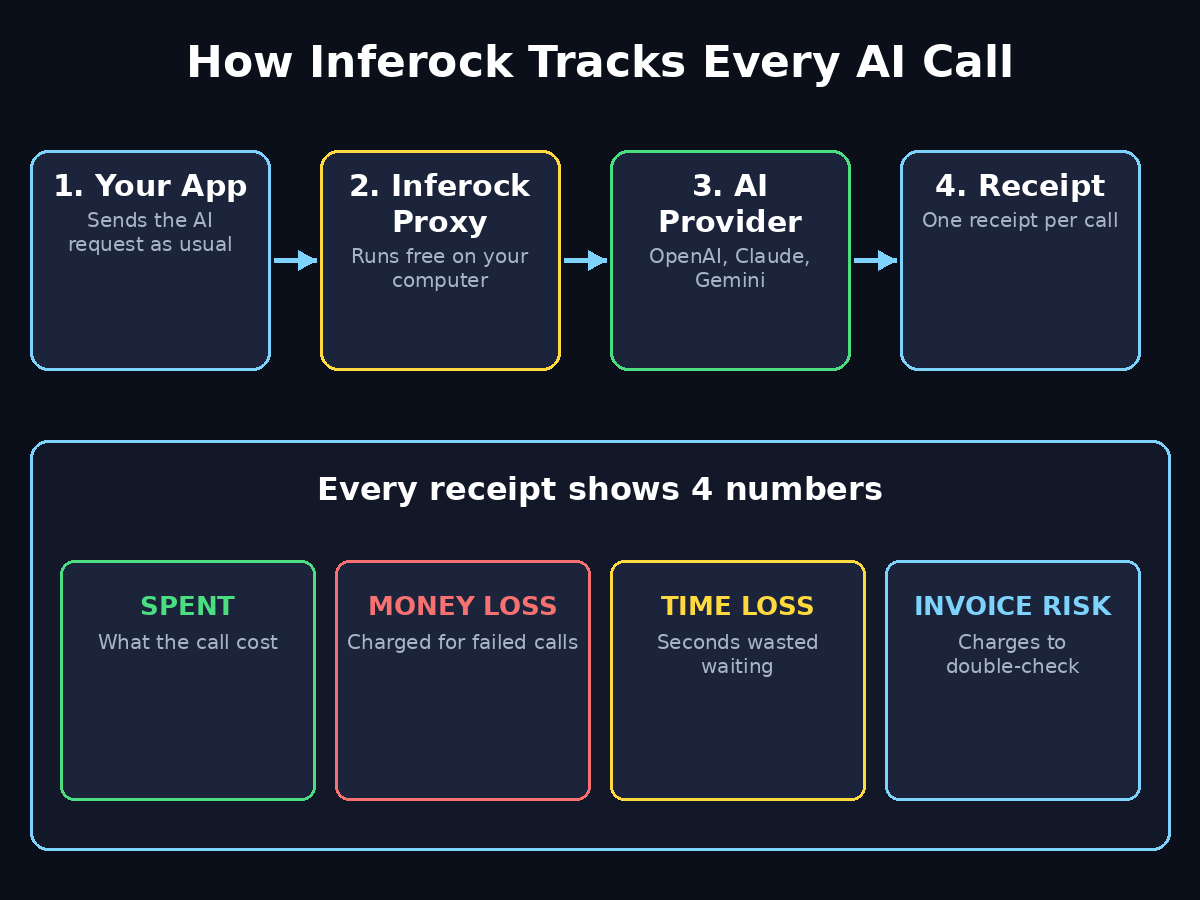
Inferock AI is not another chatbot and not another AI model. It is a measurement tool — a local proxy that watches your AI API traffic the way a receipt printer watches a cash register. When your application sends a request to OpenAI, Claude, or Gemini, the request passes through Inferock first. Inferock forwards it to the provider, watches the response, and writes a structured receipt for that single call.
Each receipt carries four headline numbers. Spent is the provider cost observed for that call. Money loss is the dollar amount tied to a call that failed or delivered nothing usable. Time loss is the real waiting time wasted on a failed call, measured in seconds and never mixed into the dollar figure. Invoice-check exposure flags amounts that are at risk — for example, a cached discount that may not apply. Together, these four numbers turn a mysterious monthly bill into a list of individual, checkable facts.
The key idea behind Inferock is a published rulebook called The Inferock Standard. It defines, in writing, what counts as a billable failure, what counts as a provider-recognized recoverable error, and what stays as invoice-check exposure. That matters because AI providers report usage totals but do not give customers per-call proof that delivery matched the charge. Inferock gives you that proof, stored locally on your own machine.
Step 2: Get the Free Tool in Minutes
Inferock is open source and free to use in its local mode. You do not need to create an account, hand over a credit card, or sign up for a trial. You need Node.js installed on your computer — the same runtime millions of developers already use — and then one command.
Open your terminal and run `npx inferock-bench`. The `npx` tool downloads the package and starts the local proxy. Nothing is installed permanently. The first run may take a minute while it downloads. After that, the proxy starts listening on your local machine, usually on localhost. You will see a short startup message confirming that Inferock is ready to receive traffic.
If you plan to use Inferock regularly, install it globally with `npm install -g inferock-bench` so you can start it with a single short command whenever you work. Either way, there is no dashboard to log into and no cloud service holding your data. Everything runs on your computer, which is also why privacy-minded developers like it: your prompts and API keys never leave your machine except to go to the provider you already chose.
Step 3: Set Up Your Provider API Keys Safely
Before Inferock can measure anything, you need API keys from the providers you use. If you already build with OpenAI, Claude, or Gemini, you already have these. If not, create a key in each provider’s developer console and keep it somewhere safe, like a password manager. Inferock attaches your key only to the outbound request to that provider — it does not send your key anywhere else.
The safest habit is to store keys in environment variables instead of pasting them into your code. On Mac or Linux, you can add a line like `export OPENAI_API_KEY=”sk-…”` to your shell profile, and your code reads the key from the environment. This keeps keys out of screenshots, shared code, and accidental commits. Inferock’s local design supports this workflow: it reads the same environment your app already uses, so there is nothing new to learn.
Never share your API keys in a chat message, a forum post, or a public repository. A leaked key can be used by anyone to run up charges on your account. If a key ever leaks, revoke it in the provider console immediately and generate a new one. This is a basic rule of working with AI APIs. Inferock’s receipts help you spot the damage faster. A sudden spike in receipts from an unfamiliar time is an early warning sign.
Step 4: Point Your App at the Local Proxy
Here is the core move. Instead of sending API requests directly to `api.openai.com` or the Claude and Gemini endpoints, you send them to Inferock. Inferock runs on your own computer, and it forwards them. In practice, this usually means changing one setting — the base URL — in your code or in your AI coding tool.
For example, if your app uses the OpenAI library, you change the base URL from the provider’s default to your local Inferock address, such as `http://localhost:8080`. Your code, your prompts, and your model choices stay exactly the same. The only difference is that every call now passes through the measuring proxy on its way out and back.
This pattern is the same idea that developers already use with local tools: a small change in configuration, no change in behavior. If you use a framework or an AI agent that supports a custom base URL — and most do — the setup takes less than a minute. Run one test request after changing the setting. If the answer comes back normally, the proxy is working, and from that moment on every call gets a receipt.
Step 5: Send Your First Test Call and Read the Receipt with Inferock AI
Once the proxy is running and your app points at it, send a single simple test call. A short question to your cheapest model is enough. Then open the receipt Inferock wrote for that call. This is the easiest way to learn how to use Inferock AI in real life. This is the moment the tool clicks for most beginners: instead of a vague dashboard total, you see one call, one price, one result.
A typical receipt shows the provider, the model, the number of tokens sent and received, the dollar cost of that call, and whether it succeeded. If the call failed — a timeout, a rate limit, or a server error — the receipt says so plainly and records the money loss and time loss attached to it. You can now answer a question that was impossible before: “Did I pay for a call that gave me nothing?”
Keep your first receipts small and boring on purpose. Test with a short prompt, confirm the numbers look right, and compare the receipt’s cost with the provider’s own price list. When the two agree, you can trust the receipts. This five-minute check saves hours of confusion later, because every cost decision you make afterwards rests on numbers you have already verified.
Step 6: Understand the Four Numbers on Every Receipt
Every Inferock receipt is built around four numbers, and learning them is the whole skill. Spent is the simplest: the money the provider charged for that call, based on the tokens used and the model’s price. Add up the spent values and you get your real bill, call by call.
Money loss is the number most people have never seen before. If a call fails after the provider counted tokens, you may still be charged. The same applies if it returns an error after doing partial work. Inferock labels that charge as money loss. The label is bounded by what it actually observed. This is not a guess. The Inferock Standard defines exactly which failures count, so the number is consistent from call to call.
Time loss is measured separately, in seconds, because waiting is a real cost even when no money changes hands. A call that times out after 30 seconds cost you half a minute of your user’s patience or your automation’s schedule. Keeping time loss out of the dollar figure stops the numbers from getting muddy: dollars are dollars, seconds are seconds.
Invoice-check exposure is the early-warning number. It flags amounts that might not survive a careful look at the invoice — a cache discount that was at risk, or a charge that needs a second look. Think of it as a “check this one” sticky note on specific receipts. For beginners, the practical rule is simple: watch spent every day, investigate money loss every week, and review invoice-check exposure before you pay a large bill.
Step 7: Spot Failed Calls and Money Loss with Inferock AI Before They Add Up
Failed AI calls are more common than most people think. A model times out during a busy hour. A rate limit fires in the middle of a batch job. Or a provider returns a server error, and your code retries automatically. Each retry can cost money. Without receipts, these failures hide inside your monthly total. With Inferock, they stand out.
Make a habit of scanning your receipts for failures at the end of each work session. Look for three patterns: the same prompt failing repeatedly, failures clustering at a particular time of day, and retries multiplying the cost of one logical task. The first pattern usually means a bad prompt or a bad model choice. The second often means provider congestion you can avoid by shifting heavy jobs to quieter hours. The third is the most expensive: a retry loop that turns one failed call into five charged ones.
Fixing a retry loop is usually a one-line change — a smaller retry count, a longer wait between retries, or a fallback to a cheaper model when the first call fails. Developers who track AI spending for clients know this well. A digital agency managing several client chatbots can use these receipts. They show each client exactly what their AI usage costs, and where failures happened. Teams offering AI automation services, like the ones described at agentic-affairs.com, rely on this kind of transparency to keep client bills honest and predictable. When you can point at a receipt, nobody has to argue about the bill.
Step 8: Compare Providers with Inferock AI and Pick the Cheapest Good Option
Inferock supports OpenAI, Anthropic Claude, the Gemini Developer API, and pinned OpenRouter endpoints. That means you can run the same task through different providers. Then you compare the receipts side by side. This is one of the most practical ways to learn how to use Inferock AI to save money. This is one of the most practical uses of the tool, and it is where beginners save real money.
Pick a task you do often — summarizing a document, classifying customer messages, or drafting a reply — and run it through two or three providers. Compare three things: the spent amount per call, the quality of the answer, and the failure rate. The cheapest provider is not always the best deal. It may fail twice as often. And the most expensive provider is rarely worth it if a cheaper one gives you the same quality.
Write the results down in a simple note: task, provider, model, cost per call, quality score out of five, and any failures. After a week you will have a personal price list based on your real work, not marketing pages. Many small teams redo this comparison once a month, because model prices change and new models appear constantly. If you run AI features for a business, a digital agency such as d365a.com can help. It can turn these comparisons into a proper cost strategy. The receipts themselves give you the raw facts to start the conversation.
Step 9: Set a Weekly Budget and Review Routine
A tracker only helps if someone looks at it, so give yourself a simple weekly routine. Pick a budget number first — for example, $10 a week for experiments or $50 a week for a side project. Then, once a week, add up the spent values in your receipts and compare them with the budget. If you are under budget, keep going. If you are over, the receipts tell you exactly which calls pushed you over, so you can fix the cause instead of just worrying about the total.
Three fixes cover most overspending. First, switch routine tasks to a cheaper model and keep the expensive model for work that truly needs it. Second, shorten your prompts — every unnecessary word in a prompt is a token you pay for on every single call. Third, cache repeated answers. If your app asks the same question many times, store the first good answer. Then reuse it instead of paying again. These are small changes, but the receipts make their effect visible within a day.
Set a calendar reminder for the same time every week. Ten minutes is enough: open the receipts, check the total, look for money loss, and note one change to try next week. This is also the routine that professional teams follow, and it is the difference between people who are surprised by their AI bill and people who control it.
Step 10: Build a Monthly Cost Review Habit with Inferock AI
Once a week is for catching problems; once a month is for making decisions. At the end of each month, gather your receipts and answer five questions. How much did I spend in total? Which provider got the most money, and was it worth it? How much money loss did failed calls cause? Which task was the most expensive, and can it be done more cheaply? What will I change next month?
The monthly review is also the right time to check whether your tools still fit your needs. New free tools appear every week. If you want ideas for what to try next, check the beginner guides at aitoolsteps.com. They cover one new AI tool at a time, including free options for writing, images, video, and research. A monthly habit of trying one new tool and measuring it with Inferock receipts keeps your stack fresh without letting costs drift.
Keep your monthly notes in a single document. After three months you will have a trend line. Spending going down while output stays the same is proof your optimizations work. A sudden jump is a signal to investigate before the next bill arrives. For anyone building AI products, this little document becomes surprisingly valuable — it is the evidence you show a client, a manager, or yourself that the money is under control.
Inferock vs Provider Dashboards vs Spreadsheets
| Feature | Inferock AI | Provider dashboard | Manual spreadsheet |
|---|---|---|---|
| Per-call receipts | Yes, every call | No, totals only | Only if you log manually |
| Failed-call money loss | Yes, labelled | No | No |
| Works across providers | Yes (OpenAI, Claude, Gemini, OpenRouter) | One provider only | Yes, with manual effort |
| Cost | Free, open source | Free with account | Free, but time-consuming |
| Setup effort | One command (`npx inferock-bench`) | None | Ongoing manual logging |
| Data location | Local, on your machine | Provider’s cloud | Your own files |
| Best for | Developers and builders who call APIs | Quick total checks | Tiny, one-off experiments |
The honest summary: the provider dashboard is fine for a quick total, a spreadsheet works for a weekend experiment, and Inferock is the tool for anyone who calls AI APIs regularly and wants proof of what each call cost. It is also the only option in this list that catches failed-call charges automatically.
Frequently Asked Questions
Is Inferock AI really free?
Yes. The local proxy mode is open source and free — you run it with `npx inferock-bench`, keep your own provider accounts, and pay providers directly. Inferock measures eligible calls and reports what failed and what it cost on your provider bill. No Inferock service credit applies in the free local mode. There is also a managed mode with custom pricing for teams that want Inferock to operate the provider relationship, but beginners do not need it.
Does Inferock store or see my API keys?
Inferock runs locally on your computer. It attaches your API key only to the outbound request to the provider you chose, and it does not send your key anywhere else. Your prompts and receipts stay on your machine. That local design is one of the main reasons developers trust it — nothing is uploaded to a third-party cloud.
Which AI providers does Inferock support?
Inferock supports OpenAI, Anthropic Claude, the Gemini Developer API, and pinned OpenRouter endpoints. That covers the providers most beginners and small teams actually use, and OpenRouter adds access to many more models through a single endpoint.
Do I need to know how to code to use Inferock?
You need basic comfort with a terminal — enough to run one command and change a base URL setting. You do not need to write a proxy yourself or understand networking. If you already use an AI coding tool or a small script that calls an API, you have the skills needed. If you have never opened a terminal, this is a gentle first project.
Can Inferock get me a refund for failed calls?
Inferock does not issue refunds itself. What it gives you is evidence: a structured receipt showing that a call failed and what it cost. Some providers have credit policies for objective failures, and a clear receipt is exactly what you need when you raise a billing question with them. Think of Inferock as the receipt printer, not the refund desk.
What is the difference between Inferock and InferKit?
They are different tools with similar-sounding names. Inferock is the AI API cost tracker described in this guide — per-call receipts for API traffic. InferKit is a separate AI text-generation tool for writing. If you search for one, double-check you have landed on the right site before installing anything.
Final Thoughts
AI API bills feel mysterious only because nobody hands you a receipt. Inferock AI changes that with a free, local, one-command tool that records a receipt for every call, labels failed-call losses, and works across the providers you already use. The setup takes minutes, the weekly review takes ten, and the monthly habit turns guesswork into a number you can defend.
Start today. Install Node.js if you need it. Run `npx inferock-bench`. Point one small project at the proxy, and read your first receipt. Once you know how to use Inferock AI, try the same task on a second provider and compare. Within a week you will know which model is actually cheapest for your work, which calls are failing, and where your money really goes. That knowledge is worth far more than the tool costs — because the tool costs nothing.
Explore More Free AI Tools
Want to keep building with free AI? Try the AI Title Generator, Meta Description Generator, AI Rewriter, and Keyword Density Checker at https://aitoolsteps.com/. They are free and beginner-friendly. They are a great next step after you start tracking your AI API costs with Inferock.