

Imagine an AI assistant that answers your questions, writes your documents, and builds your presentations — without sending a single word you type to a company server. That is the promise of Local Code AI, a brand-new, free, open-source AI assistant for Mac that runs entirely on your own computer. It launched on October 30, 2026, from the developers of Draw Things, and it is already turning heads because it flips the usual AI trade-off on its head: you no longer have to choose between a smart assistant and your privacy.
Local Code AI works by downloading an AI model directly onto your Mac and running it there. Your prompts, files, and notes stay on hardware you own. Nothing is uploaded to process a request, and you can keep working even when your internet connection is down. The app can create presentations, generate images and videos, analyze spreadsheets, and work with Word and PowerPoint files — and it even includes a browser the assistant can use to navigate websites and complete online tasks for you.
If you have ever hesitated before pasting something personal into a chatbot, this guide is for you. Below, you will learn what Local Code AI is, how to get it, how to install and set it up, and how to use it for everyday tasks — all in plain, beginner-friendly language. No technical background needed, and no credit card required to start.
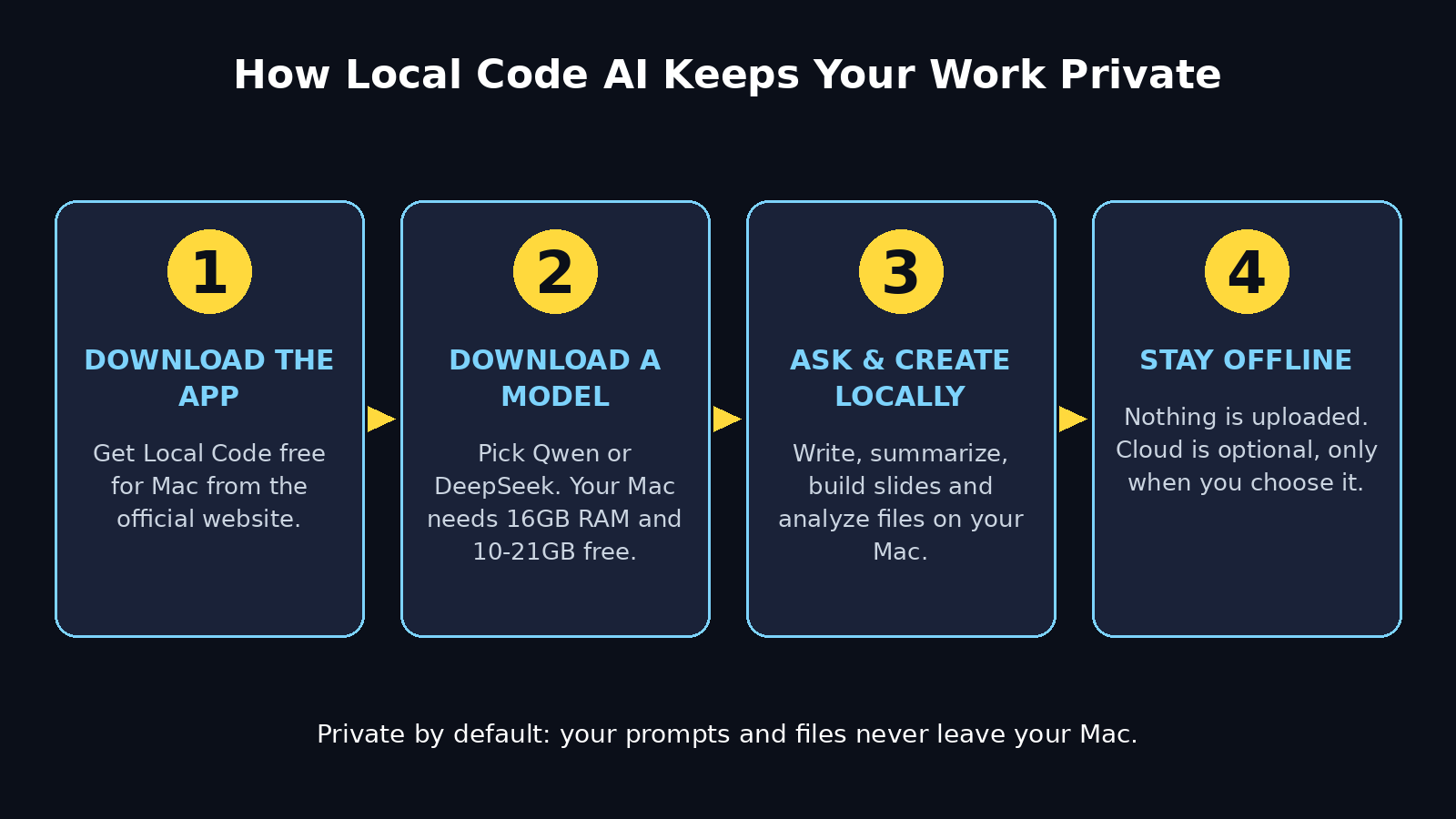
Step 1: Understand What Local Code AI Is and Why It Is Different
Most AI assistants live in the cloud. When you type a question into ChatGPT or Claude, your words travel to a company’s servers, get processed there, and the answer travels back. That is fast and convenient, but it means your private documents, emails, and ideas leave your computer.
Local Code AI takes the opposite approach. The AI model runs locally, directly on your Mac. Your prompts, files, and notes stay on hardware you own. The developers behind it are the team that built Draw Things, a well-known image generation app for Apple devices, so they already have deep experience making powerful AI run well on Mac hardware.
- Your data stays home: when you use a local model, Local Code processes prompts and files on your Mac rather than sending them to a cloud AI provider.
- It works offline: once the model is downloaded, most everyday tasks run fully offline — one of its biggest advantages over cloud assistants.
- It is open source: the code is public, which means anyone can inspect how it works. That transparency is a big reason privacy-minded users trust it.
- It is free for local use: local use costs nothing. Optional cloud access is available through your own API keys or prepaid credits starting at $9.99, but you never have to pay to use the core app.
- It does real work: this is not a toy chatbot. It creates presentations, generates images and videos, analyzes spreadsheets, and edits Word and PowerPoint files.
Local Code followed a public beta that began on September 12, 2026. The full launch arrived on October 30, 2026, with a direct Mac download available now and a Mac App Store release coming soon.
Step 2: Check Your Mac Meets the Requirements
Before you download anything, make sure your Mac can run Local Code AI. Because the AI model runs on your machine, your Mac needs enough memory and free storage space.
- You need a Mac: Local Code is a Mac app. There is no Windows, iPhone, or Android version at launch, and the developers have not announced dates for other platforms yet.
- Memory matters: the app offers Qwen and DeepSeek models for Macs with different amounts of memory. The website lists 16GB of RAM as the minimum for the Qwen 3.8 27B model, so a modern Apple Silicon Mac with at least 16GB is the right starting point.
- Storage space: recommended model downloads take around 10GB to 21GB of storage. The larger DeepSeek models are much bigger, requiring downloads of around 89GB or 376GB depending on the version. Start with a smaller model and only download a large one if you have the space and the need.
- Free up room first: check your available storage in System Settings before you start. A model download that runs out of space halfway will fail and waste your time.
- Apple Silicon works best: the app is built for modern Macs, and Apple Silicon chips handle local AI models far better than older Intel machines.
If your Mac has 16GB of memory and 25GB of free space, you are ready. If not, free up storage or plan to use the smaller Qwen model first.
Step 3: Download and Install Local Code AI
Getting Local Code AI onto your Mac takes just a few minutes. There is currently no waitlist and no invitation needed — the app is publicly available.
- Go to the official website: open getlocalcode.app in your browser. Always download from the official site, never from a random link in a forum or video description.
- Download the Mac app: a direct Mac download is available now. The developers say a Mac App Store release is coming soon, but the direct download is the way to get it today.
- Open the downloaded file: double-click it and follow the normal Mac installation steps. Drag the app into your Applications folder when asked.
- Allow it to run: the first time you open it, macOS may ask you to confirm that you want to open an app downloaded from the internet. Click Open to continue.
- No account needed to start: you do not need to create an account or enter payment details to use local models. That is one of the refreshing things about Local Code — it respects your time and your privacy from the first launch.
If you enjoy discovering new free tools like this, our Wabi AI guide covers another free assistant that launched in October 2026 — although Wabi works in the cloud, while Local Code keeps everything on your Mac.
Step 4: Download Your First AI Model
Local Code AI is useless without a model, because the model is the brain. When you first open the app, it will offer you a choice of models to download. This step takes the longest, so pick wisely and be patient.
- Start with Qwen: for most beginners, the Qwen model is the best first choice. It needs at least 16GB of memory, downloads in around 10GB to 21GB, and handles everyday writing, questions, and document work well.
- Try DeepSeek only if you have space: the larger DeepSeek models need around 89GB or 376GB of storage. They are more capable, but that size is serious. Only download one if your Mac has plenty of free space and you need the extra power.
- Download on a stable connection: a 10GB to 21GB download can take a while. Use Wi-Fi, plug your Mac into power, and let it finish without interruption.
- Wait for the download to complete: do not close the app or put your Mac to sleep during the download. Once it is done, the model is yours forever — no subscription, no expiry.
- You can add more models later: you are not locked into your first choice. You can download additional models any time and switch between them in the app.
Think of the model like an engine. A smaller engine is lighter and faster to install; a bigger engine is more powerful but needs more room. For your first week, the smaller Qwen model is more than enough.
Step 5: Give Permissions Carefully and Understand the Sandbox
Local Code AI can do much more than chat. With your permission, the app can read information from Mail, Messages, and Notes, and make changes in Calendar and Photos. It also includes a browser the assistant can use to navigate websites and complete online tasks. That power is useful, but you should understand how it is controlled.
- Permissions are your choice: the app asks before it accesses your Mail, Messages, Notes, Calendar, or Photos. You can say no to any of them and still use the assistant for everything else.
- Apple’s App Sandbox protects you: according to the app’s documentation, Apple’s App Sandbox restricts its access to files and other parts of the system. The app cannot wander through your Mac freely — it can only touch what you explicitly allow.
- Start with nothing connected: for your first day, give it no permissions at all. Use it for writing, questions, and documents. Add access later, one app at a time, only when a task actually needs it.
- Review permissions regularly: open System Settings, go to Privacy and Security, and check what Local Code can access. Remove anything you no longer need.
- Remember the privacy trade-off: every permission you grant makes the assistant more useful and slightly less private. That is a fair trade when you choose it consciously — the problem with cloud AI is that the trade is made for you, silently.
For businesses weighing how much access an AI tool should have, a professional digital agency can help set sensible rules for AI use across a team — the same principle applies at home: give access deliberately, not by default.
Step 6: Ask Your First Questions and Write Your First Draft
Now comes the fun part. Open Local Code AI, pick your downloaded model, and start chatting. Everything happens on your Mac, so your words never leave the room.
- Ask a simple question first: try something like “Explain how compound interest works in simple words” or “Give me five ideas for a birthday gift for my dad.” A good first answer tells you the model is working.
- Write with it: ask it to draft an email, a cover letter, or a social media post. Give it the key points and let it turn them into clean, natural text.
- Summarize long text: paste a long article or report and ask for a three-sentence summary. This is one of the most useful everyday tricks, and it is completely private — your documents never leave your Mac.
- Brainstorm freely: use it to plan a trip, outline a presentation, or come up with names for a new business. The assistant is patient, and you can ask it to try again as many times as you like.
- Be specific in your prompts: instead of “write about dogs,” try “write a 150-word introduction to a blog post about adopting rescue dogs, in a warm and friendly tone.” Specific prompts get dramatically better results.
Because the model runs locally, answers may arrive a little slower than a cloud chatbot on a huge server — especially on a base model. That is normal. You are trading a few seconds of speed for complete privacy, and for most everyday tasks the difference is barely noticeable.
Step 7: Create Presentations, Images, and Videos
Local Code AI is more than a chatbot. It can create presentations, generate images and videos, analyze spreadsheets, and work with Word and PowerPoint files. Here is how to use those features as a beginner.
- Build a presentation: tell the assistant the topic, the number of slides, and the audience. For example: “Make a 6-slide presentation about healthy breakfast ideas for busy parents.” It will draft the structure and the content for each slide.
- Generate images: describe the image you want in plain words — “a cozy coffee shop in the rain, warm light, watercolor style” — and let the assistant create it. Use generated images for blog posts, social media, or school projects.
- Make a short video: describe the scene or idea, and the assistant can generate video clips. Keep your first attempts simple and short while you learn what the tool does well.
- Analyze a spreadsheet: open a spreadsheet and ask questions like “Which month had the highest sales?” or “Show me the average of this column.” The assistant reads the data and explains what it finds.
- Edit Word and PowerPoint files: ask it to fix formatting, rewrite a section, or turn a Word document into a presentation outline. Always save a copy of the original file first, just in case.
If you run a small business and want to use AI content like this at scale, AI automation services can help you build repeatable workflows around tools like Local Code — but for personal use, the free local app is all you need.
Step 8: Use the Built-In Browser for Online Tasks
One of Local Code AI’s most interesting features is its built-in browser, which the assistant can use to navigate websites and complete online tasks on your behalf. This turns it from a writing helper into a genuine assistant.
- Ask it to research a topic: “Find the three cheapest flights from Lahore to Dubai next month and summarize the options.” The assistant can browse, read pages, and report back.
- Compare products: ask it to look at two or three products online and list the differences in price, features, and reviews.
- Fill in routine web tasks: the assistant can navigate forms and pages for simple tasks, saving you clicks.
- Stay in control: watch what the browser does the first few times. Never let any assistant enter passwords, payment details, or sensitive account information without you watching.
- Know the boundary: when the assistant uses its browser or a cloud model, data does leave your Mac. Local model work stays private; online browsing is online by definition. Use the local model for private work and the browser for public research.
This split is the key to using Local Code well: private things stay local, public research uses the browser, and you always know which is which.
Step 9: Try a Cloud Model When You Need Extra Power
Local models are private and free, but they are not the most powerful AI in the world. Sometimes you need a bigger brain. Local Code AI lets you switch to a cloud model for those moments — and the choice is always yours.
- Cloud is optional, never forced: you can use Local Code forever without ever touching a cloud model. The app does not push you toward paid options.
- Use your own API keys: if you already have an API key from a cloud AI provider, you can connect it and pay that provider directly at their rates.
- Or buy prepaid credits: optional cloud access is also available through prepaid credits starting at $9.99. You pay only for what you use, with no monthly subscription.
- Know what changes: when you choose a cloud model, your prompts and relevant files are sent to the selected provider. That is the normal price of cloud AI — so never send private documents, passwords, or personal data to a cloud model.
- A good rule of thumb: local model for personal, financial, medical, or work-confidential material; cloud model for general knowledge, creative writing, and public information.
This hybrid design is what makes Local Code AI practical for real life. You get privacy by default and power on demand, instead of being forced to choose one or the other.
Step 10: Build a Daily Routine With Local Code AI
The best AI tool is the one you actually use every day. Here is a simple routine that turns Local Code AI from a novelty into a habit.
- Morning planning (5 minutes): ask it to summarize your day. With Calendar permission, it can read your schedule and list what matters. Without it, just tell it your plans and ask it to organize them.
- Email drafts (10 minutes): write rough replies and let the assistant polish them. You keep control of the message; it just fixes the wording and tone.
- Learning hour: pick one topic a day and ask the assistant to explain it, quiz you on it, or turn it into flashcards. Because everything is local, you can study sensitive work material without worry.
- Weekly review: every Friday, ask it to summarize your notes from the week or analyze a spreadsheet of your spending. Patterns you would never spot yourself become obvious.
- One creative project a week: a presentation, a short video, a set of images, or a written story. Regular creative use is the fastest way to learn what the tool can really do.
Keep a small note of prompts that worked well. After two weeks, you will have a personal collection of your best prompts — and using the assistant will feel as natural as opening a notebook. If you want another free Mac-friendly AI workflow to compare, our Underdog AI guide covers a private assistant that runs entirely on your own computer too.
Local Code AI vs Cloud AI Assistants
| Feature | Local Code AI (local model) | Typical cloud assistant |
|---|---|---|
| Where your data goes | Stays on your Mac | Sent to company servers |
| Works offline | Yes, after model download | No |
| Cost | Free for local use | Free tier, then subscription |
| Privacy | Full — nothing uploaded | Depends on provider policy |
| Speed | Slightly slower on big tasks | Usually faster |
| Model choice | Qwen, DeepSeek (download) | Provider’s latest models |
| File access | Mail, Messages, Notes, Calendar, Photos (with permission) | Uploads only |
| Best for | Private work, offline use | Maximum power, latest models |
The table shows the real trade-off. Cloud assistants are faster and more powerful, but they see everything you type. Local Code AI is private and free, but you need a capable Mac and a little patience. For most beginners, the right answer is both: Local Code for private work, a cloud assistant for everything else.
FAQ: Local Code AI for Beginners
Is Local Code AI really free?
Yes — local use is free. You download the app and a model, and you can use it without paying anything. Optional cloud access costs extra: you can use your own API keys or buy prepaid credits starting at $9.99. There is no subscription required for the core app.
Which Mac do I need to run Local Code AI?
You need a Mac, and the website lists 16GB of memory as the minimum for the Qwen 3.8 27B model. A modern Apple Silicon Mac with 16GB of RAM and at least 25GB of free storage is a good starting point. Larger DeepSeek models need much more storage — around 89GB or 376GB — so check your free space before downloading one.
Is Local Code AI available on Windows or iPhone?
Not at launch. Local Code is a Mac app, with a direct download available now and a Mac App Store release coming soon. The developers have not announced Windows, iPhone, or Android versions yet.
Does Local Code AI work without the internet?
Yes, for local model tasks. Once the model is downloaded, you can chat, write, analyze files, and create content fully offline. You only need the internet to download models, use the built-in browser, or switch to a cloud model.
Is my data really private with Local Code AI?
When you use a local model, your prompts and files are processed on your Mac rather than sent to a cloud provider. The app is open source, and Apple’s App Sandbox restricts its access to files and system parts. That said, privacy depends on your choices: if you connect a cloud model or grant broad permissions, some data will leave your Mac. Start with no permissions and add them only when needed.
What can Local Code AI actually do?
It can answer questions, write and edit text, create presentations, generate images and videos, analyze spreadsheets, and work with Word and PowerPoint files. It also has a browser the assistant can use to navigate websites and complete online tasks, and with your permission it can read Mail, Messages, and Notes and make changes in Calendar and Photos.
Final Thoughts
Local Code AI is one of the most interesting AI launches of October 2026, and not because it is the most powerful assistant available. It matters because it proves a different deal is possible: a genuinely useful AI assistant that lives on your computer, costs nothing for local use, and never sends your words to a server. The developers of Draw Things have taken the hard path — running real AI models on a Mac — and made it simple enough for a complete beginner.
Start small. Download the app, get the Qwen model, and use it for one private task today: a summary, a draft, or a question you would never type into a cloud chatbot. Give it no permissions on day one. Feel how it works. Then, as you trust it more, add one permission at a time and try the presentations, spreadsheets, and browser features. Within a week, you will know exactly where Local Code fits in your life — and you will probably wonder why you ever pasted private documents into a website.
Privacy is not about having something to hide. It is about choosing who sees your work. Local Code AI gives you that choice back, for free, on a Mac you already own.
Explore More Free AI Tools
- AI Title Generator — craft click-worthy headlines for your next article in seconds: https://aitoolsteps.com/
- Meta Description Generator — write search-friendly descriptions that actually get clicks: https://aitoolsteps.com/
- AI Rewriter — refresh old content into clear, natural new wording: https://aitoolsteps.com/
- Keyword Density Checker — check your keyphrase use before you hit publish: https://aitoolsteps.com/