

Imagine planning a family vacation, tracking your fitness, and organizing your work week — all inside one app, with an AI that builds little apps for you automatically and lets your family join in. That is the idea behind Wabi, the new free “multiplayer” AI assistant that publicly launched on October 19, 2026.
Wabi was created by Eugenia Kuyda, the founder of the popular AI companion app Replika, after she left Replika in 2025. Her new startup raised a $20 million pre-seed round led by Andreessen Horowitz, and Wabi 2.0 is the product she has been building toward for years. Instead of a lonely chatbot you talk to alone, Wabi is built around shared threads — group chats where an AI assistant helps couples, families, and friends plan, track, and get things done together.
If you have never used an AI assistant before, this beginner guide will walk you through everything: downloading Wabi, setting up your account, creating your first threads, asking the AI to build mini-apps, inviting family, and staying safe with connected accounts. Let’s get started.
Step 1: Download Wabi on Your iPhone, Android, or Mac
Wabi is available as a free download on iOS, Android, and Mac. There is currently no waitlist — the app opened to the public on October 19, 2026, following an iOS messenger release in late September.
Here’s how to get it:
- Open the App Store (iPhone), Google Play Store (Android), or your Mac’s app source and search for “Wabi”.
- Make sure you download the official Wabi app (from the Wabi team — check the developer name before installing).
- The service is currently free, and Wabi says it has not yet decided on a business model, so expect paid tiers to arrive eventually.
Since Wabi is brand new, double-check the app details and reviews as more users join during the first weeks of public access.
Step 2: Create Your Free Wabi Account
Open the app and create your account. Like most modern apps, Wabi will ask for a basic sign-up — typically your email address or phone number — so your threads and apps sync across your devices.
Keep these beginner tips in mind:
- Use an email address you check regularly, because connecting your email later unlocks Wabi’s best feature (more on that in Step 3).
- Write down or save your login details in a password manager. You will want Wabi on multiple devices as your threads grow.
Step 3: Connect Your Email and Let Wabi Build Your First Threads
This is where Wabi gets interesting. When you connect your email account, Wabi automatically spins up starter threads and mini-apps based on your life — you do not have to build anything yourself.
For example, after connecting email, Wabi may create:
- A health thread with a weight-loss or habit tracker
- A family thread that surfaces nearby children’s events
- A calendar thread that pulls in upcoming events
You are in control: you can delete anything it creates, start new threads manually, or simply ask the assistant for exactly what you want. But for beginners, letting Wabi set up your first workspace is the fastest way to see what it can do.
Step 4: Learn How Threads Work — Your Task Rooms
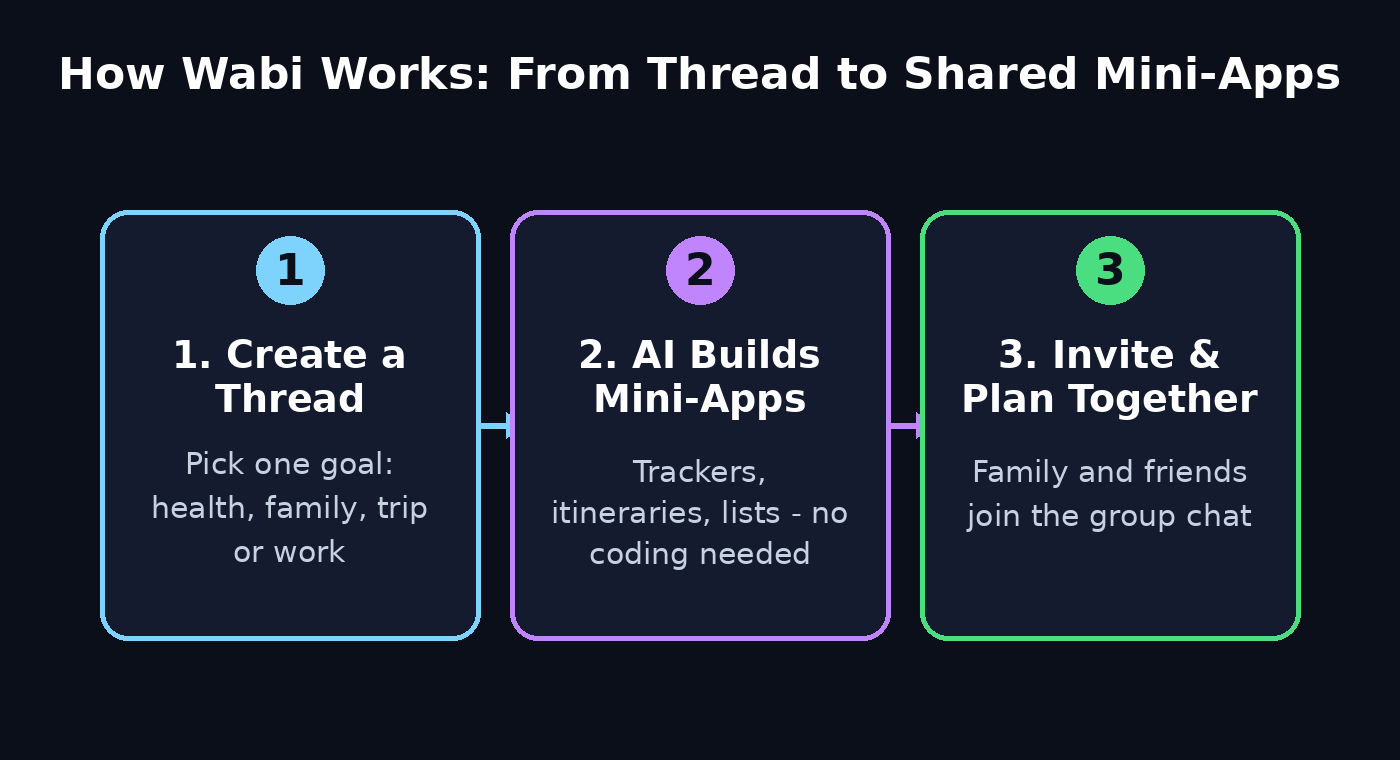
Wabi organizes everything into threads. Think of a thread as a chat room dedicated to one part of your life: health, family, travel, work, or a hobby.
Why threads matter:
- Each thread keeps its own context, so your family planning never gets mixed up with your work tasks.
- AI researchers have noted that very long single chatbot conversations can lose track of context or produce errors. Wabi’s multi-threaded design keeps each conversation focused and reliable.
- Threads double as group chats — invite the people involved, and everyone sees the same apps and updates.
Start with two or three threads: one personal (like health or hobbies) and one shared (like family or a trip). You can always add more later.
Step 5: Ask Wabi to Build a Custom Mini-App
The standout feature of Wabi is that the AI builds small working apps inside your conversations — you never write a line of code.
Try asking for things like:
- “Build me a weight-loss tracker with weekly check-ins.”
- “Make an app that shows kid-friendly events near me this weekend.”
- “Create a shared restaurant list for our date nights.”
- “Build a reading list app with book suggestions for me and my partner.”
Wabi generates the app right inside the thread, pinned at the top of the screen so everyone in the chat can see and use it. This “personal software” idea is Wabi’s answer to the App Store’s one-size-fits-all apps — the team found that people love custom tools but do not want to spend time building them.
If an app is not quite right, just describe what you want changed in plain language. No technical skills needed.
Step 6: Invite Family or Friends into a Shared Thread
This is the “multiplayer” part that makes Wabi different from ChatGPT, Muse, or other solo assistants. Threads can be shared as group chats.
How to share a thread:
- Open the thread you want to share (for example, a family planning thread or a trip thread).
- Use the invite or share option to add your partner, family members, or friends.
- Everyone in the thread can see the same apps — the shared calendar, the restaurant list, the event tracker — and can talk to the AI assistant too.
Real examples from early users include a couple’s thread with a live music tracker, a daily relationship question, shared calendar events, and a joint reading list — and a family thread tracking a child’s schedule with kid-friendly event suggestions.
Privacy note: access to connected data is scoped per chat and visible to everyone in that chat. So only share a thread with people you trust, and only connect accounts you are comfortable sharing with that group.
Step 7: Connect Your Calendar for Smarter Planning
Connecting your calendar lets Wabi see your schedule and help you plan around it. The assistant can surface upcoming events inside relevant threads and suggest good times for group plans.
To get the most from this:
- Connect the calendar you actually use day-to-day.
- Ask Wabi things like “Find a free evening this week for our family dinner” or “What events do the kids have this weekend?”
- Remember that anything Wabi pulls from your calendar becomes visible to everyone in that shared thread.
Step 8: Plan a Trip Together with Wabi
Group trip planning is one of the best beginner projects for Wabi, because it uses threads, mini-apps, and sharing all at once.
Here’s a simple trip-planning workflow:
- Create a new thread called “Trip Planning” (or your destination name).
- Invite everyone who is going.
- Ask Wabi: “Build an itinerary app for our 4-day trip to the mountains” — include dates, budget, and interests.
- Ask for a shared expense tracker so everyone can log costs.
- Ask for a packing checklist app the whole group can check off.
Because everyone sees the same thread, nobody has to forward screenshots or repeat details. Businesses are already exploring similar AI automation for team workflows — digital agencies like d365a.com help companies automate their planning and customer workflows, and the same “shared AI workspace” idea is exactly what Wabi brings to families and small teams.
Step 9: Manage Connected Accounts and Privacy Safely
Wabi becomes more useful the more you connect — email, calendars, and optionally payment methods or bank accounts. But connecting sensitive accounts deserves care. Follow these safety steps:
- Read the privacy terms before connecting bank or payment accounts. Wabi is SOC 2 compliant, and Kuyda says access is scoped per chat and visible to everyone in it — but linking financial accounts to any cloud AI is a real trust decision.
- Start small. Connect email and calendar first. Add payment or bank connections only if you have a specific use case and understand the risks.
- Know who processes your data. Wabi has said that Google, Anthropic, and OpenAI may process requests and connected data when carrying out tasks.
- Review connections regularly. If you stop using a thread, remove people or disconnect accounts you no longer need there.
- Never share sensitive codes or passwords in a shared thread. Treat a shared thread like a group chat — because that is what it is.
These habits keep the convenience high and the risk low.
Step 10: Build Daily Habits with Wabi’s Personal Threads
Beyond group planning, Wabi works as a personal goal coach. Create private threads (just for you) around habits and long-term goals.
Ideas to try:
- A fitness thread with a workout log and weekly progress check-ins
- A learning thread — for example, a daily quiz app to practice a language
- A finance thread with a monthly budget tracker
- A reading thread with a book list and chapter-by-chapter notes
Ask Wabi to check in with you on a schedule, like “Remind me every evening to log my workout.” Small daily nudges are where personal AI assistants shine, and Wabi’s mini-apps make progress visible at a glance.
Step 11: Pro Tips to Get the Best Results from Wabi
After your first week with Wabi, these tips will take you from beginner to confident user:
- Be specific in your requests. “Build a grocery list app sorted by store section” works better than “make a list app.”
- One thread per goal. Do not dump everything into a single thread — that defeats the multi-thread design that keeps Wabi organized.
- Name threads clearly. “Kids — School 2026” beats “Thread 3” when you have ten of them.
- Prune regularly. Archive threads and apps you no longer use so your workspace stays clean.
- Combine Wabi with your existing tools. Wabi is great at planning and tracking, while dedicated tools handle the rest. For example, creators who use AI automation services from teams like agentic-affairs.com often pair assistants like Wabi with deeper workflow automation for their business.
- Watch for the pricing news. Wabi is free for now with no announced business model — enjoy the free tier, but do not build your entire life around features that might later move to a paid plan.
Wabi AI vs Other AI Assistants: Quick Comparison
| Feature | Wabi | ChatGPT / Muse | Instinct |
|---|---|---|---|
| Price | Free (for now) | Free tier + paid plans | Paid plans |
| Multiplayer shared threads | Yes — built-in group chats | Limited / not the focus | No |
| Builds mini-apps in chat | Yes, automatically | Via separate tools | Limited |
| Multi-thread organization | Yes — one thread per goal | Single long conversations | Single thread |
| Platforms | iOS, Android, Mac | Web, iOS, Android | Web, mobile |
| Connect email/calendar | Yes | Yes (with setup) | Yes |
| Best for | Families, couples, group planning | Solo productivity, writing, coding | Personal task automation |
FAQs About Wabi AI
Is Wabi AI really free?
Yes. Wabi is currently free with no waitlist on iOS, Android, and Mac. The company has said it has not decided on a business model yet, so paid tiers are likely in the future — but right now, everything available is free.
Who made Wabi?
Wabi was founded by Eugenia Kuyda, the founder and former CEO of Replika, the popular AI companion app. She left Replika in 2025 to start Wabi, which raised a $20 million pre-seed round led by Andreessen Horowitz.
What is a “multiplayer” AI assistant?
It means the AI is designed to be shared. Instead of one person chatting alone with an AI, Wabi organizes work into threads that function as group chats — couples, families, or friends can all see the same apps and talk to the same assistant together.
How is Wabi different from ChatGPT?
The biggest differences are multiplayer threads and automatic mini-app building. ChatGPT is a solo chatbot experience; Wabi gives each area of your life its own thread, builds small working apps inside those threads, and lets you invite other people into them.
Is it safe to connect my email and bank account to Wabi?
Connecting email and calendars is standard for AI assistants and unlocks Wabi’s best features. Bank or payment connections deserve extra caution: Wabi is SOC 2 compliant and says access is scoped per chat, but you should read the privacy terms and only connect financial accounts if you understand and accept the risks.
Which devices support Wabi?
Wabi is available on iOS, Android, and Mac. There is no mention of a Windows or web version yet, so check Wabi’s official channels for platform updates.
Final Thoughts
Wabi is one of the most interesting AI launches of October 2026 because it asks a different question: what if AI assistants were not lonely chatbots, but shared spaces where people plan life together? The combination of multi-thread organization, automatic mini-app building, and true multiplayer sharing gives it a genuinely fresh angle — and the fact that it is free with no waitlist makes it easy to try.
Start with one personal thread and one shared thread, let Wabi build a few apps for you, and invite someone you plan things with. Within a week, you will know whether the multiplayer AI idea fits your life. And if you are a business owner curious about bringing this kind of AI automation into your company, remember that specialist teams — from digital agencies like d365a.com to AI automation providers like agentic-affairs.com — can help you design workflows around it.
Explore More Free AI Tools
Want to keep exploring? Try these free tools on AIToolSteps:
- AI Title Generator — create catchy blog and video titles in seconds: https://aitoolsteps.com/
- Meta Description Generator — write perfect SEO descriptions automatically: https://aitoolsteps.com/
- AI Rewriter — rewrite and improve any text instantly: https://aitoolsteps.com/
- Keyword Density Checker — check your SEO keyword usage the easy way: https://aitoolsteps.com/