

Running a small business usually means juggling five different apps before lunch. Your customers live in one spreadsheet, your quotes sit in your email, your tasks are sticky notes on a monitor, and your calendar has no idea what any of it means. OptimusDesk AI wants to end that juggling act. Launched on October 29, 2026, by Philipp Mueller under his OptimusPhil.io brand, it is an AI-powered smart workspace that brings customers, projects, team collaboration, and an AI assistant into one place — built specifically for local businesses, freelancers, and small service teams.
The star of the show is Pip, a built-in AI colleague that drafts customer messages, prepares quotes and agreements, turns meeting notes into tasks, and organizes your next steps. Around Pip sit Smart Boards, a connected calendar, a Today dashboard, and tools for quotes, agreements, email, and files. You can start with a seven-day free trial, and the web app works alongside companion apps for iOS and Android.
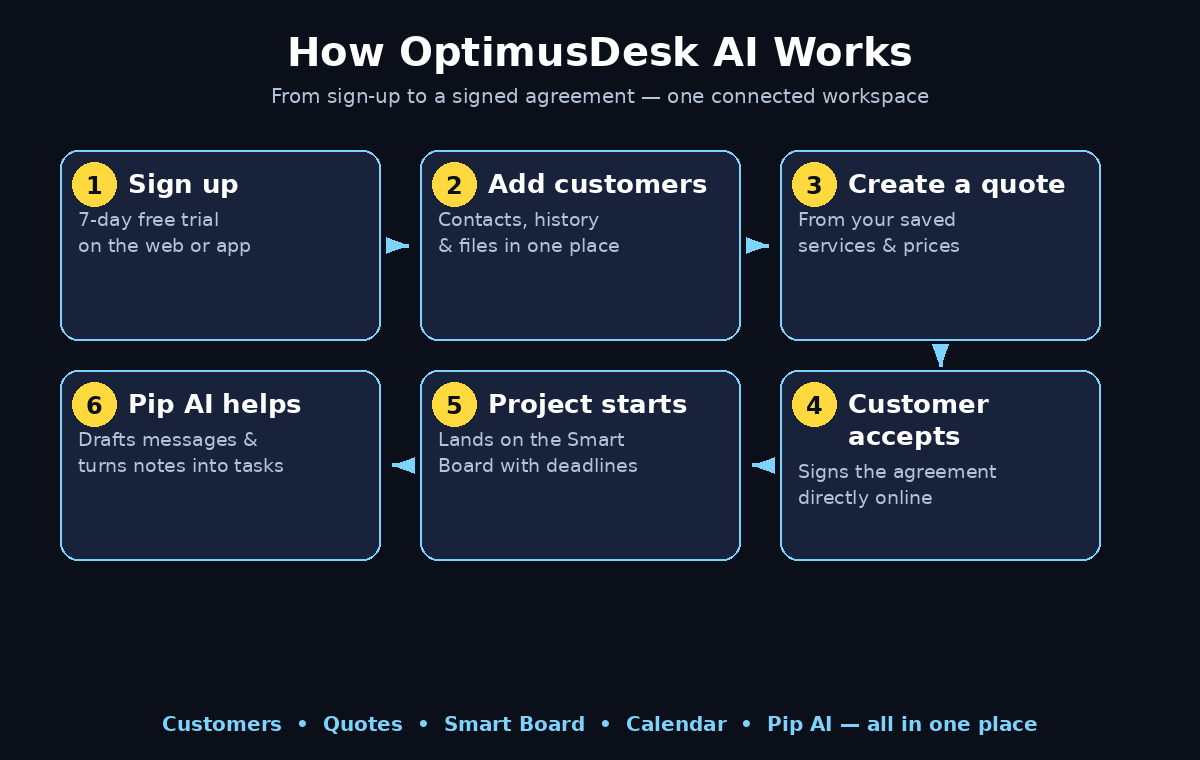
In this beginner-friendly guide, you will learn exactly how to use OptimusDesk AI step by step: how to sign up, set up your workspace, add customers, send your first quote, organize work on the Smart Board, and let Pip handle the boring admin — all in plain language, with no technical background needed.
Step 1: Understand What OptimusDesk AI Is
OptimusDesk is a business management platform, not just another to-do app. Think of it as one desk where everything about your small business sits together. Instead of switching between a CRM, a quoting tool, a task board, and a calendar, you open one workspace and see the whole picture.
Here is what lives inside OptimusDesk:
- Customers: contact details, history, and files for every client in one place.
- Quotes: create professional quotes and send them to customers, then turn accepted quotes into projects.
- Agreements: customers can sign agreements directly online — no printing, scanning, or chasing signatures.
- Smart Boards: tasks organized around priorities and deadlines, with countdowns that highlight approaching work.
- Calendar: appointments, tasks, and focus time connected in one view.
- Today dashboard: a customizable home screen that surfaces follow-ups and work needing attention.
- Pip AI: the built-in AI assistant that drafts, prepares, and organizes for you.
- Email and files: customer communication and documents connected to the work they belong to.
It is built for local businesses, freelancers, and small service teams — the kind of business where the owner is also the salesperson, the project manager, and the admin. If that sounds like you, OptimusDesk is aimed squarely at your working day.
Step 2: Start Your 7-Day Free Trial
Getting started is simple. Open your browser and go to optimusdesk.app — the official OptimusDesk website. Look for the sign-up or free-trial button on the homepage and create your account with your email address. Once your account is ready, this guide walks you through how to use OptimusDesk AI from your first login to your first signed agreement.
New users can get started with a seven-day free trial, which gives you a full week to explore the workspace with your real business data before deciding anything. You do not need to install software to try it: OptimusDesk is available on the web, so it runs in your browser on a laptop or desktop. Companion apps for iOS and Android are also available if you want the workspace on your phone.
Beginner tip: use the trial week to do real work, not just click around. Add two or three real customers, build one real quote, and let Pip draft one real message. You will learn far more from one real workflow than from an hour of exploring menus.
Step 3: Set Up Your Workspace and Business Profile
Once you are inside, set up your workspace before you add any customers. A clean setup now saves you messy fixes later.
- Business details: add your business name, contact details, and logo so quotes and agreements look professional from day one.
- Your services: list the services you actually sell, with your usual prices. This makes quoting fast later, because Pip and the quote builder can pull from your real price list instead of you typing numbers from memory.
- Your team: decide who needs access. You can invite team members later, but knowing your team shape now helps you set up boards and assignments correctly.
- Your working hours: set the hours your calendar should protect, so appointments and focus time do not collide.
If you already work with a digital agency for your website or marketing, tell them your OptimusDesk setup is underway — a tidy workspace makes it easier for them to connect your online presence with the way you actually take bookings and follow up with customers.
Step 4: Add Your First Customers
Customers are the heart of OptimusDesk. Open the customers section and add your first few clients. For each customer, add their name, contact details, and any notes about what they need or what you have already done for them.
Do not try to import your entire customer list on day one. Start with your five most active customers — the ones you are currently quoting, serving, or following up with. Once those five feel natural in the workspace, add the rest in small batches.
Every customer record connects to their quotes, agreements, tasks, emails, and files. That connection is the whole point: when a customer calls, you open their record and see everything — no more searching three apps to answer one simple question.
Step 5: Create and Send Your First Quote
Quoting is where OptimusDesk starts paying for itself, and learning how to use OptimusDesk AI for quotes is the fastest way to see value from the workspace. Open the quotes section, pick a customer, and build your quote from your services list. Add line items, quantities, and prices, then review the total before sending.
Here is the workflow that makes OptimusDesk different:
- Build the quote from your saved services, so pricing stays consistent.
- Send it to the customer from inside the workspace, keeping the conversation attached to the quote.
- Track the response — you can see what is waiting, what was accepted, and what needs a follow-up.
- Turn an accepted quote into a project with one step, so the job moves straight onto your Smart Board without re-typing anything.
If writing quote emails feels slow, ask Pip to draft the message for you (see Step 7). You review it, adjust the tone, and send — the customer gets a polished message, and you spent two minutes instead of twenty.
Step 6: Organize Work on the Smart Board
The Smart Board is where your daily work lives. It organizes tasks around priorities and deadlines, with countdowns that highlight work approaching its due date. Instead of a flat to-do list, you see what matters most right now.
Set up your board like this:
- Sort by priority first. The work that earns money or keeps a customer happy goes at the top.
- Give every task a deadline. A task without a deadline drifts; the countdowns only help if dates are real.
- Attach tasks to customers and projects. A task floating on its own is easy to forget; a task attached to a customer is easy to act on.
- Check the board every morning. Five minutes with the Smart Board replaces an hour of “what was I supposed to do today?”
Accepted quotes become projects on the board automatically, so your pipeline and your daily work stay in sync without extra admin.
Step 7: Meet Pip, Your AI Colleague
Pip is the AI assistant built into OptimusDesk, and it is the feature that makes the workspace feel genuinely smart. Pip helps you draft customer messages, prepare quotes and agreements, turn meeting notes into tasks, and organize your next steps.
You can type or speak to Pip naturally — just describe what you need in plain words. For example, “draft a friendly follow-up to Sarah about the kitchen quote” or “turn my meeting notes from this morning into tasks with deadlines.” Pip proposes the draft or the task list, and you review it before anything is sent or saved.
Three things make Pip beginner-friendly:
- You stay in control. Pip proposes actions; you review them. Nothing goes to a customer without your approval.
- You see the cost first. Pip shows you the AI credit cost before proceeding, so there are no surprise charges.
- Manual mode still works. The workspace works fully by hand, so you choose when to bring Pip in and when to do things yourself.
Start with one Pip task a day. Drafting follow-up messages is the easiest win: it is the job every small business owner puts off, and it is the job Pip does fastest. As your confidence grows, hand Pip the meeting-notes-to-tasks job too — it turns a page of scribbles into an organized action list in seconds. Businesses exploring wider AI automation services will recognize the pattern: the AI does the drafting and organizing, while the human keeps the decisions.
Step 8: Connect Your Calendar and Use the Today Dashboard
A workspace is only useful if it knows your day. Connect your calendar so appointments, tasks, and focus time sit together in one view. When a customer books an appointment, it appears next to the tasks that appointment depends on — no more double-booking yourself because the calendar and the task list disagreed.
Then customize your Today dashboard. This is your morning home screen: it surfaces follow-ups and work needing attention, so you start the day knowing exactly what matters. Keep it short — five to seven items is plenty. If your Today dashboard is a wall of thirty tasks, it is not a dashboard, it is a guilt trip. Trim it until it shows only what you can realistically do today.
Step 9: How to Use OptimusDesk AI with Your Team
OptimusDesk is built for teams as well as solo owners. Invite your team members into the workspace and assign work directly from the Smart Board. Everyone sees the same customers, the same quotes, and the same deadlines, so a job never depends on one person’s memory.
Keep assignments simple at first:
- One owner per task. If two people own a task, nobody owns it.
- Attach the customer record. Your team member should be able to open the task and see who the customer is and what was promised.
- Use Pip for handover notes. Ask Pip to turn your meeting notes into tasks, then assign them — the context travels with the task.
Step 10: Send Agreements and Turn Quotes into Projects
When a customer accepts a quote, the work is only half done — and knowing how to use OptimusDesk AI for agreements is what removes the slowest step — you still need a signed agreement before you start. OptimusDesk lets customers sign agreements directly online, so there is no printing, scanning, or “did you get my email?” chase.
Send the agreement from the customer’s record, and let Pip prepare the first draft if the wording feels fiddly. Once signed, turn the accepted quote into a project. The project lands on your Smart Board with its tasks, deadlines, and customer details already attached, ready for you or your team to start work.
This quote-to-project flow is the habit that separates organized businesses from chaotic ones. Every accepted quote becomes a project the same day — never “I will set it up later,” because later is where jobs get lost.
Step 11: How to Use OptimusDesk AI on Your Phone
Small business owners rarely sit at a desk all day. That is why OptimusDesk has mobile companion apps for iOS and Android alongside the web version. The phone app keeps the same workspace — customers, Smart Board, calendar, and Pip — in your pocket.
Use the phone app for the quick jobs: checking today’s board between appointments, replying to a customer with a Pip-drafted message, or adding a task the moment a customer mentions it. Do the heavy setup — services, pricing, team structure — on the web version, where the bigger screen helps. The two stay in sync, so work started on the phone is waiting on your computer when you get back.
Step 12: Decide on the Founders Edition
After your seven-day free trial, you will need to decide whether OptimusDesk is worth paying for. For a limited time, the Founders Edition offers lifetime access to Core features for a one-time payment of $99. Optional upgrades, including Cashflow invoicing and payment tools and the upcoming social media integration, are offered separately.
Before you pay anything, run this honest check at the end of your trial week:
- Did you send at least three quotes? If yes, the quoting workflow is already saving you time.
- Did Pip draft at least three messages or task lists? If yes, the AI is doing real work for you.
- Is your Smart Board your first stop each morning? If yes, the workspace has become a habit — and habits are what make tools worth paying for.
- Did a customer sign an agreement online? If yes, you have already removed one of the slowest steps in your business.
If you can answer yes to two or more of these, the Founders Edition is worth a serious look. If you answered no to all four, the tool may not fit how you work yet — and that is useful information too. Plans for local SEO and social media tools are also on the roadmap, so keep an eye on new features if online visibility matters to your business.
OptimusDesk AI vs Other Ways to Run a Small Business
How does OptimusDesk compare with the tools most small businesses use today?
| Approach | Best for | Effort to stay organized | AI help |
|---|---|---|---|
| OptimusDesk AI | Small businesses wanting one workspace | Low — customers, quotes, tasks and calendar connected | Yes — Pip drafts and organizes |
| Spreadsheets + email | Tiny operations with few customers | High — everything must be updated by hand | No |
| Separate CRM + task app | Teams that already love two tools | Medium — data lives in two places | Sometimes, as an add-on |
| Paper notes + memory | One-person businesses, very low volume | Very high — easy to lose jobs | No |
The honest answer is that spreadsheets and memory work fine until your customer list grows past about twenty active jobs. That is the point where a connected workspace like OptimusDesk starts saving real hours every week.
Frequently Asked Questions About How to Use OptimusDesk AI
Is OptimusDesk AI free?
OptimusDesk offers a seven-day free trial for new users, so you can test the full workspace with your real business data before paying. For a limited time, the Founders Edition offers lifetime access to Core features for a one-time payment of $99. Optional upgrades, such as Cashflow invoicing and payment tools, are offered separately.
What is Pip in OptimusDesk?
Pip is the AI colleague built into OptimusDesk. It drafts customer messages, prepares quotes and agreements, turns meeting notes into tasks, and organizes your next steps. You can type or speak to Pip naturally, review everything it proposes, and see the AI credit cost before proceeding.
Do I need technical skills to use OptimusDesk?
No. OptimusDesk is designed for small business owners, not technicians. If you can send an email and use a calendar, you can use OptimusDesk. Pip works with plain-language requests, and the Smart Board organizes tasks by priority and deadline without any setup complexity.
Does OptimusDesk work on mobile?
Yes. OptimusDesk is available on the web and has mobile companion apps for iOS and Android, so you can check your Smart Board, customers, and calendar from your phone between appointments.
Can customers sign agreements online with OptimusDesk?
Yes. Customers can sign agreements directly online from the workspace, which removes printing and scanning from your sales process. Accepted quotes can also be turned into projects in one step.
Who is OptimusDesk best for?
OptimusDesk is best for local businesses, freelancers, and small service teams that want customers, quotes, tasks, appointments, and an AI assistant in one workspace instead of juggling several separate apps.
Final Thoughts
OptimusDesk AI arrives at a good moment for small businesses. The tools that used to require an office manager and a shelf of software now fit in one workspace, and the AI colleague inside it handles the drafting and organizing that eats up evenings. Launched on October 29, 2026, it is still early — and early users get the Founders Edition pricing while it lasts.
The best way to judge how to use OptimusDesk AI is the seven-day trial with real work: real customers, real quotes, real follow-ups. If Pip saves you an hour a day and your Smart Board becomes your morning habit, you have found a keeper. If not, you have lost nothing but a week of experimenting — and you will know exactly what your business actually needs instead.
Start today at optimusdesk.app, add your first five customers, send one quote, and let Pip draft one follow-up message. That single afternoon is enough to know whether OptimusDesk belongs on your desk.
Explore More Free AI Tools
Want to discover more free AI tools that make your work easier? Try our AI Title Generator to craft catchy headlines in seconds, our Meta Description Generator to write search-friendly descriptions, our AI Rewriter to polish your drafts, and our Keyword Density Checker to keep your content SEO-friendly — all free at AIToolSteps.