

Kubernetes is brilliant at running your apps — and terrible at telling you why they stopped. A pod crashes, a deployment stalls, and suddenly you are scrolling through pages of logs at the worst possible hour, trying to connect events, pod statuses, and error messages into one clear story. That is the exact pain Radar AI Kubernetes investigations are built to remove.
Radar AI relaunched on Product Hunt on October 29, 2026, with a new feature called AI investigations. The idea is simple: when a Kubernetes workload fails, you click Investigate, and the AI coding agent you already use — Claude Code, Codex, Cursor, or OpenCode — digs into the problem, read-only, and comes back with its findings plus the evidence behind them. Radar has already been installed more than 25,000 times since its first launch in May 2026, and its upgraded MCP server now gives any agent the same view of your cluster.
In this beginner guide, you will learn exactly how to use Radar AI: what it is, what you need before you start, how to install it, how to connect it to your coding agent, how to run your first investigation, and how to read the results like a pro. You do not need to be a Kubernetes expert. If you can run a basic kubectl command and you already use an AI coding assistant, you can use Radar AI today.
Step 1: Understand What Radar AI Kubernetes Investigations Do
Radar AI is an investigation tool for Kubernetes, not another dashboard that just shows you red and green lights. Traditional monitoring tells you *that* something failed. Radar AI Kubernetes investigations help you understand *why* it failed — and they do that by letting an AI agent look at the same cluster data a human engineer would check.
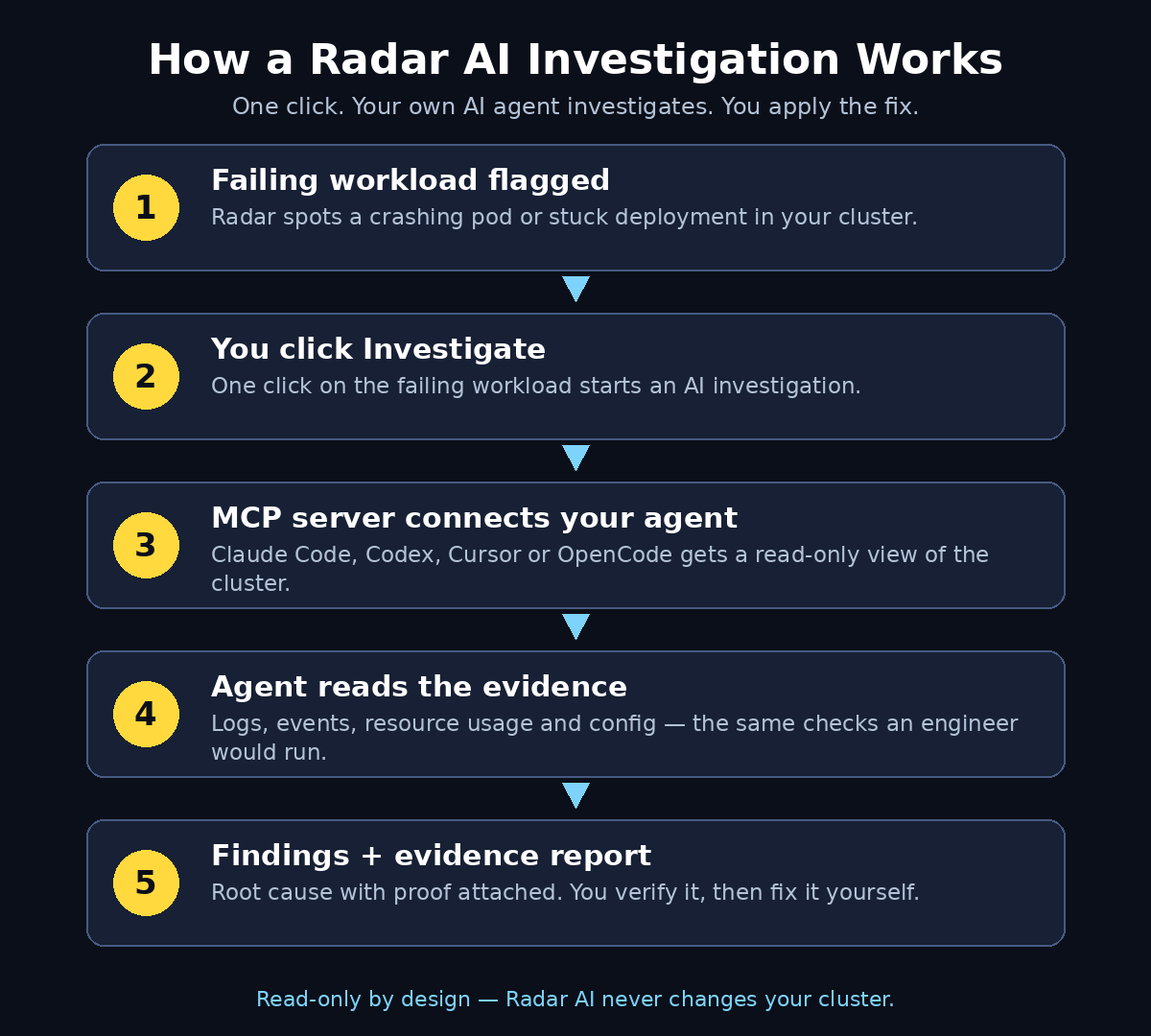
Here is the workflow in plain English:
- Radar watches your Kubernetes workloads — deployments, pods, jobs, and services.
- When a workload fails or misbehaves, Radar flags it in its dashboard.
- You click Investigate on that workload.
- Your coding agent (Claude Code, Codex, Cursor, or OpenCode) connects to your cluster through Radar’s MCP server and investigates.
- The agent reads pod logs, events, resource usage, and configuration — but it cannot change anything, because the investigation is read-only.
- You get back a clear report: what went wrong, what the evidence shows, and what to fix first.
The read-only part matters. Radar AI never restarts your pods, never edits your deployments, and never applies a fix on its own. You stay in control of every change. That design makes it safe to try even on a cluster you care about, because the worst thing an investigation can do is show you information.
Think of it this way: a regular monitoring tool is like a smoke alarm — it tells you there is a fire. Radar AI is like a fire investigator who walks in after the alarm, looks at the evidence, and tells you where the fire started and what probably caused it.
Step 2: Check What You Need Before You Start
Before you install anything, make sure you have these four things ready. Gathering them first takes about ten minutes and saves you from getting stuck halfway through setup.
- Access to a Kubernetes cluster. This can be a local cluster for learning (such as Minikube or Kind), a staging cluster, or a production cluster you are allowed to inspect. You need permission to view workloads, pods, logs, and events.
- kubectl installed and working. Radar connects to your cluster the same way you do, so your kubectl configuration should already be able to reach the cluster. If `kubectl get pods` works in your terminal, you are ready.
- One AI coding agent. Radar works with the agent you already use: Claude Code, Codex, Cursor, or OpenCode. You do not need to learn a new AI tool or buy a new subscription just for Radar.
- A free Radar account or install. Radar is free to install, and it has been installed more than 25,000 times since May 2026. Check the official Radar page for the latest setup notes, because a tool this new can update its requirements quickly in the first weeks after a relaunch.
One honest note for total beginners: Radar AI is a tool for people who already run things on Kubernetes, even at a small scale. If you have never touched Kubernetes before, start with a local learning cluster first. Radar will still be there when your first pod crashes — and it will be far more useful once you know what a pod, a deployment, and a namespace are.
Step 3: Install Radar on Your Cluster
Installation is the least exciting step, and that is a good thing — it should be quick and boring. The exact commands can change between releases, so always follow the install instructions on Radar’s official page or Product Hunt launch page rather than copying commands from an old blog post.
The general flow looks like this:
- Visit the official Radar page and find the installation instructions for your setup.
- Install Radar into your cluster, usually with a single command or a Helm chart, depending on the release.
- Confirm the install by checking that Radar’s components are running — the same way you would check any other workload, with `kubectl get pods` in the namespace Radar uses.
- Open the Radar dashboard in your browser and confirm it can see your cluster’s workloads.
If the install fails, the most common causes are simple: kubectl is pointed at the wrong cluster, your user account lacks permission to install into the namespace, or the cluster cannot reach the internet to pull Radar’s images. Fix the boring thing first — nine times out of ten, it is the cluster context.
Once Radar is running, give it a minute to discover your workloads. You should see your deployments, pods, and services listed in the dashboard. If a workload is already failing, it will show up flagged — that is your first investigation candidate, and you do not even have to wait for something to break.
Step 4: Connect Radar to Your Coding Agent With the MCP Server
This is the step that makes Radar AI different from a plain dashboard. Radar exposes your cluster to your AI coding agent through an MCP server. MCP, or Model Context Protocol, is simply a standard way for an AI agent to ask a tool for information. In this case, it lets Claude Code, Codex, Cursor, or OpenCode ask Radar for pod logs, events, and resource data — the same information you would gather by hand.
Here is how to think about the setup:
- Pick the agent you already use. If you write code with Claude Code every day, use Claude Code. If your team lives in Cursor, use Cursor. There is no “best” choice here — the best agent is the one you already trust.
- Connect the agent to Radar’s MCP server. Follow Radar’s official instructions for your agent. The setup usually means adding Radar’s MCP server to your agent’s configuration file so the agent knows where to ask for cluster data.
Test the Connection With a Simple Question
- Test the connection with a simple question. Ask the agent something easy first, like “What pods are failing in this cluster?” If it answers with real data from your cluster, the connection works. If it guesses or says it cannot see the cluster, the MCP connection is not set up yet — recheck the configuration.
- Keep the connection read-only. The upgraded MCP server in the October 2026 relaunch gives any agent the same view of your cluster, and investigations are read-only by design. Do not work around that on purpose; the read-only boundary is what makes Radar safe to run against a live cluster.
If you manage client infrastructure as part of a digital agency or an AI automation practice, this step is where Radar starts paying for itself. One MCP connection lets your existing agent run Radar AI Kubernetes investigations across the clusters you look after, without giving the agent permission to change anything.
If you like the idea of an AI that does the work for you, our beginner guide to Kira AI walks through another AI assistant that reads your email, takes your calls, and plans your day — no technical experience needed.
Step 5: Open the Radar Dashboard and Find a Failing Workload
With Radar installed and your agent connected, open the Radar dashboard. This is your home base for investigations, and it is deliberately simple: workloads, their health, and an Investigate button where it matters.
Here is what to look for on your first visit:
- Workloads list. Every deployment, StatefulSet, job, and service Radar can see, grouped so you can scan quickly.
- Health status. Healthy workloads are quiet. Failing or degraded ones stand out — a pod in CrashLoopBackOff, a deployment that never reaches its ready replicas, a job that keeps erroring.
- Recent events. Kubernetes events are the cluster’s diary: image pull failures, scheduling problems, failed health checks. Radar surfaces them alongside the workload, so you do not have to hunt through `kubectl describe` output.
- The Investigate button. This is the whole point. When a workload is failing, you will see the option to investigate it. Clicking it starts an AI investigation.
Start with a real failure if you have one — a stuck deployment or a crashing pod is the perfect first investigation. If everything is healthy (lucky you), you can still explore: pick a workload, read its events, and get comfortable with the dashboard so that the next failure does not catch you off guard.
Step 6: Click Investigate and Let the Agent Dig In
This is the step that feels like magic the first time you see it, but under the hood it is a disciplined process. When you click Investigate on a failing workload, Radar hands the job to your connected AI agent, and the agent works through the same checklist a senior engineer would.
What Happens During Radar AI Kubernetes Investigations
A typical investigation looks like this:
- The agent reads the workload’s current state — how many pods should be running, how many actually are, and which ones are failing.
- It pulls the pod logs for the failing containers, looking for error messages, stack traces, and the last thing the app printed before it died.
- It checks Kubernetes events around the failure — scheduling errors, image pull problems, failed liveness or readiness probes, and resource warnings.
- It looks at resource usage — was the pod killed for using too much memory, or was it starved of CPU?
- It checks the configuration — environment variables, secrets, ConfigMaps, and volume mounts that the workload depends on.
- It writes up its findings with the evidence attached, so you can verify every claim yourself.
The investigation usually takes seconds to a couple of minutes, depending on how much data the agent has to read. While it runs, you do not need to do anything. Do not run your own kubectl commands in parallel to “help” — let the agent finish its pass first, then compare its findings with anything you already suspected.
One important habit: read the findings in the order the agent presents them. The first finding is usually the root cause; the later ones are supporting evidence or secondary issues. If you jump straight to the last paragraph, you may fix a symptom and miss the cause.
Step 7: Read the Findings and the Evidence Like a Pro
A Radar AI Kubernetes investigations report is only useful if you can tell a strong finding from a guess. Radar’s reports come with evidence — the logs, events, and numbers behind each claim — and that evidence is what separates a real diagnosis from a confident hallucination. Always check it.
Here is how to read a Radar investigation report:
- Start with the summary. One or two sentences should tell you what failed and why. If the summary is vague, the investigation may not have found a clear cause yet.
- Follow the evidence links. Every major claim should point to something real: a log line, an event, a resource graph. Click through at least the first two. If the evidence matches the claim, you can trust the report.
Separate the Root Cause From the Symptoms
- Separate root cause from symptoms. A pod restarting ten times is a symptom. The root cause is the thing that made it restart — an out-of-memory kill, a missing secret, a bad image tag. Fix the root cause, not the restart count.
- Check for “I could not confirm” notes. A good agent tells you what it could not verify. Treat those gaps as your next manual check, not as things to ignore.
- Compare with what you know. If the report says the image pull failed but you know the image exists, double-check the image tag and the registry credentials. The agent reads the same data you do — when its conclusion surprises you, the data usually has a story you have not seen yet.
Teams that work with AI automation services will recognize this pattern: the AI does the slow, repetitive evidence-gathering, and the human makes the judgment call. Radar AI fits that model perfectly — it compresses an hour of log-hunting into a two-minute report, and you keep the final say.
Step 8: Apply the Fix Yourself (Radar Is Read-Only)
Here is the most important thing to remember about Radar AI: it investigates, but it does not fix. The read-only design is a feature, not a limitation. Applying a fix is your job, and that is exactly how it should be on a cluster that matters.
Work through fixes in this order:
- Fix the root cause first. If the investigation found an out-of-memory kill, raise the memory limit. If a secret is missing, create it. If the image tag is wrong, correct the deployment.
- Change one thing at a time. If you change three settings at once and the pod recovers, you will never know which change fixed it — and you will repeat the same mystery next time.
- Apply the change the normal way. Use your usual deployment process — edit the manifest, apply it, or redeploy through your CI pipeline. Do not hand-edit a live pod, because Kubernetes will replace it and your fix will vanish.
- Watch the workload recover. Give the deployment a minute or two, then check the pod status. Healthy pods and ready replicas mean the fix worked.
- Run a second investigation if it fails again. If the same workload fails a second time, investigate again. A new report may reveal a deeper cause the first investigation could not see — for example, a memory limit that is still too low, or a downstream service that is also failing.
Keep a small note of what you fixed and what the evidence showed. After five or six investigations, you will start to see your own patterns — the same misconfigured probe, the same forgotten resource limit — and you will fix them before they break anything.
Step 9: Common Failures Radar AI Kubernetes Investigations Can Diagnose
Most Kubernetes failures fall into a handful of familiar patterns. Knowing them in advance makes every Radar investigation faster, because you will recognize the shape of the problem the moment you read the findings.
Quick Reference: Six Failures to Recognize
- CrashLoopBackOff. The container starts, crashes, and Kubernetes keeps restarting it. Common causes: the app itself throws an error on startup, a required environment variable is missing, or the container runs out of memory. The logs usually name the cause directly.
- ImagePullBackOff / ErrImagePull. Kubernetes cannot download the container image. Check the image name and tag, the registry address, and the image pull secret. A single typo in the tag is the classic culprit.
- OOMKilled. The container used more memory than its limit allowed, so Kubernetes killed it. Raise the memory limit, or fix the memory leak in the app. Radar’s evidence will usually show the kill event clearly.
- Pending pods. The pod never gets scheduled, usually because no node has enough CPU or memory free, or because a node selector or toleration does not match any node. Check node capacity and the pod’s scheduling requirements.
- Failed liveness or readiness probes. The app is running, but its health check keeps failing — so Kubernetes restarts it or stops sending traffic. Check the probe path, port, and timing, and make sure the app actually answers on that endpoint.
- Config and secret errors. A missing ConfigMap key, a secret that was never created in the right namespace, or a volume that failed to mount. These look mysterious in the logs but are usually a one-line fix.
When Radar investigates one of these, its report will point at the pattern and the evidence. Your job is to confirm the pattern matches what you see, then apply the fix from Step 8.
Step 10: Build a Simple Investigation Routine for Your Team
Radar AI Kubernetes investigations only save time if using them becomes a habit. Set up a short routine so that the next failure gets investigated the same careful way, no matter who is on call.
- Make Investigate the first click. When a workload fails, the first action is a Radar investigation — before anyone starts guessing in a chat channel. The report becomes the shared starting point for the whole team.
- Paste the findings into your incident notes. The summary and the key evidence lines are worth keeping. Future you will be grateful when the same failure returns in three months.
- Review investigations weekly. Once a week, skim the investigations from the past seven days. If the same root cause appears twice, fix it at the source — a better default in your Helm chart, a checklist in your deployment guide, a higher memory limit in the template.
- Teach new team members with real reports. A Radar investigation is a ready-made training document: a real failure, the evidence, and the fix. Walk a new engineer through one, and they will learn your cluster faster than any tutorial.
- Keep the MCP connection healthy. After agent updates or configuration changes, run one quick test investigation on a healthy workload to confirm the agent can still see the cluster. A broken connection discovered during an incident is a bad time to find out.
This routine takes almost no extra effort, because Radar does the heavy lifting. The habit is simply: investigate first, guess second, fix once, and write it down.
Radar AI vs Manual Debugging vs a Generic Chatbot
| Method | Speed | Evidence | Cluster access | Risk of bad changes |
|---|---|---|---|---|
| Radar AI investigation | Minutes | Logs, events, and metrics attached | Read-only via MCP server | None — it cannot change anything |
| Manual kubectl debugging | 30–60 minutes | Whatever you find by hand | Full, if you have it | Low, but slow and tiring |
| Generic AI chatbot | Minutes | None — it guesses from your description | No access to your cluster | High if you paste commands blindly |
The table makes the trade-off clear. Manual debugging is thorough but slow. A generic chatbot is fast but blind — it has never seen your cluster. Radar AI Kubernetes investigations sit in the middle: they are fast *and* they look at your real data, and because they are read-only, they cannot make things worse. That combination is why the tool earned more than 25,000 installs in its first five months.
Frequently Asked Questions About Radar AI Kubernetes Investigations
Is Radar AI really free?
Radar is free to install, and it has been installed more than 25,000 times since its first launch in May 2026. Radar AI Kubernetes investigations relaunched on Product Hunt on October 29, 2026. Check the official Radar page for the latest pricing details, since new features can gain paid tiers over time — but the install itself costs nothing to try.
Do I need to be a Kubernetes expert to use Radar AI?
No. You need basic kubectl skills and a cluster you are allowed to inspect. Radar’s job is to do the expert part — reading logs, events, and resource data — and present it in plain language. Beginners benefit the most, because the investigation report teaches you how Kubernetes failures actually work while it solves your problem.
Which AI agents work with Radar AI?
Radar AI Kubernetes investigations work with the agent you already use: Claude Code, Codex, Cursor, or OpenCode. The upgraded MCP server in the October 2026 relaunch gives any of these agents the same view of your cluster, so you do not need to switch tools or learn a new assistant.
Can Radar AI change or fix my cluster by itself?
No. Investigations are read-only by design. The agent reads logs, events, and configuration and reports its findings with evidence, but it cannot restart pods, edit deployments, or apply fixes. You decide what to change and apply it yourself.
What should I do if the investigation cannot find the cause?
First, check the evidence the report does include — it often narrows the problem even when it cannot name the cause. Then verify the MCP connection is healthy and the agent can see the cluster. If the workload fails intermittently, run the investigation again right after the next failure, when the evidence is fresh. And remember: a report that says “I could not confirm” is still useful — it tells you exactly where to look next.
Final Thoughts
Kubernetes failures are stressful because they combine urgency with uncertainty: something is broken, and you do not know why. Radar AI Kubernetes investigations remove most of the uncertainty. One click starts an investigation, your own coding agent reads the real evidence from your cluster, and you get a report you can verify, all without giving the AI permission to touch anything.
If you run workloads on Kubernetes — even a small staging cluster — install Radar, connect the agent you already use, and run your first Radar AI Kubernetes investigations report on the next failing workload. The first report will probably teach you something about your cluster you did not know. By the fifth, you will wonder how you ever debugged without it.
Start today: pick one failing workload, click Investigate, read the evidence, and fix the root cause. That single habit is the difference between firefighting and engineering.
Explore More Free AI Tools
Want to keep building with free AI? Try the AI Title Generator, Meta Description Generator, AI Rewriter, and Keyword Density Checker at https://aitoolsteps.com/ — they are free, beginner-friendly, and a great next step after your first Radar AI investigation.