

Kin AI is a free control layer that sits between your AI assistants and your accounts. Instead of giving every AI app direct access to your Gmail, GitHub, or Stripe, you connect those accounts to Kin once, then give each AI action a simple rule: Allow, Ask me, or Block. This beginner guide walks you through setting up Kin AI step by step, so your AI tools can work for you without running wild.
Step 1: Understand What Kin AI Actually Is
Most people now use several AI tools every day: ChatGPT for writing, Claude for coding, Cursor for building software. Each of those tools wants access to your apps to do useful work — read your email, open a repository, check a payment. The problem is that every new AI app means another set of permissions to manage, and no single place to see what they are all allowed to do.
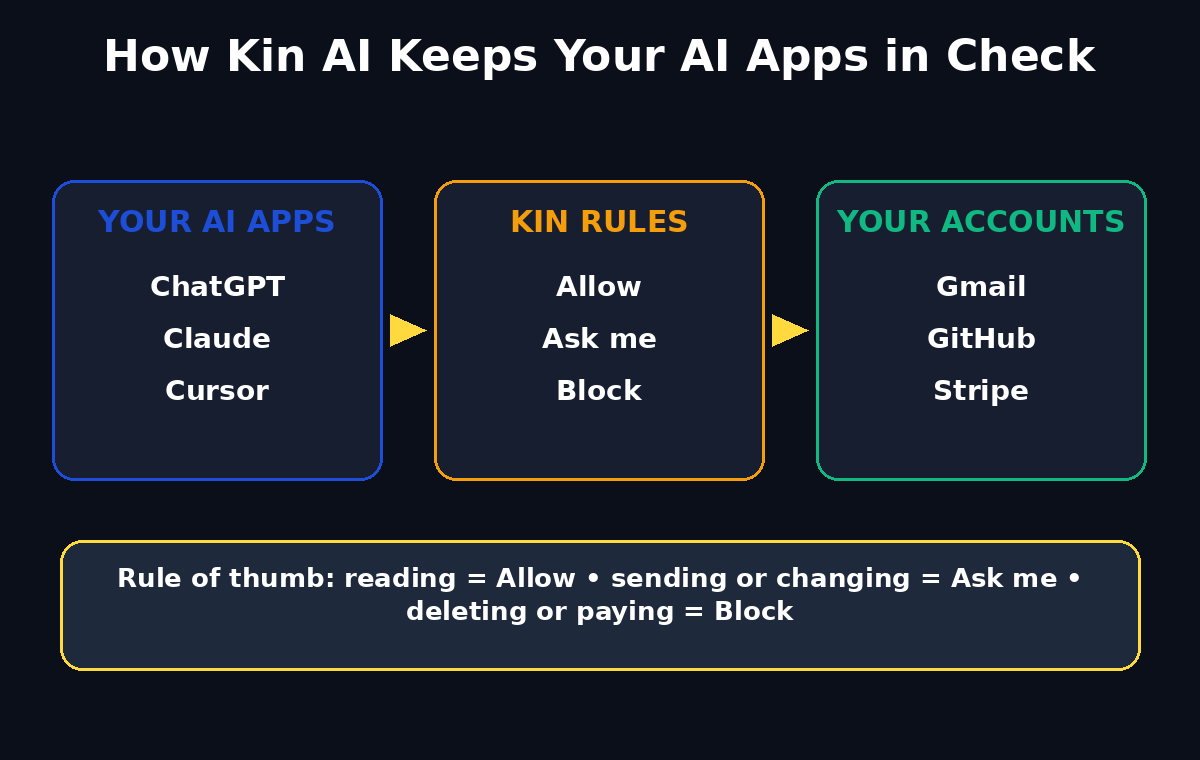
Kin AI fixes that by sitting in the middle. You connect GitHub, Gmail, and Stripe to Kin once. Then you add Kin to every AI app you use. From that point on, every action an AI tries to take on your accounts passes through Kin's rules. If the rule says Allow, it goes through. If it says Ask me, Kin waits for your approval on the web or your phone. If it says Block, the action is stopped cold.
The idea, in the words of Kin's maker Troy, is simple: the AI labs should not own your setup. You should. Kin lets your AIs run free while keeping them in check, and when a new AI app appears, it inherits the rules you already set instead of starting from zero.
Kin launched on Product Hunt on October 28, 2026, and it is free to start. That makes it one of the most practical free AI tools of late October 2026, because it solves a worry every AI user already has: how much access am I really giving away?
Step 2: Create Your Free Kin Account
Head to Kin's website and sign up for a free account. No credit card is required to start, and the free tier covers the core experience: connecting accounts, setting rules, and approving actions.
Use an email address you check regularly, because approval requests can arrive there as well as on your phone. Pick a strong, unique password and turn on two-factor authentication if Kin offers it during signup. This account becomes the control room for all your AI access, so it deserves the same care you give your email account itself.
Once you are inside, you will see a clean dashboard with three areas: your connected accounts, your AI apps, and your rules. Do not rush to connect everything at once. The next steps add one piece at a time, so you always know what changed and why.
Step 3: Connect GitHub, Gmail, and Stripe Once
Kin's biggest time-saver is that you connect each account only once. Open the connections section and start with the account you use most. For many beginners, that is Gmail, because email is where AI assistants do the most useful — and most sensitive — work.
Click to connect Gmail and approve Kin's access in Google's own sign-in window. You are granting access to Kin, not to each individual AI app, which is exactly the point: one trusted gatekeeper instead of a dozen separate permissions. Repeat the process for GitHub if you write code, and for Stripe if you sell anything online. You can skip any account you do not use; Kin works fine with just one connection.
After each connection, check that it shows as active on the dashboard. If a connection shows an error, disconnect it and reconnect it before moving on. A half-connected account is worse than an unconnected one, because you might assume a rule is protecting something it cannot see.
Step 4: Add Kin to ChatGPT, Claude, and Cursor
With your accounts connected, the next step is to add Kin to the AI apps you already use. Kin supports the major AI apps, including ChatGPT, Claude, and Cursor, so most beginners can cover their whole toolkit in a few minutes.
In each AI app, look for Kin in its integrations, tools, or connected-apps settings, and follow the prompts to link it to your Kin account. The exact clicks differ slightly between apps, but the pattern is the same: the AI app asks to use Kin, you approve it in Kin, and from then on that app's account actions flow through your rules.
A useful habit is to add one AI app, test it with a harmless request (Step 7 shows how), and only then add the next. If something behaves unexpectedly, you will know exactly which app and which rule caused it. Businesses that manage many AI tools often get help from a specialist team, such as a digital agency that already handles AI automation services for clients — but for a personal setup, the self-serve flow is all you need.
Step 5: Set Your First Rules — Allow, Ask Me, Block
Rules are the heart of Kin AI, and they are refreshingly simple. Every action an AI wants to take falls into one of three buckets:
- Allow: The action goes through automatically. Use this for low-risk, repetitive work, such as reading your own calendar events or listing open GitHub issues.
- Ask me: Kin pauses the action and waits for your approval on the web or your phone. Use this for anything that sends, spends, or changes something — sending an email, merging code, issuing a refund.
- Block: The action is refused outright. Use this for anything you never want an AI to do, such as deleting repositories, changing Stripe payout settings, or emailing your entire contact list.
Start conservative. A good beginner setup is: reading actions on Allow, sending and changing actions on Ask me, and deleting or payment-changing actions on Block. You can loosen rules later as you learn what each AI app actually does. It is far easier to approve a few extra requests in week one than to undo an action you wish you had blocked.
Write your rules down as you set them, even briefly. When you add a new AI app next month, that note is what stops you from re-learning the same lessons.
Step 6: Let Your AIs Pick Up Each Other's Work
One of Kin's cleverest features is that your AIs can build on each other's work. Because they all go through the same control layer, an AI in one app can pick up where another left off, under the same rules.
Here is a practical example. Ask Claude to draft a reply to an important email, then ask ChatGPT to tighten the wording — both actions pass through Kin, both obey your Ask-me rule for sending, and nothing goes out until you approve the final version. Or let Cursor open a GitHub issue that Claude spotted while reviewing code, with the same Block rule on deletions protecting you in both apps.
This shared-rule setup is also what makes adding a new AI app painless. When the next big AI tool launches, you do not rebuild your permissions from scratch. You add Kin to it, and your existing rules apply immediately. That is the real meaning of "no single lab owns your setup" — your control layer travels with you, not with any one vendor.
Step 7: Test With a Safe First Request
Before trusting Kin with real work, run a small test. Pick a harmless, read-only task: ask your AI app to list your five most recent GitHub issues, or to summarise the subject lines of your last ten emails without opening them.
Watch what happens in Kin. A read action you set to Allow should complete instantly. Now try a sending action — ask the AI to draft (not send) an email, then change the rule for sending to Ask me and ask it to send a test email to yourself. Kin should pause and show you an approval request on the web or your phone. Approve it, and confirm the email arrives. Deny a second test request, and confirm nothing is sent.
This five-minute test teaches you more than any tutorial. You see the rules working, you learn where approval requests appear, and you build the confidence to hand over bigger tasks later.
Step 8: Handle Approval Requests on the Web or Your Phone
Ask-me approvals are where Kin earns its keep, so make them part of your routine. When an AI action needs approval, Kin notifies you and shows exactly what the AI wants to do: which app asked, which account it touches, and what will change.
Read the request before tapping approve. Check the recipient of an email, the amount of a payment, and the repository a code change targets. If anything looks off, deny it — denying is always safe, and you can ask the AI to explain itself and try again. Over time you will notice patterns: some requests you approve every time (those are candidates for an Allow rule), and some you always deny (those belong on Block).
If approvals start to feel noisy, do not turn the rules off. Instead, tighten the scope: move one specific action from Ask me to Allow, and keep everything else guarded. The goal is fewer interruptions, not zero protection.
Step 9: Review Your Activity and Tighten Rules Weekly
Set a weekly five-minute review. Open Kin's activity log and scan what your AIs actually did: which apps were busiest, which rules triggered most, and whether any action was blocked.
Look for three things. First, repeated approvals for the same safe action — loosen those to Allow. Second, any blocked action you did not expect — find out which app tried it and why. Third, any connected account or AI app you no longer use — disconnect it. Unused connections are the permissions most people forget, and forgetting them is how access quietly piles up.
This weekly habit is also how teams stay in control as they grow. Larger setups sometimes bring in outside help for AI automation services, and the same principle applies at any scale: the rules should be reviewed, not just set and forgotten. For a personal setup, five minutes a week is plenty.
Step 10: Grow Safely as New AI Apps Appear
New AI apps launch every week, and the temptation is to try each one with full access on day one. Kin gives you a safer way to experiment: add the new app through Kin, start with Ask me on everything that changes state, and loosen rules only after a week of good behaviour.
That discipline matters because the AI landscape changes fast. A tool that is read-only today may add sending, spending, or publishing features tomorrow. With Kin in the middle, those new capabilities still pass through your rules, so a feature update cannot quietly widen an app's access without you noticing.
Keep your Kin account itself secure as your setup grows: a unique password, two-factor authentication, and a quick check of connected apps whenever you hear about a security incident at any AI company you use. Your control layer is only as strong as its own login.
Kin AI vs Other Ways to Control AI Access
| Approach | How it works | Best for | Drawback |
|---|---|---|---|
| Kin AI rules | One control layer, Allow / Ask me / Block per action | People using several AI apps | New tool, still adding integrations |
| Per-app permissions | Each AI app gets its own access settings | Using a single AI app | Permissions scatter across apps |
| No connections at all | Copy-paste between AI apps and your accounts | Maximum caution | Slow, manual, no automation |
| Full access everywhere | Every AI app connected directly, all permissions on | Fast experiments | No oversight, hard to revoke |
For most beginners, Kin AI is the sweet spot: it keeps the automation that makes AI useful, while giving you one place to see and control what every AI app can do.
Frequently Asked Questions
Is Kin AI really free?
Yes, Kin is free to start — no credit card is required to create an account, connect GitHub, Gmail, or Stripe, and set Allow, Ask me, and Block rules. Check Kin's pricing page for any paid tiers that may appear as the product grows, since launch pricing can change.
Which AI apps work with Kin AI?
Kin works with the AI apps most beginners already use, including ChatGPT, Claude, and Cursor. Because Kin sits between the AI app and your accounts, a new AI app you add later inherits the rules you already set.
Does Kin AI read my emails or code?
Kin routes and gates your AI apps' actions on your connected accounts; it is a control layer, not another chatbot. Your rules decide what each AI app may read or change, and Ask-me approvals let you inspect actions before they happen.
What happens if I deny an approval request?
Nothing happens — the action is stopped, and your account is unchanged. You can ask the AI to explain the request, adjust it, and try again, or change the rule if you want that action to be allowed or blocked permanently.
Can Kin AI stop an AI from deleting something important?
Yes. Set deletions to Block for repositories, emails, or payments, and Kin will refuse those actions outright, no matter which AI app requests them. This is the single most valuable rule for beginners to set on day one.
Is Kin AI better than managing permissions app by app?
For anyone using more than one AI app, yes. Per-app permissions scatter across settings pages and are easy to forget; Kin gives you one dashboard, one activity log, and rules that travel with you to every new AI app you try.
Final Thoughts
Kin AI answers a question every AI user eventually asks: how do I let these powerful tools help me without handing them the keys to everything? By connecting your accounts once and setting three simple rules — Allow, Ask me, Block — you get the speed of AI automation with a human in the loop exactly where it matters.
Start today: create your free account, connect one account, add one AI app, and run the safe test from Step 7. Once you have seen an approval request pause an action you were unsure about, you will never want to go back to unmanaged AI access.
Explore More Free AI Tools
Want to keep building with free AI? Try the AI Title Generator, Meta Description Generator, AI Rewriter, and Keyword Density Checker at https://aitoolsteps.com/ — they are free, beginner-friendly, and a great next step after securing your AI setup with Kin.