
Introduction
Making a video used to mean expensive software, a powerful computer, and hours of editing. AIVideoFree AI changes that equation completely. Relaunched on October 30, 2026, AIVideoFree is a free AI video generator that lets you create short videos from a simple text prompt or a photo, using some of the best video models in the world — including Veo, Kling, and Seedance — without paying anything to start.
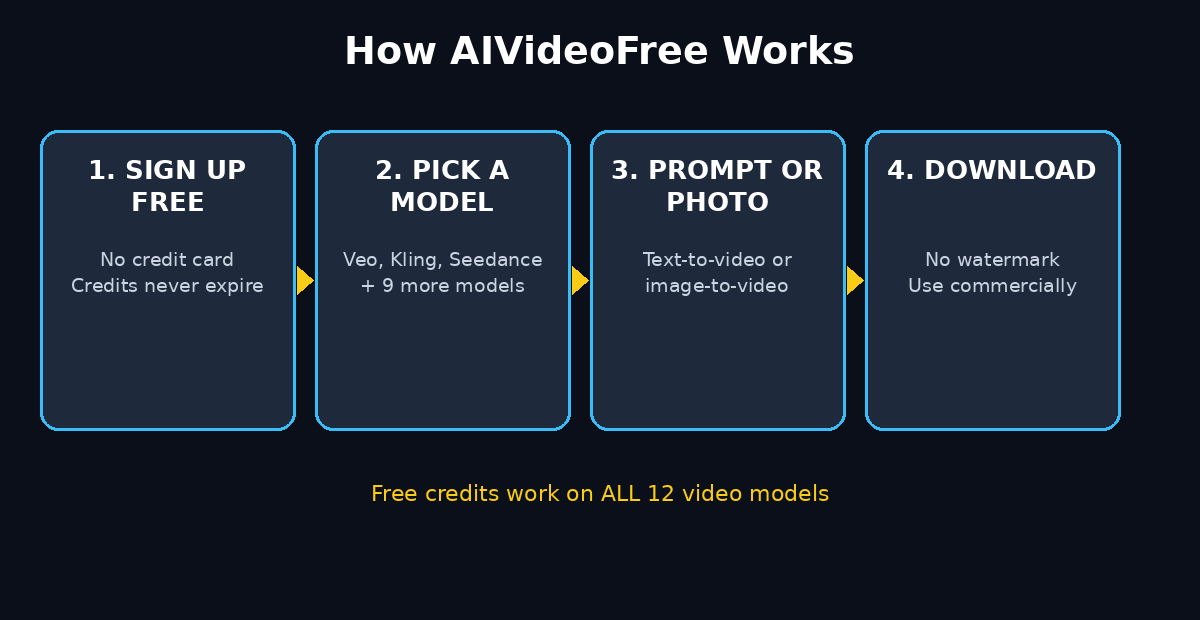
What makes this relaunch genuinely exciting for beginners is the freedom it offers. The free credits you receive when you sign up work on all 12 of the platform's video models and all 10 of its image models. There is no watermark on your downloads, your credits do not expire, and you can even use videos made with free credits commercially. You do not need a credit card to sign up, and everything runs in your web browser, including on your phone.
In this beginner guide, you will learn exactly how to use AIVideoFree AI, step by step: how to sign up, how to write prompts that actually look good, how to turn photos into moving clips, how to pick the right model for each job, and how to avoid wasting your free credits. By the end, you will be able to create your first polished AI video in under ten minutes.
Step 1: Understand What AIVideoFree AI Actually Is
AIVideoFree is an online AI video and image generation platform based in Singapore. Think of it as a single front door to many different AI video models. Instead of signing up for five separate tools and paying five separate subscriptions, you sign up once and choose the model that fits each project.
Here is what you get in one place:
- 12 video models, including Veo, Kling 3.0, Seedance 2.5, Wan 3.0, and Minimax H3.
- 10 image models for creating pictures, thumbnails, and start frames for your videos.
- Text-to-video generation from a written description.
- Image-to-video generation that animates a photo, with support for start and end frames.
- No watermark on downloaded videos, even on the free tier.
- Credits that never expire, so there is no pressure to rush through them in a week.
The core idea is simple: free to start, and free to choose. Your free credits are not locked to one cheap model while the good models sit behind a paywall. They work the same way as purchased credits, on every model offered.
Step 2: Sign Up for Free in Under Two Minutes
Getting started is deliberately painless, and that is part of the appeal for beginners.
- Visit the AIVideoFree website at aivideofree.com and click Sign Up.
- Create your account with an email address or a social sign-in option. No credit card is required.
- Check your free credits. Your starting balance appears in your account dashboard. Note that the exact number of free credits can vary by country, so your balance may differ slightly from another user's.
- Confirm the credit cost before you generate. Every model shows its credit cost upfront, so you always know what a video will cost before you spend anything.
A quick tip for new users: do not burn your first credits on a long, complex test. Start with one short, simple clip to learn how the platform feels, then scale up once you understand the prompt style that works best.
Step 3: Create Your First Text-to-Video Clip
Text-to-video is the fastest way to see what AIVideoFree can do. Here is the beginner workflow:
- Choose Text to Video from the main creation screen.
- Pick a model to start with. If you are unsure, Veo or Kling are safe, reliable first choices for realistic motion.
- Write a clear prompt describing the scene, the subject, the action, and the camera. For example: "A golden retriever puppy running through autumn leaves in a sunny park, slow motion, warm afternoon light, camera following from the side."
- Set the length and aspect ratio. Short clips are best for learning, and vertical video suits social media while landscape suits YouTube.
- Check the credit cost, then click Generate.
- Wait for the render, preview the result, and download it if you like it. If it is not quite right, tweak one thing in the prompt and try again.
Good prompts are specific but not overloaded. Describe who is in the scene, what they are doing, where they are, and how the camera moves. Leave out contradictory instructions, and avoid asking for three different actions in a single short clip.
Step 4: Turn a Photo into a Moving Video
Image-to-video is where AIVideoFree becomes genuinely useful for creators who already have pictures they love. You can upload a photo and turn it into a short clip, which is perfect for animating product photos, portraits, artwork, or travel shots.
- Choose Image to Video and upload your photo.
- Optionally set a start frame and an end frame if you want to control where the motion begins and ends. This is a powerful feature for storytelling, because it lets you plan a clear visual journey.
- Describe the motion you want: "camera slowly zooms in, leaves sway gently, the subject smiles and looks toward the camera."
- Pick a model known for smooth motion, such as Seedance or Kling, and generate.
- Preview, download, and reuse the clip in a longer edit if you want.
This feature is also a smart way to test models cheaply. The same photo animated by two different models can look surprisingly different, and comparing them teaches you which model to reach for next time.
Step 5: Pick the Right Model for Each Job
With 12 models available, choosing can feel overwhelming. You do not need to master all of them. Start with this simple rule: match the model to the job, not to the hype.
- Veo: Strong for realistic, cinematic scenes with natural motion and lighting.
- Kling 3.0: Excellent for smooth, detailed movement and expressive characters.
- Seedance 2.5: A great all-rounder for fast, creative clips and social content.
- Wan 3.0: Useful for stylised and artistic looks when realism is not the goal.
- Minimax H3: Worth trying for character-driven scenes and dynamic action.
The practical approach is to keep a small personal note of what worked. After each generation, write down the model, the prompt style, and whether you liked the result. Within a week, you will have your own cheat sheet, and model choice will stop feeling like guesswork. Small businesses exploring video often pair a tool like this with professional help from a digital agency for strategy, while using AIVideoFree for fast drafts, social clips, and experiments.
Step 6: Write Prompts That Actually Look Good
Prompt writing is the skill that separates a blurry, jittery clip from a video that looks intentional. Beginners usually make two mistakes: prompts that are too vague ("a nice video of a dog") and prompts that are too crowded ("a dog running, jumping, swimming, dancing, while it rains, at sunset, in space, with fireworks").
Use this simple four-part formula instead:
- Subject: Who or what is in the scene?
- Action: What exactly are they doing?
- Setting: Where and when is it happening?
- Camera and mood: How does the camera move, and what is the lighting or feeling?
A strong example: "A street food vendor flipping noodles in a busy night market in Bangkok, steam rising, neon signs glowing, camera moves slowly around the stall, warm cinematic light." One clear action, one clear place, one camera move. That is enough.
Also, generate short first. Short clips cost fewer credits, render faster, and let you test an idea before committing to a longer version. If the short version looks good, extend the idea rather than starting over.
Step 7: Make Social Media Videos That Stand Out
AIVideoFree is built for the kind of short, punchy video that performs well on TikTok, Instagram Reels, and YouTube Shorts. The workflow for social content is slightly different from making a single beautiful clip.
- Start vertical. Choose a 9:16 aspect ratio so the video fills a phone screen.
- Hook in the first two seconds. Put the most interesting motion or visual right at the start, not after a slow fade-in.
- Keep it short. Ten to twenty seconds is plenty for a first test, and shorter clips are cheaper to iterate on.
- Add text and sound in an editor. AIVideoFree handles the visuals; a free editor like CapCut adds captions, music, and transitions.
- Test two versions. Generate the same idea with two different models and post the stronger one. Your audience will tell you what works.
One honest caution: AI video is a creative tool, not a shortcut to guaranteed views. The creators who win with it are the ones who combine good visuals with a clear idea, a strong hook, and consistent posting. If you want to scale that workflow, learning how AI automation services can handle repetitive production steps is a useful next step once the basics feel easy.
Step 8: Manage Your Free Credits Like a Pro
Free credits are generous, but they are not infinite, so a little planning goes a long way. Because AIVideoFree credits do not expire, you can afford to be patient and strategic instead of rushing.
- Always check the cost first. The platform shows the credit cost before generation, so never click blindly.
- Test short, then commit. Use short clips to validate a prompt before generating a longer version.
- Reuse good results. A strong clip can be reused across platforms with different captions, instead of generating a new one for each app.
- Compare models on the same prompt. This teaches you more in one afternoon than weeks of random testing.
- Buy only when you need to. Extra credits are sold as one-time packs starting at $6.90 for 600 credits, and annual plans start at $7.40 per month billed yearly, but a subscription is not required. Start free, and only pay once you know exactly how much video you actually make.
Because your free credits work on every model, there is no need to save them for a "premium" model. Spend them learning, and spend them on real projects.
Step 9: Fix Common Beginner Problems
Most early frustrations with AI video have simple fixes. Here are the ones beginners hit most often:
- The video looks jittery or warped: Simplify the prompt. One action, one camera move, and fewer moving subjects usually fix it.
- Faces look strange: Avoid extreme close-ups and fast head turns in your first attempts. Medium shots are far more forgiving.
- The motion does not match your prompt: Try a different model. Some models handle certain actions much better than others.
- Text in the video is garbled: AI video models still struggle with on-screen text. Add titles and captions in a video editor instead.
- The clip feels too short: Generate a follow-up clip with an end frame that matches, or stitch two clips together in an editor.
- You ran out of ideas: Animate a photo you already have, or turn a blog post, product description, or travel memory into a visual scene.
If a generation fails completely, do not immediately regenerate the same prompt. Change one element — the model, the camera instruction, or the action — and test again. That is how you learn what the tool actually responds to.
Step 10: Compare AIVideoFree with Other AI Video Tools
AIVideoFree is not the only AI video generator, but its relaunch makes it unusually beginner-friendly. Here is how it compares with the tools beginners usually consider:
| Tool | Best For | Free Tier | Model Choice | Watermark on Free |
| AIVideoFree | Trying many top models free | Free sign-up credits, no expiry | 12 video models | No |
| Google Flow | Cinematic Veo clips | Limited daily credits | Veo only | Depends on plan |
| Runway | Professional video editing | Limited free credits | Own models | Yes, on some plans |
| Luma Dream Machine | Fast creative clips | Limited free generations | Own models | Varies |
| Seedance (standalone) | High-quality short clips | Trial credits | Single model | Varies |
The honest takeaway: if you want to experiment with Veo, Kling, and Seedance without paying for three subscriptions, AIVideoFree is currently the easiest place to start. If you later settle on one model you love, a dedicated subscription to that model may make sense — but you will be choosing from experience, not from marketing.
Frequently Asked Questions
Is AIVideoFree really free?
Yes, to start. You receive free credits when you sign up, with no credit card required, and those credits do not expire. Videos made with free credits download without a watermark and can be used commercially under the platform's terms. Paid credit packs and plans are optional extras, not a requirement.
Which AI video models does AIVideoFree offer?
AIVideoFree offers 12 video models, including Veo, Kling 3.0, Seedance 2.5, Wan 3.0, and Minimax H3, plus 10 image models. Your free credits work on all of them, so you can compare models on the same prompt before deciding which one you prefer.
Can I use AIVideoFree videos commercially?
According to the platform's relaunch terms, content made with free credits may be used commercially, and downloads carry no watermark. As with any tool, it is still wise to check the current terms on the site before using a video in a paid campaign, since terms can change.
Do I need a powerful computer to use AIVideoFree?
No. AIVideoFree runs in a web browser, including on mobile devices, and the heavy rendering happens on the platform's servers. Any device that can run a modern browser can create videos with it.
Is AIVideoFree good for beginners?
Yes, it is one of the most beginner-friendly options available right now. The interface is simple, the credit cost is shown before you generate, and the free tier lets you learn by doing without financial risk. Start with short text-to-video clips, then move on to image-to-video once you are comfortable.
What should I do if my first video does not look good?
Simplify your prompt, try a different model, and generate a short test clip first. Most poor results come from overloaded prompts or the wrong model for the job, not from the tool being broken. Keep a note of what worked, and your results will improve quickly.
Final Thoughts
AIVideoFree's October 2026 relaunch is good news for anyone who has wanted to make AI videos but did not want to pay for multiple subscriptions just to experiment. Free credits that work on every model, no watermark, no expiry, and commercial use included remove almost every barrier that used to stop beginners.
The best way to learn it is to start today: sign up free, generate one short clip with a simple prompt, animate one photo you already like, and compare two models on the same idea. That one afternoon of hands-on practice will teach you more than hours of reading about AI video.
Once you have your first few clips, turn them into real content — a social post, a product teaser, or a short story — and keep iterating. The tools will keep improving, but the creators who benefit most are the ones who start now, while the free tier is this generous.
Explore More Free AI Tools
Want to keep building your AI toolkit? Try these free tools from AIToolSteps: AI Title Generator, Meta Description Generator, AI Rewriter, and Keyword Density Checker. Each one is free, beginner-friendly, and designed to help you create better content faster.