

Most AI tools answer you and forget you. You type a prompt, you get a reply, and tomorrow you start from zero again. CREAO AI is built to fix exactly that: it is an AI agent platform that can work through tasks in a conversation and then turn your successful sessions into reusable agents — saved ways of doing the same job with new inputs, again and again.
Best of all, you can start completely free: the Free plan needs no credit card and gives you 30 one-time credits plus 5 daily bonus credits to learn with. This beginner guide walks you through everything step by step — creating an account, writing a clear brief, checking the output, saving your first agent, connecting apps safely, and deciding whether a paid plan is ever worth it.
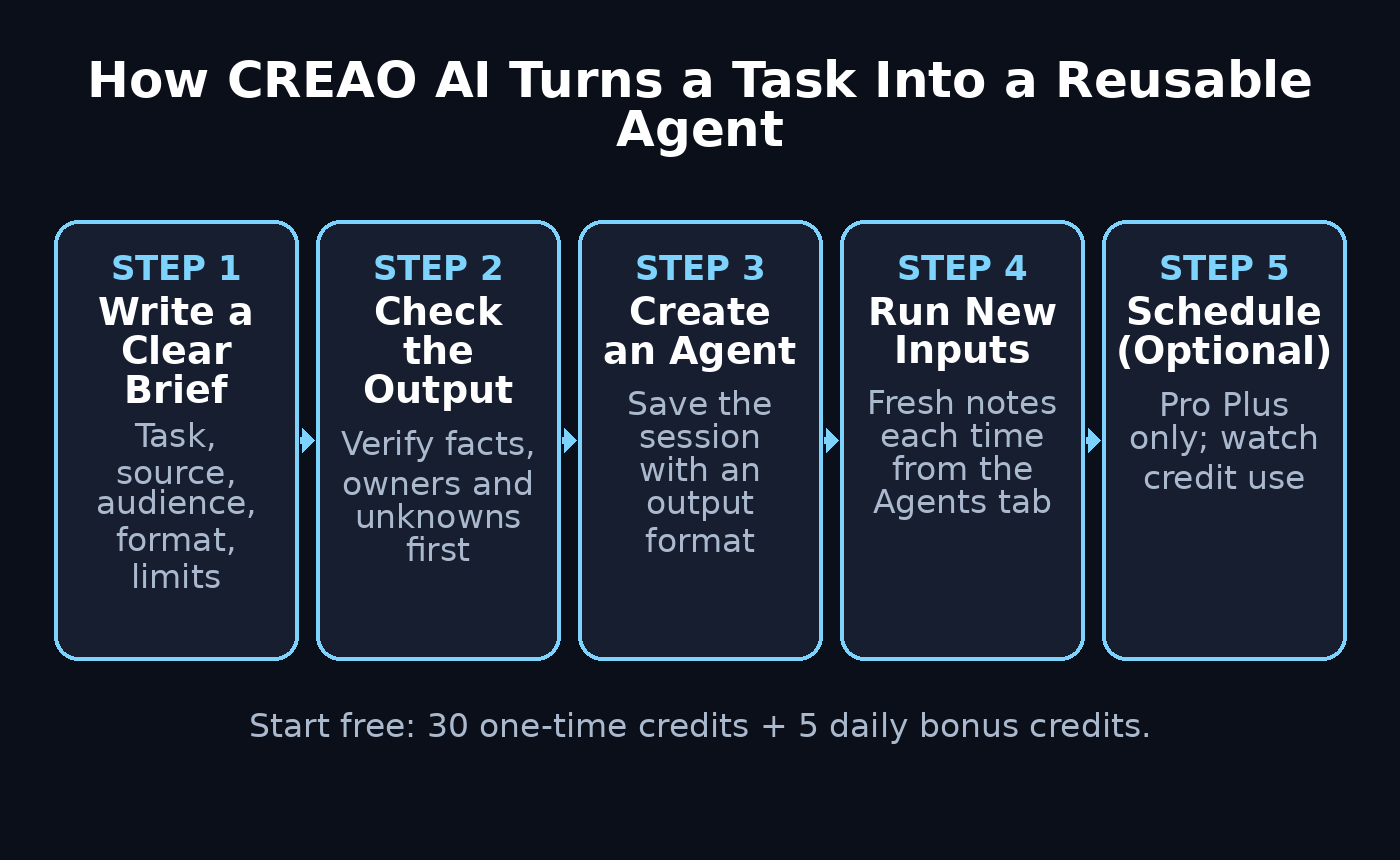
Step 1: Understand What CREAO AI Actually Is
Before you click anything, understand what makes CREAO different from a regular chatbot. A chatbot is a conversation: you ask, it answers, the chat ends. An agent in CREAO is a saved workflow: once you get a task working well in a chat, you can save it as an agent and re-run it later with fresh inputs — different notes, different week, same reliable structure.
Think of it like this: a chatbot gives you one answer once. A CREAO agent gives you a repeatable assistant for a specific job — like turning your rough project notes into a weekly status update every Friday, without re-explaining the format each time.
This guide covers CREAO’s browser app, which is where beginners spend all their time. You do not need coding skills. If you can type a clear message and read the result critically, you can use CREAO.
Step 2: Create Your Free Account
Go to CREAO’s official website and open the app. You can sign up for the Free plan without entering any payment details — no credit card is required to start.
Here is what the Free plan gives you as of this writing:
- 30 one-time credits to spend while learning
- 5 daily bonus credits that refresh each day
- Access to the browser app, chats, workspaces, and basic agents
Credits are the fuel of the platform: each run of a chat or agent consumes some credits. The daily bonus credits are perfect for practicing — you can experiment every day without spending your one-time pool. Prices and limits can change, so always check CREAO’s official pricing page for the current numbers before you commit to anything.
Step 3: Pick One Small First Task
Do not start with “automate my business.” That is the fastest way to waste credits and learn nothing. Instead, choose a small task whose answer you can verify yourself — something where YOU know what a good result looks like.
A great first task: turn a few fictional project notes into a short weekly status update. It is perfect practice because it needs no inbox access, no payment details, and no private client records. If the agent makes a mistake, nothing bad happens — you just correct the draft.
The rule for your first task is simple: a clear, accurate draft you would be happy to edit. Your goal is NOT to have an agent sending messages to real people without you reading them first. Start safe, start small, and let the automation come later.
Step 4: Open a Chat and Write a Clear Brief
Inside CREAO, select a workspace and open a New chat. Type your request in the input box and press Send (or Enter). The chat also supports file attachments and a Stop control if a run goes off track.
The quality of your brief decides the quality of your result. A weak instruction like “write an update” leaves too many decisions open, and the AI will guess — sometimes badly. Use this prompt formula instead:
Task + Source + Audience + Format + Limits
Tell it what to produce, where the material comes from, who it is for, exactly what shape the answer should take, and what it must NOT do. Here is a practice prompt you can copy:
Turn these fictional project notes into a weekly status update.
Audience: a small business owner.
Use simple English. Keep the update under 180 words.
Use only the notes below. Do not browse the web or connect to any accounts.
Do not send, publish or schedule anything.
Use four headings: Completed, Next actions, Blockers, Questions to confirm.
Keep each named owner. If a deadline is missing, write “Not provided”.
Do not invent dates, progress or decisions.
Notes:
– Alex finished the homepage draft.
– Jo needs to review the draft. No deadline was agreed.
– Product photos are still missing. No owner was assigned.
– The contact form test failed.
– Sam will repeat the form test after the email settings are checked.
– The launch date has not been confirmed.
Notice the boundaries: “do not browse the web,” “do not send, publish or schedule anything,” “do not invent dates.” Explicit limits are what separate a useful agent from a confident guesser. The names and notes above are fictional — practice with harmless data before you ever feed in real business material.
Step 5: Check the Output Before Improving It
Read the result against the original notes — not just for fluent writing, but for facts. A tidy, well-written answer can still contain wrong details, and this check is where beginners build the habit that makes agents trustworthy.
For the practice prompt above, verify these five things:
| Check | What the answer should preserve |
|---|---|
| Completed work | Only the homepage draft is stated as finished |
| Owners | Alex drafted it, Jo reviews it, Sam repeats the form test |
| Unknowns | The review deadline, photo owner, and launch date stay unconfirmed |
| Dependency | Sam’s repeat test comes after the email settings check |
| Boundaries | It produced a draft — nothing was sent, published, or scheduled |
If the AI invented a launch date out of thin air, do not start over. Correct that one specific mistake:
The notes do not give a launch date. Remove the invented date and put the launch date under “Questions to confirm”. Keep everything else unchanged.
Change one thing at a time. That way you can tell exactly which instruction improved the draft. For real work, also verify every figure, link, and quotation against its source — agents save time, but the final responsibility for accuracy is always yours.
Step 6: Save a Working Session as an Agent
Once a chat session produces exactly the result you want, save it so you never have to rebuild it. This is the moment a task becomes an agent.
In CREAO, the process looks like this:
- After a completed session, select Create Agent in the chat input bar.
- Choose an output format. Markdown suits a short written update; Dashboard and HTML are other available options.
- Add any extra instructions, then select Start building.
- Find the saved agent under Agents. Review its inputs and press Run — but this time, feed it a different set of notes.
Name your first agent something clear, like “Project update draft”. Then test it properly: give it fresh notes with a changed owner and a missing date, and check that it uses the new facts instead of repeating the old sample. A saved agent is only useful if it handles the NEXT input correctly, not just the one it was built from.
One important caveat for free users: CREAO lists agents on the Free plan, but “Custom agents” are a Pro feature. Its documentation does not settle every Free entitlement, so if your account asks for an upgrade at this step, do not assume it is included. You can still keep your prompt and run it manually in chat — you lose nothing except the one-click save.
Step 7: Add Files and Workspaces Only When Needed
CREAO can accept file attachments directly in chat, and its workspaces can hold files you reuse across conversations. This is how an agent graduates from working with pasted notes to working with your real documents.
Start small: upload a small, non-sensitive document and tell the agent exactly which material to use. Be specific about which file and which section — vague instructions like “use my files” lead to the agent pulling from the wrong document.
Keep passwords, API keys, and sensitive personal data out of ordinary prompts. Before you add real business material to a workspace, also check the workspace’s members and sharing settings so you know exactly who can see what. Treat workspaces like shared folders: convenient, but only as private as their settings.
Step 8: Connect Apps Carefully
A connector in CREAO gives the agent access to another service — it is not just a shortcut, it is real access. Read the permissions before connecting any account, and never connect your inbox just to practice writing a status update.
CREAO documents two autonomy modes for connected actions:
- Ask first — the agent proposes each action and waits for your approval.
- Auto — the agent acts without asking.
While you are learning, use Ask first every time and inspect each proposed action. This is the single most important safety habit in the whole platform. An instruction typed in your prompt is not a substitute for proper access controls, so do not rely on “please don’t send anything” when a connector can actually send.
A good progression: practice with no connections at all, then add one read-only connection, then — only when you fully understand the credit cost and the output quality — consider write access. Many users never need to go beyond Ask first, and that is perfectly fine.
Step 9: Consider Scheduling After a Reliable Manual Test
Scheduling is what turns a useful agent into true automation: the agent runs on its own at a set time and delivers the result. But scheduling also removes you from the loop, so it comes with strict rules.
Scheduled runs currently require the Pro Plus plan or higher. Shorter marketing copy may suggest otherwise, but the detailed pricing and scheduling documentation agree: free and lower tiers do not get scheduled runs.
If you are on an eligible plan, the setup is straightforward: open the agent’s Schedule tab, choose + Create Schedule, set the frequency, time, timezone, and delivery option, then review the next run time after saving. Keep your first recurring task draft-only — nothing should send itself until you have watched several runs succeed.
Two practical warnings from the official documentation: scheduled runs consume credits, and two consecutive skips caused by insufficient credits automatically pause a schedule. A saved schedule is not proof that work completed — always check the agent’s session history, not just an email notification. And remember the practice example from Step 4 uses pasted notes: scheduling it does not magically provide new notes each week. A recurring run only makes sense when there is a defined, permitted source of fresh information.
Step 10: Track Credits and Choose the Right Plan
Every run consumes credits, so the final beginner skill is learning to read your credit usage before you ever pay for more. Run a few useful tasks, note how many credits each one costs, and do the math.
Here is how the plans compare (advertised US-dollar monthly prices, checked October 2026 — always confirm at checkout):
| Plan | Monthly price | What you get |
|---|---|---|
| Free | $0 | Try a small chat task; 30 one-time credits plus 5 daily bonus credits |
| Pro | $20 | 200 monthly credits; custom agents, combined personal connectors, model selection |
| Pro Plus | $50 | 600 monthly credits and scheduled runs |
The honest upgrade rule: pay only when a feature or measured usage justifies it. If your own tests used 3 credits per run, 20 runs need about 60 credits before retries — that tells you whether Free’s daily bonuses cover you or whether Pro’s 200 credits make sense. Never upgrade because a feature asks for payment; upgrade because your numbers say the plan pays for itself.
If you run a business where content and outreach matter, this same discipline applies everywhere. For example, digital agencies like Digital 365 Agency routinely use AI agents to draft client reports and content briefs — but they measure output quality and cost per run before scaling anything. And when teams outgrow DIY automation, dedicated AI automation services can help design agent workflows that are safe, reviewable, and actually worth their credits.
Frequently Asked Questions
Is CREAO AI really free to start?
Yes. The Free plan requires no credit card and includes 30 one-time credits plus 5 daily bonus credits. That is enough to complete every step in this guide. You only need a paid plan when you want custom agents (Pro, $20/month) or scheduled runs (Pro Plus, $50/month).
Do I need coding skills to use CREAO?
No. The entire beginner workflow — chatting, writing briefs, creating agents, attaching files — happens in the browser app with plain-language instructions. Coding only enters the picture if you explore CREAO’s developer tools, which this guide does not cover.
How is CREAO different from ChatGPT?
ChatGPT gives you one answer per conversation. CREAO lets you save a successful session as a reusable agent with defined inputs, output formats, and optional scheduling — so the same job runs the same way every time with new data. If you repeat a task weekly, an agent beats re-typing the prompt.
Is my data safe in CREAO?
Reasonably, if you follow the basics: keep passwords and API keys out of prompts, use “Ask first” autonomy for connected apps, read connector permissions before approving them, and check workspace sharing settings before adding business material. Start with fictional practice data and only graduate to real files when the habit is solid.
Can CREAO send emails or post automatically?
Only if you connect those services and allow it — and on the Free plan, scheduled autonomous runs are not included anyway. While learning, keep everything draft-only: let the agent prepare, and you press send. Automation without review is where beginners get burned.
What happens if I run out of credits?
Runs stop until credits refresh or you upgrade. On the Free plan, your 5 daily bonus credits arrive each day, so a paused experiment can simply continue tomorrow. Note the scheduling rule: two consecutive skips from insufficient credits automatically pause a scheduled run.
Final Thoughts
CREAO AI rewards one habit above all: define a small result, check it carefully, then decide what is worth repeating. Start with a fictional status update, write a tight brief with real boundaries, verify the output like an editor, and only then save it as an agent. Keep connections on “Ask first,” keep schedules draft-only until they earn your trust, and let your measured credit usage — not a sales page — decide your plan.
Do that, and you will have something most AI users never get: not just answers, but a repeatable assistant that does one job reliably, every single time.
Explore More Free AI Tools
Want more beginner-friendly AI tools that actually save time? Try our free tools: the AI Title Generator for catchy headlines, the Meta Description Generator for SEO snippets, the AI Rewriter for polishing your writing, and the Keyword Density Checker for on-page SEO — all free at https://aitoolsteps.com/.