Every content creator has the same problem: hundreds of hours of video sitting on a hard drive, and no way to find the one clip they need. You know you said something brilliant in a livestream three months ago, but scrolling through raw footage for hours is not an option. This is exactly the problem Jockey AI was built to solve.
Jockey, from the team at TwelveLabs, lets you search inside your actual video footage — not file names, not tags you typed by hand, but the real content of the videos. You can look for a person, a moment, a spoken phrase, or a visual scene, and Jockey finds it across your whole library in seconds. In this beginner guide, you will learn what Jockey AI is, how to set it up, how to upload and search your videos, and how to use it with AI assistants like Claude and ChatGPT.
Whether you are a YouTuber sitting on an archive of footage, a marketer repurposing old webinars, or just someone who wants their camera roll to be searchable, this free guide will get you from zero to your first successful search in under 30 minutes.
Step 1: Understand What Jockey AI Actually Does
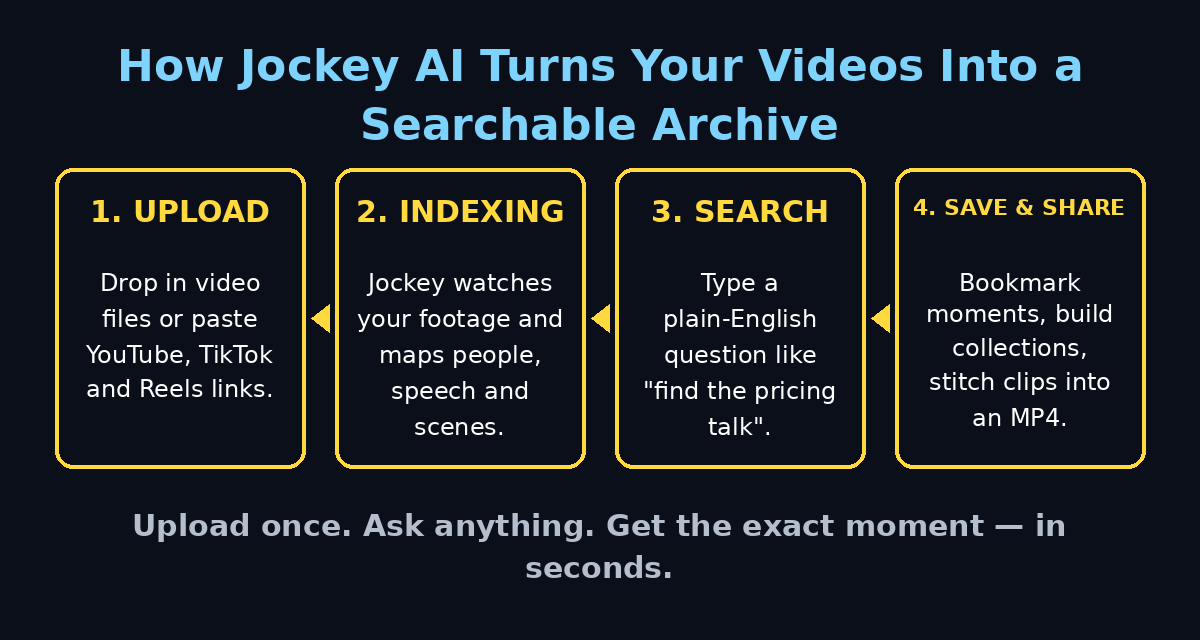
Before you sign up, it helps to understand what makes Jockey different from a normal file search. A normal search looks at file names and metadata. Jockey actually watches and understands your videos. It analyzes the visual frames, the spoken audio, and the on-screen context, then builds a searchable index of everything it finds.
Here is what you can search for with Jockey AI:
- People: find every clip where a specific person appears on screen.
- Moments: describe a scene in plain English (“the part where I open the gift box”) and Jockey jumps to it.
- Spoken words: find the exact moment someone said a phrase.
- Visual context: search for objects, actions, or settings (“beach at sunset”, “whiteboard drawing”).
Jockey also accepts links from YouTube, TikTok, and Instagram Reels, so you can import videos you published online without re-uploading files. And according to early coverage, it can even stitch selected clips into ready-to-share MP4 files — a huge time-saver for repurposing content.
Step 2: Check If Jockey AI Fits Your Needs
Jockey is most useful for people who already have video content they cannot search. Ask yourself these questions before you start:
- Do you have dozens or hundreds of hours of recorded video?
- Do you regularly waste time scrubbing through timelines to find one moment?
- Do you want to repurpose old content into shorts, clips, or compilations?
- Do you work with a team that needs shared access to a video archive?
If you answered yes to even one of these, Jockey is worth trying. Content teams, marketing agencies, educators with course libraries, and solo creators all fit the target audience. For agencies that manage content pipelines, pairing a searchable video archive with professional digital agency workflows can cut production time dramatically.
Step 3: Create Your Free Jockey Account
Getting started with Jockey is simple:
- Go to the official Jockey website (twelvelabs.app).
- Click the sign-up button and create your account with your email.
- Verify your email address if a confirmation is requested.
- Log in to reach the Jockey dashboard.
Take a moment to explore the dashboard layout: you will typically see an upload area, a search bar, your video library, and settings. Knowing where everything lives now will save you clicks later.
Step 4: Upload Your First Videos
Now add some footage for Jockey to analyze. You have two main options:
- Upload files directly: drag and drop video files from your computer into the upload area. Common formats like MP4, MOV, and WebM usually work.
- Paste a link: drop in a YouTube, TikTok, or Instagram Reels URL and Jockey will import the video for analysis.
Start with 3 to 5 videos rather than your entire archive. This lets you learn the search interface quickly while Jockey processes your first batch in the background. Larger libraries can take longer to index, so use this time to read the rest of this guide.
Step 5: Wait for Indexing (and Understand What Happens)
After upload, Jockey analyzes each video. This indexing step is where the AI watches your footage and builds the searchable map of people, speech, and scenes. Processing time depends on video length and current demand.
You do not need to sit and wait. You can keep browsing the dashboard, adjust your profile settings, or plan the searches you want to run. Jockey will show you which videos are ready to search, so check back periodically.
Step 6: Run Your First Semantic Search
This is the fun part. Once a video is indexed, type a natural-language query into the search bar, just like you would talk to a friend:
- “show me every time the red car appears”
- “the moment I talked about pricing”
- “clips of the product demo close-up”
- “find scenes with the dog running”
Jockey returns matching moments with timestamps and thumbnails. Click any result to jump straight to that moment in the video. Try several phrasings of the same idea — you will quickly learn how specific your descriptions need to be to get precise hits.
Step 7: Filter and Refine Your Results
If a search returns too many results, narrow it down:
- Use the time-range filter to limit results to a specific upload period.
- Filter by video or folder if you organized uploads into collections.
- Combine a visual description with a spoken-word phrase for tighter matches.
- Sort results by relevance or by video date.
Good refinement habits turn a list of 50 rough matches into the 3 perfect clips you actually need. Teams running high-volume content operations — like the AI automation services many agencies now offer — use these filters to build repeatable clip-finding workflows.
Step 8: Save Clips and Build Highlights
When you find a moment you like, save it:
- Bookmark or favorite important moments so you can find them again instantly.
- Create collections or playlists of related clips (e.g. “best reactions”, “product shots”).
- Use the clip-stitching feature to combine selected moments into a single MP4 file.
This turns Jockey from a search tool into a mini editing pipeline: find the moments, collect them, and export a finished highlight reel without opening a video editor.
Step 9: Use Jockey Inside Claude or ChatGPT
One of Jockey’s standout features is that you can query your video library from inside AI assistants like Claude or ChatGPT. Instead of switching apps, you describe what you need in a chat and the assistant searches your Jockey library for you.
- Connect Jockey to your assistant through the integration or API settings.
- Ask in plain language: “find the clip from last month’s webinar where I explained the refund policy.”
- Review the returned moments and export the ones you need.
This is especially powerful for creators who already live inside an AI assistant all day — your footage becomes just another thing you can ask about.
Step 10: Explore the API and SDK for Bigger Projects
If you are a developer (or work with one), Jockey offers an API and SDK so you can build video search into your own apps and workflows. Typical uses include:
- Building a searchable archive for a company media library.
- Automating highlight-clip generation for sports or events.
- Adding “search inside video” to a learning platform or course portal.
Check the official developer documentation for authentication, endpoints, and example code. Start with read-only search queries before you build anything that writes data.
Jockey AI vs Other Video Search Options
How does Jockey compare to the alternatives? Here is a quick overview for beginners:
| Option | How it searches | Best for | Beginner friendly? |
|---|---|---|---|
| Jockey AI | AI understands video content: people, speech, scenes | Creators and teams with large video archives | Yes — plain-English search |
| Manual file search | File names and folders only | Tiny libraries with good naming habits | Yes, but very limited |
| YouTube Studio search | Titles, descriptions, auto-captions | Published YouTube videos only | Yes, but shallow |
| Video editing software | Timeline scrubbing by hand | Frame-perfect editing work | No — slow and manual |
Tips to Get Better Results from Jockey AI
- Describe, don’t keyword-stuff: write full natural sentences (“a person pouring coffee in a bright kitchen”) instead of single keywords.
- Organize uploads into collections: folders by project or date make filtering much faster later.
- Test on a small batch first: learn how Jockey phrases its matches before you upload 500 hours of footage.
- Use links for public content: importing YouTube or TikTok links saves upload time and storage.
- Bookmark winners immediately: when a search finds the perfect clip, save it — future you will thank present you.
- Keep sensitive footage private: review sharing settings before inviting team members to your library.
Frequently Asked Questions About Jockey AI
Is Jockey AI free to use?
Jockey launched with free access during its early release period. Pricing may change as the product matures, so always check the official pricing page before you commit to a paid plan or upload your entire archive.
Who makes Jockey AI?
Jockey is built by TwelveLabs, a company known for video-understanding AI technology. The tool brings their video analysis models into a creator-friendly product.
Can Jockey AI search YouTube videos?
Yes. According to early coverage, Jockey can import videos from YouTube, TikTok, and Instagram Reels links, making your published content searchable too.
Does Jockey AI work with Claude and ChatGPT?
Yes — Jockey is designed to be queried from inside AI assistants like Claude or ChatGPT, so you can search your video library without leaving the chat window.
Can beginners use Jockey AI, or is it for developers only?
Beginners are welcome. The core experience is a search bar you type plain English into. The API and SDK are there for developers, but you never need to touch code to get value from the product.
What video formats does Jockey AI support?
Common formats such as MP4 and MOV are generally supported. If a file fails to upload, convert it to MP4 and try again — that resolves most format issues.
Final Thoughts
Jockey AI solves one of the most annoying problems in content creation: the unsearchable video archive. Instead of scrubbing through timelines by hand, you describe what you want in plain English and jump straight to the moment. For creators, marketers, educators, and teams sitting on hours of footage, that is not just convenient — it changes what is possible with old content.
Start small: upload a handful of videos, run a few natural-language searches, and bookmark your first perfect find. Once you see how fast it is, you will wonder how you ever managed a video library without it. And if video is part of a bigger content strategy, remember that the right tools — from searchable archives to professional digital agency support — compound over time.
Explore More Free AI Tools
Want to keep building your AI toolkit? Try these free tools on aitoolsteps.com:
- AI Title Generator — create catchy titles for your videos and articles in seconds.
- Meta Description Generator — write SEO-friendly descriptions that get clicks.
- AI Rewriter — polish your scripts and captions with one click.
- Keyword Density Checker — make sure your posts are optimized for search.