

Imagine describing the app you want in plain English and watching an AI build it for you — writing the code, creating the files, and even running it to check for errors. That is exactly what Google Antigravity AI, Google’s free AI coding agent, does. Available as both a desktop IDE and a command-line tool, it is quickly becoming the go-to free alternative to paid tools like Claude Code and Cursor.
The best part? The Individual plan costs $0. You only need a Google account — no credit card, no API key, no trial clock. There is a weekly usage limit, but for learning and side projects it is more than enough. In this beginner-friendly guide, you will go from zero to your first AI-built app in 10 simple steps, even if you have never written a single line of code.
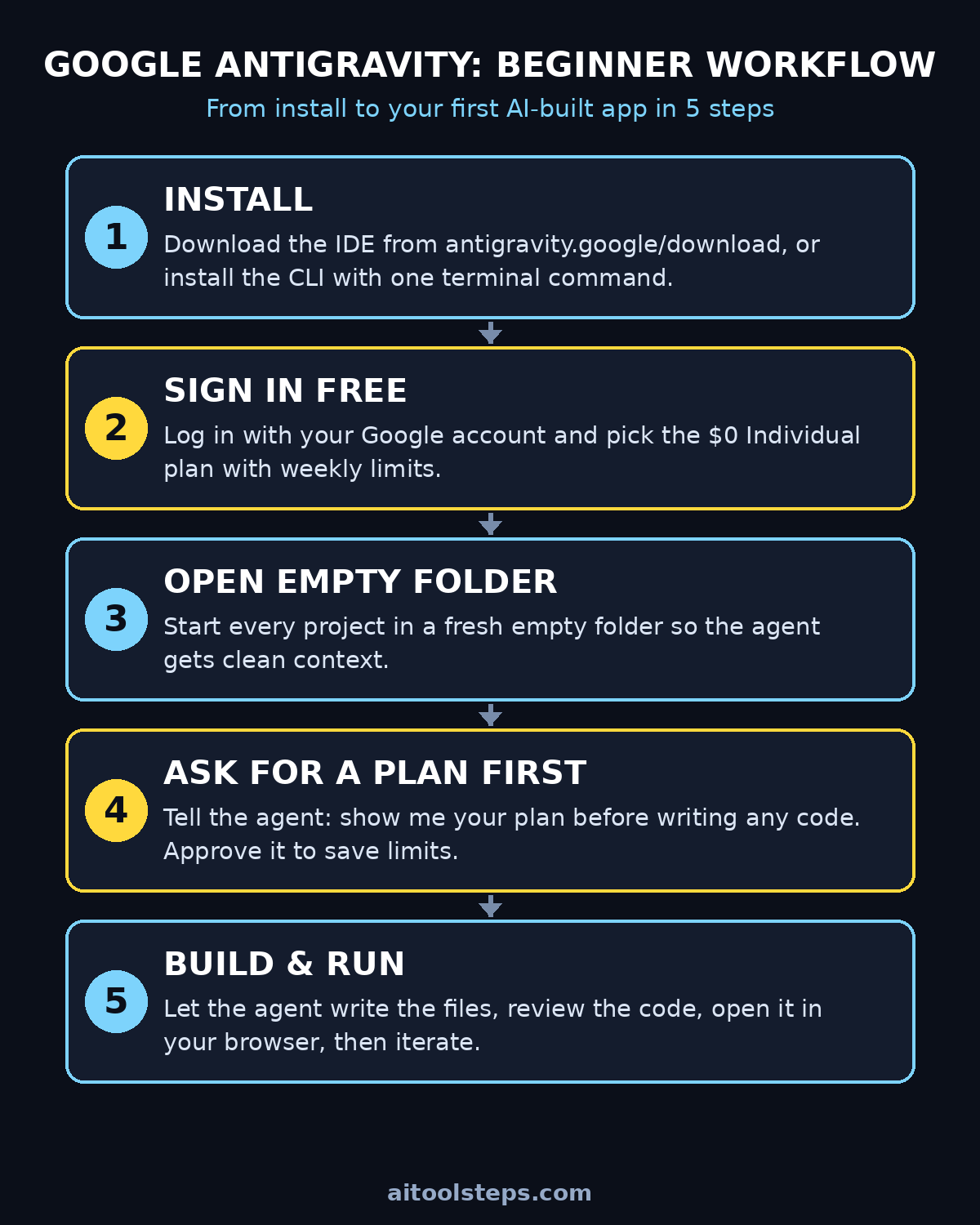
Step 1: What Google Antigravity AI Actually Is
Before installing anything, let us get clear on what you are dealing with. Google Antigravity AI is an agentic coding IDE — a code editor with a built-in AI agent that can read your files, write new code, run commands, and fix its own mistakes. You describe what you want; it does the typing.
It comes in two flavours:
- The desktop IDE — a full visual app you download and install, with a file explorer, editor tabs, an agent chat panel, and an integrated terminal.
- The CLI (command-line interface) — a terminal tool you start with the
agycommand, perfect for quick tasks without opening the full app.
The free Individual plan costs $0 and renews on weekly rate limits. Think of it as a generous weekly allowance of AI agent work. It is ideal as a second coding agent alongside tools you already use — not as an all-day replacement for a paid plan you depend on for work.
One more thing worth knowing: when Google ended the individual free tiers of Gemini CLI and Gemini Code Assist on 18 June 2026, free users were pointed to Antigravity as the replacement. So if you ever used Gemini CLI for free, Antigravity is its official successor.
Step 2: Check the System Requirements
Antigravity is refreshingly undemanding. Here is what you need:
- Operating system: macOS, Windows, or Linux — all three are supported with native installers.
- A Google account: this is your login and your free plan. No separate signup form.
- Disk space: a couple of gigabytes free for the app itself.
- Internet connection: the AI agent runs in the cloud, so you need to be online.
- Terminal basics (CLI only): you only need to copy and paste one install command.
You do not need a credit card, an API key, or any coding experience. If you can install an app and type a sentence, you can use Google Antigravity AI.
Step 3: Download and Install Google Antigravity AI
Let us get the app on your machine. This takes about two minutes.
- Open your browser and go to the official download page: antigravity.google/download. Always download from the official site — never from random mirrors or “free download” blogs, which may bundle malware.
- Pick the installer for your operating system (macOS, Windows, or Linux).
- Run the installer and follow the prompts, just like any normal app.
- Launch Antigravity from your applications menu or dock.
On first launch you will see a welcome screen. Do not click around randomly yet — the next step (signing in) unlocks everything, so head there first. If the app prompts you to check for updates later, say yes; Google ships improvements to the agent frequently.
Step 4: Sign In to Your Free Google Antigravity AI Plan
Signing in is what connects you to the free plan:
- When Antigravity asks you to sign in, choose your Google account and complete the login in your browser.
- Confirm the Individual plan ($0) when it is offered. This is the free tier with weekly rate limits — there is nothing to pay and no card to enter.
- Return to the app. You should now see the main workspace with the agent panel ready.
Once you are signed in to Google Antigravity AI, the agent panel unlocks and you are ready to build.
What counts against your weekly limit? Every time the agent does real work — planning, writing code, running commands. Casual questions cost far less than full builds, so keep your prompts task-focused and avoid using the agent as a general chatbot. Most beginners never hit the weekly cap because the agent is efficient when you give it clear instructions (more on that in Step 7).
Step 5: Tour the Workspace in 5 Minutes
Spend five minutes learning the layout now and you will save hours later. The IDE has four main areas:
- File explorer (left): every file in your project folder. The agent can see exactly what you see here — nothing more.
- Editor (centre): where code files open in tabs when you or the agent create them.
- Agent chat panel: the heart of Antigravity. You type requests here in plain English, and the agent responds with explanations plus the actions it wants to take.
- Integrated terminal (bottom): a command line inside the app. The agent can run commands here — installing packages, starting servers — but it will ask your permission first.
The most important habit: the agent proposes, you approve. Before writing files or running commands, Google Antigravity AI shows you a plan. You can approve it, edit it, or ask for changes. Nothing happens behind your back, which makes it safe for beginners.
Step 6: Open an Empty Project Folder (Do This First)
Here is a golden rule that experienced users swear by: always start in an empty folder.
Why? The agent works inside the folder you open. An empty folder means clean context — the agent is not confused by old files, and there is nothing important it can accidentally overwrite. It also keeps each project tidy and separate.
- Create a new folder on your computer and name it after your project (for example,
my-todo-app). - In Antigravity, go to File > Open Folder and select it.
- Confirm the file explorer shows an empty folder. You are ready.
Make this a ritual for every new idea. Future you will thank present you.
Step 7: Ask Google Antigravity AI for a Plan Before Any Code
This is the single most valuable habit in this entire guide: ask the agent to show you its plan before it writes any code. Approving the plan first saves your weekly limit, because the agent does not waste calls building the wrong thing.
Here is a copy-paste prompt that demonstrates the pattern perfectly:
“In this folder, build a one-page to-do list app (HTML, CSS and JavaScript in one file). Show me your plan first, then build it and tell me how to open it.”
When the agent replies with a plan, review three things:
- Files: which files will it create? (For the example above, it should be a single HTML file.)
- Approach: does the plan match what you imagined? Any libraries or frameworks you did not ask for?
- How to run: does it say how you will open or preview the result?
If the plan looks good, approve it. If not, reply with corrections — “actually, make it two files” or “skip the framework, keep it simple” — and it will revise. This back-and-forth is cheap; rebuilding from scratch is expensive.
Step 8: Give Your First Build Prompt (Copy-Paste Ready)
Once you understand the plan-first pattern, Google Antigravity AI can build almost anything you describe. The anatomy of a great Antigravity prompt has four parts: the goal, the stack (what tech), the constraints (one file, no framework), and the deliverable (how you will open it).
Try these three starter prompts:
- To-do list app: “In this folder, build a one-page to-do list app with add, delete, and mark-done features, all in one HTML file with embedded CSS and JavaScript. Show me the plan first, then build it and tell me how to open it in my browser.”
- Personal portfolio page: “In this folder, build a simple personal portfolio page for a photographer: hero section, photo grid with placeholder images, and a contact section. One HTML file, modern dark styling. Show me the plan first.”
- Expense tracker: “In this folder, build a simple expense tracker: a form to add expenses and a list showing the total spent. Store data in the browser so it survives refresh. One HTML file. Show me the plan first.”
Compare a weak prompt with a strong one:
- Weak: “make me an app” (the agent has to guess everything — vague, wasteful).
- Strong: “build a one-page to-do list app in a single HTML file with add/delete/done features; show me the plan first” (clear goal, clear constraints, plan-first).
For example, strong prompts like these are also how professional teams work — digital agencies such as the team at D365A use AI coding agents to prototype client ideas in hours instead of days. The skill is the same whether you are a beginner or a pro: describe the outcome precisely.
Step 9: Review, Run and Iterate Like a Developer
The agent has built your files. Now comes the fun part — seeing your app alive.
- Open the result: for a single HTML file, just double-click it and it opens in your browser. For anything needing a server, the agent will tell you the command (often it offers to run it for you — approve it).
- Click around: test every button and feature. Congratulations — you just “ran” software.
- Iterate in small steps: do not ask for ten changes at once. Instead, send focused follow-ups like “make the buttons bigger,” “add a dark mode toggle,” or “sort the list alphabetically.” Small iterations are cheaper on your weekly limit and easier to review.
- When something breaks: copy the error message (or screenshot it) and paste it back into the agent chat with “this error appeared when I clicked Save — please fix it and explain what went wrong in simple words.” The agent will diagnose and repair it, and the plain-English explanation teaches you as you go.
If you want to go one step further, ask the agent to initialise a Git repository in your folder (“please set up git here and commit the working version”). That gives you checkpoints you can roll back to — a genuine developer workflow, with zero prior knowledge required.
Step 10: Install the Google Antigravity AI CLI for Terminal Workflows
Prefer the terminal, or want to use the agent on a remote machine? The Google Antigravity AI CLI gives you the same AI agent without the full IDE.
macOS / Linux — paste this into your terminal:
curl -fsSL https://antigravity.google/cli/install.sh | bash
Windows — paste this into PowerShell:
irm https://antigravity.google/cli/install.ps1 | iex
Then:
- Close your terminal and open a new one. This is the step everyone forgets — the new command is not recognised until you do.
- Type
agyand press Enter. - Sign in with your Google account when prompted.
If you see agy: command not found, it almost always means the terminal was open before the install — close it and open a fresh one. The CLI shines for quick edits (“agy, add a footer to index.html”), working over SSH, or scripting agent tasks. The IDE remains better for big multi-file builds where you want the visual plan review.
Google Antigravity AI vs the Alternatives
How does Antigravity stack up against the other AI coding tools? Here is an honest comparison for beginners:
| Tool | Free plan | Best for | Watch out |
|---|---|---|---|
| Google Antigravity | $0 Individual plan, weekly rate limits | Beginners and developers who want a free agent IDE + CLI | Weekly caps mean it is a companion agent, not an all-day workhorse |
| Claude Code | Paid subscription / usage-based | Professional developers, deep agent workflows | No meaningful free tier; pairs well with Antigravity as a second agent |
| Cursor | Limited free tier | Fans of an AI-first code editor | Free requests run out quickly on real projects |
| Gemini CLI | Individual free tier ended 18 June 2026 | — | Google points free users to the Antigravity CLI instead |
Pricing and limits change often, so always confirm the current terms on each tool’s official page before committing to a workflow. For a beginner in 2026, Antigravity’s $0 plan is simply the most generous legitimate way to get an AI coding agent.
Pro Tips to Stretch the Free Plan
- Plan-first, always. Approving the plan before code is written is the number one way to avoid wasted agent calls.
- Batch related changes into one prompt instead of ten tiny ones.
- Keep the chat on-task. Every off-topic question nibbles your weekly allowance.
- Delegate GitHub chores to Jules — Google’s free async coding agent at jules.google handles repo tasks (15 free tasks a day) while Antigravity handles your local builds.
- Draft UI ideas in Stitch first — describe an app screen in one sentence and get designs plus front-end code free, then hand the design to Antigravity to wire up. Our Google Stitch beginner guide walks through it.
- Prototype bigger ideas in AI Studio — Google AI Studio lets you build Gemini-powered app prototypes right in the browser, a great sketchpad before a full Antigravity build.
- No-code fan? Lovable builds whole websites from prompts too — compare its output with Antigravity’s and pick whichever fits your project.
- Stay current on AI automation trends — the landscape shifts monthly, so following dedicated coverage like Agentic Affairs helps you catch new free tiers and agent tools the week they launch.
Frequently Asked Questions
Is Google Antigravity really free?
Yes. The Individual plan costs $0 — no credit card required. It comes with weekly rate limits on agent usage, which reset automatically. For learning, side projects, and small builds, most beginners never hit the cap. If you outgrow it, paid options exist, but the free tier is genuinely usable, not a teaser trial.
Do I need to know how to code to use Antigravity?
No. That is the whole point of an AI coding agent: you describe what you want in plain English and the agent writes the code. Knowing a little HTML or JavaScript helps you review its work and describe changes precisely, but plenty of beginners ship their first app on day one with zero coding background. The agent even explains its fixes in simple words when you ask.
How is Antigravity different from Claude Code or Cursor?
All three are AI coding agents, but they differ in access and price. Antigravity is Google’s offering with a genuine $0 Individual plan (weekly limits) and both IDE and CLI flavours. Claude Code is a terminal-first agent favoured by professionals, but it is paid. Cursor is an AI-first editor with a limited free tier that runs out fast. Many developers actually use Antigravity alongside one of the paid tools.
What happened to Gemini CLI’s free tier?
Google ended the individual free tiers of Gemini CLI and Gemini Code Assist on 18 June 2026. Antigravity — particularly the Antigravity CLI — is where Google pointed those free users. If you have old Gemini CLI workflows, the agy command and the Antigravity IDE are the supported path forward.
Can I use Antigravity for client or commercial work?
The agent itself does not restrict what you build, but you should read the current terms of service on antigravity.google before using it for client projects, since free-tier terms can change. Many freelancers and agencies already prototype with AI agents — the team at D365A, for example, uses them to turn client ideas into working demos fast — and Antigravity’s plan-approval workflow makes it easy to keep a human in the loop for professional work.
Will it run on my old laptop or Chromebook?
Antigravity ships native installers for macOS, Windows, and Linux, and most machines from the last decade run it fine since the heavy AI work happens in the cloud. Chromebooks can work via the Linux container (Crostini), though the experience varies — check the official download page for the latest system notes if you are on unusual hardware.
Final Thoughts
Google Antigravity AI is the rare free tool that genuinely delivers a premium experience: a full AI coding agent, in a polished IDE and a handy CLI, for $0 with just a Google account. The workflow to remember is simple — open an empty folder, ask for a plan first, approve it, then iterate in small steps. Do that, and your weekly free allowance will stretch across multiple projects.
Whether you are a student building your first to-do app, a freelancer prototyping client ideas, or just curious what AI agents can do, there has never been a cheaper moment to start building software. Download it from antigravity.google/download today, run your first prompt, and see what you can ship before lunch.
Explore More Free AI Tools
Want to keep building your free AI toolkit? Try these handy tools on AIToolSteps.com: AI Title Generator for click-worthy headlines, Meta Description Generator for perfect search snippets, AI Rewriter to polish your text, and Keyword Density Checker to fine-tune your SEO — all free, all in your browser.