

Imagine hiring a brilliant assistant who forgets everything the moment they leave the room. Every morning you would have to re-explain your project, your decisions, and your rules from scratch. That is exactly how most AI coding assistants behave today — every new chat starts with a blank memory. Claude Mem fixes that. It is a free, open-source tool that gives Claude Code a real long-term memory, so it remembers your project, your decisions, and your mistakes across every session.
In this beginner-friendly guide, you will learn how to use Claude Mem AI step by step: what it is, how to install it with a single command, how to check that it is working, and how to manage the memories it keeps. No advanced coding skills are required — if you can open a terminal and paste a command, you can do this.
Step 1: Understand What Claude Mem Actually Does
Claude Mem is an open-source plugin built by developer Alex Newman (known as thedotmack). It plugs into Claude Code — Anthropic’s terminal-based AI coding assistant — and acts as a persistent memory layer.
Here is the simple version of how it works:
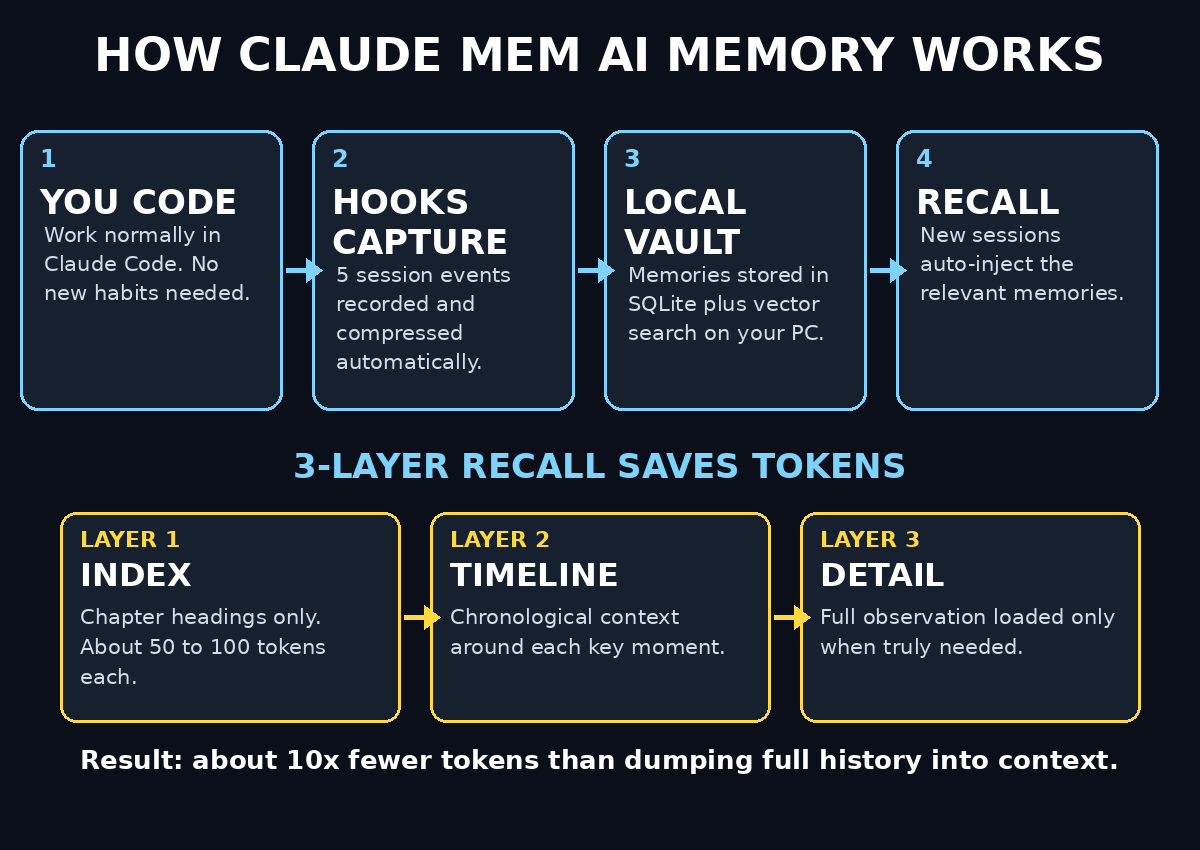
- It watches quietly in the background. Claude Mem hooks into five key moments of every Claude Code session: when a session starts, when you submit a prompt, after each tool is used, when the session stops, and when it ends.
- It saves what matters. Instead of storing everything, it extracts the meaningful bits — decisions you made, bugs you fixed, approaches that failed — and stores them in a database on your own computer.
- It reminds Claude automatically. The next time you start a session, Claude Mem injects the relevant memories back into the conversation, so Claude picks up exactly where you left off.
The result: you stop repeating yourself. Teams that use memory-enabled AI coding sessions report spending far less time re-explaining context, which is exactly why this tool has blown past tens of thousands of GitHub stars.
Step 2: Check the Prerequisites
Before installing anything, make sure you have these three things ready:
- Claude Code installed. Claude Mem is a companion for Claude Code, not a standalone app. You need Claude Code set up and working first.
- Node.js on your computer. The installer runs through
npx, which comes with Node.js. If you do not have it, download the LTS version from the official Node.js website — it takes two minutes. - A terminal you are comfortable opening. You only need to paste one command. On Mac, use Terminal; on Windows, use PowerShell or the Windows Terminal.
That is genuinely it. There is no account to create, no API key to buy, and no subscription. Everything runs locally on your machine.
Step 3: Install Claude Mem With One Command
This is the fastest method and the one most beginners should use:
- Open your terminal.
- Paste this command and press Enter:
npx claude-mem install - Wait for the installer to finish. If you are missing helper tools like Bun or uv, the installer fetches them automatically — you do not need to install anything else by hand.
- The installer registers Claude Mem’s lifecycle hooks and starts its background worker service.
- Restart Claude Code. This step is essential — the hooks only activate in sessions started after the install.
From this point on, memory capture begins immediately and automatically. You do not need to turn anything on or configure anything to get the basic benefit.
Step 4: Install It via the Claude Code Plugin Marketplace (Alternative)
If you prefer managing tools inside Claude Code itself, use the plugin marketplace route instead:
- Open Claude Code.
- Add the marketplace by typing:
/plugin marketplace add thedotmack/claude-mem - Then install the plugin:
/plugin install claude-mem - Restart Claude Code when prompted.
Both methods install the same tool, so pick whichever feels more natural. The npx command from Step 3 is slightly simpler for total beginners.
Step 5: Verify the Installation Is Working
Do not just assume it worked — verify it in under a minute:
- Start a fresh Claude Code session in any project folder.
- Look for Claude Mem’s memory injection at the start of the session: you should see a compact index of past observations, often with type indicators and the token cost of each item shown up front.
- Ask Claude a test question like: “What do you remember about this project from our previous sessions?”
- If it is your very first session, there will be nothing to recall yet — that is normal. Work for a while, end the session, start a new one, and ask again.
Seeing memories appear in the second session is your confirmation that the whole pipeline — capture, storage, and retrieval — is functioning.
Step 6: Run Your First Memory-Enabled Session
Now use Claude Code exactly as you normally would. The beauty of Claude Mem is that there is nothing new to learn here:
- Ask Claude to build a feature, fix a bug, or refactor a file.
- Make a deliberate decision out loud, for example: “We will use JWT tokens for authentication in this project.”
- Let the session run its course, then end it normally.
Behind the scenes, the hooks captured your prompts, the tools Claude used, what succeeded, what failed, and why. All of it was compressed into observations and stored in a local SQLite database on your machine — nothing was uploaded to a server.
Step 7: Ask Claude What It Remembers
This is the fun part. Start a brand-new Claude Code session — even in a different terminal window — and quiz its memory:
- “What authentication approach did we decide on?”
- “What bug did we fix last time?”
- “Summarise the key decisions from our earlier sessions.”
Claude Mem searches its database — using both keyword matching and semantic vector search — and surfaces the relevant observations. You can also use its dedicated search skill to look through observations, sessions, prompts, and timelines directly.
Pro tip for agencies: if you run a digital agency juggling several client codebases, this is where Claude Mem pays for itself. Each project builds its own memory, so switching between clients no longer means re-teaching the AI every project’s conventions.
Step 8: Open the Web Viewer and Manage Your Memories
Claude Mem ships with a lightweight local web dashboard that shows your memory stream in real time. Use it to stay in control:
- Inspect what was captured after each session — full transparency, no black box.
- Edit an observation if Claude recorded something slightly wrong.
- Delete memories you no longer want, such as notes from an abandoned experiment.
- Protect secrets by wrapping sensitive strings in
<private>tags — anything inside those tags is excluded from persistence entirely.
Make a habit of glancing at the viewer during your first week. It teaches you what the tool considers worth remembering, and you will quickly learn how to phrase decisions so they get captured cleanly.
Step 9: Understand the 3-Layer Retrieval (Why It Saves Tokens)
Dumping an entire memory database into every prompt would burn through your token budget fast. Claude Mem avoids that with a clever three-layer design:
- Layer 1 – Search index: Claude first sees only compact observation IDs and titles, costing roughly 50–100 tokens per result. It is like reading chapter headings instead of the whole book.
- Layer 2 – Timeline slice: for promising results, it pulls the chronological context around that moment.
- Layer 3 – Detail fetch: only the observations it truly needs are loaded in full.
This progressive disclosure is how the tool claims roughly 10x token savings compared with naively stuffing history into context — the same way humans recall a summary first and only dig into details when necessary. Teams building AI automation services on top of coding agents care deeply about this, because token costs compound fast across long agent runs.
Step 10: Put Claude Mem to Work on Real Projects
Once the basics click, a few habits will multiply the value:
- State decisions explicitly. “We chose Postgres over SQLite because…” becomes a searchable memory. Vague work produces vague memories.
- Keep one project per folder. Memories are most useful when they belong to a coherent project context.
- Review weekly. Spend five minutes in the web viewer each week deleting stale observations — a tidy memory is a useful memory.
- Keep it on your own machine. Claude Mem stores everything locally, which is great for privacy, but it also means you should treat it like any local dev tool: personal machine, sensible precautions, secrets in
<private>tags. - Onboard faster. New team member? Point them at the memory: “ask Claude what we decided about the API structure” beats a two-hour knowledge-transfer call.
Claude Mem vs the Alternatives
How does it compare with your other options for beating AI forgetfulness?
| Approach | Cost | Automatic capture | Searchable history | Best for |
|---|---|---|---|---|
| Claude Mem | Free & open-source | Yes – lifecycle hooks | Yes – keyword + vector search | Long projects in Claude Code |
| Claude’s built-in memory | Included | Partial | Limited | Quick notes within a session |
| Manual notes (Markdown files) | Free | No – you write everything | Only if you organise them | Small projects, total control |
| No memory at all | Free | No | No | One-off questions |
Frequently Asked Questions
Is Claude Mem really free?
Yes. It is open-source and free to install and use. Your only costs are the normal Claude Code usage you would have anyway — and the token-saving retrieval design actually helps reduce those.
Does Claude Mem work with AI tools other than Claude Code?
It is built specifically around Claude Code’s lifecycle hooks and plugin system, so Claude Code is where it shines. The concepts transfer, but the installation steps in this guide target Claude Code only.
Where is my data stored?
Entirely on your own computer, in a local SQLite database (with a local vector index for semantic search). Nothing is uploaded to external servers by the memory system itself.
Will Claude Mem slow down my coding sessions?
Capture happens passively in the background, and retrieval uses the lightweight three-layer approach, so the impact on session speed is minimal. The startup injection is a compact index, not a data dump.
Is it safe to store project details in it?
For personal development machines, yes — that is the intended setup. Use <private> tags for API keys, passwords, and client secrets so they are never persisted, and review the web dashboard regularly.
What if I stop using it?
Simply uninstall the plugin. Your code is untouched — Claude Mem only ever added a memory layer on top. You can also export or delete the local database whenever you like.
Final Thoughts
Claude Mem solves one of the most annoying problems in AI-assisted coding: the daily amnesia. With a single install command, Claude Code goes from forgetting everything at the end of each chat to building a searchable, long-term understanding of your projects. It is free, it runs locally, and it starts helping from your very second session.
If you write code with AI — for yourself, for clients, or for a living — this is one of the highest-leverage free tools you can add to your workflow this year. Install it today, and tomorrow’s session will already be smarter than today’s.
Explore More Free AI Tools
Love free AI tools that actually save you time? Try these next on aitoolsteps.com:
- AI Title Generator – craft click-worthy headlines in seconds
- Meta Description Generator – write SEO snippets that get clicks
- AI Rewriter – polish any text instantly
- Keyword Density Checker – keep your SEO on target