

You recorded a one-hour video, a podcast episode, or a live stream. Now you want short clips for TikTok, Instagram Reels, and YouTube Shorts — but editing them by hand could take an entire day. This beginner’s guide shows you exactly how to use OpusClip AI to turn that long video into ready-to-post short clips.
OpusClip AI solves exactly that problem. It is an AI-powered clip maker that watches your long video, finds the most viral-worthy moments, and turns them into ready-to-post vertical clips with captions — all in a few minutes. In this beginner’s guide, you will learn how to use OpusClip AI step by step, from creating your free account to publishing your first viral clip.
Whether you are a podcaster, coach, teacher, streamer, or marketer, this guide will get you from zero to your first finished clip today.
Step 1: Create Your Free OpusClip Account
To learn how to use OpusClip AI, the first thing you need is a free account. Head to the official OpusClip website (opus.pro) and click “Get Started” or “Sign Up.”
You can register with:
- A Google account (fastest option — one click)
- An email address and password
- Apple ID on supported devices
The moment your account is created, you land on the OpusClip dashboard. This is your home base: your past projects, remaining credits, and the big upload button all live here.
Good to know: OpusClip has a free plan with 60 processing minutes per month. That means you can process about one hour of long video content every month without paying anything. Free-plan clips carry a small OpusClip watermark and must be downloaded within 3 days, or they expire from your workspace.
Step 2: Upload or Link Your Long Video
Click the “New Clip” or “+” button on your dashboard. OpusClip gives you several ways to bring in source footage:
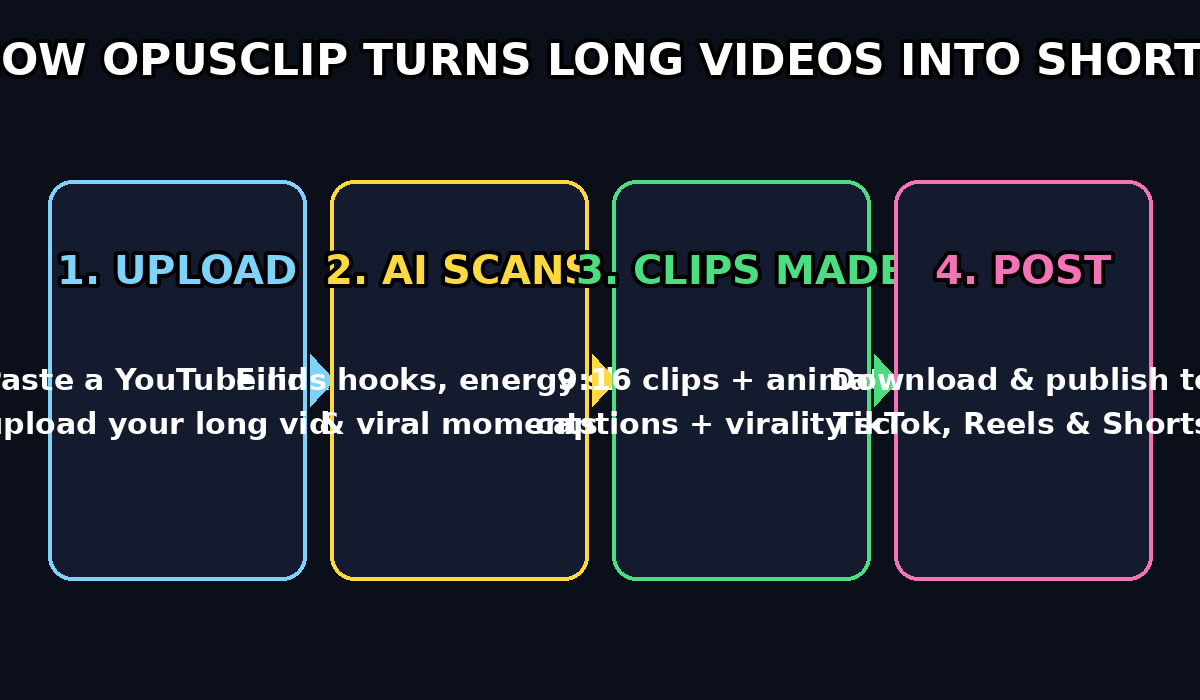
- Paste a YouTube link — drop in the URL of any video you own or have the right to clip. This is the fastest way to start if you already publish long-form content.
- Upload a file from your computer — MP4, MOV, and other common formats work fine.
- Import from other sources — depending on your plan, you can also pull from Zoom recordings, Google Drive, Dropbox, Twitch, and Rumble.
When you first learn how to use OpusClip AI, the YouTube link method is the simplest. Paste the link, and OpusClip fetches the video automatically.
Beginner tip: You do not need a perfect studio setup. OpusClip works best with talking-head videos, podcasts, webinars, interviews, coaching calls, and commentary streams — anything with spoken content. It can also handle visual-only footage through its “Clip Anything” feature, which detects actions, music moments, and on-screen events even without dialogue.
Step 3: Set the Clip Timeframe and Options
Before the AI starts working, OpusClip asks you to configure a few options. Learning how to use OpusClip AI’s settings here is more important than it looks, because credits are spent on every minute of video you process — including the boring parts you never want to see again.
Key settings to configure:
- Timeframe slider: Instead of processing the entire 2-hour video, drag the timeframe slider to cover only the best section (for example, minutes 10–40). This is the single best way to stretch your 60 free monthly minutes.
- Clip duration: Choose your target clip length. For TikTok and Reels, 30–60 seconds is the sweet spot. For YouTube Shorts, anything under 60 seconds works.
- Aspect ratio: 9:16 vertical is the default and what you want for shorts platforms.
- Caption language: Pick from 20+ supported languages for the auto-generated animated captions.
Beginner tip: On your first project, process a 15–20 minute chunk of your best content. You will get a feel for the quality of the clips without burning all your credits in one go.
Step 4: Let the AI Scan for Viral Moments
Once you hit “Create Clips,” the magic begins. OpusClip’s AI analyzes your video on multiple levels:
- Speech and transcript analysis — it reads every word to find hooks, punchlines, surprising statements, and quotable lines.
- Visual analysis — it watches for scene changes, speaker energy, gestures, and on-screen action.
- Sound and emotion analysis — it detects laughter, excitement, pauses, and shifts in energy that signal a moment worth clipping.
- Virality prediction — it compares patterns against what tends to perform on short-form platforms.
This process usually takes a few minutes, depending on the length of your video. You can close the tab and come back — OpusClip will notify you when your clips are ready.
Beginner tip: That automatic scanning is the heart of how to use OpusClip AI — the AI watches everything at lightning speed and hands you back only the highlights. Your job afterwards is quality control, not editing.
Step 5: Review Clips and Virality Scores
When processing finishes, you will see a gallery of finished clips. Each clip comes with:
- A virality score (0–99): OpusClip’s estimate of how likely the clip is to perform. Scores of 80+ are high-potential — post those first. Scores of 60–79 are solid candidates. Below 40, consider skipping or re-editing.
- A suggested title: A hook-style title the AI wrote for the clip.
- Auto reframing: The AI crops the video to vertical 9:16 and keeps the speaker’s face centered, even if they move.
- Animated captions: Word-by-word highlighted subtitles, timed to the speech with over 97% accuracy.
Play through the top 3–5 clips by virality score. Knowing how to use OpusClip AI’s virality scores helps you decide what to post first. However, listen for one thing the AI cannot fully judge: context. Sometimes a clip is technically punchy but misses the setup line that makes it make sense. Trust your ears here — a 30-second clip that needs no explanation beats an 80-score clip that confuses viewers.
Step 6: Edit Captions and Styling
Click on any clip to open the editor. If you want to learn how to use OpusClip AI like a pro, start with the caption style — captions are what stop the scroll:
- Fix any caption errors: The AI is accurate, but names, brands, and jargon sometimes need a manual fix. Click any caption word to edit it.
- Change caption style: Swap between popular styles — bold TikTok-style word highlights, minimalist line captions, or karaoke-style word-by-word fills.
- Adjust position: Keep captions in the safe zone (roughly the middle band of the frame) so platform UI elements do not cover them.
- Add your branding: Paid plans let you add brand templates, logos, and custom fonts so every clip looks like it came from your channel.
Beginner tip: Never post a clip with captions you have not proofread. One misspelled word in a viral clip lives forever in screenshots.
Step 7: Refine the Reframe and Layout
OpusClip auto-reframes your video to vertical, but you can fine-tune it. As you learn how to use OpusClip AI’s reframe controls, small tweaks make a big difference:
- Reframe position: Drag the crop frame if the AI centered on the wrong person (common in interviews with two speakers).
- Zoom level: Punch in slightly on the speaker’s face for more intimacy, or zoom out if hand gestures matter.
- Background fill: For horizontal footage, choose between a blurred background fill, a solid color, or a mirrored edge — blurred fill usually looks most professional.
- Hook text overlay: Add a bold hook line at the top of the clip (e.g., “The editing trick pros don’t share”). This is one of the highest-ROI edits you can make — it tells scrollers why they should stop.
However, the free plan keeps reframing automatic — finer manual controls and brand templates unlock on paid plans.
Step 8: Download Your Clips (Mind the 3-Day Window)
When you are happy with a clip, hit Download. This part of how to use OpusClip AI is simple, but a few details matter for beginners:
- 3-day export window (free plan): Clips expire from your OpusClip workspace 3 days after they are created on the free plan. Download promptly, or you will have to re-process the video and spend credits again.
- 1080p exports: Free-plan clips export in up to 1080p, which is perfectly fine for TikTok, Reels, and Shorts.
- Watermark (free plan): Free clips include a small OpusClip watermark. Paid plans remove it. For testing and learning, the watermark is no problem — most beginners post their first clips with it to see what performs before spending money.
Therefore, save your clips with descriptive filenames (e.g., podcast-ep12-hook-mistakes.mp4) so you can find them later when you batch-post.
Step 9: Post to TikTok, Reels, and Shorts
Now the fun part — publishing. You have two options, so choose the one that fits your workflow:
- Manual posting (recommended for beginners): Download the clips and upload them yourself to TikTok, Instagram Reels, and YouTube Shorts. This gives you full control over captions, hashtags, and posting times.
- Auto-posting (paid Pro plan): The Pro plan includes a social scheduler that posts directly to YouTube Shorts, TikTok, and Instagram, and even generates titles, descriptions, and hashtags for you.
In addition, follow these posting best practices for your OpusClip shorts:
- Post the same clip to all three platforms — each has a different audience.
- Write a hook in your caption that matches the clip’s first 2 seconds.
- Use 3–6 relevant hashtags (e.g., #podcastclips #aitools #shorts).
- Also, post consistently: 1 clip per day beats 10 clips once a month.
Beginner tip: Your first clips will not go viral — and that is normal. Once you know how to use OpusClip AI’s download options, posting takes just minutes a day. Use the virality scores to pick your strongest material, post daily, and watch which hooks get the most watch time. Then feed more of that style of content into OpusClip.
Step 10: How to Use OpusClip AI Without Wasting Credits
The free plan’s 60 monthly minutes are generous if you know how to use OpusClip AI’s timeframe slider well and stay smart about credits. Here is how experienced beginners maximize them:
- Always use the timeframe slider. Processing a 20-minute highlight section costs 20 credits, not 120. Never process an entire 2-hour stream in one go.
- Clip your best content first. Rank your videos by views or engagement and process the winners — they contain proven viral moments.
- Batch monthly. Save up 2–3 videos, then do one clipping session per month so you always have fresh clips in the pipeline.
- Download immediately. Re-processing an expired clip wastes credits you will never get back.
- One long video = many shorts. A single 30-minute podcast episode typically produces 5–10 clips — enough for a week of daily posting across three platforms.
If you outgrow the free plan, Starter ($15/month, 150 minutes, no watermark) is the natural next step for creators posting a few times a week. Check the current pricing on the official site before upgrading, since plans change.
OpusClip Plans Compared (2026)
| Feature | Free ($0) | Starter ($15/mo) | Pro ($29/mo) |
|---|---|---|---|
| Monthly processing minutes | 60 | 150 | 300 |
| Watermark | Yes | No | No |
| Export resolution | Up to 1080p | Up to 1080p | Highest available |
| Clip expiry | 3 days | Longer | 30 days |
| Virality score | Basic | Yes | Yes |
| Advanced AI clipping (visual + emotion) | No | Basic | Yes |
| AI B-roll and overlays | No | No | Yes |
| Direct posting to TikTok/Reels/Shorts | No | No | Yes |
| Brand templates | No | 1 | 2 |
For example, a plan that fits today might change next quarter — prices and limits can change, so always confirm on the official OpusClip pricing page before you decide.
FAQs: How to Use OpusClip AI
What is OpusClip?
OpusClip is an AI video-repurposing tool that converts long-form videos into short vertical clips for TikTok, Instagram Reels, and YouTube Shorts. It automatically finds viral moments, adds animated captions, reframes footage to 9:16, and scores each clip’s viral potential.
Is OpusClip free?
Yes. Anyone learning how to use OpusClip AI can start on the free plan, which includes 60 processing minutes per month. Free clips are exported in up to 1080p with a small watermark and expire from your workspace after 3 days. Paid plans start at $15 per month and remove the watermark.
How do OpusClip credits work?
One credit equals roughly one minute of processed video. Uploading a 60-minute podcast costs about 60 credits — even if the AI only finds 5 minutes of clip-worthy material. That is why the timeframe slider matters: process only the sections you care about.
Can OpusClip edit videos without dialogue?
Yes. Its Clip Anything feature analyzes visual events, audio, on-screen text, and sentiment, so it can clip sports plays, music moments, action scenes, and other footage with little or no talking.
Can OpusClip post to social media automatically?
Direct posting and scheduling are available on the Pro plan ($29/month), which can publish to YouTube Shorts, TikTok, and Instagram with AI-generated titles, descriptions, and hashtags. Free and Starter users download clips and post manually.
Can OpusClip replace a human video editor?
Because it replaces the tedious parts — watching hours of footage, finding highlights, cutting, captioning, and reframing — you save hours every week. But a human is still better at understanding your brand’s humor, inside jokes, and narrative context. Think of OpusClip as your editing assistant, not your replacement.
Final Thoughts: How to Use OpusClip AI Consistently
Now that you know how to use OpusClip AI, the most time-consuming part of short-form content — finding and cutting the best moments — becomes a 5-minute task. To sum up, start with the free plan, process one strong video with the timeframe slider, proofread your captions, and post your highest-scoring clips daily.
Once you see which hooks earn watch time, you will know exactly what kind of content to feed OpusClip next month. That feedback loop — clip, post, learn, repeat — is how small creators turn one long video into a month of content.
Explore More Free AI Tools
Want more free AI tools for your content workflow? Try our AI Title Generator to write click-worthy titles for your clips, the Meta Description Generator for SEO-ready descriptions, the AI Rewriter to polish your captions, and the Keyword Density Checker to optimize your blog posts — all free at https://aitoolsteps.com/.
Plan prices and free limits mentioned in this guide were accurate at the time of writing (October 2026). AI tools change their plans often, so please check the official OpusClip website before making a decision.