

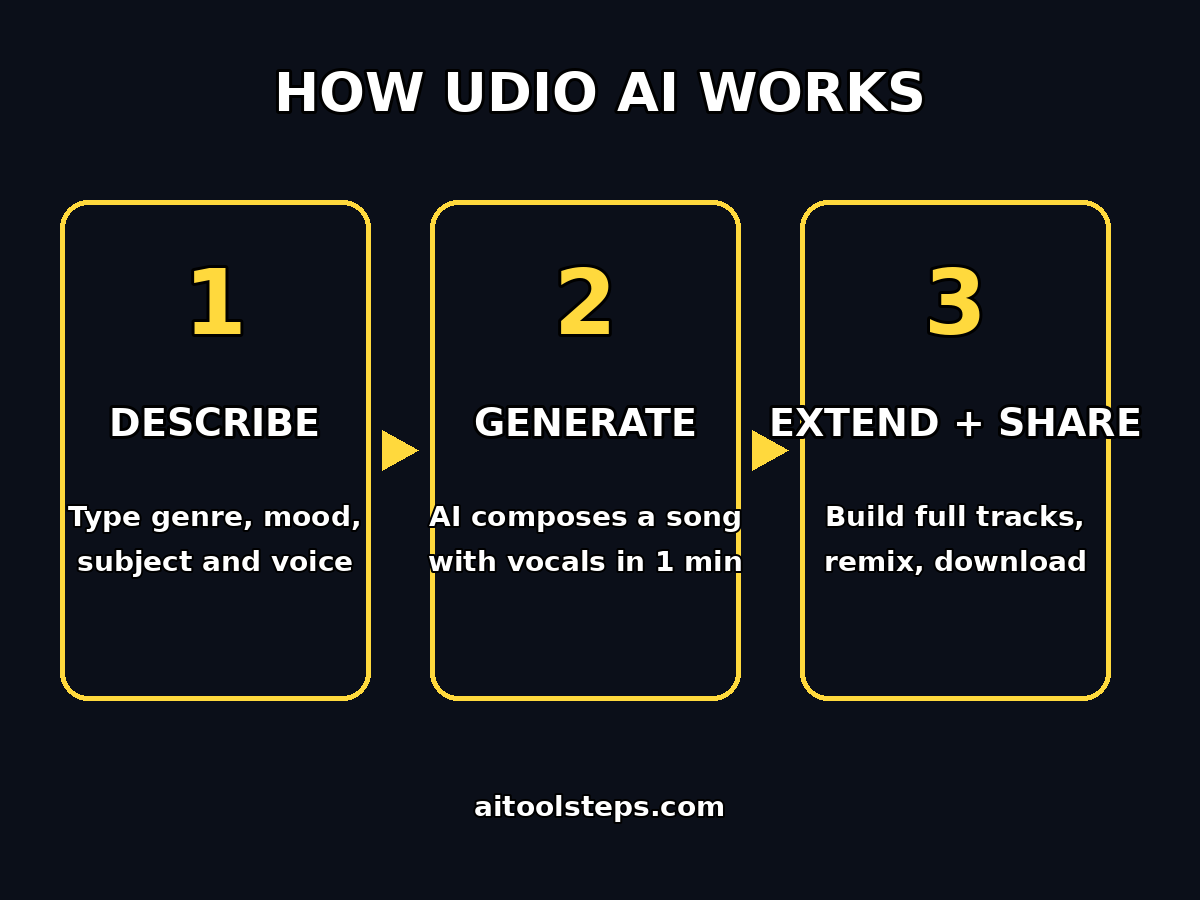
Imagine typing one sentence — “a cheerful pop song about morning coffee with a female singer” — and hearing a complete song with vocals, drums, guitar, and melody less than a minute later. That is exactly what Udio does. Udio is an AI music generator that turns simple text descriptions into full songs, complete with singing voices and instruments. You do not need to play an instrument, read sheet music, or own any studio equipment.
In this beginner-friendly guide, you will learn how to use Udio AI step by step. You will create a free account, understand the dashboard, write your first prompt, generate your first song, extend it into a full-length track, edit the lyrics, remix it into new versions, and download your music. By the end, you will be able to create original songs for fun, for content, or for your own creative projects.
Step 1: Create Your Free Udio Account
Getting started with Udio takes less than two minutes, and the free plan is enough for every step in this guide.
- Open your browser and go to the official Udio website.
- Click Sign Up and register with your email address or a Google account.
- Verify your email if you are asked to, then log in.
- You will land on the Create page — this is your main workspace for making music.
Udio runs on a credit system. Free accounts receive a set of monthly credits that refresh automatically, and every song you generate uses a small number of credits. Because of this, it is smart to follow this guide in order: you will get your best results without wasting credits on random experiments. Paid plans exist for people who want more monthly credits and extra features, but beginners should start free and upgrade only if they run out of credits regularly. Credit amounts change from time to time, so check the pricing page inside your account for the current numbers.
Step 2: Learn the Udio Dashboard
Before you generate anything, spend two minutes learning the layout. Udio’s interface is simple, but knowing where everything lives will save you time.
- Create tab: the main page where you type prompts and generate songs.
- Prompt box: the large text field at the top where you describe the song you want.
- Tags and settings: below the prompt box, you will find genre tags, lyrics options, and generation settings.
- My Library: every song you create is saved here automatically, so you can listen, rename, and download your tracks later.
- Explore/Discover feed: a stream of songs made by other Udio users. Listening to these is one of the fastest ways to learn what good prompts look like.
Click around the Create page and hover over the buttons to see what they do. Nothing here will spend credits until you actually press the generate button, so explore freely.
Step 3: Write Your First Text Prompt
Your prompt is the most important skill in Udio. The AI can only be as good as the description you give it. A weak prompt produces a generic song; a clear prompt produces something that sounds like you imagined it.
A strong Udio prompt has four parts:
- Genre: the style of music, for example pop, rock, hip-hop, lo-fi, country, EDM, jazz, or acoustic folk.
- Mood: the feeling of the song, for example cheerful, sad, energetic, calm, romantic, or epic.
- Subject: what the song is about, for example morning coffee, a road trip, or missing a friend.
- Voice and details: male or female singer, tempo hints like “slow ballad” or “upbeat dance track”, and instruments like piano, guitar, or strings.
Weak prompt: “a nice song”
Strong prompt: “Cheerful acoustic pop song about morning coffee, female singer, warm guitar and light drums, upbeat and happy mood”
See the difference? The strong prompt tells Udio the genre, the mood, the subject, the voice, and the instruments. Copy the structure, change the words, and you have a formula for unlimited songs. If you are stuck, describe the song the way you would describe it to a friend, then add a genre and a mood.
Step 4: Generate Your First Song
Now it is time to make music. This is the exciting part.
- Type your prompt into the prompt box on the Create page.
- Decide on lyrics: you can write your own lyrics, let Udio generate lyrics automatically from your prompt, or make an instrumental track with no vocals.
- Choose any style tags or settings Udio offers, such as a genre tag that matches your prompt.
- Press Create or Generate and wait. Udio usually takes under a minute to compose your song.
- Udio gives you two versions of every generation. Listen to both — they are different takes on the same prompt, and one is often clearly better.
Play both versions all the way through. Notice how the AI structured the song: most Udio songs start with a verse, build to a chorus, and end naturally. If neither version sounds right, do not worry — beginners rarely love their first generation. Adjust your prompt (add a mood word, change the genre tag, simplify the subject) and generate again. Prompting is a skill, and each attempt teaches you something.
Step 5: Extend Your Song into a Full-Length Track
Udio’s first generations are usually short clips, around 30 seconds. The Extend feature turns a clip you like into a full-length song, section by section.
- Open a song you like in your library or from the generation results.
- Click Extend. Udio will continue the song from where it ended, keeping the same voice, style, and instruments.
- Before extending, you can add a short prompt describing the next section, for example “emotional chorus with bigger drums” or “quiet bridge with soft piano”.
- Listen to the extension. If you like it, extend again to add another section.
- Repeat until your song feels complete — most full songs need three to five extensions.
This section-by-section approach gives you creative control. You are essentially directing the song like a producer: verse, chorus, bridge, final chorus. If an extension goes in a direction you dislike, simply delete it and extend again with a clearer section prompt. Each extension uses credits, so plan your song’s structure before you start extending.
Step 6: Edit Lyrics and Fix Sections with Inpainting
Sometimes a song is almost perfect, but one line of lyrics sounds wrong or one section feels off. Udio’s Inpainting feature lets you regenerate just a small part of a song without redoing the whole thing.
- Open your song and find the section you want to fix.
- Select the Inpaint option on that section.
- Type new lyrics for that part, or describe the change you want, for example “replace this verse with funnier lyrics about Mondays”.
- Generate the inpainted section and listen to it in context with the rest of the song.
Inpainting is also useful for cleaning up auto-generated lyrics. AI-written lyrics sometimes include odd phrases or repeat themselves. Instead of accepting them, inpaint those lines with your own words. You can also use inpainting to change a single word that the AI mispronounced or emphasized strangely. This feature is one of the biggest reasons Udio feels like a real music studio rather than a toy — you can revise your work instead of starting over.
Step 7: Remix Your Song into New Versions
The Remix feature takes an existing song and reimagines it in a different style while keeping the core melody or idea. This is perfect for experimenting.
- Open any song in your library.
- Choose the Remix option.
- Describe the new direction, for example “turn this pop song into a slow jazz version” or “make an EDM remix with a big drop”.
- Generate and compare the remix with the original.
Remixing is a great way to learn what Udio can do. Take one simple song and remix it into three different genres — you will hear how the same melody transforms, and you will build intuition for which prompts produce which sounds. Content creators love this feature because one good song idea can become a cheerful version for a vlog intro, a calm version for background music, and an energetic version for a workout video.
Step 8: Download and Share Your Track
Once your song sounds the way you want, download it.
- Open the finished song in your library.
- Click the download option and choose your format. Udio typically offers standard audio formats that work everywhere.
- Save the file to your computer or phone.
Before you use your song publicly — on YouTube, TikTok, Instagram, or in a client project — check Udio’s current terms for your plan. Free plans and paid plans have different rules about commercial use and ownership, and these terms are updated over time. The safe habit is simple: fun personal projects are fine, but if you plan to earn money from a track or use it for a business, read the terms page in your account first or consider a paid plan. When in doubt, check the official terms rather than guessing.
Sharing is also how you get better. Udio has a community feed where users publish their songs. Publishing a track lets other creators hear it, and listening to popular community songs teaches you advanced prompting tricks you would never discover alone.
Step 9: Manage Your Credits Like a Pro
Because Udio runs on credits, smart credit habits separate beginners who make two songs from beginners who make twenty.
- Plan before you generate. Write your prompt on paper or in a notes app first. A thoughtful prompt beats three rushed ones.
- Listen fully before extending. Do not extend a clip you only half-like. Only build on songs you genuinely enjoy.
- Use inpainting instead of regenerating. Fixing one section costs far less than generating a whole new song.
- Remix your winners. One strong song can become five useful tracks through remixing.
- Check when credits refresh. Free credits renew on a monthly cycle, so if you run out, you can plan your next batch of songs for the refresh date instead of upgrading in a hurry.
If you consistently run out of credits before the month ends, that is actually a good sign — it means you are creating enough to justify a paid plan. But most casual beginners find the free plan generous enough for learning and fun.
Udio vs Other AI Music Tools: Quick Comparison
Udio is not the only AI music generator. Here is how it compares with two popular alternatives, so you can pick the right tool for your needs.
| Feature | Udio | Suno | Mureka |
|---|---|---|---|
| Text-to-song with vocals | Yes | Yes | Yes |
| Free plan with monthly credits | Yes | Yes | Yes |
| Extend short clips into full songs | Yes | Yes | Varies |
| Remix existing songs | Yes | Yes | Limited |
| Inpaint / edit single sections | Yes | Limited | Limited |
| Instrumental-only mode | Yes | Yes | Yes |
| Beginner-friendly interface | Very simple | Simple | Simple |
| Best for | Full songs with strong vocals | Fast song drafts and variety | Quick melodies and ideas |
All three tools are worth trying, and many creators use more than one. Udio stands out for vocal quality and the control its extend and inpaint features give you. If you want a full walkthrough of its closest rival, read our beginner guide to Suno AI next — the prompting skills transfer directly.
Pro Tips for Better Udio Songs
- Name your style references. Prompts like “90s R&B slow jam” or “indie folk like a campfire song” give Udio a clearer target than “nice music”.
- Keep lyrics simple at first. Short, clear lyric ideas produce cleaner vocals than long, complicated verses.
- Generate during off-peak hours. Generation can be faster when fewer users are online.
- Save your best prompts. Keep a note of prompts that produced great songs so you can reuse the formula.
- Layer instruments in the prompt. “Piano, strings, and soft drums” beats just “music” every time.
- Do not fear weird results. Some of the most interesting songs come from prompts that sound strange on paper. Experiment freely with your free credits.
Frequently Asked Questions
Is Udio free to use?
Yes. Udio offers a free plan with monthly credits that let you generate songs at no cost. The credits refresh each month. Paid plans add more credits and extra features for heavy users, but beginners can learn everything in this guide on the free plan.
Do I need musical skills to use Udio?
No. That is the whole point of the tool. You describe the song in plain words — the genre, mood, and subject — and Udio composes the music, writes or sings the lyrics, and produces the final track. Musical knowledge helps you write better prompts, but it is not required.
Who owns the songs I create with Udio?
Ownership and usage rights depend on your plan. Free and paid plans have different terms, especially around commercial use. Always check the current terms of service in your Udio account before using a track in monetized content or client work.
How long are Udio songs?
Initial generations are short clips, usually around 30 seconds. Using the Extend feature, you can build them into full-length songs of several minutes, adding verses, choruses, and bridges section by section.
Can I use Udio songs in my YouTube videos or TikToks?
It depends on your plan’s terms and how the content is monetized. Many creators use AI-generated music in their content, but you should verify the current usage rights for your specific plan on Udio’s official terms page before publishing.
What is the difference between Udio and Suno?
Both turn text into songs with vocals. Udio is often praised for vocal quality and fine-grained editing tools like extend and inpaint, while Suno is known for speed and variety. The prompting skills you learn on one transfer well to the other, so trying both is the fastest way to find your favorite.
Final Thoughts
Udio turns anyone into a songwriter. You do not need an instrument, a studio, or a single music lesson — you need a clear description of the song in your head and a few minutes of patience. Start with a simple prompt, listen to both versions, extend the one you love, fix the rough spots with inpainting, and remix it when you want something new.
The beginners who get the most from Udio share one habit: they treat every generation as practice. Each song teaches you a little more about prompting, structure, and style. Your tenth song will sound noticeably better than your first — not because the AI changed, but because you did.
Open Udio today, type your first prompt, and press generate. Your first AI song is less than a minute away.
Explore More Free AI Tools
Enjoyed this guide? AIToolSteps publishes beginner-friendly tutorials for the best free AI tools every day. Keep exploring:
- AI Title Generator — create catchy headlines in seconds: https://aitoolsteps.com/
- Meta Description Generator — write perfect SEO descriptions fast: https://aitoolsteps.com/
- AI Rewriter — rewrite any text in a new style instantly: https://aitoolsteps.com/
- Keyword Density Checker — analyze your content for SEO: https://aitoolsteps.com/