

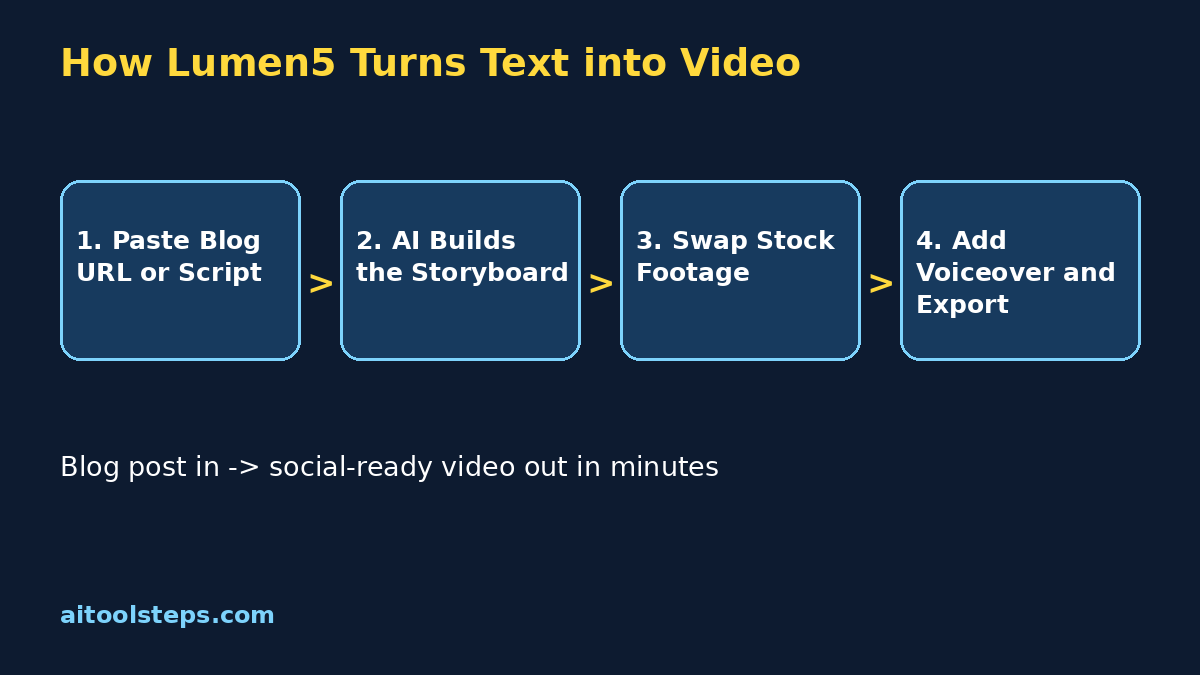
Imagine turning a blog post you wrote last week into a polished, eye-catching video in less than ten minutes — no camera, no filming, no editing skills required. That is exactly what Lumen5 does. Lumen5 is an AI-powered text-to-video platform built for one clear job: converting written content into professional-looking social videos automatically. Paste in a blog post URL or a short script, and Lumen5’s AI drafts a storyboard, matches each scene with relevant stock footage and images, adds captions, and even generates an AI voiceover. For beginners, this is a game-changer, because video editing traditionally takes hours and a steep learning curve. Lumen5 removes all of that and replaces it with a simple drag-and-drop editor anyone can use. The best part? There is a free “Community” plan that stays free forever, letting you create several videos per month without spending a cent. In this 2026 guide, you will learn how to use Lumen5 from sign-up to publishing: creating your account, starting from a script or blog URL, customizing footage, adding voiceovers, branding your videos, choosing the right format, and exporting for YouTube, TikTok, and Instagram. By the end, you will be able to turn your next article into a share-ready video today.
Step 1: Create Your Free Lumen5 Account
Getting started with Lumen5 takes under two minutes and costs nothing on the Community plan. Here is how to set up your account correctly from the beginning.
- Go to lumen5.com and click Sign Up (or “Get Started Free”).
- You can register with your email address, or sign up faster with Google, Facebook, or Apple single sign-on.
- Choose a strong password and confirm your email if prompted — verification takes seconds.
- After logging in, Lumen5 shows a short onboarding flow: it may ask what you will use Lumen5 for (marketing, blogging, education) and what industry you are in. Answer honestly — these answers help Lumen5 tune its templates and suggestions for you.
- The free Community plan is active by default. You do not need to enter any credit card to start creating.
- Take a moment to complete your workspace profile (workspace name, logo later) — this keeps your projects organized as your library grows.
Tip: Use the same email you use for your blog or business accounts. It makes it easier to link social accounts later when you share or publish videos directly.
Step 2: Choose How to Start (Script / Blog URL / Copy-Paste Text)
Once inside the dashboard, click Create Video or New Video. Lumen5 gives you three ways to begin, and picking the right one saves you the most time later. Beginners should understand all three before clicking.
- Start from a script (AI text-to-video): Paste or type your own script. Lumen5’s AI reads your text, detects key points, and generates scenes with matching visuals. Best for YouTube Shorts, explainers, and custom topics where you wrote the script yourself.
- Start from a blog post URL: Paste the link to any blog article. Lumen5 fetches the content, summarizes the key ideas, and builds a storyboard automatically. Best for bloggers and marketers repurposing existing content — this is Lumen5’s signature feature.
- Start from a template / blank video: Pick a pre-designed template or start from scratch in the editor. Best when you want full manual control over every scene.
- If you are brand-new, try the blog URL method first — it shows off what the AI does best and produces a draft video in seconds.
- Keep your starting text between 150 and 400 words for best results. Very long articles get summarized, which is fine, but trimming your text first gives you more control over what appears on screen.
Tip: Short, punchy sentences work best. “Lumen5 turns text into video” converts better than a 50-word paragraph, because each line becomes a scene.
Step 3: Paste Your Text or Blog URL
This is where the magic starts. Whatever starting method you picked, the input step takes less than a minute — but a few small habits here dramatically improve your final video.
- For a blog URL: Paste the full article link into the URL field and click Create. Lumen5 scans the article, pulls out the main ideas, and pre-writes the on-screen text for each scene. Double-check that Lumen5 pulled the right article — sometimes it grabs navigation text or footers from messy websites.
- For a script or copy-paste text: Paste your text into the editor box. Lumen5 highlights sentences it will turn into scenes. Delete anything you do not want as a scene (headers, author bios, legal disclaimers).
- Edit the auto-extracted text immediately: Click any scene’s text and rewrite it in your own voice. Shorten long sentences, fix AI awkward phrasing, and make sure the message flows in the order a viewer would understand.
- Aim for 8–15 scenes for a typical 60–90 second video. Fewer scenes feel rushed; too many feel scattered. The free plan caps video length (around 2 minutes), so stay concise.
- If the blog fetch looks wrong, switch to the copy-paste method and paste the article body yourself — it takes an extra minute but gives you clean input.
Step 4: Let AI Build Your Storyboard
After you submit your text, Lumen5’s AI builds a full storyboard: a scene-by-scene draft with suggested visuals, text placement, and timing. Understanding this draft stage is the key to working fast.
- Each scene is one card in the timeline: a block of text paired with a background video or image.
- The AI auto-matches stock footage to each scene based on keywords. “Morning coffee routine” might get a cozy kitchen clip. It is often surprisingly accurate, but you will refine it in Step 5.
- Scene duration defaults to a few seconds each. Click a scene to change how long it plays — give important points more screen time (4–6 seconds) and quick transitions less (2–3 seconds).
- Reorder scenes by dragging them in the timeline. Put your hook (the most interesting point) in the first 3 seconds — viewers decide whether to keep watching almost instantly.
- Add or delete scenes with the plus and trash icons. If the AI created a scene from a sentence you cut in Step 3, remove it now.
- Read through the whole storyboard once as a viewer, not as the writer. Does the story make sense in 60 seconds? Cut anything that does not serve the main message.
Tip: The first draft is never the final video. Treat the AI storyboard as a rough sketch — your polish in the next steps is what makes it look professional.
Step 5: Swap Stock Footage & Images
Lumen5 includes a huge stock library (millions of videos and photos on paid plans, a solid free selection on the Community plan), including premium Shutterstock content on higher tiers. Swapping the AI’s default picks for better ones is where your video starts to look intentional.
- Click any scene, then Change Visual (or the media icon) to open the stock library.
- Search with specific keywords: “woman typing laptop” beats “work”. Add mood words like “happy”, “sunset”, or “aerial” for better matches.
- Filter by video vs. image: Videos feel more dynamic for hooks and intros; still images with the Ken Burns pan/zoom effect work well for data or quote scenes.
- Upload your own media — your logo, product screenshots, or brand photos — using the Uploads tab. Your own visuals always beat generic stock for credibility.
- Watch each clip full-length at least once. Stock clips sometimes have awkward moments, visible watermarks on previews, or mismatched framing in vertical formats.
- Match the mood across scenes: if your video is upbeat, keep all clips bright and energetic. One dark, moody clip in a cheerful video breaks the flow.
- On the free plan, some premium clips show a watermark or lock icon — pick the free alternatives, or accept that those clips require a paid plan.
Step 6: Add AI Voiceover or Your Own Audio
Silent videos lose viewers. Lumen5 offers three audio paths, and beginners should know the trade-offs of each.
- AI text-to-speech voiceover: Click Voiceover in a scene (or the global audio settings) and choose an AI voice. Lumen5 generates narration from your on-screen text automatically. Pick a voice that matches your brand — warm and friendly for lifestyle content, clear and neutral for tutorials. Preview at least two voices before committing.
- Record or upload your own voice: Record directly in the browser or upload an MP3/WAV. Your real voice builds more trust, especially for personal brands and educators. Record in a quiet room; even a phone recording beats a noisy room mic.
- Background music: Lumen5’s built-in music library has royalty-free tracks organized by mood. Pick one track for the whole video, keep the volume low under voiceover (around 15–25%), and avoid lyrics — they fight with narration and on-screen text.
- Sync check: Play the full video and confirm the voiceover matches the on-screen text timing. If a scene changes before the narration finishes, extend that scene’s duration in the timeline.
- Free plan note: the AI voiceover selection is more limited on the Community plan; the full voice catalog unlocks on paid tiers. The available free voices are still perfectly usable for beginner projects.
Tip: Write your on-screen text to be read aloud naturally. If it sounds awkward when the AI says it, rewrite it — viewers hear what they read.
Step 7: Customize Brand Colors & Fonts
Generic-looking videos get scrolled past. Branding your Lumen5 videos takes five minutes and makes every video instantly recognizable as yours.
- Open Brand settings (or the Style tab): set your primary and secondary colors, pick fonts for headlines and body text, and upload your logo.
- Apply your brand kit to the video with one click — Lumen5 restyles all text, backgrounds, and accents across every scene.
- Text overlay styles: choose a style with a background shape (rounded box or highlight bar) if your footage is busy — plain white text disappears over bright clips.
- Keep headline text short (under 8 words per scene) and large. Body detail belongs in the voiceover, not on screen.
- Position your logo consistently — bottom corner is standard. On the free plan, note that Lumen5’s own watermark also appears on exports; brand customization options are deeper on paid plans.
- Consistency rule: use the same two fonts, same color palette, and same logo position in every video. After five videos, your audience will recognize your style on sight.
Step 8: Pick the Right Format (16:9, 9:16, 1:1)
One of Lumen5’s most practical features is one-click reformatting. Choosing the right aspect ratio before you export saves rework.
- 16:9 (landscape): Standard YouTube videos, website embeds, presentations. Best when your video lives on a blog or YouTube channel page.
- 9:16 (vertical): YouTube Shorts, TikTok, Instagram Reels. This is the format beginners should prioritize in 2026 — short-form vertical video gets the most organic reach.
- 1:1 (square): Facebook and Instagram feed posts. Square takes up more screen space in feeds than landscape.
- Switch formats with the format/resize button — Lumen5 auto-reframes scenes, but check every scene after switching. Auto-reframing can crop faces or cut off text; drag to reposition as needed.
- Text safety: keep important text and your logo inside the central “safe zone” — the top and bottom edges get covered by platform UI (captions, like buttons) on TikTok and Reels.
- Pro workflow: design once in 9:16, export for Shorts/TikTok/Reels, then duplicate the project and reformat to 16:9 for YouTube proper. One script, two videos, double the reach.
Step 9: Preview, Polish & Publish/Download
You are one careful review away from done. Rushing this final step is how typos and timing glitches go public.
- Click Preview and watch the entire video start to finish — no skipping. Check for: spelling errors, awkward AI phrasing, footage that does not match the text, voiceover timing, and music volume.
- Free plan limits beginners should know before exporting:
- About 5 videos per month on the free Community plan.
- Videos carry the Lumen5 watermark and export at 720p (not full HD).
- Maximum video length around 2 minutes — plan scripts accordingly.
- Stock library access is limited compared to paid plans; some premium clips and the full AI voice catalog require upgrading.
- No credit card is required, and the free plan never expires — but these limits are the trade-off.
- Click Publish/Download, choose your resolution, and export. Rendering takes a few minutes depending on length.
- Download the MP4 to your device — always keep your own copy, even if you also share directly.
- Use Lumen5’s direct sharing to push to Facebook, Twitter/X, LinkedIn, or other connected accounts, or upload the MP4 manually to YouTube, TikTok, and Instagram for full control over titles, descriptions, and hashtags.
- File your finished video in your Lumen5 project library with a clear name (topic + date + format, e.g. “lumen5-guide-9×16-oct2026”) so you can find and duplicate it later.
Tip: Your first export is a draft, not a failure. Publish it, watch the analytics, and note one thing to improve in the next video — that loop is how beginners become good fast.
Lumen5 Free vs Paid Plans
| Feature | Community (Free) | Basic (~$19–29/mo) | Starter (~$79/mo) |
|---|---|---|---|
| Price | $0 forever | ~$19–29/month | ~$79/month |
| Videos per month | ~5 | ~10 | Unlimited* |
| Watermark | Lumen5 watermark on exports | Removed | Removed |
| Resolution | 720p | 1080p Full HD | 1080p Full HD |
| Stock library | Limited free selection | Larger library | 160M+ files incl. Shutterstock |
| AI voiceover | Limited voices | More voices | Full voice catalog |
| Brand kit (logo/fonts/colors) | Basic | Full customization | Full customization + templates |
| Best for | Trying Lumen5, occasional videos | Regular creators, small business | Teams, agencies, heavy volume |
*Plan names, prices, and limits change over time — always check Lumen5’s pricing page for current details before upgrading.
Which plan should a beginner pick? Start on Community (free). Make your first 5 videos, learn the editor, and see whether text-to-video fits your workflow. Upgrade to Basic when the watermark starts embarrassing you or you need 1080p — that is the moment the free plan has done its job. Starter only makes sense once you are publishing weekly and need the deep stock library and unlimited volume.
Frequently Asked Questions
Is Lumen5 really free?
Yes. Lumen5’s Community plan is free forever — no credit card required, no trial that expires. You can create around 5 videos per month with it. The trade-offs are the Lumen5 watermark on exports, 720p resolution, a roughly 2-minute maximum video length, and a limited stock library and voice selection. For testing the platform and making occasional videos, it is genuinely usable at zero cost.
Can Lumen5 turn a blog post into a video automatically?
Yes — this is Lumen5’s flagship feature. Paste any blog post URL and Lumen5 fetches the article, extracts the key points with AI, and builds a scene-by-scene storyboard with matched stock footage. You then edit the text, swap visuals, add voiceover, and export. The AI draft usually needs 10–20 minutes of human polish, but it eliminates hours of manual editing work.
Does Lumen5 have a watermark on the free plan?
Yes. Videos exported on the free Community plan include a Lumen5 watermark. Upgrading to any paid plan (starting with Basic) removes the watermark and unlocks 1080p exports. If you plan to post videos on a professional channel or client work, the watermark alone is a good reason to upgrade once you are creating regularly.
Can I use Lumen5 videos on YouTube and TikTok?
Absolutely. Export your video as an MP4, choose the 9:16 vertical format for YouTube Shorts and TikTok or 16:9 for standard YouTube videos, and upload normally. Lumen5’s stock library is licensed for this kind of use, and its music library is royalty-free. Just double-check that any footage you uploaded yourself is content you have the rights to use.
Is Lumen5 better than InVideo AI or Canva video?
It depends on your starting point. Lumen5 is best when you start from existing written content — its blog-URL-to-video workflow is unmatched for repurposing articles. InVideo AI is stronger for prompt-based generation (“make me a video about…”) with more cinematic templates. Canva video wins for simple drag-and-drop design if you already live in Canva. For frame-by-frame professional editing, none of them replace Premiere or DaVinci — and Pictory and Fliki are worth comparing too if long-form or multilingual voiceovers matter to you. Try Lumen5’s free plan first; it costs nothing to compare.
Final Thoughts
Lumen5 earns its reputation as the easiest on-ramp to AI video creation: paste text, let the AI draft your storyboard, polish the visuals and audio, and export a video that looks like it took hours — in under thirty minutes. The free Community plan is generous enough to prove the concept with real videos, and its limits (watermark, 720p, ~5 videos a month) are honest trade-offs, not traps. The beginners who get the most from Lumen5 share one habit: they start from content they already have. That half-forgotten blog post, that thread, that tutorial draft — each one is a video waiting to happen. Pick your best article today, run it through the nine steps above, and publish your first AI video before the day ends. Then make the second one better. That loop — repurpose, publish, improve — is the entire game, and Lumen5 just made the first move effortless.
Explore More Free AI Tools
Want to level up the rest of your content workflow too? Try the free tools at aitoolsteps.com: the AI Title Generator for click-worthy headlines, the Meta Description Generator for SEO snippets that get clicks, the AI Rewriter for polishing drafts in seconds, and the Keyword Density Checker for keeping your SEO on target — all free at aitoolsteps.com.