

Imagine having an assistant that has read every page of your research materials, remembers every detail, and can answer any question about them in seconds. That is exactly what Google’s NotebookLM does. Unlike regular chatbots that pull answers from the entire internet, NotebookLM works only with the documents YOU upload — so its answers stay grounded in your sources, with citations you can click.
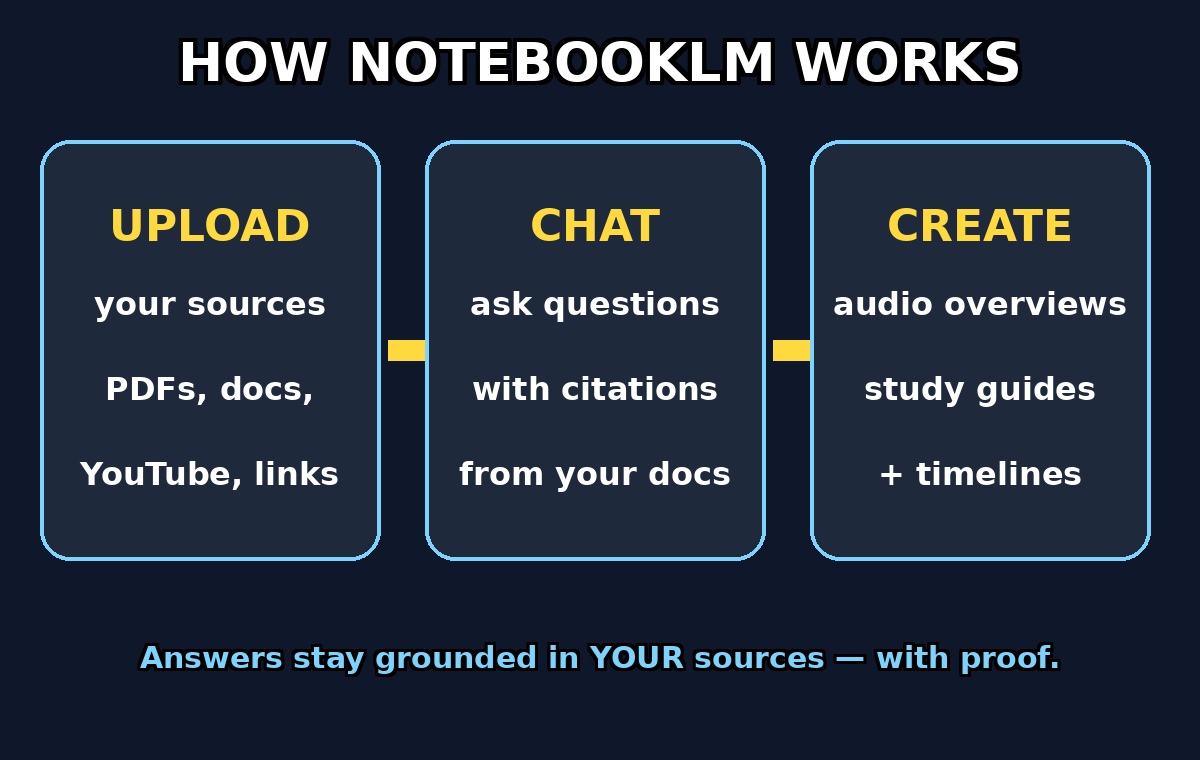
In this guide, you will learn how to use NotebookLM from zero: creating your first notebook, adding sources, chatting with your documents, and using its famous Audio Overview feature. No technical skills needed.
Step 1: Open NotebookLM and Sign In
Go to notebooklm.google.com in your browser. NotebookLM is a free web tool from Google, so you just need a Google account. Click “Try NotebookLM” and sign in with your Gmail.
You will land on the main dashboard. It is clean and simple: a big “Create new notebook” button and, later, a list of your notebooks. Each notebook is like a folder where you keep the sources for one project — a school paper, a work report, a business plan, anything.
NotebookLM works best on desktop Chrome, but it also runs on mobile browsers if you need it on the go.
Step 2: Create Your First Notebook
Click “Create new notebook”. A fresh notebook opens with an empty source panel on the left, a chat window in the middle, and a notes panel on the right.
Give your notebook a clear name right away — click the title at the top and rename it, for example “History Essay Sources” or “Marketing Plan Research”. Good names save you from confusion later when you have several notebooks.
Notebooks are private to your Google account. Nothing is shared with anyone unless you explicitly share it.
Step 3: Add Your First Sources
This is where the magic starts. Click “Add sources” and choose how you want to feed information to NotebookLM:
- Upload files: PDFs, Google Docs, text files, and Markdown files. Perfect for papers, reports, and study notes.
- Website URLs: Paste any web link and NotebookLM reads the page.
- YouTube links: Paste a video URL and it processes the transcript — great for long lectures.
- Google Slides: Import presentations directly.
- Paste text: Copy-paste raw text straight in.
For your first notebook, try uploading 2–3 related PDFs or pasting a few web article URLs. Free accounts support up to 50 sources per notebook and roughly 500,000 words per source, which is far more than most beginners will ever need.
After adding, NotebookLM shows a “source guide” — a short auto-generated summary of each source so you can confirm it understood the content correctly.
Step 4: Chat With Your Documents
Now ask questions in the chat box, just like you would with any AI assistant. The difference: every answer is built from YOUR sources, and each claim carries a numbered citation linking back to the exact passage.
Try these starter questions:
- “Summarize the main arguments in these documents.”
- “What does source 2 say about [your topic]?”
- “List the pros and cons discussed across all sources.”
- “Explain this concept in simple terms for a beginner.”
If you ask something your sources do not cover, NotebookLM tells you so instead of making things up. That honesty is its superpower — especially for students and researchers who cannot afford invented facts.
Tip: select specific sources with the checkboxes before asking to limit answers to just those documents.
Step 5: Generate an Audio Overview
This is NotebookLM’s most famous feature. Click “Generate” under the Audio Overview panel, and within a minute or two it creates a podcast-style conversation between two AI hosts discussing your sources.
It is genuinely impressive — the hosts summarize key points, react naturally, and explain complex ideas in plain language. Students use it to revise for exams while walking; professionals use it to absorb long reports during commutes.
You can download the audio as a file, or ask for a different focus and regenerate. For beginners, the default overview is perfect.
Step 6: Use the Study Guide Features
NotebookLM can turn your sources into ready-made study materials. Look for the notebook guide options:
- FAQ: auto-generated frequently asked questions with answers from your sources.
- Study Guide: key terms, chapter-style summaries, and review questions.
- Briefing Doc: a condensed two-page overview of everything.
- Timeline: events from your sources arranged in chronological order.
These are one-click generators — no prompting skill required. A student can upload a semester’s worth of lecture PDFs and get a full revision kit in minutes.
Step 7: Save Notes and Citations
When the chat gives you a great answer, do not let it disappear. Click “Save to note” on any response to pin it in the right-hand notes panel. You can then edit, reorganize, and export your notes.
Every citation in an answer is clickable — tap it to jump straight to the source passage it came from. This is how you double-check facts before quoting them in an essay or report. Building this verify-first habit is what separates smart AI users from careless ones.
You can also copy any answer with its citations intact and paste it into your document draft.
Step 8: Add More Sources as Your Project Grows
Research is never one-and-done. As your project evolves, keep adding sources to the same notebook — new articles, updated reports, fresh data. NotebookLM re-indexes automatically and your previous chats stay in history.
A smart workflow: create one notebook per project or subject, and add sources over days or weeks. By deadline time, you have a fully searchable brain of everything you have read.
Keep the notebook focused, though. A notebook with 5–10 highly relevant sources gives sharper answers than one stuffed with 50 loosely related files.
Step 9: Use NotebookLM for Work Projects
NotebookLM is not just for students. Professionals use it to:
- Digest long meeting transcripts and pull out action items.
- Compare vendor proposals side by side with cited pros and cons.
- Onboard new team members with a notebook of company docs.
- Prepare for interviews by uploading the job description and your CV, then asking “what should I highlight?”
Because answers come only from your uploaded material, it is also a safer way to use AI with internal documents than pasting them into a public chatbot.
Step 10: Share and Export Your Work
When you are done, NotebookLM lets you export your notes and download audio overviews. You can share a notebook with collaborators so a whole team or study group can chat with the same sources.
One practical tip: before sharing, remove any sources that are private or copyrighted in ways that sharing would violate. The sharing feature shares the whole notebook, not individual pieces.
NotebookLM vs Regular AI Chatbots
| Feature | NotebookLM | ChatGPT / Gemini (regular) |
|---|---|---|
| Answers based on | Only your uploaded sources | Entire training data + web |
| Citations | Numbered, clickable, exact passages | Often generic or missing |
| Hallucination risk | Very low (says “not in sources”) | Higher on niche topics |
| Audio Overview podcast | Yes, built-in | No |
| Study Guide generators | Yes, one-click | Manual prompting needed |
| Best for | Research, study, grounded work | Brainstorming, general questions |
Frequently Asked Questions
Is NotebookLM free?
Yes. NotebookLM is free with a Google account. The free plan includes generous limits — up to 50 sources per notebook — which covers nearly every beginner’s needs. Google has also introduced paid tiers for power users who need more sources and higher usage.
Can NotebookLM read YouTube videos?
Yes. Paste any YouTube video URL as a source and NotebookLM processes the video’s transcript. It works best on videos with accurate captions, such as lectures and talks.
Does NotebookLM work on mobile?
Yes, through your mobile browser at notebooklm.google.com. The desktop experience is smoother for managing many sources, but chatting and listening to Audio Overviews works fine on phones.
Will NotebookLM make up facts like other AI tools?
Far less. When an answer is not supported by your sources, NotebookLM says so instead of inventing information. That said, always click the citations and verify important facts yourself — it is a research assistant, not a replacement for your judgment.
What file types can I upload to NotebookLM?
PDFs, Google Docs, Google Slides, text files, and Markdown files, plus website URLs, YouTube links, and pasted text. If your file is in another format, convert or copy-paste its text first.
Is my data private on NotebookLM?
Your notebooks are private to your Google account by default. Google states that uploaded sources are not used to train its models. Avoid uploading highly sensitive personal data to any cloud tool as a general habit.
Final Thoughts
NotebookLM changes the way beginners handle research. Instead of drowning in open tabs and half-remembered PDFs, you get one intelligent assistant that has read everything and answers with proof. Start with a single small notebook — two or three sources on a topic you care about — and practice asking questions. Within an hour you will understand why students, writers, and professionals call it their second brain.
Explore More Free AI Tools
Want to keep exploring? Try these free tools on AIToolSteps:
- AI Title Generator — create catchy titles for your blog posts and videos: https://aitoolsteps.com/
- Meta Description Generator — write perfect SEO meta descriptions in seconds: https://aitoolsteps.com/
- AI Rewriter — rewrite any text in a fresh, original style: https://aitoolsteps.com/
- Keyword Density Checker — check your article’s keyword balance for SEO: https://aitoolsteps.com/