
Imagine typing a single sentence — “a drone shot flying over a neon city at night” — and watching it turn into a real, moving video in under a minute. No camera, no editing software, no filming skills required. That is exactly what Seedance AI does, and it is one of the most exciting free AI video tools of 2026.
Seedance AI is an AI video generator developed by ByteDance’s Seed team. It turns text descriptions and still images into high-quality videos with smooth motion, realistic physics, and even matching sound effects. While many competing tools charge quickly once you use them seriously, Seedance AI offers free access, which makes it the perfect playground for beginners who want to experiment with AI filmmaking.
In this guide, you will learn how to use Seedance AI from scratch: creating a free account, generating your first text-to-video clip, animating your own photos, writing prompts that actually work, adding sound effects, and exporting your videos. By the end, you will be able to create AI videos that look like they came from a professional studio.
Step 1: Understand What Seedance AI Can Actually Do
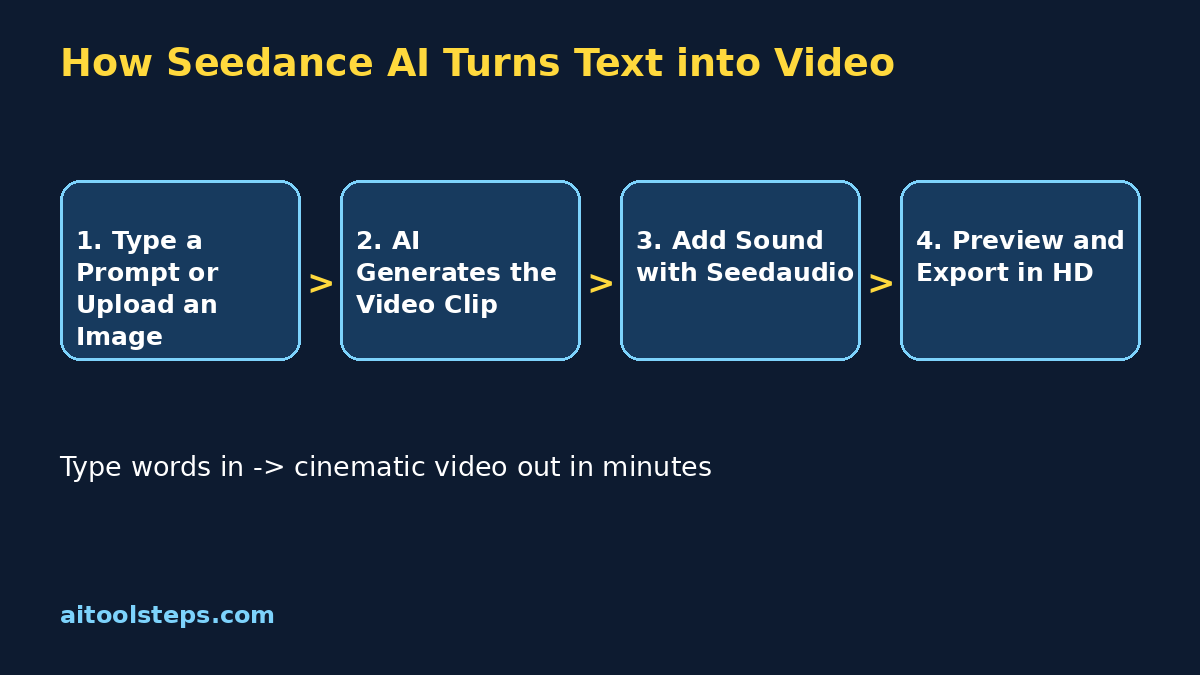
Before you click anything, it helps to know what you are working with. Seedance AI is a text-to-video and image-to-video model. You give it a written description (a “prompt”) or an image, and it generates a short video clip — typically a few seconds long — with cinematic motion, lighting, and detail.
Here is what makes it stand out from other free AI video tools:
- Multi-shot storytelling: Seedance can generate videos that feel like real scenes, with subject movement and camera motion that stay consistent across the clip.
- Realistic physics: Water splashes, cloth moves, and objects fall the way you would expect. This “world knowledge” is why Seedance clips look less “glitchy” than older AI video tools.
- Native sound: With Seedaudio, Seedance can add matching sound effects — footsteps, rain, engine sounds — directly to your generated scenes.
- Free access: Unlike many competitors that hide everything behind a paywall, Seedance AI is free to try, so beginners can learn without spending money.
The newest versions (Seedance 2.0 and the upcoming 2.5) keep improving motion quality and longer, more coherent clips. Free limits can change as versions roll out, so always check the current plan on the official site before a big project.
Step 2: Create Your Free Seedance AI Account
Getting started takes about two minutes. Seedance AI runs in your web browser — nothing to install.
- official Seedance websiteGo to the official Seedance website (search “Seedance AI ByteDance” to find the current official page).
- Click Sign Up or Get Started. You can usually register with an email address, Google account, or another supported login method.
- Verify your email if asked, then sign in.
- You will land on the main generation dashboard with your free credits or free plan already active.
Beginner tip: Use the same email you use for your other creative accounts so all your generations stay in one library. Also bookmark the dashboard — you will be visiting it a lot.
Step 3: Take a Quick Tour of the Dashboard
The Seedance dashboard is simpler than it looks. Here are the four areas you will use most:
- Prompt box: The big text field where you describe the video you want. This is your main creative tool.
- Input mode switch: Toggle between Text to Video (start from words) and Image to Video (start from a photo or AI image).
- Settings panel: Controls for clip length, aspect ratio (16:9 landscape for YouTube, 9:16 vertical for Shorts/TikTok/Reels), and resolution.
- Generation history: Every video you create is saved here, so you can preview, download, or regenerate variations.
Spend five minutes clicking around before generating anything. Knowing where the aspect-ratio switch is will save you from the classic beginner mistake: generating a beautiful landscape video when you actually wanted a vertical short.
Step 4: Generate Your First Text-to-Video Clip
Now the fun part. Text-to-video is the easiest way to start — you describe it, Seedance creates it.
- In the dashboard, make sure Text to Video mode is selected.
- Set your aspect ratio first: choose 9:16 if the video is for TikTok, Reels, or YouTube Shorts, or 16:9 for YouTube or presentations.
- Type a clear, specific prompt. A good starter example: “Cinematic drone shot flying slowly over a neon-lit city at night, rain reflections on the streets, cars with glowing headlights, dramatic atmosphere.”
- Hit Generate and wait. Most clips take 30 seconds to a few minutes depending on length and demand.
- Watch the result. If you love it, download it. If it is close but not perfect, tweak the prompt and regenerate — small word changes can make a big difference.
Your first few generations are experiments, not final products. Generate 5–10 quick test clips with different prompts to build a feel for how the model interprets your words.
Step 5: Turn a Still Image into a Moving Video
Image-to-video is where Seedance AI feels like magic. You can upload any photo — a portrait, a product shot, a landscape — and Seedance will animate it with realistic motion.
- Switch to Image to Video mode in the dashboard.
- Upload your image (use a clear, high-resolution photo for best results).
- Add a short motion prompt describing what should move, for example: “The woman smiles gently and the wind moves her hair, camera slowly zooms in.”
- Generate the clip and review it.
This mode is perfect for:
- Animating old family photos or portraits.
- Bringing product photos to life for ads and social posts.
- Creating moving thumbnails and social media headers.
- Turning AI-generated images (from tools like Ideogram or Leonardo) into video scenes.
Beginner tip: The motion prompt matters as much as the image. “Camera slowly pushes in, subject blinks and smiles” will always beat a vague “make it move.”
Step 6: Write Prompts That Get Great Results
Prompting is a skill, and it is the difference between amateur-looking clips and jaw-dropping ones. Seedance responds best to prompts that describe the shot, the subject, the motion, and the mood.
Use this simple formula:
[Camera move] + [subject and action] + [environment] + [lighting and mood]
Examples:
- “Slow tracking shot of a robot barista pouring latte art in a cozy futuristic cafe, warm morning light, steam rising, cinematic.”
- “Aerial view of ocean waves crashing against cliffs at sunset, seagulls flying, dramatic golden light, slow motion feel.”
More tips that consistently improve results:
- Be specific about motion: “walks slowly toward the camera” beats “walking.”
- Name the camera language: drone shot, close-up, wide shot, tracking shot, slow zoom.
- Describe lighting: golden hour, neon night, soft studio light, dramatic shadows.
- Keep one idea per clip: One clear scene generates better than three ideas crammed together.
- Iterate: Change one element at a time between generations so you learn what each word does.
Save your best prompts in a notes app. After a month you will have a personal prompt library that makes every new video faster to create.
Step 7: Control Camera Moves and Scene Changes
Seedance AI understands camera direction, which is what separates cinematic AI video from random motion. You can direct it like a film director.
- Static with subject motion: “The camera stays still while the dancer spins” — great for portraits and product shots.
- Slow push-in: Adds drama and focus. Works beautifully for reveals.
- Drone/aerial moves: “Drone rises above the forest” — the classic epic opening shot.
- Tracking shots: “Camera follows the runner from the side” — keeps energy high.
For multi-shot storytelling, generate several short clips with matching subjects and prompts, then stitch them together in a free editor like CapCut. Keep the lighting, color, and character descriptions consistent across clips so the scenes feel like one video. This “generate in pieces, edit together” workflow is how beginners make 30–60 second AI videos that feel professionally produced.
Step 8: Add Sound Effects with Seedaudio
Silent videos feel unfinished. Seedance’s Seedaudio feature can generate matching sound effects for your scenes — rain, footsteps, engines, crowd noise — so your video feels alive.
- After generating a clip, look for the audio/sound option in the clip’s settings or generation panel.
- Enable sound generation for the scene (or describe the sounds you want in your prompt, e.g. “with the sound of rain and distant thunder”).
- Preview the clip with audio. If a sound feels off, regenerate just the audio or adjust the description.
- For voiceovers or music, export the video and add them in CapCut or your editor of choice — AI video tools are best at sound effects, while music and narration still work better when you add them yourself.
Beginner tip: Even subtle ambient sound doubles how “real” a clip feels. A city scene with faint traffic noise will impress viewers far more than the same scene in silence.
Step 9: Plan Multi-Shot Mini Stories
Single clips are fun, but short stories get views. Here is a beginner-friendly workflow for a 30-second AI short:
- Write a 3-beat outline: Setup (5s), action (20s), payoff (5s). Example: a robot wakes up → explores a city → finds a flower.
- Generate one clip per beat in Seedance, keeping the character and style descriptions identical each time.
- Stitch the clips in CapCut in order, trimming the best seconds from each.
- Add sound effects with Seedaudio on each clip, then a trending music track underneath at low volume.
- Add captions and a hook in the first 2 seconds — most viewers decide that fast.
This workflow is how faceless AI video channels grow: consistent characters, simple stories, and regular posting. Seedance’s free access makes it cheap to experiment until you find a format that works.
Step 10: Export and Download Your Videos
When a clip is ready, exporting is one click — but a few settings matter:
- Choose the highest resolution available on your plan for YouTube, and match the platform’s preferred format for Shorts/TikTok (9:16 vertical, MP4).
- Download the original file and keep it — re-uploading compressed copies from social apps degrades quality.
- Organize downloads in folders by project (e.g. “robot-short-ep1”) so you can find clips when editing later.
- Check the usage terms on the official site for anything you plan to monetize. Free plans sometimes have different rules for commercial use than paid ones, and terms can change — a 30-second check now saves headaches later.
Seedance AI vs Other Free AI Video Tools
| Tool | Free Access | Best For | Beginner-Friendliness |
|---|---|---|---|
| Seedance AI | Free to try | Cinematic text-to-video with sound effects | Very easy — prompt box and go |
| Runway | Limited free credits | Professional editing + AI effects | Medium — more features, steeper learning |
| Luma Dream Machine | Free plan available | Dreamy, artistic video clips | Easy — simple prompt interface |
| CapCut AI | Free | Quick social videos from templates | Very easy — template-driven |
Seedance AI wins for beginners who want the most cinematic quality for zero cost. Runway wins if you later want pro-level editing tools. Many creators use Seedance for generation and CapCut for editing — a free, powerful combo.
Frequently Asked Questions
Is Seedance AI really free?
Yes — Seedance AI offers free access so anyone can try AI video generation without paying. Free plans usually come with limits on how many videos you can generate or the maximum resolution, and those limits can change as new versions roll out. Check the official pricing page for the current details before starting a big project.
Who makes Seedance AI?
ByteDance’s Seed teamSeedance is developed by ByteDance’s Seed team — the same company behind TikTok. It is part of a wave of professional-grade AI video models coming from major tech labs, which is why the motion quality is noticeably better than older free tools.
Can I use Seedance videos commercially?
Possibly, but it depends on the current terms of service for your plan. Many free AI tools allow personal and social use but have different rules for paid ads or client work. Always check the official terms before using generated videos in monetized content.
What is the difference between Seedance 2.0 and 2.5?
These are version updates of the underlying model. Newer versions generally improve motion smoothness, longer coherent clips, and better prompt understanding. The core workflow — describe or upload, generate, export — stays the same, so this guide works across versions.
Does Seedance AI add sound to videos?
Yes, through its Seedaudio capability, Seedance can generate matching sound effects for your scenes. For music and voiceovers, most creators still add those in an editor like CapCut after exporting.
Do I need a powerful computer to use Seedance AI?
No. Seedance runs in the cloud through your browser, so all the heavy AI processing happens on their servers. Any laptop or desktop with a decent internet connection works fine.
Final Thoughts
Seedance AI is one of the best free doors into AI filmmaking in 2026. In a single afternoon you can go from “I have never made a video” to publishing cinematic clips made entirely from your imagination — no camera, no crew, no budget.
The creators who win with AI video are not the ones with the fanciest tools. They are the ones who post consistently, learn what their audience loves, and treat every generation as practice. Start with the 10 steps above, build your prompt library, and make your first 10 videos this week. Your 10th will look nothing like your first — and that is exactly the point.
Explore More Free AI Tools
Want to level up the rest of your content workflow? Try these free tools from AIToolSteps:
- AI Title Generator — craft click-worthy titles for your videos and articles in seconds.
- Meta Description Generator — write perfect SEO descriptions without the guesswork.
- AI Rewriter — polish your scripts and captions instantly.
- Keyword Density Checker — keep your content SEO-friendly the easy way.
Find them all, plus 60+ free guides, at AIToolSteps.