
If you have ever stared at a blank design canvas and wished you could just describe the picture in your head and have it appear, Leonardo AI is exactly the tool you have been waiting for. Leonardo AI is a free AI image generator that turns plain English text prompts into stunning, high-quality images in seconds. You do not need design skills, expensive software, or any experience with AI tools to get started.
The free plan gives you around 150 tokens every day, and those tokens refresh daily — which is more than enough to create eye-catching YouTube thumbnails, Instagram posts, blog featured images, Pinterest pins, and creative art projects without spending a single dollar. In this beginner guide, you will learn how to use Leonardo AI from scratch: signing up, writing great prompts, picking the right models, adjusting settings, upscaling, and even the basics of commercial use.
Step 1: Sign Up for a Free Leonardo AI Account
Getting started takes less than two minutes. Here is exactly what to do:
- Go to the Leonardo AI website and click Sign Up (or Launch App).
- Create your account using your Google, Microsoft, Apple, or Facebook account for the fastest setup, or register with an email address and password.
- Confirm your email address if asked, then you will be taken straight into the Leonardo AI web app.
- Look at the top-right corner of the screen — you will see your token balance (around 150 tokens on the free plan). These tokens refresh every day, so even if you use them all today, you will get a fresh batch tomorrow.
That is it — no credit card, no trial countdown, no payment required to start generating images.
Step 2: Explore the Leonardo AI Dashboard
Before you generate your first image, take a quick tour of the dashboard so you know where everything lives:
- Home / Feed: The community feed shows images created by other users. This is gold for beginners — you can see the exact prompts people used and click Remix to try them yourself.
- Image Generation (AI Image): This is your main workspace. It has the prompt box, model selector, and all the generation settings.
- Canvas Editor: A built-in editor for inpainting, outpainting, and background removal (we will cover the basics in Step 8).
- Your generations: Your personal gallery of everything you have created, where you can download, delete, or organize your images.
- Token counter: Always visible so you know how many tokens you have left for the day.
Spend five minutes clicking around and remixing a few community images. It is the fastest way to learn what good prompts look like.
Step 3: Write Your First Prompt (The Prompt Formula)
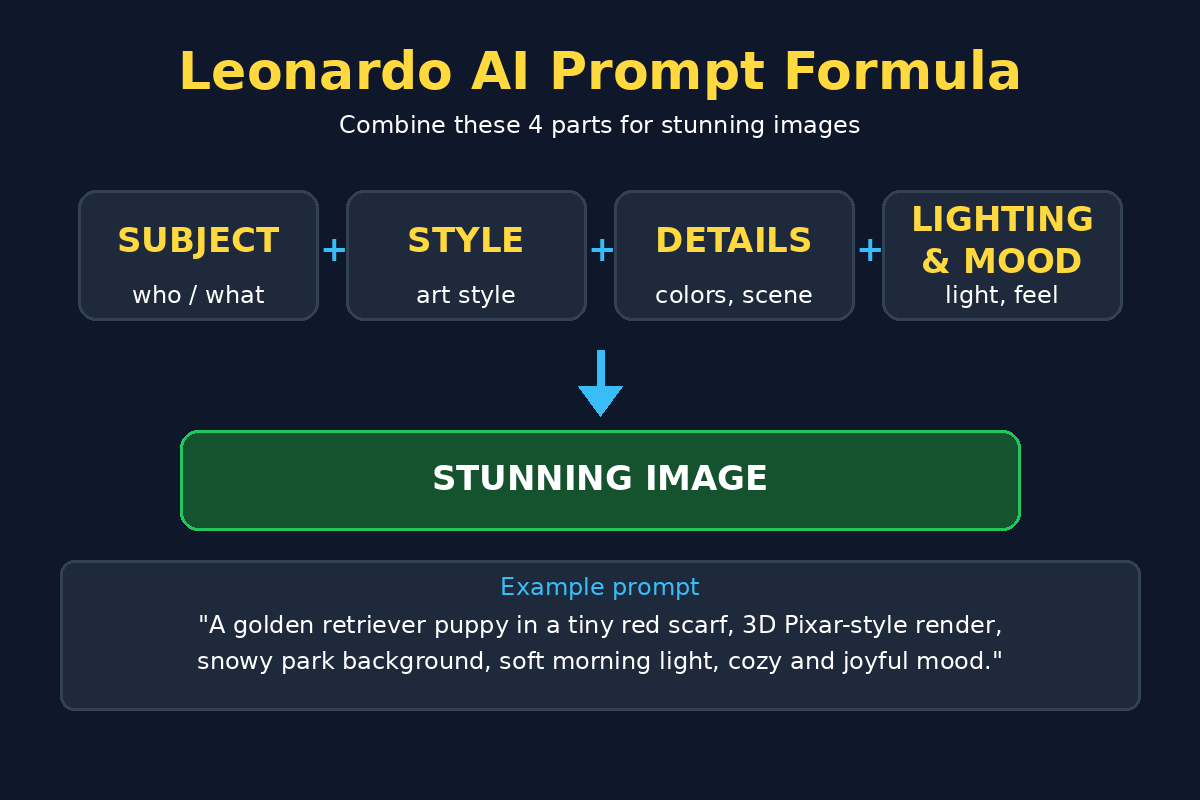
The prompt is the text description that tells Leonardo AI what to create. Beginners often write prompts that are too short (“a cat”) and get boring results. Use this simple 4-part prompt formula instead:
SUBJECT + STYLE + DETAILS + LIGHTING & MOOD
- Subject: What is in the image? Be specific — not “a dog” but “a golden retriever puppy wearing a tiny red scarf”.
- Style: The art style — photorealistic, 3D Pixar-style render, anime, digital painting, watercolor, cinematic photo, logo design, etc.
- Details: Extra specifics — colors, background, composition, clothing, objects, camera angle.
- Lighting & mood: Golden hour lighting, dramatic studio lighting, soft morning light, neon glow, cozy atmosphere, epic and dramatic.
Put it together and a weak prompt like “a castle” becomes: “A majestic medieval castle on a cliff overlooking the ocean, epic fantasy digital painting style, dramatic storm clouds and crashing waves below, cinematic lighting, highly detailed, breathtaking atmosphere.”
Paste your prompt into the prompt box in the Image Generation tab and move on to Step 4 before hitting Generate — the model and settings matter just as much as the words.
Step 4: Pick the Right Model or Preset
Leonardo AI offers several AI models, and choosing the right one makes a huge difference. Here are the main ones beginners should know:
- Phoenix: Leonardo’s flagship model. Best all-around choice for photorealistic images, portraits, and detailed scenes. If you are unsure, start here.
- Flux: Excellent for following complex prompts precisely and rendering text inside images better than most models. Great when your prompt has lots of specific details.
- Anime preset: Optimized for anime and manga-style illustrations with clean lines and vibrant colors.
- Illustration / Artistic presets: Stylized presets for digital art, concept art, and painterly looks.
- PhotoReal: Tuned for ultra-realistic photography-style outputs — portraits, products, and landscapes.
Beginner tip: Generate the same prompt with two different models and compare the results side by side. You will quickly develop a feel for which model suits your style, and it only costs a few tokens to experiment.
Step 5: Adjust the Key Settings Before You Generate
Before clicking Generate, check these four settings — they control the size, quantity, and creativity of your images:
- Image dimensions: Choose the aspect ratio that fits your use case. Use 16:9 (landscape) for YouTube thumbnails and blog headers, 9:16 (portrait) for TikTok, Reels, and phone wallpapers, and 1:1 (square) for Instagram posts and profile pictures.
- Number of images: Generate 2–4 images per prompt instead of one. It costs a few more tokens, but seeing variations side by side helps you pick the winner and learn faster.
- Guidance / Prompt Magic: This slider controls how strictly the AI follows your prompt. Higher values stick closer to your words; lower values give the AI more creative freedom. For beginners, the default or slightly-above-default setting works best.
- Negative prompt (optional): A second box where you list things you do NOT want — for example “blurry, watermark, extra fingers, distorted face”. This is a pro trick that noticeably improves quality.
Once your settings look good, click Generate and wait a few seconds. Your images will appear in the results panel.
Step 6: Generate, Review, and Iterate Like a Pro
Your first result is rarely perfect — and that is completely normal. Professional AI artists iterate. Here is the workflow:
- Review all variations: Look at each of the 2–4 images. Pick the closest one to your vision, even if it is not perfect.
- Tweak the prompt: Add one or two missing details, or strengthen a weak part. Small changes work better than rewriting everything.
- Use Remix / Variations: Click on an image you like and generate variations of it — same concept, fresh takes. This is the fastest path from “good” to “great”.
- Try a different model: If the style feels off, run the same prompt through Phoenix, then Flux, and compare.
- Steal like an artist: Browse the community feed, find images you love, study their prompts, and remix them with your own twist.
Each round of iteration costs only a handful of tokens, so do not be shy. Three to five rounds is typical for a polished result.
Step 7: Upscale Your Best Images
Images come out of the generator at a decent resolution, but for crisp thumbnails, prints, or full-screen use you will want to upscale them:
- Open the image you want to improve and look for the Upscale option (often labeled Upscaler).
- Choose an upscaler preset — the standard upscaler sharpens details and increases resolution cleanly.
- Run the upscale (it costs a few extra tokens) and compare before and after by zooming in on fine details like eyes, text, or textures.
- Download the upscaled version as your final file.
When to upscale: Always upscale images you plan to publish — YouTube thumbnails, blog featured images, and Instagram posts all look noticeably sharper after upscaling.
Step 8: Remove Backgrounds and Try Inpainting Basics
Leonardo AI’s Canvas Editor lets you edit images after generating them. Two beginner-friendly features are worth learning:
Background removal:
- Open your image in the editor and find the background removal tool.
- One click separates your subject from the background, giving you a clean cutout with a transparent or solid background.
- Perfect for product shots, profile pictures, and thumbnails where you want to place the subject on a custom background.
Inpainting (fixing parts of an image):
- AI hands, faces, or small details sometimes come out wrong. Inpainting lets you paint over just the broken area.
- Select the problem region with the brush, write a short prompt describing what should be there instead (e.g. “a natural human hand”), and regenerate only that region.
- The rest of your image stays untouched.
You do not need to master the full canvas editor on day one — background removal and simple inpainting cover 90% of what beginners need.
Step 9: Download, Save, and Organize Your Creations
Generated images live in your Leonardo AI gallery, but you should keep your own organized copies:
- Click any image and hit Download to save the full-resolution PNG or JPG to your device.
- Create folders on your computer or cloud drive by project — for example “YouTube Thumbnails”, “Blog Images”, “Instagram Posts”.
- Rename files descriptively (e.g.
leonardo-castle-thumbnail-v2.png) so you can find them later. - If you plan to reuse a great prompt, save the prompt text in a notes app or document alongside the image. Building a personal prompt library saves enormous time.
Naming tip: Include the model name in your prompt notes (e.g. “Phoenix, 16:9”). When you want to recreate a similar style months later, you will thank yourself.
Step 10: Use Your Creations the Smart Way (License + Pro Tips)
Before you publish Leonardo AI images on your blog, YouTube channel, or client work, understand the basics:
- Commercial use: Leonardo AI’s terms allow commercial use of images you generate, but the exact rights depend on your plan tier. Free-plan users generally can use images commercially with some conditions, while paid plans offer broader rights.
- Always check the current terms: Licensing terms change over time. Before using images in client work or products you sell, read the current terms of service and pricing page on Leonardo AI’s website.
- Trademarks and real people: Do not generate images of celebrities, brand logos, or trademarked characters for commercial use — the AI will sometimes comply, but that does not make it legal.
- Disclosure: Some platforms (like YouTube) ask you to disclose AI-generated content. It takes two seconds and keeps you compliant.
Pro tips to level up fast:
- Save your best prompts in a swipe file and reuse the structure for new topics.
- Generate at off-peak hours if renders feel slow — queues are shorter.
- Combine Leonardo AI with free tools like Canva: generate the artwork in Leonardo, then add text overlays and branding in Canva.
- Your tokens refresh daily, so make image generation a small daily habit — 15 minutes a day builds serious skill within a month.
Leonardo AI vs Alternatives: Quick Comparison
| Feature | Leonardo AI | Gemini / Bing Image Creator | Canva AI (Magic Media) |
|---|---|---|---|
| Free quota | ~150 tokens/day, refreshes daily | Limited daily generations | Limited free lifetime credits |
| Image quality | Excellent, multiple pro models | Good, single model style | Good, simpler styles |
| Art styles | Huge range (photo, anime, 3D, art) | Moderate range | Moderate, template-friendly |
| Editing tools | Built-in canvas, inpainting, upscale | Basic or none | Strong design integration |
| Best for | Thumbnails, blog art, creative projects | Quick casual images | Social designs with text |
Frequently Asked Questions
Is Leonardo AI really free?
Yes. The free plan gives you around 150 tokens per day, and they refresh every 24 hours. You can generate dozens of images daily without paying. Paid plans exist for heavier users who need more tokens, faster queues, and broader commercial rights — but beginners rarely need them at first.
How many images can I generate with 150 tokens?
It depends on your settings. A standard generation of 2–4 images costs a small number of tokens, so 150 daily tokens typically allow 30–75+ images per day. Upscaling and canvas edits cost extra, so budget a few tokens for those. Limits can change, so check the pricing page for current numbers.
Do I own the images I create with Leonardo AI?
You receive usage rights to images you generate, including commercial use under most plans, but the exact terms depend on your subscription tier. Always read the current terms of service before using images in paid client work or products.
Why do my images look weird sometimes?
Common causes: prompts that are too short or vague, the wrong model for the style you want, or missing negative prompts. Fix it by expanding your prompt with the 4-part formula from Step 3, trying a different model, and adding a negative prompt like “blurry, distorted, watermark”.
Can I use Leonardo AI images on YouTube and Instagram?
Absolutely — that is one of the most popular uses. Generate 16:9 images for YouTube thumbnails and 1:1 or 4:5 for Instagram, upscale them, and add your text overlays in an editor like Canva. Remember to tick the AI-generated content disclosure on YouTube when uploading.
Final Thoughts
Leonardo AI puts professional-quality image generation in the hands of complete beginners — for free, every single day. The learning curve is genuinely short: sign up, learn the 4-part prompt formula, pick the right model, and iterate. Within a week of daily practice, you will be producing thumbnails, blog images, and social media art that look like they came from a design studio.
Start today with your free daily tokens, save every prompt that works, and build the habit. Your content will never suffer from boring stock photos again.
Explore More Free AI Tools
Want to supercharge the rest of your content workflow? Check out these free tools on aitoolsteps.com:
- AI Title Generator — craft click-worthy headlines for your blog posts and videos in seconds.
- Meta Description Generator — write SEO-friendly meta descriptions that boost your click-through rates.
- AI Rewriter — refresh and improve improve your existing content effortlessly.
- Keyword Density Checker — make sure your articles hit the perfect keyword balance for SEO.
Pair these with Leonardo AI, and you have a complete free toolkit for creating content that ranks and converts.