

Typing everything by hand is slow. You speak around 150 words per minute, but most people type at barely 40. That gap is exactly why AI voice dictation tools like Wispr Flow are exploding in popularity — you talk, and polished, grammatically clean text appears in any app you are using.
Wispr Flow is one of the most popular AI dictation apps of 2026. It works inside every application on your computer, cleans up your speech automatically, and speaks over 100 languages. The best part: it has a genuinely free plan you can start using today.
In this beginner-friendly guide, you will learn how to use Wispr Flow step by step — from creating your free account and setting up your microphone to dictating your first email, using voice commands, and staying inside the free plan limits. By the end, you will be dictating emails, documents, and messages faster than you ever typed them.
Step 1: Understand What Wispr Flow Actually Does
Before installing anything, let us clear up what Wispr Flow is and is not.
Wispr Flow is an AI-powered voice dictation app for Mac, Windows, iPhone, and Android. Unlike old-fashioned dictation software that simply transcribes your words one by one, Flow uses AI to polish your speech as you talk. It removes filler words like “um” and “uh”, fixes grammar, adds punctuation, and even adapts the tone to the app you are using.
Here is what makes it different from the built-in dictation on your phone or computer:
- Works in every app: Email, Slack, Word, Google Docs, WhatsApp Web, Notion — anywhere you can type, you can dictate.
- AI cleanup: Rambling speech comes out structured and readable.
- Tone adaptation: Flow adjusts your wording to fit the context, so a Slack message sounds casual while a formal email sounds professional.
- 100+ languages: Automatic language detection means you can switch languages mid-sentence.
What it is not: it is not a meeting transcriber (though it has a notetaker feature), and it is not an offline tool — it needs an internet connection because the AI processing happens in the cloud.
Step 2: Create Your Free Wispr Flow Account
Getting started is free and takes about two minutes. No credit card is required for the free plan.
- Go to the official Wispr Flow website in your browser.
- Click Sign Up or Get Started.
- Sign up with your Google account or email address.
- Check your inbox and confirm your email if asked.
That is it — you now have a free Basic account. The free plan includes:
- Around 2,000 dictated words per week on desktop
- Around 1,000 words per week on iPhone
- Dictation in 100+ languages
- Works across all your apps
The word limit resets every week. If you dictate heavily, you will eventually hit the cap — but for trying the tool and light daily use, the free tier is genuinely useful.
Step 3: Download and Install the App
Wispr Flow is available on all major platforms. Here is how to get it on each one:
On Mac:
- Download Flow from the Wispr Flow website or the Mac App Store.
- Open the installer and drag the app into your Applications folder.
- Launch Wispr Flow and sign in with the account you just created.
On Windows:
- Download Flow from the Microsoft Store or the Wispr Flow website.
- Run the installer and follow the on-screen steps (Windows 10 version 1903+ or Windows 11 is supported).
- Launch the app from your system tray and sign in.
On iPhone or Android:
- Search for “Wispr Flow” in the App Store or Google Play Store.
- Install the app and sign in.
The desktop version is where Flow really shines, so if you have a computer, start there. The mobile app is great for dictating on the go.
Step 4: Grant Microphone Permission
Like any voice app, Wispr Flow needs access to your microphone. This step is quick but important — if you skip it, nothing will work.
On Mac:
- When you first launch Flow, macOS will ask for microphone access — click OK.
- If you missed the prompt, go to System Settings → Privacy & Security → Microphone and toggle Wispr Flow on.
- You may also need to enable Accessibility permission so Flow can insert text into other apps: go to System Settings → Privacy & Security → Accessibility and enable it.
On Windows:
- On first launch, Windows will prompt you to allow microphone access — click Yes.
- If you missed it, go to Settings → Privacy & security → Microphone and turn on access for Wispr Flow.
Tip for beginners: Use a decent microphone. A laptop’s built-in mic works fine in a quiet room, but a headset or earbuds with a mic will give noticeably better accuracy — especially if there is background noise.
Step 5: Set Up Your Push-to-Talk Hotkey
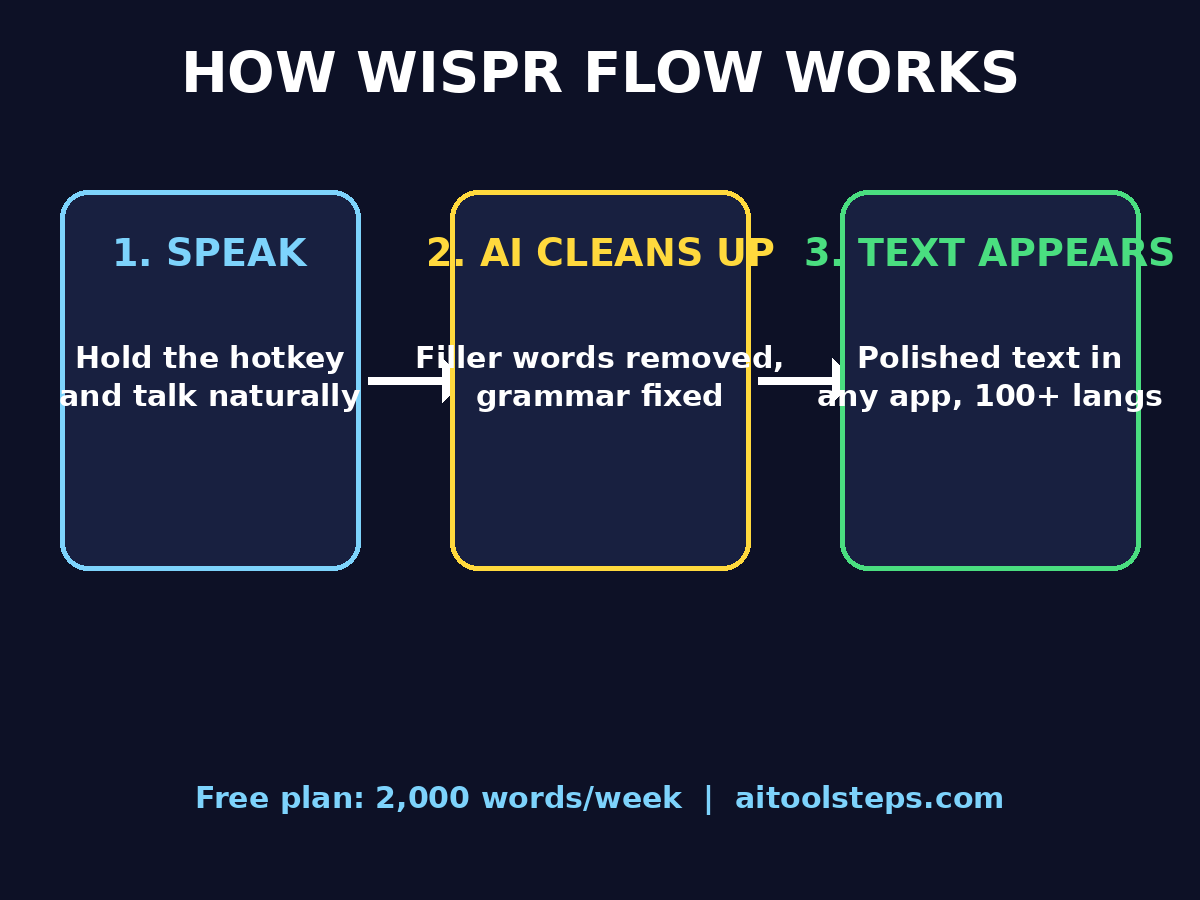
Wispr Flow uses a push-to-talk system: you hold a hotkey, speak, and release. Text appears where your cursor is. This design means Flow never listens when you are not actively dictating — good for privacy and battery life.
The default hotkey on Windows is Ctrl + Shift + Space. On Mac, Flow uses a similar combination. Here is how to customize it:
- Open the Wispr Flow app and go to Settings.
- Find the Hotkey or Push to talk section.
- Click the current hotkey and press your preferred key combination.
- Pick something easy to reach but hard to press by accident — for example, holding the Fn key twice, or Option + Space on Mac.
Beginner tip: Spend five minutes just practicing the hotkey before you try real dictation. Hold it, say a sentence, release it. Repeat until the motion feels natural. This tiny practice session saves a lot of frustration later.
Step 6: Dictate Your First Message
Now for the fun part. Let us dictate your first real text:
- Open any app where you can type — try your email, a notes app, or even the search bar.
- Click where you want the text to appear.
- Hold your hotkey and speak naturally: “Hi Sarah, thanks for sending the report. I have reviewed it and I think the third section needs more detail about the timeline.”
- Release the hotkey and watch the text appear — cleaned up, punctuated, and formatted.
Notice what happened: you did not say “comma” or “period”. Wispr Flow’s AI adds punctuation automatically and removes the filler words you probably said without noticing.
What to try next:
- Dictate a full email reply instead of typing it.
- Draft a social media caption out loud.
- Brain-dump ideas into a notes app by talking instead of typing.
Most beginners are surprised at how natural this feels after just a few tries. Dictating a paragraph takes seconds; typing it takes minutes.
Step 7: Let the AI Edit Your Speech
This is the step that separates Wispr Flow from basic dictation — the automatic AI editing. You do not need to turn anything on; it happens by default. But understanding what it does helps you trust it.
When you dictate, Flow’s AI does three things in real time:
- Removes filler words: “Um”, “uh”, “like”, “you know” disappear from the final text.
- Fixes grammar and structure: A rambling sentence like “so basically I was thinking maybe we could, um, move the meeting to like Thursday or Friday” becomes “I was thinking we could move the meeting to Thursday or Friday.”
- Adapts tone: Flow considers the app you are dictating into. Dictate into Slack and the text stays casual; dictate into Gmail and it comes out more polished.
Important for beginners: Speak naturally — do not slow down or over-enunciate like a robot. Flow is trained on natural, conversational speech. The more naturally you talk, the better the AI cleanup works. If a result looks wrong, just re-dictate the sentence; it takes two seconds.
Step 8: Use Voice Commands to Edit
On the Pro plan, Wispr Flow includes a command mode that lets you edit text with your voice. Even on the free plan, knowing the concept helps you decide whether to upgrade later.
With command mode, you can say things like:
- “Delete that” — removes the last dictated sentence
- “Make it shorter” — condenses your text
- “Make it more formal” — rewrites in a professional tone
- “Add a bullet list” — reformats your words as bullets
On the free plan, you can achieve similar results by dictating a correction manually: just say the corrected sentence and delete the old one. But command mode is one of the biggest reasons heavy users upgrade to Pro.
Step 9: Dictate in 100+ Languages
One of Wispr Flow’s standout features is automatic language detection across more than 100 languages. You do not need to change any settings — just speak.
How to use it:
- Hold your hotkey and speak in any supported language — Urdu, Spanish, French, Arabic, Hindi, or any other.
- Flow detects the language automatically and transcribes it correctly.
- You can even mix languages mid-sentence, which is perfect if you naturally switch between languages the way many bilingual speakers do.
This makes Flow especially useful for multilingual users, international teams, and anyone who communicates in more than one language. The AI cleanup works in all supported languages, not just English.
Step 10: Take Flow With You on Mobile
The Wispr Flow mobile app (iPhone and Android) brings the same dictation magic to your phone. Setup is simple:
- Install the app and sign in with the same account.
- Grant microphone permission when prompted.
- Open the Flow keyboard or use the app’s dictation button.
- Speak, and your text appears — ready to paste into WhatsApp, email, or any other app.
Note on free limits: The free plan allows roughly 1,000 words per week on iPhone (Android is currently more generous). Mobile dictation is perfect for replying to messages hands-free while walking, cooking, or commuting.
Step 11: Stay Inside the Free Plan Limits
The free Basic plan is generous enough to try everything, but it has a weekly word cap: about 2,000 words on desktop and 1,000 on iPhone, resetting every week. Here is how to make the most of it:
- Dictate high-value text: Use your free words for emails, documents, and messages — the writing you would otherwise spend the most time typing.
- Avoid rambling: Short, focused dictation uses fewer words. Say what you mean instead of thinking out loud.
- Watch the counter: The app shows your remaining words. If you are running low near the end of the week, save dictation for important messages.
- Know when to upgrade: If you hit the cap every single week, the Pro plan (around $12–15/month) removes the limit entirely and adds command mode, custom vocabulary, and priority processing.
For most casual users — a few emails and messages a day — the free plan is genuinely enough. Power users who dictate for hours daily are the ones who need Pro.
Step 12: Pro Tips to Dictate Like an Expert
You know the basics now. These seven tips will take your dictation from good to great:
- Think in sentences, not words. Pause briefly between sentences instead of saying “period”. Flow handles the punctuation.
- Correct by re-dictating. If a sentence comes out wrong, do not fiddle with it — select it and dictate it again. It is faster.
- Build a custom vocabulary (Pro). Add names, technical terms, and brand spellings so Flow gets them right every time.
- Use it for first drafts. Dictate messy first drafts of documents, then edit by hand. Drafting by voice is dramatically faster than typing.
- Dictate in quiet spaces. Background noise is the number one cause of bad transcription. A quiet room and a headset mic make a huge difference.
- Learn the tone trick. Dictate the same message into Slack and into Gmail to see how Flow adapts the tone. Then use this deliberately — casual apps for brainstorming, formal apps for final messages.
- Combine with AI chatbots. Dictate your prompts into ChatGPT or Claude with Flow instead of typing them. Long, detailed prompts become effortless.
Wispr Flow vs Other Dictation Tools: Quick Comparison
How does Wispr Flow stack up against the alternatives? Here is a beginner-friendly comparison:
| Feature | Wispr Flow | Apple Dictation | Superwhisper | Dragon |
|---|---|---|---|---|
| Free plan | Yes (2,000 words/week desktop) | Yes (built into Apple devices) | Limited free tier | No free plan |
| AI cleanup & tone | Excellent — auto-edits speech | Basic transcription only | Very good | Good, but dated interface |
| Works in every app | Yes | Mostly yes | Yes | Yes |
| Languages | 100+ with auto-detect | 60+ | 100+ | Limited |
| Platforms | Mac, Windows, iOS, Android | Apple only | Mac, iOS | Windows, Mac |
| Offline mode | No (cloud-powered) | Partially | Yes | Yes |
| Pro price | ~$12–15/month | Free | ~$8.50/month | $300+ one-time |
| Best for | Beginners wanting polished output everywhere | Apple users wanting free basics | Privacy-focused Mac users | Professional heavy users |
The bottom line for beginners: Wispr Flow wins on ease of use and polished output. Apple Dictation is fine if you never leave the Apple ecosystem and only need basic transcription. Superwhisper is worth a look if offline privacy matters to you. Dragon is overkill (and overpriced) for beginners.
Frequently Asked Questions
Is Wispr Flow really free?
Yes. The Basic plan is free with no credit card required. You get around 2,000 dictated words per week on desktop and 1,000 per week on iPhone, with the limit resetting weekly. The paid Pro plan (about $12–15 per month) removes the word cap and adds command mode, custom vocabulary, and priority processing.
Does Wispr Flow work on Windows?
Yes. Wispr Flow launched on Windows in 2025 and is available as a free download from the Microsoft Store. It runs in the system tray and works across all Windows applications. Windows 10 (version 1903+) and Windows 11 are supported.
Is my voice data private with Wispr Flow?
Wispr Flow is cloud-powered, which means your audio is sent to Wispr’s servers for AI processing. The company offers privacy controls including a privacy mode with zero data retention, and enterprise tiers add SOC 2 and HIPAA compliance. If you need fully offline dictation with no cloud processing at all, look at alternatives like Superwhisper instead.
Can Wispr Flow understand accents?
Yes — Flow is trained on diverse speech and handles most accents well. Using a decent microphone in a quiet room helps accuracy more than anything else. If it consistently mishears a specific word, the Pro plan’s custom vocabulary feature lets you teach it the correct spelling.
What happens when I hit the free word limit?
Dictation simply stops working until the weekly reset (or until you upgrade to Pro). There is no pay-as-you-go top-up on the free tier, so plan your usage: save your free words for high-value writing like emails and documents.
Can I use Wispr Flow for languages other than English?
Absolutely. Flow supports over 100 languages with automatic detection — you do not need to change any settings. Just speak in your language and Flow transcribes it, including the AI cleanup and punctuation.
Final Thoughts
Wispr Flow turns the slowest part of computer work — typing — into the fastest: talking. For beginners, the learning curve is almost zero. Install it, hold a hotkey, speak naturally, and watch clean text appear anywhere you need it.
Start with the free plan and give yourself one week of real use. Dictate your emails, your messages, your document drafts. Most people find that after a week, going back to typing everything feels painfully slow — and that is exactly the point.
The 2,000-word weekly cap is enough to prove the concept. If you find yourself hitting it regularly, that is your signal that voice dictation has become part of your workflow — and the Pro upgrade will pay for itself in saved time within days.
Explore More Free AI Tools
Want to speed up more of your workflow with AI? Check out these free tools on AIToolSteps:
- AI Title Generator – Create catchy, SEO-friendly blog titles in seconds: https://aitoolsteps.com/
- AI Meta Description Generator – Write perfect meta descriptions that get clicks: https://aitoolsteps.com/
- AI Rewriter – Rewrite any text in a fresh, polished style: https://aitoolsteps.com/
- Keyword Density Checker – Analyze your content for perfect keyword balance: https://aitoolsteps.com/