

Every meeting ends the same way. You close the call, you promise yourself you will write up the notes later, and later never comes. The decisions fade, the action items blur, and a week later someone asks who was supposed to do what — and nobody remembers. Yogurt AI was built to fix exactly that. Meeting note tools solve this. But most of them send your conversations to a vendor’s cloud, charge a monthly subscription, and join your calls as a visible bot that makes everyone a little uncomfortable.
Yogurt AI takes the opposite approach. It is a free, open-source meeting notes app. It records your calls in the background. It transcribes them with AI running on your own computer, and writes a summary with next steps when the call ends. No bot joins your meeting. No account is needed. No recording ever leaves your computer. It launched on November 11, 2026, and hit the top of Hacker News the same day. It arrived on Product Hunt on November 13, 2026, as the free, private alternative to Granola. In this beginner-friendly guide, you will learn how to use Yogurt AI. We go from the first download to your first searchable meeting summary, even if you have never used a local AI app before.
Step 1: Understand What Yogurt AI Actually Does
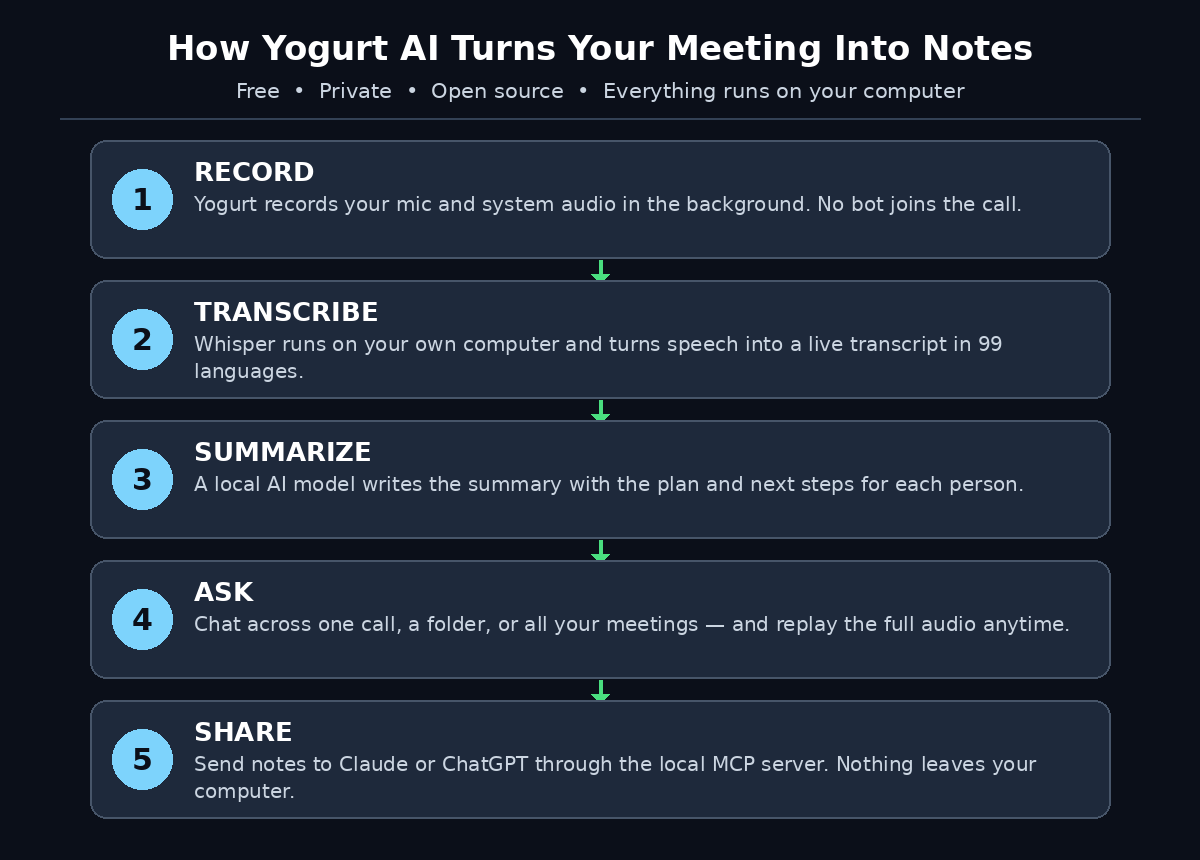
Yogurt AI is a desktop app for Mac, Windows, and Linux that gives you AI meeting notes without the usual trade-offs. Instead of a bot joining your call, Yogurt records your microphone and the audio playing on your computer. It works while you meet on Zoom, Google Meet, or Microsoft Teams. You see a live transcript as people talk. When the call ends, Yogurt AI writes a summary with the plan, the next steps per person, and space for your own reminders.
Why Yogurt AI Keeps Everything on Your Computer
The part that makes Yogurt different is where the AI runs. Transcription uses Whisper through whisper.cpp, with Apple SpeechAnalyzer on supported Macs. Summaries and questions are answered by a local open-weight model from the Gemma 4, gpt-oss, or Qwen3 families, served through llama.cpp. Your recordings, transcripts, and summaries stay on your computer. The app only goes online for model downloads and update checks. There is no account, no paid tier, and no subscription. It is MIT-licensed open source, built by Frigade, and the code is public on GitHub.
- No bot in your meeting: nothing joins the call, so nobody has to admit a stranger, and the meeting feels normal.
- Live transcript while you talk: follow along in real time, and catch a detail the moment it is said.
- Summary with next steps: when the call ends, you get the plan and who owes what, without writing a word.
- Ask questions across meetings: search one call, a folder, or your whole history, even in the middle of a meeting.
- Replay the full audio: if a summary looks wrong, listen to the exact moment and check it yourself.
One rule comes first, before any feature: always tell the people in the meeting that you are recording. Yogurt itself reminds you of this, because recording people without their permission is wrong in most places and illegal in some. A quick “I am recording notes with a local app, nothing leaves my laptop” at the start of the call is all it takes.
Step 2: Check If Your Computer Can Run Yogurt AI
Local AI is not free in every sense. The price of privacy is disk space and memory, because the models that do the transcribing and summarizing have to live on your machine. Check the requirements before you download Yogurt AI, so the first run goes smoothly.
- Memory: at least 8 GB of RAM. A video call plus a local AI model running beside it needs real headroom.
- Disk space: plan for 5 to 14 GB of model downloads. Setup pulls a smaller notes model first, around 5 GB, then the best model your hardware can run well, which can be 14 GB or more on a powerful machine.
- Mac: Apple silicon, macOS 14.4 or later.
- Windows: Windows 10 version 2004 or later, 64-bit.
- Linux: Ubuntu 22.04 or a compatible newer system, 64-bit.
- Internet: only for the first setup, model downloads, and update checks. After that, your meetings are processed offline.
If your computer is short on disk space, free some room before installing. The model download is the one step beginners underestimate. A 14 GB download on a nearly full drive will fail. It is much easier to clear space now than to debug a failed setup later. If you are on a laptop with 8 GB of RAM, close heavy apps before your first recorded meeting. That way the call and the model are not fighting for memory.
Step 3: Download and Install Yogurt AI
Yogurt is free to download from its website at yogurt.so, and the source and releases are on GitHub under FrigadeHQ/yogurt. Grab the build for your system from the latest release: a DMG for Mac, an installer for Windows, or a package for Linux.
- On Mac: open the DMG and drag Yogurt into Applications, the way you install any Mac app. First launch downloads the models, so stay online.
- For Windows: run the installer. It is not yet signed with a Microsoft certificate, so Windows SmartScreen may show a “Windows protected your PC” warning. Choose “More info”, then “Run anyway” to continue.
- For Linux: install the package for your distribution. Ubuntu 22.04 or newer is the supported base.
- No account, no sign-up: Yogurt never asks for an email, a password, or a payment card. Open it and it is ready to set up.
Download only from the official website or the official GitHub releases page. Free tools attract copycat download pages, and a fake installer is the fastest way to turn a privacy tool into a security problem. If a search result offers a “Yogurt Pro” or asks you to pay, it is not the real app — there is no paid version.
Step 4: Let Yogurt AI Download Its Local AI Models
The first time you open Yogurt AI, it downloads the AI models it needs from Hugging Face. It picks the largest notes model your computer can run well. This is the slowest part of setup, and it is completely normal. A smaller model arrives first, around 5 GB, so you can start quickly. Then the best model for your hardware follows, which can be 14 GB or more.
- Stay on a stable connection: a big download on shaky Wi-Fi will stall. Use your fastest reliable connection for this one-time step.
- Let it finish before your first meeting: do not start a call while models are still downloading. Wait for the ready state.
- Understand the two models: one model turns speech into text (Whisper), and another model turns the transcript into summaries and answers (Gemma, gpt-oss, or Qwen3). Both run locally.
- Check your storage after setup: confirm the models landed and you still have comfortable free space for recordings.
This download is the real price of “private by default”. A cloud note-taker runs its AI on another company’s GPUs and charges you monthly. Yogurt asks for a few gigabytes of disk and enough RAM to hold a model next to a video call. Then it costs nothing, forever. For most people, that is a very good trade.
Step 5: Record Your First Meeting with Yogurt AI
Recording is the part that feels almost too simple after the setup. Yogurt sits in the background and records your microphone and your computer’s audio while you meet on Zoom, Google Meet, or Teams. Nothing joins the call. Nobody else has to install anything. The recording stops when the call does.
- Open Yogurt before the call: make sure it is running and the models are ready, so nothing is missed at the start.
- Tell the room you are recording: a one-line heads-up keeps you honest and legal. Do it every time.
- Join your meeting normally: use Zoom, Google Meet, or Teams exactly as usual. Yogurt captures the audio in the background.
- Watch the live transcript: follow the conversation as text appears, and glance at it when you miss a number or a name.
- End the call and let it finish: Yogurt stops recording when the call ends, then builds your summary.
Your first recording should be a low-stakes call. Try a team stand-up or a catch-up with a colleague — not the most important client meeting of the month. That way you learn the flow, check the transcript quality, and see how the summary reads before you rely on it for something critical. For a first test, try a call where you already know what was decided, and compare Yogurt’s summary against your own memory.
Step 6: Read Your Yogurt AI Summary and Next Steps
When the call ends, Yogurt AI writes a summary of the meeting: the plan, the next steps per person, and room for your own reminders. This is where the app earns its place. A good summary is not a wall of transcript. It is the three decisions and the five tasks, in plain language, ready to paste into an email or a task list.
- Read the summary first: check the decisions and the next steps before you read the full transcript.
- Check who owes what: make sure each action item has a name attached to it. Fix any mix-up while the call is fresh.
- Add your own notes: drop in the context only you know — the thing someone said off-mic, or the follow-up you promised in chat.
- Send the summary onward: copy the action items into your task manager or email them to the team. The summary is yours to share.
If a summary misses a decision or assigns a task to the wrong person, that is useful information, not a failure. Local models are good and getting better, but they are not perfect. Skim the transcript for the exact moment, correct the summary, and you still saved far more time than writing notes from scratch. For a digital agency that runs client calls all day, that summary is also a paper trail. Every promise made on a call is written down, searchable, and stored on the agency’s own machines instead of a vendor’s cloud.
Step 7: Ask Yogurt AI Questions Across All Your Meetings
A single summary is useful. A searchable memory of every meeting you have ever recorded is something else entirely. Yogurt lets you ask questions across all your meetings, a folder, or one call — even in the middle of a meeting. That turns your call history into a knowledge base you can interrogate.
- Ask about one call: “What did we agree about the launch date?” and get the answer with the source moment.
- Search across a folder: group a project’s meetings and ask what changed over the month.
- Search your whole history: “When did the client first mention the budget change?” — the kind of question that normally takes an hour of digging.
- Check things mid-meeting: check what was decided last week without leaving the call you are in.
Start with simple questions and check the answers against the transcript. The chat is only as good as the transcript underneath it, and a noisy call or a heavy accent can blur a word. Once you trust the answers on calls you remember well, you can lean on them for calls you barely remember at all. This is also where good folder habits pay off: group meetings by project or client, and your questions get faster and more accurate.
Step 8: Replay Audio and Fix the Yogurt AI Transcript
AI summaries are only trustworthy if you can check them. Yogurt AI keeps the full audio of every meeting, so you can replay any moment and hear exactly what was said. If the transcript misheard a name, a number, or a product, the audio settles it in seconds.
- Replay the key moments: when a decision matters, listen to the thirty seconds around it instead of trusting the summary alone.
- Fix important errors: correct names, figures, and dates in your notes so the mistake does not travel into an email.
- Use the 99-language support: Yogurt transcribes speech in 99 languages with the multi-language setting, so mixed-language teams are covered.
- Know the Mac-only limits: speaker names from Zoom, Teams, and Meet, and calendar integration, are Mac-only for now. Linux and Windows support is coming.
Replay is also the fastest way to improve your own meetings. Listen to five minutes of a call that went badly. You will hear the exact moment it drifted — the unclear question, the interruption, the decision nobody confirmed. Most people never do this, because the recording used to live somewhere inconvenient. With Yogurt, it is one click away, on your own computer.
Step 9: Share Yogurt AI Notes with Claude or ChatGPT Through the Local MCP Server
Yogurt AI includes a local MCP server. It is a small bridge. It lets an AI assistant you already use — Claude, ChatGPT, or another app that supports local MCP connections — read your meeting notes directly. Instead of copying and pasting a summary into a chat window, you let your assistant ask Yogurt for it.
- Connect your assistant to the local MCP server: follow Yogurt’s instructions for your assistant app. The connection stays on your machine.
- Ask your assistant about a meeting: “Draft a follow-up email from yesterday’s client call” — and it can read the actual notes, not your memory of them.
- Keep control of what is shared: you choose when the assistant reads your notes. Nothing is uploaded to a middleman cloud service.
- Combine with your other tools: pair the MCP bridge with your writing workflow, and meeting notes flow straight into drafts, plans, and reports.
This is a power-user feature, and beginners should not rush it. Get comfortable with recording, summaries, and questions inside Yogurt first. When those feel natural, the MCP server is the next step. Your notes stop being a document you open, and start being a source your AI tools can use. Teams that already use AI automation services to run their workflows will recognize the pattern. The meeting becomes structured data, and structured data can feed everything else.
Step 10: Build a Private Yogurt AI Meeting-Notes Habit
A tool only helps if you use it every time. The last step is not a setting — it is a habit. Build a small routine around Yogurt AI, and within two weeks your meetings will leave a trail you can actually use.
- Record every work meeting: the value compounds. One recorded call is a note; fifty recorded calls are an institutional memory.
- Review the summary the same day: fix names and tasks while the call is fresh. Five minutes now saves an hour later.
- File meetings by project or client: folders make cross-meeting questions fast and keep personal calls separate.
- Do a weekly review: once a week, ask Yogurt what you committed to across all your meetings, and clear the list.
- Keep the privacy promise: always announce recording. Never share a recording outside the people who were in the meeting, and remember the files live on your computer — back them up like any important work.
Your Weekly Yogurt AI Review
The habit is also what makes the privacy trade worth it. You gave up a few gigabytes of disk and a one-time download to keep your conversations off someone else’s servers. Using the app every day is how you collect on that trade. If you want a deeper look at how AI meeting tools compare, read our Claude Meetings AI guide. It covers a cloud-based assistant that joins your Google Meet calls. Our ElevenAI guide covers a meeting teammate that listens, takes notes, and sends summaries. Yogurt is the private, local end of the same spectrum — and for many people, it is the right end.
| Tool | Price | Bot joins your call? | Where your data lives | Account needed? |
|---|---|---|---|---|
| Yogurt AI | Free, open source (MIT) | No — records in the background | On your computer only | No |
| Granola | Paid plans | No — records in the background | Cloud processing | Yes |
| Otter.ai | Free tier, then paid | Yes — OtterPilot joins as a participant | Cloud | Yes |
| Fireflies.ai | Free tier, then paid | Yes — Fred joins as a participant | Cloud | Yes |
| Manual notes | Free | No | Your notebook | No |
Frequently Asked Questions About Yogurt AI
Is Yogurt AI really free?
Yes. Yogurt is free and open source under the MIT license. There is no account, no paid tier, and no subscription. The only costs are the disk space for the AI models, around 5 to 14 GB. You also need a computer with at least 8 GB of RAM. There is no credit card step and no trial that expires.
Does Yogurt join my meetings as a bot?
No. Yogurt never joins your call as a bot. It records your microphone and your computer’s audio in the background while you meet on Zoom, Google Meet, or Teams, and it stops recording when the call ends. Nobody else has to install anything, and no extra participant appears in the meeting. You should still tell everyone you are recording.
How much disk space and RAM does Yogurt need?
At least 8 GB of RAM, and 5 to 14 GB of disk space for the local AI models. Setup downloads a smaller notes model first, around 5 GB. Then it downloads the best model your hardware can run well, which can be 14 GB or more. After the one-time download, meetings are processed on your computer with no cloud cost.
Which meeting apps does Yogurt work with?
Yogurt works with Zoom, Google Meet, and Microsoft Teams by recording your system audio in the background. Speaker names from those apps and calendar integration are Mac-only for now, with Linux and Windows support coming. It runs on Apple silicon Macs, 64-bit Windows, and 64-bit Linux.
Is my meeting data private with Yogurt?
Yes — that is the whole point of the app. Your recordings, transcripts, and summaries stay on your computer. Transcription and summaries run on local open-weight models. The app only connects to the internet for model downloads and update checks. It collects no telemetry and uploads no meeting recordings. Your privacy still depends on you: announce every recording, and protect the computer the files live on.
Final Thoughts
Most meeting tools ask you to trade privacy for convenience. Your conversations go to a cloud, a bot sits in your calls, and a subscription quietly renews every month. Yogurt AI refuses that trade. It records in the background, transcribes and summarizes with AI that runs on your own computer, and charges nothing. The price is a one-time model download and a computer with enough memory. For anyone who talks about clients, prices, or plans on calls, that is a small price for keeping your words your own.
Start this week, and start small. Install Yogurt, let the models download, and record one low-stakes meeting. Read the summary, replay one moment, and ask it one question about the call. If the summary saves you ten minutes, record the next meeting too. By the end of the month, you will have a searchable record of everything you promised, decided, and discussed. And not a single recording will have left your laptop. Try it free, and see how much of your working life your meetings actually remember.
Explore More Free AI Tools
Want more free tools to speed up your AI workflow? Try the AI Title Generator to write catchy headlines for your next guide. Use the Meta Description Generator to write search snippets that earn clicks. The AI Rewriter polishes your drafts and prompts, and the Keyword Density Checker keeps your articles and meeting summaries on topic. All four are free on AIToolSteps, and they pair well with Yogurt AI when you turn meeting notes into published guides and client updates.