

You know the routine. You type a message, read it back, and it sounds wrong — too stiff, too long, or full of typos. So you copy it, open a chatbot, paste it, ask for a fix, wait, copy the answer, switch back, and paste it in. For one sentence. Multiply that by every email, caption, and reply you write in a day, and you have lost an hour to copy-paste. If that sounds familiar, learning how to use Typace AI will save you that hour.
Typace AI was built to kill that routine. Launched on Product Hunt on November 3, 2026, Typace is a keyboard with one AI key. You type the way you think, tap the key, and the sentence you just wrote gets fixed, translated, warmed up, or made to sound like a person wrote it — right where you are typing, in any app. No account, no ads, no tracking, and it costs nothing to start.
In addition, this beginner-friendly guide shows you exactly how to use Typace AI: what it is, how to install and enable it for free, how to use the AI key for fixing, translating, and humanizing text, how to write better prompts for ChatGPT, Claude, and Gemini, how to draft replies from copied text, and how to lock a message with a passphrase. You do not need any technical skills, and you do not need a credit card.
Step 1: Understand What Typace AI Actually Is
Typace AI is not another chatbot app, and it is not a writing tool that lives in a browser tab. It is a keyboard — the keyboard you already use to type on your phone — with one extra key powered by AI.
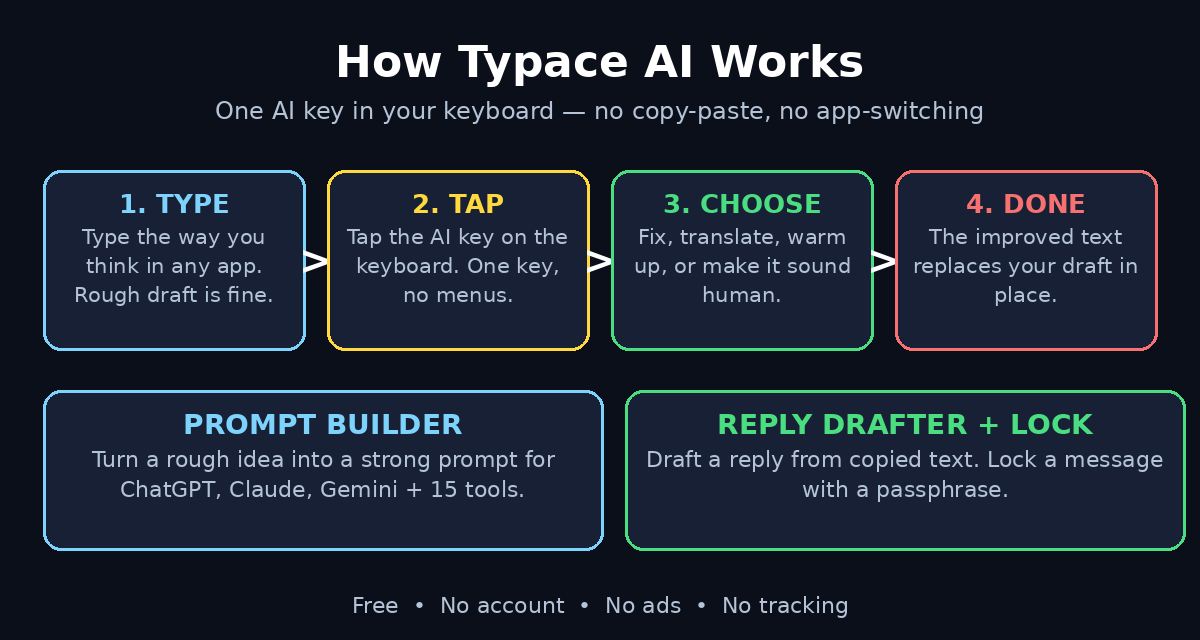
Here is the simple version of how it works:
- Type normally. Open any app — email, WhatsApp, notes, social media, a document — and type the way you think. Rough draft, typos, half-finished thoughts: all fine.
- Tap the AI key. One key on the keyboard sends the text you just wrote to Typace’s AI.
- Pick what you want. Fix the grammar, translate it, warm up the tone, or rewrite it so it sounds like a person wrote it.
- Done — in place. The improved text replaces what you typed, right in the same field. Nothing to copy, nothing to paste, no app-switching.
As a result, the key idea is that Typace removes the round trip. Every other AI writing tool makes you leave the app you are writing in. Typace brings the AI to the keyboard, so the help is exactly where your thumbs already are. If you write a lot on your phone — messages, emails, captions, comments — that one change is the whole product.
Typace also does three things beyond fixing sentences: it writes better prompts for ChatGPT, Claude, Gemini, and 15 more AI tools; it drafts a reply to text you copied; and it can lock a message behind a passphrase. Those are covered in Steps 8, 9, and 10.
Step 2: Decide Whether Typace Is Right for You
Typace is aimed at anyone who types on their phone and wants their words to sound better without extra work. That covers almost everyone, but it is a great fit if:
- You write emails, messages, or captions on your phone every day and want them polished in seconds.
- English is not your first language and you want your writing to read naturally.
- You use ChatGPT, Claude, or Gemini and your prompts come out vague — Typace sharpens them before you send them.
- You reply to a lot of messages and want a good first draft of a reply without typing it from scratch.
- You hate signing up for things. Typace needs no account, shows no ads, and does no tracking.
On the other hand, Typace is probably not for you if you do all your writing on a desktop computer with a full keyboard, or if you need a full document editor with formatting, templates, and team features. Typace is a keyboard helper, not a word processor. It fixes what you type; it does not replace your writing app. In short, if any of that sounds like you, learning how to use Typace AI is a five-minute job with a daily payoff.
However, one honest note: Typace is brand new — it launched on November 3, 2026. Early tools change fast, so check the official listing for the latest features and supported devices before you build a daily workflow around it.
Step 3: Download and Install Typace for Free
Getting started takes a few minutes, and there is no sign-up form, no credit card, and no free-trial countdown.
- Find Typace on Product Hunt. Search for “Typace” on Product Hunt and open the launch page, or search your phone’s app store for Typace. The launch page links to the official download.
- Install the app. Download Typace from your app store. It is free, with a listed price of $0.
- Open the app once. The first screen walks you through setup. Because Typace needs no account, there is nothing to register — no email, no password, no profile to create.
- Follow the on-screen setup. The app shows you exactly where to go to enable the keyboard. This takes about a minute.
In short, that is the whole install. If the app is not listed in your country’s store yet, wait for the rollout rather than downloading it from unofficial sites, which can be unsafe. Once it is installed, you already know how to use Typace AI for the basics — the next steps just show you each feature in turn.
Step 4: Enable the Keyboard and Find the AI Key
A keyboard app only works once your phone knows it exists. Typace guides you through this, but here is what happens:
- Open your phone’s settings. Go to the keyboard settings — the section where you add or manage keyboards.
- Add Typace. Turn on the Typace keyboard in the list. Your phone will ask for permission; this is normal for any third-party keyboard.
- Allow full access if asked. Some AI keyboards need this permission to process text. Read the prompt on your screen and decide — Typace states it does no tracking, but only enable what you are comfortable with.
- Switch to Typace. Open any app with a text field, tap the field, and switch keyboards using the globe or keyboard-switch key. You will see your normal keys plus one new key: the AI key.
- Learn where the AI key sits. It is the one key that looks different — usually marked with a sparkle or AI symbol. Remember its position, because you will tap it dozens of times a day.
For example, keep your old keyboard enabled too. You can switch back and forth in one tap, so there is no risk in trying Typace for a day and comparing.
Step 5: How to Use Typace AI to Fix a Sentence with One Tap
This is the core move, and it takes about five seconds.
- Type your sentence the way you think it. Do not worry about grammar, spelling, or word order. A rough draft is fine — for example, “i need the report by friday can you send it please thanks”.
- Tap the AI key. Typace reads the sentence you just wrote.
- Choose “Fix” (or the grammar option). Typace corrects spelling, punctuation, and grammar, and tidies the word order.
- Check the result in place. Your sentence becomes something like “Could you please send the report by Friday? Thank you.” — right in the same message box.
- Send it, or tap again to try another version. If the first fix is too formal or too short, ask for another take.
In other words, the habit to build is simple: type rough, tap, send. Most people type their first draft too carefully because they are afraid of mistakes. Typace lets you type fast and messy, because the fix is one tap away. After a week, you will notice you type first drafts in half the time.
Step 6: How to Use Typace AI to Translate Text Instantly
Typace also translates what you type, which makes it useful for anyone who writes in two languages or talks to people abroad.
- Type in your own language. Write the message in the language you think in.
- Tap the AI key and choose Translate.
- Pick the target language. Typace rewrites your sentence in the language you need.
- Send it in place. The translated text replaces your draft, ready to send.
For instance, this is handy for replying to international clients, chatting with friends abroad, or writing a caption in a second language. The translation is a natural rewrite, not a word-by-word swap, so it reads like something a person would actually say. If you run a small business and answer customers in more than one language, this one feature can save you a translation app and a lot of switching.
Step 7: How to Use Typace AI to Warm Up a Message — or Make It Sound Human
Two of Typace’s most useful options change how a message feels, not just how correct it is.
Warm it up. A short message can sound cold by accident — “Send the file.” reads like an order. Tap the AI key, choose the warm-up option, and Typace softens it: “Could you please send the file when you get a chance? Thank you!” Same request, completely different feeling. Use this for clients, managers, and anyone you want to be polite to without writing a paragraph.
Make it sound human. AI-written text has a tell: perfect grammar, even rhythm, and words nobody actually says. If a message was drafted by a chatbot, Typace can rewrite it so it sounds like a person wrote it — shorter sentences, natural phrasing, a little imperfection in the right places. Use this before sending anything that matters, because readers can sense machine-written text even when they cannot name why.
In short, the rule of thumb: fix for correctness, warm up for people, humanize for anything that was drafted by AI. The three options stack — you can fix a sentence, then warm it up, then humanize it, all with the same key.
Step 8: How to Use Typace AI to Write Better Prompts for ChatGPT, Claude and Gemini
This is the feature most people miss, and it may be the most valuable one. Typace writes better prompts for ChatGPT, Claude, Gemini, and 15 more AI tools.
A weak prompt gets a weak answer. “Write about dogs” gets you a generic paragraph. A good prompt gets you exactly what you need. Here is how Typace helps:
- Type your rough prompt. Write what you want in plain words, for example, “write a product description for a handmade candle”.
- Tap the AI key and choose the prompt option. Typace expands your rough idea into a structured prompt: the role, the audience, the tone, the format, and the details the AI needs.
- Copy the improved prompt into your AI tool of choice. Paste it into ChatGPT, Claude, Gemini, or any of the 15+ supported tools.
- Compare the answers. The same request with a better prompt usually returns a longer, more specific, more usable answer.
If you use AI tools every day, this turns Typace into a prompt coach that lives in your keyboard. In fact, beginners who struggle with “what do I even ask the AI?” get the most from it — the tool teaches good prompting by example, one improved prompt at a time.
Step 9: How to Use Typace AI to Draft a Reply from What You Copied
Some messages are hard to answer, not hard to write. A long email, a complicated question, a message in a language you barely read. Typace can draft the reply for you.
- Copy the message you received. Long-press the text and copy it, the way you normally would.
- Open your reply field and tap the AI key. Choose the reply option.
- Read the draft. Typace writes a reply based on what you copied — answering the question, matching the tone, and keeping it short.
- Edit it in your own voice, then send. Never send a drafted reply without reading it. The draft is a starting point, not a finished message.
For example, this works well for customer messages, job inquiries, and any reply where you know what you want to say but not how to say it. The draft gets you past the blank screen, and your edit makes it yours.
Step 10: How to Use Typace AI to Lock a Message with a Passphrase
Typace can also lock a message with a passphrase — a small privacy feature that is easy to overlook.
The idea is simple: you write a message, lock it behind a passphrase, and only someone with the passphrase can read it. Use it for anything sensitive you need to send as text — a password, a private note, a surprise, or anything you would rather not sit in plain text in a chat history. In other words, this is how to use Typace AI when a message needs to stay private.
However, two common-sense rules apply. First, share the passphrase through a different channel than the message itself — if the locked message and the passphrase travel together, the lock is useless. Second, do not lock anything you cannot afford to lose; if you forget the passphrase, the message stays locked.
Step 11: Use Typace in Every App — Everyday Workflows
Because Typace lives in the keyboard, it works in every app where you can type. Once you know how to use Typace AI in one app, you know how to use it everywhere — the key works the same in all of them. That is the real advantage over a writing app you have to open on purpose. Here are workflows that make the most of it:
- Morning email triage. Open your inbox, type rough replies, tap the AI key to fix and warm them up, send. A dozen emails polished in minutes.
- Social captions. Draft a caption in your notes app, fix it, humanize it, and post it. Your captions stop sounding like they were written by a template.
- Client messages. If you handle client communication — the kind of day-to-day writing a digital agency like the team at d365a.com does for its clients — the fix-and-warm-up flow keeps every reply professional without slowing you down.
- Notes and ideas. Type ideas fast in your notes app, then fix them later with one tap when you turn them into something to share.
- Multilingual chats. Translate on the fly when a conversation switches languages, instead of opening a translator app mid-chat.
In short, the pattern is always the same: type rough, tap the key, send. The less you think about the tool, the more it helps.
Step 12: Privacy, Limits and the Honest Verdict
Typace’s pitch is unusually clean for a free tool: free, no account, no ads, no tracking. That is the whole deal as launched. It is worth taking seriously, because most free keyboards pay for themselves with your data or your attention.
A few honest limits to keep in mind:
- It is brand new. Typace launched on November 3, 2026. Expect updates, small bugs, and features that arrive over the following weeks. Early tools change fast.
- It is a keyboard, not a full writing suite. It fixes and rewrites what you type. It does not manage documents, store templates, or collaborate with a team. If you need full AI workflows that run while you sleep — not just better sentences — that is a different job, and an AI automation service such as agentic-affairs.com is the next step up from a keyboard helper.
- Check the official listing before installing. Pricing, supported devices, and features can change after launch week. The Product Hunt page and the app store listing are the reliable sources.
- Your text still goes through an AI. Even with no tracking, the text you ask Typace to fix is processed by an AI model. Avoid typing passwords, card numbers, or anything truly private into the AI key.
Therefore, if you write on your phone every day, Typace is one of the easiest free AI tools to adopt, because there is almost nothing to learn and nothing to pay. So if you are still deciding whether to learn how to use Typace AI, the trial costs you nothing but five minutes. Install it, enable the keyboard, and use it for one day of real messages. If your replies get faster and read better, keep it. If not, switching back takes one tap.
Typace AI vs Other Ways to Fix Your Writing
| Tool | What it does | Cost | Works in every app |
|---|---|---|---|
| Typace AI | Fixes, translates, warms up and humanizes text from the keyboard; writes prompts; drafts replies | Free, no account | Yes — it is the keyboard |
| Grammarly | Grammar and tone checks in a browser extension or app | Free tier; paid plans for full features | Mostly, via extension |
| ChatGPT copy-paste | Paste text, ask for a fix, copy back | Free tier; paid plans | No — constant app-switching |
| Built-in spellcheck | Catches typos as you type | Free, built into your phone | Yes, but only spelling |
Typace wins on speed because it removes the round trip. Grammarly is stronger for long documents and team features. ChatGPT is stronger for deep rewrites and long-form writing. Built-in spellcheck is free and always there, but it only fixes spelling, not tone or clarity. Most people will end up using Typace for quick messages and something heavier for long documents — and that is fine.
Frequently Asked Questions About Typace AI
Is Typace AI really free?
Yes. Typace launched with a listed price of $0 — free to install and use, with no account, no ads, and no tracking. There is no free-trial countdown. However, because it is a brand-new launch, check the official listing for any future paid features, but the core keyboard is free as launched.
Do I need an account to use Typace?
No. Typace needs no account at all. You install the app, enable the keyboard, and start typing. There is no email, no password, and no profile to create.
How is Typace different from Grammarly?
Grammarly is a writing assistant that checks your text in a browser extension or its own app, and it is strongest for long documents. Typace is a keyboard with one AI key, so it works inside any app you type in, with no switching. Typace also writes prompts for other AI tools and drafts replies from copied text, which Grammarly does not do in the same way.
Which AI tools can Typace write prompts for?
Typace writes better prompts for ChatGPT, Claude, Gemini, and 15 more AI tools. You type a rough prompt, tap the AI key, and Typace expands it into a structured prompt you can paste into the tool of your choice.
Can Typace translate my messages?
Yes. Type in your own language, tap the AI key, choose Translate, and pick the target language. Typace rewrites your message naturally in that language, ready to send in place.
Is my typing private with Typace?
Typace states it does no tracking, shows no ads, and needs no account. Even so, text you send through the AI key is processed by an AI model, so avoid typing passwords, card numbers, or sensitive private information through it.
Final Thoughts
Typace AI is a small idea done well: put the AI in the keyboard, so fixing your writing takes one tap instead of a five-step copy-paste dance. That is why learning how to use Typace AI is so quick: there is almost nothing to learn. It launched on November 3, 2026, it is free, it needs no account, and it works in every app you type in. The fix, translate, warm-up, and humanize options cover the sentences most people write every day, and the prompt writer and reply drafter make it useful even if you already use ChatGPT or Claude.
Finally, the best way to judge it is to use it for one real day of messages. Type rough, tap the AI key, and see whether your replies get faster and read better. If they do, you have just upgraded every app on your phone at once — for free.
Explore More Free AI Tools
Want more free AI tools like Typace? Try the free tools at AI Tool Steps — the AI Title Generator, Meta Description Generator, AI Rewriter, and Keyword Density Checker can help you write better titles, descriptions, and content in seconds, all free.