

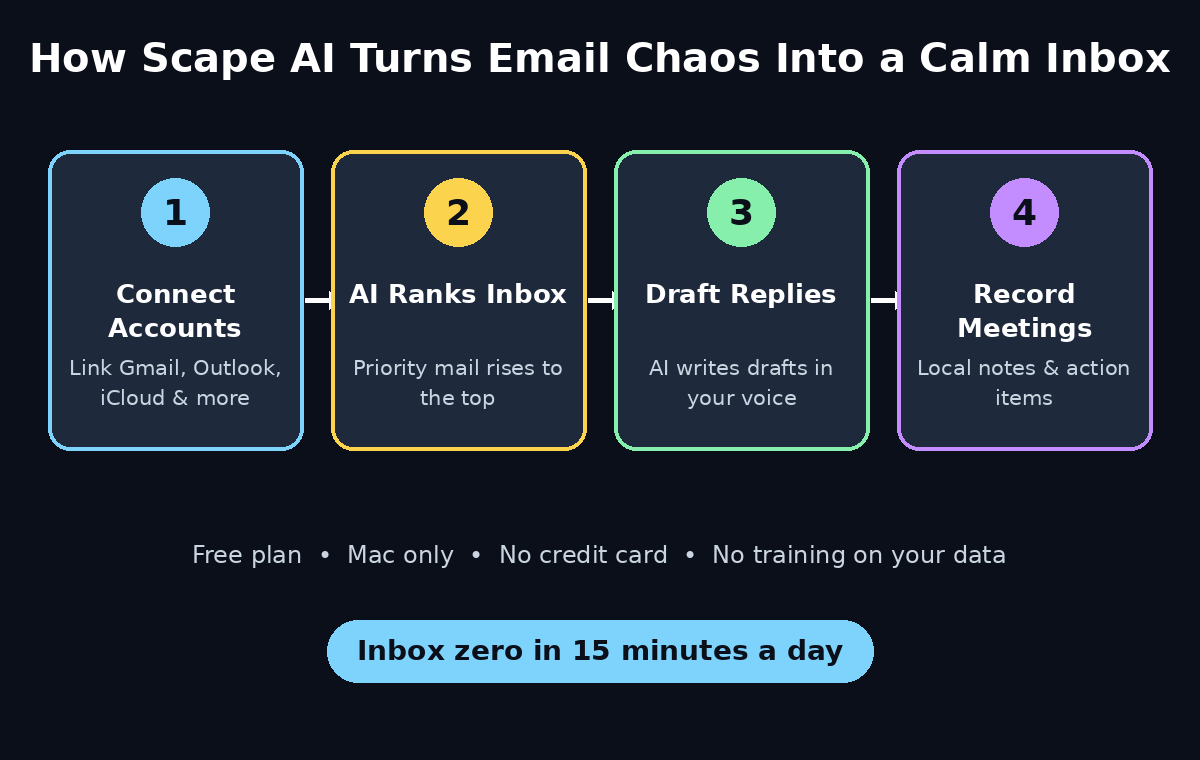
Email eats more of your day than almost any other task. The average office worker checks email dozens of times a day, and most of that time goes to sorting, re-reading, and answering messages that could have been handled in seconds. Scape AI is a new Mac email client built to fix exactly that problem. It ranks your inbox by importance, drafts replies in your own voice, and records your meetings locally so you never take notes again — all on a free plan that asks for no credit card.
In this beginner-friendly guide, you will learn how to use Scape AI from the first download to a calm, organized inbox. No technical background is needed, and every step below works on the free plan. If you have ever wished your email client could do the boring parts for you, this is the tool to try first.
Scape arrived on the scene in early November 2026 as one of the most talked-about free AI tools of the week, and it earned that attention for a simple reason: it does not try to replace your email. It makes the email you already have faster to process. Let us walk through it step by step.
Step 1: What Is Scape AI and Why Mac Users Love It
Scape AI is a desktop email client made only for Mac. Unlike web-based email, it lives on your computer and focuses on three jobs: ranking your inbox, drafting replies, and recording meetings. It connects to the email accounts you already use — Gmail, Outlook, iCloud, and others — and layers its AI on top without moving your mail to a new service.
Here is what makes it different from the Apple Mail app that ships with your Mac:
- Smart inbox ranking: Scape reads the context of your emails and meetings and puts the messages that actually need you at the top, instead of sorting by time alone.
- AI reply drafts: It writes draft replies based on your previous emails and your meeting context, so your answers sound like you — not like a robot.
- Local meeting recording: Scape records your calls on your own Mac and turns them into searchable notes, without sending a bot into your meetings.
- Free plan, no card: The free plan includes unlimited inboxes, meeting recordings, and no training on your data. You can start in minutes without entering payment details.
The honest limit to know up front: Scape is Mac-only for now. If you work on Windows or a phone as your main device, you will need to wait for future versions. For Mac users, though, it is one of the most complete free AI email tools available today.
If you run a small business or a digital agency, an organized inbox is not a luxury — it is how client emails get answered on time. Scape’s ranking is built for exactly that kind of busy, multi-account life.
Step 2: Download and Install Scape on Your Mac
Getting started takes about five minutes. Follow these steps:
- Visit the Scape website at scape.app from your Mac browser and click the download button for macOS.
- Open the downloaded file and drag Scape into your Applications folder, just like any other Mac app.
- Launch Scape from Launchpad or Spotlight. The first time it opens, macOS will ask you to confirm that you want to run an app downloaded from the internet — click Open.
- Grant the permissions it asks for, such as microphone access for meeting recording. You can adjust these later in System Settings if you change your mind.
- Create your Scape account with an email address. No credit card is required for the free plan.
That is the whole install. There is no server setup, no terminal, and no configuration file to edit. If you can install any normal Mac app, you can install Scape.
Step 3: Connect Your Email Accounts
Scape becomes useful the moment your real email is inside it. The free plan supports unlimited inboxes, so connect every account you check during the day — work, personal, and side projects.
- Click Add Account in the Scape sidebar and choose your provider: Gmail, Outlook, iCloud, Yahoo, or any IMAP account.
- Sign in with your provider in the secure browser window that opens. Scape uses the official sign-in flow, so your password goes to Google or Microsoft, not to Scape.
- Allow the requested permissions so Scape can read, send, and organize your mail. These permissions are what let the ranking and drafting features work.
- Repeat for each account. Scape keeps them in one unified inbox, with a color label per account so you always know where a message came from.
- Wait for the first sync. A large inbox can take a few minutes to download. Scape starts ranking as soon as the first messages arrive, and it gets smarter as it reads more of your history.
A practical tip: connect your busiest account first and live in Scape for one full workday before adding the rest. That way you can judge the ranking on the inbox you know best.
Step 4: Let Scape Rank Your Inbox
This is the feature that changes your mornings. Instead of a plain chronological list, Scape orders your inbox by what needs your attention, using the context of your emails and meetings.
- Priority at the top: Messages from people you reply to often, threads you are actively part of, and emails tied to today’s meetings rise to the top.
- Newsletters and notifications sink: Bulk mail, receipts, and automated alerts drop into a lower section you can skim later, instead of burying real conversations.
- Meeting-aware ranking: If you have a call with a client at 2 p.m., Scape ranks their email from this morning higher, because it knows the context.
- Teach it with one click: If Scape ranks a message wrong, mark it as important or not important. Scape learns from that feedback quickly.
Try this for a week: process your inbox top-down, and only open the lower section after the priority list is empty. Most users find their inbox reaches zero far earlier than before, because half the “urgent” feeling of email was just bad ordering.
Teams that handle client work at scale — for example, a business using AI automation services to manage outreach — get the biggest win here, because the messages that move money stop hiding under newsletters.
Step 5: Draft Replies with AI in Your Own Voice
Scape’s reply drafting is where the time savings become obvious. When you open an email, Scape offers a draft reply written from your email history and meeting context.
- Open any email and look for the AI draft button or the suggested reply under the message.
- Read the draft before sending. It will usually match your tone, reference the right details, and propose a concrete next step.
- Edit anything that feels off. Fix names, dates, or prices yourself — AI drafts are a starting point, not a finished letter, and your name is on the send button.
- Choose a length or tone when the draft is not quite right: ask for a shorter version, a more formal one, or a friendlier one.
- Send, or save as a draft if you want to think about it. Scape never sends anything without you clicking send.
The drafts improve as Scape reads more of your sent mail, because it learns how you actually write — your greetings, your sign-offs, and how direct you are. After a week, most drafts need only a sentence or two of editing.
One warning that applies to every AI writing tool: never let a draft go out with a number, a date, or a promise you have not checked. A fast wrong answer is worse than a slow right one.
Step 6: Record and Summarize Your Meetings
Scape records your calls locally on your Mac and turns them into notes you can search later. Unlike meeting bots, it does not join your call as a participant — it records from your own device.
- Enable recording in Scape’s settings and allow microphone access when macOS asks.
- Start a call as normal — on Zoom, Meet, Teams, or a phone call routed through your Mac. Scape captures the audio locally.
- Find the summary after the call in the meeting section: key points, decisions made, and action items, all linked to the people involved.
- Search your meetings like email. Ask for the name of a client or a project and Scape pulls up every meeting where it was discussed.
- Draft follow-ups from the summary. The action items from a call can become a reply draft in one click, which closes the loop between talking and doing.
Always tell the other people on a call that you are recording, even when the law where you live does not require it. It is polite, it builds trust, and it keeps you out of trouble in places with stricter consent rules.
Because Scape records on your device, it never uploads your meeting audio to a stranger’s server for processing. That local-first design is one of the main reasons privacy-conscious users pick Scape over cloud meeting bots.
Step 7: Search Your Email and Meetings Like a Pro
Most email search is slow because it only matches words. When you learn how to use Scape AI for searching, you get results that understand meaning, so you can find things the way you remember them instead of the way they were written.
- Search by person: type a name and see every email and meeting with that person, across all your connected accounts.
- Search by topic: type “invoice”, “contract”, or a project name and get results ranked by relevance, not just by date.
- Search your meetings: find the call where a decision was made, even if you cannot remember which week it happened.
- Use filters: narrow results by account, date, attachment, or whether a message still needs a reply.
This turns email into a memory you can query. Before a client call, search their name for two minutes and you will walk in knowing the full history — what was promised, what is overdue, and what was decided last time.
Step 8: Set Up Smart Rules and Notifications
A ranked inbox only stays calm if you control what interrupts you. Once you know how to use Scape AI at a basic level, spend ten minutes on rules and notifications now and you will save hours every week.
- Turn off notifications for low-priority mail. Let only priority messages buzz your phone or desktop.
- Create a rule for newsletters: send them to a “Read Later” folder automatically so they never compete with real work.
- Create a rule for receipts and invoices: file them into a finance folder so your inbox holds only conversations.
- Set quiet hours: no email notifications outside your working hours. Your ranked inbox will be waiting, in order, when you return.
- Pin your daily priorities: pin the three threads that matter most today so they stay visible above everything else.
The goal is simple: your inbox should show you what to do next, not everything that ever happened. Rules are how you keep it that way after the first exciting week wears off.
Step 9: Build a 15-Minute Daily Email Routine
Tools only help when they become a habit. That is why learning how to use Scape AI as a daily routine matters so much. Here is a routine that works well with Scape’s ranking and drafting, and it takes about fifteen minutes, twice a day.
- Morning pass (10 minutes): open Scape, work through the priority section top-down, and send the AI-drafted replies after a quick edit. Archive anything that needs no reply.
- Check the meeting summaries: read yesterday’s call notes and send any follow-ups Scape drafted from them.
- Skim the lower section (5 minutes): glance at newsletters and notifications, save anything useful, and archive the rest.
- Afternoon pass (5 minutes): repeat the priority pass before you finish work, so nothing urgent waits overnight.
- End of day: leave your inbox at zero, or as close as you can get. Scape’s ranking makes this realistic instead of wishful thinking.
If you do nothing else in this guide, do this routine for one week. It is the single fastest way to feel the difference Scape makes, and it costs you nothing to try.
Step 10: Scape Free vs Paid — What You Actually Get
Scape’s free plan is unusually generous for an AI email tool, and it is the right place to start when you learn how to use Scape AI. Here is what the pricing page promises on the free tier: unlimited inboxes, meeting recordings, AI ranking, and AI reply drafts — with no credit card required and no training on your data.
Paid plans, when they appear for heavier use, typically add higher usage limits and team features. Before you ever pay, ask yourself three questions: do you hit a limit on the free plan, do you need the feature every day, and does it save you more time than it costs? If the answer to all three is yes, upgrade. If not, the free plan is the correct choice, and there is nothing wrong with staying on it.
Free tiers change without notice, so check Scape’s pricing page before relying on any limit for a business decision. What matters for a beginner is that today, right now, you can do everything in this guide for free.
Scape AI vs Other Mac Email Apps
How does Scape compare with the alternatives most Mac users already know? If you are still deciding how to use Scape AI instead of another email app, the table below summarizes the key differences for a beginner.
| Feature | Scape AI | Apple Mail | Spark | Superhuman |
|---|---|---|---|---|
| Price | Free plan, no card | Free with macOS | Free plan available | Paid subscription |
| AI inbox ranking | Yes, meeting-aware | No | Yes, basic | Yes, advanced |
| AI reply drafts | Yes, in your voice | No | Yes | Yes |
| Meeting recording | Yes, local on Mac | No | No | No |
| Platform | Mac only | Mac, iPhone, iPad | Mac, Windows, mobile | Mac, Windows, mobile |
| Best for | Mac users who want AI email free | Simple, private email | Teams on many platforms | Power users who pay for speed |
The honest summary: if you are on a Mac and you want AI help with email without paying, Scape is the easiest starting point. Apple Mail is simpler and more private, Spark is better if you also use Windows, and Superhuman is faster but costs real money every month. Most beginners should start free with Scape and only consider paying when they outgrow it.
Frequently Asked Questions About Scape AI
These are the questions beginners ask most often about how to use Scape AI.
Is Scape AI really free?
Yes. Scape’s free plan costs $0 a month, includes unlimited inboxes and meeting recordings, and does not ask for a credit card. Paid options may exist for heavier use, but everything in this guide works on the free plan.
Does Scape AI work on Windows or iPhone?
Not yet. Scape is Mac-only for now. Windows and mobile users will need to wait for future releases, or use a different AI email client in the meantime.
Does Scape train its AI on my emails?
According to Scape’s pricing page, the free plan includes no training on your data. Scape uses your email content to rank your inbox and draft your replies, not to train shared models.
Is my meeting audio uploaded to the cloud?
No. Scape records meetings locally on your Mac instead of sending a bot into your calls. That local-first design keeps your meeting audio on your own device.
Can Scape replace Apple Mail completely?
For most Mac users, yes. It connects to the same accounts — Gmail, Outlook, iCloud, and IMAP — and adds AI ranking, drafting, and meeting notes on top. Keep Apple Mail installed as a backup while you settle in, then decide after a week or two.
Do I need to know anything technical to use Scape AI?
No. If you can install a Mac app and sign in to your email, you can use Scape. Every feature in this guide is point-and-click, and the AI features work automatically once your accounts are connected.
Final Thoughts
Email does not have to own your day. Once you learn how to use Scape AI properly, it takes the three most time-consuming parts of email — sorting, replying, and remembering what was said in meetings — and handles the heavy lifting while you stay in control of every send. The free plan, the local meeting recording, and the Mac-native design make it an easy recommendation for any Mac user drowning in email.
Start today: install Scape, connect your busiest account, and run the fifteen-minute routine for one week. By the end of that week you will know, from your own inbox rather than from a review, whether AI email is worth it for you. For most people who try it properly, the answer is yes — and the inbox never goes back to the way it was.
Explore More Free AI Tools
Want to keep exploring? Try our free AI Title Generator, Meta Description Generator, AI Rewriter, and Keyword Density Checker — all free on AIToolSteps, no sign-up needed.