

Most people have no idea where their money actually goes each month. Bank statements are long, boring lists, and budgeting apps ask you to sort every transaction by hand. Claude Personal Finance changes that. It is a new feature from Anthropic, launched in beta on November 5, 2026, that connects your bank and card accounts to Claude and lets you ask plain-English questions about your own money — "What did I spend on food delivery last month?" or "Which subscriptions am I still paying for?" — and get a clear answer in seconds.
In this beginner-friendly guide, you will learn how to use Claude Personal Finance from the first setup to your first money-saving insight. No finance background is needed, and every step below is written for a complete beginner. One honest note up front: the beta is currently limited to paid Claude plans in the United States, but Step 9 shows a free workaround that anyone can use, including Free-plan users and readers outside the US.
Step 1: What Is Claude Personal Finance and What It Does
Claude Personal Finance is a dedicated page inside Claude, plus a secure bank connection, that turns your real account data into answers. You link the accounts you choose, and Claude reads your balances and transactions so it can explain your money in everyday language. It does not replace your bank app. It sits on top of it and does the thinking for you.
Here is what it can do for a beginner:
- Answer spending questions: Ask what you spent, where, and when, and Claude answers from your actual transactions instead of guessing.
- Spot subscriptions: It finds recurring charges you may have forgotten, including free trials that quietly turned into paid plans.
- Build a budget: Tell Claude your income and your goals, and it drafts a realistic monthly budget from your real spending history.
- Track bills and cash flow: It shows what is due before payday and whether your balance will cover it.
- Summarize months: Get a simple report of your month — income, spending by category, and the three biggest costs — without opening a spreadsheet.
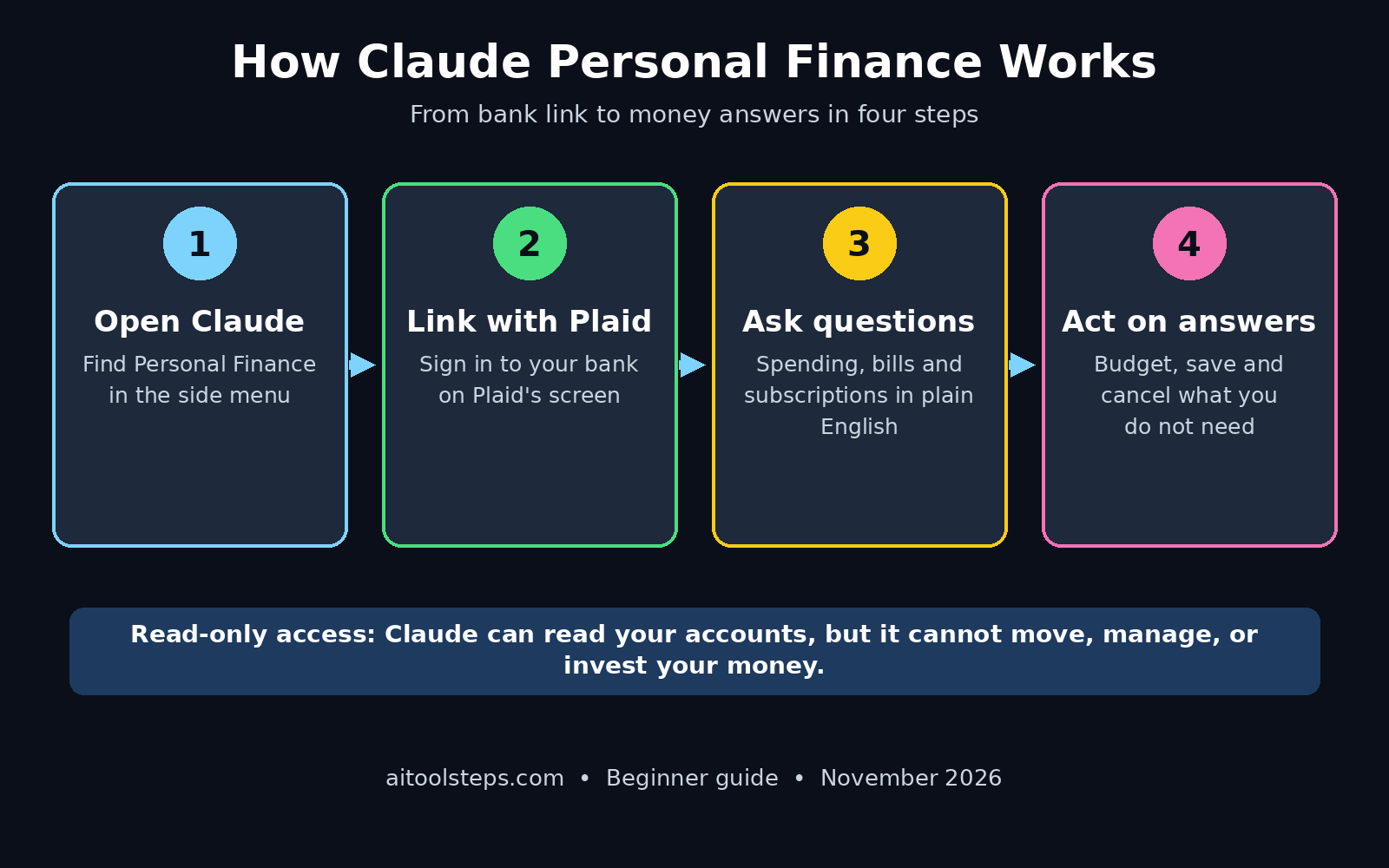
The most important fact about Claude Personal Finance is the limit Anthropic states plainly: access is read-only. Claude can read your accounts, but it cannot move, manage, or invest your money. It cannot pay a bill, transfer funds, cancel a subscription, or buy a stock. That single rule is what makes the feature safe enough to try.
Step 2: Check If You Can Use It Yet
Before you start, check the two requirements, because they decide whether the feature appears in your Claude at all.
- A paid personal plan: The beta is open to Claude Pro, Max, and Ultra subscribers. Pro costs $20 a month, or $17 a month billed yearly. Free, Team, and Enterprise accounts do not get it yet.
- A United States account: The beta is US-only and supports US banks. If you are outside the US, or on a VPN set to another country, the feature may not show up at all.
- A gradual rollout: Even eligible subscribers do not all see it on day one. Anthropic is turning it on step by step, so if it is missing, update the app and check again in a few days.
If you meet the requirements but still cannot see it, open Claude on the web, in Claude Desktop, or in the iPhone or Android app, and look in the side menu. The Personal Finance page may sit under More — hover over it to reveal the full menu. If it is still missing, your account is simply not in the rollout wave yet.
If you are on the Free plan or outside the US, do not close this guide. Step 9 shows how to get most of the same value by uploading a bank statement export to Claude, which works for everyone.
Step 3: Link Your Bank Accounts with Plaid
Setup takes only a few minutes, and you never type your bank password into Claude. The connection runs through Plaid, a service that connects apps to banks, and you sign in to your bank on Plaid's own screen. Follow these steps exactly:
- Open Personal Finance in Claude's side menu, or under More if it is hidden.
- Select Get started, then choose your money goals or skip that step and select Continue.
- Select Link accounts with Plaid and read the screen that explains what Claude will be able to access.
- Choose your bank in the Plaid window, sign in with your normal bank login, and pick only the accounts you want to share. You do not have to share all of them.
- Finish within ten minutes. The Plaid session expires after that, so have your bank login ready before you start.
- Return to Claude and wait for your accounts to appear. Transactions can take a few minutes to sync. Then choose Link another account or Done.
You can link up to 16 banks. Start with just one account — your main checking account — so you can see whether the answers are useful before connecting everything. You can unlink an account at any time, and Claude loses access to that account's data when you do.
Claude reads bank and account names, usually the last four digits, balances, credit limits, and up to 24 months of transactions. It does not read your bank password, your investment holdings, your trades, your interest rates, or your loan terms.
Step 4: Set Your Money Goals in the Dashboard
Once your accounts are linked, Claude Personal Finance shows a dashboard built around the goals you picked during setup. This step is worth two minutes, because goals change the questions Claude asks you back.
- Pick one or two goals, not five. "Spend less on eating out" and "Build a $500 emergency fund" beat a long wish list, because Claude can track two goals clearly.
- Make each goal measurable. A goal like "save $200 a month" gives Claude a number to check against your real spending. A vague goal like "spend less" gives it nothing to measure.
- Set a monthly target date. Tell Claude when you want the goal done, and it can work out the weekly amount you need to set aside.
- Review the dashboard weekly. The dashboard updates as new transactions arrive, so a quick Monday check keeps you honest without daily effort.
If you skipped the goals step during setup, open Personal Finance again and add them now. Your goals shape every summary Claude writes for you, so an empty goal list means generic answers.
Step 5: Ask Your First Money Questions
This is where Claude Personal Finance starts to feel like magic. You ask in plain language, on the Personal Finance page or in any normal chat, and Claude answers from your own numbers. Always check the answer against your bank app the first few times, so you learn how accurate it is for your accounts.
Start with these beginner prompts:
- "What did I spend this month, broken down by category?"
- "How much did I spend on food delivery in the last 30 days?"
- "Which subscriptions charged me in the last month, and how much did each cost?"
- "What is my total balance across all linked accounts right now?"
- "What were my three biggest expenses last month?"
- "How does this month's spending compare with last month?"
Good follow-up questions make the answers better. If Claude says you spent $340 on dining, ask "Show me the transactions behind that number." Claude can list the actual charges, so you can spot a mistake or a charge you forgot. Bank data can be incomplete or delayed, and Claude can misinterpret a transaction, so verifying the biggest numbers is a habit worth keeping.
Step 6: Find Hidden Subscriptions and Wasteful Spending
The fastest money win in Claude Personal Finance is the subscription hunt. Most people pay for at least one service they no longer use, and free trials that convert to paid plans are the classic leak. Claude finds them because it reads your real recurring charges.
- Ask for the full list: "List every recurring subscription in my accounts, with the amount and the last charge date."
- Sort by size: Big forgotten subscriptions hurt first. A $15 monthly app you never open costs $180 a year.
- Check annual charges too: Some subscriptions bill once a year. Ask Claude to look back 12 months, not just the last 30 days, so annual renewals show up.
- Cancel inside the app, not in Claude: Claude cannot cancel anything for you. Open the service's own settings and cancel there, then ask Claude next month to confirm the charge is gone.
- Repeat every quarter: New trials start all the time. A three-minute check every three months keeps the list clean.
The same trick works for wasteful spending patterns. Ask Claude "What spending category grew the most in the last three months?" and you will often find one habit — late-night delivery, a game store, a coffee run — that quietly doubled. Seeing the real number is usually enough to change it.
If you run a small business or a freelance practice, this step matters twice as much, because business and personal spending often mix in one account. A digital agency owner, for example, can ask Claude to separate software subscriptions from personal ones and see the true monthly cost of running the business.
Step 7: Build a Monthly Budget with Claude
A budget only works if it is built from your real spending, not from a guess. Claude Personal Finance has your actual numbers, so let it do the drafting.
- Ask for a draft budget: "Based on my last three months, build me a monthly budget. My take-home pay is $3,200 a month." Replace the number with your real income.
- Set category limits: Tell Claude your limits — for example, $400 for groceries, $150 for eating out, $100 for fun — and ask it to flag any month you go over.
- Ask for the trade-off: "If I cut food delivery by $100 a month, how much would I save in a year?" Claude does the math and shows you the yearly prize, which keeps motivation up.
- Plan one big purchase: "I want to save $900 for a new laptop in six months. How much do I need to set aside each month?" Claude turns a big goal into a small weekly number.
- Review at month end: Ask "Did I stay inside my budget this month, and where did I go over?" A two-minute review beats a budgeting app you open once and forget.
Keep the budget simple. Three to five categories are enough for a beginner. A budget with twenty categories looks impressive and dies in week two. If your income changes from month to month, ask Claude to build the budget from your lowest recent month, not your best one, so the plan survives a slow month.
Step 8: Track Bills and Cash Flow Before Payday
Running out of money three days before payday is a cash-flow problem, not an income problem. Claude Personal Finance can see what is due and when, so it can warn you before the gap appears.
- Ask what is due: "What bills are due before my next payday on the 15th, and what is the total?"
- Check the cushion: "After those bills, how much will be left in my checking account?" If the answer is under $100, you know to pause non-essential spending.
- Find the payday gap: Ask Claude to map your income dates against your bill dates. If rent lands two days before payday every month, that timing — not your spending — is the problem, and moving one bill date can fix it.
- Plan irregular bills: Annual insurance, car registration, and holiday spending break monthly budgets. Ask Claude to list irregular charges from the last 12 months so you can set aside a small amount each month for them.
For anyone who manages money for a team or a client project, the same cash-flow thinking applies at a bigger scale. Teams that work with AI automation services to handle invoicing and follow-ups often find that the real win is timing — knowing what is due, and when, before it becomes urgent.
Step 9: The Free Workaround for Everyone Else
If you are on Claude's Free plan, or you live outside the US, you cannot use the live bank link yet. You can still get most of the value with a bank export, and it costs nothing.
- Download your statement: Log in to your bank's website or app and export the last one to three months of transactions as a CSV file. Every major bank offers this.
- Upload the CSV to Claude: Start a new chat, attach the file, and say "This is my bank statement for the last three months. Summarize my spending by category."
- Ask the same questions: Subscriptions, biggest expenses, monthly comparisons — Claude answers from the file exactly as it would from a live link.
- Remove sensitive details first: Open the CSV and delete any columns you do not need, such as full account numbers, before uploading. Keep the date, description, and amount columns.
- Do not share the file: Remember that anything you paste into a chat, including a bank export, follows your normal chat privacy settings. Never share the chat link, and never turn the answer into a public artifact, because the figures would be visible to anyone who opens it.
This workaround has one real limit: the data goes stale. A live link updates itself, while a CSV is a snapshot. Re-upload a fresh export once a month and the answers stay useful. It is the best free route until the beta reaches your plan or your country.
Step 10: Stay Safe — Privacy Rules and Limits
Linking your bank to an AI assistant is a big trust decision, so understand the safety rules before you connect a second account.
- Read-only means read-only: Claude cannot move money, pay bills, or invest. If any message ever claims Claude moved your money, it did not — check your bank app directly.
- Hub chats are not used for training: Anthropic says chats inside the Personal Finance hub are not used to train its models, and no memory is kept from chats that used your accounts. Money questions in a normal chat follow your usual privacy settings instead.
- Artifacts and shared links expose figures: If Claude builds a chart or table from your bank data and you share it, everyone who opens it sees your figures. The same applies to a shared chat link. Keep money answers private.
- Claude is not a financial adviser: Anthropic is clear that Personal Finance is not designed to give investment advice. Use it to understand spending, not to pick stocks.
- Verify big numbers: Bank data can be delayed or incomplete, and Claude can misread a transaction. Before you make a money decision — cancelling a card, disputing a charge, changing a budget — confirm the figure in your bank app.
- Unlink when you are done: If you stop using the feature, unlink your accounts in the Personal Finance settings. Claude loses access immediately.
One more safety habit: never paste your bank password anywhere in Claude, and never share screenshots of your full account numbers in a chat. Plaid handles the login, and Claude never needs your password.
Claude Personal Finance vs Other Ways to Track Money
How does Claude Personal Finance compare with the tools most beginners already use? The table below summarizes the key differences, so you can pick the right starting point.
| Feature | Claude Personal Finance | ChatGPT finance apps | Bank app | Manual spreadsheet |
|---|---|---|---|---|
| Reads your real transactions | Yes, via Plaid | Varies by app | Yes | Only if you type them in |
| Answers in plain English | Yes | Yes | No | No |
| Finds subscriptions automatically | Yes | Sometimes | Rarely | No |
| Builds a budget from history | Yes | Sometimes | Rarely | By hand |
| Moves or invests money | No, read-only | No | Yes | No |
| Cost to start | Pro plan, $20/month | Varies | Free | Free |
| Works outside the US | No, US beta only | Often yes | Yes | Yes |
| Best for | Beginners who want answers | Chat-first users | Quick balance checks | Full control fans |
The honest summary: if you already pay for Claude Pro and you live in the US, Personal Finance is the easiest way to understand your money, because it needs no setup beyond the bank link. If you are outside the US or on the Free plan, the CSV workaround in Step 9 gives you most of the same answers for free.
Frequently Asked Questions About Claude Personal Finance
Is Claude Personal Finance free to use?
No, not on its own. It is included with the paid Claude Pro, Max, and Ultra plans in the US, and Pro starts at $20 a month, or $17 a month billed yearly. There is no separate charge for the feature itself, and Free, Team, and Enterprise accounts do not get it yet. If you do not want to pay, use the free CSV workaround in Step 9.
Is it safe to link my bank account to Claude?
The connection is read-only and runs through Plaid, so you sign in to your bank on Plaid's screen and Claude never sees your password. Claude cannot move, manage, or invest your money. Chats in the Personal Finance hub are not used to train Anthropic's models. The main risk is sharing: if you share a chat link or an artifact built from your bank data, other people can see your figures, so keep money answers private.
Which banks work with Claude Personal Finance?
It supports US banks through Plaid, which covers most major American banks and credit unions, and you can link up to 16 banks. If your bank does not appear in Plaid, or you live outside the US, the feature will not work for you yet, and the CSV export workaround is the better route.
Can Claude Personal Finance pay my bills or cancel subscriptions?
No. Access is read-only, so Claude cannot pay a bill, transfer money, cancel a subscription, or make an investment. It can find the subscriptions and list the bills, but you cancel or pay them yourself in the service's own app or website.
What should I ask Claude about my money first?
Start with three questions: "What did I spend this month, broken down by category?", "Which subscriptions charged me in the last month?", and "What were my three biggest expenses last month?" Then ask Claude to show the transactions behind any number that surprises you, so you can verify it against your bank app.
When will Claude Personal Finance come to other countries?
Anthropic has not announced an expansion date. The beta launched on November 5, 2026, in the US only, and it is rolling out gradually even to eligible US subscribers. Readers outside the US should use the CSV workaround for now and watch for an official announcement before expecting the live bank link.
Final Thoughts
Claude Personal Finance is a small feature with a big idea: your money questions deserve answers from your real numbers, not from generic advice. For a beginner, the setup takes minutes, the questions are plain English, and the first useful answer — usually a forgotten subscription or a spending habit you did not notice — often pays for the effort immediately.
Start small. Link one account, set one goal, and ask three questions. Check the answers against your bank app, cancel one subscription you do not need, and build your first budget from the numbers Claude shows you. If the beta has not reached you yet, the CSV workaround in Step 9 gives you the same first win today, for free.
Money tools only help when they become a habit. A two-minute check each Monday, a subscription hunt every quarter, and a budget review at month end will do more for your finances than any single app — and now you have an AI assistant that can do the reading for you.
Explore More Free AI Tools
Want to keep learning with free AI tools? Try these guides on AIToolSteps: the AI Title Generator writes catchy headlines for your blog posts, the Meta Description Generator creates search-friendly descriptions in seconds, the AI Rewriter polishes your drafts into clear, natural writing, and the Keyword Density Checker shows whether your article uses your target keyword the right amount. Each one is free, beginner-friendly, and takes less than a minute to try.