

Imagine handing your Mac to a personal assistant that can read your emails, scan your messages, check your spreadsheets, and build your to-do list — without a single byte of your private data ever leaving your computer. That is exactly what Perplexity shipped on October 20, 2026: a fully local mode for its AI agent, Computer, that runs the AI model, the planning, and the task execution entirely on your Mac.
Until now, AI agents lived in the cloud. You typed a request, your files and emails traveled to someone else’s servers, and you hoped the privacy policy held up. Perplexity Computer’s local mode flips that arrangement: the model and the agent both run on your own machine, and the cloud is only involved when you explicitly allow it. For beginners, this is one of the easiest ways to try a genuinely capable AI agent while keeping sensitive information — client emails, financial spreadsheets, personal notes — completely private.
This beginner guide walks you through everything: what local mode is, whether your Mac can run it, how to set it up step by step, how to give the agent its first task, and when (and when not) to let it reach the cloud. No coding, no terminal, no technical background required.
Step 1: Understand What Perplexity Computer’s Local Mode Actually Is
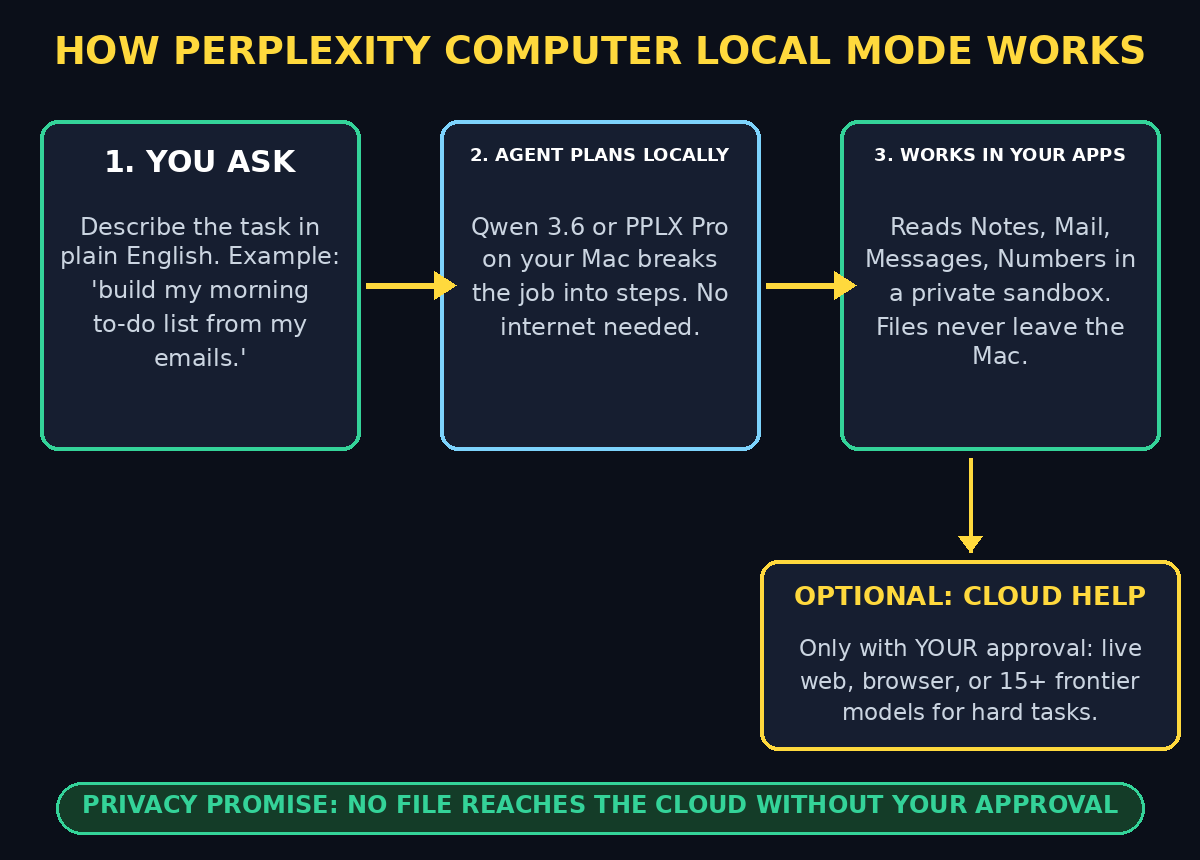
Perplexity Computer is an AI agent, not a chatbot. The difference matters: a chatbot answers questions, but an agent does work. You describe a job in plain language — “go through my recent emails and messages, find everything with a deadline, and build me a priority list in Notes” — and Computer breaks the job into smaller steps, opens the right apps, reads the right files, and carries the whole thing out on its own.
Until October 2026, that agent always leaned on the cloud. Perplexity has been moving Computer toward your machine all year:
- February 2026: Computer launched for Max subscribers, running tasks in Perplexity’s own cloud.
- May 2026: Personal Computer arrived as a Mac app that could work with your local files and native apps.
- September 2026: Hybrid Compute split the work — private files stayed with a local model while cloud models handled research and reasoning.
- October 20, 2026: Fully local mode — the model, the orchestrator that plans each task, and the execution all run on your Mac.
In fully local mode, planning, reasoning, and file processing happen on your device. The agent can work across your local files and supported native Mac apps — including Notes, Messages, Mail, and Numbers — with permission. Code and tool execution run in isolated sandbox environments: sealed-off spaces with controlled access to your files and apps, using the same security protocols as the cloud version.
The key promise: no file reaches the cloud without your approval. That single sentence is why this launch matters for beginners who have kept AI agents away from their email and documents because of where that data would go.
Step 2: Check Whether Your Mac Can Run Perplexity Computer Local Mode
Before anything else, confirm your machine qualifies — this is the step that trips up most people, because the hardware bar is high.
- Apple silicon Mac: Required. Intel Macs are not supported, since the local models are built for Apple’s own chips.
- 36GB of RAM (recommended): Perplexity recommends 36GB of memory or more. This is the heavy requirement: it rules out every base-configuration MacBook Air and iMac currently on sale. If you bought a standard 8GB or 16GB machine, this mode is not for you — yet.
- A recent Mac: The newer the chip, the better local models run. Owners of high-memory MacBook Pro, Mac Studio, or Mac Mini configurations are the target audience.
- The latest Perplexity app for Mac: Fully local mode is available through the Perplexity Mac app, so you will need the current version installed (covered in Step 4).
To check your Mac, click the Apple menu → About This Mac and look at the chip and memory lines. If you see Apple silicon and 36GB or more of unified memory, you are good to proceed.
Step 3: Get a Qualifying Perplexity Plan
Fully local mode is available to Pro, Max, and Enterprise subscribers — free-plan users cannot use it. If you are already on one of these plans, you are set. If not, you will need to upgrade through Perplexity’s website or the Mac app before the local option appears.
One honest note for beginners: because this feature needs a paid plan, it is not the cheapest way to try an AI agent. But there is a silver lining in Step 10 — local tasks do not consume your Computer credit allowance, so heavy daily automation can actually make the subscription go further.
Step 4: Install or Update the Perplexity App for Mac
The fully local mode lives inside the Perplexity Mac app, not the website:
- Download the Perplexity app for Mac from Perplexity’s official site if you do not have it yet.
- If you already have it, open the app and check for updates — local mode arrived on October 20, 2026, so older builds will not show it.
- Sign in with the account that holds your Pro, Max, or Enterprise subscription.
Once you are on the current version, you are one download away from the actual AI brain that will run on your machine.
Step 5: Download a Local Model — Qwen 3.6 or PPLX Pro
In the Mac app, choose the fully local option and you will be offered two models to download:
- Qwen 3.6: The open model from Alibaba, running locally on your Mac.
- PPLX Pro: Perplexity’s own version of Qwen, post-trained by Perplexity specifically for use with Computer.
Perplexity has not disclosed parameter counts, context windows, or benchmark results for either configuration, so beginners can keep it simple: start with PPLX Pro, since it is tuned for exactly this agent workflow. The download is a one-off event — after that, the model lives on your Mac and no internet connection is needed for the agent to think.
Pick a time when you are on Wi-Fi and do not need your Mac at full speed; model downloads are large. Once it finishes, the app is ready to run tasks completely offline.
Step 6: Grant the Agent Access to Your Apps and Files
An agent that cannot see your apps cannot do your work. When you start your first local task, the app will ask for permission to access things like Notes, Messages, Mail, Numbers, and Keynote. This is the moment to be deliberate:
- Grant only what the task needs. If your first job is an email triage, Mail and Notes access is enough — Messages can wait.
- Understand the sandbox. Code and tool execution happen in isolated sandbox environments with controlled access to files and connected apps, so the agent cannot wander outside what you approved.
- Remember the privacy guarantee. Perplexity states that no file reaches the cloud without your approval, and planning, reasoning, and file processing stay on the device in local mode.
This permission-first design is the whole point of the feature: you get a capable agent because it can see your private data, and it is safe because that data never leaves your Mac.
Step 7: Give the Agent Its First Task
Start small and concrete. Perplexity’s own example is a perfect first run:
“Go through my recent emails and messages, pull out everything that has a deadline or needs a reply, and build me a prioritized to-do list in Notes.”
Tips that make your first task succeed:
- Be specific about the output: name the app (“in Notes”), the format (“a checklist”), and the ordering (“most urgent first”).
- Set a boundary: “Only look at the last 7 days” keeps the agent fast and focused.
- Watch the first run: Let the agent show you its plan and steps. You will quickly learn how it interprets instructions, which makes every later task better.
- Correct it once, benefit forever: If it files something oddly, tell it — the correction shapes how it handles the next similar task.
When it finishes, open Notes and check the result. That first local, private, cloud-free to-do list is the moment the feature clicks.
Step 8: Decide When to Let the Agent Touch the Cloud
Fully local does not mean cut off. Some tasks genuinely need the internet — current information, live web research, browser automation, or connected online apps. For those, you can authorize the agent to escalate to the cloud, task by task:
- Local by default: Every task starts on your Mac. Nothing goes out unless you say so.
- Approve cloud access per task: When the agent needs the web or an online service, it asks. You decide.
- Frontier models on demand: Once cloud access is approved, the local orchestrator can call on more than 15 frontier models for the hardest reasoning problems.
The practical rule for beginners: keep routine private work (email triage, notes, spreadsheets, files) fully local, and approve the cloud only when a task needs fresh web data or a connected app. You get the privacy of local with the power of the cloud, and you — not a default setting — choose the mix for every task.
Step 9: Understand How Perplexity Computer Local Mode Saves Your Computer Credits
Cloud-based Computer tasks draw on a credit allowance included with your plan. Local tasks do not — because your own Mac is doing the work, there is no cloud compute to bill.
This changes the economics of daily automation. If you run a morning email triage, an afternoon spreadsheet check, and an evening planning review every single day, doing all three locally means your cloud credits stay untouched for the tasks that truly need them — deep web research, complex reasoning via frontier models, browser-driven jobs. Perplexity itself pitches this as giving users more control over sensitive data and over credit spend. For a beginner building a daily routine with the agent, that makes local mode the default you reach for first.
Step 10: Try Five Beginner-Friendly Workflows
Here are five practical jobs that show off what local Computer does best. Each keeps your data on your Mac.
- 1. The morning action list: “Read my emails and messages from the last 24 hours, extract every task and deadline, and write a prioritized checklist in Notes.” The flagship workflow — private correspondence never leaves the device.
- 2. Spending check: “Open my budget spreadsheet in Numbers, compare planned versus actual spending this month, and summarize the three biggest overruns.” Great for freelancers watching cash flow.
- 3. Meeting prep: “Find tomorrow’s meetings, pull the related email threads, and draft a one-page briefing in Notes for each.” Walk into every call prepared.
- 4. Private portfolio review: “Review my holdings spreadsheet against the market data I downloaded yesterday and flag anything down more than 5%.” The kind of task people hesitate to send to a cloud service.
- 5. Client proposal draft: “Using the confidential brief and rate sheet in my Documents folder, draft a proposal outline in Keynote.” Teams at digital agencies and AI automation services handle exactly this kind of sensitive client material daily — local mode means the brief never travels to a server.
Run one workflow per day for your first week. By day five you will know exactly which of your routines deserve an agent and which are fine by hand.
Perplexity Computer Local Mode vs Hybrid Compute vs Cloud: A Quick Comparison
Perplexity now offers three ways to run Computer. Here is how they differ:
| Feature | Fully Local (Oct 2026) | Hybrid Compute (Sep 2026) | Cloud Computer |
|---|---|---|---|
| Where the model runs | On your Mac (Qwen 3.6 or PPLX Pro) | Local for files, cloud for reasoning | Perplexity’s cloud |
| Where your files go | Stay on your Mac unless you approve otherwise | Private files stay local; research goes to cloud | Processed in the cloud |
| Internet required | No — works offline | Yes | Yes |
| Mac requirements | Apple silicon, 36GB RAM recommended | Standard Mac app | Any device with the app |
| Computer credits used | No for local tasks | Yes for cloud portions | Yes |
| Best for | Private, everyday automation | Research mixing private files + web | Maximum model power, any device |
Perplexity Computer Local Mode: Frequently Asked Questions
Is Perplexity Computer’s local mode free?
No. Fully local mode requires a Pro, Max, or Enterprise subscription — free-plan users cannot access it. The upside is that local tasks do not consume your Computer credit allowance, so subscribers who automate daily work get more value from the plan.
Can my MacBook Air run local mode?
Almost certainly not. Perplexity recommends 36GB of RAM or more, which rules out every base-configuration MacBook Air and iMac currently sold, and Intel Macs are unsupported entirely. You need an Apple silicon Mac with high unified memory — typically a configured MacBook Pro, Mac Studio, or Mac Mini.
Does “fully local” really mean zero internet?
For the agent’s thinking and task execution, yes — the model, planning, reasoning, and file processing all run on your Mac, and Perplexity says the system can work without an internet connection. The cloud only enters the picture when you explicitly approve it for tasks needing current information, browser use, or connected apps.
Is my data actually private in local mode?
That is the design goal: planning, reasoning, and file processing stay on the device, code runs in isolated sandboxes with controlled app access, and Perplexity states that no file reaches the cloud without your approval. As with any software handling sensitive data, grant only the app permissions each task genuinely needs.
How is local mode different from Hybrid Compute?
Hybrid Compute (September 2026) starts tasks in the cloud and hands private files to a local model — cloud models do the research and reasoning. Fully local mode is the mirror image: tasks start on your Mac and reach the cloud only when you allow it. Choose local for privacy-first daily work, hybrid when a task mixes private files with fresh web research.
Does local mode work on Windows or other devices?
Not yet. Fully local Computer is Mac-only for now (Apple silicon). Perplexity previously released Portable Computer for NVIDIA’s DGX Spark AI computer in August 2026, so the company is clearly expanding local options — but Windows users will need to wait or use the cloud version.
Final Thoughts on Perplexity Computer Local Mode
Perplexity Computer local mode is the first time a mainstream AI agent has offered beginners the complete package: real task automation across your actual apps, with a privacy story you can explain in one sentence — your data never leaves your Mac unless you say so. The hardware bar (Apple silicon, 36GB RAM) and the subscription requirement mean it is not for everyone today, but if your machine qualifies, this is the most private way to put an AI agent to work on your daily routine.
Start with the morning action-list workflow, keep cloud approvals rare and deliberate, and let the agent earn broader permissions one successful task at a time. And if you run a business handling sensitive client work, this is also the moment to talk to specialists: digital agencies like D365A and AI automation consultancies like Agentic Affairs are already building private, on-device AI workflows for clients who cannot send data to the cloud. For a lighter next step, our beginner’s guide to Google Deep Review shows another free AI tool that reads your documents like a careful expert.
Explore More Free AI Tools
Keep building your free AI toolkit — try our AI Title Generator, Meta Description Generator, AI Rewriter, and Keyword Density Checker. Each one is free, beginner-friendly, and takes seconds to use.