

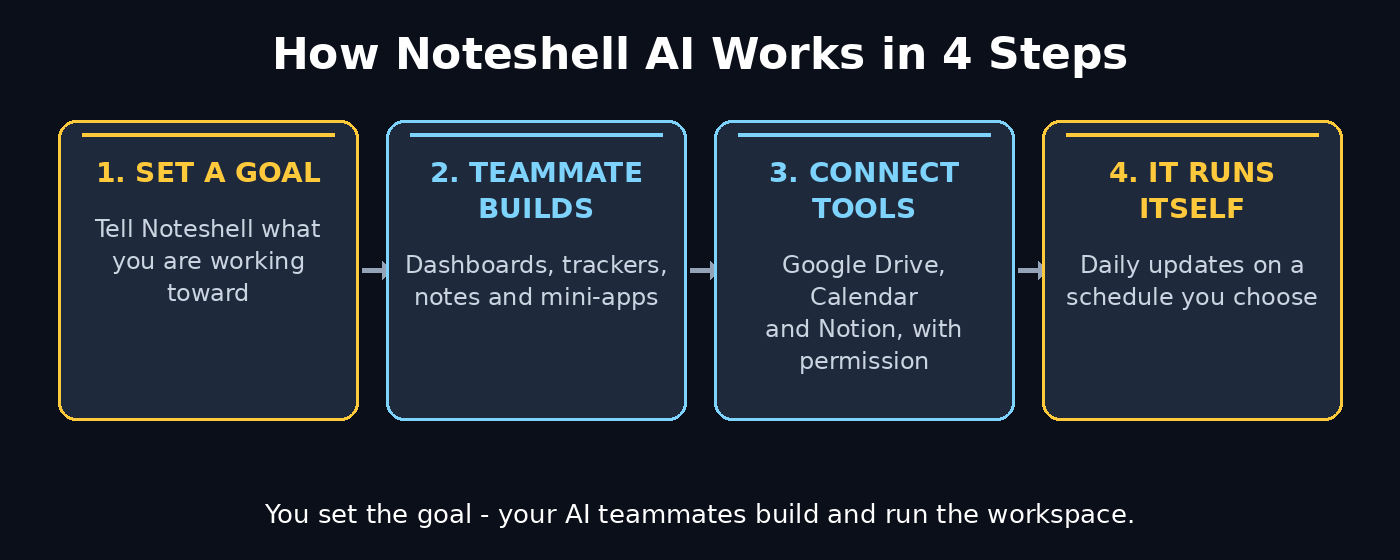
Most productivity apps wait for you to do the work. You open the app, create the page, build the table, update the tracker, and chase the deadline yourself. Noteshell AI flips that around. It is an AI workspace that can run itself once you decide what to delegate and when — you tell it your goal, and its AI teammates build the dashboards, trackers, interactive notes, and mini-apps you need, right inside your workspace. No coding required.
Noteshell took the number one spot on Product Hunt on November 19, 2026, and it is currently rolling out in a beta preview. In this beginner-friendly guide, you will learn how to use Noteshell AI step by step: joining the waitlist, opening the preview, connecting the AI subscription you already use (or claiming the 7-day free trial), setting your first goal, connecting Google Drive, Google Calendar, and Notion, and letting your AI teammates build and run a workspace that updates itself. By the end, you will know exactly how to use Noteshell AI to spend less time switching between tools and more time on the work that actually matters.
Step 1: Understand What Noteshell AI Is — and What It Is Not
Before you sign up for anything, it helps to understand what Noteshell actually does. Most AI tools answer a question and stop. Noteshell keeps going. You tell it what you are working toward — for example, finding a new job, launching a small product, or organising a research project — and it creates what you need along the way. That might be slides, videos, visual reports, interactive notes, or even mini-apps that run right inside your workspace. You can bring all of them together to serve the same goal, instead of scattering them across five different apps.
The idea behind Noteshell is simple: software should adapt to the way you work, not the other way around. You shape the workspace around your own preferences, from how the interface looks to the tools and content you create. And once you assign a task, your AI teammates can carry it out and run the workspace on their own — with your permission. A concrete example from the makers: an agent can build your job tracker, then find and add matching roles each morning, without you opening the app.
One important clarification: Noteshell is not Noteshelf. Noteshelf is a long-running handwriting and PDF note-taking app for iPad and Android. Noteshell is a brand-new AI workspace with AI teammates. They sound alike, but they do completely different jobs — so make sure you land on noteshell.io, not a note-taking app store page.
If you follow the shift toward agents that do real work on your behalf, the team at Agentic Affairs covers exactly this kind of agentic workspace — tools that plan, build, and keep running while you focus on decisions.
Step 2: Join the Waitlist and Open the Beta Preview
Noteshell officially launched in beta preview on November 19, 2026, and access is rolling out gradually. That means you cannot always walk straight in — you join a waitlist first. Here is how to use Noteshell AI to get started:
- Open noteshell.io in your browser and look for the waitlist sign-up. Fill in the form with your real email address — this is where your invite will arrive.
- Answer the questions in the sign-up form honestly. The team says it rolls out access gradually based on your responses, so a clear answer about what you want to build helps.
- While you wait, you can explore the public preview at preview.noteshell.io/app/ to see what the workspace looks like before your invite lands.
- Check your inbox (and spam folder) for the invite. When it arrives, follow the link to create your workspace.
Beginner tip: join the waitlist even if you are not ready to switch tools today. Beta spots roll out in waves, and joining early puts you in line. While you wait, you can plan the first goal you want your AI teammates to work on — Step 4 below shows you how to frame it well.
Step 3: Connect Your AI Subscription or Claim the 7-Day Free Trial
Noteshell works with the AI subscription you already use. That is an important detail, because it means you do not necessarily need to buy a second AI plan to try it. During sign-up, Noteshell asks you to connect the AI subscription you already have. If you do not have one, the sign-up form includes an option to request a 7-day free trial with up to $20 in usage — enough to build a real workspace and test whether the AI teammates are useful for you.
- If you already pay for an AI subscription, connect it during setup so your AI teammates can get straight to work.
- If you do not have one, fill out the form included with the waitlist sign-up and request the 7-day free trial with up to $20 in usage.
- Use the trial week to build one complete workspace for a real goal — a job search, a content plan, or a study project — instead of clicking around aimlessly. A real goal shows you what the tool can actually do.
- Before the trial ends, decide whether the time it saves you is worth continuing. The free trial is for testing, so test it on work you genuinely care about.
Keep your expectations honest here. Noteshell is in beta, which means features and limits can change while the team gathers feedback. Treat the trial as a hands-on test drive, not a finished product review.
Step 4: Tell Noteshell Your First Goal
Everything in Noteshell starts with a goal, not a blank page. This is the biggest mindset change for beginners. In a normal notes app, you open a blank document and stare at it. In Noteshell, you describe what you are working toward, and the workspace builds itself around that goal.
- Write your goal as one clear sentence: what outcome do you want, and by when? For example, “Find and apply for five remote design jobs every week” is far better than “organise my job search.”
- Add the context your AI teammates need: your skills, your target roles, the tools you already use, and any deadlines.
- Let Noteshell suggest the pieces your workspace needs — a tracker, a dashboard, a notes area, or a mini-app — and approve the ones that fit.
- Start with one goal only. A single focused workspace teaches you the workflow faster than five half-built ones.
The quality of your goal decides the quality of what gets built. Vague goals produce vague workspaces. A specific goal — with a number, a deadline, and a clear outcome — gives your AI teammates something concrete to build toward. If you run a digital agency and want to test this with client work, try a goal like “track every open client deliverable and flag anything due in the next 48 hours” and watch how the workspace organises itself around it.
Step 5: Let Your AI Teammate Build Your First Dashboard
Once your goal is set, ask your AI teammate to build the dashboard you will actually look at every day. A good dashboard answers three questions at a glance: what is happening, what needs attention, and what is next.
- Ask for a dashboard for your goal in plain language: “Build me a dashboard for my job search with applications sent, interviews booked, and follow-ups due.”
- Check what it builds. Noteshell’s teammates can create custom dashboards, trackers, interactive notes, and mini-apps — all inside the same workspace, so nothing lives in a separate tab.
- Ask for changes in plain language too. If a chart is missing or a column is wrong, describe the fix instead of rebuilding it yourself: “Add a column for salary range” or “Show only applications from this week.”
- Keep the dashboard small. Five useful numbers beat twenty noisy ones. Remove anything you would not check at least twice a week.
This is where learning how to use Noteshell AI really pays off. You are not learning a dashboard builder — you are learning to describe what you want and let the teammate build it. The skill is clear communication, not clicking through menus.
Step 6: Build a Tracker That Updates Itself
A dashboard shows you the present. A tracker that updates itself saves you the future. This is the feature that makes Noteshell different from a static notes app: your AI teammates can keep a tracker current without you opening it.
- Pick one tracker for your goal. A job tracker, a lead tracker, a content pipeline, or a study tracker all work well.
- Tell the teammate exactly what to update and how often. The makers’ own example is a job tracker: the agent builds it, then finds and adds matching roles each morning.
- Set the rules clearly: which sources to check, what counts as a match, and what to ignore. “Add only remote roles that match my skills and pay above my minimum” is a rule. “Add good jobs” is not.
- Review the first few updates by hand. Check that the new entries are accurate and relevant before you trust the automation fully.
Beginner tip: start with a daily update, not a live one. A morning refresh gives you one clean batch to review with your coffee, instead of a stream of small changes all day. Once you trust the rules, you can make the updates more frequent.
Step 7: Connect Google Drive, Google Calendar, and Notion
Noteshell becomes far more useful once it can see the tools you already use. With your permission, it connects to Google Drive, Google Calendar, and Notion, so your AI teammates can work with your real files, dates, and notes instead of starting from nothing.
- Connect Google Drive first if your work lives in documents and spreadsheets. Your teammates can read the files you point them to and build reports, summaries, and trackers from them.
- Connect Google Calendar next so deadlines and meetings flow into your workspace. A goal with a real date on it is much harder to forget.
- Connect Notion if your notes and databases already live there. Noteshell can pull that context in instead of asking you to copy everything over by hand.
- Connect one tool at a time and check what the teammate can see. Give access to the folders and pages the goal needs — not your entire account on day one.
Permissions matter. Noteshell says your AI teammates act with your permission, so treat that permission like a real decision. Connect the tools your goal needs, review what is shared, and revoke anything that is not earning its place. A workspace that runs itself should still be a workspace you control.
Step 8: Create Interactive Notes and Mini-Apps Without Code
Notes and documents are only half the story. Noteshell’s AI teammates can also build things you would normally need a developer for: interactive notes and mini-apps that run right inside your workspace.
- Turn a messy set of notes into an interactive note: a study guide with checklists, a project brief with live status, or a meeting note that links straight to the tasks it created.
- Ask for a mini-app when a spreadsheet is not enough. A simple calculator, a quote generator, a habit tracker, or a small form for collecting feedback are all realistic first mini-apps.
- Describe the mini-app by what it should do, not how it should be built: “A mini-app where I enter a client name and it shows their open tasks and next deadline.”
- Test it with real data before you rely on it. Click every button, enter a wrong value on purpose, and check that the result makes sense.
You do not need to write code, but you do need to test like a builder. A mini-app that looks right and calculates wrong is worse than no mini-app at all, so verify the first version with numbers you already know.
Step 9: Decide What to Delegate and When
A workspace that runs itself is only useful if you decide what “itself” means. Noteshell’s core promise is that it runs once you decide what to delegate and when — so make those decisions deliberately instead of handing over everything at once.
- Delegate repetitive, low-risk work first: gathering links, updating trackers, summarising documents, and drafting reports. Keep final decisions with yourself.
- Set the schedule. A morning update, a Friday summary, or a weekly report are all clearer than “keep it updated” — and clearer instructions get better results.
- Ask your teammates to show their work. When an agent adds new entries or changes a dashboard, check the source it used before you act on it.
- Keep a short list of things you never delegate: sending messages in your name, spending money, and anything involving private or sensitive data.
Think of it like hiring a new teammate. You would not hand a new hire your inbox on day one — you would give them one clear task, check the result, and expand from there. Do the same with your AI teammates and the workspace will earn your trust instead of breaking it.
Step 10: Shape the Workspace Around You
The last step is the one most beginners skip: make the workspace yours. Noteshell lets you shape it around your own preferences, from how the interface looks to the tools and content you create — and your workspace files live in folders on your computer, not locked inside a single cloud app.
- Arrange your workspace so the goal comes first. The dashboard and tracker you check daily should be one click away; archives and reference notes can sit further back.
- Use folders on your computer for your workspace files, so you always know where your work actually lives and can back it up yourself.
- Remove anything you do not use. A workspace with three tools you love beats a workspace with twelve tools you ignore.
- Revisit the setup every two weeks while you are learning. Delete the dashboard nobody opens, tighten the tracker rules that add noise, and add the mini-app you keep wishing existed.
A good test: could a friend open your workspace and understand your goal in thirty seconds? If yes, the shape is right. If not, simplify until it is.
Noteshell AI vs Other Workspaces: A Quick Comparison
How does Noteshell compare with the tools you might already use? The table below keeps it simple. Noteshell is in beta preview, so treat this as a snapshot of where it stands today — new features will arrive as the rollout continues.
| Feature | Noteshell AI | Notion | Google Workspace |
|---|---|---|---|
| AI teammates that build for you | Yes — dashboards, trackers, notes, mini-apps | AI writing help, not builders | Gemini assistance, not builders |
| Self-updating trackers | Yes — agents refresh on a schedule | No — you update them by hand | No — you update them by hand |
| No coding needed | Yes | Yes | Yes |
| Connects Google Drive, Calendar, Notion | Yes | Partial (imports and embeds) | Native (Google only) |
| Creates slides, videos, reports | Yes, from your goal | No | Yes, with manual work |
| Files live on your computer | Yes — folders on your computer | Cloud only | Cloud only |
| Availability (Nov 2026) | Beta preview, waitlist | Generally available | Generally available |
| Free way to try | 7-day trial, up to $20 usage | Free plan | Free personal apps |
The honest summary: Notion and Google Workspace are finished, stable tools you can use today. Noteshell is newer and still in beta, but it is the only one of the three built around AI teammates that build and maintain the workspace for you. If that idea excites you, the beta is worth joining. If you need guaranteed stability this week, keep your main work where it is and test Noteshell on a side project first.
Frequently Asked Questions About How to Use Noteshell AI
Is Noteshell AI free?
Noteshell is in beta preview, and Product Hunt lists it at $0 to try. You can connect the AI subscription you already use, and if you do not have one, the waitlist sign-up form includes a 7-day free trial with up to $20 in usage. Longer-term pricing has not been announced yet, so check noteshell.io for the latest details before you commit to it as your main workspace.
How is Noteshell different from Noteshelf?
They are different products with similar names. Noteshelf is a handwriting and PDF note-taking app for tablets and phones. Noteshell is an AI workspace where AI teammates build dashboards, trackers, interactive notes, and mini-apps and keep them updated. If you want a digital notebook, you want Noteshelf. If you want a workspace that runs itself, you want Noteshell at noteshell.io.
Do I need to know how to code to use Noteshell AI?
No. Noteshell is built for people who describe what they want in plain language. You write your goal, describe the dashboard or mini-app you need, and the AI teammate builds it. No coding is required at any step — though you should still test anything it builds with real data before relying on it.
Which AI subscription can I connect to Noteshell?
Noteshell says you can connect the AI subscription you already use. The exact list of supported subscriptions is part of the beta setup flow, so check the connection screen when your invite arrives. If you do not have a subscription, request the 7-day free trial with up to $20 in usage through the waitlist form instead.
Where do my Noteshell files live?
Your workspace files live in folders on your computer, according to the makers. That is different from most cloud workspaces, where your files live only on the provider’s servers. It also means you can back up your workspace yourself — which is worth doing regularly while the product is in beta.
When will Noteshell be available to everyone?
There is no public general-availability date yet. Noteshell launched in beta preview on November 19, 2026, and access is rolling out gradually based on waitlist responses. Join the waitlist at noteshell.io and explore the public preview at preview.noteshell.io/app/ while you wait.
Final Thoughts
Noteshell AI is an early bet on a simple idea: the workspace should do the busywork, and you should do the thinking. Tell it your goal, connect the tools you already use, and let AI teammates build the dashboards, trackers, notes, and mini-apps that serve that goal — then keep them updated on a schedule you choose. It is still in beta preview, the waitlist controls who gets in, and the 7-day free trial is the honest way to find out whether it fits your work. But if you have ever wished your notes app would just build the tracker itself, this is the tool to watch. Join the waitlist, set one clear goal, and let your first AI teammate prove itself on real work.
Want more beginner-friendly AI tool guides like this one? Learn how to use Tabstack AI to give your AI models private live web access, and explore the full library of free AI tool guides at AIToolSteps.
Explore More Free AI Tools
Looking for more free AI tools to speed up your work? Try our free AI Title Generator, Meta Description Generator, AI Rewriter, and Keyword Density Checker — all free on AIToolSteps, no sign-up needed.