

Do you save posts on Instagram, TikTok, X and Pinterest all day long — and then never find them again when you actually need them? You are not alone. Most of us have hundreds of saved posts scattered across five different apps, and every app hides them in its own little corner. Magpie AI fixes exactly that problem. It pulls everything you save into one beautiful visual library, tags every item with AI, and lets you search by what is actually inside the picture or video — even by colour. In this beginner-friendly guide, you will learn how to use Magpie AI for free, step by step, from your first account to your first search.
Step 1: Understand What Magpie AI Actually Does
Magpie AI is a visual library for everything you save online. Instead of keeping your inspiration locked inside Instagram, TikTok, X, Pinterest, YouTube, Reddit, Dribbble, Behance, Are.na, GitHub and your browser bookmarks separately, Magpie gathers it all in one place. The official site is getmagpie.me, and the tool launched on Product Hunt on 26 October 2026, where it quickly caught attention because the problem it solves is so universal.
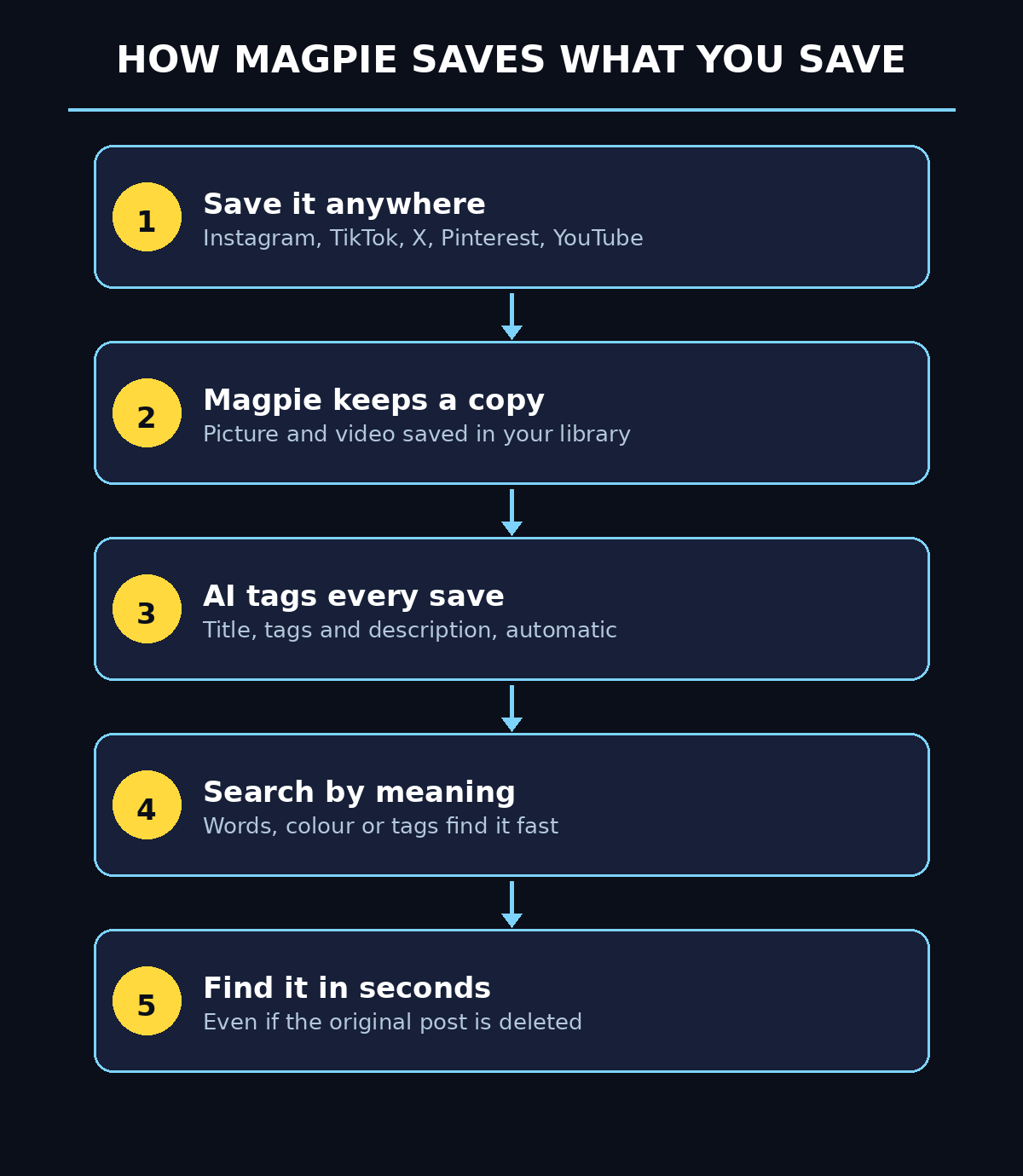
Three things make Magpie different from a normal bookmark folder:
- It keeps a real copy. Magpie saves a copy of the picture or video, so your save survives even if the original post is deleted or the account goes private.
- AI describes every save. The AI looks at each picture and watches each video, then writes a title, adds tags and a short description automatically.
- You search by meaning, not filenames. You can search for “cozy living room” or “blue logo ideas” and find the right save even if you never typed those words yourself.
That combination turns a messy pile of saves into a personal inspiration library you can actually use. Designers use it for mood boards, marketers use it to track trends, and everyday users use it simply to stop losing recipes, workout ideas and travel spots.
Step 2: Create Your Free Magpie Account
Getting started takes about two minutes, and the free plan is free for good — no card required. Here is how to set it up:
- Open your browser and go to getmagpie.me. Make sure you are on the real Magpie site, because a few other products share the name Magpie. The one in this guide is the visual library at getmagpie.me.
- Click the sign-up button and create your account with your email address.
- Confirm your email if Magpie asks you to, then sign in and you will see your empty library waiting for its first saves.
The free plan gives you 500 saves, access to every source, the browser extension, AI tags, search by meaning and colour, Projects for organising, and 2 GB of storage for copies of your pictures and videos. If you ever pass 500 saves, Magpie does not delete or lock your older saves — they simply wait until you upgrade or make room. Paid plans exist for heavier users, starting at around €8.99 a month, but most beginners will be comfortable on free for a long time.
Step 3: Install the Magpie Browser Extension
The browser extension is what makes saving effortless, because it copies each save into Magpie automatically. Without it, you would have to paste links by hand every time.
- From your Magpie dashboard, find the browser extension download for Chrome. The extension works on Chrome, Dia, Arc and other Chromium-based browsers.
- Install it from the Chrome Web Store and pin it to your toolbar so it is always one click away.
- Sign in to the extension with the same Magpie account you just created.
Two honest limits to know about: the Safari and Firefox extensions have not arrived yet, and the iPhone app is waitlist-only while Android is still in development. Until the mobile apps land, you can use Magpie in your phone’s browser. On desktop, though, the experience is already complete.
Step 4: Connect Your Accounts and Import Your Old Saves
A fresh library is nice, but the real magic happens when your years of old saves move in too. Magpie can import saves from the platforms you already use:
- Connect Instagram, X, TikTok, Pinterest, YouTube, Reddit and your other accounts from the Magpie settings or import screen, following the on-screen steps for each one.
- Import your browser bookmarks as well — Magpie accepts bookmark imports from Chrome, Dia, Arc, Safari and Firefox.
- Let the import run. Magpie will pull in your saved posts, copy the images and videos, and let the AI title, tag and describe each one. A large import can take a while, so start it and check back later.
Once the import finishes, scroll through your library. You will probably rediscover ideas you forgot you saved months ago. That moment — finding a great idea you thought was lost — is exactly why people keep using Magpie after the first week.
Step 5: Save Your First Post the Easy Way
With the extension installed, saving becomes a reflex instead of a chore. Magpie gives you three quick ways to save:
- Save inside the app: when you tap save on Instagram, TikTok or another connected platform, the extension copies that save into Magpie automatically, picture and video included.
- Quick-save any link: press Option + Space (on Mac) anywhere in your browser to quick-save the link you are looking at, without opening Magpie at all.
- Save from the toolbar: click the Magpie extension icon while viewing any page or post to add it to your library by hand.
Try it right now: save three posts you genuinely like, then open your Magpie library and watch them appear with AI-written titles and tags already attached. That small test proves the whole workflow in under a minute.
Step 6: Search Your Library by Meaning, Colour and Tags
This is the feature that makes Magpie feel like magic. Normal bookmark tools only search the title or URL you saved. Magpie searches what is actually inside the content.
- Search by meaning: type a natural phrase like “minimal desk setup” or “birthday cake ideas” and Magpie finds saves that match the idea, even if those exact words appear nowhere in the post.
- Search by colour: looking for something in a particular palette? Search by colour to pull up saves dominated by blue, warm orange, or any shade you have in mind — perfect for designers matching a brand palette.
- Use AI tags: every save carries AI-generated tags. Click a tag to instantly filter your library to everything sharing that theme, person, object or style.
- Combine filters: mix a keyword with a tag or a colour to narrow hundreds of saves down to the five that matter right now.
Make a habit of searching before you scroll. Scrolling through a thousand saves is slow; one good search takes seconds. After a week of this habit, you will wonder how you ever managed with the saved tabs inside five separate apps.
Step 7: Organise Your Saves into Projects
A library without organisation is just a prettier pile. Magpie’s Projects let you group saves the way your brain actually thinks about them.
- Create a Project for each area of your life or work — for example “Home Renovation”, “Content Ideas”, “Gift Ideas” or “Client Inspiration”.
- Drag saves into the right Project, or add them to a Project at the moment you save them.
- Keep client work separate from personal inspiration. Creators who manage content for clients — for example through a digital agency — can give each client its own Project, so a brand’s saved references never mix with personal browsing.
Projects also make sharing easier. When a friend asks for your travel ideas or a colleague wants your design references, you can open one Project instead of digging through your entire history. Start with three or four broad Projects and split them only when one grows too big to scan at a glance.
Step 8: Find a Post Even After It Gets Deleted
Every creator has felt this pain: you saved the perfect tutorial, and a month later the account deleted it or went private. On the original app, that save is gone forever. In Magpie, it is still there.
Because Magpie stores its own copy of the picture or video — on the free plan, up to 2 GB of copies — the content survives in your library even when the source disappears. Open the save in Magpie and you can still view the image, read the AI description, and use it as a reference. This is one of the strongest reasons to route your saves through Magpie from day one: the longer you use it, the more of your collection becomes deletion-proof.
A practical tip: if you find a tutorial or recipe you know you will need later, save it to Magpie the moment you see it. Waiting until tomorrow is exactly how the best posts vanish.
Step 9: Connect Magpie to Your AI Coding Agents
Magpie is not only for people who browse social media. It also connects to AI coding agents through MCP, the Model Context Protocol. The official site names Claude, Claude Code, Cursor, Codex and OpenCode as supported tools.
In plain English, that means your AI agent can look inside your Magpie library while it works. Imagine asking your coding agent to build a landing page “in the style of the designs I saved last week” — with the MCP connection, it can actually see those saved designs instead of guessing what you mean. It is an early feature, and setup is more technical than the browser extension, so beginners can safely skip it for now and come back when they start working with coding agents. If you want to understand how AI agents share memory and context across tools, the team at Agentic Affairs covers AI automation services and agent workflows in depth.
Step 10: Stay Inside the Free Plan (and Know When to Upgrade)
Five hundred free saves sounds like a lot until you realise how much you save every week. Here is how to make the free plan last:
- Save with intent. Save the posts you will actually reuse — tutorials, references, ideas — not everything you scroll past. A smaller, sharper library beats a giant junk drawer.
- Review monthly. Once a month, open your library, remove saves you no longer need, and move the keepers into Projects. Ten minutes of tidying keeps your search results clean.
- Watch your counter. Magpie shows how many of your 500 free saves you have used. When you approach the limit, either tidy up or consider the Plus plan, which starts at around €8.99 a month and raises the ceiling.
- Remember the safety net. Even past 500 saves, Magpie never deletes or locks your older saves — they wait for you. That makes the free plan genuinely safe to try without worrying about losing anything.
Magpie AI vs Other Ways to Save Things
How does Magpie compare with the tools you already use to save things? Here is a quick side-by-side look:
| Tool | What it saves | AI search | Survives deletion | Free plan |
|---|---|---|---|---|
| Magpie AI | Posts from 10+ platforms + bookmarks | Yes — by meaning, colour and tags | Yes — keeps its own copy | 500 saves, free forever |
| Browser bookmarks | Links only | No — title and URL only | No — dead link if page goes | Unlimited, but unsearchable |
| Pinterest boards | Pins inside Pinterest | Basic keyword search | Partly — pins can break | Free, but Pinterest-only |
| Instagram Saved | Posts inside Instagram | No | No — gone if post deleted | Free, but Instagram-only |
| Notion / notes apps | Whatever you paste by hand | No built-in visual AI | Yes, if you paste it yourself | Free tiers, but manual work |
The pattern is clear: every other option is either locked to one platform, blind to what is inside your saves, or manual. Magpie is the only one that combines all platforms, AI understanding and deletion-proof copies in a free plan.
Frequently Asked Questions About Magpie AI
Is Magpie AI really free?
Yes. The free plan costs $0, needs no card, and includes 500 saves, every source, the browser extension, AI tags, search by meaning and colour, Projects and 2 GB of storage for copies. Paid plans start at around €8.99 a month for people who need more than 500 saves.
Which platforms does Magpie AI work with?
Magpie pulls saves from Instagram, X, TikTok, Pinterest, YouTube, Reddit, Dribbble, Behance, Are.na, GitHub stars and browser bookmarks. The browser extension covers Chrome, Dia, Arc and other Chromium browsers, while Safari and Firefox extensions are still on the way.
What happens to my saves if the original post is deleted?
Your copy stays safe in Magpie. Because Magpie stores its own copy of the picture or video, you can still open, view and search the save even after the original post disappears from the internet.
Does Magpie AI have a mobile app?
Not yet for everyone. The iPhone app is waitlist-only and Android is still in development. Until they launch, you can use Magpie in your phone’s mobile browser, and the full desktop experience works today.
Is this the same Magpie that works inside Claude and ChatGPT?
No — and this confuses a lot of people. There are several products called Magpie, including a notes tool for Claude and ChatGPT and a video summariser. The visual library in this guide is the one at getmagpie.me, launched on Product Hunt on 26 October 2026.
Can I use Magpie AI without the browser extension?
You can browse and search your library on the website, and you can import bookmarks and connected-account saves without the extension. But automatic saving — where a save inside Instagram or TikTok copies itself into Magpie — needs the extension, so installing it is worth the one minute it takes.
Final Thoughts
Magpie AI solves a small problem that quietly wastes a lot of time: the ideas you save and never find again. In ten minutes you can create a free account, install the extension, import your old saves and save your first three posts. From then on, every save lands in one searchable visual library, tagged by AI, organised into Projects, and protected even if the original post disappears. Start free, save with intent, and let your library grow into something you actually use. Your future self — hunting for that one perfect reference at midnight — will be grateful.
Explore More Free AI Tools
Want more free AI tools like Magpie? Visit AIToolSteps and try our free AI Title Generator, Meta Description Generator, AI Rewriter, and Keyword Density Checker — simple tools that make your content work harder, no sign-up needed.