

OpenAI released two new models on November 17, 2026: GPT-6.2 Astra, its new frontier model for the hardest projects, and GPT-6.2 Sol, its efficient model for everyday work. Both live inside ChatGPT Work and Codex, not in regular ChatGPT chat, and that single detail confuses almost every beginner who tries them on day one. This guide clears up the confusion. You will learn exactly where GPT-6.2 Astra and Sol live and which ChatGPT plan unlocks them. You will also learn how to pick between Astra and Sol for each task, and how to stretch your usage allowance so you get more done without upgrading to a pricier plan.
If you are new to OpenAI’s model lineup, here is the short version. Astra is the heavyweight: it handles demanding professional work such as financial analysis, legal research, slide decks, long documents, and tricky multi-file coding. Sol is the everyday workhorse: fast, cheap, and surprisingly close to Astra on many tasks. OpenAI says both models deliver better results on demanding tasks while using fewer output tokens, which means you can finish more work inside the same usage limits. By the end of this guide, you will know which model to open first every single time.
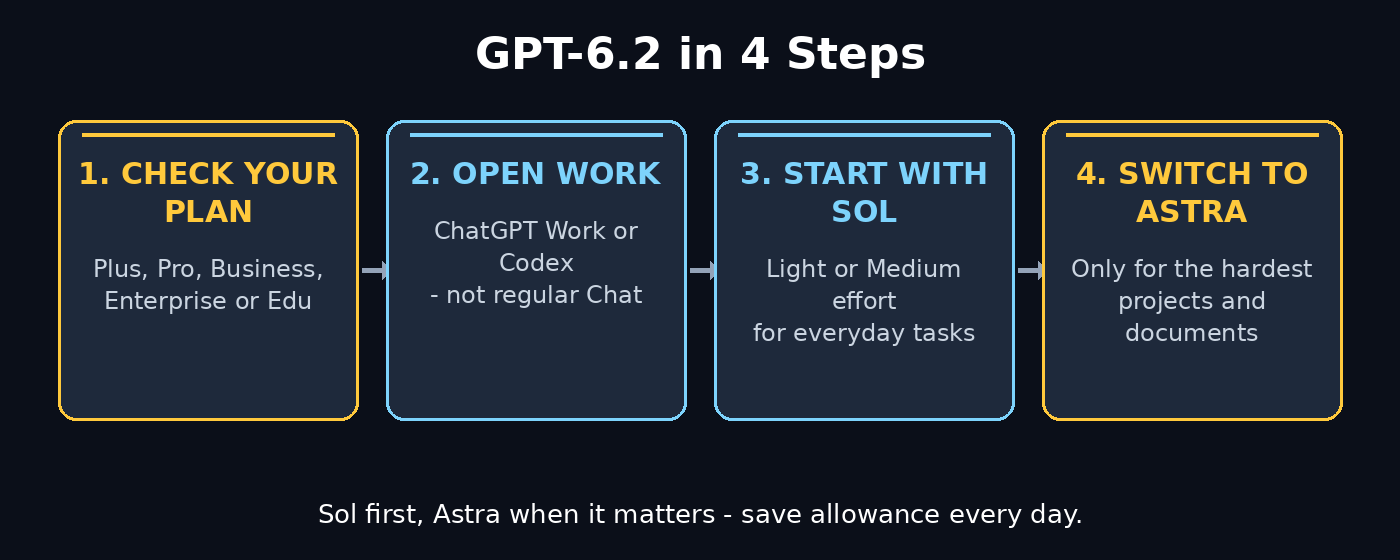
Step 1: Understand What GPT-6.2 Astra and Sol Actually Are
GPT-6.2 is not one model. It is a two-model family, and each half has a clear job. GPT-6.2 Astra is OpenAI’s frontier model, built for your hardest projects. GPT-6.2 Sol is the go-to model for everyday work. Both arrived together on November 17, 2026, and both are available in ChatGPT Work, in the Codex app and command-line interface, and through the OpenAI API.
Here is what changed from the previous generation. Astra follows document and slide templates more closely than GPT-6 Astra did, down to the font size, and it writes documents that match the conventions of your field. On Agents’ Last Exam, a test of professional assignments that take many steps, Astra scored 5.2 points above GPT-6 Astra. Sol is the quieter upgrade: clearer writing and better performance on jobs that take several steps, while using fewer output tokens. On Cognition’s FrontierCode 2.0 coding test, Sol came within 0.5 points of Astra at roughly one-fifth of the cost.
That last number matters most for beginners. You do not need the biggest model for most jobs. Sol handles the daily work, and Astra waits in reserve for the tasks where quality is worth the extra allowance. Think of it like a toolbox: Sol is the screwdriver you reach for all day, and Astra is the power drill you bring out for the hard jobs.
- Astra: frontier model, hardest projects, professional and scientific work.
- Sol: efficient everyday model, multistep agentic workflows, everyday coding and writing.
- Shared idea: better results with fewer output tokens, so your allowance lasts longer.
Step 2: Check Which ChatGPT Plan You Have
Before you hunt for the models, check your plan, because GPT-6.2 is not available to everyone. OpenAI rolled GPT-6.2 Astra and Sol out only inside ChatGPT Work and Codex, and only for Plus, Pro, Business, Enterprise, and Edu users. Free and Go users do not get Work at all, so they do not get GPT-6.2 either.
That sounds like bad news for free users, but there is a useful consolation. Regular ChatGPT chat still runs on GPT-6, and OpenAI’s help center says regular Chat runs on GPT-6 Sol. Free users still get a taste of the Sol family. That is the best free way to practise the prompting habits in this guide before upgrading. If you are on the free plan, you can still follow most of this guide. Use regular Chat and learn the same prompting habits. Then upgrade later if your work demands Work or Codex.
To check your plan, open ChatGPT, click your profile icon, and look at your plan name. If you see Plus, Pro, Business, Enterprise, or Edu, you are in. Enterprise and Edu workspaces need an administrator to turn access on, so if you are on a company or university account and do not see the models, ask your admin first.
- Free and Go: no access to Work, no GPT-6.2. Regular Chat uses GPT-6 Sol.
- Plus: GPT-6.2 Astra and Sol in Work and Codex from launch day.
- Pro: both models, plus Ultrafast mode on higher tiers (see Step 9).
- Enterprise and Edu: access once an admin enables it in the workspace.
Step 3: Open ChatGPT Work and Pick Your Model
GPT-6.2 does not appear in regular Chat. OpenAI’s release notes are explicit: this rollout does not add either model to regular Chat. You must switch to ChatGPT Work, the workspace mode built for professional tasks, or open Codex, OpenAI’s coding tool.
In ChatGPT on the web, desktop, or mobile, look for the Work mode and open a new Work chat. New Work chats on supported consumer plans start with Sol at Light reasoning effort. That is a sensible default, and you should leave it there until a task proves it needs more. If you see the Power slider, open Advanced to pick Astra or Sol and to choose your reasoning effort. The model picker sits there, not in the regular chat model menu, which is why so many people report that they “cannot find GPT-6.2” — they are looking in the wrong place.
One more thing to know: Work and Codex share usage. Moving a task from Work to Codex still draws on the same allowance, so switching tools does not reset your limits. Pick the environment that fits the job — Work for documents and research, Codex for code — and treat the allowance as one shared budget.
Step 4: Choose the Right Reasoning Effort
Both GPT-6.2 models let you set a reasoning effort, which controls how hard the model thinks before it answers. Higher effort means deeper analysis and usually a better answer, but it also burns more of your allowance. Lower effort is faster and cheaper, and it is often enough for routine work.
New Work chats start at Light effort for Sol on consumer plans, and Medium effort for Sol in Enterprise workspaces. A good beginner rule is simple: start at Light or Medium, read the answer, and only raise the effort when the result is thin, wrong, or missing the details you asked for. For Astra, the top setting is called xhigh, and that is where its biggest benchmark wins were recorded — the 5.2-point lead on Agents’ Last Exam came from Astra at xhigh. Save xhigh for the tasks that genuinely deserve it.
- Light: quick drafts, summaries, simple questions, everyday Sol tasks.
- Medium: the balanced default, good for most professional work.
- High / xhigh: hard analysis, long documents, tricky code, tasks where errors are costly.
Step 5: Use GPT-6.2 Sol for Everyday Work
Sol is the model you should open first, almost every time. OpenAI describes it as efficient and versatile, built for everyday work and multistep agentic workflows. In practice, that covers emails, meeting summaries, first drafts, research notes, brainstorming, everyday coding, and any job that takes several steps but does not need frontier-level precision.
Sol’s real advantage is value. It came within 0.5 points of Astra on FrontierCode 2.0, a test of whether code changes are good enough for maintainers to merge, while costing about one-fifth as much per task. Its API prices tell the same story: $2 per million input tokens and $10 per million output tokens, unchanged from GPT-6.1 Sol. When a model is that close in quality and that much cheaper, the smart move is to make it your default and reach for Astra only when Sol’s answer falls short.
Try this habit for one week. Do every task in Sol first. When an answer is good enough, move on. When it is not, switch the same prompt to Astra and compare. Most beginners find that Sol handles 80 to 90 percent of their work, and the comparison teaches them exactly which tasks deserve the bigger model. That is a skill worth building, because it saves allowance every single day.
Step 6: Use GPT-6.2 Astra for Your Hardest Projects
Astra earns its place on the tasks where quality matters more than cost. OpenAI positions it for professional work such as financial models, spreadsheets, slide decks, and research, and it claims the output reads less like typical AI text. The standout skill is template discipline. Astra follows slide templates down to the font size. It writes documents that respect the conventions of your field, which is exactly what professionals need when a deck or report goes to a client.
Reach for Astra when the work is high stakes or unusually demanding. Examples include a financial analysis with real numbers, and legal research where a missed detail has consequences. A presentation must match a brand template exactly. A long document must stay consistent from start to finish, and a tricky multi-file coding task needs real precision. OpenAI also updated Astra for Law, its configuration for lawyers, and opened access requests to every ChatGPT Enterprise customer, including through the API — a sign of how seriously it takes professional use.
If your team wants to put models like Astra into real client workflows instead of one-off chats, working with a digital agency that already builds AI-powered processes can help. The model is only half the job. The workflow around it is the other half. And if you want to keep learning how agentic AI is reshaping professional work, Agentic Affairs covers the tools and patterns behind this shift in plain language.
- Use Astra for: financial analysis, legal research, template-matched decks, long documents, complex code, scientific research.
- Skip Astra for: quick emails, simple summaries, casual questions, first drafts you will rewrite anyway.
- Remember: Astra costs more allowance per task, so use it where the quality gap is real.
Step 7: Try GPT-6.2 in Codex for Coding
Codex is OpenAI’s coding tool, and GPT-6.2 Astra and Sol are both available there — in the Codex app and in the Codex command-line interface. If you write code, or you are learning to, Codex is where these models show their sharpest edge. Sol nearly matches Astra on FrontierCode 2.0. That means you can do most coding in Sol. Switch to Astra only for the hardest changes, such as refactoring across many files or debugging a problem that has already beaten simpler attempts.
Getting started is straightforward. Open Codex, pick Sol as your model, and describe the change you want in plain language: what the code should do, which files are involved, and how you will know it works. Codex can read your codebase, make the change, and run tests. When the change is large or risky, switch to Astra and ask it to review the plan before you run it. That two-model rhythm — Sol to build, Astra to check the hard parts — is one of the most practical workflows in this whole guide.
Beginners should also note that both models meet OpenAI’s Critical threshold for cybersecurity capabilities, which is why the release shipped with tighter default safeguards for higher-risk cybersecurity requests. That is a reminder to use Codex for your own projects and legitimate work, and to respect the guardrails when the tool asks for clarification.
Step 8: Use the GPT-6.2 API If You Build With AI
Developers can reach both models through the OpenAI API as gpt-6.2-astra and gpt-6.2-sol. If you build apps, automations, or AI agents, the API is how you put GPT-6.2 inside your own product instead of inside ChatGPT. The pricing is simple: Astra costs $8 per million input tokens, $0.40 for cached input, and $40 per million output tokens — a 20 percent cut from GPT-6 Astra. Sol costs $2 for input, $0.10 for cached input, and $10 for output, the same rates as GPT-6.1 Sol.
For a beginner builder, the cheapest way to learn is to start with Sol. Its low input price makes experimentation affordable, and cached input at $0.10 per million tokens rewards you for reusing the same instructions across many calls. Switch to Astra only for the calls where answer quality directly affects your users, such as generating a final report or analysing a document a customer paid you to read carefully. Many small tools and automations never need Astra at all.
If you are not a developer, you can skip this step entirely. The ChatGPT Work and Codex experience already gives you everything in this guide. But if you ever hire someone to build an AI feature for your business, knowing these model names and prices helps you ask the right questions about cost.
Step 9: Use Ultrafast Mode When Speed Matters
Ultrafast is a speed mode that makes the selected model generate its answer faster — up to 4.5 times the standard rate, according to OpenAI. It is not free. It uses more of your plan’s allowance, so treat it as a tool for moments when someone is waiting on the output. Think of a developer iterating on a patch, or a meeting that needs a document right now.
Access depends on your plan. Pro subscribers at $200 a month get Ultrafast with Sol for the first time, and Pro subscribers at $500 a month get it with both models. API developers get Ultrafast with both model IDs at launch. Note that GPT-6.2 Ultrafast supports US residency only, so users outside the US will not see the option even on an eligible plan.
For most beginners, Ultrafast is a nice-to-have, not a must-have. Learn the models first, learn the reasoning effort settings second, and only then decide whether paying for extra speed is worth it. If you are on Plus, you do not get Ultrafast at all, and that is fine — standard speed is perfectly usable for learning and daily work.
Step 10: Save Allowance With Smart Habits
GPT-6.2’s headline promise is doing more within your usage limits, and your habits decide whether that promise comes true. OpenAI’s own guidance points the way: start with Sol, and reach for Astra only when quality matters more than allowance. Older usage estimates put Astra at roughly 5 to 45 messages per five hours against 15 to 160 for Sol, which shows how much further Sol stretches the same budget.
Build these habits into your daily routine. Write focused prompts instead of vague ones, because a clear request gets a good answer on the first try instead of the third. Reuse context: keep a task in one Work chat instead of starting fresh each time, so the model does not re-read everything. Batch small jobs together — five short summaries in one session cost less than five separate sessions. And review your usage: if you notice Astra eating your allowance, check whether those tasks really needed it or whether Sol would have done the job.
- Default to Sol for everyday work and switch to Astra only on proof, not on habit.
- Start at Light or Medium effort and raise it only when the answer is not good enough.
- Keep tasks in one chat so context is reused instead of rebuilt.
- Use Codex for code and Work for documents — the right tool wastes less effort.
GPT-6.2 Astra vs Sol vs GPT-6: Quick Comparison
| Feature | GPT-6.2 Astra | GPT-6.2 Sol | GPT-6 (regular Chat) |
|---|---|---|---|
| Best for | Hardest projects, professional work | Everyday work, multistep tasks | General chat, quick questions |
| Where it lives | ChatGPT Work, Codex, API | ChatGPT Work, Codex, API | Regular ChatGPT chat |
| Plans | Plus, Pro, Business, Enterprise, Edu | Plus, Pro, Business, Enterprise, Edu | All plans, including Free |
| API price (input / output) | $8 / $40 per million tokens | $2 / $10 per million tokens | Not available via this API tier |
| Ultrafast mode | Pro $500, API | Pro $200 and $500, API | Not available |
| Standout strength | Template-matched decks and documents | Near-Astra coding at one-fifth the cost | Free, always available |
Frequently Asked Questions About GPT-6.2 Astra and Sol
Is GPT-6.2 Astra and Sol free to use?
No. GPT-6.2 Astra and Sol live in ChatGPT Work and Codex, which Free and Go plans do not include. You need Plus, Pro, Business, Enterprise, or Edu. Free users still get a taste of the Sol family, because regular ChatGPT chat runs on GPT-6 Sol, and that is the best free way to practise the prompting habits in this guide before upgrading.
What is the difference between Astra and Sol?
Astra is the frontier model for your hardest projects: professional documents, financial analysis, legal research, template-matched slide decks, and complex code. Sol is the efficient everyday model for emails, drafts, summaries, and multistep tasks. Sol came within 0.5 points of Astra on the FrontierCode 2.0 coding test at about one-fifth of the cost, so most daily work belongs in Sol.
Can I use GPT-6.2 in regular ChatGPT chat?
No. OpenAI’s release notes say the rollout does not add either model to regular Chat. You must open ChatGPT Work or Codex to use them. If you open regular Chat and cannot find GPT-6.2, you are in the wrong mode — switch to Work and look for the model picker under Advanced.
Which GPT-6.2 model should a beginner pick?
Pick Sol. Start every task in Sol at Light or Medium reasoning effort, and switch to Astra only when the answer is not good enough. This habit saves allowance, and it teaches you quickly which tasks genuinely need frontier quality. After a week of comparing the two, you will know your own split without thinking about it.
Is GPT-6.2 worth upgrading to Plus for?
It depends on your work. If you write long documents, build slide decks, analyse data, or code regularly, Plus unlocks both models in Work and Codex, and Sol alone can justify the upgrade for heavy users. If you only chat occasionally, the free plan’s GPT-6 Sol experience is enough, and you can upgrade later when your workload grows.
What is Ultrafast mode in GPT-6.2?
Ultrafast makes the model generate answers up to 4.5 times faster, but it uses more of your plan’s allowance. Pro subscribers at $200 a month get it with Sol, and Pro subscribers at $500 a month get it with both models. It also supports US residency only. Use it when someone is waiting on the output, not as an everyday default.
Final Thoughts
GPT-6.2 Astra and Sol are not a revolution, and that is exactly why they are useful. They are a careful, practical upgrade: Astra pushes professional quality higher, Sol brings near-frontier results to everyday prices, and both waste fewer tokens doing it. The beginners who benefit most will not be the ones who open Astra for everything. They will be the ones who learn the simple rhythm in this guide — Sol first, Astra when it matters, the right reasoning effort, and the right tool for the job.
Start today. Open ChatGPT Work, run your next real task in Sol, and compare it with Astra when the stakes are high. Within a week, you will have a personal sense of what each model is for, and that sense is worth more than any benchmark table. The models will keep improving, but the habit of choosing the right tool for the task will pay off with every release that follows.
Explore More Free AI Tools
Want to keep building your AI toolkit? Try our free tools on AIToolSteps. Use the AI Title Generator for headlines that get clicks, and the Meta Description Generator for search snippets that earn the click. The AI Rewriter polishes rough drafts, and the Keyword Density Checker keeps your SEO on track. Each one is free, and each one pairs well with the models in this guide.