
Google Vids just became the easiest free way to make AI video. On November 5, 2026, Google moved its browser-based video editor to Gemini Omni 1.2 Flash, a model that creates 15-second clips with native sound from a single text prompt — and anyone with a free Google account can generate up to three of those clips every month at no cost, no card required. If you have ever wanted to turn an idea into a short video without learning editing software, buying credits, or installing anything, this is your moment.
In this beginner-friendly guide, you will learn exactly how to use Google Vids AI: how to open it, how to write prompts that actually work, how to keep a character or product looking the same across clips, how to extend and edit what you generate, and how to turn a few clips into a finished video you can download and share. No experience needed — if you can type a sentence, you can do this.
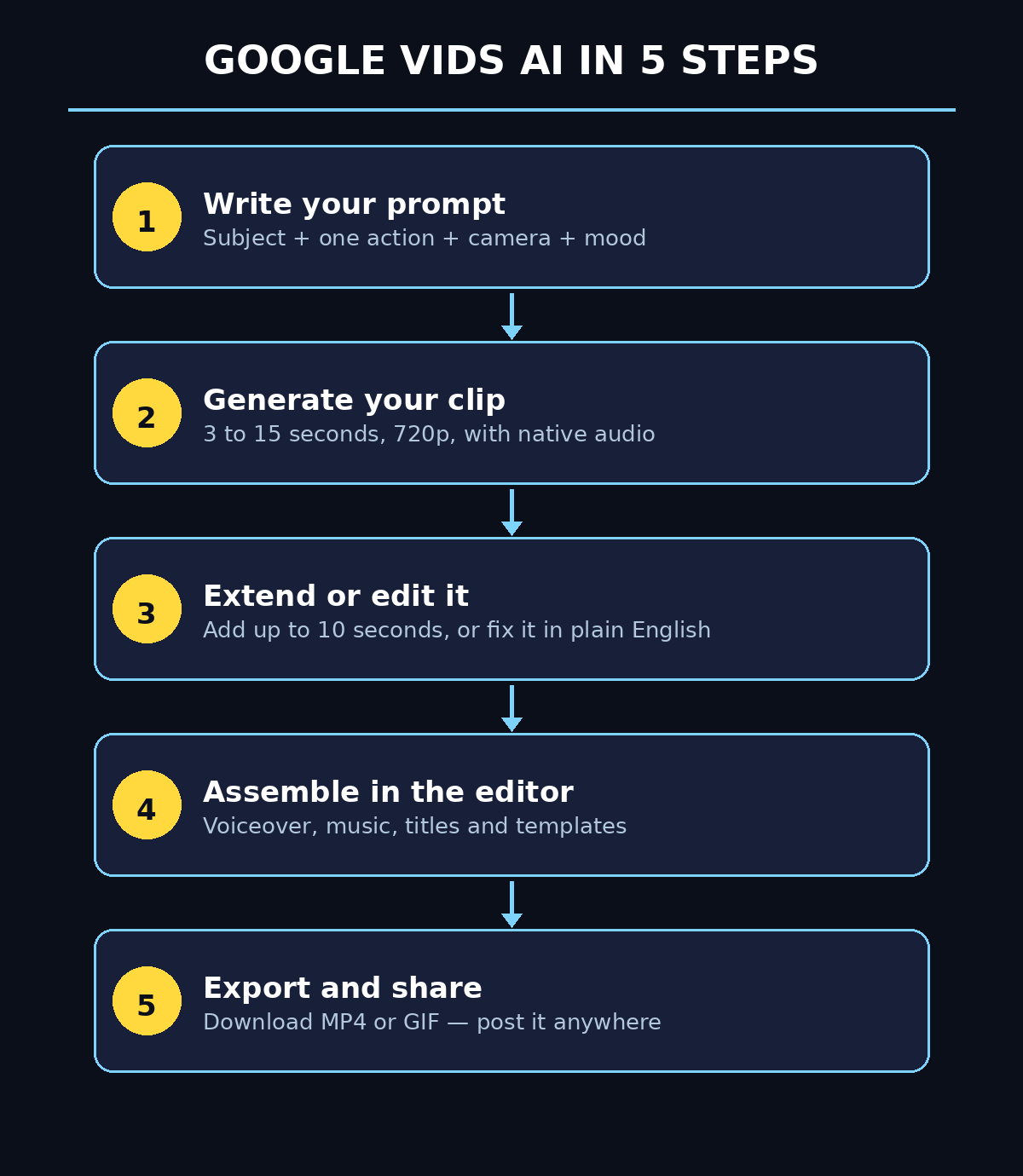
Step 1: Understand What Google Vids AI Is — and What Changed on November 5, 2026
Google Vids is Google’s online video editor. It lives in your browser, saves automatically to Google Drive, and is built around a simple idea: start from a template or a prompt, and let AI do the heavy lifting. Until recently, its AI video clips were short — around 10 seconds — and ran on the older Omni 1.1 Flash model. The November 5, 2026 update changed three things that matter for beginners.
- Longer clips: you can now generate clips of 3 to 15 seconds, up from 10 seconds before. Fifteen seconds is enough for a complete product shot, a joke, a scene, or a hook for a short-form video.
- Native audio: Omni 1.2 Flash generates sound together with the picture — dialogue, ambient noise, and music that actually matches the scene, instead of a silent clip you have to fix later.
- A real free tier: Google’s announcement says anyone with a Google account or Workspace subscription can generate up to three 15-second videos per month in Vids at no cost. There is no trial countdown and no card on file.
One honest note before you start: Google’s own help page lists the free allowance as 60 seconds of AI clips a month for personal accounts, while the announcement says three 15-second videos. Sixty seconds would allow four clips, so the safe plan is to count on three and treat a fourth as a bonus. Limits can change, so always check the counter inside Vids before you plan a big project around the free tier.
Everything Vids generates carries SynthID, Google’s invisible watermark that marks content as AI-generated. That is a good thing — it keeps your work honest and protects you if someone asks whether a clip is real footage.
Step 2: Check What You Get Free Before You Start
Free is only useful when you know exactly where it ends. Here is the free picture for Google Vids AI as of November 2026, gathered from Google’s own announcement and help pages.
- Clip length: 3 to 15 seconds per clip, your choice.
- Monthly allowance: up to three 15-second clips a month free (help page: 60 seconds a month for personal accounts).
- Resolution: 720p for generated clips, which is sharp enough for social media, presentations, and website embeds.
- Cost: $0. No Google AI plan is required, and no payment method is requested.
- What costs money: if you need more than the free allowance, the same model through the Gemini API is a paid, pay-as-you-go service at about $0.07 per second of 720p video — so a 15-second clip costs roughly $1.05 there. Inside Vids itself, paid Google AI plans get much larger monthly allowances (Ultra, for example, includes thousands of seconds a month).
Because the free allowance is small, treat every clip like film, not like a free sample. Draft your prompt carefully, test the idea in Google Flow first if you have daily credits there, and only spend Vids seconds on the version you actually want to keep. We will come back to this in Step 10.
Step 3: Open Google Vids and Create Your First Project
Getting started takes about a minute, and there is nothing to install.
- Open Vids: go to vids.new in your browser on a computer and sign in with your Google account. That shortcut takes you straight into a new project.
- Pick a starting point: Vids offers a blank project or a template — product promo, training video, announcement, celebration, and more. For your first clip, choose a blank project so you can see the AI video tool clearly.
- Find the AI video tool: from the creation menu, choose the option to create AI videos. Vids opens its video-generation panel, with the model already set to Omni — currently the only video model in Vids, so there is nothing to choose or configure.
- Check your allowance: the panel shows how much of your monthly video allowance remains. If it shows zero, you have already used this month’s free clips and will need to wait for the reset or use Google Flow’s daily credits instead.
Everything is saved to Google Drive automatically, so you never lose work if the browser crashes. If you already use Docs or Slides, Vids will feel familiar: the same sharing buttons, the same Drive folders, and the same Google account.
Step 4: Write a Prompt That Actually Works
Your prompt is the whole production crew — director, camera operator, and sound designer in one sentence. Weak prompts give you generic, wandering clips. Good prompts are specific about four things: subject, action, camera, and mood.
- Subject: say exactly what is in the shot. “A ceramic coffee mug on a wooden table” beats “a coffee mug.”
- Action: describe one clear movement. “Steam rises and a hand lifts the mug” beats “a nice morning scene.”
- Camera: name the shot. “Slow push-in, eye level” or “wide static shot” tells the model how to frame it.
- Mood and sound: add lighting and audio. “Warm morning light, soft café ambience, gentle background music” gives the model its sound design.
Try this formula for your first prompt: [subject] + [one action] + [camera move] + [lighting and sound]. For example: “A ceramic coffee mug on a wooden café table, steam rising as a hand lifts it, slow push-in at eye level, warm morning light, soft café ambience.” That single sentence produces a usable product shot most of the time.
Two beginner mistakes to avoid: first, stuffing three scenes into one prompt — Omni 1.2 Flash is strongest with one scene per clip, so split a story into separate clips and stitch them together in the editor. Second, writing dialogue you have not tested — keep spoken lines short and simple, because the model speaks exactly what you write, including any awkward phrasing.
Step 5: Generate Your First 15-Second Clip
Now the fun part. With your prompt ready, generating a clip is a three-click job.
- Paste your prompt into the video-generation panel and set the duration — 15 seconds if you want the maximum free value, shorter if the scene only needs a few seconds.
- Choose landscape or portrait depending on where the video will live: landscape for YouTube and presentations, portrait for Shorts, TikTok, and Reels.
- Press Generate and wait. A 15-second clip takes about a minute to render. A progress bar shows the percentage, and the finished video appears in the panel when it reaches 100%.
- Watch it before you insert it. Check the motion, the hands and faces, and — most importantly — listen to the audio. If the dialogue sounds wrong or the action drifts, regenerate with a tightened prompt rather than spending more allowance on a clip you will not use.
- Insert the clip into your project timeline when you are happy with it. It appears as a normal video clip you can trim, move, and combine with other scenes.
Remember that each generation spends seconds of your monthly allowance, so a failed experiment still counts. That is why Step 4 matters: a careful prompt is the cheapest way to save your free clips.
Step 6: Keep Characters and Products Consistent with Reference Images
The biggest frustration with AI video is that the same character looks different in every clip. Google Vids solves this with reference images: you can upload a photo of a person, a product, or a place, and Omni 1.2 Flash will build the clip around it. The model supports image-to-video from a start image and reference-based generation, so the face, the logo, or the packaging stays recognizable from one clip to the next.
- Use a clear reference: upload a well-lit, front-facing photo with a plain background. Blurry or busy photos give the model less to hold on to.
- Name the reference in your prompt: write something like “the woman in the reference photo walks through a bright modern office, smiling at the camera” so the model knows the image is the character, not just a mood board.
- Reuse the same reference for every scene: consistency comes from using one reference image across all clips of a project, not a different photo each time.
- Check likeness in the first clip: before generating three more scenes, watch the first one closely. If the face or product drifts, try a cleaner reference photo or simplify the prompt before spending more allowance.
This feature is what turns Vids from a toy into a real tool for small businesses. A shop owner can photograph one product and generate a month of short promo clips around it; a teacher can keep the same presenter character across a whole lesson series. If you create videos for clients, this is also where a digital agency workflow starts — consistent, on-brand clips produced in minutes instead of booked shoot days.
Step 7: Extend a Clip When 15 Seconds Is Not Enough
Sometimes a scene needs a little more room — a punchline that lands two seconds late, or a product shot that deserves a slow finish. Vids lets you extend a clip by up to 10 seconds per call, growing it to about 25 seconds, and you can extend again to go longer, up to roughly 34 seconds in total.
- Select the clip you want to continue and choose the extend option.
- Describe what happens next in one or two sentences — the model continues from the last frame, keeping the same scene, character, and lighting.
- Keep the continuation simple: one new action, not a plot twist. “The camera slowly pulls back to reveal the full café” works better than introducing a new character mid-extension.
- Remember the cost: extension seconds come out of the same monthly allowance, so a 15-second clip extended by 10 seconds costs 25 seconds of your budget.
For most beginners, extensions are best used sparingly — one strong extension on your hero clip, rather than extending everything. A tight 15 seconds that ends on time usually beats a padded 25 seconds.
Step 8: Edit Any Clip with a Plain-English Instruction
Regenerating a whole clip because the background is wrong wastes allowance. Vids now lets you edit up to 15 seconds of an existing clip with a text instruction, using the same Omni 1.2 Flash model. You describe the change; the model re-renders the clip with that change applied.
- Change the setting: “move this scene from a café to a sunny park” keeps the subject and action while swapping the environment.
- Change the mood: “make the lighting warmer and more golden, like sunset” adjusts the whole feel of the clip in one instruction.
- Fix small details: “remove the cup from the table” or “change the shirt to dark blue” targets one element without touching the rest.
- Keep edits to one change at a time. Asking for five changes in one edit instruction confuses the model and usually produces a worse result than two separate, focused edits.
Edits are also how you rescue a clip that is 90% right. Before you throw away a generation and spend fresh seconds, try one edit instruction — it is often the difference between a wasted clip and a finished one.
Step 9: Turn Clips into a Finished Video
A single clip is a shot; a video is a story. Vids is a full editor, so once your AI clips are on the timeline, you can build a complete video around them without opening another app.
- Arrange scenes in order: drag clips into sequence — hook first, product or explanation in the middle, call to action at the end.
- Add a voiceover: record narration directly in Vids, or use its AI voiceover to read your script. Keep sentences short and conversational; a calm, natural delivery always beats an energetic shout.
- Add text and titles: overlay your headline, prices, or key points so the video still makes sense with the sound off — most social viewers watch muted at first.
- Add music: pick a background track and keep it clearly quieter than the voiceover, so the words stay easy to hear.
- Use templates: if you are stuck, start from a Vids template for your use case — product promo, training, or announcement — and replace its placeholder scenes with your own AI clips.
This is also where a little outside help pays off: if video becomes a regular part of your marketing, AI automation services can turn this manual workflow into a repeatable pipeline — prompts, clips, and publishing handled the same way every week. But even on your own, one afternoon in Vids is enough to produce a month of short videos for a small channel or shop.
Step 10: Export, Download, and Share Your Video
When the timeline looks right, watch the whole video once from start to finish — with sound — before you export. Check that every clip plays, the audio is clear, and the text is spelled correctly. Then export.
- Download as MP4 for YouTube, your website, or anywhere else video is accepted. MP4 is the safest all-round format.
- Download as GIF when you need a short looping clip for a chat, an email, or a social reply — Vids offers both from the File menu.
- Share from Drive: because Vids projects live in Google Drive, you can share the project link with a teammate for comments or edits, just like a Doc.
- Post where your audience is: the same 15-second clip can become a YouTube Short, a TikTok, a Reel, or a website hero video — just export in the right orientation for each platform.
One last check before you publish anything: remember the SynthID watermark is invisible, not a visible logo, so add your own caption or disclosure when a clip is AI-generated. Honesty builds trust, and it costs nothing.
Google Vids AI vs Google Flow vs the Gemini App: Which Free Route Fits You?
Omni 1.2 Flash is free in more than one place, and the routes have different limits. Pick the one that matches what you are making.
| Feature | Google Vids (free) | Google Flow (free) | Gemini app (free) |
|---|---|---|---|
| Clip length | 3–15 seconds | Up to 10 seconds | No video generation |
| Free allowance | 3 × 15-second clips a month (60 seconds per help page) | 50 credits a day | Video needs a Google AI plan |
| Resolution | 720p | 360p or 720p | — |
| Full video editor | Yes — timeline, voiceover, templates | No — clip generation only | No |
| Best for | Finished short videos | Testing prompts daily | Text and images only |
| Cost | $0, no card | $0, no card | $0, but no video |
The smart beginner workflow uses both free routes: draft and test prompts in Google Flow, where the daily credits are generous, then spend your three precious Vids clips on the winners and assemble them into a finished video in the Vids editor. That way you never waste a monthly Vids clip on a prompt you have not already proven.
Frequently Asked Questions
Is Google Vids AI really free?
Yes. Anyone with a Google account can generate up to three 15-second AI videos a month in Google Vids at no cost, with no card required. Google’s help page lists the allowance as 60 seconds a month for personal accounts. Paid Google AI plans add much larger allowances, and the Gemini API charges about $0.07 per second if you build with the model yourself.
How long can a Google Vids AI clip be?
Each generated clip is 3 to 15 seconds long. You can extend a clip by up to 10 seconds per call, reaching about 25 seconds after one extension and roughly 34 seconds after repeated extensions — but every extra second comes from the same monthly allowance.
Do I need a paid Google AI plan to use Omni 1.2 Flash?
No. Omni 1.2 Flash works in Google Vids for free accounts, and in Google Flow with 50 free credits a day. The Gemini app is the exception: 15-second video generation there is rolling out to Google AI Ultra subscribers. The API has no free tier at all.
Can I use Google Vids AI videos commercially?
Google’s announcement presents Vids as a tool for work and marketing videos, and generated clips are yours to use in your projects, including business content. Everything carries an invisible SynthID watermark marking it as AI-generated, so disclose AI use where your platform or audience expects it, and avoid generating clips that impersonate real people or copy copyrighted material.
What if my free clips run out mid-month?
Your allowance resets monthly. While you wait, you can keep working in Google Flow — free accounts get 50 credits a day for clips up to 10 seconds — and plan your next Vids clips carefully. If you regularly need more, a Google AI plan or the pay-as-you-go API (about $1.05 per 15-second clip at 720p) is the next step.
Why does my clip look different from my prompt?
Three usual causes: the prompt asked for more than one scene, the description was vague about camera and action, or the reference image was unclear. Fix it by splitting the idea into one scene per clip, adding the subject, action, camera, and mood to the prompt, and using a clean, well-lit reference photo.
Final Thoughts
Google Vids AI is the most beginner-friendly free video generator Google has ever shipped: open vids.new, type a sentence, and a minute later you have a 15-second clip with matching sound — no software, no credits card, and no editing degree required. The free tier is small on purpose, so the skill that matters most is not prompting, it is planning: test ideas where credits are free, spend your three monthly clips on winners, and let the editor turn them into a finished video.
Start today with one clip. Pick a single scene for your business, your channel, or just for fun, write the prompt using the four-part formula from Step 4, and watch what Omni 1.2 Flash makes of it. Your first video is one sentence away — and next month, you get three more chances to make it even better.
Explore More Free AI Tools
Want to keep building your free AI toolkit? Try the AI Title Generator, Meta Description Generator, AI Rewriter, and Keyword Density Checker on AIToolSteps — free tools that pair perfectly with the videos you just learned to make.