

AI agents can already write your code, draft your emails, and plan your week. But ask one to do something simple on a phone — book a ride, post a photo, or test an app on a real iPhone — and it usually stops and waits for you. It has no hands. That is the exact problem Glasshand AI solves: it gives your AI agent a real iPhone and a real Mac of its own, sitting in a data center, ready to use like a person would. This guide shows you how to use Glasshand AI for beginners, step by step.
Glasshand launched on Product Hunt on November 2, 2026, and climbed to the number one spot on November 5, 2026. It comes from the team behind Solid, graduates of MIT, Berkeley, and Waterloo, who raised $6 million to build toward one goal: agents with human-level autonomy. In this beginner-friendly guide, you will learn what Glasshand AI is, how to set it up, how to connect it to Claude Code, Codex, or Cursor, and how to use it safely — no technical background needed.
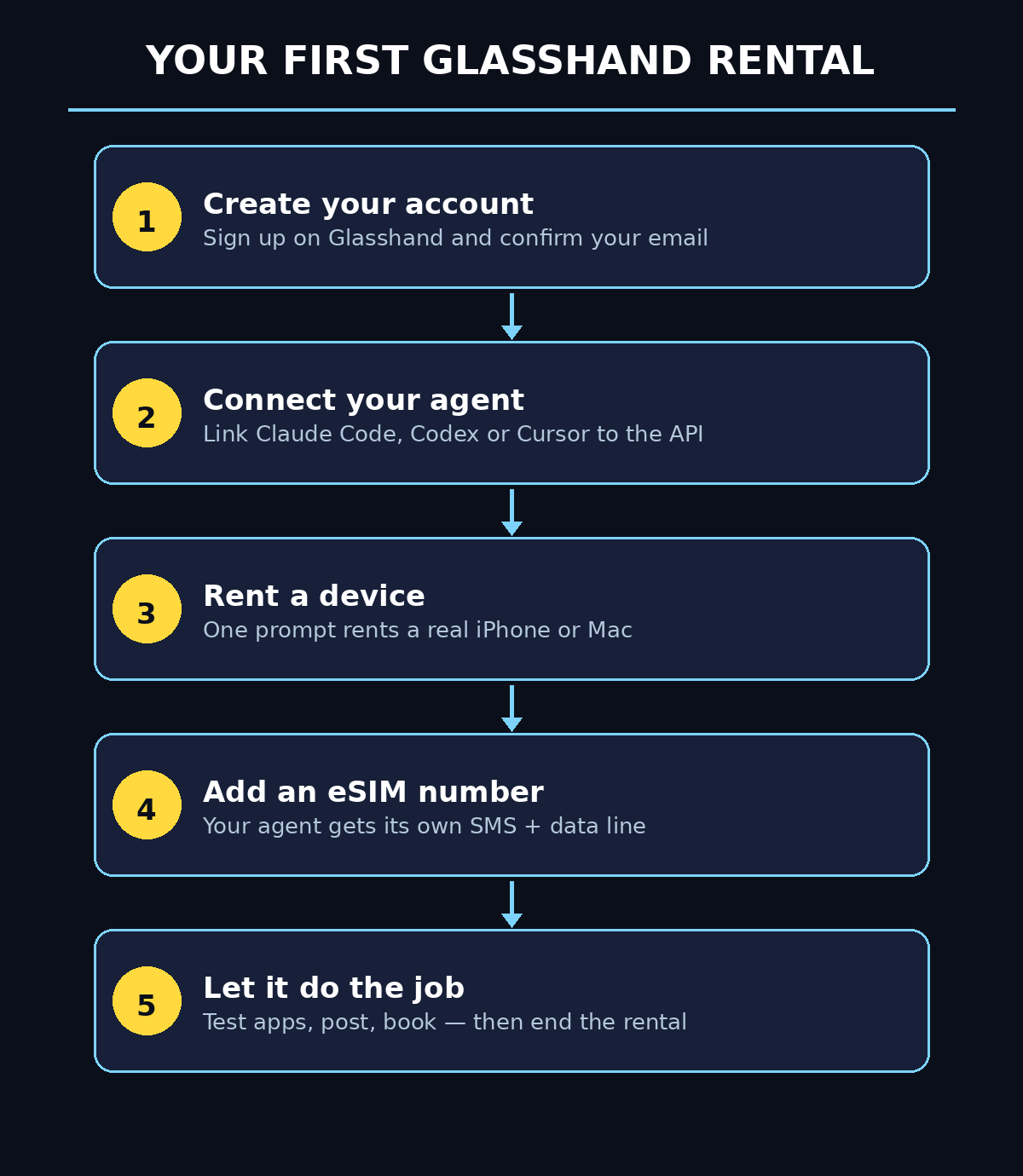
Step 1: Understand What Glasshand AI Actually Gives Your Agent
Glasshand AI for beginners is a rental service for real Apple hardware. Your AI agent does not get a simulator, an emulator, or a virtual machine. It gets a physical iPhone and a physical Mac housed in Glasshand’s data center, and it controls them through an API — the same way you would tap, type, and swipe on your own phone.
Why does “real” matter so much? Many apps behave differently on real hardware than they do in a simulator. Banking apps, ride-hailing apps, and social apps often refuse to run on emulators at all, and Apple services such as iCloud simply work better on a real device. With Glasshand, your agent steps inside the Apple ecosystem instead of looking at it from the outside.
Here is what your agent can do with a rented device:
- Develop an iOS app on the Mac and test it on the physical iPhone
- Sign in to your iCloud account and use Apple apps the way you would
- Book a ride on Uber or order food through a real app
- Post on TikTok and Instagram from a real phone
- Receive SMS verification codes on its own phone number
The key idea is simple: your agent stops asking you to “open the app and tap the button” and starts doing it itself. That is the whole point of Glasshand AI for beginners — you do not need to learn a new tool; you give the agent you already use a pair of hands.
Step 2: Check What You Need Before You Start
Glasshand AI for beginners is refreshingly light on requirements. Before you begin, make sure you have these three things ready:
- An AI agent account you already use. Glasshand works with any agent — Claude Code, Codex, Cursor, or whatever you already use. You bring your own agent account and pay Glasshand only for the device rental.
- An email address for your Glasshand account. This is where your rental confirmations and device details arrive.
- A clear first task in mind. Pick one small job for your first rental — for example, “test my app’s login screen on a real iPhone” — so you can judge the service quickly.
You do not need to own an iPhone or a Mac yourself. That is the beauty of the service: the hardware lives in Glasshand’s data center, and you rent it only for as long as you need it. You also do not need to install any software on your own computer to get started — the connection happens through the Glasshand API, which your agent talks to directly.
Step 3: Create Your Glasshand Account
Your first real step in learning how to use Glasshand AI for beginners is to create an account on Glasshand’s official launch page. Because Glasshand is brand new — it launched in early November 2026 — the smoothest way to find it right now is through its Product Hunt launch page, where the makers themselves answer questions from early users.
- Open the Glasshand page on Product Hunt and read the makers’ own description of the service.
- Follow the link to the official Glasshand website from the launch page.
- Sign up with your email address and choose a strong password.
- Confirm your email address through the verification message Glasshand sends you.
- Sign in to your new Glasshand dashboard.
Take a minute to look around the dashboard before you rent anything. You should be able to see the available devices, your rental history, and your account settings. If anything looks confusing, remember that the makers are actively answering questions on their Product Hunt launch page — new products usually have the friendliest support of their life in the first few weeks.
One useful habit: decide in advance how long you need a device. You get each device to yourself for the whole rental period, and you set the password yourself — Glasshand says it cannot see your password. When your rental ends, Glasshand erases your data and factory-resets the device, so the next renter starts completely clean.
Step 4: Connect Your AI Agent (Claude Code, Codex, or Cursor)
This is where Glasshand gets clever. You do not drive the rented iPhone yourself. Your AI agent does — through the Glasshand API. The setup looks like this:
- Claude Code users: point your agent at the Glasshand API so it can rent and control devices with a single prompt.
- Codex users: the same idea — your Codex agent talks to Glasshand through the API and treats the rented Mac or iPhone as its own machine.
- Cursor users: connect Cursor to the Glasshand API the same way, so your coding agent can build on the Mac and test on the iPhone without you touching either device.
The exact connection steps for Glasshand AI for beginners depend on which agent you use, and Glasshand’s own documentation will have the current instructions, because the product is only days old and the team is still polishing the setup flow. The principle, however, stays the same for every agent: you give your agent access to the Glasshand API, and from then on a plain-language instruction such as “rent an iPhone and test my app” is enough.
If you already use AI agents for coding, this step will feel familiar — it is the same pattern as giving an agent access to any other tool. And if you are new to agents entirely, start with just one: Claude Code is a good first choice, because its plain-language instructions map naturally onto Glasshand’s “one prompt rents a device” idea. For a broader look at what agents can do for you once they have real tools at their disposal, our guide on how to use Rerun AI for beginners shows how AI subscriptions can turn into a team of coworkers that run tasks on a schedule.
Step 5: Rent Your First iPhone or Mac With One Prompt
Once your agent is connected, renting a device is almost anticlimactic — and that is the point. You describe what you need in plain language, and your agent rents the device through the Glasshand API.
A good first rental prompt looks like this: “Rent an iPhone from Glasshand, sign in with my test iCloud account, and check whether my app’s login screen works on a real device.”
What happens behind the scenes:
- Your agent requests a device from Glasshand’s data center.
- Glasshand assigns you a clean, dedicated device — an iPhone SE (3rd generation) at launch, with other models planned.
- The device starts clean, with no leftover data from any previous renter.
- Your agent receives access and begins working on the real hardware.
Keep your first Glasshand AI for beginners rental short and focused. Test one feature, post one photo, or book one ride. A small success teaches you more about the service than a long, complicated first job — and if something goes wrong, you will know exactly which step failed.
Also note the current pricing picture honestly: Glasshand is listed as free on Product Hunt at launch, and the makers have confirmed that users who bring their own agent accounts pay Glasshand only for the device rental. The makers have not publicly defined detailed pricing tiers or per-minute rates yet, so check the official pricing page before you commit to a long rental. For small businesses weighing whether rented devices are worth it, a digital agency can help you work out the real cost of manual phone testing versus letting an agent handle it.
Step 6: Give Your Agent Its Own Phone Number With eSIM
Here is the feature that surprises most beginners: because these are real iPhones, you can add an eSIM plan with SMS and mobile data. That gives your agent its own phone number and its own cellular connection.
Why does this matter? Think about how many everyday tasks stop at a verification code. An app asks you to confirm a login, a service texts you a one-time code, or a delivery app needs a phone number. Until now, your agent had to wait for you to read the code from your own phone and pass it along. With Glasshand’s eSIM, the code arrives on the agent’s own iPhone, and the agent reads it and continues — no human in the loop.
To use it:
- Ask your agent to add an eSIM plan to the rented iPhone.
- Make sure the plan includes SMS and mobile data, so the phone works even without Wi-Fi.
- Use the agent’s number only for the tasks you actually delegate — keep your personal number separate.
- When the rental ends, the factory reset removes the eSIM along with everything else.
This single feature turns Glasshand AI for beginners from a neat demo into a genuinely useful tool. An agent that can receive its own verification codes can finish sign-ups, confirm bookings, and complete account setups that used to need a human halfway through.
Step 7: Put Your Agent to Work on Real Tasks
Now the fun part. Here is where Glasshand AI for beginners starts paying off. These are practical jobs Glasshand is genuinely good at, straight from the makers’ own examples:
- Test your iOS app properly. Build on the rented Mac, install the app on the rented iPhone, and tap through it exactly like a user would. Real hardware catches bugs that simulators miss.
- Manage social media. Have your agent post a photo to Instagram or a clip to TikTok from the real phone — posts from real devices behave exactly like posts from your own phone.
- Book rides and deliveries. Your agent can open Uber, check prices, and book a ride, or order lunch through a food app.
- Handle iCloud tasks. Sign in to iCloud and let your agent check mail, manage files, or sync photos, just as you would.
- Run repetitive phone chores. Checking in for a flight, confirming an appointment, or updating an app — the small jobs that eat your day are exactly the jobs agents are best at.
A good rule for choosing tasks: if the job needs a real app on a real phone, Glasshand is the right tool. If the job only needs a web browser or an API, your agent can probably already do it without renting a device. Teams building their first agentic workflows often find that pairing rented devices with proper AI automation services gives them a clear picture of which jobs should be automated and which still need a human.
Step 8: Keep Your Data Private and Secure
Handing an agent a real phone with your accounts on it sounds risky — and if you are learning how to use Glasshand AI for beginners, you should treat security seriously. Glasshand was built with three privacy promises that matter:
- Your device is yours alone. Glasshand assigns each rented device to one subscriber for the whole rental period. Nobody else shares it while you have it.
- Your password is yours alone. You set the device password yourself, and Glasshand states that it cannot see it.
- Your data is wiped afterwards. When your rental ends, Glasshand erases your data and factory-resets the device, including secure enclave artifacts and eSIM removal.
Even with those protections, follow these common-sense rules:
- Use a separate test account — not your main Apple ID — for your first rentals.
- Never store banking logins, personal photos, or sensitive documents on a rented device.
- Sign out of every account before ending a rental, even though the factory reset should handle it.
- Keep a note of exactly what you asked the agent to do, so you can check its work afterwards.
Think of a rented device like a hotel room: it is private while you are in it, it is cleaned after you leave, but you still would not leave your passport in the drawer.
Step 9: Know the Limits Before You Rely on It
Glasshand AI for beginners is exciting, but it launched in November 2026 — it is a brand-new product, and honest beginners should know its limits before building a business on it:
- Only one iPhone model at launch. Only the iPhone SE (3rd generation) is in rotation right now. The team plans other screen sizes and models, but if you need to test on a large-screen iPhone, you will have to wait.
- Camera tasks do not work yet. The service does not support camera tasks right now — anything that needs the camera, like scanning a QR code, will not work yet. The team says it is developing a way to present images to the cameras, but it is not available yet.
- Pricing is not yet public. The makers say you pay only for the device rental when you bring your own agent account, but detailed rates are not published yet. Budget carefully for longer rentals.
- The setup flow is still young. Documentation and onboarding will improve quickly, but expect a few rough edges in the first weeks — that is normal for a product this new.
None of these limits makes Glasshand useless. They just mean you should start with small, low-risk tasks and grow into bigger ones as the service matures.
Step 10: End Your Rental the Right Way
When you are done with Glasshand AI for beginners, finishing cleanly matters as much as starting well. When your task is done, close the rental properly:
- Ask your agent to sign out of every app and account on the rented devices.
- Download or copy anything you need to keep — screenshots, test results, or files — to your own computer.
- End the rental through your Glasshand dashboard or by telling your agent to release the device.
- Confirm the rental has ended and check that you are no longer being billed for it.
- Review what the agent did, and note anything you would do differently next time.
The factory reset then wipes the device for the next renter. Your data is gone, your accounts are signed out, and the phone is ready for someone else — exactly as it should be.
Glasshand vs the Alternatives
| Option | Real Apple hardware | Runs real iPhone apps | Own phone number (SMS codes) | Cost to start |
|---|---|---|---|---|
| Glasshand AI | Yes — real iPhone and Mac | Yes | Yes, via eSIM | Listed free at launch; rental pricing TBC |
| iOS simulator / emulator | No — software only | Often blocked or different | No | Free, but limited |
| Buying your own test devices | Yes | Yes | Only with your own SIM | Hundreds of dollars per device |
| Hiring someone to tap through apps | Yes, their phone | Yes | No — uses their number | Ongoing hourly cost |
The table makes the trade-off clear. Simulators are free but fake. Buying devices is real but expensive. Glasshand sits in the middle: real hardware, rented by the job, driven by an agent you already pay for.
Frequently Asked Questions
Is Glasshand AI for beginners free?
Glasshand is listed as free on Product Hunt at launch, and the makers say users who bring their own agent accounts pay only for the device rental. Detailed pricing has not been publicly announced yet, so check the official Glasshand page for the latest pricing before starting a long rental.
Which AI agents work with Glasshand AI for beginners?
Any agent can work with it. The makers name Claude Code, Codex, and Cursor as examples, but Glasshand is designed to work with whatever agent you already use — the agent talks to Glasshand through its API.
Is Glasshand a simulator or an emulator?
Neither. Glasshand rents you real, physical iPhones and Macs housed in a data center. Your agent uses real Apple apps and services, including iCloud, on real hardware.
Can my agent receive SMS verification codes?
Yes. Because the rented iPhones are real, you can add an eSIM plan with SMS and mobile data. That gives your agent its own phone number, so verification codes arrive on its phone and it can continue without waiting for you.
Is my data safe on a rented iPhone?
Each device is assigned to only one subscriber during a rental, you set a password Glasshand says it cannot see, and your data is erased with a factory reset when the rental ends. Still, use a test Apple ID and avoid storing sensitive personal data on rented devices.
What iPhone models does Glasshand offer?
At launch, only the iPhone SE (3rd generation) is available. Other models and screen sizes are planned, so check the current device list in your Glasshand dashboard before renting.
Final Thoughts
Glasshand AI for beginners is one of the most interesting launches of November 2026 because it solves a problem every AI agent user has felt: the agent is smart, but it has no hands. By renting your agent a real iPhone and a real Mac, Glasshand lets it do the phone jobs that used to stop it cold — testing apps on real hardware, posting from real apps, booking rides, and receiving its own verification codes.
Start small. Connect one agent, rent one device for one focused task, and use a test account. Learn the workflow, check the pricing as it is published, and keep an eye on the limits — the single iPhone model and the missing camera support will matter for some jobs and not at all for others. If your first rental goes well, you will have seen the future of agents: not just thinking for you, but actually tapping, typing, and doing on a real phone.
Explore More Free AI Tools
Want to keep exploring? Try our free tools on the AI Tool Steps homepage: the AI Title Generator for headlines that get clicks, the Meta Description Generator for search snippets, the AI Rewriter for polishing your drafts, and the Keyword Density Checker for keeping your content SEO-friendly. Every tool is free, and every guide on this site shows you how to use AI tools like a pro — one practical step at a time.